How to Add a Content Warning Before a QR Code Opens

Key Takeaway
Add a QR content warning in QRLynx with real screenshots, all eight Access Consent options and an anonymous tobacco-content example.
You can put a content warning or age-confirmation screen between a QR scan and its destination. In QRLynx, open an eligible dynamic QR, enable Access Consent, choose a message, then save the configuration and the QR itself. The visitor sees the notice before choosing whether to continue.
This works for more than video. A notice can introduce an image collection, a document, an educational resource or a website. Access Consent is included with paid Pro, Business and Enterprise plans. The walkthrough below uses the Website / Link type and shows the actual QRLynx editor and visitor screen.
A tobacco-content notice, with the customer kept anonymous
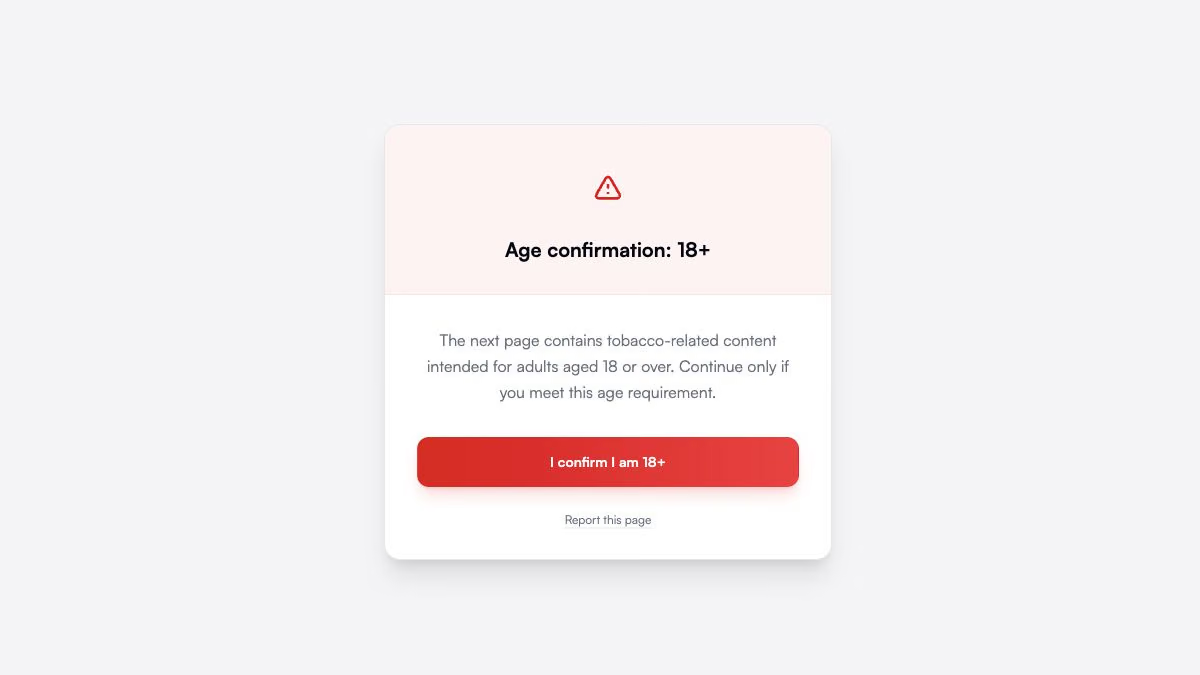
A QRLynx Enterprise customer has a use case for an age notice before tobacco-related content. We have recreated that scenario in a separate demonstration QR. The screenshots use illustrative wording and a neutral destination, not the customer's page, identity or campaign data.
The example asks the visitor to confirm they are 18 or over. That number demonstrates a setting, not a universal rule for tobacco. For example, the FDA states that the US minimum age for tobacco sales is 21. Choose the wording and threshold appropriate to your audience and jurisdiction.
An acknowledgement does not verify age. Although the menu calls its age presets “Age Verification,” this screen does not check a date of birth or identity document. Keep any required age verification, purchase restrictions and records at the destination.
How to add a content warning in QRLynx
Prepare the destination
Choose the exact page visitors should reach after the notice. Check its permissions and any required verification separately. This example uses a neutral website destination; replace it with your own URL.
Open Website / Link as a dynamic QR
Sign in to QRLynx and open the Access Consent feature page. Choose Website / Link and enter the destination in Create Dynamic QR. To change an existing QR, open that saved project instead of creating a replacement.
Open the Access Consent settings
Under QR Code Features, choose Access Consent and turn on Enable Access Consent. Use a paid Pro, Business or Enterprise account. Directly encoded static QRs and GS1 Digital Link do not use this gate.
Select the message and review it
In Select Message Type, choose a preset or Custom (write your own text). For the tobacco example, choose Custom, select Warning, then enter the title, message and button text shown below. Review the preview and keep the default remembered-consent setting checked.
Save the configuration, then save the QR
Choose Save Configuration to apply the settings to the editor. Then use Save QR for a new code, complete its name and folder, and choose the final Save button. For an existing saved code, choose Update. Reopen the saved project to check the message was retained.
Label and download the QR
Use a readable design and a label that sets the same expectation as the notice, such as “Read the content notice before continuing.” Download the saved QR. Do not put a different age threshold on the printed label.
Test the complete scan before printing
Scan the downloaded image on a phone in a browser that has not acknowledged this QR. Read the notice, check any terms link, then confirm that the continue button reaches the intended page. Test the actual printed size and material before distributing it. Revisit in the same browser to check the remembered acknowledgement.
Choose a preset when its wording fits
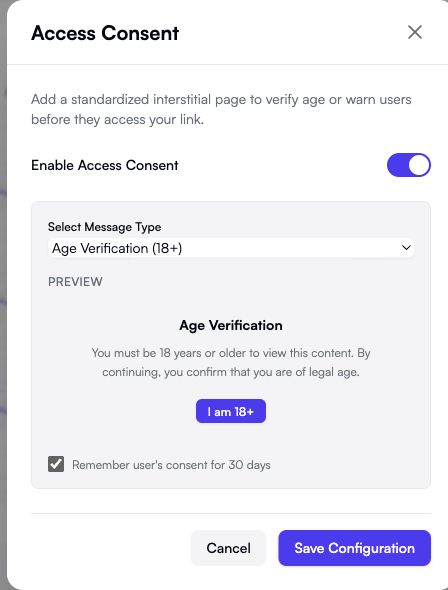
The message selector offers seven presets and a Custom option. Choose one message type for each QR. The presets have their own wording and button labels; use Custom when you need to change those words.
| Message type | Useful situation | Visitor button and setup check |
|---|---|---|
| Age Verification (18+) | An audience notice asking for an 18+ self-confirmation. | “I am 18+”. Check that 18 is the appropriate threshold for your use. |
| Age Verification (21+) | An audience notice asking for a 21+ self-confirmation. | “I am 21+”. Check the final visitor screen and the destination's own verification. |
| Sensitive Content Warning | A photo collection, report, story or video with potentially disturbing material. | “I Understand”. Read the preset; use Custom if you need to identify the specific content. |
| Terms & Conditions Agreement | A short acknowledgement with a link to the full terms. | “I Agree”. Enter the Terms Link and test that it opens the correct version. |
| Confidential Material | A reminder before material intended for an authorized audience. | “I Confirm”. Verify the destination's permissions; this notice does not authenticate the visitor. |
| Medical Disclaimer | Educational medical content that needs an informational disclaimer. | “I Understand”. Check the wording against the actual content; a disclaimer does not establish its accuracy. |
| Financial Disclaimer | Informational financial material that needs a disclaimer. | “Proceed”. Review the preset's past-performance and advice wording for relevance. |
| Custom (write your own text) | A specific audience, age statement or content notice that the presets do not describe clearly. | Your chosen button text. Review the title, message, icon and optional report-link label together. |
Write a custom notice for the tobacco example
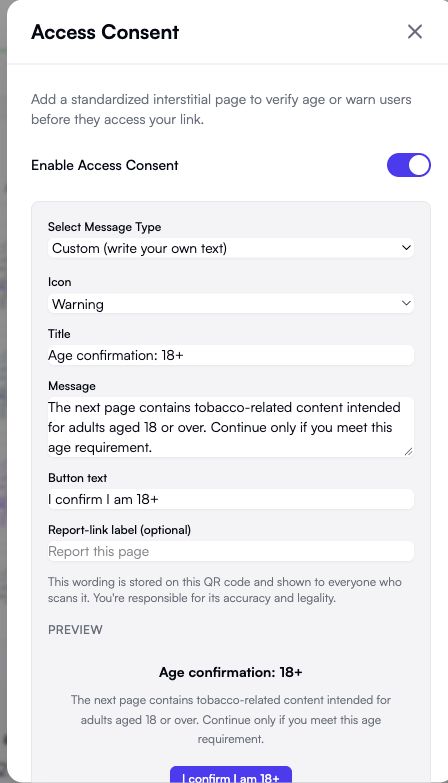
For this demonstration, choose Custom (write your own text) and select the Warning icon. The notice tells the visitor what is ahead and what their click means:
- Title: Age confirmation: 18+
- Message: The next page contains tobacco-related content intended for adults aged 18 or over. Continue only if you meet this age requirement.
- Button text: I confirm I am 18+
This sample explains the controls. Replace its age and wording with the requirements for your own content. It is not a claim that an 18+ click meets tobacco regulations.
What each custom field changes
The title supports up to 120 characters, the message up to 600 and the button text up to 48. Keep the notice short enough to read before the visitor taps. Name the content or condition clearly instead of using an unexplained “Continue.”
The icon choices are Age badge, Shield, Warning and Info. The custom Age badge shows 18+; changing the title does not change that badge. Use Warning or Info for custom wording with another threshold, or use the built-in 21+ preset when its standard message fits.
The optional report-link label supports up to 60 characters. It changes the words on the existing reporting link, not where the link goes. Leave it empty to keep “Report this page.” Custom mode does not add the Terms Link field.
For a non-age-related example, a report with injury photographs could use the title “Content warning: injury photographs,” a message explaining that the next page contains those images, and “I understand, open the report” as the button. The same approach can introduce sensitive written content or an image gallery. For hosting and permissions specific to video, follow the video QR code guide.
Use the terms preset when visitors need a separate link
Select Terms & Conditions Agreement to reveal Terms Link (Required). Enter the full URL of the terms visitors should read. Save the configuration and the QR, then open that link from the visitor screen to check the page and version.
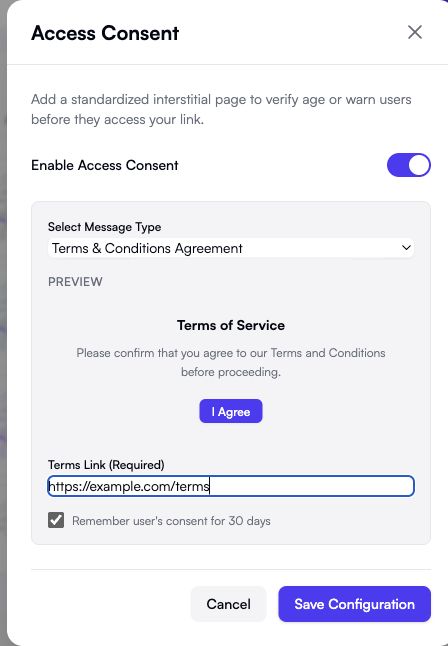
There is one selected message type per QR, so this does not create a stack of separate age, terms and warning screens. If you need identity checks, signatures or a record of the exact terms accepted, use an appropriate system at the destination.
Set up the notice for your QR
Open the Access Consent feature page to create an eligible dynamic QR or follow the same settings on your saved project.
Check the visitor experience
The saved demonstration displays the custom warning before its destination. The visitor has one continue button. Someone who does not want to proceed can close the page or go back; there is no separate Decline button or configurable decline destination.
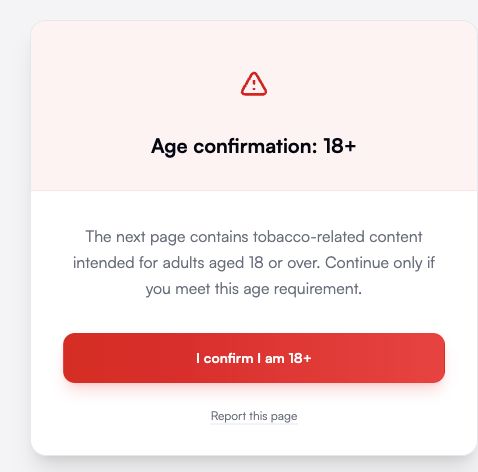
The current flow remembers the acknowledgement for 30 days in that browser for that QR. Another browser or device has its own state. Use a browser that has not acknowledged the QR when checking the first-visit screen. A repeat visit in the same browser is a separate check, because it may go straight to the destination.
Before distribution, check the complete journey:
- First visit: the intended warning appears before the destination, with readable wording and a matching button.
- Continue: the button reaches the correct destination, including any destination login or verification.
- Terms: if configured, the link opens the applicable terms.
- Repeat visit: the remembered acknowledgement behaves as expected in the same browser.
- Direct URL: opening the destination separately still enforces its own required controls.
- Printed QR: a phone reads the final design at the intended size, and its label matches the notice.
If the gate is missing, first check whether that browser already acknowledged it. Then reopen the saved QR and check that Access Consent is enabled and the final save completed. If the destination is wrong, check the URL stored on the saved project.
For restricted material, an acknowledgement alone is not an access permission. The password-protected QR guide explains the separate shared-password workflow. The destination should still enforce its own permissions when confidentiality matters.
Questions when setting up a QR content warning
Can I add the warning to a QR code I already printed?
Yes, if it is an eligible saved QRLynx dynamic QR. Open that existing project, configure Access Consent and choose Update. The managed QR route stays the same. A directly encoded static QR cannot gain this screen without creating and distributing a different QR.
Can I edit the text of a built-in warning?
Use Custom (write your own text) when you need different wording. The custom editor lets you set the title, message, button text, icon and optional report-link label.
How do I make a custom 21+ notice without showing an 18+ badge?
Select Warning or Info as the custom icon and state 21+ in the title, message and button. The custom Age badge shows 18+. If standard wording is sufficient, choose the built-in Age Verification (21+) preset.
Why does my browser skip the warning when I test it again?
The current flow remembers acknowledgement for 30 days for that QR in that browser. Check the first-visit screen in a browser that has not acknowledged the QR. Repeated scans in the same browser do not necessarily display the notice again.
Can Custom show a separate link to my terms?
The separate Terms Link field belongs to the Terms & Conditions Agreement preset. Choose that preset when you need the terms link. Custom does not expose that field, and changing its report-link label does not create a terms link.
Can visitors choose No and open a different page?
The current screen has one continue action. Visitors can go back or close the page, but Access Consent does not provide a separate decline button or a decline destination.
Can I see a list of people who accepted the notice?
No. Access Consent does not create a per-visitor acceptance or rejection audit trail. QR scan analytics are separate and do not prove that a named person accepted the notice. Use a dedicated recordkeeping system when that evidence is required.
Does an age gate make a tobacco page legally compliant?
An age-confirmation click alone does not establish compliance. It does not verify identity or date of birth. Requirements depend on the activity and jurisdiction; for example, the US minimum age for tobacco sales is 21. Use the appropriate controls at the destination.
Does the warning also appear when someone opens the destination URL directly?
No. The gate applies to the managed QR journey. Someone with the direct destination URL can open it separately, so the destination must enforce any required authentication, age verification or other restrictions itself.