How to Create and Update Dynamic QR Codes Using an API

Key Takeaway
Create a dynamic QR code with the QRLynx API, download its SVG and update its destination. Follow tested cURL steps, real screenshots and troubleshooting.
Create a dynamic QR code with a POST request, save its ID and short URL, then send a PATCH request to change its destination. The printed QR keeps the same encoded link. This tutorial uses the QRLynx QR Code API to create one URL QR, download its SVG and update the page it opens.
We tested this workflow against the live API on November 15, 2026. Creation returned 201, the update returned 200, and the short URL and SVG stayed unchanged. All public examples below use YOUR_API_KEY as a placeholder.
What you will build
Imagine a printed product card that first opens an introduction and later opens a detailed guide. Your application creates the QR once and stores its ID beside the product record. When the guide is ready, it updates the destination of that same QR.
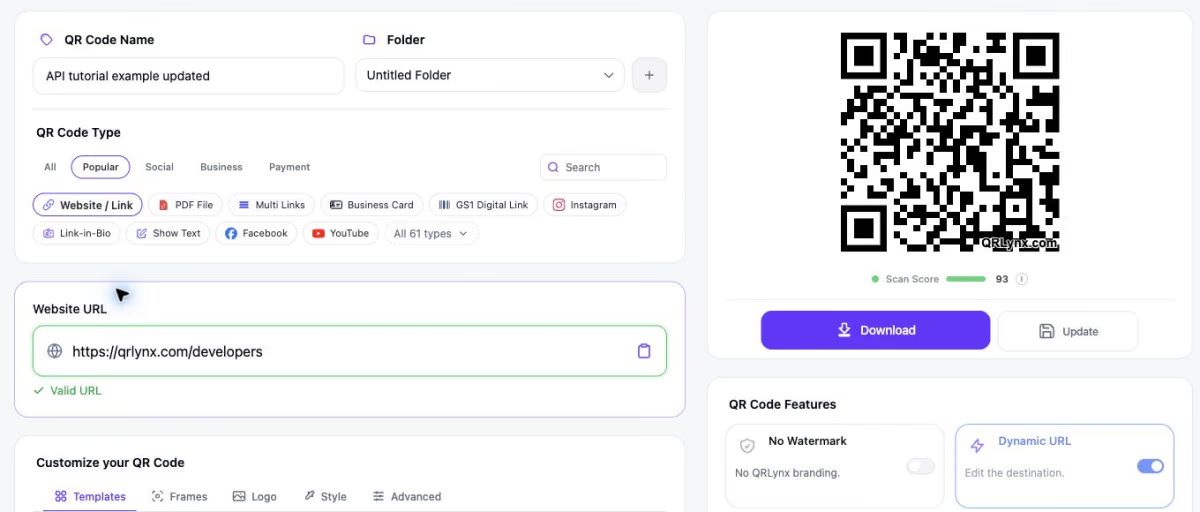
For a reproducible example, we first use https://qrlynx.com/qr-code-api, then change it to https://qrlynx.com/developers. Substitute pages you control when building your own integration.
A dynamic QR encodes a redirect link, not the final destination. Creating a new QR for the second page would produce a different code. Updating the saved ID is what preserves the original artwork. See how dynamic URL QR codes work for the underlying behavior.
Before you start
- A QRLynx Business or Enterprise plan with API access and available active dynamic QR capacity.
- Owner or admin access to the intended workspace and its API Keys screen.
- A terminal with cURL. The commands below use Bash-compatible quoting.
- A public HTTP or HTTPS destination that your visitors should open.
API v1 supports dynamic URL QR codes. Its create request accepts destination, optional name and optional type: "url". It is not an API for every QR type or every dashboard design control. Use the developer reference and OpenAPI specification when integrating the current endpoints.
How to create and update a dynamic URL QR with QRLynx
Create a scoped API key
In the intended QRLynx workspace, an owner or admin creates a read/write key. Business or Enterprise API access and available dynamic QR capacity are required. Keep the key on your server.
Create one dynamic URL QR
POST an HTTP or HTTPS destination and a recognizable name to /api/v1/qr. API v1 creates dynamic URL QR codes. Save the returned ID and short_url with your application record.
Download the SVG
Use the returned SVG or GET /api/v1/qr/YOUR_QR_ID.svg with the bearer key. Keep the original artwork and scan it to check the first destination.
Update the saved QR
PATCH /api/v1/qr/YOUR_QR_ID with the new destination and, optionally, a new name. Use the saved ID instead of creating another code.
Read back and test the original artwork
GET the same QR ID, confirm the new destination and unchanged short URL, then scan the original SVG again. Before printing, test the final design at its intended size and on its intended material.
1. Create a key with read and write access
Open API Keys in your QRLynx account, choose Create API key, give it a recognizable integration name and select Read and write (qr:read, qr:write). Then choose Create key.

Copy the key when it is shown and store it in your server's secret storage. The full key is displayed only once. A read-only key cannot create or update a QR.
Replace YOUR_API_KEY in each command with your own key in a private terminal. For an application, load it from server-side secret storage instead of embedding it in source code. Never put it in frontend JavaScript, a QR payload, a query string, a public repository or a screenshot. Take care with terminal history and shared logs.
2. Create one dynamic URL QR
Run this request once. It creates a new saved QR and uses one place in your active dynamic QR allowance.
curl --fail --silent --show-error \
  -X POST 'https://qrlynx.com/api/v1/qr' \
  -H 'Authorization: Bearer YOUR_API_KEY' \
  -H 'Content-Type: application/json' \
  --data '{"destination":"https://qrlynx.com/qr-code-api","name":"API tutorial example"}'
A successful creation returns HTTP 201. The JSON response contains id, type, name, destination, short_url and svg at the top level. There is no surrounding data object.
Save the returned id and short_url with your application's product or campaign record. In the following commands, replace YOUR_QR_ID with that returned ID. Do not use the short URL's final segment as the API ID.
The response's svg contains the QR artwork. You can save that string as an SVG file, or download the same QR through the dedicated endpoint in the next step.
3. Download and test the SVG
curl --fail --silent --show-error \
  'https://qrlynx.com/api/v1/qr/YOUR_QR_ID.svg' \
  -H 'Authorization: Bearer YOUR_API_KEY' \
  --output qr.svg
Open qr.svg and test it before putting it into artwork. The SVG request needs authentication; your visitors scan the returned public short URL and do not need your API key.
Scan the image with a phone and confirm that it opens the first destination. Keep a copy of this SVG for the next test. For a print campaign, also check the final exported design at its intended size and on the material you will use. Our QR code scanner can help inspect a supported image export.
4. Update the destination using the same ID
Send a PATCH request to the QR you just created. This example changes its destination and gives it a new name.
curl --fail --silent --show-error \
  -X PATCH 'https://qrlynx.com/api/v1/qr/YOUR_QR_ID' \
  -H 'Authorization: Bearer YOUR_API_KEY' \
  -H 'Content-Type: application/json' \
  --data '{"destination":"https://qrlynx.com/developers","name":"API tutorial example updated"}'
A successful update returns HTTP 200 with the QR's current details. You can send only destination or only name if that is all you need to change. An empty object is invalid.
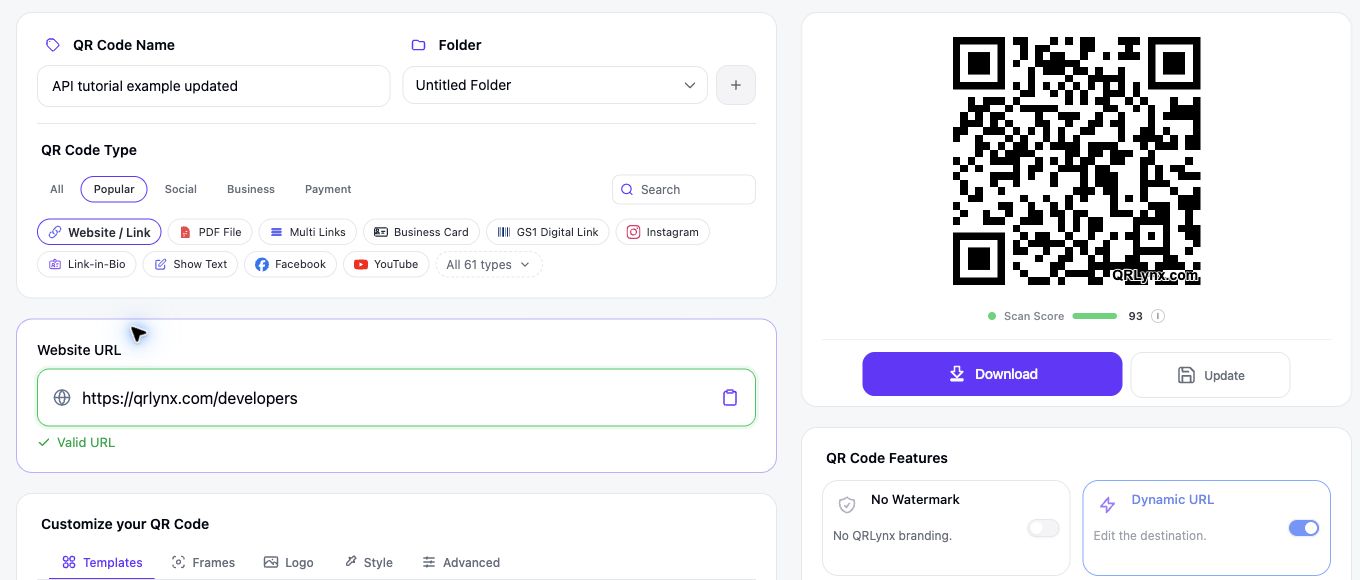
Scan the original SVG again. It should now open the new destination. You do not need to replace the QR artwork merely because its destination changed.
5. Read back the result
curl --fail --silent --show-error \
  'https://qrlynx.com/api/v1/qr/YOUR_QR_ID' \
  -H 'Authorization: Bearer YOUR_API_KEY'
Check that destination and name have the expected values and short_url is unchanged. This endpoint also returns scans, unique_scans, last_scanned_at and active. Treat these as scan activity, not proof of purchases or identified people.
Our live check received 201 for creation and 200 for the update, readback and SVG download. Before the update, the short URL redirected to the API feature page. Afterward, it redirected to the developer documentation. The downloaded SVG was byte-for-byte identical. These were HTTP redirect and file comparisons; they do not certify readability of a printed design.
Request limits and safe retries
The current configured allowances are 120 reads per API key per 60 seconds, shared by QR details and SVG requests; 60 creates per key per 60 seconds; and 20 updates per key per 60 seconds. An additional IP backstop allows 300 API requests per IP per 60 seconds before key authentication. These are usage budgets, not a promise that an instantaneous burst will succeed.
On HTTP 429, wait for the response's Retry-After interval. Queue work and pace retries. Where present, X-RateLimit-Limit, X-RateLimit-Remaining and X-RateLimit-Reset describe the per-key allowance; the reset value is Unix seconds. Earlier IP rejections do not include those per-key headers.
Do not blindly repeat a create request after a timeout. A request can succeed even when your application does not receive the response. Check the dashboard for the QR before creating another. Use a recognizable name and store each successful ID immediately. The current create schema does not expose an idempotency field or an application reference field.
If an update has an uncertain result and you know the ID, read that QR back before deciding whether another update is necessary.
Troubleshooting API requests
- 400, invalid request: send valid JSON with
Content-Type: application/json. Use an HTTP or HTTPS destination no longer than 2,048 characters. If supplied, the name must contain 1 to 120 characters after trimming. Remove unknown fields such aslogoorstatus. - 400, unsupported_type: API v1 handles dynamic URL QR codes. Another dashboard QR type, including GS1 Digital Link, cannot be managed through these endpoints.
- 401: check the bearer header and whether the key is missing, malformed, expired or revoked. A dashboard login cookie is not API authentication.
- 402: review the plan limit reported by the response and your active dynamic QR capacity.
- 403: check write scope, current API plan access and the account's eligibility. A key from an ineligible plan does not retain API access.
- 404: use the full returned QR ID and a key for the workspace that owns it.
- 429: follow
Retry-Afterinstead of retrying immediately.
Most API errors use an error.code object; validation and workflow errors may also include a message. Per-key rate-limit responses instead contain an error string and retryAfterSeconds. Handle the status and headers as well as the body, and consult the developer reference for the current response shapes.
Move the example into your integration
Keep API calls on your server, store the QR ID with the business record it belongs to, and reuse that ID for later updates. Fetch the SVG when your workflow needs artwork rather than repeatedly creating a QR for the same record.
Use separate, recognizable keys for integrations so you can revoke the right one if it is exposed or retired. We revoked the temporary key after this tutorial and verified that another authenticated request returned 401.
If you need an occasional spreadsheet batch instead of a running integration, the Google Sheets and Excel QR guide covers that workflow. For programmatic creation and updates, review QR Code API access and capabilities, then build your first integration from this tested request sequence.
Dynamic QR API questions
Can I update a printed QR code with an API?
You can update the destination of a dynamic QR created with a stable redirect URL. Use the saved QR ID in a PATCH request. A static QR that directly encodes the old destination cannot be repointed this way.
Do I need a new QR image after changing its destination?
Not for a destination-only update to the same dynamic QR. In our API test, the short URL and downloaded SVG remained identical after the update.
Can I use this API from JavaScript or Python?
Yes. A server-side HTTP client can send the same URLs, bearer header and JSON shown in the cURL examples. Keep the key on the server rather than in browser JavaScript.
Does API v1 create every QR type or accept logo settings?
No. Its current create operation supports dynamic URL QR codes with destination, optional name and optional type set to url. The update operation accepts destination and name. Other design fields are not part of this request schema.
Which plans include QRLynx API access?
Business and Enterprise include API access. Creation also requires available active dynamic QR capacity.
Where should I store the API key?
Store it in server-side secret storage and send it in the Authorization bearer header. Do not put it in browser JavaScript, a QR payload, a query string or a public repository.
What if a create request times out?
Check the dashboard before repeating the POST. The QR may have been created even if your application did not receive the response. Use a recognizable name and save each successful QR ID immediately.
Which fields can I change in an update?
The current PATCH request accepts destination, name or both. It requires at least one of those fields and rejects unknown fields.
What should my integration do when it is rate limited?
On HTTP 429, wait for the Retry-After interval. Queue requests and pace retries rather than immediately repeating them. Check the developer reference for current request budgets.