How to Use Your Own Domain for QR Codes

Key Takeaway
Set up your own QR code domain in QRLynx with real screenshots, CNAME steps, activation checks and fixes for common domain problems.
To use your own domain for a dynamic QR code, connect a dedicated subdomain, add its DNS record, wait for QRLynx to activate it, then save and test a QR that uses that hostname. QRLynx’s White-Label QR Codes feature provides branded redirect domains on Enterprise.
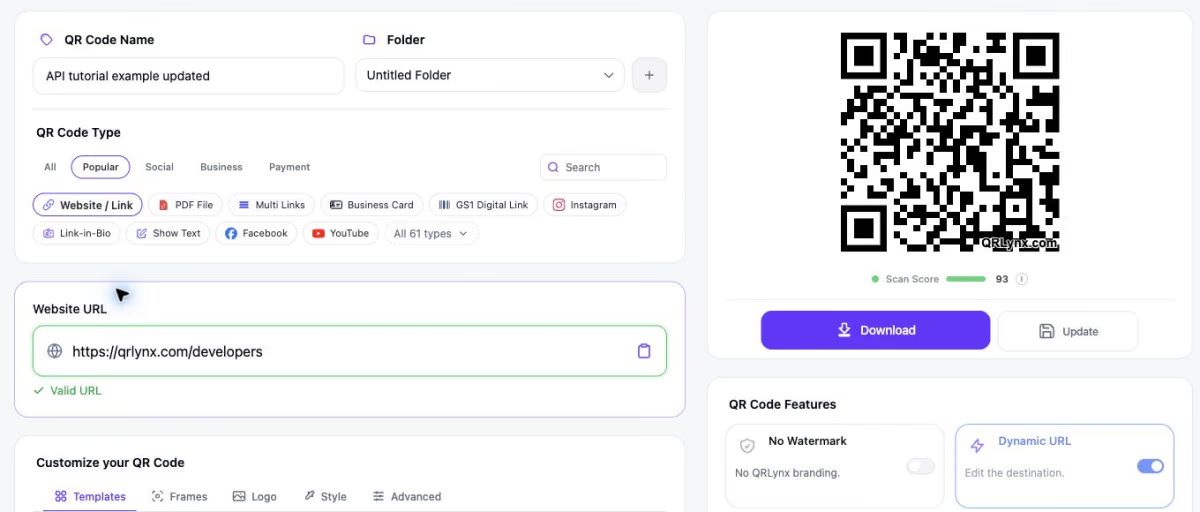
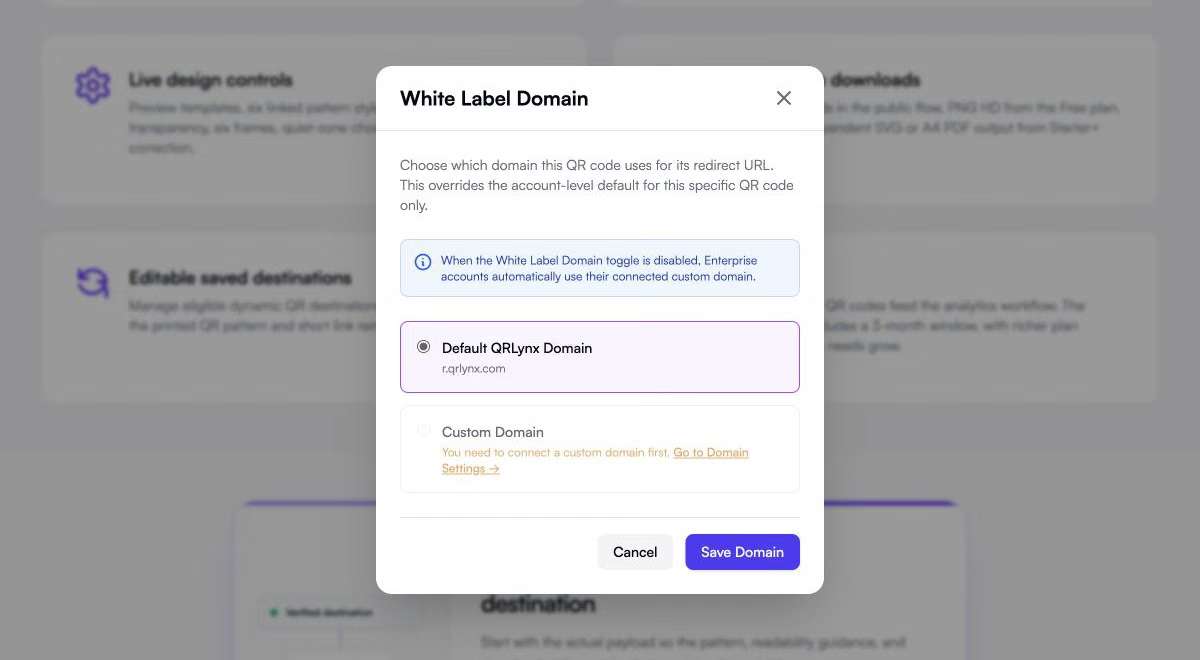
This tutorial uses qr.example.com to explain the setup. The screenshots show the real QRLynx form and domain selector before a domain is connected. The example hostname is not an activated service, and this walkthrough does not claim a completed live-domain test.
What your own domain changes
A dynamic QR contains a redirect URL. With an activated custom domain, that URL can use your brand’s hostname, such as https://qr.example.com/your-code, before forwarding the visitor to your destination. The short path in this example is illustrative; use the exact URL assigned to your saved QR.
The redirect hostname and the final destination are different settings. You might send a branded QR link to a product page, booking page or campaign landing page. Changing an eligible dynamic QR’s destination keeps its encoded redirect address, but changing the hostname encoded in the QR requires a new export and replacement of old printed copies.
This feature brands supported dynamic QR redirects. It does not replace the QRLynx dashboard or login branding, or move hosted bio and digital business card pages onto your domain.
Before you start
- An Enterprise workspace and an owner or admin who can connect the domain.
- Access to the authoritative DNS settings for a domain your business controls.
- An unused subdomain, such as
qr.yourbrand.com, reserved for QR redirects. - The final destination for a new Website / Link QR.
Use a dedicated subdomain so the setup does not replace the records serving your main website or email. The account screen presents a single managed-domain setup journey. If you need multiple brand domains, confirm the arrangement with QRLynx before planning the rollout.
How to use your own domain for QR codes in QRLynx
Choose an unused subdomain
Pick a hostname such as qr.yourbrand.com and check with your DNS administrator that it is not already used by a website or another service. Keep your main website and mail records unchanged.
Connect the hostname in QRLynx
Open Domain Settings in the correct Enterprise workspace at /account/domains. In Domain Name (Subdomain Recommended), enter the hostname without https://, a slash or a path. Select Connect Domain. The domain remains pending while setup is completed.
Add the DNS record
At your DNS provider, add the CNAME shown by QRLynx. For qr.yourbrand.com, the target is r.qrlynx.com. Enter qr in a Name field that automatically appends yourbrand.com, or the full hostname if the provider requires it. Save the record and check the resulting full name.
Wait for activation and HTTPS
Allow the DNS change to become visible and have QRLynx’s team complete domain activation. Check Domain Settings for the active state and Domain connected and SSL active message. A saved CNAME alone is not approval to print.
Choose the domain for the QR
Open a Website / Link QR in the generator, enter its destination and use Dynamic URL. Open White Label Domain to inspect or set the per-QR override. Once the connected domain is active, choose Custom Domain when you want an explicit custom-domain selection and select Save Domain.
Save and export the QR
Save the QR itself after changing its domain selection. Save Domain only updates that editor setting. Download a fresh QR export and keep it separate from any earlier file that used a different hostname.
Test the exported QR before printing
Decode the downloaded image with the QRLynx QR Code Scanner. Check its full hostname and short path, then open the decoded URL and confirm HTTPS and the final destination. Repeat on a phone and another network, then test a physical proof before approving the print run.
Enter the hostname without a URL prefix
In Domain Settings, enter only the hostname. For example, use qr.example.com, not https://qr.example.com or qr.example.com/sale. The destination page belongs in the QR editor, not this field.

If your domain is already listed, inspect its status instead of trying to connect it again. If the screen reports that the domain is already in use, check whether another workspace owns that connection and contact support before removing anything.
Map the DNS fields correctly
For the example qr.example.com, the intended DNS record is:
| Field | Example value |
|---|---|
| Type | CNAME |
| Name or Host | qr, when the provider appends example.com |
| Full resulting hostname | qr.example.com |
| Target or Value | r.qrlynx.com |
Some DNS dashboards accept the full hostname instead of the prefix. Check the final record name to avoid creating qr.example.com.example.com. The target is a hostname, with no https:// and no destination path. Cloudflare’s subdomain record instructions illustrate this Name and Target distinction.
If that hostname already has a record for another service, choose an unused subdomain or ask its administrator to resolve the conflict. Do not delete working records just to clear a setup error. If a DNS proxy is involved, ask QRLynx support to confirm the intended configuration.
The QRLynx interface notes that DNS changes can take up to 24 hours. That is DNS guidance, not a promised activation deadline. QRLynx’s team still needs to complete activation and HTTPS setup. Wait for the active state before generating production artwork.
Understand the default and the per-QR override
The White Label Domain control can override the account-level choice for a particular QR. Its toggle is easy to misread: when the toggle is disabled, Enterprise accounts automatically use their connected custom domain. Turning it off does not necessarily select a QRLynx hostname.
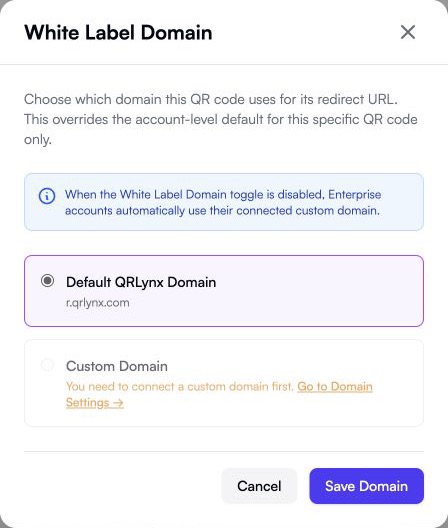
- Custom Domain: select the connected, active hostname for an explicit per-QR choice.
- Default QRLynx Domain: use a QRLynx-managed redirect hostname for that QR. Check the exported link for its actual assigned hostname.
- No per-QR override: the eligible account’s connected custom domain is used automatically.
Select Save Domain, then save the QR itself. For existing artwork, changing a setting on screen is not enough: decode the exact file that will be printed. If you are moving an already printed QR between providers, use the separate printed QR migration guide. Owning a hostname does not automatically preserve its short paths on another service.
Troubleshoot the point where setup stops
| What you see | What to check | Next step |
|---|---|---|
| The hostname is rejected | A URL prefix, path, spaces or an unsupported hostname | Enter only the domain you control, such as qr.yourbrand.com. |
| The domain is already in use | The connection may belong to another workspace | Confirm ownership and contact support. Do not remove another workspace’s connection. |
| DNS is missing or points elsewhere | Authoritative DNS provider, full Name, target and conflicting records | Correct the dedicated hostname record to the value shown in QRLynx. |
| DNS looks correct but status stays pending | DNS visibility and team activation are separate | Share the hostname and DNS record details with QRLynx support for activation review. |
| The browser reports an HTTPS error | Hostname spelling and activation status | Stop the print rollout and ask support to check HTTPS provisioning. Do not tell visitors to bypass the warning. |
| Custom Domain is unavailable in the editor | Enterprise access, correct workspace and active domain | Finish connection and activation, then reopen the editor. |
| The export still uses a QRLynx hostname | Explicit default-domain override, unsaved QR changes or an older download | Review the domain choice, save the QR and decode a fresh export. |
| The branded link opens the wrong page | The saved destination for that exact QR and short path | Correct the destination and test the full decoded URL again. |
| A previously working link stops | DNS changes, domain renewal, domain status, account and QR serving status | Preserve the existing configuration and ask support to investigate the exact URL. |
When asking for help, include the hostname, the full affected QR URL, its current domain status, the DNS record details, the time tested and the exact browser error. Keep credentials and account secrets out of screenshots.
Connect your brand to the QR redirect
Review Enterprise availability and the custom-domain workflow before preparing your production QR artwork.
Approve the exact link before printing
Use the QRLynx QR Code Scanner to decode the downloaded file. Record the full URL, including its short path. Testing only the bare hostname does not prove that your QR route works.
- Confirm the decoded hostname is the brand domain you intended.
- Open the full URL and confirm HTTPS without warnings.
- Follow the redirect and complete the intended visitor action, such as opening the correct product or booking page.
- Repeat on representative phones and both Wi-Fi and mobile data.
- Check a physical proof at its intended size and placement.
Keep the approved export and test date with the campaign record. Follow the QR readability checklist for design and print checks. Keep domain renewal and DNS responsibility assigned to someone, using the QR campaign handover guide when staff change.
Do not remove the domain while printed QRs still depend on it. The interface warns that removal breaks QR codes using that domain. Plan changes with support before retiring a live hostname.
Questions about using your own domain for QR codes
Which QRLynx plan supports a custom QR domain?
Custom QR redirect domains are an Enterprise feature. An owner or admin connects the domain in the appropriate workspace.
Do I need to move my main website?
No. Use a dedicated, unused subdomain for QR redirects and keep the records serving your website and email unchanged.
Can a static QR contain my website URL?
Yes. A static QR can encode your website URL directly. Connecting a white-label domain serves a different purpose: a branded managed redirect for supported dynamic QRs.
Is adding the CNAME enough to activate the domain?
No. DNS must point correctly, and QRLynx’s team must complete activation and HTTPS setup. Check the active state before using the domain in production artwork.
How long does setup take?
The interface says DNS changes can take up to 24 hours. Team activation is a separate step, so this is not a guaranteed completion time. Contact support if the record is correct but the domain remains pending.
Why is Custom Domain disabled in the editor?
The workspace needs an active connected domain and Enterprise eligibility. Check Domain Settings and the selected workspace before reopening the editor.
Will connecting a domain change my already printed QR codes?
No. A printed QR keeps the hostname and path encoded in its pattern. A different encoded hostname needs a new export and replacement of the old printed copies.
Can I change the destination later without reprinting?
For an eligible dynamic QR, you can update the saved destination while retaining the same encoded redirect URL. Verify the new destination and keep the domain, account and QR available.
What happens if I remove the custom domain?
QR codes using that domain lose their configured route. Keep it connected while published codes depend on it, and plan any change with support before removal.