QR Codes from Google Sheets and Excel: 3 Bulk Workflows

Key Takeaway
Create QR codes from Google Sheets or Excel with a formula, QRLynx’s free static bulk tool, or managed dynamic bulk creation. See exact CSV steps and limits.
Reviewed: July 2026
This guide was checked against current Google Sheets and Microsoft Excel image functions, QuickChart's QR API documentation, and both QRLynx bulk workflows in July 2026. Spreadsheet and external-image behavior can vary by product version, security policy, and administrator settings.
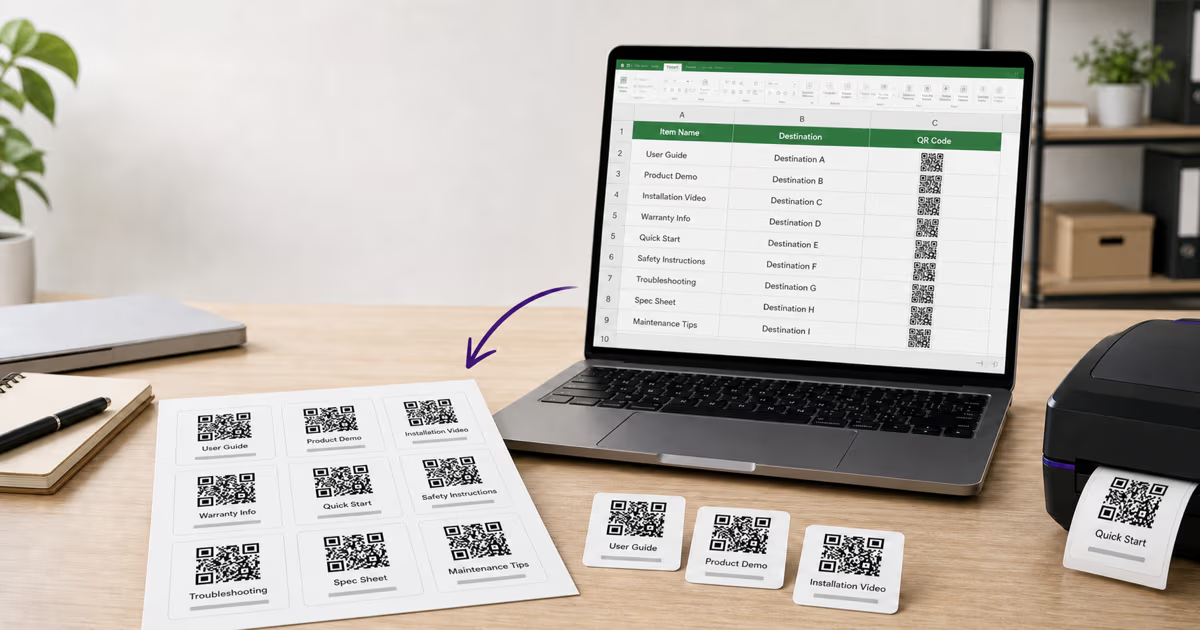
You can turn spreadsheet rows into QR codes in three practical ways: render static QR images with a spreadsheet formula and an external QR API, upload or paste rows into QRLynx's browser-based static bulk tool, or export a CSV and use QRLynx Bulk Create for saved dynamic URL QR codes.
The right method depends on what must happen after generation. Use a formula for visible in-sheet prototypes. Use the QRLynx public bulk tool when you need a downloadable static batch without managing codes. Use QRLynx Bulk Create when each URL needs a saved dashboard record, an editable destination, eligible scan analytics, and a vector ZIP.
Choose the spreadsheet-to-QR workflow
| Need | Best starting workflow | Main tradeoff |
|---|---|---|
| See a QR beside each row inside a spreadsheet | Google Sheets IMAGE formula with a QR image API | Static image depends on an external service and is awkward to export as separate files |
| Download up to 100 static QR images as one ZIP | QRLynx free static bulk tool | Codes are not saved to a dashboard and cannot be repointed after printing |
| Save, rename, repoint, and analyze each URL QR | QRLynx Bulk Create on Pro or higher | Uses active dynamic QR capacity and plan batch limits |
| Work from a current Excel file | Export CSV, then use either QRLynx bulk workflow | CSV carries values, not workbook formulas, formatting, or macros |
How to create dynamic QR codes from a spreadsheet in QRLynx
Use this workflow when the rows should become managed URL QR codes in your account.
Prepare the name and url columns
In Google Sheets or Excel, make the first row contain the exact headers name and url. Give every row a useful internal name and a complete HTTPS destination. Optional columns are foreground_color, background_color, and eye_color using hex values.
Check every destination before export
Open a sample from each destination pattern, remove blank rows, and confirm that each row has the intended name-to-URL pairing. Do not place passwords, tokens, private records, or other secrets in a public destination URL.
Export a CSV file
Download or save the active sheet as CSV. QRLynx accepts a CSV up to 5 MB. CSV preserves the row values used for the import, but it does not preserve workbook styling, formulas, extra sheets, or macros.
Upload it to QRLynx Bulk Create
In the QRLynx dashboard, open QR Codes, then Bulk Create. Upload the CSV, review the parsed rows, and correct invalid names or URLs before continuing. The current managed bulk workflow creates Website / Link QR codes.
Apply one batch design
Choose the foreground, background, and eye colors, then add a logo if appropriate. QRLynx applies the shared design to the batch while allowing optional row-level colors from the CSV.
Create, download, and test
QRLynx saves each row as a dynamic URL QR with tracking enabled, groups the import in a dated folder when folder creation succeeds, and prepares a ZIP of SVG files. Download the ZIP, scan a representative sample, confirm the destination and dashboard record, and test the final printed material before full production.
Spreadsheet to QR batch
Turn your CSV into QR codes
Use the free browser tool for a static ZIP, or sign in to create saved dynamic URL QR codes with editable destinations and analytics.
Method 1: Create static QR images in Google Sheets
Google Sheets can display an image returned by a public HTTPS URL. A QR image API can therefore turn the value in A2 into an image in B2. One documented QuickChart pattern is:
=IMAGE("https://quickchart.io/qr?text="&ENCODEURL(A2)&"&size=300")Google's IMAGE guidance explains how an image URL renders inside a cell, and ENCODEURL prepares the cell value for a URL query string. QuickChart documents the QR endpoint, its parameters, and a default four-module margin.
- Put one final URL or text value in each row of column A.
- Enter the formula in B2 and allow external data access if Sheets asks.
- Fill the formula down.
- Increase row height and column width so the image is visible.
- Scan a sample and inspect the exact decoded value.
This is a static-code image workflow. Changing A2 causes the in-sheet image to be requested again, but it does not change QR codes that were already downloaded, copied, or printed. The cell value is sent to the external QR image service as part of the request URL, so do not use the method for secrets or sensitive records.
Method 2: Use QRLynx's free static bulk tool
The QRLynx Bulk QR Generator accepts pasted URLs or a CSV with a required url column and an optional name column. It parses the rows and renders the static QR images in the browser. The free tool processes the first 100 valid rows in a batch and downloads them as one ZIP.
You can choose a classic, rounded, dots, or classy pattern, set the foreground, background, and eye colors, and add a logo. PNG is available to everyone. SVG requires Starter+ or higher. Guests receive a small QRLynx watermark, while signing in with the free Starter plan removes it.
These codes directly encode each row's destination. They are not saved as QR records, do not use a QRLynx redirect, and do not gain QRLynx scan analytics or destination editing. This makes the tool useful for stable internal labels, prototypes, classroom materials, and other batches that do not need management after download.
Method 3: Generate managed dynamic batches in QRLynx
QRLynx Bulk Create is the account workflow described in the steps above. It accepts URL rows, checks batch and active-capacity limits, validates destinations, creates saved dynamic URL QR records with tracking enabled, and returns a ZIP of SVG files.
Current per-batch and monthly batch allowances are:
- Pro: up to 100 codes per batch and 5 bulk batches per month.
- Business: up to 250 codes per batch and 10 bulk batches per month.
- Enterprise: up to 1,000 codes per batch with no monthly batch count limit.
The account's active dynamic QR allowance still applies. A batch cannot create more active dynamic codes than the workspace has available. The workflow is for Website / Link QR codes, not a generic importer for every QRLynx QR type.
What changed in modern Excel
The old claim that Excel has no IMAGE function is no longer correct. Microsoft documents IMAGE for Microsoft 365, Excel 2024, Mac, iPhone, and Android. It accepts a public HTTPS image URL and can place the result in a cell.
That does not make every Google Sheets formula portable. Excel can block redirected image sources, authenticated URLs, external content, or source strings that exceed its documented URL limits. Function availability also depends on the Excel version and update channel. QuickChart offers an Excel template with the helpers needed for its spreadsheet formula.
For a production batch, the lower-friction Excel path is usually to keep the final name and URL values in the workbook, save the relevant sheet as CSV, and upload it to the QRLynx public static tool or managed Bulk Create. This avoids treating an in-cell preview as the final image-asset pipeline.
Formula, static ZIP, and managed bulk compared
| Capability | Spreadsheet formula | QRLynx static bulk | QRLynx managed bulk |
|---|---|---|---|
| Input | Cell value plus external QR image URL | Paste or CSV with url and optional name | CSV with name and url, plus optional colors |
| Saved in QRLynx dashboard | No | No | Yes |
| Destination editable after print | No | No | Yes |
| QRLynx scan analytics | No | No | Yes |
| Batch output | Images inside cells | PNG ZIP, or SVG ZIP on Starter+ | SVG ZIP plus saved records |
| Batch size | Limited by spreadsheet and external-service behavior | First 100 valid rows | 100 Pro, 250 Business, 1,000 Enterprise |
| Best fit | In-sheet preview or simple static use | Downloadable unmanaged static batch | Ongoing campaigns and managed operations |
Prepare spreadsheet data that will survive import
- Use one row per QR: keep the name and destination together.
- Use complete HTTPS URLs: avoid relying on a browser to guess the protocol.
- Keep names unique and useful: include the item, location, campaign, or asset identifier needed in the dashboard and filenames.
- Resolve formulas before export: confirm that the CSV contains the intended final values.
- Remove secrets: URLs, query strings, and static QR payloads can expose their content to scanners or service providers.
- Sample the CSV: open it as plain text and inspect the headers, commas, quotes, and non-ASCII characters.
- Test redirects and pages: every destination should load correctly on a phone before the batch is created.
Analytics and attribution boundaries
A static formula or static QRLynx batch can still encode a destination with campaign parameters. A destination analytics tool may then attribute visits that load the tagged page. That is different from QRLynx redirect analytics, and it does not prove that every camera decode became a loaded visit.
Managed QRLynx bulk codes record eligible redirect events per saved code. Name each row so the code can be understood later, and use distinct codes for locations or assets that need separate reporting. Available geographic and device breakdowns depend on the account's plan. Scan counts are not completed orders, check-ins, repairs, or inventory actions unless the destination system records those events separately.
Test the batch before printing every label
- Open the CSV and verify the first, middle, and last rows.
- Generate a small sample through the chosen workflow.
- Decode the sample and compare each result with its source row.
- Print at final size on the intended label, paper, or card stock.
- Keep the four-module quiet zone clear and use dark modules on a light background.
- Scan with more than one available phone under realistic lighting.
- For managed codes, confirm the correct dashboard record and destination update path.
For wider print decisions, use the QR code print size guide and the QRLynx readability checker. The digital checker helps identify artwork risks, while a physical proof tests the real material and finish.
Google Sheets, Excel, and bulk QR questions
How do I create QR codes from Google Sheets?
For an in-sheet static preview, use Google Sheets IMAGE with an external QR image URL and ENCODEURL around the source cell. For downloadable static files, paste or upload the rows to QRLynx's free bulk tool. For saved dynamic URL QRs, export name and url columns as CSV and upload them to QRLynx Bulk Create.
What Google Sheets formula creates a QR code?
One current QuickChart pattern is =IMAGE("https://quickchart.io/qr?text="&ENCODEURL(A2)&"&size=300"). It sends the encoded value from A2 to QuickChart and displays the returned image. The result is a static QR image and the external service receives the value in the request URL.
Can modern Excel create an image from a URL?
Yes. Microsoft documents IMAGE for Microsoft 365 and Excel 2024 across several platforms. The source must meet Excel's public HTTPS and security rules. A Google Sheets formula may still require adaptation because function availability, external-content policy, redirects, and URL limits differ.
Can QRLynx import an Excel file directly?
The current bulk workflows use CSV, not XLSX. Save or download the relevant Excel sheet as CSV, confirm the name and url headers, then upload that file. CSV imports values only, so workbook formatting, formulas, macros, and extra sheets are not included.
What columns does QRLynx Bulk Create require?
The managed workflow requires name and url. Optional row-level color columns are foreground_color, background_color, and eye_color. Use complete destinations and valid hex colors. The public static tool requires url and accepts name optionally.
Does QRLynx bulk creation support every QR type?
No. The current managed Bulk Create workflow creates Website / Link QR codes from URL rows. Use the individual QRLynx generator for another QR type unless its current workflow explicitly supports bulk creation.
How many QR codes can I generate in one QRLynx batch?
The free public static tool processes the first 100 valid rows. Managed dynamic bulk creation allows up to 100 per batch on Pro, 250 on Business, and 1,000 on Enterprise. Monthly batch allowances and the workspace's active dynamic QR capacity also apply.
Are spreadsheet formula QR codes dynamic?
No. The QR image returned by the formula directly encodes the supplied value. Updating the source cell can regenerate the image shown in the sheet, but it cannot change copies that were already printed or downloaded. A managed QRLynx dynamic URL QR can be repointed after printing.
Can I track a QR code made with a spreadsheet formula?
The formula itself does not add QRLynx redirect tracking. You can encode a tagged destination and measure page visits in the destination analytics system, but a decode and a loaded visit are not identical. Use managed QRLynx dynamic codes when per-code redirect analytics are required.
Does QRLynx send public static bulk rows to its server?
The current QRLynx public bulk tool parses the pasted or CSV rows and renders the static QR images in the browser, then builds the ZIP there. The resulting codes directly encode the destinations and are not saved as QRLynx QR records.
What should I test before printing a spreadsheet QR batch?
Verify source rows, generate a small sample, decode the first, middle, and last items, compare each result with its row, print at final size, preserve the quiet zone, scan on more than one available phone, and complete the destination action before printing the full batch.