Jotform QR codes: test the route through to a submission

Key Takeaway
Choose a Jotform form-sharing QR, keep response-table links private and test a mobile submission. Compare native sharing with a managed QRLynx URL.
Jotform provides a native QR option for opening online forms. Use the published respondent destination for the form, then test all the way through to a stored submission. A QRLynx Website / Link QR adds a separate managed URL route when you need an authorized destination change or eligible dynamic scan activity.
Before generating anything, distinguish a QR that opens a form from a QR scanner inside a form and from a link that shares collected responses. These routes have different audiences and purposes.
Three Jotform routes to distinguish
| Route | What the person does | Publication decision |
|---|---|---|
| Form-sharing QR | Opens the online form to complete it | Use the approved respondent link |
| QR Code Reader widget | Scans QR data as an input inside a form | Use only when scanning is part of a question |
| Jotform Tables sharing | Views or collaborates on collected form data | Keep out of a respondent poster unless separately authorized |
Choose the delivery route before printing
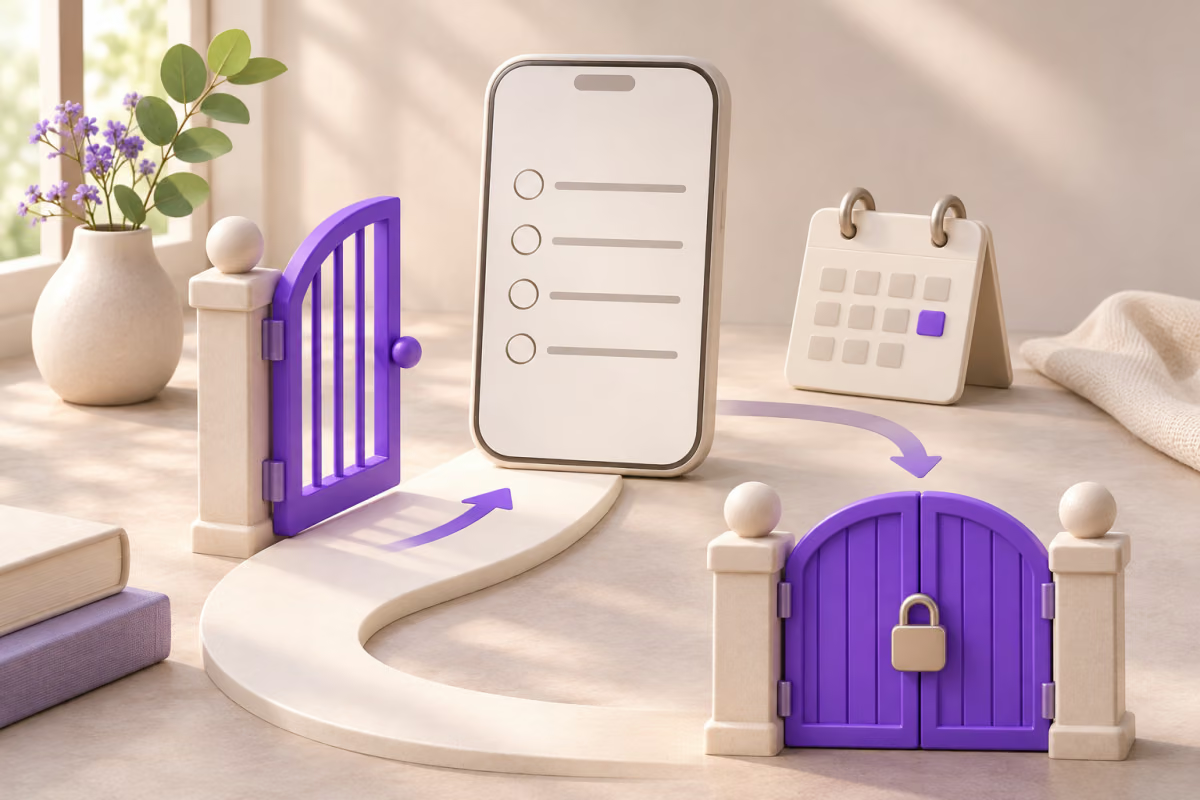
Jotform’s QR Code Forms feature publishes a form through a QR. QRLynx can instead encode the approved form URL directly in static mode or save a dynamic URL QR whose managed destination can be changed later.
If you use an owned web page containing an embedded Jotform, decide whether the poster should open that page or the direct form. The web page can carry context and instructions; the direct form keeps the chosen destination focused on entry. Test the exact address you distribute rather than a different preview route.
The QR Code Reader widget is a different tool: it uses a device camera to bring scanned information into a form. You do not need to add that widget just because visitors will scan a QR to reach the form.
Keep response-table sharing out of the respondent route
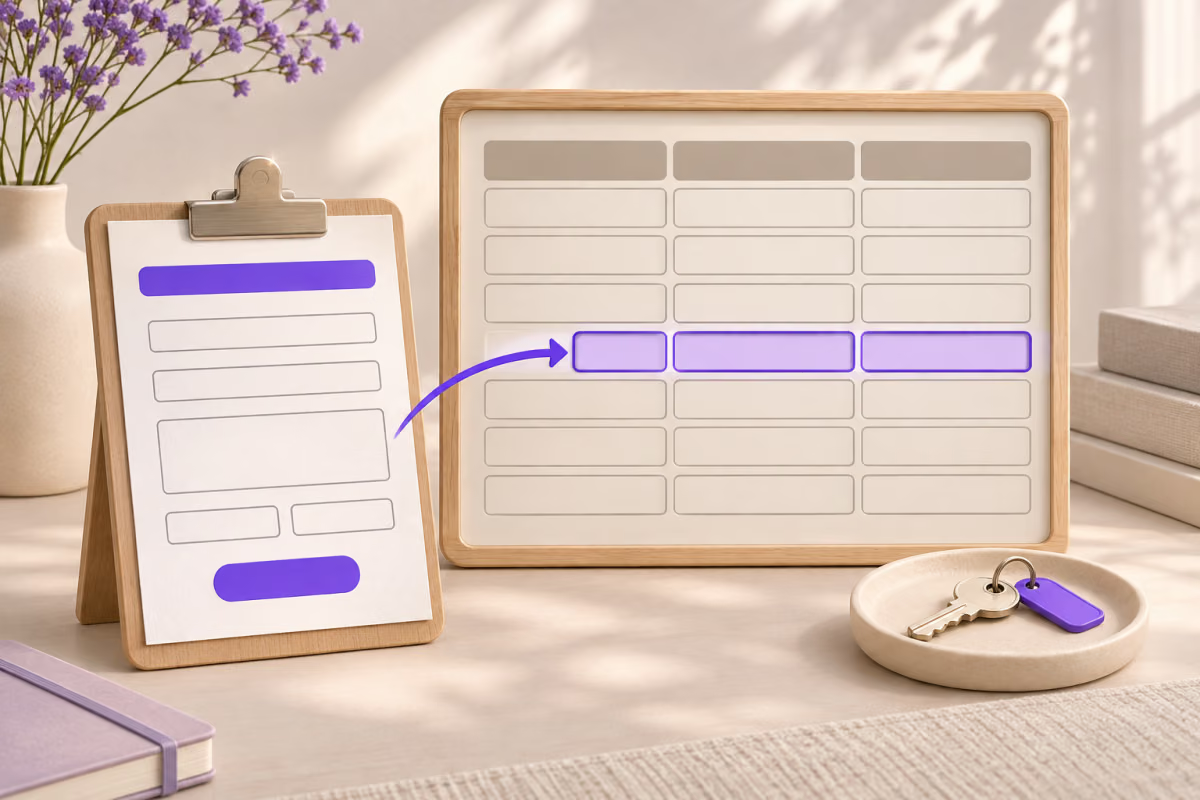
Jotform Tables has its own sharing system, including public, private and company audiences. Jotform documents that a public table lets people read submitted form data. A response-table share link is not the same as a link for entering a new response.
Review the complete address you copied. If the destination displays a table of collected answers, stop and ask the form owner for the intended respondent link. Do not broaden table access to make a public QR test work.
How to publish a Jotform QR route with QRLynx
Prepare the destination first, then test the exact exported QR and audience journey.
Choose the intended respondent destination
Open the published Jotform or the approved page that embeds it. Confirm that this is the route for entering answers, not a response table or a collaborator invitation.
Review the mobile form
Check required fields, any access step and the completion action with the form owner. Prepare a clearly labelled non-sensitive test response.
Create the Website / Link QR
Paste the complete tested destination into QRLynx. Choose static for a final direct URL or save a dynamic URL QR when future destination updates or eligible scan activity are needed.
Prepare the physical placement
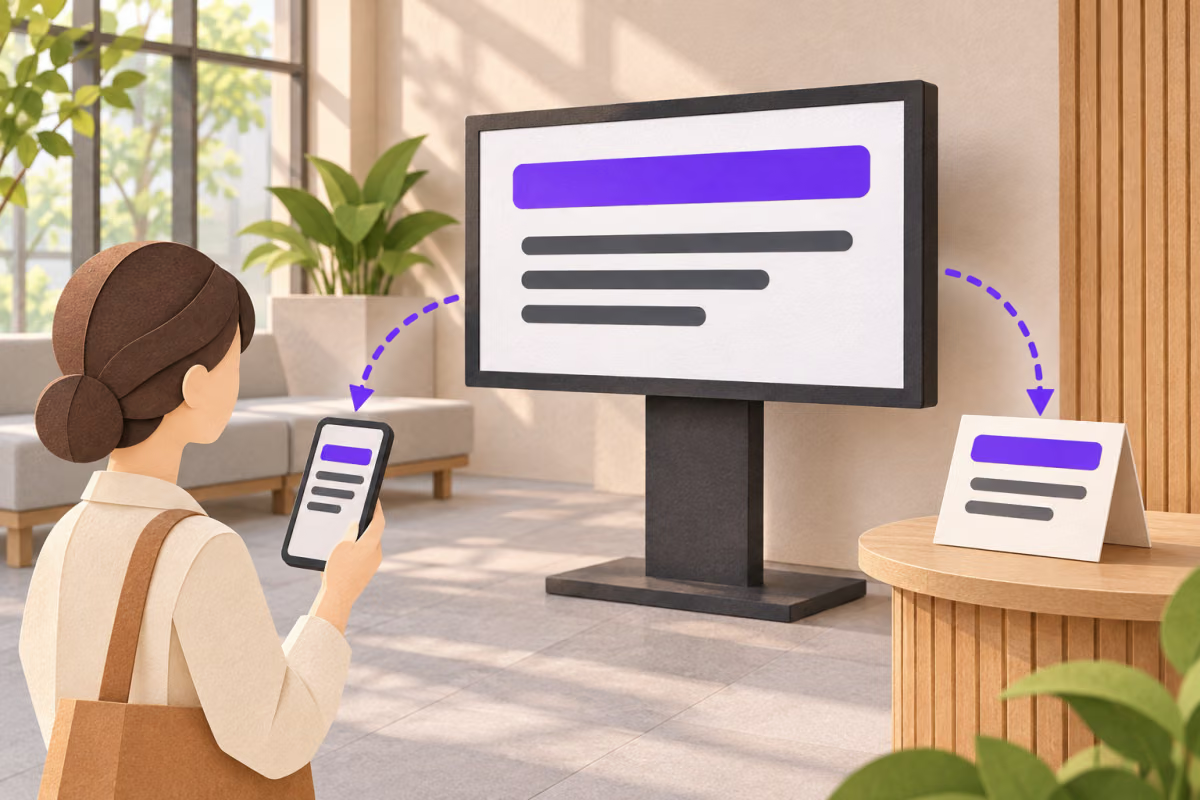
Use a specific label such as Submit the equipment request. Keep strong contrast, a clear QR border and a readable alternative link where practical.
Complete the final proof journey
Scan the exported printed or displayed QR on a phone, fill the intended fields and finish the actual submit step. Check the confirmation without stopping at the first screen.
Verify the collected response
Have the authorized owner locate the labelled submission in Jotform. Record the tested route and result, then follow the agreed cleanup process for test data.
Use the tested destination
Create a QR for the respondent form
Use the published Jotform entry link, then verify the mobile journey and stored test response.
An illustrative acceptance record
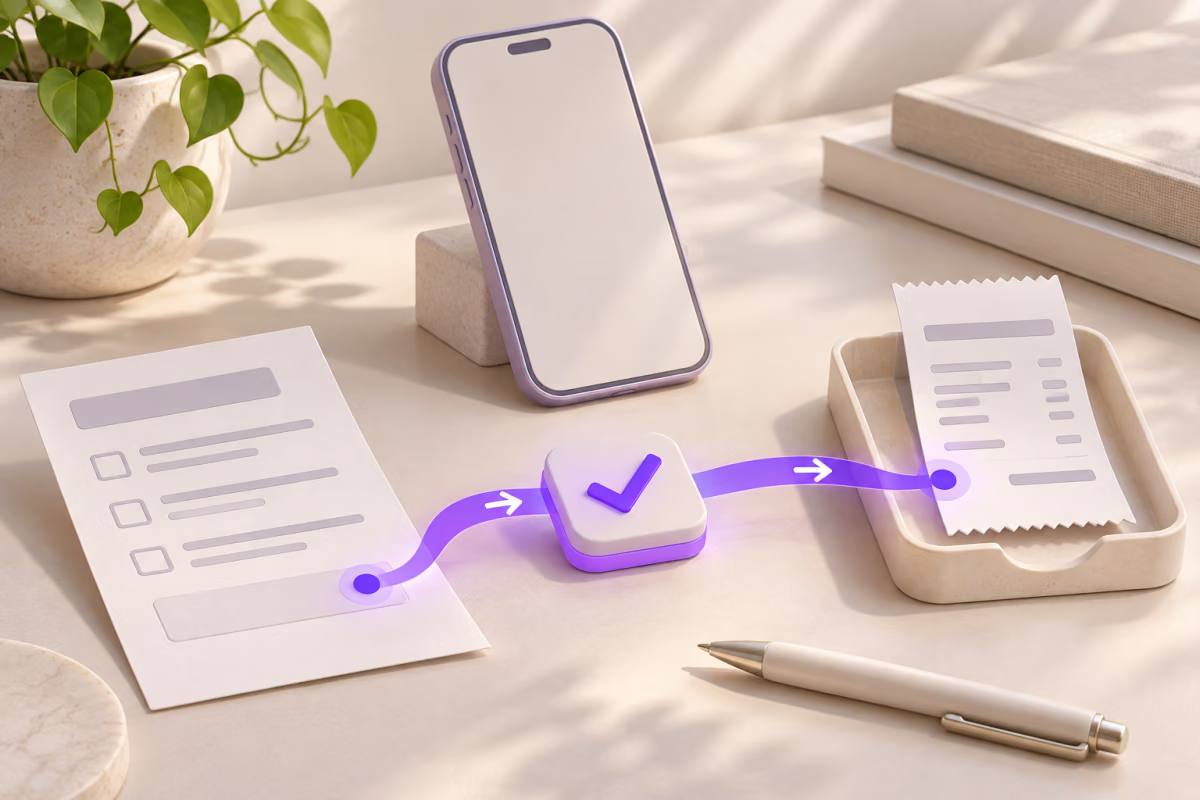
For a request form, record four separate observations: the QR decoded to the intended route; the correct form opened; the confirmation appeared after submission; and the labelled answer appeared in the owner’s Jotform data. This is a suggested acceptance method, not a claim that a particular customer form was tested.
Keep the form title and destination version with that record. If the form is edited at the same address, repeat the field and completion checks. If the address changes, update an authorized dynamic QR destination or replace a static QR image. A successful earlier scan cannot prove that later form changes are safe.
Sources and related QRLynx guides
Jotform documents native form QR sharing, the QR Code Reader widget, and submission-table sharing and permissions. Continue with Website / Link QR, or use the QRLynx scanner to inspect the finished artwork.
Questions before you distribute the QR
Does Jotform already provide a QR code for a form?
Yes. Jotform documents a native QR Code Forms sharing feature. You can use that route for the form itself, or create a QRLynx Website / Link QR when you want a separately managed destination. Choose according to the printed link’s lifecycle rather than assuming another generator is mandatory.
Which Jotform URL should go in QRLynx?
Use the published destination intended for respondents to enter a new answer, or an approved web page containing that form. Open the exact copied address before creating the QR. Keep administration, collaboration and response-table links out of the respondent route.
Do I need the QR Code Reader widget to let people open my form?
No. Jotform’s QR Code Reader widget scans information into a form as an input. A form-sharing QR opens the form in the first place. Add the widget only when a question actually requires scanning data after the person reaches the form.
Why should I avoid a Jotform Tables share link on a public form poster?
Tables sharing is for access to collected data, with its own privacy and collaboration settings. Jotform says a public table allows people to read submissions. Use the respondent form link unless sharing that response data is separately intended and authorized.
Should the QR open Jotform directly or a page with an embedded form?
Use the destination that matches the poster’s promise. An owned page can include context and instructions; a direct form URL opens the entry destination you chose. Test that exact route on a phone, including any surrounding page controls and the final completion action.
Does seeing a confirmation prove that I checked the stored response?
No. Treat the completion screen and the owner’s stored response as separate observations. Use a clearly labelled non-sensitive test and have an authorized owner locate it in Jotform. Do not infer the saved record from a camera scan or a loaded first page.
Must I replace the QR after every form edit?
If the published destination address stays the same, the QR still opens that address. Retest the edited form because required fields and completion behavior may have changed. A changed address is different: a static QR needs new artwork, while an authorized dynamic destination can be updated.
Can I point the same printed QR at a replacement Jotform?
A saved QRLynx dynamic URL QR can be updated to another authorized form destination. Check that the replacement is the intended respondent route and repeat the complete mobile submission test. A static QR directly encodes its original address and cannot be edited after printing.
Will QRLynx report how many Jotform responses were completed?
This URL workflow does not make QRLynx scan activity a Jotform response count. Jotform collects the form answers, while eligible dynamic QR activity describes the managed redirect route. Keep those measures separate and verify submissions in Jotform.