QR codes on digital signage: a screen-by-screen test guide

Key Takeaway
Prepare QR codes for digital signage with a final-screen test record covering size, viewing conditions, playlist timing, destinations and fallback access.
Test the final QR layout in the actual display player, including the viewing conditions and playlist timing. A clean image in an editor can be rescaled, cropped or placed in a changing layout before it reaches a lobby screen.
Give stationary viewers one clear reason to use the code, a route to the intended mobile information, and a readable alternative. Use QRLynx to create the QR; use your display player's normal media and playlist controls to place it. Approve that final output rather than only the source image.
Define the viewing task before choosing dimensions
Write down where the viewer can stand, what information they need and how long the relevant panel stays available. A stationary venue directory and a rotating promotion have different demands. Keep the action specific, such as opening the visitor map or today's event schedule.
The final symbol needs enough clear, sharp modules for its payload and viewing conditions. Preserve the four-module quiet zone described by DENSO WAVE. Keep nearby text and design outside that clear border.
Choose dimensions from the actual display test. A fixed pixel count or a print-distance rule alone cannot establish the result on every screen, camera and viewing position. Use the QR print-size guide for print calculations, and test the final display output separately.
Cover the conditions that can change the result
| Display condition | What to inspect | What to record |
|---|---|---|
| Player scaling and orientation | Complete square symbol, clear border and intact modules in the final layout | Player output, orientation and layout version |
| Viewing position | The actual standing position, angle and camera framing | Test position and devices used |
| Ambient light and reflections | Glare or changing conditions that hide the symbol | Conditions observed and any layout adjustment |
| Playlist timing and transitions | A stable opportunity to notice, frame and use the code | Relevant playlist state and observed attempt |
| Destination and alternative route | The intended page, visitor permissions and readable fallback | Exact route, access context and task result |
Copy the final-screen acceptance record
This is a test template, not a report of a measured display experiment. Fill it with observations from the actual installed screen and intended visitor context.
screen_id,playlist_version,qr_artwork,encoded_value,intended_destination,output_orientation,viewing_position,lighting,device,playlist_state,fallback_route,result,reviewer,checked_atKeep the approved artwork and playlist version with the record. A later export, player setting or layout change needs an identifiable version so the team knows which output was reviewed.
How to prepare a screen QR in QRLynx
Create the route, place the final asset and review the actual player output.
Prepare the intended destination
Open the mobile page or information route in the intended visitor context. Confirm the task and access permissions before creating its QR.
Choose Website / Link in QRLynx
Enter the complete destination URL. Choose static for a fixed direct payload, or sign in and use an eligible saved dynamic QR when managed destination editing serves the job. Keep the mode and saved record clear in the screen inventory.
Export the final QR artwork
Use a clean available image export, such as PNG, with the complete symbol and clear border. Keep it proportional. Retain the original file rather than repeatedly copying or resaving an editor screenshot.
Place it with the display player's controls
Use the media, layout and scheduling workflow supported by your chosen player. Add the purpose label and readable alternative address, and inspect the actual output for cropping, stretching, overlays and transitions.
Test and record the final display
At the real viewing positions, use representative devices and relevant lighting and playlist states. Confirm the decoded route, final page, access and intended action. Adjust the layout or timing when necessary and retain the reviewed version and observations.
Prepare the screen's route
Create the Website QR for your display
Build the intended route in QRLynx, then review the exported asset in the final display layout.
Let viewers complete the action before the panel moves on
Keep the symbol stable while it is meant to be used. A zoom, transition or overlay can change the available image during framing. Watch a complete attempt on the actual playlist: noticing the purpose, finding the camera, framing the symbol and reaching the information are separate moments.
Set the timing from that observed task. One campaign's television duration does not supply a universal setting for a venue directory or rotating lobby message. Read the campaign examples guide for the documented brand cases. Use the conditions in your own display record for approval.
Keep the information available beyond a camera scan
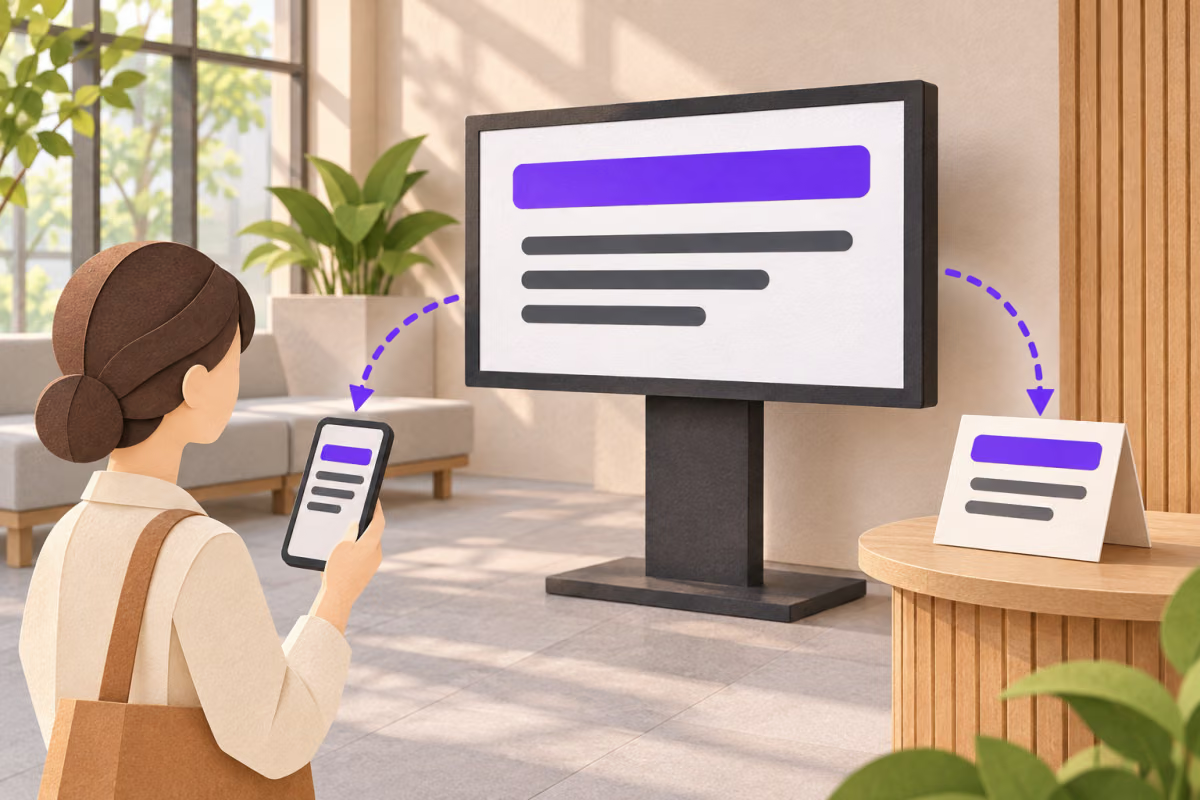
Show a meaningful purpose label and a readable address that serves the same task. Keep essential on-screen information useful to someone who does not scan. When the material is also shared digitally, include a real clickable link in that version.
Section508.gov's QR guidance explains the importance of an alternative route. The QRLynx accessibility guide covers labels, text links and wider alternatives in depth. Review the destination too; a visible address alone does not establish that the page's information and controls are usable.
Record screen identity without overstating the analytics
If each screen needs a distinct reporting identity, assign separate QR routes or appropriately tagged destination URLs and keep their screen associations in the inventory. One shared payload does not itself encode which display the viewer saw.
Eligible QRLynx dynamic routes can record scan activity. That activity is different from the number of people who saw a screen, attempted to use a camera or completed the destination task. Use the QR tracking guide for the reporting setup and definitions.
After a playlist or destination change, recheck the affected route and output. A dynamic destination update does not change a separate address or purpose label already designed into a screen panel.
Digital-signage QR questions
How big should a QR code be on a digital display?
Use a size that preserves the complete symbol and four-module clear border and works in the actual viewing conditions. Payload density, player scaling, display characteristics, camera and position all matter. Confirm the final screen output instead of treating one pixel count or print ratio as a guarantee.
How long should the QR stay on screen?
Allow the intended viewer to notice the action, frame the code and reach the information. Observe that task on the actual playlist and set timing from the result. There is no single duration established here for every audience, screen and campaign.
Should the QR move or animate while viewers scan it?
Use a stable opportunity to frame the symbol. Check the actual transitions, overlays and zooms rather than only a paused editor preview. If the image changes during an attempt, adjust the layout or playlist and repeat the relevant display test.
Can I reuse QR artwork that already passed a print test?
You can start from the original artwork when it encodes the intended route, but approve its screen presentation separately. The player can rescale, crop or process the image, and the display has different viewing and lighting conditions from the printed material.
Why can a code work on a laptop but fail on the lobby display?
Compare the final output, scaling, clear border, glare, viewing angle, distance and playlist state. Then check the decoded destination separately. A successful laptop test does not isolate what changed on the installed display; record the conditions before choosing a correction.
Can I use a static QR on digital signage?
Yes, when its fixed direct payload serves the task. The page at a stable website URL can change while that URL stays encoded in the static pattern. Use an eligible saved dynamic QR when you need managed destination editing or QRLynx redirect activity for the placement.
Do different screens need different QR codes?
They can share one route when that serves the same task. If you need a distinct screen identity for comparison, use separately identified routes or tagged destinations and keep the association in your inventory. Do not treat a shared code's total as a direct count for each screen.
How can viewers reach the information without scanning?
Provide a readable working address and a clear purpose label, and keep essential information available in the display's own content. In a digitally shared version, provide a clickable link. Choose any additional alternative according to the actual venue task and audience.
What should I recheck after a playlist or destination update?
Review the affected output version, symbol presentation, timing, decoded route, final page, visitor access and intended action. Check the separate fallback address and purpose label against the new information too. Retain the revised acceptance record so the next change starts from an identifiable version.