How to Make a QR Code Expire After a Set Number of Scans

Key Takeaway
Set a QR code scan limit in QRLynx. Follow real screenshots to choose a maximum, allow for test scans and reopen the same printed code.
To make a QR code expire after a set number of scans, save it as a dynamic QR, open Expire Rules, enable Expire after Scans and enter your chosen maximum. In QRLynx, qualifying scans can open the destination until that allowance is used. Later scans show the QR Code Unavailable page.
QRLynx Expire Rules is included with the paid Pro, Business and Enterprise plans. The generator at the top of that feature page lets you set up the destination and limit together. This tutorial shows the real controls, how to allow for test scans and how to reopen the same printed code.
Choose the number that fits your campaign
A scan limit is useful for a preview page or temporary resource that should receive a chosen amount of QR traffic. You choose the number. The 100 shown below is an example, not a QRLynx maximum or a required setting.
The limit counts qualifying visits through the QR route. One person can use more than one scan by opening it again. It does not reserve a place for each unique visitor or confirm a purchase, coupon redemption or ticket check-in. Keep those limits in the system that processes the transaction.
For a fresh QR with a maximum of 100, two qualifying test scans leave 98 of that allowance for later scans. Raising the maximum from 100 to 150 adds room above the existing count; it does not create a fresh allowance of 150.
Set a QR code scan limit in QRLynx
Prepare the destination
Open the page you want to share and confirm your audience can use it. Sign in to QRLynx with a Pro, Business or Enterprise account, then open the Expire Rules feature page. Choose Website / Link and enter the full HTTPS address in Create Dynamic QR. Keep Dynamic URL enabled.
Open Expire Rules
In QR Code Features, select Expire Rules. For an existing dynamic QR, open that saved QR for editing first so the change applies to the same printed code.
Choose the scan maximum
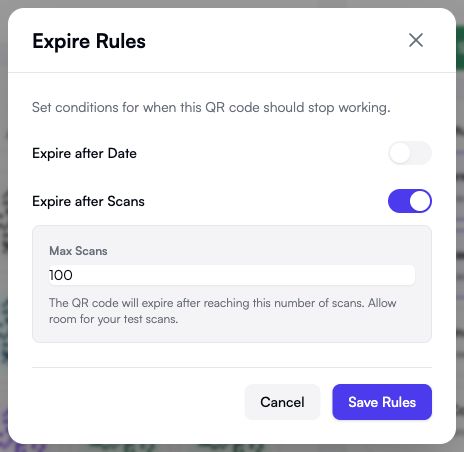
Enable Expire after Scans and enter a positive whole number in Max Scans. For the illustrated example, enter 100. Leave Expire after Date off when the count alone should determine the cutoff.
Save the rules and the QR
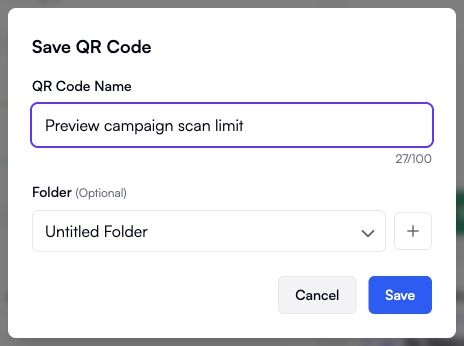
Click Save Rules, then Save on the generator. For a new code, enter a clear name such as Preview campaign scan limit, choose an optional folder and click the final Save button. Wait for save success.
Check the saved configuration
Reopen the saved QR and confirm the destination, Expire after Scans setting and Max Scans value. If editing an existing QR, allow for its prior usage rather than treating the new maximum as a fresh allowance.
Download and label the saved code
Download the saved dynamic QR. Keep strong contrast and its clear margin, and place a useful label such as Scan for the preview beside it. Avoid promising a fixed number of people or redemptions when the rule counts scans.
Test before distribution
Use a separate small-limit QR to rehearse the cutoff and reopening steps below. Scan a printed proof of the final campaign code at its intended size. Include those qualifying test scans in your allowance.
Set the limit in the Expire Rules dialog
The two switches work independently. For a scan-only cutoff, leave Expire after Date off and turn on Expire after Scans. Enter your chosen maximum, then use Save Rules.
Finish saving the QR itself
Save Rules applies the settings to the editor. Save the QR itself before distributing it. A new code opens the Save QR Code dialog, where you can name it and choose a folder. Reopen the saved code to check the value was retained.
These screenshots show an unsaved example using example.com. They demonstrate the controls, not a live campaign or a completed scan-limit test. Replace the example destination and choose your own number.
What uses the scan allowance?
| Visit | Uses the allowance? |
|---|---|
| A qualifying human visit that reaches the destination flow | Yes |
| A later qualifying visit from the same person or device | Yes, it is another scan |
| A recognized crawler or automated link preview | No |
| A HEAD request that only checks the route | No |
| A visitor who stops at a required password, consent or lead gate | No, the required gate has not been completed |
The cap is enforced on qualifying human requests that reach the successful destination flow. Simply pointing a camera at the printed pattern without opening its link does not use it. Opening the QR short link directly can use the allowance too.
Use the saved maximum and fresh visitor checks when testing. Analytics reports answer their own traffic questions, so do not assume every displayed scan metric is the remaining allowance.
Rehearse the cutoff with a small test code
Create a separate new dynamic Website / Link QR for a harmless page you control. Set Max Scans to 3 and leave other optional gates off for this rehearsal. Save it and start with a code that has no earlier scans.
| Check | Expected result |
|---|---|
| First, second and third qualifying opens | The destination opens |
| Fourth fresh open of the QR short link | QR Code Unavailable appears |
| Raise Max Scans to 5 and save | Two more qualifying opens are available above the three already used |
| Turn off Expire after Scans and save | The scan cutoff is removed, while other active restrictions still apply |
Make each check by scanning again or opening the QR short link afresh. Refreshing the destination page already open in your browser does not repeat the QR check. Record the results before you launch the real campaign.
This is a test procedure, not a claim that the example code has already completed those visits. After the rehearsal, check the real campaign QR and its physical print. Its own test visits need allowance too.
Raise or remove the limit without reprinting
Edit the same saved dynamic QR, reopen Expire Rules and increase Max Scans above the count already used. Save Rules and save the QR again. To remove the cap, turn off Expire after Scans and save both stages. The printed pattern stays the same.
Changing the maximum does not reset prior usage. If the code has already used 100 qualifying scans, a new maximum of 120 provides room for 20 more. Recheck it with a fresh scan after the updated settings take effect.
If it remains unavailable, check the saved number, active status, date expiry, schedule and other access controls. Raising the count limit does not override a separate restriction. The QR code expiration guide explains how to separate a readable symbol from a destination or account problem.
Combine a scan cutoff with a deadline
You can enable Expire after Date and Expire after Scans together. QRLynx stops the route when either condition is reached first. The date control means the start of the selected date at 00:00 UTC.
For a specific opening and closing time, use the QR scheduling tutorial. A schedule and scan cap can restrict the same QR, so a valid time window does not make an exhausted allowance available again.
After the cutoff, Expire Rules shows the QRLynx unavailable page. It does not automatically send visitors to a custom sold-out or waitlist destination. If you want the QR to keep opening a page, update its dynamic destination and remove the cutoff as appropriate.
The destination remains under its own controls. Someone who already has its direct address may still open it, and previously downloaded files remain available to their recipients.
Choose when your QR stops accepting scans
Prepare the destination, set your scan maximum and verify the saved code before sharing it.
QR code scan-limit questions
Is there a limit to how many times a QR code can be scanned?
The QR pattern has no built-in scan counter. QRLynx includes unlimited scans unless you choose an owner-configured cap. Expire Rules lets accounts on the paid Pro, Business and Enterprise plans apply that cap to an eligible dynamic QR.
Can I choose a number other than 100?
Yes. Enter the positive whole-number maximum you need in Max Scans. The 100 in this tutorial is only an example. Include qualifying test scans when choosing the allowance.
Do repeat scans by the same person count?
Yes. Another qualifying visit through the QR route uses another scan. The cap does not count unique people or prove separate redemptions.
Do my test scans count toward the limit?
Yes, when they reach the qualifying destination flow. For a fresh code capped at 100, two such test visits leave 98 of the allowance. Rehearse the cutoff on a separate test QR.
How do I increase a QR code scan limit?
Edit the same saved dynamic QR, open Expire Rules, raise Max Scans above the usage already consumed, then save the rules and the QR. Raising the maximum does not reset the count.
What do visitors see when the limit is reached?
Later visits through the QR show the branded QR Code Unavailable page instead of opening the saved destination. Expire Rules does not offer an automatic custom fallback URL.
Can I make the same printed QR work again?
Yes. Raise or remove its scan cap and save the change. Check any date expiry, schedule, active status or other restrictions too. The printed code stays the same.
Can I add a scan limit to a static QR that is already printed?
You cannot attach QRLynx Expire Rules to a static pattern that already contains the final address. Create and save a dynamic QR for this workflow, then distribute that new image.
Can I stop a QR by both scan count and date?
Yes. Enable both conditions in Expire Rules. The first condition reached stops the route. The date cutoff is 00:00 UTC at the start of the selected date; use Scheduling for a specific start and end time.