QR codes for visitor arrival instructions

Key Takeaway
Give visitors a page with the right entrance, parking, check-in and a readable fallback. Test the route from where visitors will actually scan.
Link an arrival QR to a short page that tells visitors which entrance to use and what to do when they reach it. Keep a readable instruction on the sign for anyone who cannot scan, and use the page for the details that may change.
Write the next decision, starting at the sign
At a car park, the first decision may be whether to take the side path or cross to the main building. In a confirmation email, it may be which car park to use in the first place. Start the page with the visitor’s likely starting point, the actual entrance name and where to report on arrival.
Link the relevant route or pin using Google Maps’ share options. A map link gets a visitor to a point; the instructions can tell them which door to use and whom to call if that door is closed. See the Google Maps QR guide for choosing a place card, directions or coordinates.
Give each placement one clear next step
| Where they start | Show first | Fallback to print or send |
|---|---|---|
| Confirmation email | Correct site and arrival window | Clickable link and reception contact. |
| Visitor parking sign | Walking route to the named entrance | Arrow, entrance name and help contact. |
| Entrance notice | Check-in point or current alternate entrance | A readable instruction that still works when the phone has no signal. |
Worked example: two doors, one attended desk
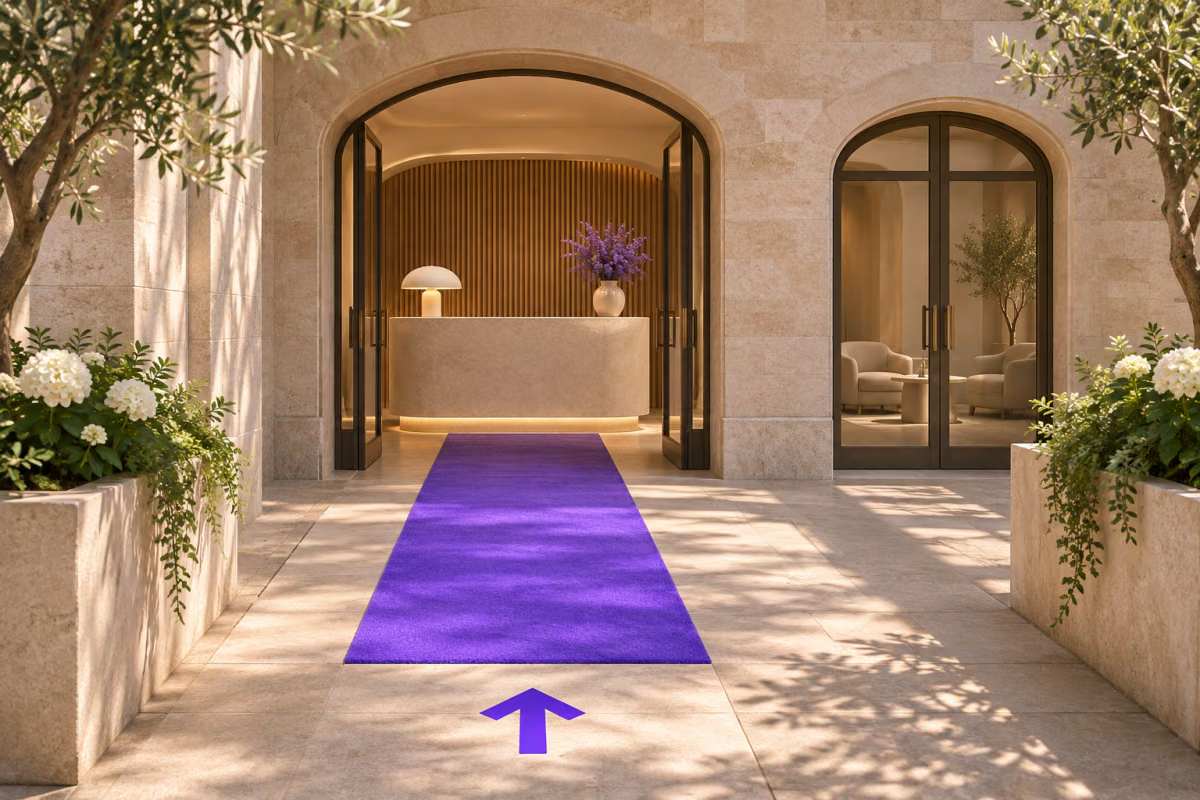
Imagine a studio with a customer-facing north entrance and a locked delivery door next to the car park. The sign at the car park says Visitors: follow the path to the north entrance. The landing page names the same door, shows a photo or map point approved by the venue, and provides the reception route if the door is closed.
For a temporary move, name the alternate door and when the change applies. Test again from the car park. Updating the page does not correct an arrow painted on the wall.
Walk the route with the page open
- Start where the visitor will scan. Follow the map and written directions to the door, then check what the sign and page say at the desk.
- Ask reception to confirm which details change after hours. Keep door codes and private entry instructions in the venue’s approved private channel.
- Test the printed fallback independently. If an entrance has moved, update both the page and any physical instruction that now points the wrong way.
QRLynx opens the arrival address you provide. The venue still owns its hours, reception process and access decisions. The guide to alternatives to scanning covers additional ways to keep the information reachable.
How to create a visitor arrival QR code in QRLynx
Verify the destination from the reader’s point of view.
Prepare the page for the scan location
Write the entrance, route, reception and fallback instructions for the visitor’s starting point. Add the verified map link if useful.
Verify the route in person
Start at the intended sign or parking area. Make sure the link and the actual directions point to the same door.
Enter the page URL in QRLynx
Choose Website / Link and paste the public arrival page address into Website URL.
Choose who will maintain the address
A static code works when the page address stays fixed. Use a saved dynamic URL QR when an authorized maintainer may have to replace the address later.
Download the code and label its purpose
Save a dynamic QR before printing. Use Download and add a short label such as Visitor arrival directions, plus readable fallback instructions.
Test the installed sign
Scan from the likely standing spot, follow the directions to the desk and try the fallback separately.
Visitor arrival
Create a QR for your visitor arrival page
Use the page address you verified from the sign to reception.
Frequently asked questions
Should a visitor arrival QR code open a map or an instructions page?
Use a map link when finding one point is the entire task. Use an instructions page when visitors also need entrance, parking, reception or after-hours details. That page can include the map link.
What should the first screen of an arrival page show?
Show the site or entrance name, the next action from that placement and a fallback. Put less urgent information below those first directions.
How do I point people to the right entrance or visitor lot?
Verify the exact visitor entrance or lot in the map, share the relevant map or directions link and walk the route as a first-time visitor.
Should I put a door code on the QR landing page?
Keep access credentials in the venue’s approved private channel. Anyone who can read a public sign or receive its shared URL might reach the arrival page.
What should the sign say if visitors cannot scan?
Print the next physical instruction, entrance name and a reception contact or readable address. The sign should still help when the visitor has no camera or signal.
How can I handle an entrance closure without replacing the sign?
Update the destination page if the address stays the same. If the address changes, a saved dynamic QR can point to the replacement. Correct any printed arrow or wording that has become wrong.
Should a parking sign and an invitation email use the same destination?
Use the same destination if it makes the next decision clear in both contexts. If a confirmation needs pre-arrival directions and a parking sign needs only a walking route, give each placement the appropriate entry point.
How should I test a visitor QR code before installing it?
Scan the finished sign at its actual location. Follow the path to reception and independently test the printed fallback and any documented after-hours route.
Does a scan mean a visitor checked in?
No. Scan activity measures interaction with the QR, not arrival or check-in. Confirm those outcomes at reception or in the venue’s check-in system.