Accessible QR codes: labels, text links, and alternatives to scanning

Key Takeaway
Make QR-linked information reachable without scanning. Use clear labels, working text links, practical fallback routes, and destination checks.
Give people a way to reach the same information without scanning: a readable web address on print, and a meaningful clickable link in digital content. Label the QR's purpose, then check the destination itself. A clear QR image does not make a difficult form, inaccessible PDF or confusing page usable.
QRLynx can create a Website / Link QR for that destination. The surrounding sign, document, links and destination still need their own accessibility work. These practical checks are not an accessibility certification or a claim of legal compliance.
Separate the scan from the task
A visitor's task might be to read opening hours, find directions or complete a registration. Scanning is only one way to start it. Someone may be unable to locate or align a camera, may not have a suitable phone, or may already be reading the information on the device they would otherwise scan with.
Section508.gov's QR guidance recommends descriptive labels and alternative access routes. Use that as a practical starting point, then test your actual audience's task. Avoid claiming that a color choice or QR generator alone establishes compliance.
A worked visitor-information sign
Imagine a small exhibition sign that links to opening hours, directions and an accessible entrance description. This is a planning example, not a reported customer case.
Use a visible heading such as Visitor information, a nearby instruction such as Scan for opening hours and directions, and a readable address such as example.com/visit. The address is a placeholder: replace it with a short, working route on a domain you control.
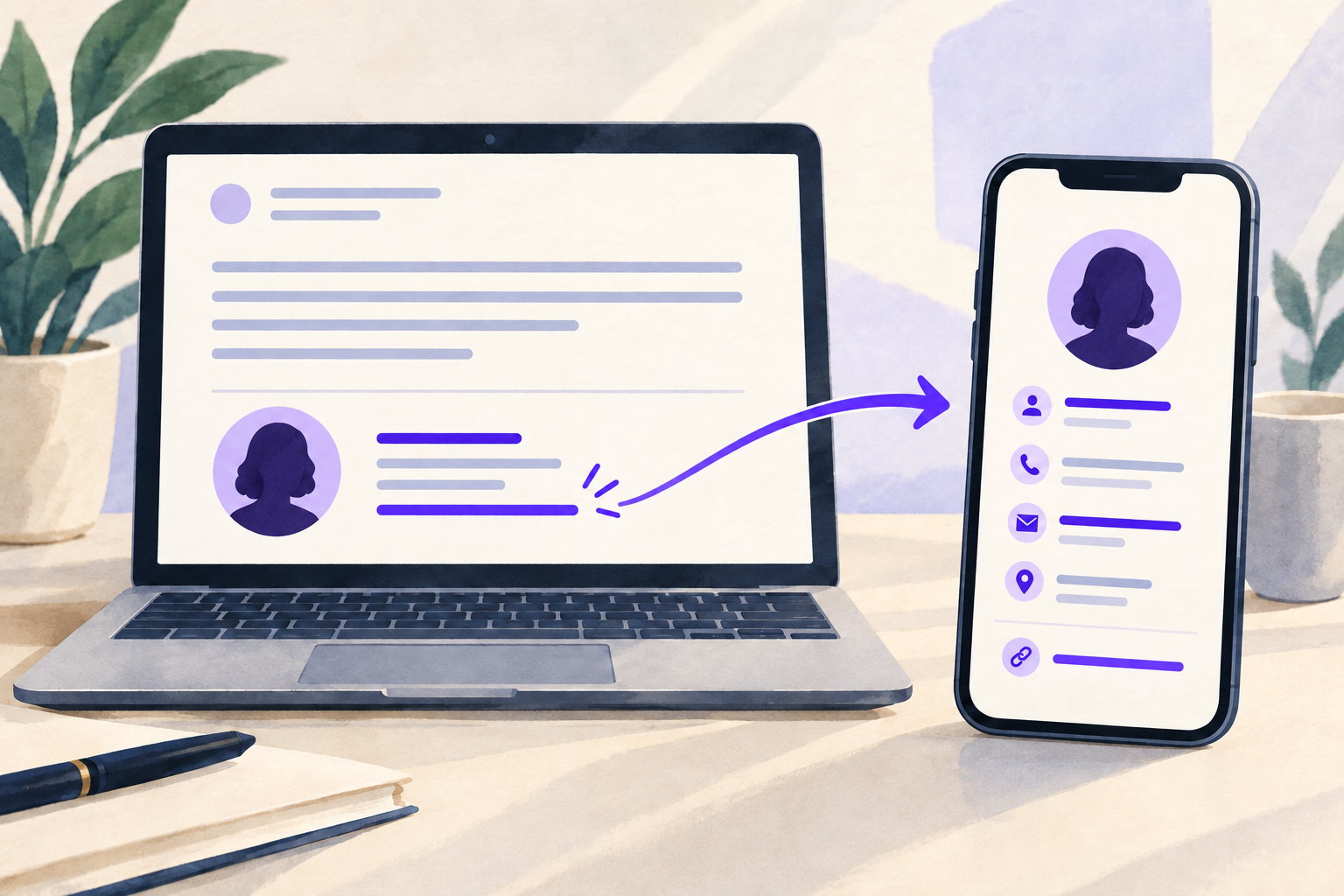
On the digital version, make View visitor information a real link. Do not expect a person to copy a URL from a flattened image. If the information is needed at the venue by people without internet access, provide an appropriate on-site alternative, such as the same essential details in print or through staff.
Check that all routes contain the same current information. A text link to the homepage is a weak substitute when the QR opens a specific registration or directions page.
Match the alternative to the placement
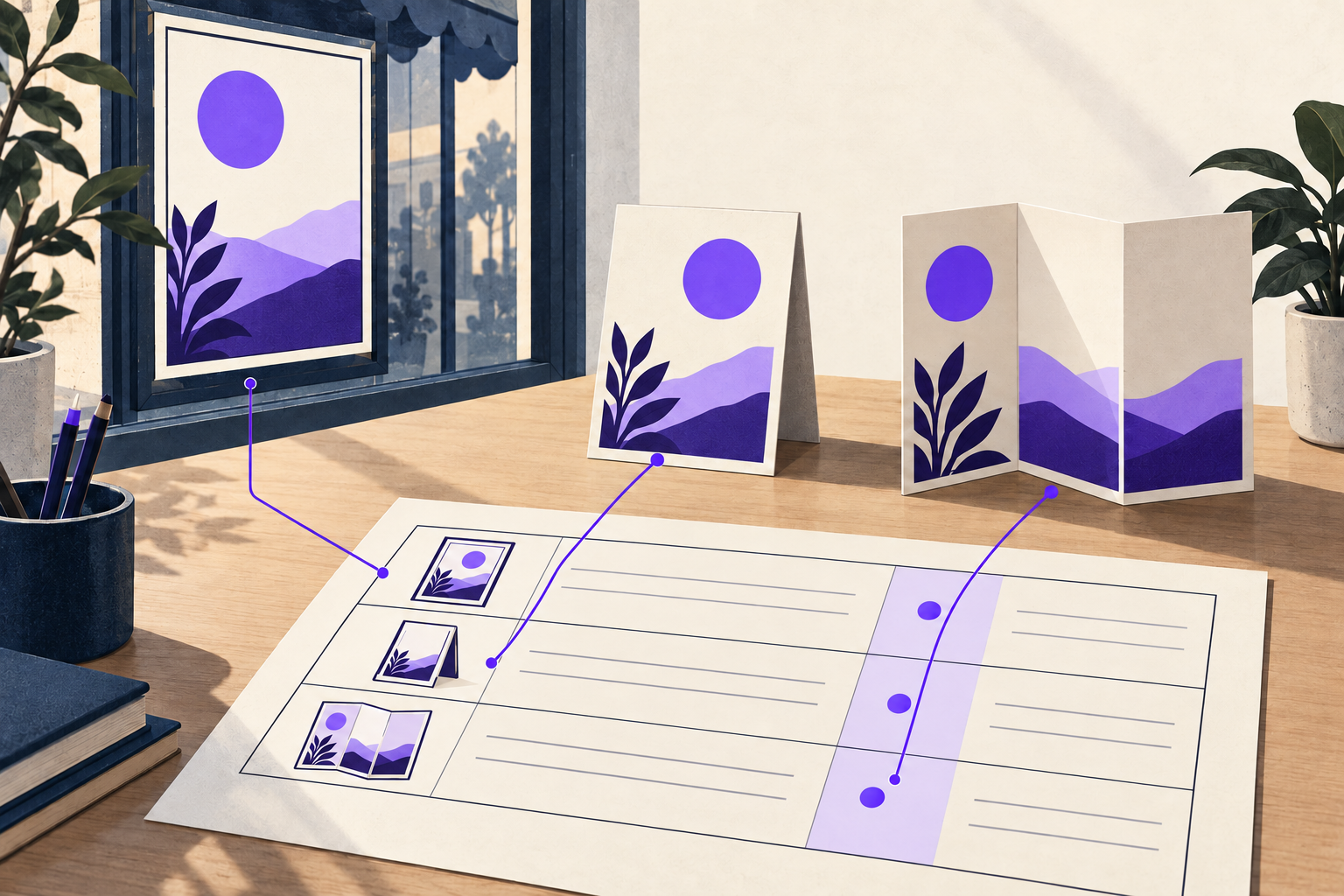
| Placement | Provide alongside the QR | Verify |
|---|---|---|
| Printed sign or leaflet | Readable address and a clear description of the destination | Type the address exactly as printed |
| Webpage or email | Meaningful clickable text link | Activate it using a keyboard |
| Digital document | A real link and suitable image alternative text | Check the exported document, not only the editor |
| Information needed without internet | A suitable offline route to essential information | Confirm it is available where the QR is displayed |
Create the QR and check its alternative route with QRLynx
Choose the specific information page
Publish the visitor information or other intended destination on a site you control. Check its page title, reading order and essential action before linking to it.
Create a Website / Link QR
Open QRLynx Website / Link and enter the exact public destination. Choose static for a fixed URL or dynamic when the QR destination may need to change. QRLynx does not create the separate readable website path for you.
Design a readable placement
Keep a strong foreground/background contrast and preserve the clear space around the QR. Put the purpose label and alternative address outside the pattern. Use the design guide for QR-specific print checks.
Add the non-scanning route
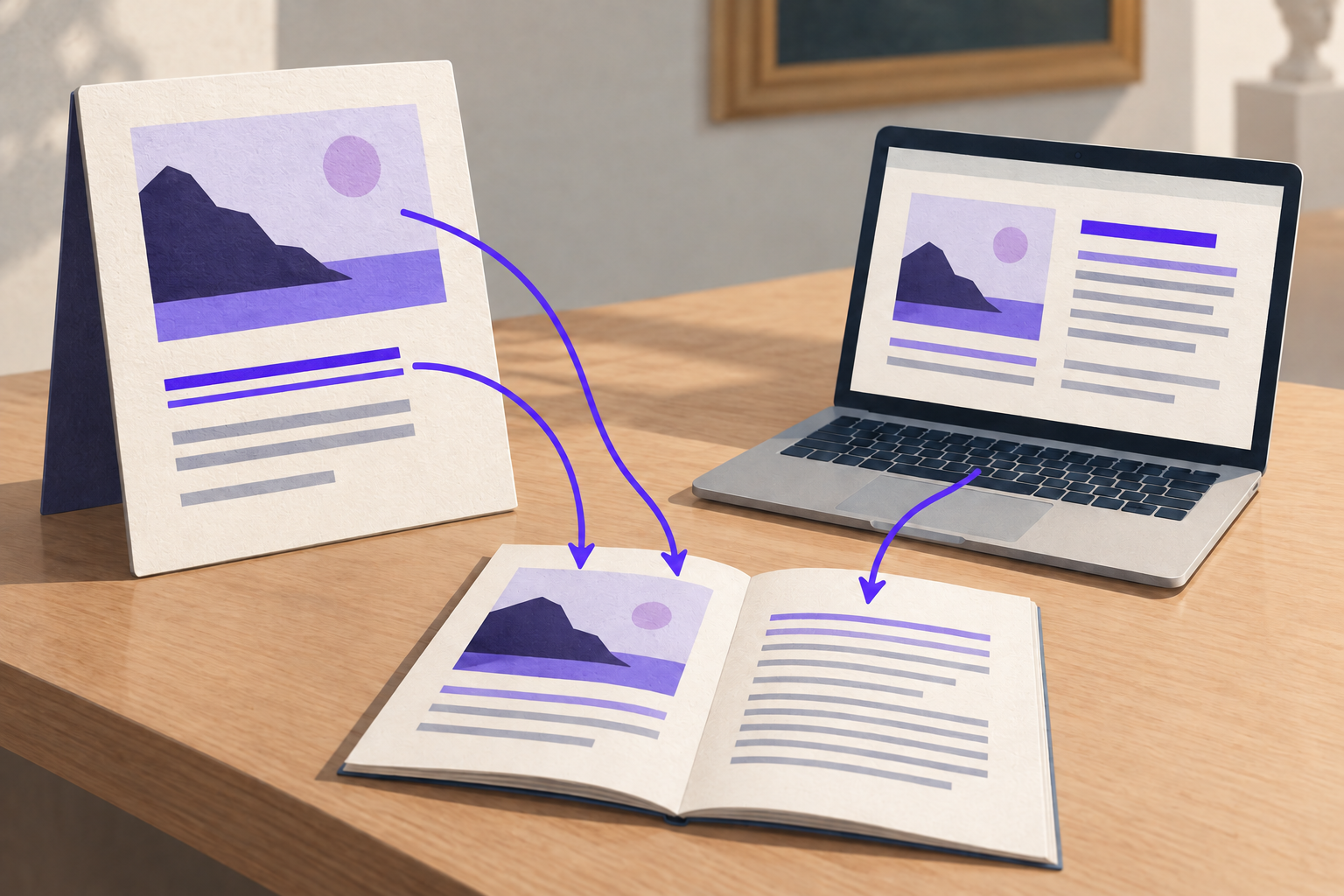
In your sign or document editor, add the readable address or clickable text link to the same information. Give the QR image suitable alternative text where the publishing format supports it.
Test both routes separately
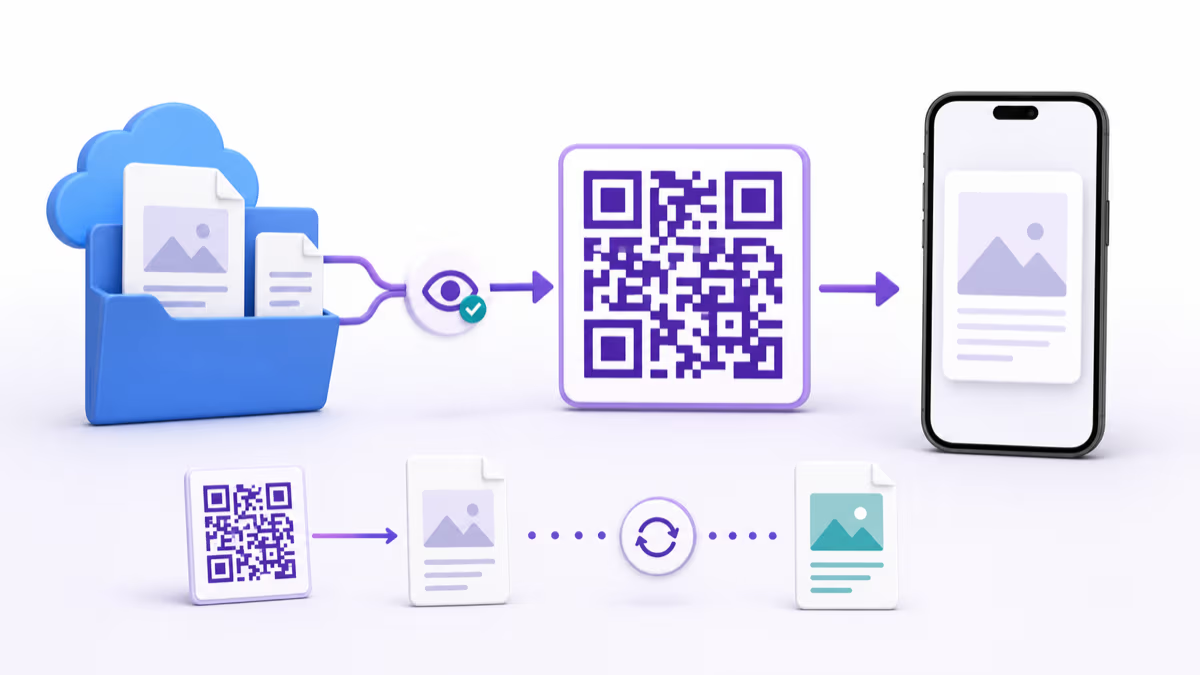
Scan the final QR proof, then reach the destination without scanning. Use keyboard navigation for digital links and type the printed address for physical material. Verify that each route reaches the same current information.
Check the destination with representative users and tools
Check zoom, keyboard access, screen-reader output and completion of the intended task. Record limitations and repair them in the destination or publishing document before broad distribution.
Write labels for the result, not the pattern
View opening hours is more informative than Click here. Download the event program (PDF) tells a reader what will happen before opening a file. Keep essential instructions in real text.
Alternative text depends on how the image is used. An informative QR image should convey its purpose. A linked QR and nearby text need meaningful accessible names without unnecessary repetition. Follow your document or website's image and link guidance rather than pasting the same long description into every field. W3C's writing guidance explains meaningful links, image alternatives and clear instructions.
Do not stop at a successful camera scan
A successful scan only establishes that one device decoded the pattern in those conditions. Continue through the landing page: can a visitor understand the page heading, reach the relevant controls, read enlarged text and finish the intended action?
If the QR opens a document, check the downloaded document. If it opens a form, check labels, instructions and error messages. If a login is required, make that requirement clear before the scan. Do not describe a destination as accessible merely because the QR resolves to it.
Keep a small review record: placement, destination, fallback route, last check, issues and owner. When you change a dynamic QR destination, review the printed wording and fallback link too. The QR may be editable while the words on the sign are not.
For the visitor sign above, check three concrete outcomes: the printed address reaches the visitor page, its digital link works without a camera, and the essential opening hours and directions are available through the stated offline route. Record a separate result for each. A successful scan does not stand in for those checks.
Link to the information you have checked
Create a QRLynx Website / Link QR, then add the separate text route in your publishing layout.
Keep design guidance in its own place
For contrast, quiet zone, layout and physical proof checks, use the QR design guide. This guide focuses on reaching and using the information when scanning is unavailable. Both checks matter, and passing one does not establish the other.
Frequently asked questions
Can I access a QR code without scanning?
You can reach its destination without scanning when the publisher also provides a readable web address or a clickable link to the same information. Put a readable address beside a printed QR and a meaningful text link in digital content. A QR image alone does not supply that alternative, so test the route separately.
Does a working QR code make its destination accessible?
No. A successful scan only shows that a device decoded that image in those conditions. The destination still needs its own checks, including clear page structure, meaningful links, keyboard access and usable forms or documents. Creating a QR in QRLynx does not certify the linked page or document as accessible.
What alternative text should a QR image have?
Describe its useful purpose in the context where it appears. If it opens visitor information, say what information the reader can reach rather than only calling it a QR code. Coordinate the image alternative with any nearby link so the accessible name is meaningful without unnecessary repetition. The readable or clickable alternative route must still work.