How to Create a QR Code for Your Google Maps Location (2026 Guide)

AT
· 23 min read
How to Create a QR Code for Your Google Maps Location (2026 Guide)

Key Takeaway

Complete guide to creating a QR code that links to your Google Maps location. Covers how to get your Maps share link, static vs dynamic for locations, use cases for retail stores, offices, event venues, food trucks, real estate, and weddings. Includes design tips, print placement strategies, and 12 FAQs.

Every business has a physical location. And every physical location has one shared problem: people cannot find it. They get the street wrong, they miss the entrance, they drive past your building because the numbering is confusing, or they simply cannot remember the address you gave them on the phone two hours ago.

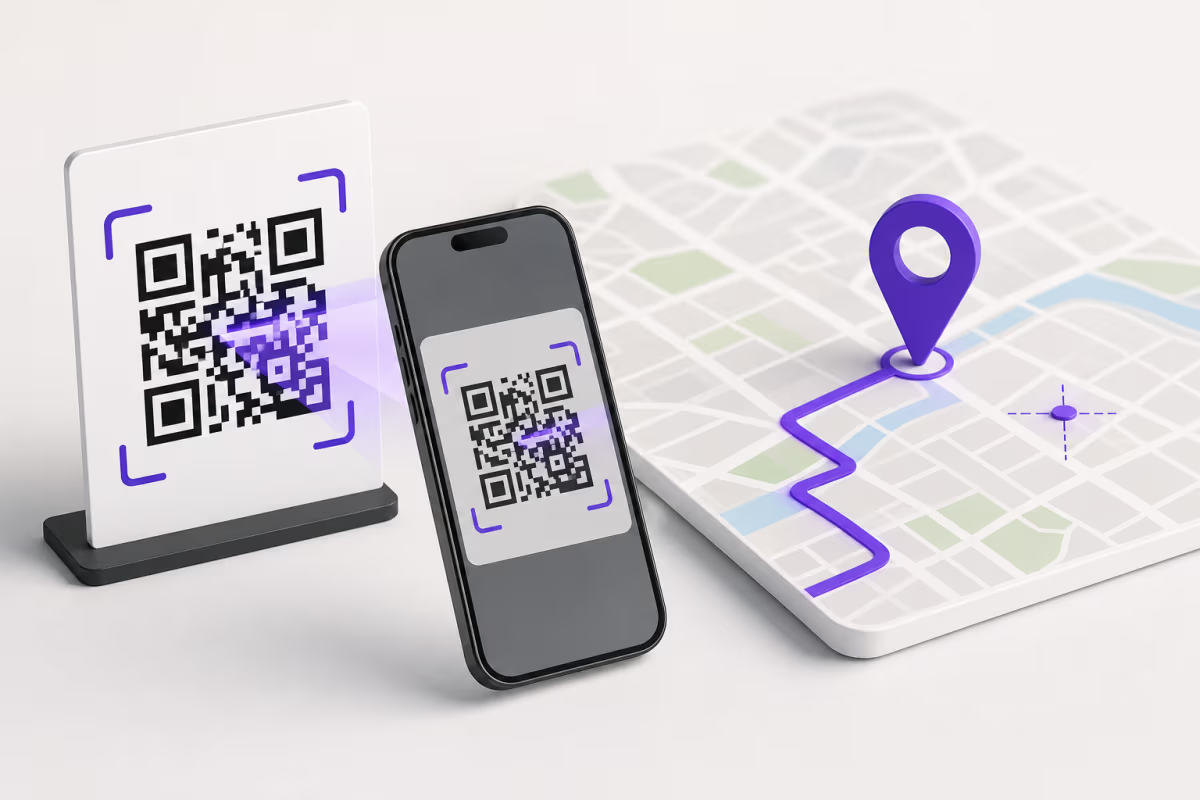
A Google Maps location QR code eliminates all of that friction. One scan opens Google Maps (or Apple Maps on iPhones) with your exact pin dropped, directions ready, and the blue navigation arrow pointing the way. No typing addresses, no spelling street names, no searching through a list of similar business names hoping they tap the right one.

The data supports this approach. According to Google Maps Help, Google Maps handles over 1 billion direction requests per day globally. And Think with Google reports that 76% of people who search for something nearby on their phone visit a related business within a day. A QR code bridges the gap between your marketing materials and a customer physically walking through your door.

This guide covers everything you need: how to get the correct Google Maps share link, how to create a QR code with QRLynx, static vs dynamic considerations for location codes, use cases across six industries, combining location QR with your Google Review QR code, print placement strategies, design tips, and twelve frequently asked questions with detailed answers.

New to QR codes? Start with our complete guide to creating a QR code first.

Why a Google Maps QR Code Matters

Sharing your address as plain text — on a business card, a flyer, an invoice, or a wedding invitation — puts the burden on the recipient. They have to copy the address, open a maps app, paste or type it in, and hope the app resolves the correct location. At every step, there is a chance for error: a transposed digit, a misspelled street name, a maps result that pins the wrong side of a shopping center.

A QR code that links directly to your Google Maps pin eliminates every single step. The recipient scans, their phone opens Google Maps with your exact coordinates and business name, and they tap "Directions." Total time: under three seconds.

Here is what a location QR code does for your business:

  • Reduces no-shows. Event venues, medical offices, and restaurants lose revenue when customers cannot find the location or give up trying. A QR code on the confirmation email, the appointment card, or the event ticket ensures they arrive.
  • Eliminates phone support calls. "Where are you located?" and "How do I get there?" are two of the most common calls businesses receive. A QR code on your window, your receipt, or your business card answers both questions without tying up your phone line.
  • Works universally. A Google Maps link opens in Google Maps on Android and in the default maps app (usually Apple Maps or Google Maps) on iPhone. It works on every smartphone sold in the last decade, in every country, in every language. No app download required.
  • Survives format changes. If you use a dynamic QR code, you can update the destination if your business moves, opens a second location, or you want to redirect seasonal customers to a temporary venue. The printed material stays the same.

According to BrightLocal, 98% of consumers used the internet to find information about a local business in 2024, and the number one piece of information they look for is the address and directions. A location QR code delivers exactly that, instantly, from any printed surface.

Before you create a QR code, you need the correct Google Maps URL. There are three types of Google Maps links, and using the wrong one can cause problems:

Link TypeExample FormatBest ForDrawbacks
Share Link (recommended)https://maps.app.goo.gl/abc123QR codes, business cards, all print — short and cleanNone for QR use
Place URLhttps://www.google.com/maps/place/...Embedding on websites, SEOVery long URL — creates dense QR pattern that is harder to scan at small sizes
Coordinates URLhttps://www.google.com/maps/@37.77,-122.41,15zPrecise pin drops for undeveloped land, parks, or spots without a business listingDoes not show your business name, reviews, or hours

The share link is the best option for QR codes. It is short (fewer characters = simpler QR pattern = easier scanning), it opens your full Google Business Profile with name, hours, reviews, and photos, and it works on both Android and iOS.

  1. Open Google Maps on your desktop or phone.
  2. Search for your business name. Make sure you select the correct listing — if you have multiple locations, verify the address shown is the one you want.
  3. Click or tap on your business listing to open the full details panel.
  4. Click the Share button (the arrow icon on desktop, or the share icon on mobile).
  5. Click Copy link. This gives you a short URL like https://maps.app.goo.gl/abc123.
  6. Test the link by opening it in a new browser tab or on a different device. Verify it opens your correct location with your business name, address, and Google Business Profile information.

Important: If your business does not have a Google Business Profile, the share link will only drop a pin at the coordinates without showing your business name, hours, or reviews. Claiming your Google Business Profile is free and essential for any business that wants customers to find them on Maps.

For Locations Without a Business Listing

If you need a QR code for a park, a hiking trailhead, a construction site, a parking lot, a wedding venue without its own listing, or any other location without a Google Business Profile, use the coordinates approach:

  1. Navigate to the exact location on Google Maps.
  2. Right-click (desktop) or long-press (mobile) on the exact spot.
  3. Click the coordinates that appear (e.g., 37.7749, -122.4194).
  4. Click Share and copy the link.

This creates a pin drop at those exact coordinates. The person scanning your QR code will see the map centered on that pin with the option to get directions, even though there is no business name or profile attached.

Static vs Dynamic: Which Is Better for Location QR Codes?

This is the single most important decision you will make before printing your QR code. The choice between static and dynamic determines whether you can update your QR code later and whether you can track how many people scan it.

FeatureStatic Location QRDynamic Location QR
CostFree foreverFree on Starter (1 code) or from $14/mo
Can change destination?No — permanently lockedYes — update anytime from dashboard
Scan tracking?No data at allTotal scans, unique visitors, location, device, time
Works offline?Yes (URL embedded directly)No — requires internet for redirect
Best forPermanent locations that will never change (monuments, parks, established businesses)Businesses that may relocate, seasonal venues, event locations, food trucks, pop-ups
QR pattern complexityMore modules (longer URL encoded)Fewer modules (short redirect URL like r.qrlynx.com/abc)

For most businesses, dynamic is the right choice. Here is why:

  • Businesses move. Lease renewals fall through, neighborhoods change, growth requires a bigger space. If you printed 5,000 business cards with a static location QR code and then moved across town, every single card now points to the wrong address. A dynamic code lets you update the destination in 10 seconds.
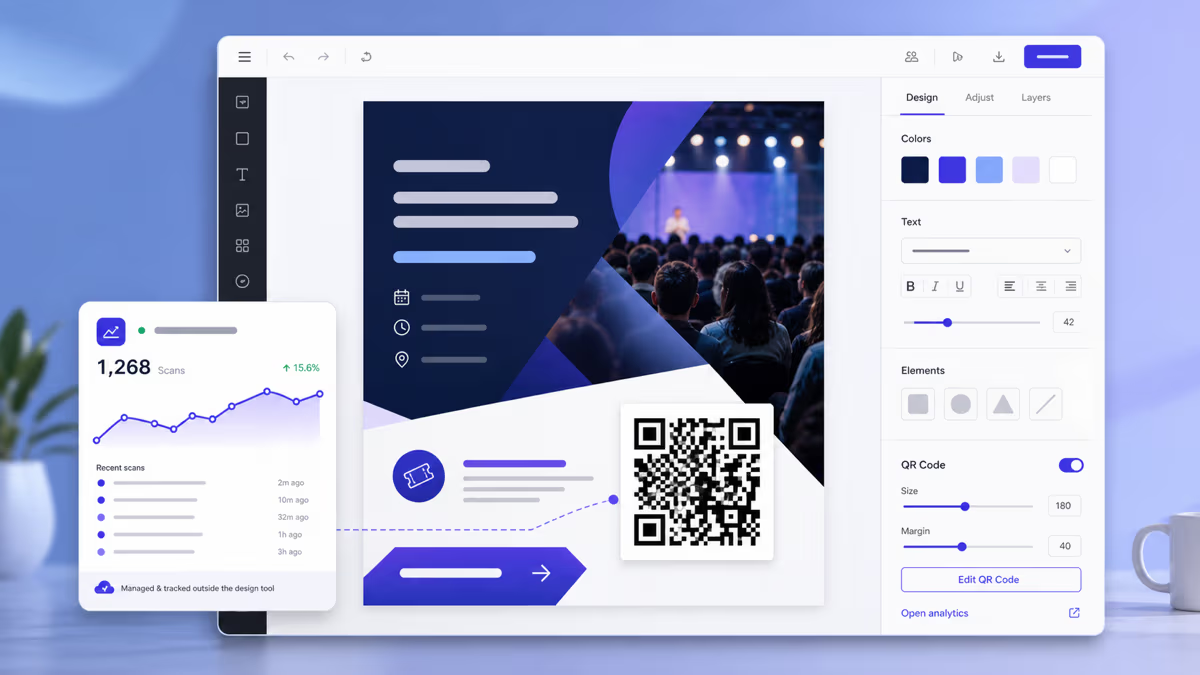
  • Tracking matters. Knowing how many people scan your location QR code tells you whether your print placement is working. If 500 people scan the code on your window sticker but only 50 scan the one on your business card, you know where to focus your efforts.
  • Dynamic codes produce simpler QR patterns. Because the encoded URL is shorter (a redirect like r.qrlynx.com/abc vs a full Google Maps URL), the QR pattern has fewer modules. Simpler patterns are easier to scan at smaller sizes and from greater distances — important for business cards and window stickers.

The one scenario where static makes sense is a truly permanent location — a national park trailhead, a public monument, a well-established business that has been in the same building for decades and has no plans to move. In those cases, a free static QR code works perfectly. For a deeper comparison of the two approaches, see our static vs dynamic QR code guide.

How to Create a Google Maps QR Code with QRLynx

Follow these 5 steps to create a location QR code that opens Google Maps with your exact pin dropped

1

Get Your Google Maps Share Link

Open Google Maps and search for your business or location. Click on your listing to open the full details panel, then click the Share button and copy the link. You will get a short URL like maps.app.goo.gl/abc123. Test this link in a new browser tab to confirm it opens the correct location with your business name, address, and profile information. If you do not have a Google Business Profile, you can right-click any spot on the map and share the coordinates instead.

2

Create a URL QR Code on QRLynx

Go to qrlynx.com and select the URL QR code type. Paste your Google Maps share link into the URL field. The URL type is the correct choice for location QR codes because it links to any web address — including Google Maps links. Do not use the vCard or Contact type, which is meant for saving contact cards, not for navigation. Double-check the pasted URL to make sure it is complete and matches the link you copied from Google Maps.

3

Enable Dynamic URL and Tracking

In the Advanced Features section, toggle on Dynamic URL and Track Scans. Dynamic URL encodes a short redirect link (r.qrlynx.com/abc) instead of the full Google Maps URL, which creates a simpler QR pattern that scans more reliably at small sizes. Track Scans enables real-time analytics showing how many people scan your code, when they scan, what device they use, and where they are located. Both features are included on the free Starter plan for your first dynamic QR code.

4

Customize Your Design

Click Style and Colors to match the QR code to your brand. Set a dark foreground color (black, navy, dark green, or your brand dark color) on a white or light background. Add your business logo using the Logo toggle — the logo appears in the center of the code. Set error correction to High (30 percent) so the code remains scannable even with a logo overlay and normal print wear. Choose a pattern style (dots, rounded, or classic squares) that fits your brand aesthetic. Check the readability score and aim for 80 percent or higher.

5

Download and Print

Click Download and select SVG for the best print quality — SVG is a vector format that scales perfectly to any size without losing sharpness. If your printer cannot handle SVG, download PNG at 300 DPI minimum. Never use JPEG because lossy compression creates artifacts that can prevent scanning. Place the QR code on your business cards, window stickers, flyers, invoices, or any printed material where customers need to find your location. Always include a call-to-action like Scan for directions or Scan to find us next to the code.

Use Cases: Where to Use a Google Maps Location QR Code

A location QR code is not a one-size-fits-all solution. Different businesses place them in different contexts for different reasons. Here are six detailed use cases with specific placement and strategy recommendations.

Retail Store

Place the location QR code on your business cards, shopping bags, receipts, and window signage. For multi-location retailers, create a separate dynamic QR code for each store. When a customer from your downtown location picks up a bag and shows it to a friend, the friend can scan and navigate directly to that specific store — not your website's generic store locator page. Use dynamic codes so you can track which locations generate the most scans and adjust your marketing spend accordingly.

Office or Headquarters

Place the QR code on your email signature, letterhead, appointment confirmation emails, and lobby signage. Visitors, delivery drivers, and interview candidates all need to find your office. An office in a business park or inside a large building is especially hard to find from the street — the Google Maps pin drops them at the exact entrance. For coworking spaces or shared buildings, add a note like "Suite 401, 4th Floor" next to the QR code since Google Maps will get them to the building but not to your specific suite.

Event Venue

Include the location QR code on the event invitation, the confirmation email, the event ticket, and the event website. For outdoor events (festivals, markets, weddings) where the venue does not have a street address, use a coordinates-based pin drop so attendees navigate to the exact field or park entrance — not a general area nearby. For multi-day events like conferences, consider creating separate QR codes for the main venue, the parking garage, and the after-party location. Combine with an Event QR code type for adding the event to their calendar.

Food Truck

Food trucks move. This is the single strongest argument for using a dynamic location QR code. Print the QR code on your truck wrap, your menu board, your social media posts, and your takeout bags. Every time you change location, update the destination URL in your QRLynx dashboard to point to your new Google Maps pin. Your regulars who saved the QR code image on their phone — or who have your business card from last week — will always find your current location. Track scans to see which locations draw the most customers and optimize your route accordingly.

Real Estate Open House

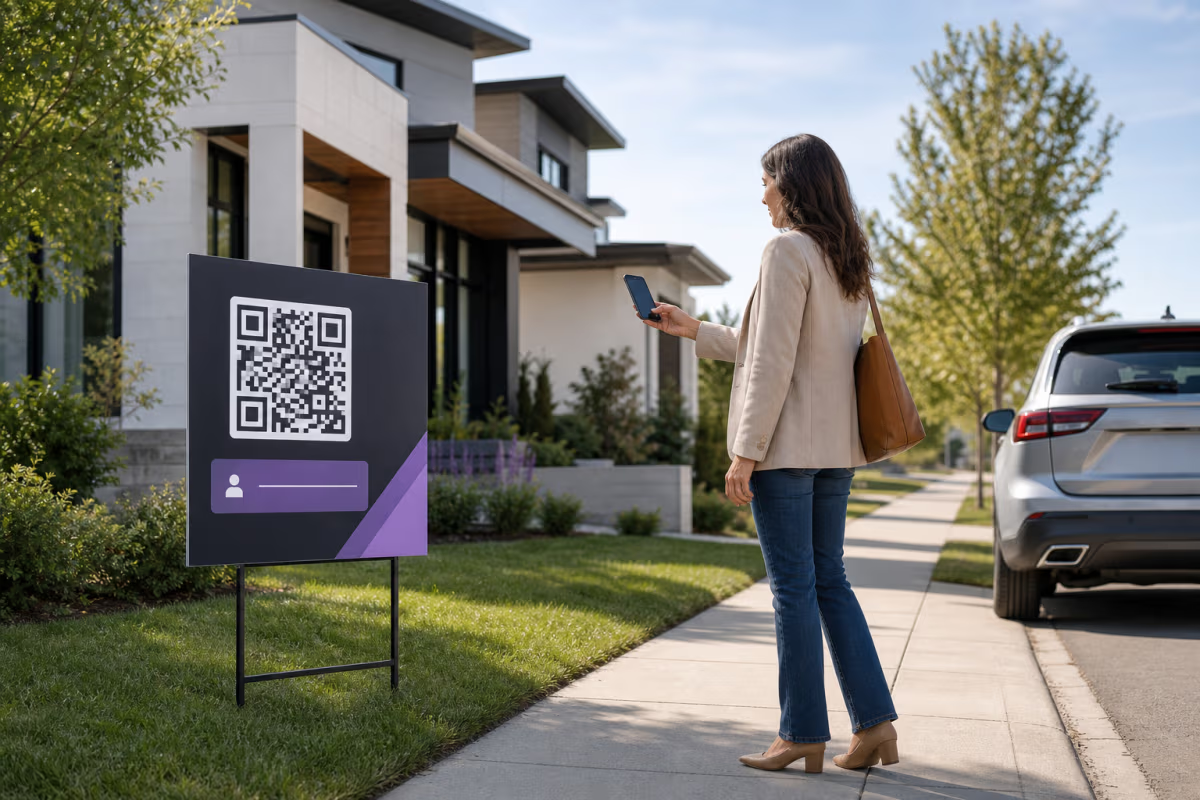
Place the location QR code on the property listing flyer, the yard sign, and the online listing page. Prospective buyers driving around a neighborhood can scan the yard sign to get turn-by-turn directions to the property. Use a dynamic code so you can reuse the same yard sign for multiple properties — just update the Maps link when the listing changes. After the open house, redirect the QR code to your agent profile or next available listing so the sign continues generating value. For a complete breakdown of QR strategies for agents, see our real estate QR code guide.

Wedding Venue

Wedding guests are notoriously bad at finding unfamiliar venues, especially rural locations, estate homes, and venues tucked away on private roads that GPS does not handle well. Include the location QR code on the wedding invitation, the wedding website, and the day-of timeline card. Drop the pin at the venue entrance (not the main building) so guests arrive at the correct driveway. If the ceremony and reception are at different locations, create two separate QR codes labeled "Ceremony Location" and "Reception Location." For more wedding QR code ideas, see our wedding QR code guide.

Combining Location QR with Google Review QR

If you already have a Google Review QR code for collecting customer feedback, you are halfway to a powerful dual-QR strategy. The two codes serve complementary purposes at different stages of the customer journey:

QR CodePurposeWhen to UseWhere to Place
Location QRHelp people find your businessBefore the visit — when the customer is planning to comeBusiness cards, flyers, invoices, email signatures, appointment confirmations, window signage
Review QRCollect Google reviews after the visitAfter the visit — when the customer has experienced your serviceReceipts, thank-you cards, table tents, checkout counters, follow-up emails

The strategy is simple: use the location QR to get them in the door, then use the review QR to capture their feedback before they leave. Together, these two QR codes create a complete loop — more visitors from better navigation leads to more reviews, which leads to higher Google rankings, which leads to more visitors.

On a business card, you can include both codes: the location QR on the front ("Scan for directions") and the review QR on the back ("Enjoyed your visit? Scan to leave a review"). On a window sticker facing outward, use the location QR for passersby. On a table tent inside, use the review QR for seated customers. Each code serves a different moment in the customer journey.

A location QR code is only useful if people see it at the right moment — when they need directions. Strategic placement ensures your QR code appears exactly when someone is trying to find you.

Placement Guide by Material Type

Print MaterialQR Code SizePlacementCTA Text
Business Card0.6 x 0.6 in minimumBack of card, centered or bottom-right"Scan for directions"
Flyer (Letter/A4)1.5 x 1.5 inBottom section near address text"Scan to find us" or "Scan for map"
Window Sticker3 x 3 in minimumStreet-facing window at eye level"Find us on Google Maps"
Invoice / Receipt1 x 1 inFooter area near business address"Visit us again — scan for directions"
Event Invitation1.2 x 1.2 inBelow venue name and address"Scan for venue directions"
Yard Sign (Real Estate)3 x 3 in minimumLower section of sign, visible from car"Scan for property details"

The key principle: place the location QR code near the printed address on every material. People scan a QR code for directions at the exact moment they read an address and think, "Where is this?" If the QR code is right next to the address text, the connection is instant and obvious. If it is on a different page, a different section, or separated by other content, many people will not make the connection.

Window Stickers

A window sticker with your location QR code is one of the most underrated marketing tools. Place it on the street-facing window of your business at eye level. Pedestrians, delivery drivers looking for your entrance, and customers who parked on the wrong street can all scan the code and get walking directions to your front door. Use weatherproof vinyl and a matte finish to prevent glare. Size the QR code at least 3x3 inches for reliable scanning from a few feet away.

Email Signatures

Adding a location QR code to your email signature works surprisingly well for businesses that schedule in-person appointments — clinics, law offices, financial advisors, salons. Every appointment confirmation email contains the QR code. The recipient does not need to copy the address, open Maps, and type it in. They just scan the code in the email on their phone. Most email clients display inline images, so embed the QR code as a small image (150x150 pixels) with the alt text "Scan for directions."

For more guidance on print QR codes including size specifications and design rules, see our flyer and poster QR code guide and our QR code size guide for print.

Design Tips for Location QR Codes

A location QR code should be instantly recognizable as a directions tool. Here are design recommendations specific to location and navigation use cases:

Instead of your business logo, consider using a Google Maps pin icon or a generic map marker as the center logo overlay. This immediately communicates "this QR code gives you directions" without the person needing to read the CTA text. On a busy business card or crowded flyer, visual cues like this reduce the cognitive load on the reader and increase scan rates.

Match Your Brand, But Keep It Simple

Your location QR code does not need to be a work of art. It needs to be scannable, recognizable, and paired with a clear CTA. Use your brand's primary dark color for the foreground modules and white for the background. Avoid gradients, textures, and visual effects that compromise scannability. A clean, solid-color QR code with a subtle logo overlay is more effective than an over-designed code that takes three attempts to scan.

Color Psychology for Navigation

Blue is strongly associated with navigation, maps, and trust. If your brand colors allow it, a dark blue foreground on a white background creates a visual association with maps and wayfinding. Green is associated with "go" and positive action. Red should be avoided for location codes because it suggests stopping, errors, or warnings — the opposite of what you want when inviting someone to visit.

Error Correction Level

Set error correction to High (30%) for any printed location QR code. This is especially important for codes printed on business cards (which get bent and scratched in wallets), window stickers (which weather in sun and rain), and flyers (which get folded, crumpled, and rained on). High error correction means up to 30% of the code can be damaged or obscured and it will still scan. If you are adding a logo overlay, High is mandatory — the logo covers part of the data and error correction compensates for the lost modules.

Test Before Printing

Before committing to a print run, scan your QR code on at least three different phones: a recent iPhone, a recent Android, and an older model (2-3 years old). Test under different lighting conditions — bright sunlight, indoor fluorescent, and dim ambient light. Verify the Google Maps link opens correctly, shows your business name and pin, and offers a "Directions" button. A 30-second test prevents a costly reprint. For detailed print specifications, see our QR code size guide.

Google Maps QR Code FAQ

Answers to the 12 most common questions about creating a QR code for your Google Maps location

What type of QR code do I need for Google Maps?

Use a URL QR code type. Paste your Google Maps share link (the short maps.app.goo.gl URL you get when you click Share on your Google Maps listing) into the URL field. The URL type works for any web address, including Google Maps links. Do not use the vCard or Contact type — those are designed for saving contact information to a phone, not for opening maps. A URL QR code opens the link in the phone's default browser, which then redirects to the Google Maps app if it is installed.

Is a Google Maps QR code free?

Yes. You can create a free static URL QR code on QRLynx that links to your Google Maps location with no account required. Static codes are free forever and have no scan limits. If you want a dynamic code (recommended for businesses) that lets you change the destination later and track scan analytics, QRLynx includes one free dynamic QR code on the Starter plan with 1,000 tracked scans per month. The Pro plan starts at $14 per month and supports up to 50 dynamic codes for businesses with multiple locations.

Will the QR code work on both iPhone and Android?

Yes. Google Maps share links are universal. On Android phones, the link opens directly in the Google Maps app. On iPhones, the link opens in the default maps app, which is typically Apple Maps or Google Maps depending on the user's settings. In both cases, the user sees the correct location with a pin dropped and can tap Directions to start navigation. The QR code works on every smartphone manufactured in the last decade, regardless of operating system, manufacturer, or maps app preference.

Can I update the location without reprinting the QR code?

Yes, but only if you use a dynamic QR code. A dynamic code encodes a short redirect URL (like r.qrlynx.com/abc) instead of the actual Google Maps link. When someone scans it, the redirect server forwards them to whatever destination you have set in your QRLynx dashboard. You can change that destination anytime — new location, different Google Maps pin, or even a completely different URL. A static QR code, by contrast, has the Google Maps link permanently embedded in the pattern and cannot be changed after printing.

What is the best Google Maps link format for a QR code?

The share link (maps.app.goo.gl format) is the best choice. It is short, which creates a simpler QR pattern with fewer modules that scans more reliably at small sizes. It also opens your full Google Business Profile with your business name, hours, reviews, and photos. Avoid using the long google.com/maps/place URL because it creates a denser QR pattern that is harder to scan at small print sizes. Avoid the coordinates-only URL unless your location does not have a Google Business listing.

How big should a Google Maps QR code be on a business card?

The minimum size for a business card QR code is 0.6 x 0.6 inches (15 mm). The recommended size is 0.8 x 0.8 inches (20 mm) for reliable scanning without the user needing to hold their phone very close. Business cards are typically held at 6-12 inches from the phone camera, so the 10:1 scanning distance rule (distance divided by 10 equals minimum QR size) supports a minimum of 0.6 inches. Use a dynamic code for a simpler pattern, and set error correction to High since business cards get scratched and bent in wallets. For more business card QR tips, see our <a href="/blog/qr-code-business-card-guide">business card QR code guide</a>.

Can I create a QR code for a location without a Google Business listing?

Yes. If your location does not have a Google Business Profile — for example, a park, a hiking trailhead, a construction site, a private venue, or an undeveloped lot — you can create a coordinates-based QR code. Navigate to the exact spot on Google Maps, right-click or long-press to select the coordinates, click Share, and copy the link. This creates a pin drop at those exact coordinates. The person scanning your QR code will see the map centered on that pin with directions available, even though there is no business name or profile attached.

How do I track how many people scan my location QR code?

Use a dynamic QR code with tracking enabled on QRLynx. Every time someone scans your code, QRLynx records the scan event and displays it in your analytics dashboard. You can see total scans, unique visitors, geographic location of the scanner, device type (iPhone vs Android), browser, and a timeline showing when scans happen throughout the day and week. This data helps you understand which placement locations drive the most scans and whether your print materials are effectively guiding people to your business.

Does a Google Maps QR code work without internet?

It depends on the type. A static QR code embeds the full Google Maps URL directly into the pattern, so scanning it offline will store the URL and attempt to open it when the phone reconnects to the internet. However, Google Maps itself requires an internet connection to load the map and calculate directions (unless the user has pre-downloaded offline maps for that area). A dynamic QR code requires internet at the moment of scanning because the phone must connect to the redirect server first. In practice, since people scan QR codes with their phones which almost always have cellular data, internet access is rarely a real-world issue.

Can I use the same QR code for multiple locations?

No — each QR code links to one specific Google Maps location. If you have three store locations, you need three separate QR codes, each linking to its respective Google Maps pin. With dynamic QR codes on QRLynx, you can manage all of them from a single dashboard. The Pro plan supports up to 50 dynamic codes, which is enough for most multi-location businesses. You can also organize them into folders by city or region for easier management.

Should I use a Google Maps QR code or just print the address?

Use both. Print the full address as text for people who prefer to type it into their own maps app or GPS device, and include the QR code next to it for people who prefer to scan and go. The QR code is faster and eliminates typos, but some people (particularly older demographics) may still prefer typing the address. Having both options maximizes the chance that every reader can find your location using their preferred method. The QR code also provides the benefit of scan tracking if you use a dynamic code.

What is the difference between a Google Maps QR code and a Google Review QR code?

A Google Maps location QR code links to your Google Maps pin so people can get directions to your business. A Google Review QR code links directly to your Google review form so customers can leave a star rating and written feedback. They serve different purposes at different stages of the customer journey: the location QR helps people find you (before the visit), and the review QR collects feedback (after the visit). Many businesses use both — the location QR on business cards, flyers, and invitations, and the review QR on receipts, table tents, and thank-you cards. For a complete review QR setup guide, see our <a href="/blog/google-review-qr-code">Google Review QR code guide</a>.

Create Your Google Maps Location QR Code

A Google Maps QR code removes the single biggest barrier between your marketing materials and a customer walking through your door — the effort of finding your address. One scan opens Maps, drops the pin, and starts navigation. No typing, no searching, no wrong turns.

For most businesses, a dynamic URL QR code is the right choice. It lets you update the destination if you move, track how many people scan it, and produces a simpler QR pattern that scans more reliably at small print sizes. The QRLynx Starter plan includes one free dynamic QR code — enough for a single location.

Ready to help your customers find you? Create your free Google Maps QR code on QRLynx — it takes under three minutes.

For more guides on using QR codes to grow your business, explore these related resources:

Enjoyed this article? Share it!

Ready to Create Your Own QR Codes?

Start for free and upgrade as you grow. All plans include dynamic QR codes, analytics, and custom branding.

Start Your 14-Day Free Trial

Experience the full power of QRLynx Pro. No credit card required.

Start Free Trial

Starter

$0 /Month
  • Unlimited Static QR Codes
  • 1 Dynamic QR Code
  • 1,000 Scans/Month
  • No Watermark
  • 30+ QR Code Types
  • JPG, PNG, WEBP Downloads
  • Analytics (14 Days)

Pro

$14 /Month
  • Unlimited Static QR Codes
  • 50 Dynamic QR Codes
  • 25,000 Scans/Month
  • Unbranded QR Codes
  • 5 Folders Organization
  • 40+ QR Code Types
  • Custom Logo Upload
  • SVG / PDF Downloads
  • Analytics (30 Days)
  • Country Location Data
  • Advanced Expiry Rules
  • Password Protected Codes
  • PDF Upload (5MB)
Most Popular

Business

$29 /Month
  • Unlimited Static QR Codes
  • 250 Dynamic QR Codes
  • 250,000 Scans/Month
  • Unbranded QR Codes
  • 25 Folders Organization
  • 40+ QR Code Types
  • Custom Logo Upload
  • SVG / PDF Downloads
  • Advanced Analytics (60 Days)
  • Country / State / City Data
  • Device Type / OS / Browser Data
  • CSV Report Export
  • Advanced Expiry Rules
  • Redirect Rules (Device/Country/Time)
  • Lead Forms
  • Password Protected Codes
  • PDF Upload (20MB)

Enterprise

$99 /Month
  • Unlimited Static QR Codes
  • 1000 Dynamic QR Codes
  • Unlimited Scans
  • Unbranded QR Codes
  • White Label Domains
  • 100 Folders Organization
  • 40+ QR Code Types
  • Custom Logo Upload
  • SVG / PDF Downloads
  • Advanced Analytics (90 Days)
  • Country / State / City Data
  • Device Type / OS / Browser Data
  • Retargeting Pixels
  • CSV Report Export
  • Advanced Expiry Rules
  • Redirect Rules (Device/Country/Time)
  • Lead Forms
  • Password Protected Codes
  • PDF Upload (50MB)
  • Dedicated Success Manager

Need higher volume or custom features?

Custom scan volumes, SLAs, dedicated infrastructure, and white-label solutions for large teams.

Contact Sales

Ready to Transform Your QR Code Experience?

Join thousands of businesses already using QRLynx to create, customize, and track their QR codes with ease.

No credit card required
14-day free trial
Cancel anytime