How to Create a Calendar Event QR Code: Save-the-Date with a Scan (2026 Guide)

Ahmad Tayyem
Founder & QR Code Technology Specialist
· 24 min read
How to Create a Calendar Event QR Code: Save-the-Date with a Scan (2026 Guide)

Key Takeaway

Learn how to create a calendar event QR code that adds events directly to Google Calendar, Apple Calendar, and Outlook with a single scan. Step-by-step guide covering save-the-date QR codes for weddings, conferences, corporate events, and marketing campaigns with tracking and analytics.

Why Calendar Event QR Codes Are the Future of Event Invitations

Every event organizer faces the same frustrating problem: you send out invitations, post flyers, print banners — and people still forget to show up. According to Eventbrite research, the average no-show rate for free events hovers between 30 and 50 percent. Even paid events see 10 to 20 percent attrition. The root cause is not disinterest — it is friction. Guests intend to attend but never add the event to their calendar, so the date slips from memory.

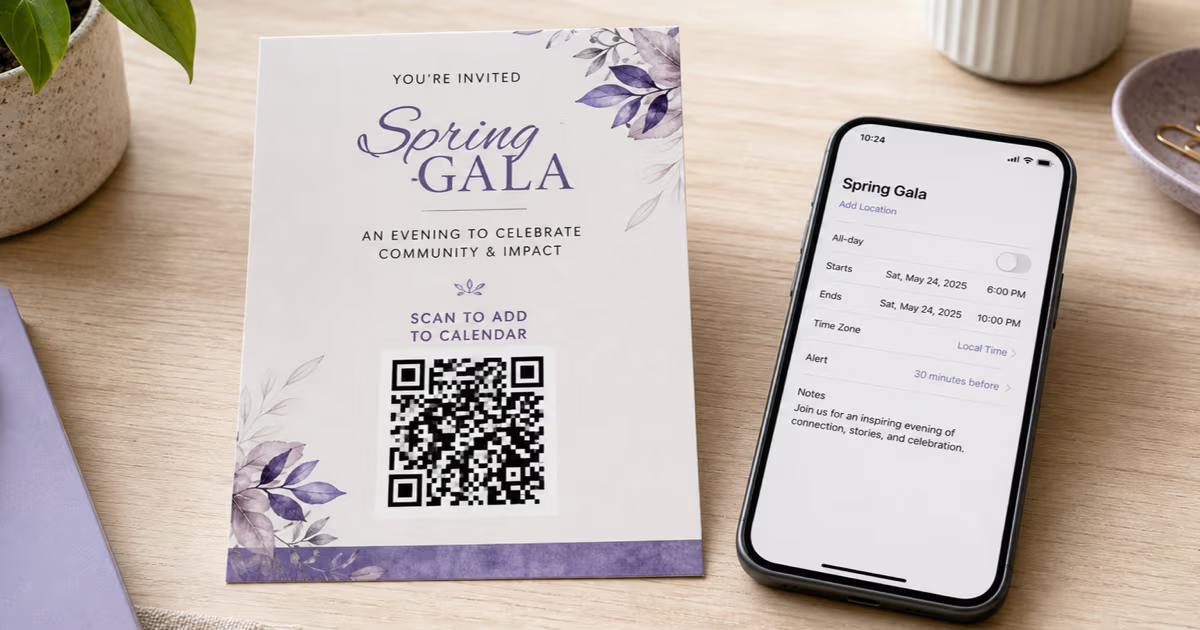
Calendar event QR codes solve this problem entirely. A single scan on a smartphone automatically opens the device's native calendar app with the event name, date, time, location, and description pre-filled. The guest taps 'Save' and the event appears on their calendar with reminders. No manual typing, no copying URLs, no searching for event details later. According to Statista, over 102 million Americans will scan a QR code in 2026, and Juniper Research projects QR code interactions worldwide will exceed 5.3 billion by 2027. The technology is mainstream, and your guests already know how to use it.

This guide walks you through everything you need to know about creating calendar event QR codes — from understanding the underlying technology to step-by-step creation, cross-platform compatibility with Google Calendar, Apple Calendar, and Outlook, and advanced strategies for weddings, conferences, and marketing campaigns. Whether you are planning a small dinner party or a 10,000-person conference, a calendar QR code is the simplest way to boost attendance and eliminate no-shows.

Before you create a calendar event QR code, it helps to understand what happens behind the scenes when someone scans one. There are two primary approaches, each with distinct advantages.

Approach 1: ICS File Download

The iCalendar format (ICS) is a universal calendar data exchange standard defined in RFC 5545. An ICS file is a plain-text file with the .ics extension that contains structured event data: summary, start time, end time, location, description, and optional fields like alarms and recurrence rules. When your QR code links to an ICS file hosted on a server, scanning the code downloads the file and the phone's operating system opens it with the default calendar application. This approach works universally across Google Calendar, Apple Calendar, Outlook, Samsung Calendar, and virtually every calendar app that supports the iCalendar standard.

The key advantage of ICS files is universal compatibility. The downside is that some Android devices may prompt the user to choose which app should open the file, adding a small friction step. Additionally, the ICS file must be hosted somewhere accessible — a static web server, an S3 bucket, or a service like QRLynx that handles hosting automatically.

Approach 2: Google Calendar Deep Links

Google provides a direct URL format for creating calendar events: https://calendar.google.com/calendar/render?action=TEMPLATE&text=Event+Name&dates=20260401T180000Z/20260401T200000Z&details=Description&location=Venue. When this URL is encoded into a QR code, scanning it opens Google Calendar directly in the browser with the event form pre-filled. The user clicks 'Save' and the event is added. This approach is frictionless for Google Calendar users (over 500 million users worldwide) but does not natively support Apple Calendar or Outlook.

Approach 3: Outlook Web Deep Links

Microsoft offers a similar deep link format for Outlook Web: https://outlook.live.com/calendar/0/deeplink/compose?subject=Event&startdt=2026-04-01T18:00:00&enddt=2026-04-01T20:00:00&body=Details&location=Venue. This works well for organizations in the Microsoft 365 ecosystem but excludes Google and Apple users.

The Best Strategy: Dynamic QR Codes with Smart Routing

The optimal approach for maximum compatibility is to use a dynamic QR code that points to an intermediate landing page. This page detects the user's device and offers buttons for 'Add to Google Calendar,' 'Add to Apple Calendar' (ICS download), and 'Add to Outlook.' With QRLynx, you create a dynamic URL QR code pointing to such a landing page, and you can update the event details — date, time, venue — at any time without reprinting the QR code. You also get full scan analytics to track how many people added the event to their calendar.

Step-by-Step: Creating a Calendar Event QR Code with QRLynx

Follow these steps to create a professional calendar event QR code that works across all major calendar platforms. The entire process takes less than five minutes.

How to Create a Calendar Event QR Code

Google Calendar is the most widely used digital calendar globally, with over 500 million users. There are two ways to create a QR code that adds an event to Google Calendar.

Method 1: Google Calendar URL Generator

Google Calendar supports a direct event creation URL. The format is:

https://calendar.google.com/calendar/render?action=TEMPLATE&text=Your+Event+Name&dates=20260615T140000Z/20260615T170000Z&details=Event+description+here&location=123+Main+St,+City,+State

The dates parameter uses the format YYYYMMDDTHHmmSSZ/YYYYMMDDTHHmmSSZ for start and end times in UTC. The text, details, and location parameters are URL-encoded strings. You can also add &recur=RRULE:FREQ=WEEKLY;COUNT=10 for recurring events.

Encode this URL into a QR code using QRLynx's URL QR code type. When an Android user scans the code, it opens Google Calendar directly with all fields pre-filled. iPhone users will see the Google Calendar web interface where they can save the event (if they use Google Calendar) or manually transfer the details to Apple Calendar.

Method 2: Google Calendar API (For Developers)

For programmatic event creation at scale — such as generating unique calendar invites for each conference attendee — the Google Calendar API v3 allows you to create events and generate shareable links. This requires OAuth 2.0 authentication and is suitable for enterprise applications that need to automate QR code generation for hundreds or thousands of personalized event invitations.

Pro Tip: Always include the &sf=true parameter in Google Calendar URLs. This opens the event in 'save' mode rather than 'edit' mode, reducing the number of clicks for the guest. Also, URL-encode any special characters in the event name and description — ampersands, pound signs, and question marks can break the URL if left unencoded.

Apple Calendar and iPhone Compatibility

Apple Calendar (formerly iCal) is the default calendar on all iPhones, iPads, and Macs. Since Apple does not offer a direct deep link URL like Google Calendar, the ICS file approach is the most reliable method for Apple users.

How ICS Works on iPhone

When an iPhone user scans a QR code that links to an ICS file, Safari downloads the file and iOS automatically presents a dialog: 'Add Event to Calendar?' with all the event details displayed. The user taps 'Add' and the event appears in Apple Calendar with notifications set to the default reminder time (typically 30 minutes before). This entire flow takes about three seconds from scan to saved event.

Creating an ICS File

An ICS file is a simple text file with specific formatting. Here is an example structure:

BEGIN:VCALENDAR
VERSION:2.0
BEGIN:VEVENT
DTSTART:20260615T140000Z
DTEND:20260615T170000Z
SUMMARY:Annual Company Picnic
DESCRIPTION:Join us for food and fun at City Park.
LOCATION:City Park, 456 Oak Avenue, Portland, OR
END:VEVENT
END:VCALENDAR

Save this as event.ics and host it on any web server. The URL to this hosted file becomes your QR code target. Services like QRLynx handle ICS file generation and hosting automatically when you select the Event QR type — you just enter the event details and the platform creates and hosts the ICS file for you.

Time Zone Handling

Time zones are the most common source of errors in calendar QR codes. The ICS standard supports the TZID parameter: DTSTART;TZID=America/New_York:20260615T100000. If you omit the time zone and use the 'Z' suffix (UTC), the event will display in the scanner's local time zone, which may be incorrect for location-specific events. Always specify the event's actual time zone using the IANA Time Zone Database identifiers (e.g., America/Chicago, Europe/London, Asia/Tokyo).

Apple Wallet Integration

For premium event experiences, consider creating an Apple Wallet pass (PKPass format) that includes the calendar event. When the user adds the pass to Apple Wallet, it automatically creates a calendar entry and can display a boarding-pass-style card with event details, a barcode for check-in, and real-time updates. This approach requires more development effort but provides the most polished experience for iPhone users at conferences and ticketed events.

Microsoft Outlook Integration: Desktop and Web

Microsoft Outlook remains the dominant calendar in corporate environments, with over 400 million users across Outlook desktop, Outlook Web (OWA), and the Outlook mobile app. Here is how to ensure your calendar QR code works seamlessly for Outlook users.

Outlook Web Deep Link

Microsoft provides a deep link format for Outlook Web:

https://outlook.live.com/calendar/0/deeplink/compose?subject=Event+Name&startdt=2026-06-15T14:00:00&enddt=2026-06-15T17:00:00&body=Event+description&location=Venue+Address

For Microsoft 365 (corporate) accounts, replace outlook.live.com with outlook.office.com. This URL opens the Outlook Web calendar composer with all fields pre-populated. The user clicks 'Save' and the event appears on their Outlook calendar.

Outlook Desktop (Windows and Mac)

Outlook desktop applications fully support ICS files. When a user downloads an ICS file, Outlook opens it and displays a preview with an 'Add to Calendar' button. On Windows, Outlook is typically the default handler for ICS files. On Mac, users may need to choose between Apple Calendar and Outlook when opening the file.

Microsoft Teams Integration

For corporate events, consider adding a Microsoft Teams meeting link to the event description field. When the guest adds the event to Outlook and clicks the Teams link at the scheduled time, they join the virtual meeting directly. This is especially useful for hybrid events where some attendees join in person and others join remotely. Include the Teams join URL in the ICS file's DESCRIPTION field or in the Google Calendar details parameter.

Exchange Server Considerations

Organizations running on-premises Exchange Server (rather than Microsoft 365) may have security policies that block ICS file downloads or restrict access to external URLs. If your target audience is within a corporate Exchange environment, coordinate with IT to whitelist your QR code redirect domain. When using QRLynx, the redirect domain is r.qrlynx.com — having IT allow this domain ensures scans resolve without being blocked by corporate firewalls.

Save-the-Date QR Codes for Weddings

Wedding save-the-dates are one of the most popular use cases for calendar event QR codes. A beautifully designed QR code on a save-the-date card ensures your guests immediately add the wedding date to their calendar — no typing required, no risk of forgotten dates.

Design Tips for Wedding QR Codes

Your wedding QR code should match your invitation suite aesthetics. Use your wedding colors for the QR code foreground and background. Upload a monogram, floral element, or wedding logo to the center. Choose rounded or dot-style corners for a softer, more elegant appearance compared to sharp-edged standard QR codes. Refer to our comprehensive wedding QR code guide for detailed design inspiration and best practices.

What to Include in the Calendar Event

For a wedding save-the-date calendar event, include: the wedding date and ceremony start time as the event start, the estimated end time (reception end), the venue name and full address in the location field, and a brief description such as 'The wedding of Sarah and James at Rosewood Estate. Formal invitation to follow.' You can also add the wedding website URL in the description so guests can access it directly from their calendar event.

Handling Multiple Events

Many weddings span multiple days or include separate events: rehearsal dinner, ceremony, reception, and brunch the next morning. Create separate calendar QR codes for each event, or use a landing page that offers 'Add Ceremony to Calendar,' 'Add Reception to Calendar,' and 'Add Brunch to Calendar' as individual buttons. With QRLynx's dynamic QR codes, a single code on the save-the-date can link to this multi-event landing page, and you can update the page as details are finalized — even after the cards have been mailed. See our guide on wedding RSVP QR codes for combining calendar events with RSVP collection.

Budget-Friendly Approach

For couples managing wedding costs, a calendar QR code on the save-the-date card eliminates the need for a separate RSVP card insert in the invitation suite. Guests scan to save the date, and the QR code links to a landing page with both the calendar event and an RSVP form. This approach saves on printing costs while providing a more convenient experience for guests. Check out our guide on wedding QR codes for monetary gifts for additional cost-saving strategies using QR technology at weddings.

Conference and Corporate Event Strategies

Large-scale events — conferences, trade shows, product launches, and corporate gatherings — benefit enormously from calendar QR codes. Here are proven strategies used by event professionals.

Pre-Event: Registration Confirmation Emails

Include a calendar event QR code in every registration confirmation email. According to Bizzabo, events that send calendar invites during registration see 20 to 30 percent higher attendance rates compared to those that rely on email reminders alone. The QR code in the email allows the registrant to quickly scan from a printed copy or tap to add the event from their phone.

Multi-Session Conference Agendas

For multi-track conferences, generate individual calendar QR codes for each breakout session, workshop, or keynote. Print these on the conference program, display them on digital signage outside each room, or include them in the event app. Attendees scan the sessions they want to attend, building a personalized schedule on their own calendar. This is far more effective than expecting attendees to manually input session times.

Trade Show Booth Integration

If your company is exhibiting at a trade show, create a QR code for your post-show follow-up meeting or webinar. Display it on your booth banner: 'Scan to add our product demo webinar to your calendar.' This captures intent at the point of engagement, when the prospect is most interested. Pair this with a scan-tracking QR code to measure booth traffic and compare engagement across different trade show events.

Recurring Event Series

For weekly meetups, monthly workshops, or quarterly town halls, use the ICS RRULE (recurrence rule) to create a repeating event. For example, RRULE:FREQ=MONTHLY;BYDAY=1TU creates an event on the first Tuesday of every month. The attendee scans once, and all future occurrences appear on their calendar automatically. QRLynx's dynamic QR codes mean you can update the recurrence pattern if the schedule changes — without needing to reprint any materials.

Hybrid and Virtual Events

For events with both in-person and virtual attendance options, include the video conferencing link (Zoom, Teams, Google Meet) directly in the calendar event description. When the event time arrives, the attendee opens the calendar event and clicks the meeting link — zero friction. Include clear instructions: 'In-Person: 123 Main Street, Conference Room B. Virtual: Click the Zoom link below.' This eliminates the most common reason people miss virtual events — not being able to find the join link.

Advanced Features: Dynamic Updates, Analytics, and Smart Routing

Static QR codes encode event data directly into the code pattern, meaning the information cannot change once the code is generated. Dynamic QR codes — like those created with QRLynx — encode a short redirect URL that points to your event data, unlocking powerful capabilities.

Update Event Details Without Reprinting

Venues change. Times shift. Speakers cancel. With a dynamic QR code, you update the destination — the ICS file or landing page — and every existing printed code automatically reflects the new information on the next scan. This is invaluable for events planned months in advance where details are not finalized when save-the-dates or early marketing materials are printed. Learn more about the differences in our static vs dynamic QR codes guide.

Scan Analytics and Attendance Forecasting

Every scan of a dynamic QR code is logged with metadata: timestamp, device type, operating system, approximate location (city-level), and referral source. This data powers attendance forecasting. If you printed 1,000 save-the-date cards and 650 have been scanned, you can estimate 60 to 70 percent of invitees have saved the date — well above the industry average. QRLynx's analytics dashboard visualizes scan trends over time, scan locations on a map, and device breakdown (iOS vs Android), giving you actionable insights for event planning and logistics.

Smart Device Routing

Use QRLynx's redirect rules to route scanners to different calendar platforms based on their device. iPhone users automatically receive the ICS file for Apple Calendar. Android users are redirected to the Google Calendar deep link. Windows devices get the Outlook Web link. This eliminates the intermediate landing page and provides each guest with the most frictionless experience for their specific device and calendar app.

Expiry Rules for Time-Sensitive Events

Set your QR code to expire after the event date. Instead of showing a dead link, expired codes redirect to a 'Thank you for attending' page, a post-event survey, a recording of the event, or registration for the next occurrence. This transforms a one-time QR code into a long-term engagement tool.

Password Protection for Private Events

For exclusive events — board meetings, private galas, invite-only launches — add password protection to your calendar QR code. Guests must enter a PIN or passphrase before accessing the event details. This prevents unauthorized individuals from obtaining event information even if they happen to scan the code on a discarded invitation.

Design Best Practices for Calendar Event QR Codes

A well-designed QR code gets scanned. A poorly designed one gets ignored. Follow these proven design principles to maximize scan rates for your calendar event QR codes.

Size and Placement

The minimum recommended size for a printed QR code is 2 cm x 2 cm (0.8 x 0.8 inches), but for calendar event codes on invitations and posters, aim for 3 to 5 cm (1.2 to 2 inches). Larger codes scan faster and from greater distances. On save-the-date cards, place the QR code on the back or lower portion of the front, ensuring it does not compete with the main design elements. On event posters, position the code at eye level with a clear call-to-action. See our complete QR code size guide for detailed specifications by material type.

Color and Contrast

QR codes require high contrast between the foreground (dark modules) and background (light area) to scan reliably. Maintain a minimum contrast ratio of 4:1. Dark foreground on light background works best. Avoid placing QR codes on textured or patterned backgrounds. For wedding invitations, classic combinations like navy on cream, forest green on ivory, or burgundy on blush provide both elegance and scannability. For corporate events, use your brand's primary dark color on white.

Call-to-Action Text

Never present a QR code without context. According to QR code usage studies, codes with a clear call-to-action see 30 to 40 percent higher scan rates than those without. Use action-oriented text: 'Scan to save the date,' 'Add to your calendar,' 'Never miss this event — scan now,' or 'One scan, it's on your calendar.' Position the text directly below or beside the QR code.

Logo Integration

Adding a logo or icon to the center of your QR code increases brand recognition and trust. QR codes use error correction algorithms that allow up to 30 percent of the pattern to be obscured while remaining scannable. When adding a logo, use the 'H' (high) error correction level and keep the logo within 20 to 25 percent of the total QR code area. For calendar events, consider using a calendar icon, your event logo, or your organization's mark.

Testing Before Distribution

Always test your final QR code on the actual printed material or in the actual digital context before mass distribution. Scan from the expected distance (arm's length for cards, 3 to 6 feet for posters, 10+ feet for banners). Test under different lighting conditions. Test on both iPhone and Android devices. A QR code that works perfectly on screen may fail when printed on textured paper, metallic foil, or transparent surfaces. For guidance on placing QR codes on physical materials, check our flyer and poster QR code guide.

Real-World Use Cases and Success Stories

Calendar event QR codes are versatile enough for virtually any scenario where you want people to remember a date. Here are the most impactful use cases across industries.

Wedding Save-the-Dates and Invitations

Couples are increasingly printing QR codes on save-the-date cards that link directly to a calendar event. The guest scans, taps 'Add,' and the wedding date is locked in with a reminder. Many couples pair this with a wedding photo sharing QR code on table cards at the reception, creating a cohesive QR code experience across the entire wedding journey.

Real Estate Open Houses

Real estate agents place calendar QR codes on 'For Sale' yard signs and listing flyers. Potential buyers scan to add the open house date and time to their calendar, along with the property address for navigation. This reduces the common problem of interested buyers forgetting open house schedules. For more real estate QR code strategies, see our real estate QR code guide.

Education and School Events

Schools and universities use calendar QR codes on newsletters, websites, and bulletin boards for parent-teacher conferences, exam schedules, registration deadlines, and graduation ceremonies. Parents scan to add school events to their personal calendars, significantly reducing missed-event calls to the front office. Learn more about educational applications in our classroom QR code guide.

Healthcare Appointment Reminders

Medical and dental offices include calendar QR codes on appointment confirmation letters and in-office signage. Patients scan to add their next appointment — complete with clinic address and phone number — directly to their calendar. This reduces no-show rates, which cost the US healthcare system an estimated $150 billion annually according to healthcare technology research.

Retail and Restaurant Promotions

Retailers use calendar QR codes for limited-time sales, product launch events, and seasonal promotions. A clothing store places a QR code on its window display: 'Scan to save our Summer Sale — starts June 20.' Restaurants use them for special dining events, wine tastings, and holiday menus. The calendar reminder arrives at just the right moment, driving foot traffic when it matters most.

Fitness and Wellness

Gyms, yoga studios, and wellness centers place calendar QR codes on class schedules posted in the lobby. Members scan to add their preferred classes to their calendar with recurring reminders. This is far more convenient than manually entering class times each week and helps maintain consistent attendance — which benefits both the member and the business.

Frequently Asked Questions About Calendar Event QR Codes

What is a calendar event QR code?

A calendar event QR code is a scannable code that, when scanned with a smartphone camera, automatically opens the device's calendar app with event details pre-filled — including the event name, date, time, location, and description. The user simply taps 'Save' or 'Add' to place the event on their calendar with reminders.

Does a calendar event QR code work with Google Calendar, Apple Calendar, and Outlook?

Yes. The most compatible approach is using an ICS (iCalendar) file, which is universally supported by Google Calendar, Apple Calendar, Outlook, Samsung Calendar, and virtually every modern calendar application. You can also use platform-specific deep links for Google Calendar or Outlook Web, or use a landing page that offers all three options.

Can I update the event details after printing the QR code?

Yes, if you use a dynamic QR code. Dynamic QR codes encode a redirect URL rather than the event data directly. You can change the event date, time, location, or description at any time through the QRLynx dashboard without needing to reprint the QR code. Static QR codes encode data directly and cannot be changed after creation.

How do I create a save-the-date QR code for my wedding?

Use QRLynx to create an Event QR code with your wedding date, ceremony time, venue address, and a brief description. Customize the QR code colors to match your wedding theme, add a monogram or floral logo, and download in SVG format for your save-the-date cards. Choose a dynamic QR code so you can update details if plans change.

What is an ICS file and why does it matter for calendar QR codes?

An ICS (iCalendar) file is a standardized format (RFC 5545) for sharing calendar event data between different applications. It is a plain-text file with the .ics extension containing structured event information. ICS files matter because they are the universal standard — every major calendar app supports them, making them the most reliable format for calendar QR codes that need to work across all devices and platforms.

How do I handle time zones in a calendar event QR code?

Always specify the event time zone using IANA Time Zone Database identifiers (such as America/New_York, Europe/London, or Asia/Tokyo) in your ICS file using the TZID parameter. If you use UTC (Z suffix) without specifying a time zone, the event will display in whatever local time zone the scanner is in, which can cause confusion for location-specific events.

Can I track how many people scan my calendar event QR code?

Yes, with dynamic QR codes from QRLynx. Every scan is tracked with metadata including timestamp, device type, operating system, approximate location, and referral source. This data helps you forecast attendance, measure the effectiveness of different marketing channels, and plan event logistics based on actual engagement data.

What size should a calendar event QR code be on a printed invitation?

For printed invitations and save-the-date cards, the QR code should be at least 2 cm x 2 cm (0.8 x 0.8 inches), though 3 to 5 cm (1.2 to 2 inches) is recommended for easier scanning. Ensure high contrast between the QR code and the background, and always test scanning on the actual printed card before ordering the full print run.

Can I add multiple events to a single QR code?

A single ICS file can contain multiple VEVENT blocks, allowing one QR code to add several events simultaneously. However, the better approach for complex multi-event scenarios (such as a multi-day conference or wedding weekend) is to use a dynamic QR code pointing to a landing page where users can selectively add individual events to their calendar.

Do calendar event QR codes work offline?

Static QR codes that encode event data directly (such as a VEVENT string) can be parsed offline by some QR code reader apps, but this is unreliable across devices. Dynamic QR codes and ICS file links require an internet connection to resolve the redirect and download the calendar file. For best results, assume your guests will have mobile data or WiFi access when scanning.

Can I password-protect a calendar event QR code?

Yes. QRLynx allows you to add password protection to dynamic QR codes. When a guest scans the code, they are prompted to enter a PIN or passphrase before accessing the event details. This is useful for private events such as board meetings, exclusive parties, or confidential corporate gatherings where you want to restrict access to invited guests only.

How do I create a recurring event QR code for a weekly class or monthly meeting?

Use the ICS RRULE (recurrence rule) property to define the repeat pattern. For example, RRULE:FREQ=WEEKLY;BYDAY=TU creates an event every Tuesday. RRULE:FREQ=MONTHLY;BYDAY=1FR creates an event on the first Friday of each month. When the user scans and adds the event, all future occurrences appear on their calendar automatically. Pair this with a dynamic QR code so you can update the recurrence pattern if the schedule changes.

Getting Started: Create Your First Calendar Event QR Code Today

Calendar event QR codes represent one of the highest-ROI applications of QR technology. They solve a real, measurable problem — event no-shows caused by forgotten dates — with a solution that takes seconds to use and costs nothing for the end user. Whether you are a bride planning the perfect save-the-date, a conference organizer managing thousands of registrants, a real estate agent promoting open houses, or a fitness studio owner filling classes, a calendar QR code turns passive awareness into active calendar commitments.

The technology is mature, the user behavior is established (over 100 million Americans scan QR codes regularly), and the tools are accessible. With QRLynx, you can create a professional, branded, trackable calendar event QR code in under five minutes — complete with cross-platform compatibility for Google Calendar, Apple Calendar, and Outlook, scan analytics for attendance forecasting, and the flexibility to update event details without reprinting a single invitation.

Ready to eliminate no-shows and ensure every guest saves your date? Create your calendar event QR code now and experience the difference a single scan makes.

Enjoyed this article? Share it!

Ready to Create Your Own QR Codes?

Start for free and upgrade as you grow. All plans include dynamic QR codes, analytics, and custom branding.

All plans include Unlimited Static QR Codes 39 QR Code Types Unbranded QR Codes Email Support
Starter
For personal projects
Free
No card required
  • 3 Dynamic QR Codes Editable QR codes — change the destination URL anytime
  • 1,000 Scans / Month Soft limit — QR codes keep working
  • 30-Day Analytics View scan data from the last 30 days
  • 1 Folder Organize your QR codes into a folder
  • JPG, PNG, WEBP Downloads
  • Pause & Activate QR Codes Pause QR codes to stop scans, reactivate anytime within your plan limit
Starter+
For more personal projects
$5.83 /mo
$70 billed yearly
  • 15 Dynamic QR Codes
  • Unlimited Scans
  • 30-Day Analytics
  • Custom Logo Upload
  • SVG / PDF Downloads
  • 3 Folders
  • 5 MB PDF Upload
  • JPG, PNG, WEBP Downloads
Most Popular
Pro
Best for marketers
Everything you need for QR campaigns
$11.67 /mo
$140 billed yearly
  • 50 Dynamic QR Codes
  • Unlimited Scans
  • 60-Day Analytics Upgraded from 30 days
  • Password Protected QRs Require a password before showing QR content
  • Smart Redirect Rules Redirect by device, country, or time
  • Access Consent Screens Age verification, terms, disclaimers
  • Expiry Rules Auto-expire by date or scan count
  • QR Scheduling Set start/end times for QR activity
  • 5 Folders
  • 10 MB PDF Upload
Business
For teams & agencies
$24.17 /mo
$290 billed yearly
  • 250 Dynamic QR Codes
  • Unlimited Scans
  • 90-Day Analytics Upgraded from 60 days
  • Bulk QR (100/batch)
  • Team Management (3 Members) Invite team members to collaborate on QR codes, analytics, and folders
  • Lead Capture Forms Collect leads directly from QR code scans
  • 25 Folders
  • 20 MB PDF Upload
  • CSV Report Export
Enterprise
For large organizations
$82.50 /mo
$990 billed yearly
  • 1,000 Dynamic QR Codes
  • Unlimited Scans
  • Bulk QR (500/batch)
  • Retargeting Pixels Add Facebook, Google, GTM tracking pixels to QR landing pages
  • Team Management (10 Members) Invite up to 10 team members with role-based access control
  • White Label Domains Use your own domain for QR redirects (e.g. qr.yourbrand.com)
  • 100 Folders
  • 50 MB PDF Upload
  • Dedicated Success Manager

Why businesses choose QRLynx

Features most competitors charge extra for — included in every plan

39
QR Code Types
URL, WiFi, vCard, PDF & more
Bio Pages
Built-in Landing Pages
No Linktree needed
Unbranded
No Watermark on Free
Even on the Starter plan
Unlimited
Scans on All Paid Plans
No scan caps, no surprises
275+
Edge Locations
Sub-50ms redirects globally
Lead Forms
Capture Contacts
Built-in lead gen from scans
Smart Rules
Conditional Redirects
By device, location, or time
PDF QR
Upload & Share PDFs
Menus, flyers, documents

Ready to Transform Your QR Code Experience?

Join thousands of businesses already using QRLynx to create, customize, and track their QR codes with ease.

No credit card required
Free forever Starter plan
Cancel anytime