How to Find Your Eventbrite Ticket QR Code

Key Takeaway
Find an Eventbrite ticket QR code in the iPhone app, Android app, website, or email, with recovery steps for missing tickets and entry problems.
Reviewed: July 2026
The attendee access, missing-ticket, Apple Hide My Email, transfer, and organizer check-in steps were checked against Eventbrite's current Help Center in July 2026.
To find your Eventbrite ticket QR code, sign in with the email address used for the order and open Tickets. On the iPhone app, tap Tickets and select the order. On Android, tap Profile, find the order, then tap Tickets. On the website, sign in, open Tickets, and select the order. You can also open the Eventbrite confirmation email and select Go to my tickets.
Some events do not include a scannable code. If your ticket opens but no QR code appears, check the organizer's entry instructions or contact the organizer rather than assuming the ticket is missing.
Where to find your Eventbrite ticket
| Method | Current path | Best use | Important boundary |
|---|---|---|---|
| iPhone app | Sign in, tap Tickets, select the order | Fast access on your own phone | Use the email address attached to the order |
| Android app | Sign in, tap Profile, find the order, tap Tickets | Fast access on your own phone | The Android path differs from iPhone |
| Eventbrite website | Sign in, open Tickets, select the order | App unavailable or another device | Requires the correct account |
| Confirmation email | Open the Eventbrite email and select Go to my tickets | Recover the order route from your inbox | Check junk or spam if the message is missing |
| Organizer assistance | Contact the organizer with your order details | Wrong email, missing code, or event-specific entry question | The organizer can search orders and update attendee information |
How to open your Eventbrite ticket QR code
Use the path for your device, then verify the event actually provides a scannable ticket.
Sign in with the order email
Use the exact email address entered during checkout. Eventbrite creates or associates the attendee account with that address.
Open the order
On iPhone, tap Tickets. On Android, tap Profile, find the order, then tap Tickets. On the website, open Tickets and select the order.
Select the ticket
Open the ticket you plan to present. For an order with more than one ticket, move through the tickets and confirm each attendee has the correct one.
Check the entry instructions
Confirm whether the ticket includes a QR code and whether the organizer requires anything else, such as identification or a specific arrival process.
Prepare before arrival
Open or download the ticket while connected, charge the phone, and keep the organizer's instructions available. Use only backups allowed by the event.
If your Eventbrite ticket is missing
Eventbrite lists three common causes: you signed in with a different email address, the checkout email contains a typo, or the device is offline before the ticket has ever been accessed. Start by checking the address shown on the order confirmation and every inbox you may have used.
If the confirmation email is missing, search for Eventbrite and check junk or spam. Eventbrite's Find your tickets guidance also links to a recovery flow that accepts purchase details. If the order email is wrong, the organizer can find the order by name or order number, update the attendee email, and send a claim-ticket email.
If you used Apple Hide My Email
The ticket may be attached to an Apple-generated address ending in @privaterelay.appleid.com. Eventbrite instructs attendees to sign out, use Sign in with Apple, then return to Tickets. You can check the address associated with Eventbrite in your Apple account settings.
Eventbrite ticket problem and next step
| Problem | Likely explanation | Next step | Who can resolve it |
|---|---|---|---|
| Tickets area is empty | Signed in with another email | Retry the order email or use Eventbrite's ticket recovery flow | Attendee or organizer |
| No confirmation email | Spam filtering, another inbox, or email typo | Search all inboxes, then recover the order or contact the organizer | Attendee or organizer |
| Apple private relay address | Hide My Email was used | Sign out and use Sign in with Apple | Attendee |
| Ticket opens without a QR code | The event may use another entry method | Read the event instructions and contact the organizer | Organizer |
| Device is offline before first access | Ticket data has not loaded | Reconnect and open or download the ticket before arrival | Attendee |
| Code is rejected at entry | Wrong event, already checked in, invalid ticket, or event-specific issue | Ask staff to search the attendee list and verify the order | Organizer or door staff |
Prepare the ticket for the venue
Open or download the ticket before leaving a reliable connection. Eventbrite explicitly notes that a ticket may be unavailable in the app when the device is offline and the attendee has not accessed it previously. A charged phone and the official ticket view or downloaded ticket are safer than depending on venue reception.
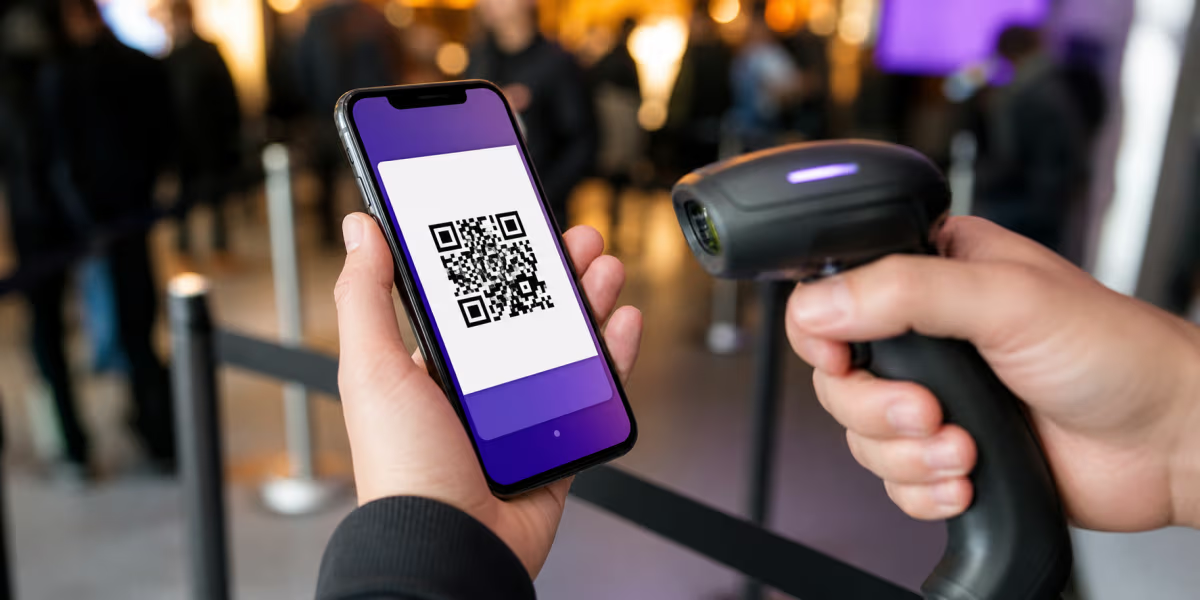
At the scanner, show the complete code at a comfortable brightness, keep the screen clean, and hold the phone steady. If scanning fails, Eventbrite's organizer tools let authorized staff search or scroll for the attendee and check the ticket in manually. A printed attendee list can also support a venue's fallback process.
Protect the ticket code
Do not post an unused ticket QR code publicly. Eventbrite's check-in system reports when a code is already checked in or is not valid for the event. Keep the code private and use the official transfer or attendee-information process when another person should receive the ticket.
A screenshot may reproduce the visible pattern, but event rules, ticket updates, wallet behavior, and organizer checks can vary. Use the Eventbrite ticket view, downloaded ticket, or a backup the organizer accepts. Do not treat a screenshot as a universal entry guarantee.
Multiple tickets, sharing, and transfers
For an order with several tickets, Eventbrite's app lets you move through the individual tickets. The app also provides a Share action for eligible tickets. Keep each ticket associated with the intended attendee and follow the event's rules.
Eventbrite says a ticket cannot simply be moved from one account to another. When the option is available, the buyer can edit the order information with the new attendee's name and email, and that person receives an email to claim the ticket. If the option is unavailable, contact the organizer. Reserved seating, identity checks, event policy, and prior check-in can affect what changes are possible.
What to do if the QR code is not accepted
Ask venue staff to verify the order rather than repeatedly presenting the same code. The Eventbrite Organizer app can flag a ticket that was already checked in or is not valid for that event, and authorized staff can search by attendee details for manual check-in. Bring the order email and any identification required by the organizer.
For organizers: attendee ticket codes and promotional QR codes are different
Eventbrite issues attendee ticket codes for check-in. Organizers scan them with the Eventbrite Organizer app or use Eventbrite's manual and printed-list check-in options. A promotional QR on a poster, flyer, badge, or social graphic serves a different job: it sends prospective attendees to the event listing or registration page.
A QRLynx dynamic URL QR can keep that promotional print usable if the destination needs to change, while eligible redirect analytics can compare placements. It does not replace Eventbrite's attendee credential or check-in record. For session attendance outside the main ticket flow, use the QR attendance and check-in guide.
How to create an Eventbrite registration QR code in QRLynx
Use this for event promotion. Keep attendee tickets and venue check-in inside Eventbrite.
Copy the public Eventbrite registration link
Open the event listing that prospective attendees should see and copy its public URL. Test it while signed out so you know whether registration is open and what a visitor sees.
Create a URL QR in QRLynx
Open the QRLynx QR generator, choose the URL QR type, and paste the tested Eventbrite event link. Use a static QR for a final permanent listing, or a dynamic QR when you may repoint the promotional code or want QRLynx scan analytics.
Name and label the campaign
Give the code a clear internal name such as Spring Expo - Lobby Poster. Add visible wording such as Scan to register or View event details so the audience knows the QR opens registration, not an attendee ticket.
Design for the real placement
Use strong contrast, retain the full quiet zone, and size the code for the poster, flyer, badge, or screen where it will appear. Add the event's readable short URL as a fallback when practical.
Test registration and keep check-in separate
Scan the final artwork from the intended distance and complete the registration path on representative phones. Confirm the Eventbrite listing, date, venue, and ticket availability. At the event, continue using Eventbrite-issued attendee codes and Eventbrite's organizer tools for check-in.
For event promotion
Create a QR code for your event page
Send poster, flyer, and badge scans to the registration page while keeping attendee ticket codes inside Eventbrite's check-in flow.
Eventbrite ticket QR code questions
Current answers for attendees finding, recovering, presenting, and transferring tickets.
Where is the QR code on my Eventbrite ticket?
Sign in with the email used for the order. On iPhone, tap Tickets and select the order. On Android, tap Profile, find the order, then tap Tickets. On the website, open Tickets and select the order. Some events do not issue a scannable code, so follow the organizer's entry instructions if none appears.
Can I find my Eventbrite ticket in the confirmation email?
Yes. Open the confirmation email sent to the order address and select Go to my tickets. If the email is missing, check junk or spam and search any other address you may have used.
Why is my Eventbrite ticket missing from the app?
Eventbrite lists a different login email, a typo in the order email, and first access while offline as common causes. Retry the purchase email, use Eventbrite's ticket recovery flow, or contact the organizer to verify the order.
What if I used Apple Hide My Email for Eventbrite?
The order may be attached to an Apple-generated private relay address. Sign out of Eventbrite, choose Sign in with Apple, and return to Tickets. Apple settings can show the address associated with Eventbrite.
Does every Eventbrite ticket have a QR code?
No. Eventbrite states that some events do not include scannable codes with their tickets. Check the event and confirmation instructions or contact the organizer for the required entry method.
Does an Eventbrite ticket work offline?
Eventbrite says a ticket may be unavailable in the app if the device is offline and it has not been accessed previously. Open or download the ticket while connected before traveling, and follow the organizer's accepted backup instructions.
Can I use a screenshot of an Eventbrite QR code?
A screenshot can reproduce the visible pattern, but it is not a universal entry guarantee. Ticket updates, event rules, identity checks, and organizer procedures can vary. Prefer the official ticket view or downloaded ticket and use only backups the organizer accepts.
What should I do if the Eventbrite QR code will not scan?
Show the complete code at a comfortable brightness, clean the screen, and hold the phone steady. If it is still rejected, ask authorized staff to search the attendee list and verify the order instead of repeatedly scanning.
Is it safe to share my Eventbrite ticket QR code online?
Keep an unused ticket code private. Eventbrite's organizer app can flag a code that was already checked in or is invalid for the event. Use the official sharing or attendee-information process when another person needs the ticket.
How do I transfer an Eventbrite ticket to another person?
When the option is available, edit the order information with the new attendee's name and email so they receive a claim-ticket message. This does not simply move the ticket between accounts. If the option is unavailable, contact the organizer.
Can venue staff check me in without scanning the QR code?
Authorized Eventbrite organizers can search or scroll for an attendee and check the ticket in manually. They can also use computer check-in or a printed attendee list according to the venue's process.
How should organizers create a promotional QR code for an Eventbrite event?
Create a URL QR that points to the event listing or registration page. A dynamic destination can be updated after printing and can provide eligible redirect analytics. Keep it separate from the one-person ticket QR codes Eventbrite issues for check-in.