QR Code Size Guide for Print: Minimum Sizes, Scanning Distance & Specifications (2026)

AT
· 30 min read
QR Code Size Guide for Print: Minimum Sizes, Scanning Distance & Specifications (2026)

Key Takeaway

The definitive QR code size guide for print. Covers minimum sizes for business cards, flyers, posters, banners, and billboards. Includes the 10:1 scanning distance formula, error correction levels, DPI requirements, and 12 FAQs.

You designed a great QR code, printed 5,000 flyers, and distributed them across town. Then the scan reports come in: almost nobody is scanning. The code is too small, the resolution is too low, or the scanning distance was never considered. You just wasted your entire print run.

This is not a rare scenario. According to Supercode, 15% of QR code campaigns underperform due entirely to printing issues — blurry resolution, poor contrast, and insufficient size are the top culprits. And QR Code Generator reports that 30% of QR code scanning failures stem from blurriness or low resolution alone.

The fix is straightforward: size your QR code correctly before you print. Every printed surface — from a business card to a highway billboard — has a specific minimum QR code size that guarantees reliable scanning. Get it right, and your code scans instantly. Get it wrong, and your print budget is wasted.

This guide is the definitive reference for sizing QR codes correctly for any printed surface. We cover the industry-standard scanning distance formula, what determines minimum size, error correction impact on physical dimensions, complete print specifications for every common use case, and the most common sizing mistakes that kill scan rates. Whether you are printing 50 business cards or 50,000 event posters, this guide ensures your QR codes work every time.

The 10:1 Scanning Distance Rule

The single most important formula for QR code sizing is the 10:1 rule: the minimum QR code width equals the expected scanning distance divided by 10. This is the industry-standard guideline recommended by QR Code Generator and used by print professionals worldwide.

The formula is simple:

QR Code Width = Scanning Distance ÷ 10

A poster scanned from 2 meters away needs a QR code at least 20 cm wide. A business card scanned from 20 cm needs a code at least 2 cm wide. A billboard scanned from 10 meters needs a code at least 1 meter wide.

Here is the complete distance-to-size reference table:

Scanning DistanceMinimum QR SizeTypical Use Case
20 cm (8 in)2 cm (0.8 in)Business card, product label
30 cm (12 in)3 cm (1.2 in)Flyer, brochure
50 cm (20 in)5 cm (2 in)Magazine ad, table tent
1 m (3.3 ft)10 cm (4 in)Poster, wall sign
2 m (6.6 ft)20 cm (8 in)Retail display, banner
3 m (10 ft)30 cm (12 in)Trade show banner
5 m (16 ft)50 cm (20 in)Large outdoor sign
10 m (33 ft)1 m (3.3 ft)Billboard

These are theoretical minimums. In practice, you should always add a 20% safety margin to account for real-world conditions: people scanning at angles rather than straight-on, varying phone camera qualities (budget phones have slower autofocus), poor lighting, worn or weathered print surfaces, and minor printing imperfections.

Here is a practical example: you are printing a poster for a hallway and people will view it from approximately 2 meters away. The 10:1 rule says the minimum QR code width is 20 cm. Adding the 20% safety margin gives you 24 cm — that is your recommended size. Going smaller than 20 cm risks scan failures. Going with 24 cm ensures reliability even in less-than-ideal conditions.

The 20% margin becomes even more important for outdoor placements where sunlight, rain, and varying angles make scanning harder. For any outdoor use case, consider the margin non-negotiable.

The 10:1 rule gives you the formula. This table gives you the answer for every common printed surface, so you do not have to calculate each time. These recommendations already include a reasonable safety margin above the theoretical minimum.

Use CaseMinimum SizeRecommendedMax Scan Distance
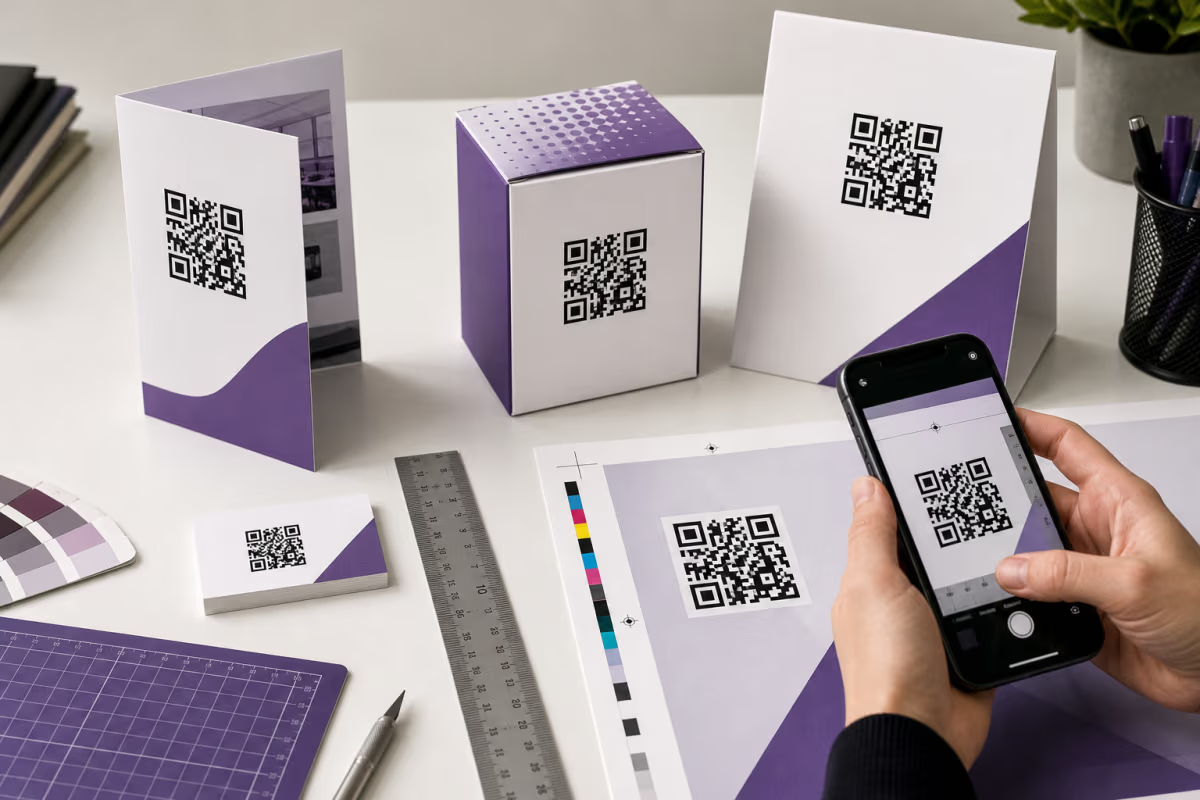
Business card2 cm (0.8 in)2.5 cm (1 in)25 cm (10 in)
Product packaging1.5 cm (0.6 in)2 cm (0.8 in)20 cm (8 in)
Flyer / brochure2.5 cm (1 in)3 cm (1.2 in)30 cm (12 in)
Postcard / mailer2 cm (0.8 in)2.5 cm (1 in)25 cm (10 in)
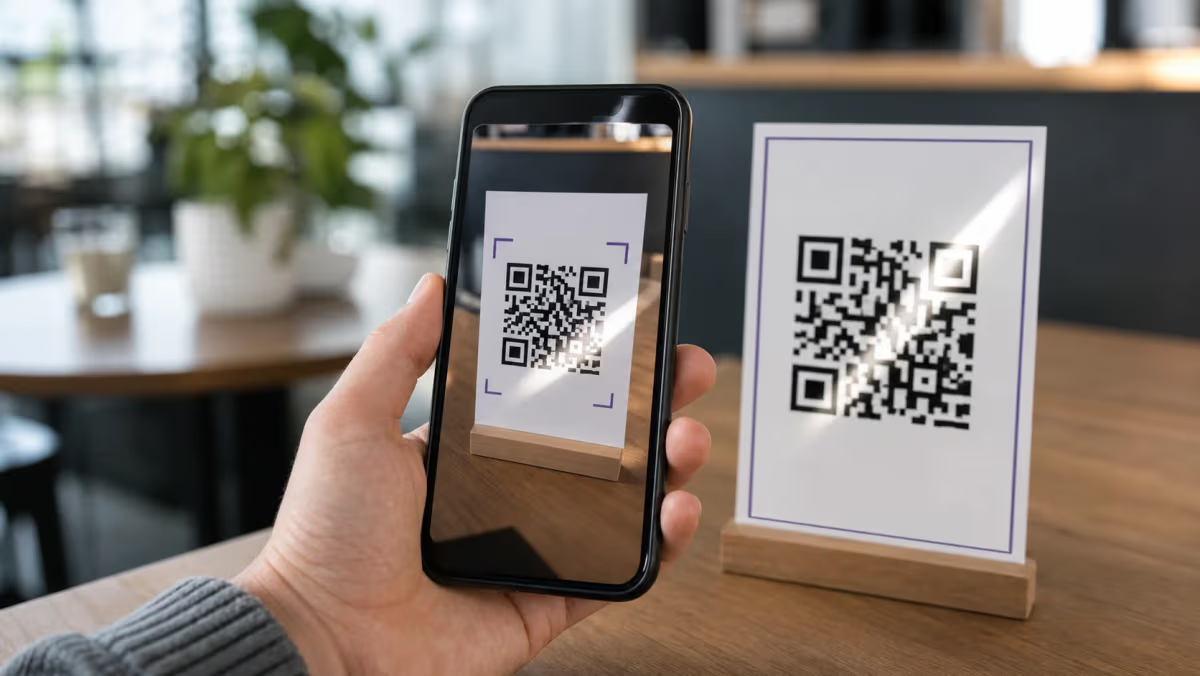
Menu / table tent2.5 cm (1 in)3 cm (1.2 in)30 cm (12 in)
Magazine / newspaper2.5 cm (1 in)3 cm (1.2 in)30 cm (12 in)
Poster (A3 / tabloid)5 cm (2 in)8 cm (3 in)80 cm (32 in)
Roll-up / retractable banner8 cm (3 in)12 cm (5 in)1.2 m (4 ft)
Trade show backdrop10 cm (4 in)15 cm (6 in)1.5 m (5 ft)
Window decal5 cm (2 in)8 cm (3 in)80 cm (32 in)
Vehicle wrap8 cm (3 in)15 cm (6 in)1.5 m (5 ft)
Billboard (city)15 cm (6 in)25 cm (10 in)2.5 m (8 ft)
Billboard (highway)50 cm (20 in)1 m (3.3 ft)10 m (33 ft)
Digital screen150 px200 pxVaries
Email signature80 px120 pxN/A (click)

For business cards specifically, see our complete business card QR code guide which covers placement, design, and print specifications in detail. For restaurant menus and table tents, our restaurant menu QR code guide has placement strategies and mobile optimization tips.

Notice that digital surfaces (screens and email signatures) use pixel dimensions rather than physical measurements. On screens, the pixel density of the display determines how large the code appears. For email signatures, the QR code is typically clicked rather than scanned from a phone, so the size requirement is driven by visual recognition rather than camera focus distance.

5 Factors That Affect Minimum Size

The 10:1 rule is a starting point, but five variables can push your actual minimum size higher than the formula suggests. Understanding these factors helps you avoid the frustrating situation where a code that should work in theory fails in practice.

1. Data Density

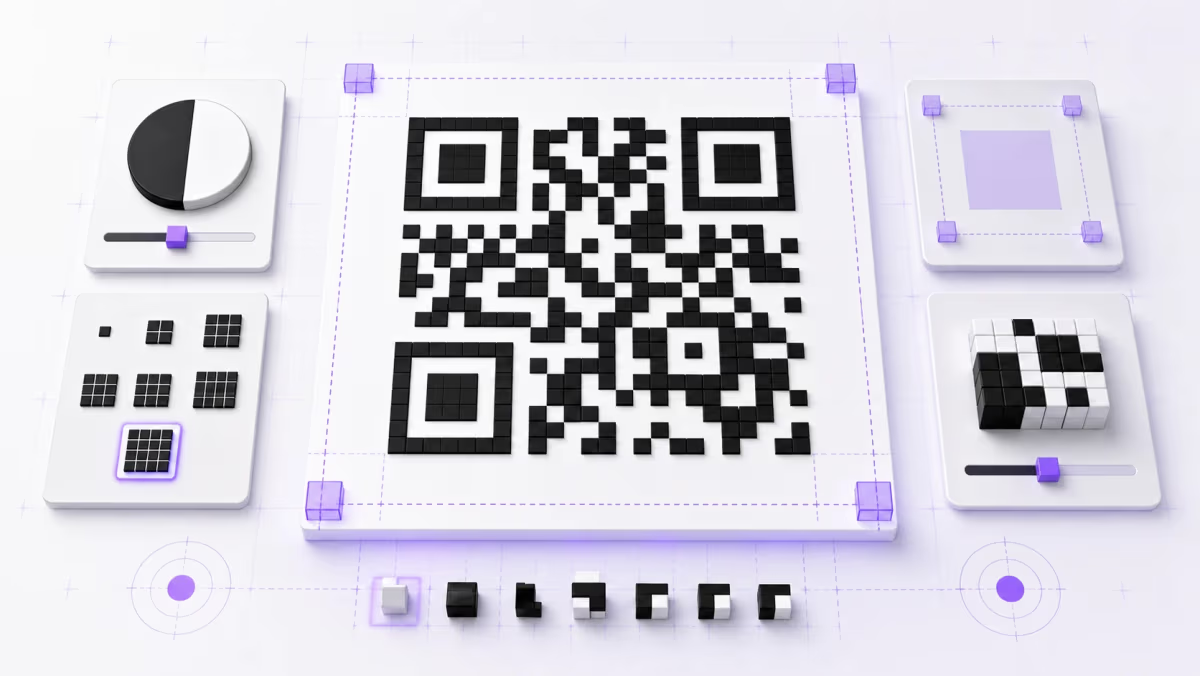
The amount of data encoded in your QR code directly determines how many modules (the small black and white squares) the code contains. A 20-character URL might only need a Version 2 code with 25x25 modules, while a 100-character URL needs a Version 7 or higher code with 45x45 or more modules. More modules means each individual module must be smaller to fit the same physical space — and smaller modules are harder for cameras to resolve.

This is where dynamic QR codes provide a significant advantage. A dynamic code always encodes a short redirect URL (like r.qrlynx.com/abc — roughly 25 characters) regardless of how long the actual destination URL is. That keeps the code at Version 2 or 3, with fewer modules, which means you can print the code smaller and it still scans reliably. If you are printing QR codes at small sizes (under 3 cm), dynamic codes are strongly recommended. Create one at QRLynx.

2. Error Correction Level

QR codes include redundant data that allows them to be scanned even when partially damaged or obscured. Higher error correction means more redundant data, which means more modules, which means a physically larger code. According to DENSO WAVE (the inventors of the QR code), Level H error correction codes need approximately 30% more modules than Level L codes at the same data capacity. If you are using Level H (which you should for any code with a logo overlay or outdoor placement), factor this into your size calculation — your code needs to be physically larger than a Level L code encoding the same data.

3. Quiet Zone

The quiet zone is the mandatory blank border around the QR code that helps scanners detect where the code begins and ends. The standard quiet zone width is 4 times the width of one module. For a code with 0.5mm modules, the quiet zone is 2mm per side — adding 4mm total to each dimension. This might sound trivial, but on a small business card QR code, 4mm of additional width is significant. Do not let other design elements intrude into this space. Some QR scanners fail entirely without an adequate quiet zone, and even scanners that tolerate a reduced quiet zone take longer to detect the code, frustrating users.

4. Print Resolution

Every QR module needs at least 4 printer dots to produce a stable, scannable result. At 300 DPI (dots per inch), 4 dots equals 0.34mm per module — this is fine for most print applications. At 150 DPI (common for large-format printing), 4 dots equals 0.68mm per module, which forces the entire code to be physically larger. According to DENSO WAVE, modules below this 4-dot threshold become unreliable because printer ink spread and paper absorption blur the boundaries between adjacent black and white modules. If your printer runs at 150 DPI, double your minimum size calculation compared to 300 DPI printing.

5. Surface Material

The material you print on significantly affects scanning reliability. Glossy and coated surfaces create glare under direct lighting, which can fool phone cameras into misreading modules. Textured surfaces like linen or recycled paper distort the crisp edges that scanners depend on. Curved surfaces — bottles, mugs, cylinders — warp the code from the scanner's perspective, making parts of the code appear compressed. For glossy or textured surfaces, increase your code size by 15-20% above the standard recommendation. For curved surfaces like bottles or columns, increase by 25-40% depending on the severity of the curve.

How to Calculate the Right Size for Your Print Project

Follow these 5 steps to determine the exact QR code size for any printed surface

1

Determine Your Scanning Distance

Measure the realistic distance between the printed surface and where the scanner will stand. Be honest about this — use the actual expected distance, not the best-case scenario. A business card is held at 20-30 cm. A poster on a wall might be viewed from 1-2 meters. A table tent is scanned from about 50 cm across a table. A yard sign is scanned from 3-5 meters from the sidewalk or 5-10 meters from a car. A billboard is viewed from 10 or more meters. If you are unsure, stand where your audience will stand and measure with a tape measure or estimate conservatively.

2

Apply the 10:1 Formula

Divide the scanning distance by 10 to get the absolute minimum QR code width. This is a hard minimum — below this size, most phone cameras physically cannot resolve the individual modules. Example: poster viewed from 1.5 meters gives a minimum of 15 cm. Business card held at 25 cm gives a minimum of 2.5 cm. Trade show banner viewed from 3 meters gives a minimum of 30 cm. Write this number down as your baseline.

3

Add a 20% Safety Margin

Real-world conditions are never ideal. People scan from angles rather than straight-on. Budget phones have slower autofocus than flagship models. Indoor lighting varies, and outdoor conditions change by the hour. Adding 20% to your calculated minimum accounts for all of these variables. So 15 cm becomes 18 cm. 2.5 cm becomes 3 cm. 30 cm becomes 36 cm. For outdoor placements where weather and sunlight add further challenges, consider a 30% margin instead of 20%.

4

Check Your Error Correction Level

If you are using Level H error correction (30% recovery) — which you should for any code with a logo overlay, or any outdoor or high-traffic placement — your code has more modules than the same data at Level L. This means the individual modules are smaller at the same physical code size, which can reduce scanning reliability. Increase your calculated size by an additional 10-15% when using Level H compared to Level L. If your code will live in a controlled indoor environment with no logo overlay, Level M (15% recovery) is a good default that balances size and resilience.

5

Print and Test at Actual Size

This is the most important step and the one most people skip. Print one copy at the final intended size on the final intended material. Then scan it with at least 3 different phones: the newest iPhone you can find, a mid-range Android device, and the oldest smartphone available. Scan at the intended distance — not closer. If the poster will hang on a wall, stand back the full expected distance. If any phone fails to scan within 2 seconds, increase the QR code size by 25% and print another test. Five minutes of testing saves thousands in wasted reprinting costs. A single test print costs almost nothing compared to a failed print run.

QR Code Versions and Module Counts

Understanding QR code versions helps you predict how large your code will be before you generate it. ISO/IEC 18004:2024 defines 40 QR code versions, each with a fixed grid of modules. Higher versions hold more data but produce denser codes that need to be printed larger.

VersionModulesCapacity (Alphanumeric, Level M)Typical Content
V121 x 2120 charactersVery short URL
V225 x 2538 charactersShort URL
V329 x 2961 charactersStandard URL
V537 x 37106 charactersLong URL
V1057 x 57271 charactersVery long URL or vCard
V2097 x 97740 charactersDetailed vCard
V40177 x 1772,188 charactersMaximum capacity

Why this matters for sizing: a Version 1 code has 21 modules across. At 0.5mm per module, the code is 10.5mm wide. A Version 10 code has 57 modules across. At the same 0.5mm per module, the code is 28.5mm wide — nearly three times larger, even though the module size is identical. The difference is entirely due to data density. The more data you encode, the more modules the code needs, and the physically larger the code must be printed to maintain the same module size.

This is why dynamic QR codes are ideal for print. A dynamic code on QRLynx always encodes a short redirect URL like r.qrlynx.com/abc — roughly 25 characters. That keeps the code at Version 2 or 3 (25-29 modules across) regardless of how long your actual destination URL is. A static code encoding a 100-character URL would jump to Version 7 or higher (45+ modules), requiring a physically larger print to maintain the same readability. For any print application where space is limited — business cards, product labels, small stickers — dynamic codes let you print smaller without sacrificing scan reliability.

Error Correction Levels Explained

Error correction is the feature that makes QR codes remarkably resilient. Even when part of the code is damaged, obscured, or covered by a logo, the built-in redundancy allows scanners to reconstruct the missing data. But higher error correction means a physically larger code, so choosing the right level is a sizing decision as much as a durability one.

DENSO WAVE, the inventors of the QR code, defines four error correction levels in the ISO/IEC 18004 standard:

LevelRecovery CapacityBest ForTradeoff
L (Low)7%Digital screens, clean environmentsSmallest code, least resilient
M (Medium)15%Standard print (default)Good balance of size and durability
Q (Quartile)25%Outdoor, high-traffic areasLarger code, handles moderate damage
H (High)30%Logo overlay, harsh environmentsLargest code, maximum resilience

According to QR Code Kit, Level M is the most commonly used error correction level across all QR code applications. It provides a good balance between code size and damage tolerance for standard print use cases.

When to use Level H: any printed material that will be physically handled (business cards, brochures handed out at events), folded or creased, placed outdoors where weather exposure is expected, subjected to high foot traffic (floor stickers, door signs), or has a logo overlaid on the QR code. The logo physically obscures modules, and Level H provides enough redundancy to compensate.

When Level L is sufficient: digital screens where there is no physical damage possible, controlled indoor environments with short display periods (event screens, conference slides), and temporary digital use cases where the code will not degrade over time.

The size impact is real: a Version 3 QR code at Level L has 55 data codewords available for your content. The same Version 3 code at Level H only has 17 data codewords available — the rest are consumed by error correction data. This means the same URL that fits in Version 3 at Level L might need Version 5 or 6 at Level H, producing a physically larger code with more modules. When planning your print layout, generate the actual QR code with your intended error correction level and measure the result rather than assuming a fixed size.

QRLynx lets you set the error correction level in the Advanced Features panel when creating any QR code. For print projects, we recommend starting with Level M and upgrading to Level H only when you need logo overlay capability or maximum outdoor durability.

Complete Print Quality Requirements

Getting the size right is only half the equation. Print quality determines whether a correctly-sized QR code actually scans in practice. Here are the specifications that matter.

DPI (Dots Per Inch)

DPI measures how many individual printer dots fit in one inch of printed output. Higher DPI means sharper, more defined module edges — and sharper edges mean faster, more reliable scanning.

  • 150 DPI: The minimum acceptable resolution, and only for large-format printing like banners, trade show backdrops, and billboards. At this resolution, individual dots are large enough that QR modules can appear fuzzy at close range, but from the intended viewing distance of several meters, the code resolves clearly.
  • 300 DPI: The standard for commercial printing — flyers, posters, business cards, brochures, menus, and any medium where scanning happens from arm's length or closer. At 300 DPI, each QR module rendered at 4 dots across produces clean, crisp edges that scan reliably.
  • 600 DPI: Premium quality, used for very small codes on product packaging, pharmaceutical labels, and luxury print materials. The extra resolution ensures that even tiny modules (under 0.5mm) have sharp, well-defined boundaries.

The critical rule: each QR module needs at least 4 printer dots in each direction for reliable scanning. At 300 DPI, 4 dots = 0.34mm per module. At 150 DPI, 4 dots = 0.68mm per module. This means a code printed at 150 DPI must be physically larger than the same code at 300 DPI to maintain module integrity.

File Formats

The file format you use for your QR code has a direct impact on print quality:

  • SVG (Scalable Vector Graphics): The best choice for print. Vector format means the code scales to any size — from a 1 cm sticker to a 1 meter billboard — without any quality loss. Every edge stays mathematically precise regardless of print dimensions.
  • EPS (Encapsulated PostScript): An alternative vector format widely supported by professional print shops and design software like Adobe Illustrator. Functionally equivalent to SVG for QR code purposes.
  • PDF: QRLynx generates vector PDF output that is print-ready. Most commercial printers accept PDF directly, making it the most convenient format for professional print jobs.
  • PNG (Portable Network Graphics): A raster format that is acceptable when exported at 300 DPI or higher. PNG uses lossless compression, so module edges stay sharp. Set a transparent background if your design requires it. However, raster images cannot be scaled up without quality loss — export at the final intended size or larger.
  • JPEG: Never use JPEG for QR codes. JPEG uses lossy compression that creates visible artifacts — blurry halos around the sharp black-white boundaries of QR modules. A single JPEG compression pass can degrade module edges enough to cause scan failures. This is one of the most common causes of unprintable QR codes.

Color Specifications

  • CMYK color mode for offset and commercial printing. RGB colors shift unpredictably when converted to print, which can reduce contrast below scannable thresholds.
  • RGB color mode for digital screens only — never for print output.
  • Contrast ratio: A minimum of 4:1 between the dark (foreground) modules and the light (background) according to Uniqode. Black on white provides the maximum contrast and is always the safest choice.
  • Dark foreground on light background is the standard scanning configuration. All phone cameras and scanner apps are optimized for this orientation.
  • White or very light background is always preferred — it provides the cleanest contrast and works in any lighting condition.
  • Avoid: yellow foreground, pastel foreground colors, light gray foreground, any combination where the contrast ratio drops below 4:1. These look fine on screen but fail in print under real lighting.

Quiet Zone

The quiet zone is the mandatory blank margin around the QR code. According to Wave Connect, the standard quiet zone width equals the module width multiplied by 4. For a code with 0.5mm modules, the quiet zone is 2mm per side — that adds 4mm total to each dimension. Do not let other design elements, text, borders, or images intrude into this space. Some scanners fail entirely without an adequate quiet zone because they cannot determine where the code boundaries are.

Paper and Material

  • Matte/uncoated paper: Best for scanning. No glare, no reflections, ink absorbs cleanly. Ideal for business cards, flyers, brochures, and any indoor print material.
  • Glossy/coated paper: Can cause glare under direct or overhead lighting, especially fluorescent office lights. If you must use glossy stock, increase the QR code size by 15-20% to compensate for reduced scanning reliability.
  • Textured/recycled paper: May distort fine module details, especially at small print sizes. Use Level Q or H error correction to provide additional resilience against texture-induced distortion.
  • Outdoor materials: Use UV-resistant ink and lamination to prevent fading. Direct sunlight degrades unlaminated prints within 2-3 weeks. Set error correction to Level H for maximum durability. Aluminum composite (Dibond) and corrugated plastic (Coroplast) are the best substrates for outdoor QR codes.

For print-ready QR codes in SVG, PDF, and high-resolution PNG format, visit our high-resolution QR code feature page.

7 Common Sizing Mistakes

These are the errors that destroy scan rates on printed QR codes. Each one is avoidable with a few minutes of planning.

1. Using the 10:1 Rule Without a Safety Margin

The 10:1 formula gives you the theoretical minimum — the smallest possible size under perfect conditions. But real-world scanning never happens under perfect conditions. People scan from angles, not straight-on. Budget phones have slower autofocus. Lighting varies from bright sunlight to dim hallways. Printed surfaces wear and fade. Without the 20% safety margin, you are gambling that conditions will be ideal every single time someone scans. They will not be. Always add at least 20% to the calculated minimum, and 30% for outdoor placements.

2. Ignoring Data Density

Many people assume all QR codes are the same size. They are not. A simple URL like "qrlynx.com/abc" produces a compact Version 2 code (25x25 modules). A full vCard with name, title, company, two phone numbers, email, address, and website URL produces a dense Version 10 or higher code (57+ modules). Printing both at the same physical size means the vCard code has much smaller individual modules — potentially too small to scan reliably. Always check what version your QR generator produces for your specific data, and size the printed code accordingly.

3. JPEG Compression Destroying Modules

JPEG is a lossy compression format. Every time you save a QR code as JPEG, the algorithm blurs the sharp boundaries between black and white modules. This creates gray artifacts — fuzzy halos around each module edge — that confuse QR scanners. A single JPEG save at moderate compression can reduce scan reliability significantly. A second save (if someone copies and re-saves the file) compounds the damage further. The fix is simple: use SVG or PNG. Never export, convert, or email QR codes as JPEG files.

4. Inverting Colors Without Testing

A light-colored QR code on a dark background (inverted colors) can work, but it is significantly less reliable than the standard dark-on-light orientation. Many older phones and budget Android devices struggle with inverted codes because their camera processing algorithms are optimized for dark-on-light patterns. If you must invert colors for design reasons, increase the QR code size by at least 25% above the standard recommendation and test extensively with multiple phone models before committing to a print run.

5. Placing on Curved Surfaces at Flat-Code Sizes

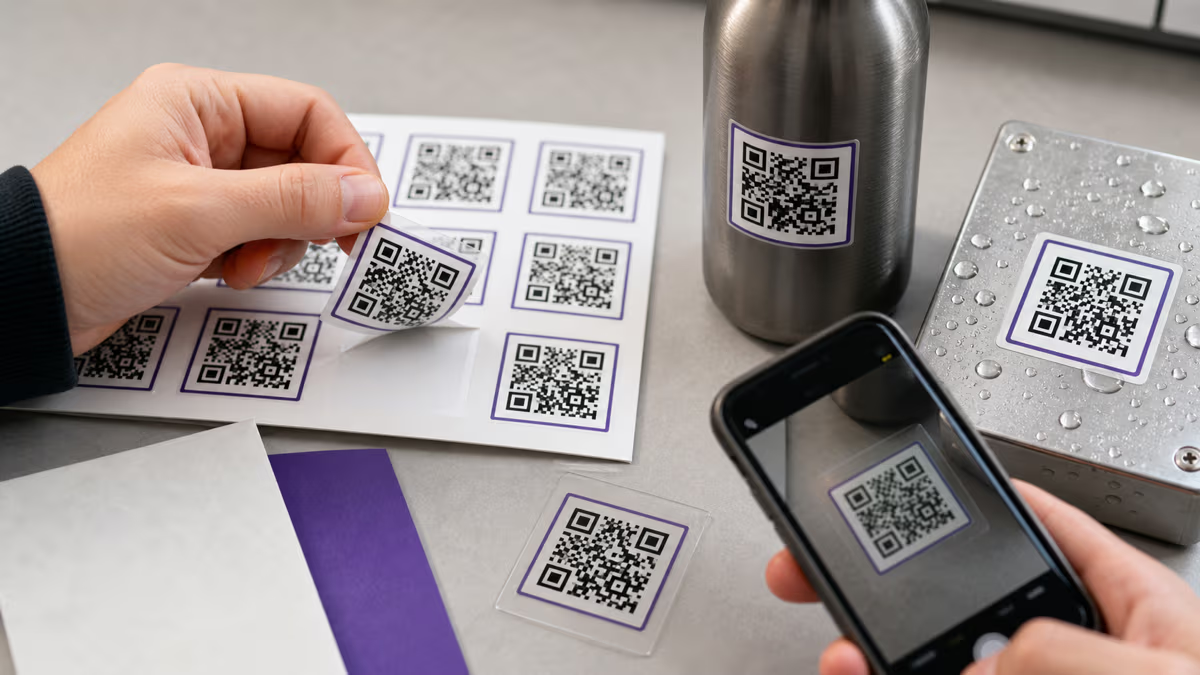
Bottles, mugs, columns, and cylindrical packaging curve the QR code away from the scanner. The scanner's camera sees a distorted, foreshortened version of the code rather than the intended flat grid. The more severe the curve, the more modules become compressed or hidden from the camera's perspective. For moderately curved surfaces like large bottles, increase the code size by 25%. For tightly curved surfaces like coffee mugs or small jars, increase by 40% or more. Always test on the actual curved surface before production.

6. Testing Only on Newest Phones

The latest iPhone or Samsung Galaxy will scan almost anything. But your audience includes people carrying phones that are 3 to 5 years old — devices with slower processors, lower-resolution cameras, and less sophisticated autofocus. If your QR code barely scans on a new phone, it will fail completely on an older one. Always test with at least one older or budget Android device. If it scans reliably on the oldest phone you can find, it will work for everyone.

7. Forgetting the Quiet Zone in Your Design

Graphic designers often crop the QR code tightly to save space or create a cleaner layout. But the quiet zone — the blank margin around the code — is not optional decoration. It is a functional requirement that tells scanners where the code begins and ends. Without it, many scanners cannot detect the code at all, or they misinterpret surrounding design elements as part of the QR pattern. Maintain the full quiet zone (4 times the module width on each side) even if it means making the overall graphic slightly larger.

According to Supercode, scanning failures can be reduced by up to 40% through proper resolution enhancement and correct contrast. Most sizing mistakes are easily preventable with the right specifications — the challenge is knowing the specifications before you print, not after.

Testing Before You Print

Testing is the single most valuable step in any QR code print project. Five minutes of testing can save you from reprinting thousands of flyers, posters, or business cards. Here is the complete testing protocol.

The 5-Step Testing Protocol

  1. Print one copy at the ACTUAL final size. Do not print at a different scale and assume it will work. If your QR code will be 3 cm on the final flyer, print it at exactly 3 cm. Use the same paper stock or material that the final print run will use. Printing on premium photo paper when the final run will be on recycled card stock gives you misleading results.
  2. Scan with 3 or more different phones. At minimum: the newest iPhone available, a mid-range Android device (Samsung Galaxy A series, Google Pixel A series, or similar), and the oldest smartphone you can borrow — anything 3 to 5 years old. This range covers the spectrum of cameras and processors your actual audience will use. If you have access to more devices, test more. The goal is to find the weakest link before your audience does.
  3. Scan at the intended distance. This is where most testing fails. People print a poster QR code and scan it from 30 cm away on their desk, declaring it a success. Then the poster goes on a wall and nobody can scan it from 2 meters away. Test at the actual expected scanning distance. If the poster will be in a hallway, stand back the full distance. If the code is on a table tent, hold it at arm's length across a table.
  4. Scan in intended lighting conditions. Fluorescent office light is not the same as dim restaurant lighting, which is not the same as outdoor sunlight, which is not the same as the shade of a covered patio. If your QR code will live in a specific environment, test in that environment or one as close to it as possible. Lighting affects camera exposure, which affects how well the phone can resolve module boundaries.
  5. Scan from angles. People rarely scan QR codes perfectly straight-on. They approach from the side, scan while walking past, or hold their phone at whatever angle is comfortable. Test from 15 to 30 degree angles in both horizontal and vertical directions. If the code fails at a moderate angle, it needs to be larger or higher contrast.

The Pass/Fail Rule

If any phone fails at any step, the QR code is not ready for production. Increase the size by 25% and reprint the test. Do not rationalize the failure ("that phone is really old", "nobody scans from that angle"). Your audience includes people with old phones who scan from awkward angles. Design for the worst case.

The Cost of Not Testing

Consider the math: a single test print costs under a dollar and takes 5 minutes. A failed print run of 5,000 flyers at $0.10 each costs $500 in wasted paper alone — plus the time to redesign, reprint, and redistribute. For larger jobs like banners, trade show materials, or billboard prints, the waste runs into thousands of dollars. Testing is the highest-ROI step in the entire print process.

For Bulk Printing

Before committing to a full production run, request a proof print from your print shop. This is a single copy printed on the actual production equipment with the actual materials. Many print shops offer proofs for free or at minimal cost. Scan the proof with multiple phones at the intended distance before approving the full run.

Environmental Considerations

If your QR code will live outdoors, test for the conditions it will face. Will it be exposed to rain? Place the test print under running water and scan it while wet. Will it be behind glass? Tape it behind a window pane and scan through the glass — reflections and glass thickness can affect scanning. Will it face direct UV light? Leave the test print in sunlight for a week and check if fading has reduced contrast below scannable levels. These extra tests take minimal time and prevent expensive outdoor print failures.

QR Code Size FAQ

Answers to the 12 most common questions about QR code sizing for print

What is the minimum size for a QR code?

The absolute minimum for a standard QR code is about 1 x 1 cm (0.4 x 0.4 inches), which works only for very close-range scanning within about 10 cm. For practical use, the minimum depends on scanning distance: 2 cm for business cards held at arm's length, 2.5 cm for flyers and brochures, and 5 cm for posters viewed from a meter away. Use the 10:1 rule — divide the expected scanning distance by 10 to find your minimum width. Always add a 20% safety margin for real-world conditions like angles, lighting, and varying phone cameras.

How small can a QR code be and still work?

The physical limit depends on your printer's resolution and the number of modules in the code. At 300 DPI with each module being 4 printer dots across, the smallest module is 0.34mm. A Version 1 code (21x21 modules plus quiet zone) at this absolute minimum would be about 10mm across. In practice, codes smaller than 1.5 cm (0.6 inches) are unreliable because even modern phone cameras struggle to resolve individual modules at very small sizes, especially under imperfect lighting. If you need a very small code, use a dynamic QR code — the short redirect URL keeps the version low and the modules larger.

What size should a QR code be for a business card?

Minimum 2 cm (0.8 inches), recommended 2.5 cm (1 inch). Business cards are scanned at close range, typically 20-30 cm, so the 10:1 rule supports this size comfortably. Place the code on the back of the card to give it maximum space and a clean quiet zone. Use Level H error correction if you are adding a logo overlay, and remember that higher error correction produces a denser code that may need to be slightly larger. See our <a href="/blog/qr-code-business-card-guide">business card QR code guide</a> for complete design and print specifications.

How big should a QR code be on a poster?

For an A3 or tabloid poster viewed from 1-2 meters, the minimum is 10-20 cm depending on the exact distance. For a large poster in a hallway or public space viewed from 3 or more meters, the minimum is 30 cm. The 10:1 rule is your primary tool: measure where people will realistically stand and divide that distance by 10. For outdoor posters exposed to sunlight and weather, add an extra 20-30% to the calculated minimum because glare, fading, and varying angles reduce scan reliability compared to controlled indoor environments.

What is the best QR code size for a billboard?

City billboards near bus stops, train stations, or pedestrian areas where people view from 5-10 meters need QR codes of at least 50-100 cm. Highway billboards are a different story entirely — drivers should not be scanning QR codes while driving, and the required code size of 3 or more meters is impractical for most billboard layouts. If you are using QR codes on stationary billboards near pedestrian traffic, 50 cm minimum is the recommendation, with Level H error correction and UV-resistant lamination for outdoor durability.

Does QR code size affect scanning distance?

Yes, directly and proportionally. The maximum reliable scanning distance is approximately 10 times the width of the QR code. A 3 cm code scans reliably from up to 30 cm. A 10 cm code scans reliably from up to 1 meter. A 50 cm code scans from up to 5 meters. This relationship is why the same QR code that works perfectly on a business card at close range cannot be used at that same size on a wall poster — the scanning distance is completely different, and the code must scale accordingly.

What DPI should I use for printing QR codes?

300 DPI is the standard for commercial printing including flyers, posters, business cards, brochures, and menus. 600 DPI is ideal for very small codes on product labels, pharmaceutical packaging, or premium materials where maximum sharpness matters. 150 DPI is acceptable only for large-format prints like banners and billboards where the viewing distance is several meters and individual dots are not visible to the naked eye. The critical rule is that each QR module needs at least 4 printer dots to maintain clean, scannable boundaries between adjacent modules.

What file format is best for printing QR codes?

SVG (Scalable Vector Graphics) is the best choice because it scales to any size without any quality loss — the edges stay mathematically precise whether the code is 1 cm or 1 meter. EPS and PDF are equally excellent vector alternatives accepted by virtually all professional print shops. If your printer specifically requires raster files, use PNG exported at 300 DPI or higher with a transparent background. Never use JPEG for QR codes — the lossy compression creates blurry artifacts around module edges that can prevent scanning entirely, even after a single save.

How much white space does a QR code need?

The quiet zone (the white border around the code) should be at least 4 times the width of one module on each side. For a standard QR code with 0.5mm modules, that means 2mm of white space on each side — 4mm added to the total width and 4mm added to the total height. Without this quiet zone, many QR scanners cannot detect where the code begins and ends, leading to complete scan failures. Do not crop the quiet zone to save space in your design — it is a functional requirement, not optional padding.

What is the 10:1 rule for QR codes?

The 10:1 rule is the industry-standard formula for determining minimum QR code size based on scanning distance. Divide the expected scanning distance by 10 to get the minimum code width. For example, if a poster will be viewed from 2 meters away, the QR code should be at least 20 cm wide. If a business card is held at 25 cm, the code should be at least 2.5 cm. After applying the formula, add a 20% safety margin for real-world conditions — people scanning at angles, varying phone camera qualities, and imperfect lighting all reduce effective scanning range.

Does error correction level affect QR code size?

Yes, significantly. Higher error correction means more redundant data modules, which means a physically larger code to encode the same content. A Level H (30% recovery) code has approximately 30% more modules than a Level L (7% recovery) code encoding the same data. In practice, this often means the same URL requires a higher QR code version at Level H than at Level L — jumping from Version 3 to Version 5, for example. For standard print projects, Level M (15% recovery) is a good default that balances size and resilience. Use Level H only when you are adding a logo overlay or printing for outdoor or high-traffic environments where damage is likely.

Can a QR code be too big?

In theory, a QR code can be any size and still function. However, extremely large codes — over about 1 meter — can create practical scanning issues. The phone's camera must capture the entire QR code in a single frame to decode it. If the code is so large that a person standing at normal distance cannot fit the whole code in their camera frame, the scan will fail. For very large codes (trade show walls, building wraps), ensure that people can step back far enough to capture the full code. The general rule of thumb: the maximum viewing distance should be at least 10 times the code width, which also needs to be close enough for the camera to resolve individual modules.

Getting QR code sizing right comes down to three principles: use the 10:1 scanning distance formula as your starting point, add a 20% safety margin for real-world conditions, and always test at actual size before committing to a full print run.

Here is a quick-reference summary of the most common sizes:

  • Business cards: 2.5 cm (1 in) minimum
  • Flyers and brochures: 3 cm (1.2 in) minimum
  • Table tents and menus: 3 cm (1.2 in) minimum
  • Posters: 8 cm (3 in) recommended for typical viewing distances
  • Banners: 12 cm (5 in) recommended
  • Yard signs: 10-15 cm (4-6 in) for pedestrians, larger for vehicle scanning
  • Billboards: 25-100 cm depending on pedestrian vs vehicle distance

Beyond size, remember the supporting specifications: print at 300 DPI minimum, use SVG or PDF vector formats, maintain at least 4:1 contrast ratio, preserve the quiet zone, and never save as JPEG.

QRLynx includes a built-in readability score that evaluates your QR code design for contrast, module clarity, and error correction resilience before you download. It is the easiest way to verify your code will scan reliably in print. Create your next print-ready QR code at QRLynx and check the readability score before sending anything to the printer.

Enjoyed this article? Share it!

Ready to Create Your Own QR Codes?

Start for free and upgrade as you grow. All plans include dynamic QR codes, analytics, and custom branding.

Start Your 14-Day Free Trial

Experience the full power of QRLynx Pro. No credit card required.

Start Free Trial

Starter

$0 /Month
  • Unlimited Static QR Codes
  • 1 Dynamic QR Code
  • 1,000 Scans/Month
  • No Watermark
  • 30+ QR Code Types
  • JPG, PNG, WEBP Downloads
  • Analytics (14 Days)

Pro

$14 /Month
  • Unlimited Static QR Codes
  • 50 Dynamic QR Codes
  • 25,000 Scans/Month
  • Unbranded QR Codes
  • 5 Folders Organization
  • 40+ QR Code Types
  • Custom Logo Upload
  • SVG / PDF Downloads
  • Analytics (30 Days)
  • Country Location Data
  • Advanced Expiry Rules
  • Password Protected Codes
  • PDF Upload (5MB)
Most Popular

Business

$29 /Month
  • Unlimited Static QR Codes
  • 250 Dynamic QR Codes
  • 250,000 Scans/Month
  • Unbranded QR Codes
  • 25 Folders Organization
  • 40+ QR Code Types
  • Custom Logo Upload
  • SVG / PDF Downloads
  • Advanced Analytics (60 Days)
  • Country / State / City Data
  • Device Type / OS / Browser Data
  • CSV Report Export
  • Advanced Expiry Rules
  • Redirect Rules (Device/Country/Time)
  • Lead Forms
  • Password Protected Codes
  • PDF Upload (20MB)

Enterprise

$99 /Month
  • Unlimited Static QR Codes
  • 1000 Dynamic QR Codes
  • Unlimited Scans
  • Unbranded QR Codes
  • White Label Domains
  • 100 Folders Organization
  • 40+ QR Code Types
  • Custom Logo Upload
  • SVG / PDF Downloads
  • Advanced Analytics (90 Days)
  • Country / State / City Data
  • Device Type / OS / Browser Data
  • Retargeting Pixels
  • CSV Report Export
  • Advanced Expiry Rules
  • Redirect Rules (Device/Country/Time)
  • Lead Forms
  • Password Protected Codes
  • PDF Upload (50MB)
  • Dedicated Success Manager

Need higher volume or custom features?

Custom scan volumes, SLAs, dedicated infrastructure, and white-label solutions for large teams.

Contact Sales

Ready to Transform Your QR Code Experience?

Join thousands of businesses already using QRLynx to create, customize, and track their QR codes with ease.

No credit card required
14-day free trial
Cancel anytime