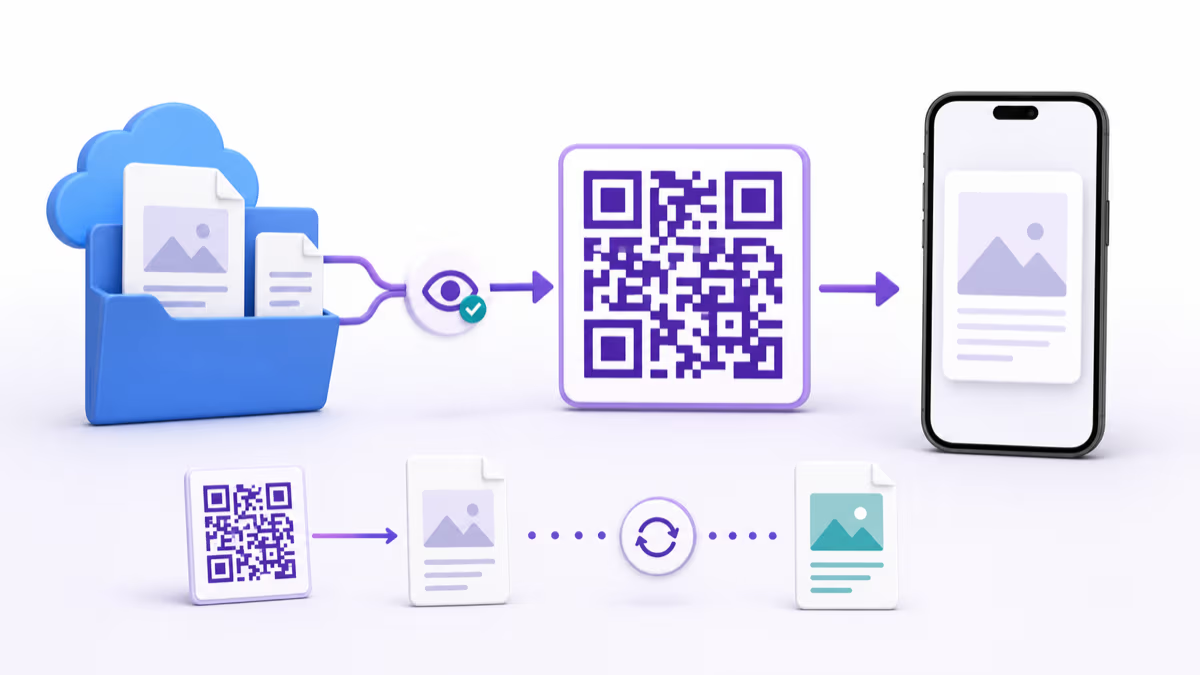
How to Create a HubSpot QR Code for Forms, Campaigns, and Offline Leads

Key Takeaway
Create a HubSpot form QR code, choose a standalone or embedded route, preserve campaign tracking, test contact creation, and measure offline conversion.
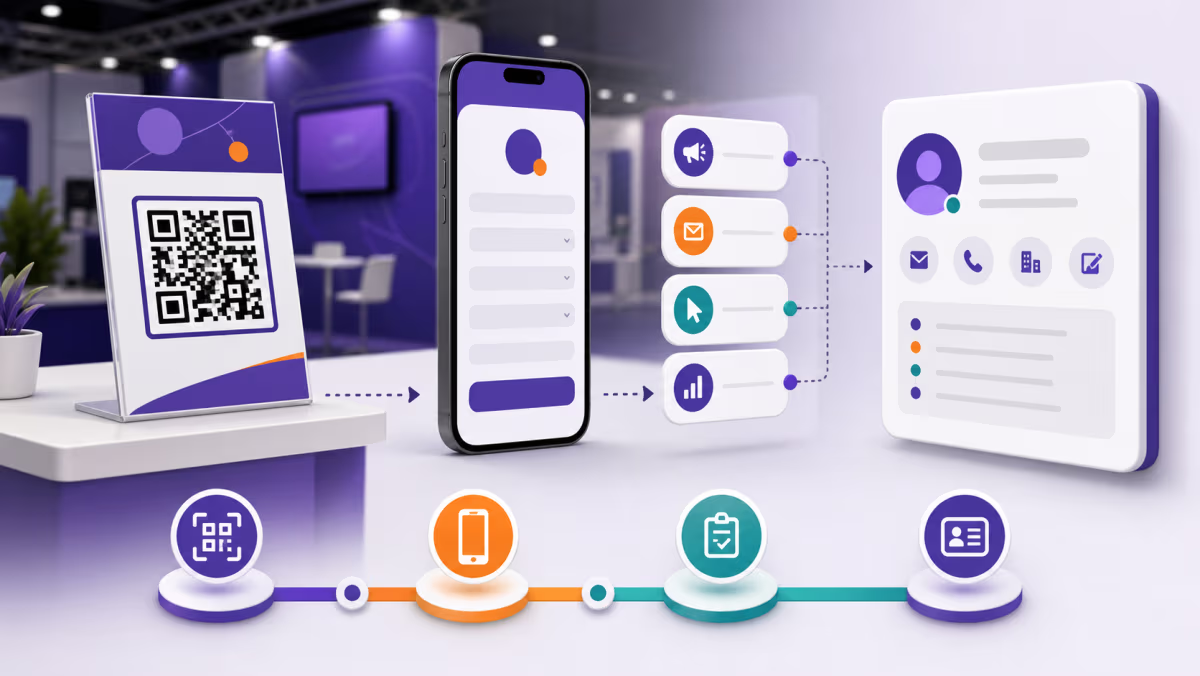
A HubSpot QR code can connect a trade-show badge, brochure, counter sign, or product insert to a measurable lead journey. The key decision is not the QR design. It is which HubSpot or website page should open, what data the form creates, and how the offline placement will be identified in reporting.
QRLynx creates a static or dynamic Website URL QR for the tested destination. HubSpot controls the form, contact record, campaign association, notifications, tickets, consent, automation, and downstream reporting.
Choose the HubSpot QR destination
| Destination | Best use | Measurement requirement |
|---|---|---|
| HubSpot standalone form page | The shortest route to a published form | Test the share link, mobile form, completion action, and campaign association available in the account |
| HubSpot landing page | The offer needs context, proof, or a richer campaign page | Confirm the page is published, tracked, fast on mobile, and focused on one next action |
| External page with embedded HubSpot form | The form needs your site's navigation, design, or content | Install HubSpot tracking code, add the external domain as required, and test form rendering and submission |
| QRLynx dynamic Website URL QR | The campaign page or form route may change after printing | Retest the updated destination and preserve the intended campaign parameters |
Define what a successful scan should create
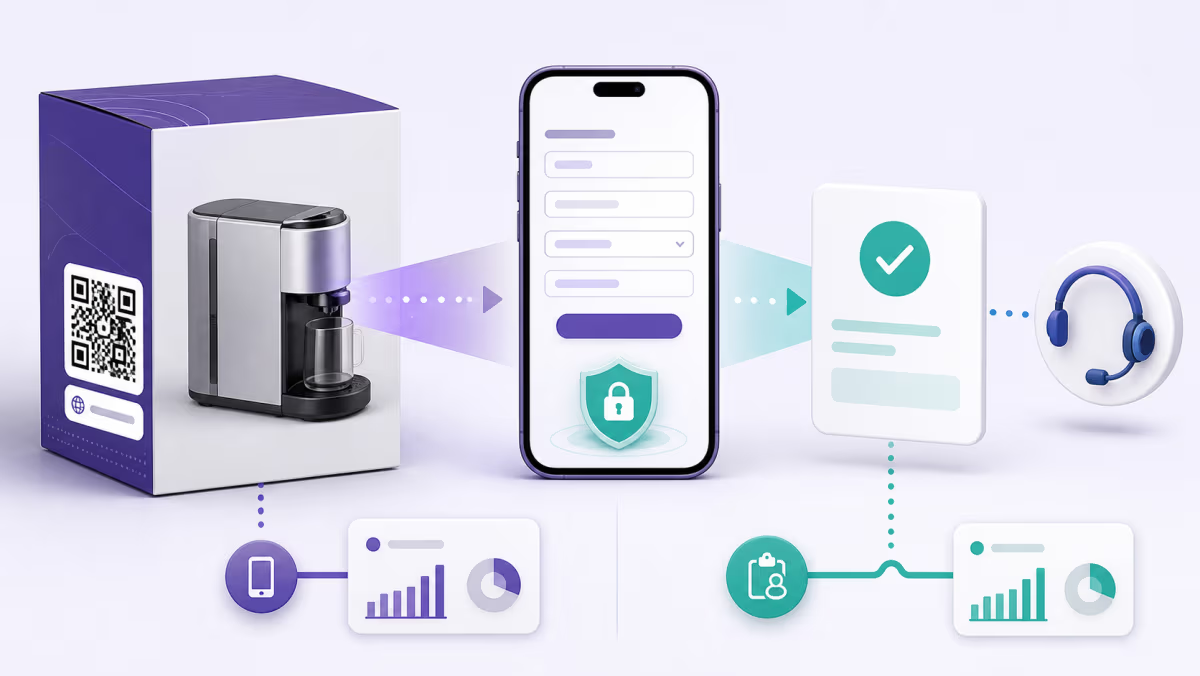
HubSpot form settings can control contact creation, owner notifications, team notifications, language, campaign association, and connections to an inbox or help desk. Configure these before the QR is shared. A clean test submission should create or update the expected record, carry the intended properties, notify the right people, and enter only the workflows that belong to this campaign.
Use a fresh test email and a known existing contact. The two submissions may behave differently because HubSpot can update an existing record rather than create a new one. Document the success metric as qualified submissions, meetings, tickets, or another meaningful outcome, not simply new contact rows.
Choose the tracking layer deliberately
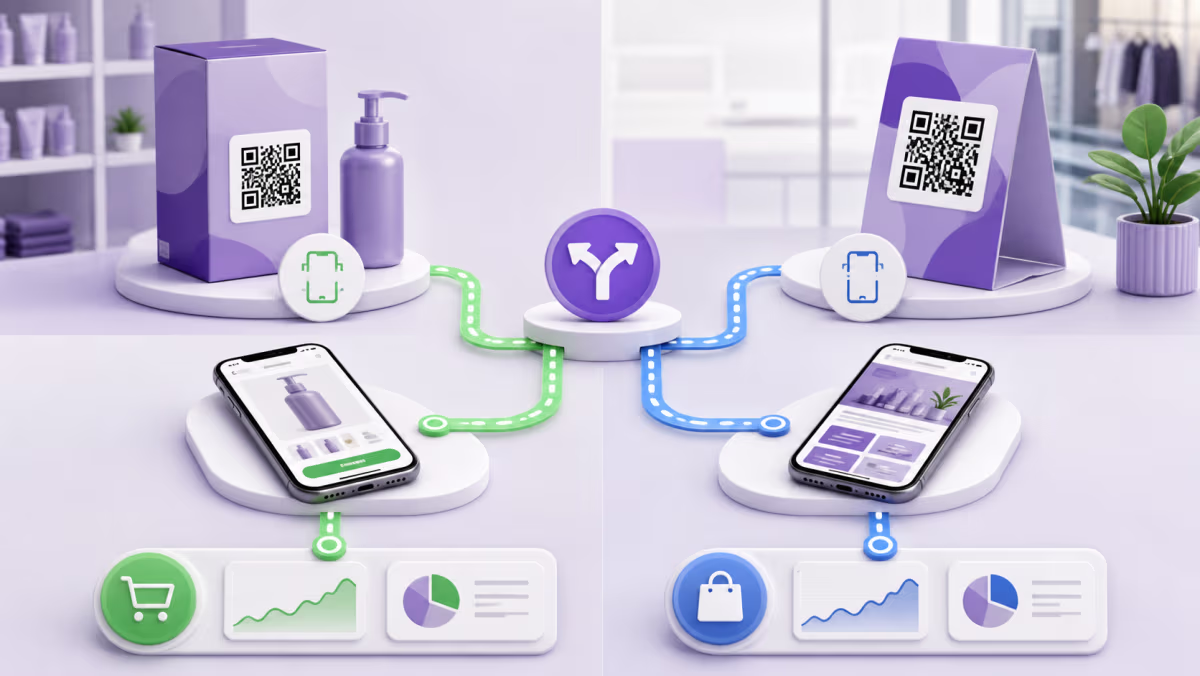
A separate QRLynx dynamic QR for each event, booth, brochure, or retail location provides placement-level scan activity. HubSpot campaign or tracking parameters can provide page-session and conversion context where the destination, subscription, permissions, tracking code, and reporting setup support them.
HubSpot states that tracking URL sessions require its tracking code on the destination page. PDFs, images, documents, and untracked external pages do not produce the same page-view reporting. If the QR opens a standalone HubSpot form, test the fields and reporting available for that exact route. If it opens your site, verify the tracking code and consent behavior there.
Create a HubSpot form QR code in QRLynx
Test the form, record creation, attribution, and follow-up before the first printed scan.
Choose the conversion destination
Select a published standalone form, HubSpot landing page, or external page with an embedded form based on how much context the visitor needs.
Configure the HubSpot form
Review fields, validation, contact creation, campaign association, language, consent, notifications, inbox or ticket connections, and post-submit action.
Prepare placement tracking
Create the approved campaign or tracking URL when available, and use separate destination values for the offline placements that need comparison.
Test new and existing contacts
Submit on mobile with a fresh email and an existing test contact. Verify properties, campaign context, notifications, tickets, and workflow enrollment.
Choose Website URL in QRLynx
Paste the complete tested destination into the Website URL QR type. QRLynx manages the QR route and does not replace HubSpot CRM behavior.
Choose static or dynamic delivery
Use static for a final permanent URL. Use dynamic when the campaign route may change or eligible scan analytics and placement separation matter.
Design and label the printed QR
State the benefit and action, such as Scan to request the field guide. Keep strong contrast, enough size for the scan distance, and a clear quiet zone.
Run a production-path test
Scan the final printed proof, complete the form, confirm the contact or ticket, and verify the intended follow-up on two mobile devices.
HubSpot conversion path verified?
Create the QR for your HubSpot campaign
Save the tested form or campaign URL in QRLynx and keep every important offline placement visible in the funnel.
Read the funnel in four layers
- Eligible QR scans: activity at each managed QRLynx route.
- Tracked sessions: visits HubSpot can attribute under the destination and tracking configuration.
- Form submissions: completed form events, including submissions by existing contacts.
- Business outcomes: qualified leads, meetings, tickets, opportunities, or revenue defined by the campaign.
A gap between scans and sessions points toward the destination, tracking code, consent, or page load. A gap between sessions and submissions points toward message match, form friction, or mobile experience. A gap after submission points toward qualification, routing, and follow-up.
Plan the end of the offline campaign
HubSpot now documents an unpublish action that stops submissions while retaining existing submissions and analytics. Decide in advance whether an expired printed QR should show a closed-form message, open an evergreen replacement, or lead to a new campaign. With a dynamic QRLynx QR, the owner can change the destination after the event and keep the printed pattern, then test the replacement route.
Common failure points
- The form opens but does not create the expected record: inspect form settings, field mapping, deduplication, and existing-contact behavior.
- External submissions are filtered or missing: check the embed, tracking code, allowed external domain, form publication, and spam views.
- Sessions are absent from HubSpot reports: verify the destination has the HubSpot tracking code and that the test is within the report period and not from a filtered IP.
- The wrong team gets notified: review contact owner and explicit user or team notification settings.
- Scans are healthy but pipeline is weak: check the offline promise, landing-page message, fields, qualification, and speed of follow-up.
HubSpot QR code questions
Can I make a QR code for a HubSpot form?
Yes. HubSpot can provide a standalone form share link, or you can link to a HubSpot or external page that contains the form. Paste the tested destination into QRLynx.
Should the QR open the standalone form or a landing page?
Use the standalone form for the shortest route. Use a landing page when the visitor needs context, proof, offer details, or a stronger brand experience before submitting.
Can HubSpot track visits from a QR code?
Tracking depends on the destination, HubSpot subscription and permissions, campaign parameters, tracking code, consent, and reporting setup. Use separate QRLynx QRs for physical scan comparison and test HubSpot reporting independently.
Why is my HubSpot tracking URL not showing sessions?
HubSpot advises checking the report period, tracking URL format, filtered IPs, and whether the destination page contains the HubSpot tracking code. PDFs and untracked documents do not record page views the same way.
Does every QR scan create a HubSpot contact?
No. A visitor must reach and submit the form. An existing contact may be updated rather than counted as a new contact.
Can a QR submission create a ticket or trigger automation?
HubSpot form settings and available automation can connect submissions to an inbox, help desk, notifications, or workflows. Configure and test the exact account behavior before printing.
How do I compare two trade-show booths?
Give each booth its own clearly named QRLynx QR and approved campaign destination. Compare scans, sessions, submissions, and qualified outcomes by placement.
Can I stop a HubSpot form after an event?
HubSpot documents an unpublish action that stops new submissions while preserving existing data. A dynamic QRLynx route can also be updated to an evergreen or next-campaign destination.
Can I change the destination without reprinting?
A dynamic QRLynx QR lets its owner update the destination while keeping the managed printed link. Retest the full HubSpot record and follow-up journey after the change.
What should I measure besides contacts?
Measure scans, tracked sessions, submissions, qualified leads, meetings or tickets, and the eventual business outcome. New contact count alone can miss existing contacts who submit again.
Sources and related QRLynx guides
- HubSpot: Create and customize forms
- HubSpot: Forms on an external site
- HubSpot: Set up site tracking
- HubSpot: Unpublish a form
- QRLynx QR analytics
QRLynx is built and operated by Jorbox LLC. This guide was checked against current HubSpot form, external-site, tracking, and unpublishing documentation and the QRLynx Website URL workflow.