Padlet QR codes for viewing and posting on a board

Key Takeaway
Find Padlet’s built-in QR code or make a managed link QR. Set visitor permissions, test the posting path and protect private boards before printing.
Padlet offers a built-in QR in its Share menu. Use it when one board is the destination. If a printed sign needs a link you can update later, create a saved dynamic Website / Link QR in QRLynx. Set the board’s visitor permissions before you print either code.
Separate the QR from the board’s participation rules
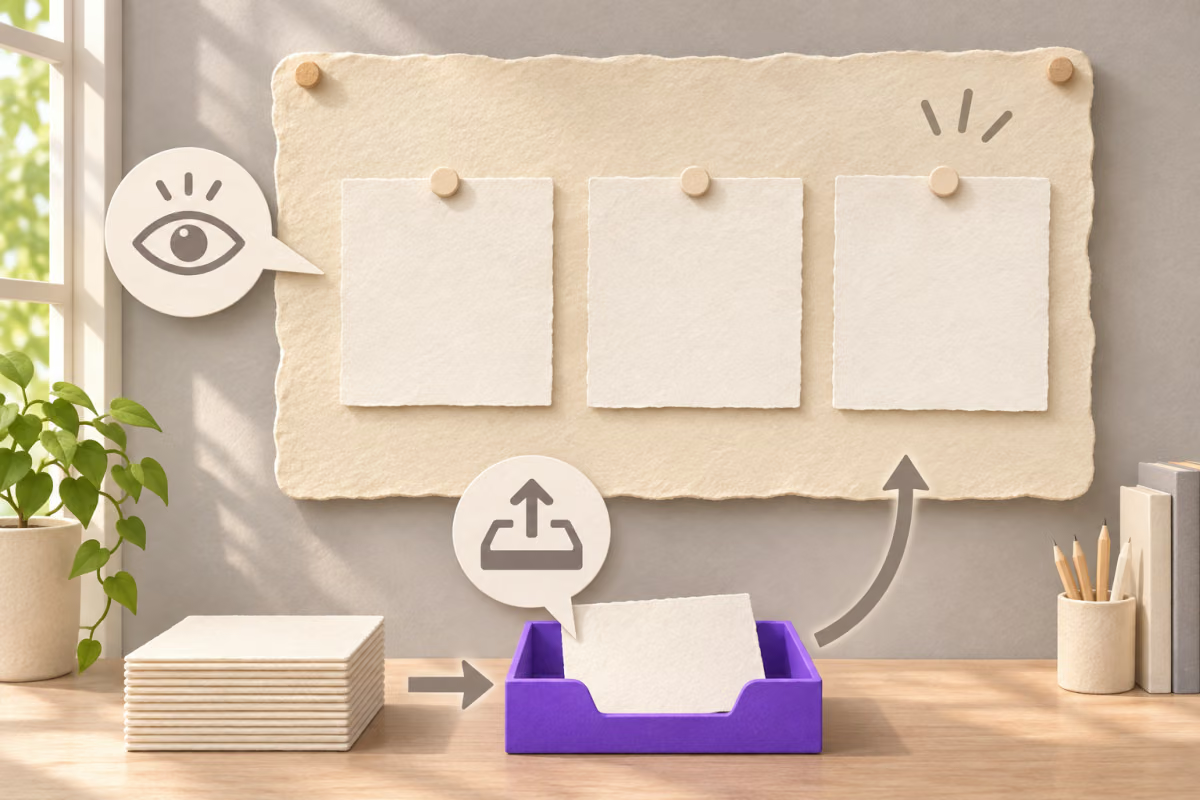
First decide whether the reader should browse the display, comment on a post or add a new post. In Padlet, open Share and review the visitor permission that applies to your audience. Check both school members and people outside the organization where those roles are separate. See Padlet’s privacy and permission settings.
Pick the smallest useful visitor permission
| Activity | Permission to check | What to verify |
|---|---|---|
| Browse the board | Reader | Existing posts can be read and the visitor cannot add a new post. |
| React to a displayed idea | Commenter | A visitor can use the intended comments or reactions. |
| Submit an activity response | Writer | A participant can create a post on the intended board. |
| Keep the board to named people | No access for visitors, invite collaborators | An invited participant can open the board and an uninvited visitor cannot. |
Decide how people should enter
Padlet’s Get QR code is under Share. For a normal external QR, copy the regular board link. Padlet can require visitors to log in, require a password, or combine those options. The option named Copy link with password opens the protected board without a password prompt. Keep that link out of public artwork when you expect readers to enter the password themselves. See Padlet’s sharing instructions.
Test with a person who has the same permissions as the audience. A teacher account may see options that a student or visitor cannot use. For a posting exercise, ask the participant to verify the post action with a safe practice entry on a board prepared for testing.
How to create a Padlet board QR in QRLynx
Use the regular board URL after verifying the permission and privacy settings.
Set the role and privacy in Padlet
Open Share, choose Reader, Commenter or Writer as appropriate and check login and password options. Invite collaborators explicitly for a private board.
Copy the normal board link
Check it with the intended audience. Verify the first screen and whether that role can perform the activity.
Paste the link into QRLynx
Open the Website / Link generator and paste the checked HTTPS address in Website URL.
Choose how long the printed card should last
Use a static code for a stable board link or Padlet’s built-in QR for the same board. Use a saved dynamic QRLynx URL QR if you need to update the destination on a reusable sign.
Label the action and leave a fallback
Write an instruction such as Read the project board or Add one idea. Include a readable link or a school-approved route for participants who cannot scan.
Test the final sign at its actual size
Scan the sign with a participant device and check the board and role again. Confirm that your label matches what the participant can do.
Check the destination first
Create a QR for the Padlet board you checked
Use your regular board URL after confirming what the intended reader can see or contribute.
Write a participant check card
Keep a note alongside the sign file with board name, intended visitor role, expected login or password prompt, and the activity to test. For a gallery walk, put Read the example board on the public sign. In class, use a separate sign that says Add one idea to the class board. Make separate signs if the two audiences need different boards.
Padlet’s Share menu reference also describes the Moderator role. It can edit and approve other people’s posts, so use a narrower permission for ordinary participants. For accessibility and device alternatives, see the classroom QR guide.
Padlet QR code questions
Where is the built-in Padlet QR code?
Open the padlet’s Share menu and choose Get QR code. Check the board and access settings before sharing that image.
Where do I change Padlet visitor permissions?
Open Share and look for Visitor permissions. If you have organization-specific and outside visitor roles, check both for the intended audience.
How do I share a Padlet with only invited people?
Set visitor access to No access, then add the intended people as collaborators. The link or QR can take them to the board, but Padlet checks whether they were invited.
Can I let everyone with the link read without posting?
Choose Reader for visitors with the link, if that audience is appropriate. Padlet’s other privacy controls still apply. Check the board on a device that represents the audience before sharing it widely.
Can visitors post on a Padlet after scanning?
Writer allows visitors to create posts if the board’s other access requirements are met. Commenter can comment or react to existing posts. Test with a participant who has the intended permission.
Do people need to log in after scanning?
It depends on the board’s Require visitors to log in option and other access settings. Verify the exact prompt with a participant before printing the instructions.
Should I use Copy link with password on a printed QR?
Use the regular link when the password prompt is part of your access plan. Copy link with password opens the board without that prompt, so treat it as access-bearing and keep it off public signs.
Why can students see the board while visitors outside the school cannot?
Padlet documents separate permissions for organization members and outside visitors on Team, Classroom and School accounts. Check which audience the visitor belongs to and which permission applies.
Does a scan prove a student submitted a post?
No. A scan can bring a reader to the board. Confirm a submitted post in Padlet and use your normal attendance process for attendance.