How to Create a Microsoft Bookings QR Code for Appointments and Campaigns

Key Takeaway
Create a Microsoft Bookings QR code, verify public access and services, preserve campaign IDs, test time zones, and measure scans against appointments.
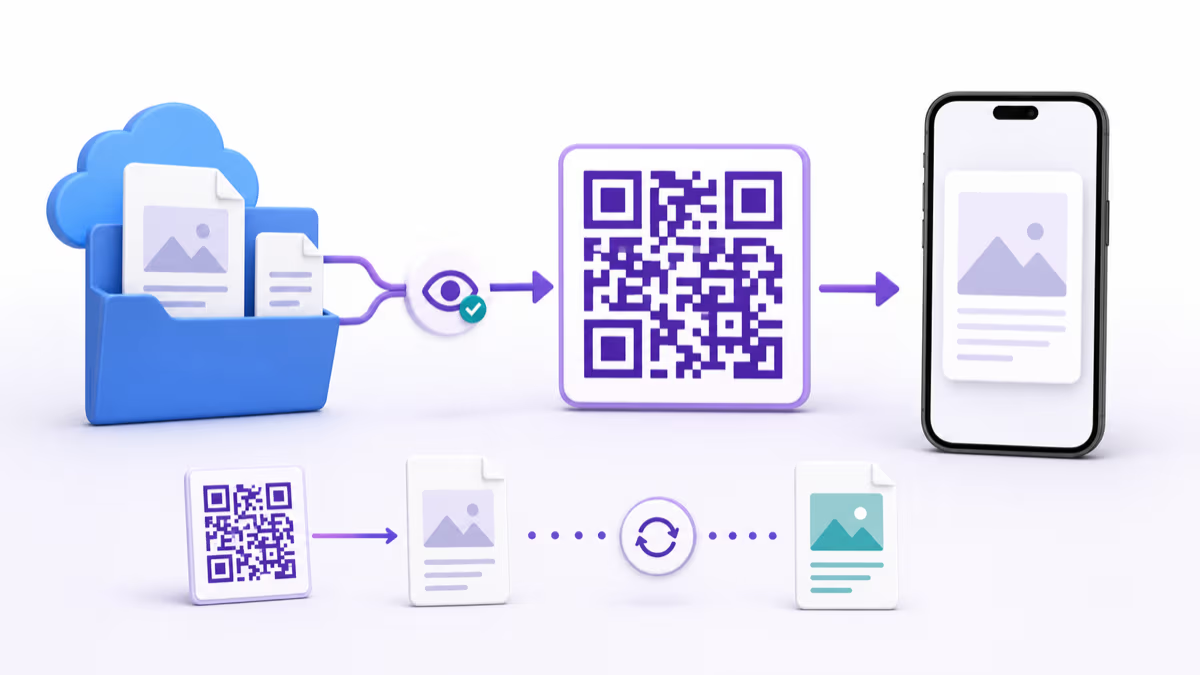
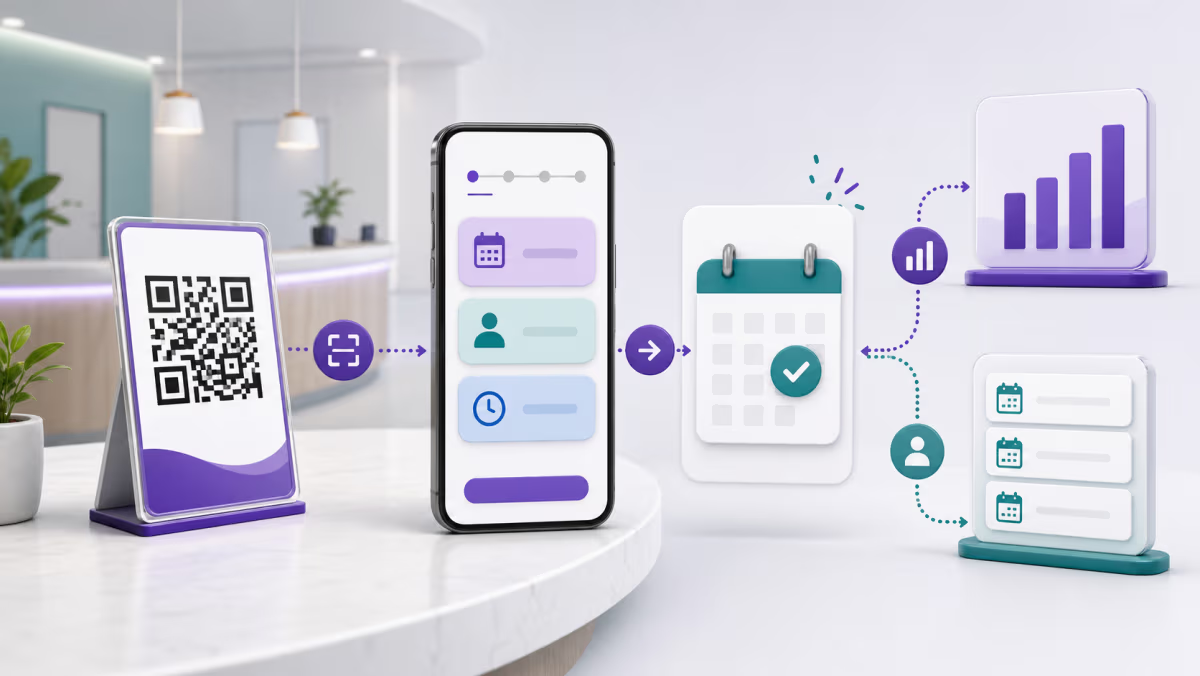
A Microsoft Bookings QR code should open a published booking page that the intended customer can actually use. Before creating the QR, decide whether the page is public or restricted to your organization, which service people should choose, and how each printed placement will be measured.
QRLynx can turn the tested booking-page URL into a static or dynamic Website URL QR. Microsoft Bookings continues to control service availability, staff calendars, time zones, customer details, confirmation messages, rescheduling, and cancellations.
Start with the customer's booking route
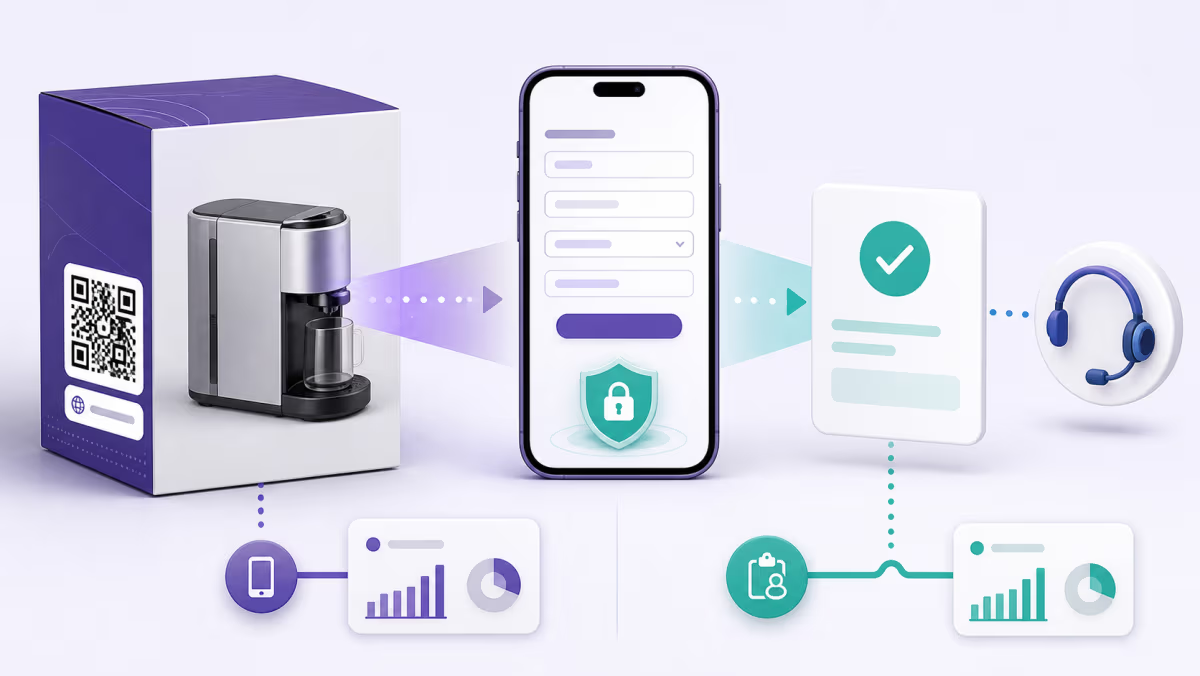
Microsoft Bookings can publish a shared booking page for external customers. It can also require a Microsoft 365 account from your organization. That distinction matters before a QR appears on a storefront, event sign, or business card. Test the page in a private browser on a phone that is outside your tenant. If the audience is public and the page asks for an organizational account, fix the Bookings access setting before printing.
Open every service that the QR audience may select. Check duration, buffer time, location, staff assignment, lead time, cancellation policy, and the customer questions shown during booking. The QR may be correct while the appointment experience is still wrong.
Choose what the Bookings QR should open
| Destination | Best use | Risk to check |
|---|---|---|
| Main booking page | Customers should choose among several services | Service names and availability must be clear on a small screen |
| Service-specific booking route | The printed offer promises one appointment type | Confirm the copied link consistently opens the intended service |
| Campaign-specific booking URL | You need Microsoft Bookings campaign attribution by placement | Preserve the full RefID value in the destination and use a distinct value for each channel |
| QRLynx dynamic route | The calendar, service, or campaign destination may change after printing | Retest access, availability, and confirmation after every destination change |
Plan placement measurement before printing
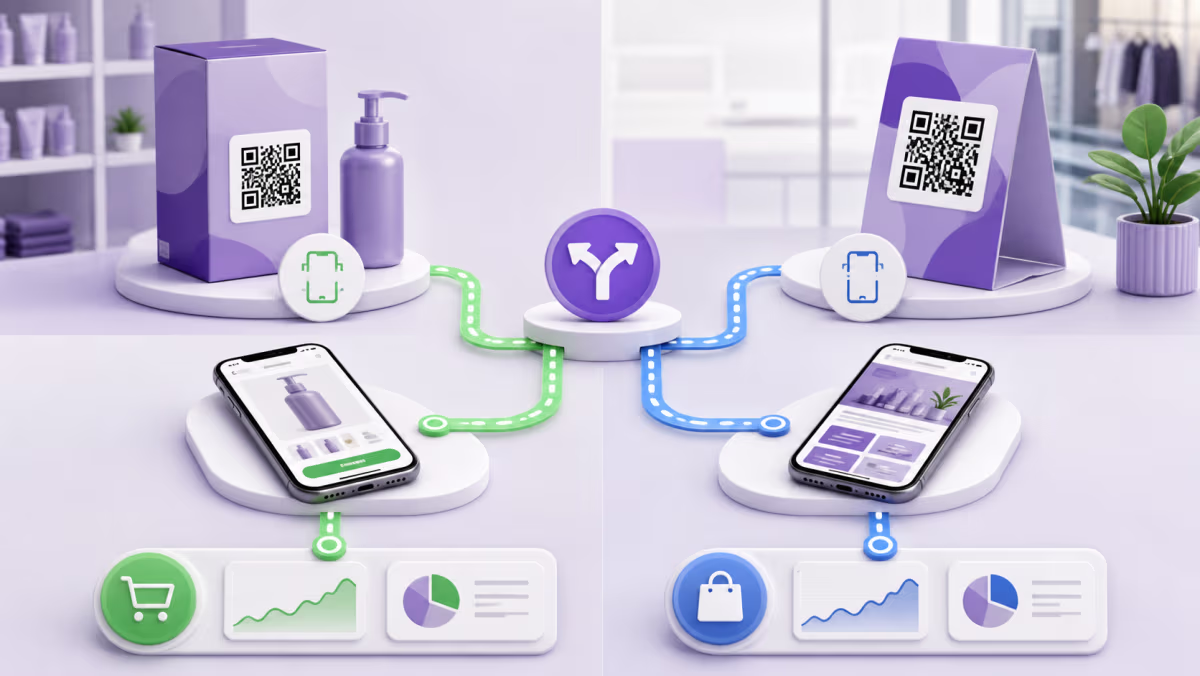
Microsoft documents a campaign ID that can be appended to a Bookings page URL with a RefID value. Use a short, non-sensitive identifier for each meaningful placement, such as storefront, receipt, conference, or staff-card. Copy the complete campaign URL into QRLynx so the Bookings attribution value reaches the booking page.
QRLynx and Microsoft Bookings measure different parts of the journey. Eligible QRLynx dynamic scan activity shows engagement at the physical QR route. Bookings reports appointments and campaign activity under its own rules. Compare scans, booking-page visits, started bookings, and confirmed appointments rather than describing every scan as a booking.
Create a Microsoft Bookings QR code in QRLynx
Verify access, campaign context, and the complete booking confirmation path.
Publish the intended booking page
Confirm the page is live and decide whether it is public or restricted to people in your Microsoft 365 organization.
Review the services and schedule
Check service duration, staff, location, buffers, lead time, customer questions, time-zone behavior, and cancellation settings.
Build the placement URL
Copy the exact page or service destination. Add a distinct, non-sensitive Bookings RefID when Microsoft campaign attribution is part of the plan.
Complete a test appointment
Book from a private mobile browser, verify the displayed time zone, receive the confirmation, and test the reschedule or cancellation route.
Choose Website URL in QRLynx
Paste the complete tested Bookings URL into the Website URL QR type. QRLynx manages the QR route, not the calendar.
Choose static or dynamic delivery
Use static when the booking URL is final. Use dynamic when the calendar, service, or campaign destination may change or eligible scan analytics matter.
Design the printed instruction
Use a direct label such as Scan to book a 20-minute consultation. Keep the code large enough for the expected scan distance and preserve its quiet zone.
Scan the production proof
Test the final file on two phones at the real placement, then complete one last booking through the QR route.
Booking route tested?
Create the QR for Microsoft Bookings
Save the published booking link in QRLynx, keep each important placement identifiable, and test the full appointment journey.
Design around the place where booking happens
Storefront or reception
Send people to a service that can be booked without staff help. State the duration or purpose beside the QR so the first Bookings screen matches the promise.
Business card or sales leave-behind
Use a staff-specific or campaign-specific route only if ownership and reassignment are planned. A dynamic destination is useful when territories or calendars change.
Event booth
Use a distinct RefID and QRLynx QR for the event. Check appointment capacity during the event dates and decide what the destination should become after the campaign closes.
Why a Bookings QR can work but still lose appointments
- The visitor sees a sign-in requirement: the page may be restricted to accounts in your organization.
- No useful times appear: review staff assignment, business hours, lead time, buffers, time zones, and service availability.
- The wrong service opens: verify the exact destination saved in QRLynx and recopy the service-specific link if one is supported.
- Scans are healthy but appointments are low: compare the printed promise with the service name, available times, required fields, and confirmation flow.
- Campaign attribution is missing: confirm that the saved Bookings URL retains the complete RefID and that the placement uses the intended QR.
Microsoft Bookings QR code questions
Can I make a QR code for Microsoft Bookings?
Yes. Copy the published booking-page URL and place it in a QR. QRLynx supports it through the Website URL QR type.
Can customers book without a Microsoft account?
A public shared booking page can serve external customers. If the option requiring an account from your organization is enabled, outside visitors cannot use the normal public journey. Test with an external private session.
Can the QR open one Bookings service?
Use the most specific tested booking URL that Microsoft Bookings provides for your setup. Confirm on mobile that it consistently opens the promised service before printing.
How do I track where Microsoft Bookings appointments came from?
Microsoft documents campaign IDs added to a booking-page URL with RefID. Use a distinct non-sensitive value by placement, preserve the full URL in QRLynx, and compare it with eligible QR scan activity.
Does a QR scan count as an appointment?
No. A scan reaches the QR route. Microsoft Bookings records the booking process and confirmed appointment. Treat them as different funnel events.
Can I change the Bookings calendar after printing?
A dynamic QRLynx QR lets its owner update the destination without replacing the printed managed link. The new page, access setting, service, and confirmation journey must be retested.
Why does the appointment time look different on another phone?
Bookings can display availability in the visitor's local time zone. Confirm the booking page configuration and test with the time zones your audience uses.
What should I print beside the QR?
State the action and appointment type, such as Scan to book a 20-minute fitting. Add any essential eligibility or location context without crowding the code.
Sources and related QRLynx guides
- Microsoft: Customize and publish a booking page
- Microsoft Bookings FAQ
- QRLynx dynamic URL QR guide
- QRLynx UTM builder
- QRLynx QR analytics
QRLynx is built and operated by Jorbox LLC. This guide was checked against current Microsoft Bookings access and campaign documentation and the QRLynx Website URL workflow.