How to add a QR code to Gmail and Outlook email signatures


Key Takeaway
Add a QRLynx contact-card QR to Gmail or Outlook with a clickable fallback, then check incoming messages, image blocking, and phone access.
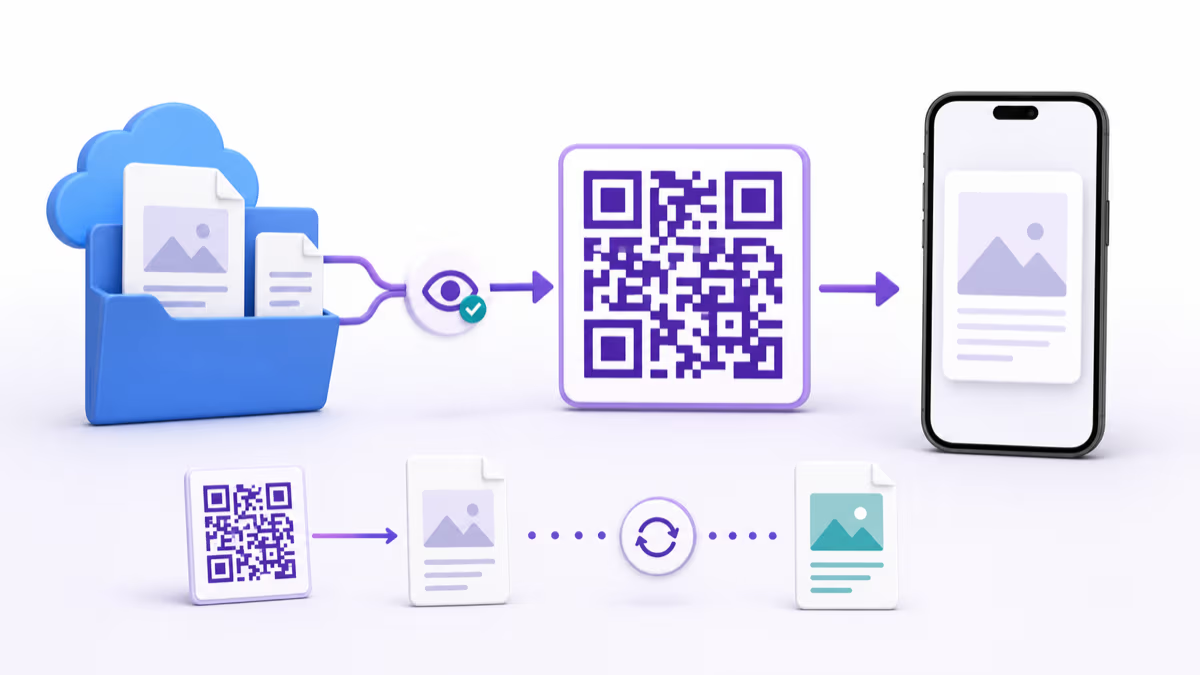
Add your QR as a PNG image in the email client's signature editor, and put a clickable contact-card link beside it. The QR helps someone reading on a computer open your details on a phone. The text link serves people already reading on that phone and people who cannot see or scan the image.
QRLynx creates the QR and can host a digital business card. Gmail or Outlook controls the signature. This is not a native QRLynx email-signature generator.
Prepare the signature QR in QRLynx
Choose the contact destination
Use your saved public QRLynx Business Card page or another professional contact page you control. Open its public link and check the details a recipient should see. Do not use an account editor link.
Create a Website / Link QR for that page
Paste the public contact-page URL into QRLynx Website / Link. Static keeps that URL directly in the QR. Choose dynamic if you need to repoint this QR to another destination later. Updating the contents of a hosted contact page is separate from changing its URL.
Download a clean PNG
Use a dark foreground and light background with the clear border intact. Download PNG for insertion as an email image. Avoid cropping it into a circle or making a logo obscure the pattern.
Add a meaningful fallback
Keep the public contact-page URL ready for a text link such as View my contact details. Label the QR with the same purpose, so recipients know what it opens.
Test before editing the signature
Scan the downloaded image and open the text-link destination. Confirm that both reach the intended public page and that the contact information is correct.
Add the PNG in Gmail on a computer
Open Gmail in a desktop browser, then Settings, See all settings, General, Signature. Create a signature or select the one you want to edit. Use the editor's image control to add the PNG, then add the contact-page text link. Choose the appropriate defaults for new messages and replies, and save the changes at the bottom of the settings page.
If you use several sending addresses, check the signature for the address you actually send from. Google's Gmail signature instructions cover these defaults and the Send mail as setting. This desktop procedure does not establish how every mobile app manages signatures.
Choose the right Outlook instructions
In new Outlook for Windows and Outlook on the web, open Settings, Accounts, Signatures. Select the account if needed, add or edit the signature, and use the available editor controls for the PNG and text link. Choose whether the signature applies to new messages and replies, then save.
In classic Outlook for Windows, open a new message and choose Signature, Signatures. Select the signature and use its Image button to insert the PNG. Keep the aspect ratio locked when resizing. Add the fallback link in the signature text and save. Microsoft documents the version-specific signature paths and classic Outlook image control.
If your organization's signature is centrally managed, use its approved signature process. Do not assume that an individual change will survive a managed template or that every Outlook version exposes the same editor.
Use a small signature, then test the received image
There is no single pixel size that guarantees every signature QR will scan. Start with enough room for the actual pattern and clear border, keep the image proportional, and test the received message at normal reading size. A longer directly encoded URL or heavier design may need more space.
A compact layout can contain your name and role, the QR beneath those details, and a separate View my contact details link. Keep the phone number or essential contact method as selectable text rather than putting the entire signature inside an image.
Incoming-message checks
| Situation | What to check | Passing result |
|---|---|---|
| Desktop reader with a phone | Scan the image as received, without enlarging the email | The intended contact page opens |
| Reader on a phone | Tap the separate text link | No second device is needed |
| Images unavailable | Read the signature with images hidden | The purpose and text link remain usable |
| Reply or forward | Inspect the resulting signature once | No oversized repeated image or broken destination |
| Keyboard navigation | Reach and activate the text link | The destination can be opened without scanning |
Image blocking is a fallback problem, not a reason to weaken security
Gmail normally displays images automatically, but user settings or a suspicious-message assessment can prevent that. Classic Outlook can block automatic downloads of Internet-hosted pictures. The behavior depends on the client and how the image is included; it is not accurate to say that every client always blocks signature images.
Keep the text link available instead of asking recipients to change security settings. See Google's image display guidance and Microsoft's classic Outlook picture-download guidance.
Prepare the contact destination first
Create and check the page your signature will open before inserting its QR into email.
Keep the contact page and signature in sync
After a role, booking link or contact detail changes, open the public destination again. If the URL stays the same, test the existing signature against the updated page. If the destination URL changes, repoint an eligible dynamic QR or replace a static QR image. Update the separate text link too.
Before using the signature broadly, send a test message between accounts you control and inspect the received version in the clients you rely on. A clean editor preview is not proof that the image survives delivery. For choosing between a direct contact payload and a hosted card, use the business-card QR guide.
For the delivery check, record the sending account, recipient client and version, whether the received QR scanned, and whether the text link worked. Keep a copy of that test message so a later signature change can be compared with the same conditions.
Frequently asked questions
How to create a QR code for signature?
Choose the public contact page the recipient should open. In QRLynx, create a Website / Link QR for that page and download it as PNG. Insert the PNG in Gmail or Outlook using that client's signature editor. Add a separate text link to the contact page, then send a test message and check the received signature. QRLynx creates the QR; the email client manages the signature.
How do I add a custom signature to my Gmail?
On a computer, open Gmail, select Settings, then See all settings. In General, find Signature and create or edit your signature. Insert the QR image and add the contact-page text link. Choose the signature defaults for the account and save your changes. If you use several sending addresses, check the default for the address you actually use.
How can someone open my contact page while reading on a phone?
They can tap the separate contact-page text link. Keep that link outside the QR image so the recipient can reach the destination without a second device or a visible image. A scan test on a desktop does not replace this phone and image-blocking check.