QR campaign UTM naming: a placement-by-placement template

Key Takeaway
Name QR campaign links consistently with a copyable placement worksheet, UTM examples, and a QRLynx workflow that keeps campaign reports understandable.
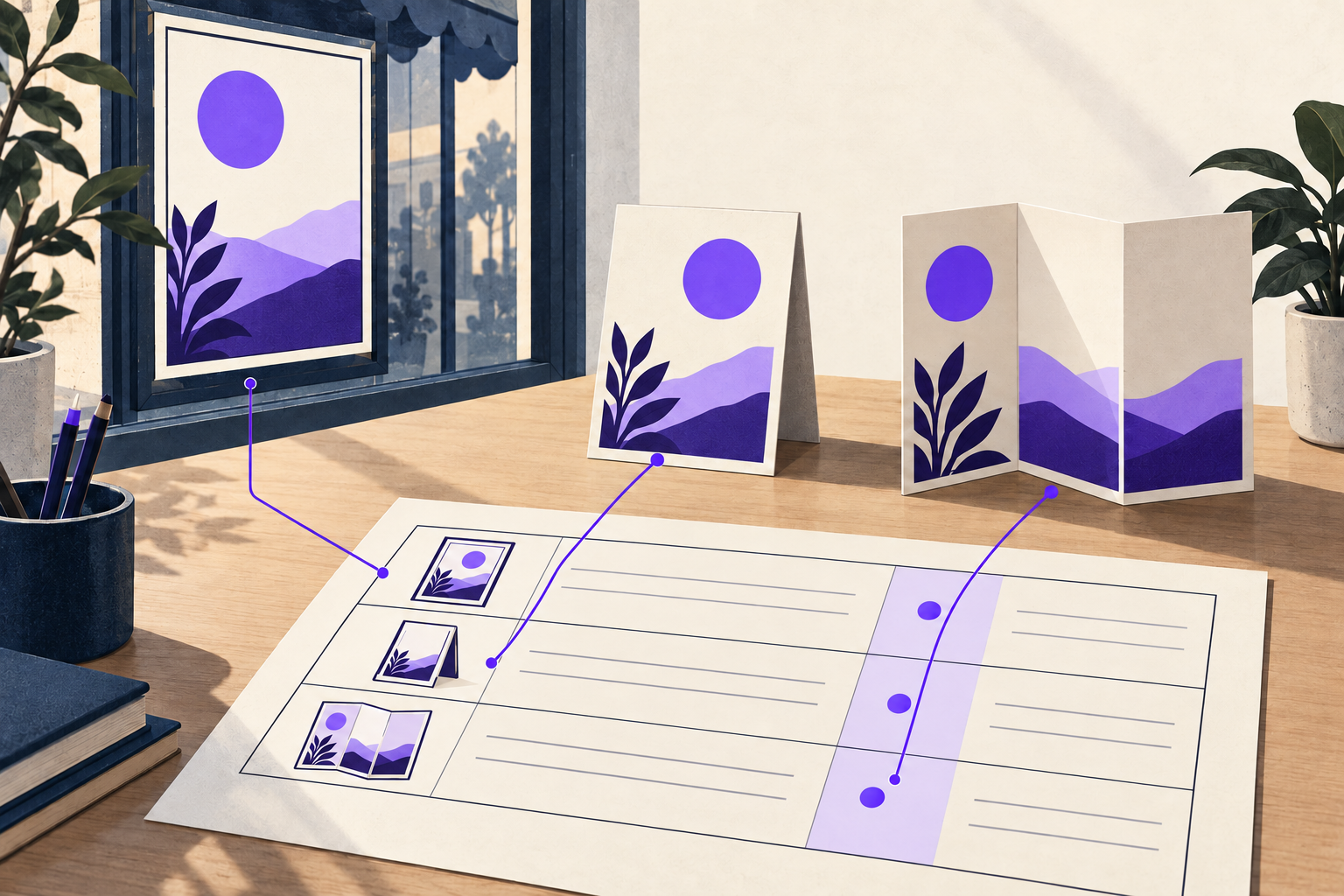
Give every QR placement you want to compare its own tagged destination. Keep the campaign name stable, use one agreed source and medium convention, and put the placement identifier in utm_content. That makes a window poster distinguishable from a counter card without turning one campaign into several unrelated names.
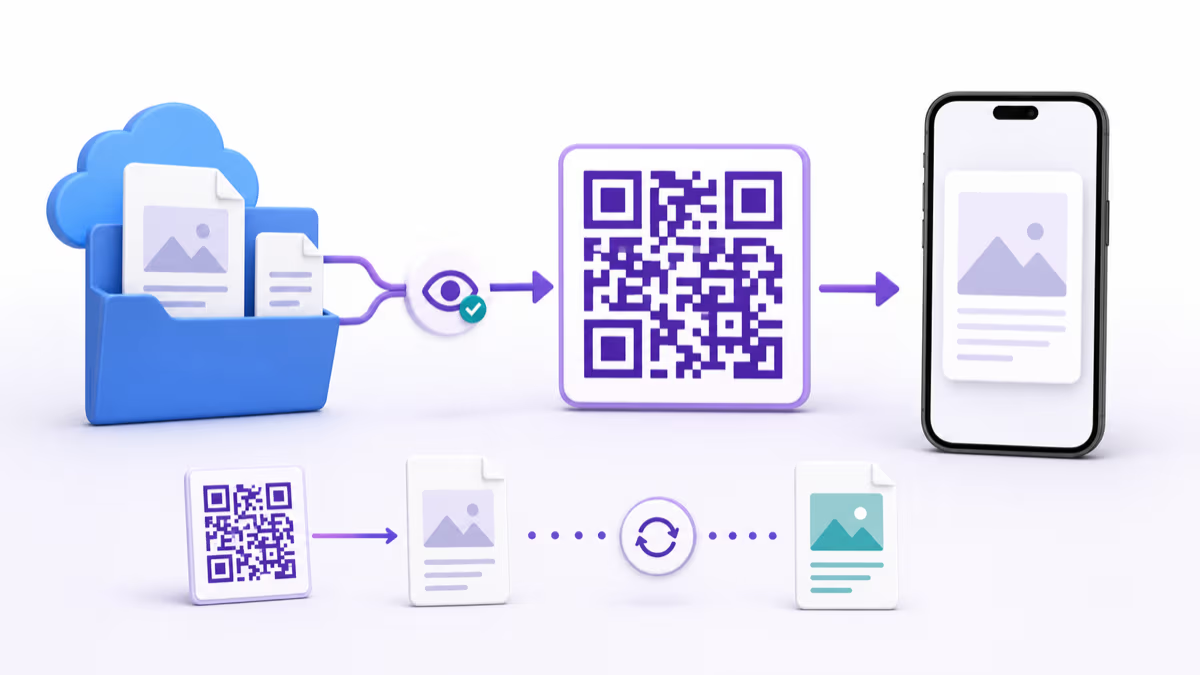
QRLynx's UTM builder creates the tagged URL. A QRLynx Website / Link QR can then open it. This guide supplies the naming worksheet; the QR tracking guide covers scan definitions and website analytics setup.
Decide what each field means before making links
The following is a suggested house convention, not a required Google taxonomy. Here, source identifies the distribution location, medium identifies the QR route, campaign identifies the initiative, and content identifies the physical item. If your organization already uses a documented convention, keep it consistent rather than silently changing meanings halfway through a campaign.
Google's campaign URL guidance explains these parameters and notes that values are case sensitive. Use lowercase and a consistent separator. A custom medium such as qr is your chosen label; it does not guarantee a particular default channel classification in GA4.
The QRLynx builder normalizes campaign labels to lowercase and converts spaces to underscores. Enter the worksheet values in that format, then copy the generated URL back into the worksheet. If you need to preserve an existing naming scheme exactly, compare the result before replacing a link already in circulation.
A naming dictionary for one campaign
| Field | Example | Meaning |
|---|---|---|
| utm_source | riverside_store | The location or distribution source |
| utm_medium | qr | The route used to reach the destination |
| utm_campaign | winter_workshop | One initiative shared across placements |
| utm_content | window_poster_a | The specific placement and creative |
| QR name | winter_workshop / riverside_store / window_poster_a | A matching name in your saved-code inventory |
Copy the placement worksheet
These are fictional planning examples. Replace the destination and labels with your own. All three pieces promote the same workshop; only the physical placement changes.
placement_id,utm_source,utm_medium,utm_campaign,utm_content,destination
window,riverside_store,qr,winter_workshop,window_poster_a,https://example.com/workshop
counter,riverside_store,qr,winter_workshop,counter_card_a,https://example.com/workshop
leaflet,riverside_store,qr,winter_workshop,takeaway_leaflet_a,https://example.com/workshop
Keep the worksheet with your artwork files. Add columns for the saved QR name, final tagged URL, artwork filename, owner, and proof-check date. Those operational fields belong in the worksheet, not automatically in the public URL.
A completed window-poster destination would be:
https://example.com/workshop?utm_source=riverside_store&utm_medium=qr&utm_campaign=winter_workshop&utm_content=window_poster_aThe counter card uses utm_content=counter_card_a; the takeaway leaflet uses utm_content=takeaway_leaflet_a. The other three values stay the same. This gives you a precise question to ask later: which placement produced the recorded website visits?
Build each placement link and QR in QRLynx
Choose the actual destination
Open the workshop, product, or registration page as a visitor. Use the public destination, not its editor URL. Confirm that the intended action is available.
Build the first tagged link
Open the QRLynx UTM builder. Enter the destination, source, medium and campaign from your worksheet, then the placement value in Content. Copy the generated URL and open it to check the destination.
Create a Website / Link QR
Paste that tagged URL into QRLynx Website / Link. Choose static for a fixed encoded URL, or dynamic when you need to change its destination later. Use a separate saved QR for each placement you need to distinguish.
Name and label the placement
Match the QR name to the worksheet. Put an action label such as View workshop details beside the QR, keep its clear border, and export the artwork for that placement.
Repeat without changing the campaign vocabulary
Create the counter and leaflet URLs with their own Content values. Check that you did not paste the window URL into all three codes.
Verify the final route
Scan each exported QR and a proof at its intended size. Check the landing page and retained UTM values after redirects. If the destination collects GA4 data, confirm the campaign values there separately from QRLynx scan activity.
Build the first placement URL
Use the agreed names before generating the QR artwork.
Resolve these naming mistakes before printing
If two artworks contain the same QR and destination, changing only their filenames will not distinguish visits. Create distinct tagged destinations and encode the corresponding QR in each piece.
If a second shop joins the campaign, add a new source value such as harbor_store while retaining the campaign name. If the copy changes at the same placement, decide whether to retain the content value or introduce a new version such as window_poster_b. Record that decision so the report has a stable meaning.
A dynamic destination edit changes the URL used by subsequent visits. It does not rename earlier analytics records. Save the edit date and old destination in the worksheet before a campaign change.
Keep personal details out of campaign labels. Names, email addresses and customer identifiers are unnecessary for distinguishing a poster from a leaflet, and the URL is visible beyond your worksheet.
Check the report against the question you asked
A named campaign visit is not proof of a purchase, a unique person, or even a completed page load for every scan. QRLynx scan activity and the destination's website analytics observe different parts of the journey. Collection settings, consent, redirects and repeat activity can make their counts differ.
Start by checking that the expected source, medium, campaign and content labels appear. Then compare the destination action you care about. If all three placements were accidentally assigned one URL, record that limitation; do not divide the combined traffic into invented placement totals.
Frequently asked questions
Can you UTM a QR code?
Yes. Add UTM parameters to the destination URL, then use that tagged URL to create a QRLynx Website / Link QR. For a dynamic QR, check that the final destination retains the parameters after the redirect. UTM values describe website traffic; they do not make a scan count equal a purchase or a unique visitor.
What are the 5 UTMs?
The five commonly used campaign parameters are utm_source, utm_medium, utm_campaign, utm_term and utm_content. They describe the source, medium, campaign, term and content variation. They are not all the campaign fields Google supports. For the placement worksheet here, use Content to distinguish the physical item; you do not need to invent a Term value for a poster.
Do I need a different QR for each physical placement?
Use distinct tagged destinations and the corresponding QR artwork when you want to compare placements. Two posters that contain the same encoded URL cannot be separated into placement totals merely by giving their image files different names. Keep the campaign vocabulary stable and change the placement value in utm_content.