Skip to content

QR Code Design Best Practices: Colors, Size, Logo & Print Guide (2026)

Ahmad Tayyem
Founder & QR Code Technology Specialist
· 21 min read
QR Code Design Best Practices: Colors, Size, Logo & Print Guide (2026)

Key Takeaway

The complete guide to QR code design best practices in 2026. Learn the rules for color contrast, minimum size, logo placement, quiet zones, print formats, DPI, CTA text, and testing. Includes ISO/IEC 18004 references, DENSO WAVE guidelines, and a step-by-step design checklist.

A QR code that looks great but does not scan is worse than a plain black-and-white square that works every time. Design matters, but scannability always comes first. The good news is that you do not have to choose between aesthetics and reliability. With the right techniques, you can create QR codes that are visually attractive, on-brand, and scannable across every device and distance.

This guide covers the design rules that actually matter: color contrast, minimum size, logo placement, quiet zones, print formats, resolution, call-to-action text, and pre-deployment testing. Every recommendation is grounded in the ISO/IEC 18004 standard, real-world print experience, and scanner compatibility testing across iOS and Android devices.

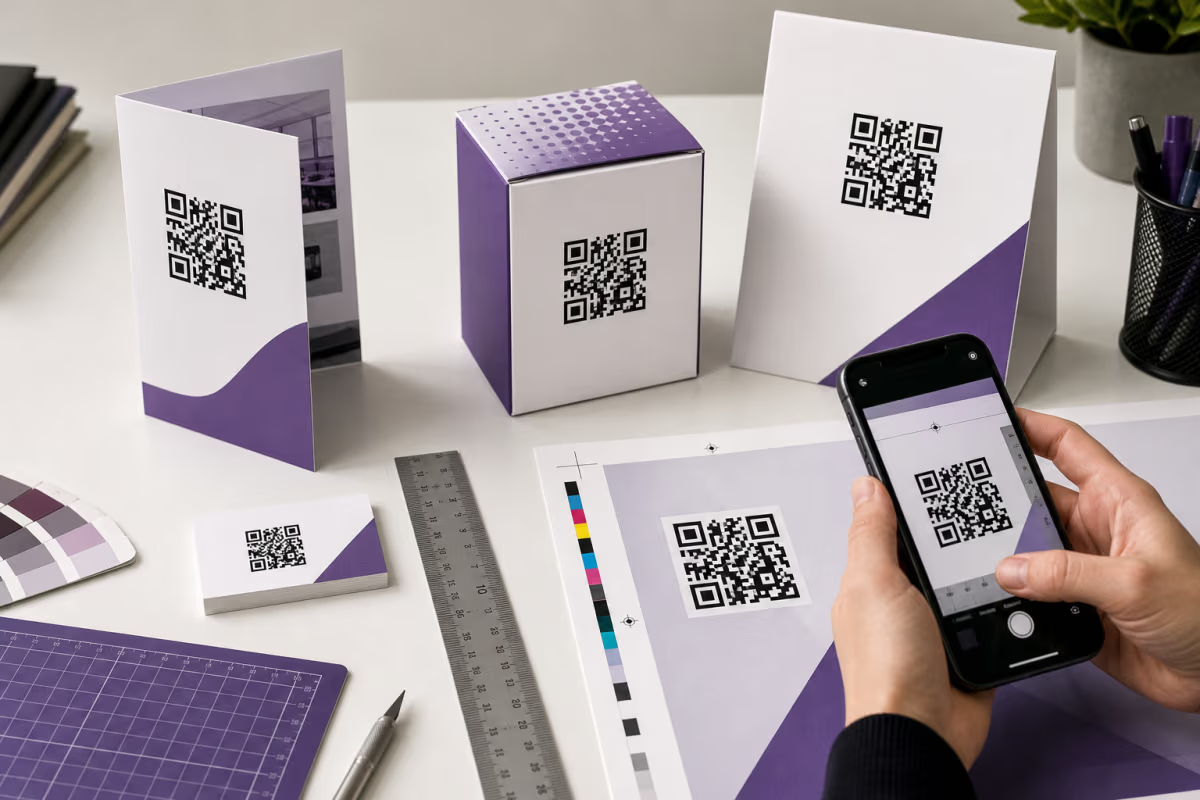
Whether you are printing QR codes on stickers, flyers and posters, product packaging, or business cards, these best practices will help you avoid the most common design mistakes that break scannability. If you need a quick refresher on QR code sizing specifically, see our dedicated QR code size guide for print.

Color Contrast: The Most Important Design Rule

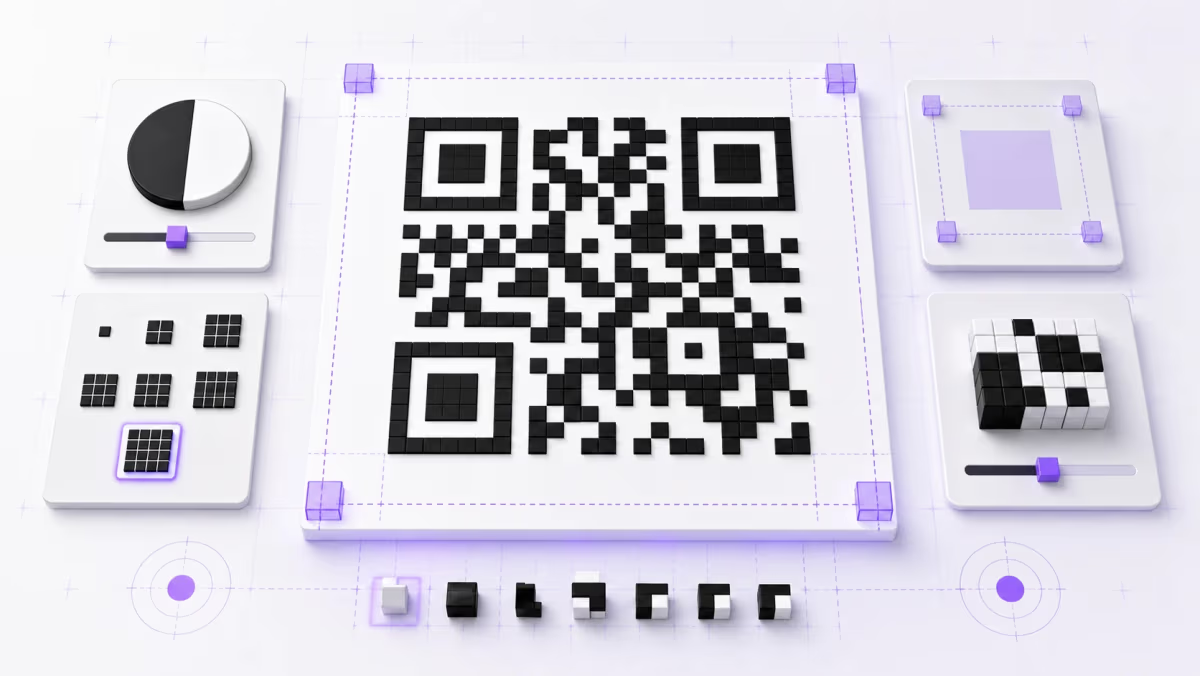
The single most important rule in QR code design is maintaining sufficient contrast between the dark modules (the squares) and the light background. QR scanners work by detecting the difference between dark and light areas. If the contrast ratio is too low, the scanner cannot distinguish modules from background, and the code fails.

The baseline rule comes directly from QR code fundamentals: dark foreground on a light background. The ISO/IEC 18004 specification assumes black modules on a white background as the default. You can use colors, but you must preserve a minimum contrast ratio of at least 3:1 between the foreground modules and the background. Many design professionals recommend targeting 4:1 or higher for maximum reliability across older phones and low-light conditions.

Colors that work well

  • Dark navy on white — excellent contrast, professional appearance
  • Dark green on cream or white — strong readability for eco and organic brands
  • Dark purple on light lavender — works when the purple is truly dark
  • Black on light yellow — high contrast, attention-grabbing
  • Dark red or maroon on white — strong for food and hospitality brands

Colors that fail

  • Yellow on white — virtually invisible to scanners
  • Light blue on white — insufficient contrast
  • Red on green (or green on red) — fails for color-blind users and many scanners
  • Light gray on white — not enough differentiation
  • Any light color on a light background — breaks the fundamental scanning principle

A common mistake is inverting the contrast: using light modules on a dark background. While some modern scanners handle inverted QR codes, many older devices and camera apps do not. DENSO WAVE, the original inventor of QR codes, explicitly recommends dark modules on a light background for maximum compatibility. If you must use a dark background, test extensively across at least five different devices before committing to print.

You can check your contrast in real time using the QRLynx Readability Score Tool, which evaluates your color choices and warns you before you finalize a design that might fail in the field.

Size Guidelines: How Big Should Your QR Code Be?

The minimum recommended size for a printed QR code is 2 cm x 2 cm (approximately 0.8 inches). Below that size, many phone cameras struggle to focus and resolve the individual modules, especially for codes with high data density or complex URLs.

However, 2 cm is only a minimum for close-range scanning, such as on a table tent, business card, or product label where the user holds their phone within 15 to 25 centimeters. For any placement where users scan from a distance, you need to apply the 10:1 scanning distance rule.

The 10:1 Rule

The 10:1 rule states that the scanning distance should be no more than 10 times the width of the QR code. This means:

QR Code SizeMax Scanning DistanceUse Case
2 cm (0.8 in)20 cm (8 in)Business cards, product labels
5 cm (2 in)50 cm (20 in)Table tents, stickers, flyers
10 cm (4 in)1 m (3.3 ft)Posters, menus, shelf displays
25 cm (10 in)2.5 m (8.2 ft)Event banners, trade show booths
50 cm (20 in)5 m (16.4 ft)Building signage, window displays
1 m (39 in)10 m (33 ft)Billboard, stadium, large format

This rule is a guideline, not a guarantee. Environmental factors such as lighting conditions, glare, screen protectors, and camera quality all affect real-world scanning distance. Always add a safety margin. If the math says your code needs to be 10 cm, print it at 12 to 15 cm for reliability.

For a deeper dive into sizing for every print format, including stickers, posters, banners, and packaging, see our full QR code size guide.

Logo Placement: Branding Without Breaking Scannability

You can place a logo in the center of a QR code, but it must not cover more than 20 percent of the total code area. This is possible because of a built-in feature of the QR code specification called error correction.

Understanding error correction levels

QR codes support four error correction levels defined in ISO/IEC 18004:

  • Level L (Low) — recovers up to 7% data loss
  • Level M (Medium) — recovers up to 15% data loss
  • Level Q (Quartile) — recovers up to 25% data loss
  • Level H (High) — recovers up to 30% data loss

When you place a logo in a QR code, you are essentially destroying the modules underneath the logo. The scanner must recover that lost data using error correction. For any QR code with a logo, always use Error Correction Level H. This gives the scanner the maximum 30 percent recovery capacity, which comfortably accommodates a logo covering up to 20 percent of the code area while leaving margin for other minor damage such as print wear, slight misalignment, or surface scuffs.

Logo placement rules

  1. Center the logo — the center of the QR code is the safest area because critical alignment patterns sit in the corners
  2. Keep the logo under 20% coverage — measure against the total QR module area, not the full image including quiet zone
  3. Use a simple logo — complex logos with fine detail may interfere with nearby modules
  4. Add a small white padding around the logo — this prevents the logo edges from blending with adjacent dark modules
  5. Avoid placing the logo over the three corner finder patterns — these large squares are critical for scanner alignment and must never be obscured

The QRLynx Custom QR Code Designer lets you upload a logo and automatically positions it in the center with appropriate padding, while defaulting to Error Correction Level H when a logo is detected.

The Quiet Zone: Why White Space Matters

Every QR code requires a quiet zone: a blank margin around all four sides that separates the code from surrounding visual elements. The ISO/IEC 18004 standard specifies a minimum quiet zone of 4 modules wide on all sides. A module is the smallest square unit in the QR code grid.

The quiet zone serves a critical function. It tells the scanner where the QR code ends and where the surrounding design begins. Without it, scanners may misinterpret nearby text, graphics, borders, or background patterns as part of the code, causing scan failures.

Common quiet zone mistakes

  • Placing the QR code inside a tight border or frame — if the border touches the code, it violates the quiet zone
  • Butting the code against text or other graphics — always leave at least 4 modules of clear space
  • Using a background pattern or texture that extends into the quiet zone — the quiet zone must be a solid, uniform color (typically white or whatever your background color is)
  • Cropping the QR code image too tightly — always export with the quiet zone included

In practical terms, if your QR code is 100 pixels wide with 25 modules across, each module is 4 pixels. The quiet zone should be at least 16 pixels (4 modules x 4 pixels) on every side. Most QR code generators, including QRLynx, automatically include the quiet zone in the exported image, but always verify before sending to print.

For printing QR codes, SVG is the best format, PNG is acceptable, and JPG should never be used. The choice of file format directly affects print quality, scalability, and scan reliability.

SVG (Scalable Vector Graphics) — Best for print

SVG files store QR codes as mathematical paths rather than pixels. This means they can be scaled to any size without losing sharpness. A 2 cm business card code and a 1-meter billboard code can come from the same SVG file. Every edge stays crisp, every module boundary stays clean. Always use SVG when your print workflow supports it.

PNG (Portable Network Graphics) — Acceptable with high resolution

PNG is a raster format, meaning it stores the code as a grid of pixels. Unlike JPG, PNG uses lossless compression, so it does not introduce artifacts. If you export at a high enough resolution (at least 300 DPI at final print size, ideally 600 DPI), PNG produces clean results. The limitation is that you cannot scale a PNG up without losing quality, so always export at the final print dimensions.

JPG (JPEG) — Never use for QR codes

JPG uses lossy compression designed for photographs. It blurs sharp edges and introduces compression artifacts around high-contrast boundaries, which is exactly what every QR code module boundary is. Even at high quality settings, JPG can soften module edges enough to cause scan failures, especially for smaller codes or codes with high data density. Never export or print a QR code as JPG.

FormatTypeScalablePrint QualityRecommended
SVGVectorInfinitePerfectBest choice
PNGRaster (lossless)NoGood at 300+ DPIAcceptable
JPGRaster (lossy)NoPoor — artifactsNever use

When downloading QR codes from the QRLynx Custom QR Code Designer, always select SVG for print projects and PNG for digital-only use cases such as email signatures, social media posts, or website embeds.

DPI Requirements for Printing QR Codes

For professional print output, QR codes should be exported and placed at a minimum of 300 DPI (dots per inch) at the final printed size. For high-end commercial printing, packaging, or any application where the code will be very small, 600 DPI is recommended.

DPI matters because it determines how many dots of ink the printer uses to render each module in the QR code. At low DPI, individual modules may appear fuzzy, rounded, or merged with their neighbors. This is especially problematic for QR codes with high data density (long URLs, vCards, or WiFi credentials) where individual modules are very small.

If you are using SVG format, DPI is handled by the print software and the printer itself, which is another reason SVG is the preferred format. For PNG exports, you must calculate the correct pixel dimensions before exporting:

Formula: Pixel width = Print width (inches) x DPI

For example, a 2-inch QR code at 300 DPI needs to be 600 x 600 pixels. At 600 DPI, that same 2-inch code needs to be 1200 x 1200 pixels. Always export at the largest size you will need, because scaling up a raster image degrades quality.

According to the Scanova printing guide, many QR print failures trace back to designers placing a low-resolution screenshot or screen grab of a QR code into a print layout instead of using a properly exported high-resolution file. Always export from your QR code generator rather than taking a screenshot.

Call-to-Action Text: The Most Underused Design Element

Adding a clear call-to-action (CTA) near your QR code increases scan rates by 30 percent or more. Despite this well-documented improvement, many QR code deployments still print the code with no context, leaving users to guess what will happen when they scan.

A QR code without context is a mystery box. Users see a pattern of squares and have to decide whether it is worth pulling out their phone, opening the camera, pointing, waiting, and tapping. A simple text prompt removes that friction and tells the user exactly what they will get.

Effective CTA examples

  • "Scan to view the menu" — restaurants, cafes, bars
  • "Scan for 15% off your first order" — retail, e-commerce
  • "Scan to RSVP" — events, weddings
  • "Scan to download the PDF" — documents, manuals, brochures
  • "Scan to connect to WiFi" — hospitality, coworking spaces
  • "Scan to leave a Google review" — local businesses, restaurants
  • "Scan to save my contact info" — business cards, networking events
  • "Scan to get directions" — real estate, retail locations

CTA placement rules

  1. Place the CTA directly below or above the QR code — it should be visually associated with the code, not separated by other content
  2. Use a font size that is readable at the same distance as the QR code — if the code is on a poster viewed from 2 meters, the CTA text must also be legible from 2 meters
  3. Keep it short — 3 to 6 words is ideal
  4. Use action verbs — "Scan to..." is the most effective pattern
  5. Do not place the CTA inside the quiet zone — the quiet zone must remain clear

This is one of the simplest and highest-impact improvements you can make to any QR code deployment. Before printing, always ask: does the person seeing this code know what happens when they scan it?

How to Design a Perfect QR Code in 4 Steps

Advanced Design Considerations

Custom shapes and rounded modules

Many modern QR generators offer rounded modules (dots instead of squares), custom eye shapes, and decorative frame styles. These can look attractive, but they introduce risk. Rounded modules reduce the scannable contrast area of each module. The more rounded the dots, the more white space appears between them, and the harder it becomes for scanners to detect boundaries. If you use rounded modules, increase the code size by at least 20 percent and test thoroughly.

Custom eye shapes (the three large corner patterns) are especially risky. These finder patterns are the first thing scanners look for when detecting a QR code. Altering their shape too aggressively can delay or prevent detection. Subtle rounding is usually safe; dramatic redesigns are not.

Gradient colors

Gradients applied to QR code modules are a popular aesthetic choice, but they create a real scannability risk. A gradient that transitions from dark to light means some modules have adequate contrast while others do not. The weakest contrast point in the gradient determines whether the code scans reliably. If you use a gradient, ensure that even the lightest point in the gradient maintains at least a 3:1 contrast ratio against the background. In practice, this limits you to gradients between two dark colors (e.g., dark blue to dark purple) rather than dark-to-light transitions.

Background images and patterns

Placing a QR code over a photographic background or textured pattern is almost always a bad idea. The background competes with the module pattern and confuses scanners. If your design requires a non-white background, use a solid, uniform light color and ensure the contrast ratio holds. Never use a busy photograph, illustration, or pattern behind a QR code.

Material considerations

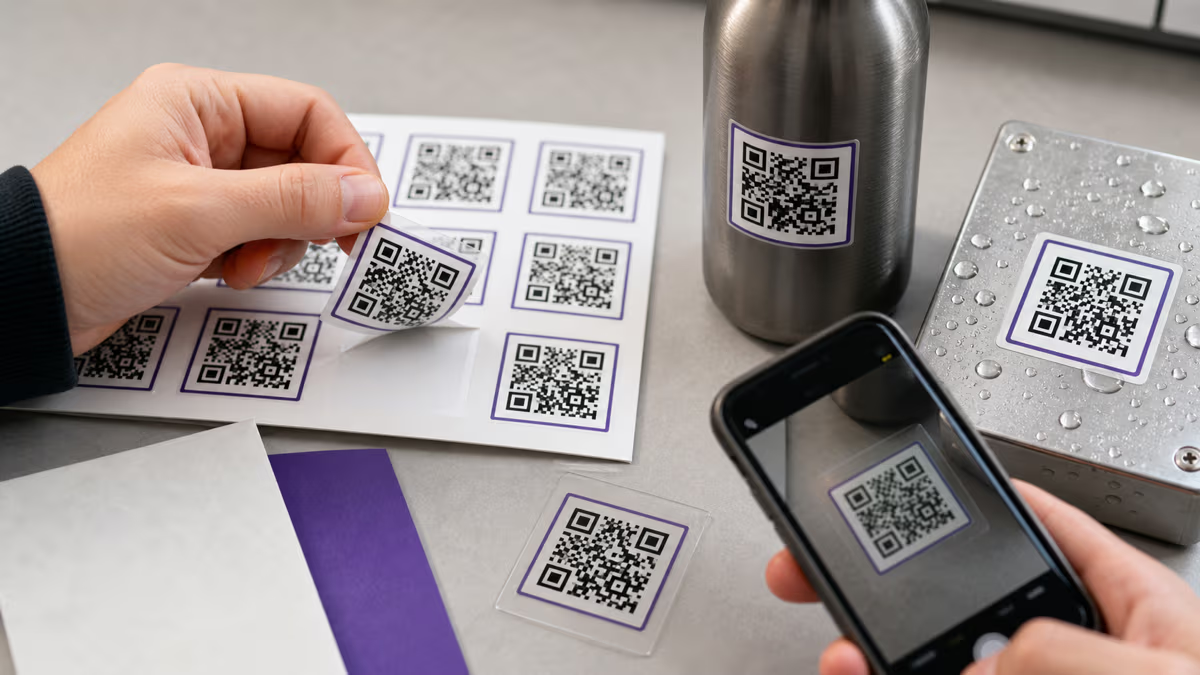
The printing material affects scannability. Glossy surfaces create glare that can make QR codes unscannable in bright light. Transparent or translucent materials may not provide enough background contrast. Curved surfaces (bottles, mugs, tubes) distort the code geometry. Textured surfaces (canvas, wood, rough paper) can break module boundaries. For challenging materials, increase code size, simplify the design, and test under realistic conditions.

Pre-Deployment Testing Checklist

Before sending any QR code to production printing, run through this checklist to catch problems before they become expensive reprints or wasted deployments:

  1. Contrast check — Verify the foreground-to-background contrast ratio is at least 3:1 (preferably 4:1 or higher)
  2. Size check — Confirm the code meets the 10:1 rule for the expected scanning distance
  3. Quiet zone check — Ensure at least 4 modules of clear space on all sides
  4. Logo coverage check — If a logo is present, confirm it covers less than 20% of the code area and Error Correction Level H is enabled
  5. Format check — Confirm the export is SVG (print) or high-resolution PNG (300+ DPI) and not JPG
  6. Scan test: iPhone (latest iOS) — Scan with the native camera app
  7. Scan test: iPhone (older model) — Test on an iPhone 11 or earlier if possible
  8. Scan test: Android (latest) — Scan with the native camera or Google Lens
  9. Scan test: Android (budget phone) — Test on a lower-end device with a slower camera
  10. Distance test — Scan from the actual expected distance in the deployment environment
  11. Lighting test — Test in bright light, normal indoor light, and dim conditions
  12. Material test — Print on the actual production material (not just office paper) and scan again
  13. Destination check — Verify the URL loads correctly, is mobile-optimized, and has no redirect errors
  14. CTA check — Confirm a clear call-to-action is visible near the code

This checklist may seem thorough, but a failed QR code in production wastes far more time and money than five minutes of testing. For campaigns involving thousands of prints, even a one percent scan failure rate represents real lost engagement.

Common Design Mistakes to Avoid

Based on the guidelines above and extensive real-world deployment experience, here are the most frequent QR code design mistakes and how to avoid them:

  • Inverting colors (light modules on dark background) — Many scanners cannot read inverted codes. Always use dark-on-light unless you have tested across 5+ devices and confirmed compatibility.
  • Using JPG format for print — Lossy compression destroys module edge clarity. Always use SVG or PNG.
  • Making the code too small for the scanning distance — A 2 cm code on a poster viewed from 3 meters away will not scan. Apply the 10:1 rule.
  • Cropping the quiet zone — Tight cropping or placing graphics against the code edge breaks the quiet zone requirement.
  • Oversized logos that exceed 20% coverage — This overwhelms the error correction capacity and causes scan failures.
  • Using Error Correction Level L with a logo — Level L can only recover 7% data loss. Always use Level H when adding a logo.
  • Low-resolution PNG exports placed into large-format prints — A 200x200 pixel PNG scaled to poster size becomes a blurry mess. Export at print dimensions and DPI.
  • No call-to-action — Users do not know what to expect when they scan. Add clear "Scan to..." text.
  • Skipping device testing — What works on the latest iPhone may fail on a three-year-old Android. Always test across devices.
  • Encoding too much data — Long URLs create dense codes with tiny modules. Use short URLs or dynamic QR codes to keep the data payload minimal.

Every one of these mistakes is preventable with the right tools and a few minutes of preparation. The QRLynx Custom QR Code Designer helps you avoid most of these pitfalls automatically by enforcing contrast checks, quiet zones, appropriate error correction levels, and proper export formats.

QR Code Design Best Practices FAQ

What colors work best for QR codes?

Dark colors on a light background work best. The foreground modules should maintain at least a 3:1 contrast ratio against the background. Dark navy, dark green, dark purple, black, and dark red on white or cream backgrounds all perform well. Avoid light-on-light combinations like yellow on white, and avoid inverting the pattern (light modules on dark background) as many scanners cannot read inverted codes.

How small can a QR code be?

The absolute minimum recommended size for a QR code is 2 cm x 2 cm (0.8 inches) for close-range scanning within about 20 cm. However, the practical minimum depends on scanning distance. Apply the 10:1 rule: the scanning distance should be no more than 10 times the QR code width. A code viewed from 1 meter away needs to be at least 10 cm wide.

Can I put a logo in a QR code?

Yes, but with constraints. The logo must be centered and cover no more than 20 percent of the total QR code module area. You must use Error Correction Level H, which allows the scanner to recover up to 30 percent of lost data. Add small white padding around the logo and never cover the three corner finder patterns.

What is the quiet zone on a QR code?

The quiet zone is the mandatory blank margin surrounding a QR code on all four sides. The ISO/IEC 18004 standard requires a minimum quiet zone of 4 modules wide. This clear space tells scanners where the QR code ends and surrounding content begins. Without it, scanners may misread nearby text or graphics as part of the code and fail.

Should I use SVG or PNG for printing QR codes?

SVG is the best format for printing because it is a vector format that scales to any size without losing quality. PNG is acceptable if exported at 300 DPI or higher at the final print dimensions. Never use JPG for QR codes because its lossy compression introduces artifacts that blur module edges and can cause scan failures.

What is the 10:1 scanning distance rule?

The 10:1 rule states that the maximum reliable scanning distance is approximately 10 times the width of the QR code. A 5 cm code should scan reliably from up to 50 cm away. A 25 cm code should work from about 2.5 meters. This rule helps you determine the correct code size for posters, banners, signage, and other distance-based placements.

Can I make a QR code with custom shapes?

You can use rounded modules (dots instead of squares) and custom eye shapes, but these modifications increase scan failure risk. Rounded modules reduce the scannable area of each module and introduce more white space. If you use custom shapes, increase the code size by at least 20 percent and test across multiple devices. Never dramatically alter the three corner finder patterns.

What is QR code error correction?

Error correction is a built-in feature of the QR code standard (ISO/IEC 18004) that allows scanners to read codes even when part of the data is damaged or obscured. There are four levels: L (7% recovery), M (15%), Q (25%), and H (30%). Higher error correction means the code can tolerate more damage, which is why Level H is required when adding logos.

Does the background color matter for QR codes?

Yes, the background color matters significantly. The background must be light enough to provide adequate contrast against the dark foreground modules. White is the safest and most reliable background. Light cream, light gray, and light pastels can work if the contrast ratio stays above 3:1. Never use a dark background with light modules unless you have tested extensively, and never place a QR code over a photograph or busy pattern.

How do I test my QR code before printing?

Print a sample at the actual size on the actual material. Scan with at least 3 different phones (iOS and Android, newer and older models). Test at the expected scanning distance and in multiple lighting conditions (daylight, indoor, dim). Verify the destination URL loads correctly and is mobile-friendly. Check that the quiet zone is intact and the CTA text is legible. Only approve the print run after passing all tests.

What DPI should I use for printing QR codes?

Use a minimum of 300 DPI at the final printed size for standard print jobs. For high-end commercial printing, small QR codes, or packaging, use 600 DPI. If you export as SVG, the DPI is handled by the print software automatically, which is one reason SVG is the preferred format. For PNG exports, calculate pixel dimensions as: print width in inches multiplied by DPI.

Can I use gradient colors in a QR code?

Gradients are possible but risky. The weakest contrast point in the gradient determines whether the code scans reliably. If any part of the gradient drops below a 3:1 contrast ratio against the background, the code may fail. Safe gradients transition between two dark colors, such as dark blue to dark purple. Gradients from dark to light (like black to light gray) will fail in the lighter areas. Always test gradient codes on multiple devices before printing.

Enjoyed this article? Share it!

Ready to Create Your Own QR Codes?

Start for free and upgrade as you grow. All plans include dynamic QR codes, analytics, and custom branding.

All plans include Unlimited Static QR Codes 47 QR Code Types Unbranded QR Codes Email Support
Starter
For personal projects
Free
No card required
  • 3 Dynamic QR Codes Editable QR codes — change the destination URL anytime
  • Unlimited Scans All plans include unlimited scans — no caps, no throttling
  • 30-Day Analytics View scan data from the last 30 days
  • AI Insights AI-generated plain-language summaries of your scan performance with key trends and takeaways.
  • 1 Folder Organize your QR codes into a folder
  • JPG, PNG, WEBP Downloads
  • Pause & Activate QR Codes Pause QR codes to stop scans, reactivate anytime within your plan limit
Starter+
For frequent personal use
$5.83 /mo
$70 billed yearly
  • 15 Dynamic QR Codes
  • Unlimited Scans
  • 30-Day Analytics
  • AI Insights AI-generated plain-language summaries of your scan performance with key trends and takeaways.
  • Custom Logo Upload
  • SVG / PDF Downloads
  • 3 Folders
  • 5 MB PDF Upload
  • JPG, PNG, WEBP Downloads
Most Popular
Pro
Best for marketers
Everything you need for QR campaigns
$11.67 /mo
$140 billed yearly
  • 50 Dynamic QR Codes
  • Unlimited Scans
  • 60-Day Analytics Upgraded from 30 days
  • AI Insights (Advanced) Adds deeper AI analysis including anomalies, trends, and actionable recommendations.
  • Password Protected QRs Require a password before showing QR content
  • Smart Redirect Rules Redirect by device, country, or time
  • Access Consent Screens Age verification, terms, disclaimers
  • Expiry Rules Auto-expire by date or scan count
  • QR Scheduling Set start/end times for QR activity
  • 5 Folders
  • 10 MB PDF Upload
Business
For teams & agencies
$24.17 /mo
$290 billed yearly
  • 250 Dynamic QR Codes
  • Unlimited Scans
  • 90-Day Analytics Upgraded from 60 days
  • AI Insights (Advanced) Adds deeper AI analysis including anomalies, trends, and actionable recommendations.
  • Bulk QR (100/batch)
  • Team Management (3 Members) Invite team members to collaborate on QR codes, analytics, and folders
  • Lead Capture Forms Collect leads directly from QR code scans
  • 25 Folders
  • 20 MB PDF Upload
  • CSV Report Export
Enterprise
For large organizations
$82.50 /mo
$990 billed yearly
  • 1,000 Dynamic QR Codes
  • Unlimited Scans
  • AI Insights (Advanced) Adds deeper AI analysis including anomalies, trends, and actionable recommendations.
  • Bulk QR (500/batch)
  • Retargeting Pixels Add Facebook, Google, GTM tracking pixels to QR landing pages
  • Team Management (10 Members) Invite up to 10 team members with role-based access control
  • White Label Domains Use your own domain for QR redirects (e.g. qr.yourbrand.com)
  • 100 Folders
  • 50 MB PDF Upload
  • Dedicated Success Manager

Free forever on Starter. Try Pro free for 14 days — no credit card needed.

Why businesses choose QRLynx

Features most competitors charge extra for — included in every plan

47
QR Code Types
URL, WiFi, vCard, PDF & more
Bio Pages
Built-in Landing Pages
No Linktree needed
Unbranded
No Watermark on Free
Even on the Starter plan
Unlimited
Scans on All Plans
Free and paid — no caps ever
275+
Edge Locations
Sub-50ms redirects globally
Lead Forms
Capture Contacts
Built-in lead gen from scans
Smart Rules
Conditional Redirects
By device, location, or time
PDF QR
Upload & Share PDFs
Menus, flyers, documents

Ready to Transform Your QR Code Experience?

Join thousands of businesses already using QRLynx to create, customize, and track their QR codes with ease.

No credit card required
Free forever Starter plan
Cancel anytime