How to Make a QR Code for a Dropbox File or Folder

Key Takeaway
Create a Dropbox QR code in QRLynx for a file or folder. Compare the native QR, static and dynamic links, access, testing, and scan analytics.
Disclosure: QRLynx is built and operated by Jorbox LLC. This guide explains the QRLynx workflow and uses Dropbox Help as the source for Dropbox sharing behavior.
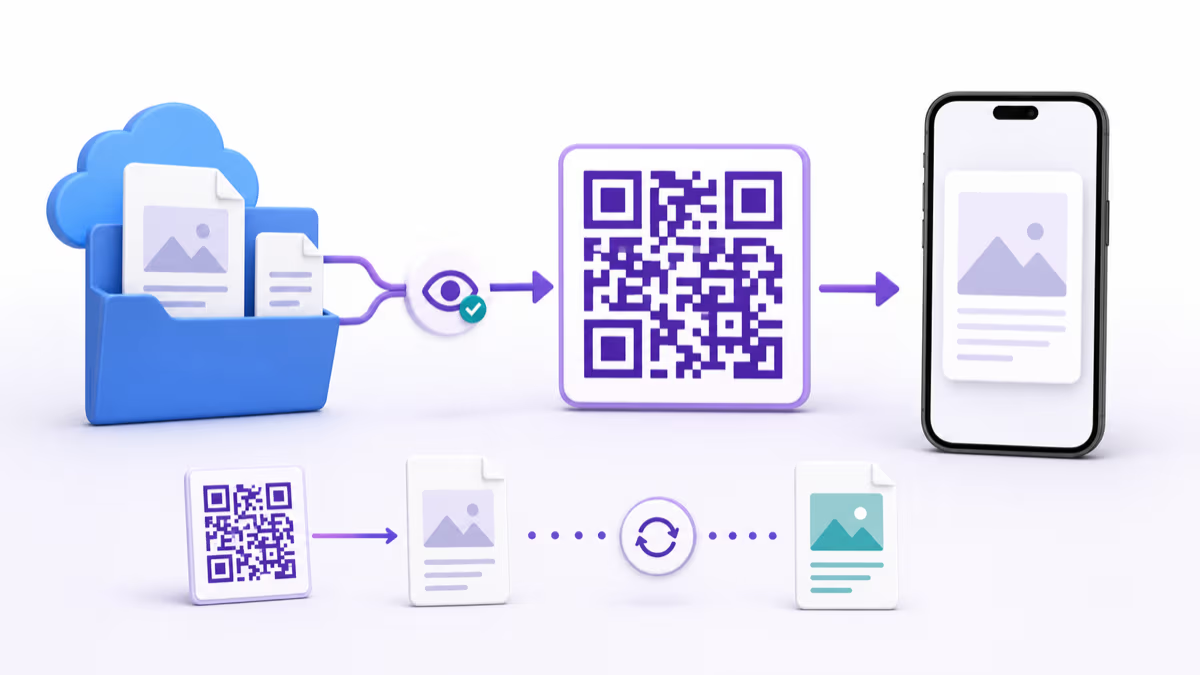
A Dropbox QR code opens a shared Dropbox file or folder from a phone scan. Dropbox can create its own view-only QR as a PNG. You can also copy the tested Dropbox share link into QRLynx and create a static QR, or save a dynamic QR when you want to change the destination later or measure eligible scans.
Dropbox continues to control who can open the file or folder, whether a password or expiration applies, and whether downloading is allowed. QRLynx manages the QR path. It does not change Dropbox permissions, copy the Dropbox content, or provide a native Dropbox integration.
Choose the Dropbox QR path that matches the job
Dropbox now provides a native view-only QR. QRLynx is useful when you need its design, destination, or measurement controls.
| Decision | Dropbox native QR | QRLynx static QR | QRLynx dynamic QR |
|---|---|---|---|
| How it is created | Use Share, open more options, choose Create QR code, then save the PNG | Copy the tested Dropbox link into Website URL and keep static mode | Copy the tested Dropbox link into Website URL and enable dynamic mode |
| Access mode | View-only access through Dropbox | Whatever access the pasted Dropbox link allows | Whatever access the current Dropbox destination allows |
| What the QR stores | A Dropbox-controlled view-only destination | The complete Dropbox share URL | A QRLynx managed short link |
| Point the printed QR to a different file or folder | Create the appropriate Dropbox QR for the replacement destination | Create and distribute a new QR | Update the saved destination while keeping the printed dynamic QR |
| QRLynx scan reporting | Not part of this path | No QRLynx redirect event | Eligible scans can be reported in QRLynx |
| Useful fit | A quick view-only PNG for one current Dropbox item | A stable Dropbox link with QRLynx design controls | Reusable print, replacement destinations, or placement measurement |
Create the native view-only QR in Dropbox
Dropbox's current web workflow can generate a view-only QR for a file or folder. Sign in at dropbox.com, hover over the item, choose Share, open the more-options menu, select Create QR code, and save the PNG.
This is the shortest route when one current Dropbox file or folder should open with view-only access and the downloaded PNG meets the placement needs. Test the saved QR while signed out before adding it to a document or print layout.
Set Dropbox access before creating the QR
The same QR can produce different experiences when the underlying Dropbox link settings differ.
| Dropbox setting | What the scanner experiences | Test before distribution |
|---|---|---|
| View-only link | The recipient can preview the shared file or folder without editing the original | Open the exact link in a signed-out mobile browser |
| Restricted link or folder | An eligible Dropbox identity or an access request may be required | Use an account with the same access as the intended scanner |
| Password-protected shared link | Dropbox asks for the link password before showing the content | Test the password step and provide the password through an appropriate separate channel |
| Expiring shared link | The Dropbox link works until its configured expiration, then Dropbox disables it | Record the expiration and plan the replacement destination before printed material remains in use |
| Downloads disabled | Dropbox can remove its normal download action for supported previews | Confirm that the file type previews correctly and that the intended task does not require a download |
Choose a preview, download, or folder destination
Use the destination that starts the scanner's real task. A single file is useful when everyone needs the same approved document. A folder is useful for a changing collection because files can be added or replaced while the folder link remains the destination.
Dropbox normally opens a shared file on its preview page. Dropbox documents dl=1 for forcing a supported shared file link to download and raw=1 for supported direct rendering. Preserve the rest of the copied share URL, including its existing parameters, and test the resulting behavior on a phone before encoding it.
A direct download can be helpful for a file the recipient must save, but it can also create an unexpected download on mobile. A preview is usually clearer when the person should inspect the file first. For several documents, use the tested folder link rather than creating a page that guesses which file the recipient needs.
Sources: Dropbox Help: Force a shared link to download or render and Dropbox Help: Share files or folders.
How to create a Dropbox QR code in QRLynx
Choose the exact Dropbox file or folder
Open the item that should begin the scanner's task. Decide whether the person needs one file, a changing folder, a preview, or a direct download.
Create the intended Dropbox share link
Use Dropbox Share to create or copy the view-only or restricted link that matches the audience. Configure any supported password, expiration, or download setting in Dropbox.
Test access outside the owner session
Open a public link in a signed-out mobile browser. For restricted content, use an account with the same access as the intended scanner. Confirm the correct file, folder, preview, and download behavior.
Open Website URL in QRLynx
Open the QRLynx Website URL generator and paste the complete tested Dropbox link into the Website URL field. Keep every required Dropbox query parameter.
Choose static or dynamic delivery
Keep static mode when the exact Dropbox URL should remain directly encoded. Enable dynamic mode when an authorized QRLynx account owner may need to point the printed QR to a different file or folder later, or review eligible scan activity.
Design and label the scan action
Use strong contrast, preserve clear space around the QR, and add a specific label such as Scan for the training files or Scan to view the current product sheet.
Scan the final proof
Scan the exported QR from the final screen or printed proof. Follow the complete path while signed out or using the intended Dropbox account, and confirm the file or folder works on the phone.
Dropbox link tested?
Create the QR for your Dropbox file or folder
Paste the verified Dropbox share link into Website URL, choose static or dynamic delivery, label the action, and scan the final proof.
Worked example: a training packet that changes by session
A training team prints one sign labeled Scan for today's training packet. The current packet is stored in a view-only Dropbox folder. The team tests that folder while signed out, then creates a named dynamic Website URL QR in QRLynx.
When the files change inside the same shared folder, the QR can continue opening that folder without a destination edit. If the team moves the packet to a different folder or another approved document system, an authorized QRLynx owner can update the saved dynamic destination while keeping the printed QR pattern.
The team keeps access rules in Dropbox, destination control in QRLynx, and the action label on the sign. Eligible QRLynx scans show use of the managed QR path. They do not prove that a file was previewed, downloaded, read, or completed.
Measure the QR path without mixing it with Dropbox activity
A tracked QRLynx dynamic QR can report eligible scans that reach its managed redirect. Dropbox owns the destination experience, including previews, downloads, comments, access requests, and activity available inside Dropbox.
One person may scan more than once. Another may receive the Dropbox link directly and never scan. A scanner may leave before the file opens or may return later from browser history. Treat the QRLynx scan as the start of the physical QR path, not as proof of a Dropbox file action.
When placement comparison matters, create one named dynamic QR for each meaningful location, such as Reception desk and Workshop handout. Keep the same tested Dropbox destination when appropriate, then compare eligible scan activity by QR without adding personal information to QR names.
Fix a Dropbox QR that opens the wrong experience
- Dropbox asks the scanner to request access: review the link audience and any folder-level or team restriction. Retest with the intended account state.
- The wrong file or folder opens: open the saved destination directly. If the printed code is a QRLynx dynamic QR, update its saved destination and scan again.
- The link has expired: change or remove the expiration in Dropbox when appropriate, or point a QRLynx dynamic QR to an approved replacement link.
- The file previews instead of downloading: review whether preview or download is the intended action. For a supported file link, test Dropbox's documented
dl=1parameter. - The download action is unavailable: inspect the Dropbox shared-link setting and confirm that the file type supports the intended preview behavior.
- The printed QR is difficult to scan: enlarge it, restore contrast and clear space, and test the final material under the real distance and lighting. Use the QR scan troubleshooting guide for the physical path.
Dropbox QR code questions
Does Dropbox generate a QR code for a file or folder?
Yes. On dropbox.com, open Share for the file or folder, open the more-options menu, choose Create QR code, and save the generated PNG. Dropbox describes this as a view-only QR.
How do I make a Dropbox QR code in QRLynx?
Create and test the intended Dropbox share link, then paste the complete URL into the QRLynx Website URL generator. Choose static or dynamic delivery, add a clear action label, export the QR, and scan the final proof with the intended Dropbox access state.
Should I use the Dropbox QR or a QRLynx QR?
Use Dropbox's native QR when a view-only PNG for one current file or folder meets the need. Use a QRLynx static QR when you want QRLynx design controls with the tested Dropbox URL encoded directly. Use a QRLynx dynamic QR when you need a managed destination or eligible scan reporting.
Does someone need a Dropbox account to scan the QR?
Scanning itself does not require a Dropbox account. Access depends on the Dropbox destination. A view-only link can let someone preview content without editing the original, while restricted sharing can require the intended Dropbox identity or an access request.
Can the same QR keep working when Dropbox content changes?
Yes, when the same active Dropbox share URL remains the destination. Files inside a shared folder can change while the folder QR continues to open that folder. To move a printed QRLynx dynamic QR to a different Dropbox URL, update its saved destination and test it again.
Can a Dropbox QR download a file instead of previewing it?
Dropbox documents the dl=1 query parameter for forcing supported shared file links to download. Preserve the rest of the share URL, test the result on mobile, and use it only when an immediate download matches the scanner's expected action.
Does QRLynx make a private Dropbox file public?
No. QRLynx opens the destination supplied to the QR. Dropbox continues to enforce the file or folder's link, account, team, password, expiration, and download settings.
Can QRLynx track Dropbox previews or downloads?
No. A QRLynx dynamic QR can report eligible scans through its managed redirect. Dropbox owns previews, downloads, comments, access requests, and other activity after the redirect. Keep those events separate when evaluating the workflow.
Official sources and related QRLynx guides
This guide was checked against Dropbox's current instructions for creating shared links and a native view-only QR, shared-link permissions, download and render parameters, and file and folder sharing.
Continue with the QRLynx Website URL generator, dynamic URL QR guide, static versus dynamic decision guide, QR analytics guide, or Google Drive QR guide when one of those pages owns the next decision.