SharePoint QR Codes for Pages, Files, Lists, and Forms

Key Takeaway
Create a SharePoint QR code in QRLynx, choose the right page, file, list, or form link, test permissions, and plan static or dynamic delivery.
Disclosure: QRLynx is built and operated by Jorbox LLC. This guide explains the current QRLynx workflow and uses Microsoft Support and Microsoft Learn as the sources for SharePoint access behavior.
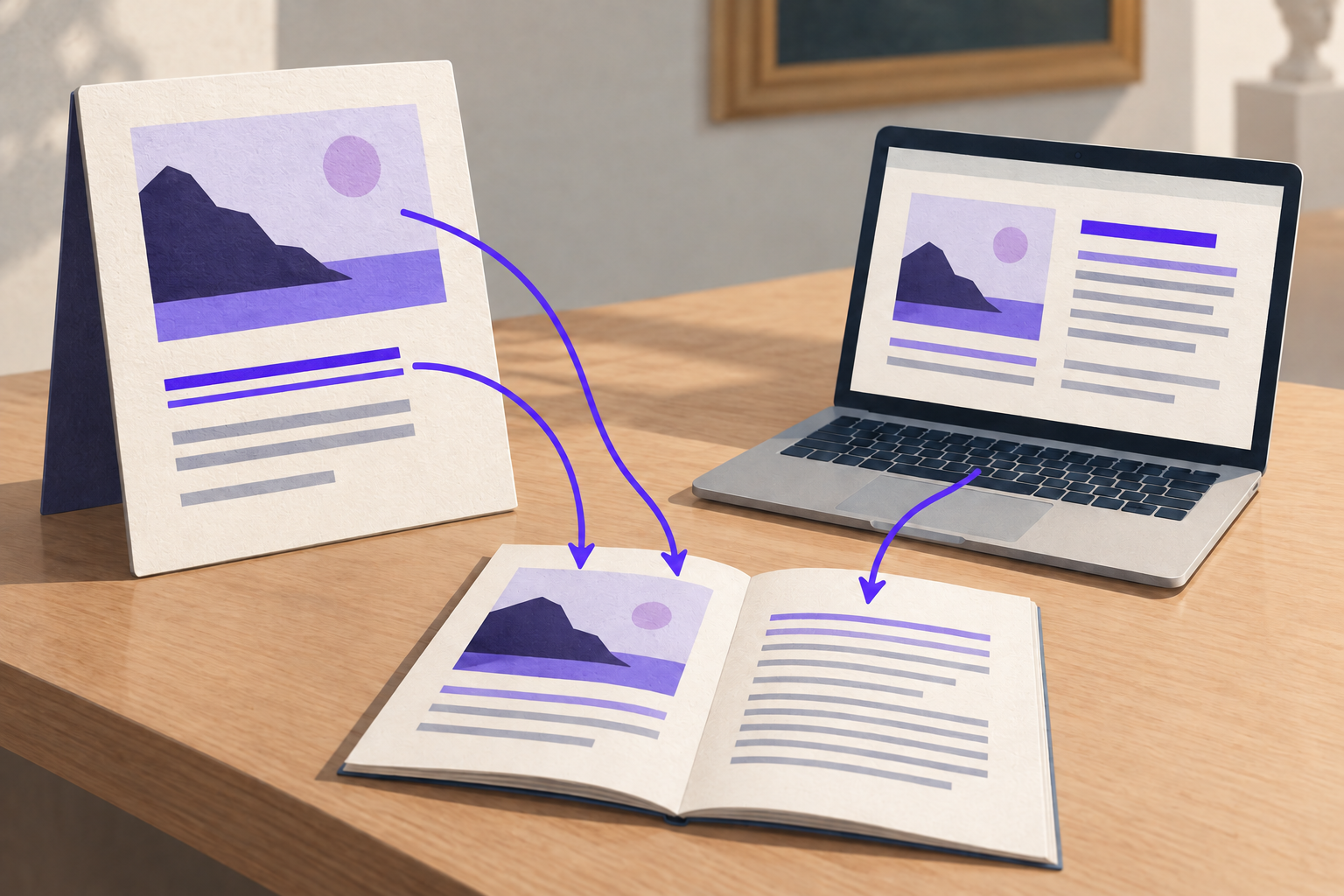
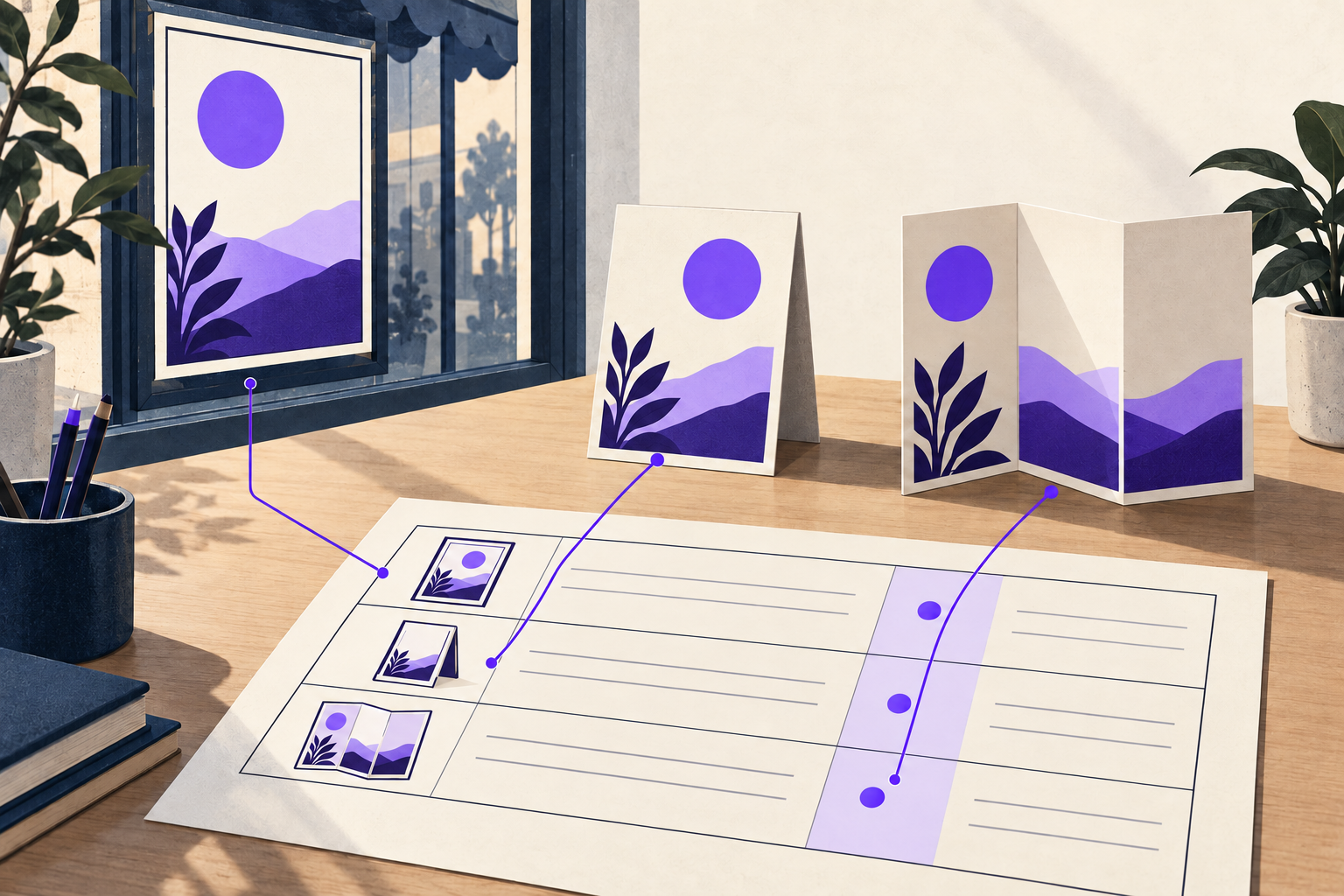
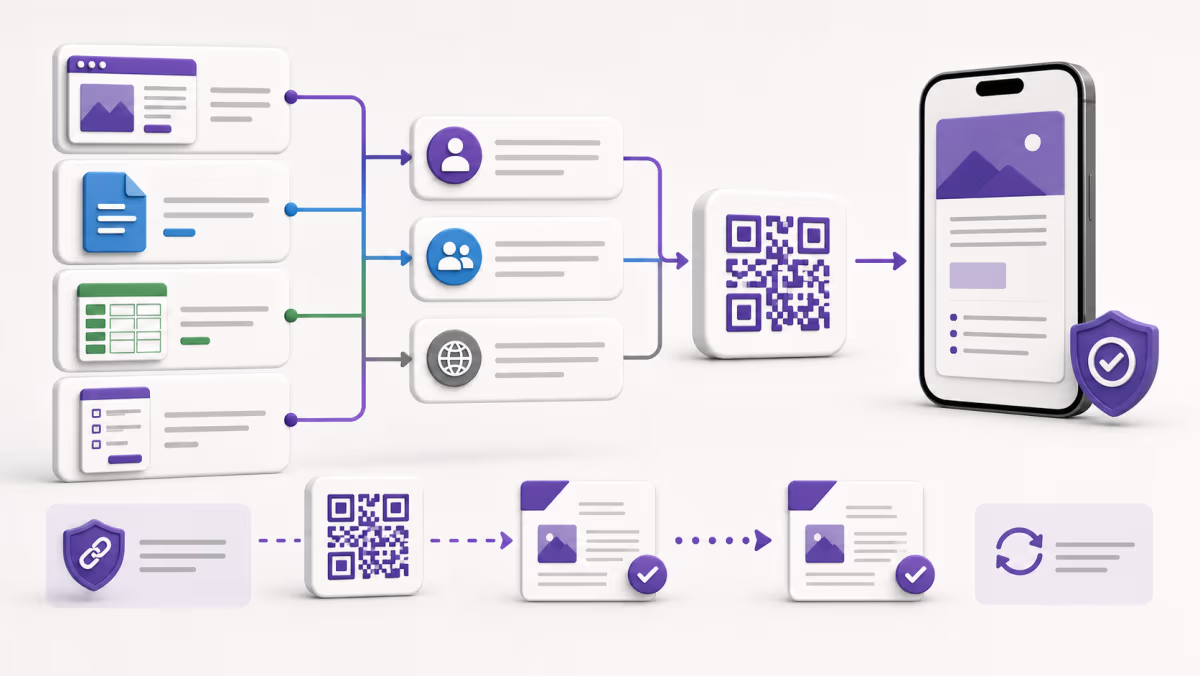
A SharePoint QR code is a Website or Link QR that opens one tested SharePoint resource for its intended audience. That resource may be a modern page, file, folder, list, list item, or a page containing a form. Microsoft applies the tenant, site, resource, link, and identity rules after the scan.
QRLynx can encode the approved SharePoint URL as a static QR or place it behind a saved dynamic redirect. The dynamic option keeps the printed QRLynx short link stable when its account owner replaces the destination. SharePoint remains responsible for authentication, permissions, content, and activity inside Microsoft 365.
Choose static or dynamic delivery for the printed resource
The printed label, QRLynx destination, SharePoint content, and Microsoft permissions have separate owners.
| Decision | Static QRLynx QR | Dynamic QRLynx QR |
|---|---|---|
| Value printed in the QR | The tested SharePoint URL | A QRLynx managed short link that resolves to the approved SharePoint URL |
| Change the destination later | Create and distribute a new QR image | Update the saved destination while the printed dynamic QR remains the same |
| SharePoint content changes | The same URL can continue to open updated content when Microsoft keeps that URL valid | The same applies, and QRLynx can also point the printed label to another tested resource |
| QRLynx scan reporting | No QRLynx redirect event | Eligible scans can be recorded through the managed redirect |
| Permission enforcement | Microsoft checks access after the scan | Microsoft checks access after the scan and after every destination update |
| Useful fit | One stable internal link with no managed redirect requirement | Long-lived equipment labels, facilities signs, training stations, document-control points, or reusable communications |
SharePoint access tested?
Create a managed QR for your SharePoint resource
Use the verified page, file, list, item, or form destination, keep the printed QR stable, and test every future destination before it goes live.
Worked example: a controlled procedure beside equipment
A facilities team places a QR label beside a machine. The current destination is a published SharePoint page containing the approved operating procedure, a controlled PDF, and a link to report a maintenance issue. The team verifies that ordinary employees can read the page and file, while the maintenance form accepts only the intended respondents.
The QRLynx account owner saves the page URL as the destination of a dynamic QR. When the organization replaces the procedure page during a controlled update, the owner tests the new SharePoint resource with a standard employee account and then updates the QRLynx destination. The physical label stays in place.
This design separates four records. The printed label identifies the access point. QRLynx can record eligible redirect scans. SharePoint governs the current page, file, and audience. The organization's training or compliance process records whether a person read, acknowledged, or followed the procedure.
Plan the deployment around the reader's job
A useful label names the action and points to one maintained resource owner.
| Placement | SharePoint destination | Label idea | Owner to assign |
|---|---|---|---|
| Equipment or facility | Current procedure page, controlled file, or asset item | Scan for the current procedure | Facilities or document-control owner |
| Training room | Course page, resource list, or approved response form | Scan for today's training materials | Training content owner |
| Internal communications | Published page or news post | Scan for the full update | Communications page owner |
| Field inspection | One list item or approved form experience | Scan to open this inspection record | Operations system owner |
Test access outside the owner's session
Copying the right URL is only the first test. Open the final destination in a clean browser and with the identity that represents the real scanner. For external use, confirm that the organization and site both allow the intended sharing mode. The more restrictive Microsoft setting applies.
- Confirm the page, file, list, item, or form that appears first.
- Check whether sign-in or identity verification is expected.
- Verify view, edit, download, or response actions from the intended account.
- Open every important embedded resource because a shared page does not automatically grant access to separately stored content.
- Repeat the test after a permission, link, content-owner, or destination change.
Measure scans, SharePoint access, and outcomes separately
A QRLynx dynamic URL QR can record eligible requests that pass through its managed redirect. That event shows that the printed access point was used. It does not confirm the Microsoft identity, successful SharePoint access, time spent on the resource, file download, list update, form submission, procedure acknowledgment, or task completion.
Use QRLynx QR analytics for eligible scan activity and placement comparisons. Use the appropriate Microsoft 365 and business-process records for activity inside SharePoint and for the outcome that matters. Keep those measures separate in reports.
Troubleshoot SharePoint QR access by layer
- QR layer: scan the exported image with another phone and confirm the decoded address is complete.
- QRLynx layer: for a dynamic QR, confirm the saved code is active and its current destination is the approved SharePoint URL.
- Organization and site layer: check whether Microsoft allows the intended internal or external sharing mode for this site.
- Resource layer: review the page, library, file, folder, list, or item permission and confirm the sharing link remains valid.
- Identity layer: test with the actual employee, guest, or signed-out state instead of the owner's active session.
- Embedded-content layer: open files, lists, videos, or forms inside the page because each can have a separate permission or audience.
If the QR decodes but Microsoft shows an access request or denial, the image can be working correctly while the current identity lacks SharePoint access. Correct the Microsoft access path, then retest the complete journey.
Sources and product boundary
Microsoft controls SharePoint sharing behavior. Current first-party references include modern SharePoint page sharing, files, folders, and library items, lists and list items, the SharePoint external-sharing hierarchy, and Microsoft Forms web parts on SharePoint pages.
QRLynx creates and manages the QR destination described in this guide. It does not operate as a SharePoint extension, change Microsoft permissions, authenticate Microsoft accounts, edit SharePoint resources, or replace SharePoint activity records. The QRLynx capability was checked against the current Website URL QR, dynamic URL QR, and redirect behavior.