How to Create a Typeform QR Code That Tracks the Full Response Journey

Key Takeaway
Create a Typeform QR code, choose native or dynamic delivery, preserve tracking parameters, protect respondent data, and test every printed placement.
The right Typeform QR setup depends on what happens after printing. Use Typeform's native QR when one published form has a stable address and you only need a direct route to it. Use a QRLynx Website URL QR when each poster or event needs its own managed link, eligible scan analytics, or the option to point the printed code to a replacement form later.
The QR only opens the destination. Typeform still controls the questions, logic, access, consent, response limits, and submitted data. QRLynx controls the QR path you create for the tested form URL.
Choose the Typeform QR path
| QR path | Best fit | Tradeoff to plan for |
|---|---|---|
| Typeform native QR | One live form with a stable Typeform URL | A later form ID or subdomain change can leave the printed QR pointing at the old address |
| QRLynx static Website URL QR | A final URL that will remain unchanged | The destination is encoded in the pattern and cannot be edited after printing |
| QRLynx dynamic Website URL QR | Long-lived print, separate placements, or managed destination changes | The QR must remain active in the QRLynx account and the new destination must be retested after every change |
Build the response journey before the QR
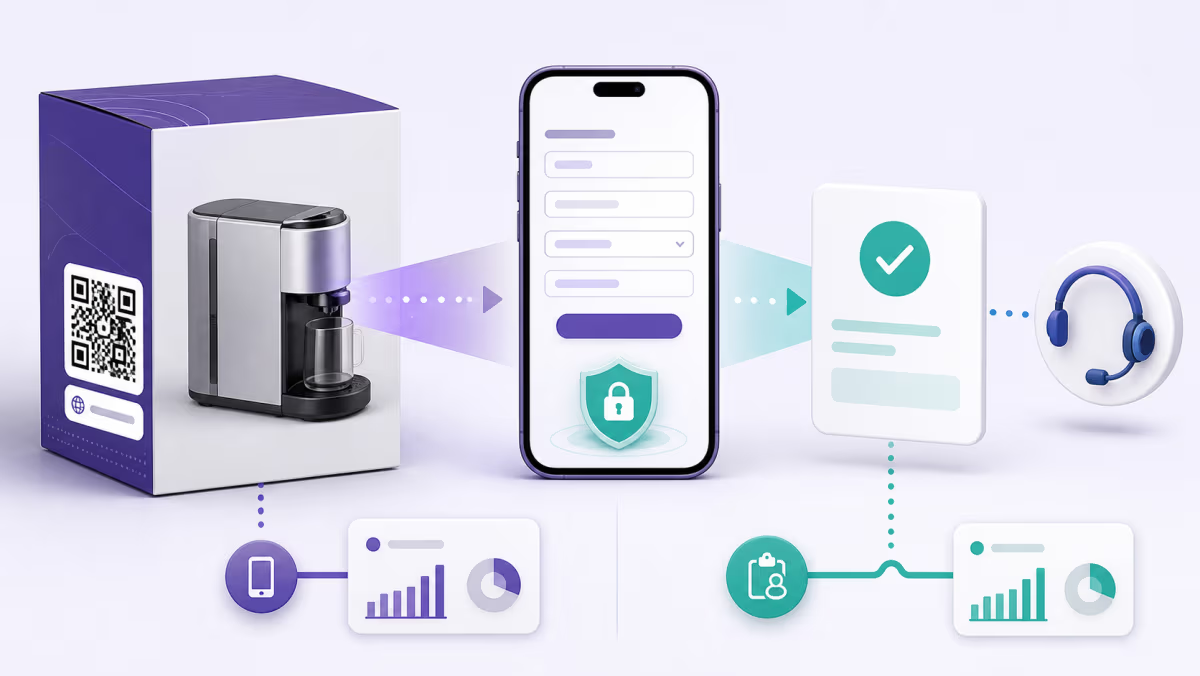
Publish the form, then open its share link in a private browser window. Complete a disposable response on a phone that is not already signed in to your Typeform workspace. This reveals problems that an editor preview can hide, including a closed form, an access code, logic that ends too early, required fields that are hard to use on mobile, or a confirmation screen that sends people to the wrong next step.
If the form is embedded on a web page, decide whether the QR should open that page or Typeform directly. The page can provide brand context and supporting information. The direct Typeform link removes an extra page load. Test the exact route you choose, not a nearby version of it.
Use URL parameters carefully
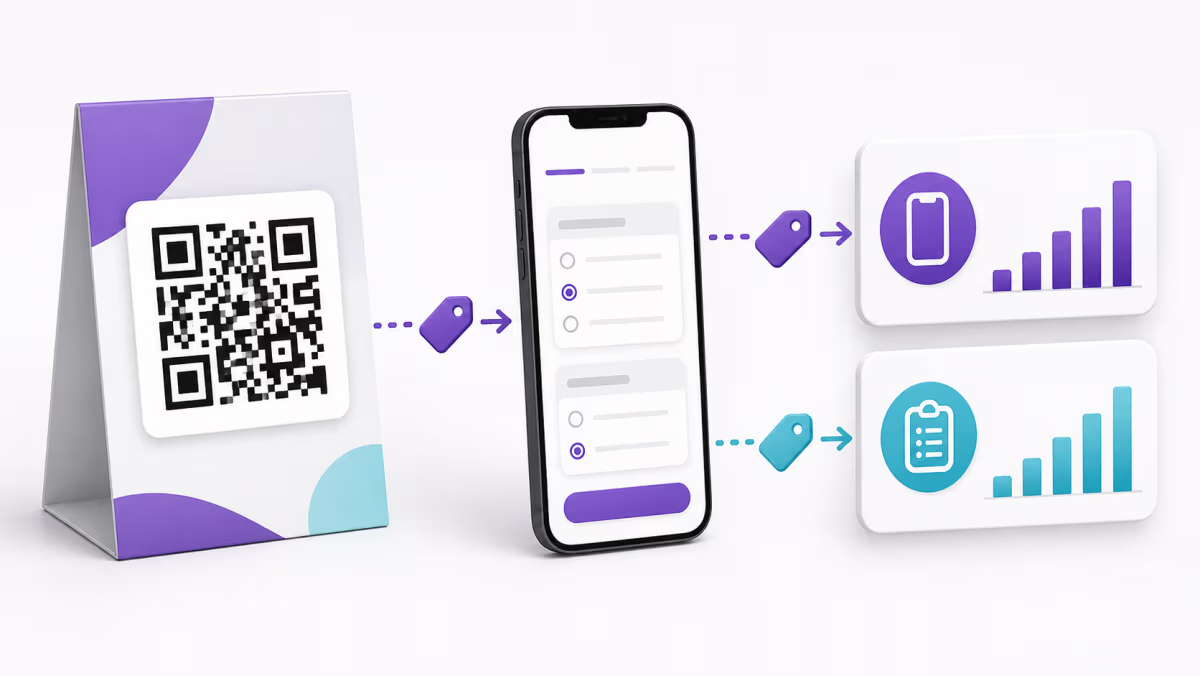
Typeform URL parameters can identify a source, location, event, or campaign inside the form results. For example, three event posters can use the same form with a different non-sensitive source value in each URL. Typeform advises against placing passwords, payment details, government IDs, health data, or other secrets in URL parameters because URL values may appear in browser history, logs, and connected analytics tools.
Keep the printed link focused on campaign context. Do not place a respondent's email address or other personal data in a public QR URL. If a personalized form is necessary, use a privacy-reviewed identifier and test how every connected system records it.
Separate placements before you print
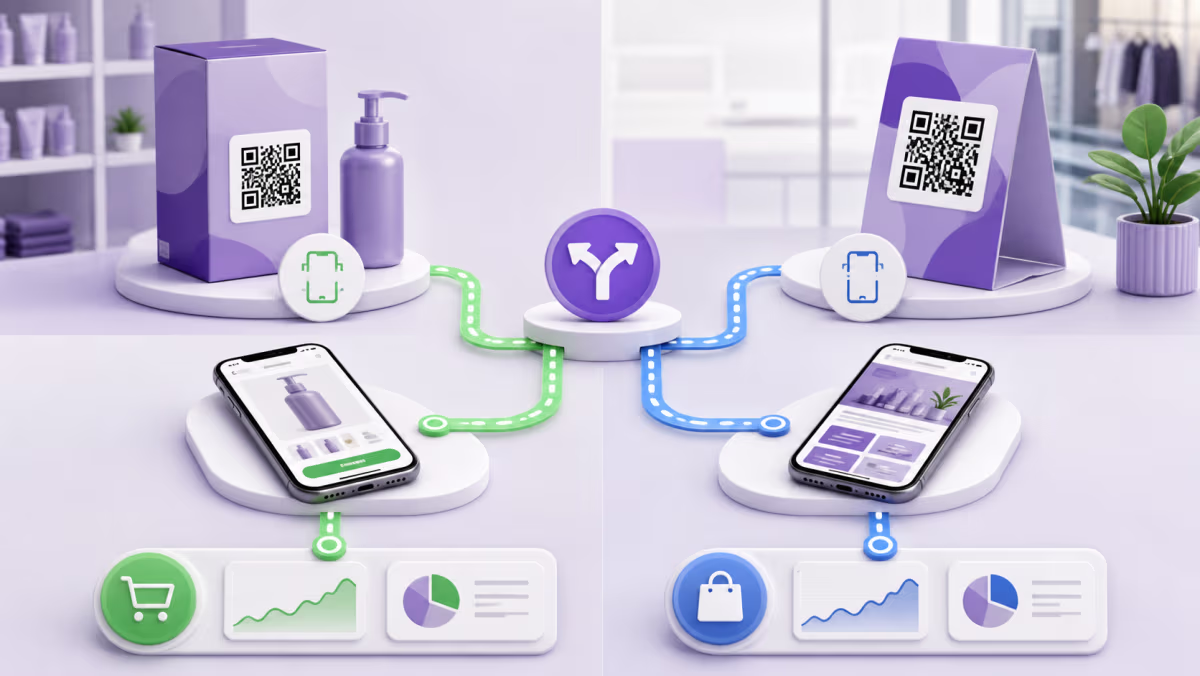
One QR reused everywhere produces one combined scan stream. Create separate QRLynx dynamic QRs for a reception desk, product insert, conference booth, and direct-mail piece when you need to compare those placements. If Typeform URL parameters are also used, preserve the complete tested URL when it is pasted into QRLynx.
A QRLynx scan and a Typeform response answer different questions. Scans show activity at the managed QR path. Typeform records visits, answers, and submissions according to its own reporting. Compare scans, form starts, and completed responses as consecutive funnel stages. A large gap between scans and starts usually points to access, loading, or expectation problems. A large gap between starts and completions points to the form experience.
How to create a Typeform QR code in QRLynx
Use the exact public form link and test the full response journey before printing.
Publish the finished Typeform
Confirm that the live version contains the intended questions, logic, consent language, response settings, and completion action.
Copy the respondent link
Use the public link from Typeform's Share panel. Include only the URL parameters needed for this placement.
Test anonymous access
Open the link in a private mobile browser, submit a disposable response, and confirm that the result appears in the correct Typeform workspace.
Choose Website URL in QRLynx
Paste the complete tested destination into the Website URL QR type. QRLynx routes people to Typeform and does not replace its response system.
Choose static or dynamic delivery
Use static for a final address. Use dynamic when the destination may change or eligible scan analytics and placement separation matter.
Design for the physical location
Add a plain action label such as Take the two-minute survey. Keep strong contrast, sufficient size, and an unobstructed quiet zone.
Test the exported proof
Scan the final PNG, SVG, or PDF at the intended printed size on two phones, then complete one more response through the QR route.
Form and link tested?
Create the QR for your Typeform
Paste the published respondent link into QRLynx, choose static or dynamic delivery, and keep each important placement measurable.
Diagnose the drop-off by stage
- QR does not scan: test the exported file, print contrast, size, surface, lighting, and quiet zone.
- QR scans but the form does not open: inspect the saved destination, form publication state, access code, custom domain, and any changed Typeform URL.
- Form opens but few people start: make the printed promise match the first screen and state the expected completion time.
- People start but do not submit: review mobile field types, required questions, logic branches, form length, consent language, and error messages.
- Responses lack placement context: verify that the correct non-sensitive URL parameter reached Typeform and that each physical placement uses its assigned QR.
Worked example: one feedback form at three events
A research team uses one Typeform at three conferences. It creates three destination URLs with event-specific source values and saves each as a separate QRLynx dynamic QR. The questions stay consistent, Typeform retains the response record, and QRLynx shows which printed placement generated scan activity.
Before event two, the team replaces the form. It updates only the remaining dynamic QR destinations, then scans each printed proof and submits a test response. Keeping the printed pattern is useful, but the new form still needs an end-to-end check.
Typeform QR code questions
Does Typeform create its own QR code?
Yes. Typeform's Share panel provides a QR option for a published form. It is a practical choice when one stable Typeform URL meets the job.
Why use a QRLynx QR for Typeform?
Use QRLynx when a printed code needs an editable destination, separate placement-level scan activity, or a managed short link. Typeform remains the form and response system.
Can I change the Typeform behind a printed QR?
A static QR keeps its encoded address. A dynamic QRLynx QR keeps the managed printed link while its owner changes the saved destination, then retests the new response journey.
Can a Typeform QR include URL parameters?
Yes. Paste the complete tested Typeform URL into QRLynx. Use parameters for non-sensitive campaign context and review how Typeform and connected analytics tools store them.
Should I put names or email addresses in a Typeform QR URL?
A public printed QR should not contain personal or secret values. URL parameters can appear in browser history, logs, and analytics systems. Prefer a non-sensitive campaign or placement identifier.
Does a QRLynx scan equal a Typeform response?
No. A scan is activity at the QR path. Typeform records form visits and submitted responses. Measure each stage separately.
Why does my Typeform QR open a closed form?
Check that the intended form is published, open to responses, and linked by the exact saved URL. Also verify any access code, response limit, close date, or changed form address.
Should every event or poster use a different QR?
Use separate QRs when placement-level scan comparison matters. If all materials reuse one QR, their QRLynx scan activity is combined.
Sources and related QRLynx guides
- Typeform: Share your form
- Typeform: Using URL parameters
- QRLynx survey and feedback QR guide
- QRLynx dynamic URL QR guide
- QRLynx QR analytics
QRLynx is built and operated by Jorbox LLC. This guide was checked against current Typeform sharing and URL-parameter documentation and the QRLynx Website URL workflow.