Bulk QR print checklist: match rows, artwork and destinations

Key Takeaway
Check a bulk QR label run with a row-to-artwork register, deliberate duplicate handling and separate digital and physical proof checks before production.
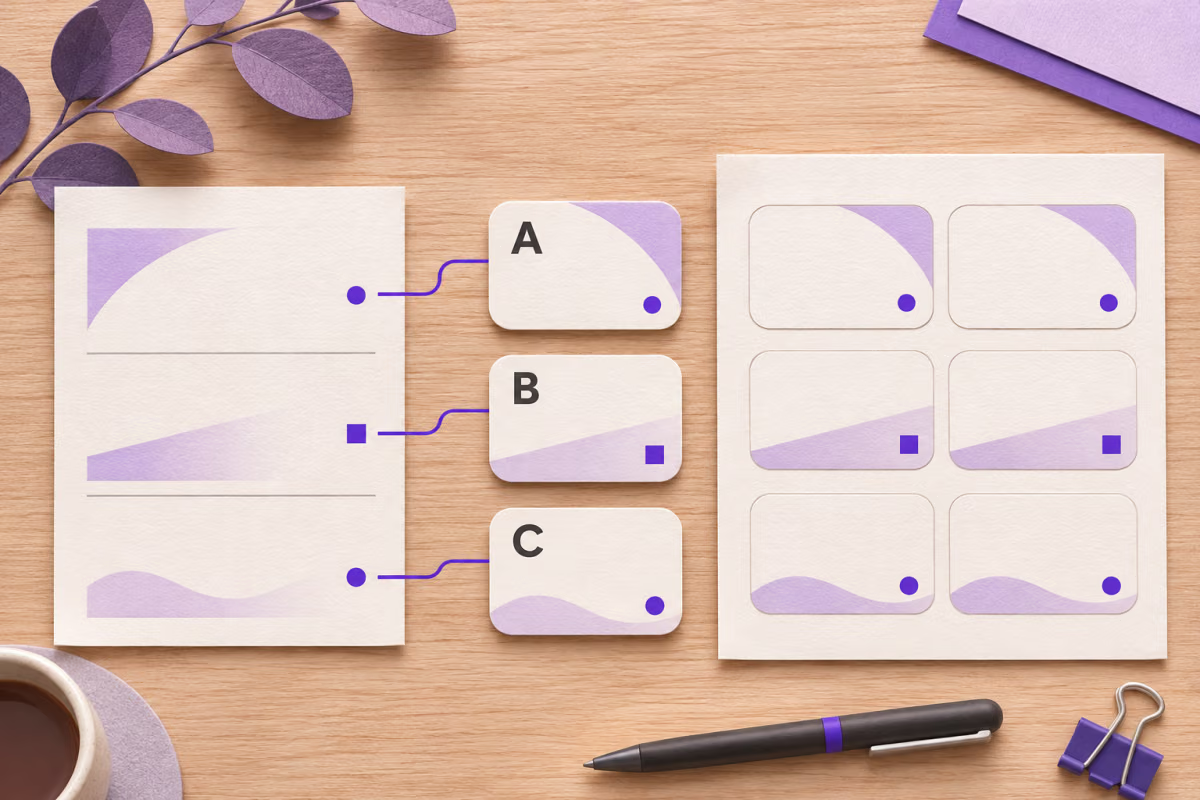
Match each source row to its final QR artwork and decoded value before approving the print proof. A few successful camera scans establish that those samples worked. They do not establish that every label points to the right record.
Use the QRLynx bulk generator to create the batch. Then keep the source list, exported files and final label layout aligned before approval.
Freeze the batch you intend to approve
Give the job a version and keep the exact source file, exported archive and printer proof together. Record a stable row ID for every intended label. Copy the complete artwork filename from the final archive into that register instead of assuming that a filename or folder position will always identify the same row.
Reordering the sheet, removing a rejected row or regenerating the batch can break an old position-based association. When a version changes, reconcile the new output against that version's source list. Keep the previous files clearly separated so they cannot return to the printer by mistake.
For a static URL QR, the decoded value should match the intended direct URL. For a dynamic QR, record both the encoded managed route and the intended final destination. They serve different roles in the check.
The following rows are a fictional approval example, not results from a downloaded or printed test batch.
An example of the decision record
| Source row | Artwork association | Destination check | Decision |
|---|---|---|---|
| A-101 | 001-a_101.png | Expected and decoded: example.com/venue-a | Matches the intended row |
| A-102 | 002-a_102.png | Expected and decoded: example.com/venue-a | Intentional shared destination |
| A-103 | 003-a_103.png | Expected venue-b; decoded venue-a | Hold and correct the mismatch |
Copy a register that preserves the evidence
Replace the illustrative filenames and destinations with your actual export and decoded values. Keep sensitive internal record details out of public URLs.
batch_version,row_id,artwork_file,encoded_value,expected_destination,duplicate_group,proof_version,result,reviewer,checked_atFor dynamic codes, add the saved QRLynx record name or identifier used by your team. Include the final destination observation as well as the short route. A short link that decodes correctly can still lead to the wrong page or a sign-in screen that the intended visitor cannot use.
How to reconcile a QR batch with QRLynx
Keep batch generation, digital matching and the physical proof as separate decisions.
Prepare the source register
Keep each stable row ID beside its intended URL and label purpose. Mark deliberately shared destinations before generation. The spreadsheet guide covers preparing the actual import values.
Choose the supported batch path
Use QRLynx's public bulk tool for a static download, or paid Pro or higher for saved dynamic URL batches through account Bulk Create. Compare the prepared or created count with the intended source rows and review rejected or failed results.
Associate the final artwork
Complete the design and export workflow, open the final archive, and record the complete file associated with each accepted row. Preserve this exact archive and the source version together.
Decode and compare the files
Use the QRLynx QR scanner to inspect the exported artwork. Compare each decoded direct URL or managed route with the register, then verify the intended destination and visitor access separately. Resolve unexplained duplicates and mismatches.
Review the production proof
Place the approved artwork in the final label layout and test the actual proof at the intended size, surface, lighting and viewing conditions. Record the proof version and decision. Repeat affected checks after a change before authorizing the run.
Check the encoded value
Read the artwork before approving the label
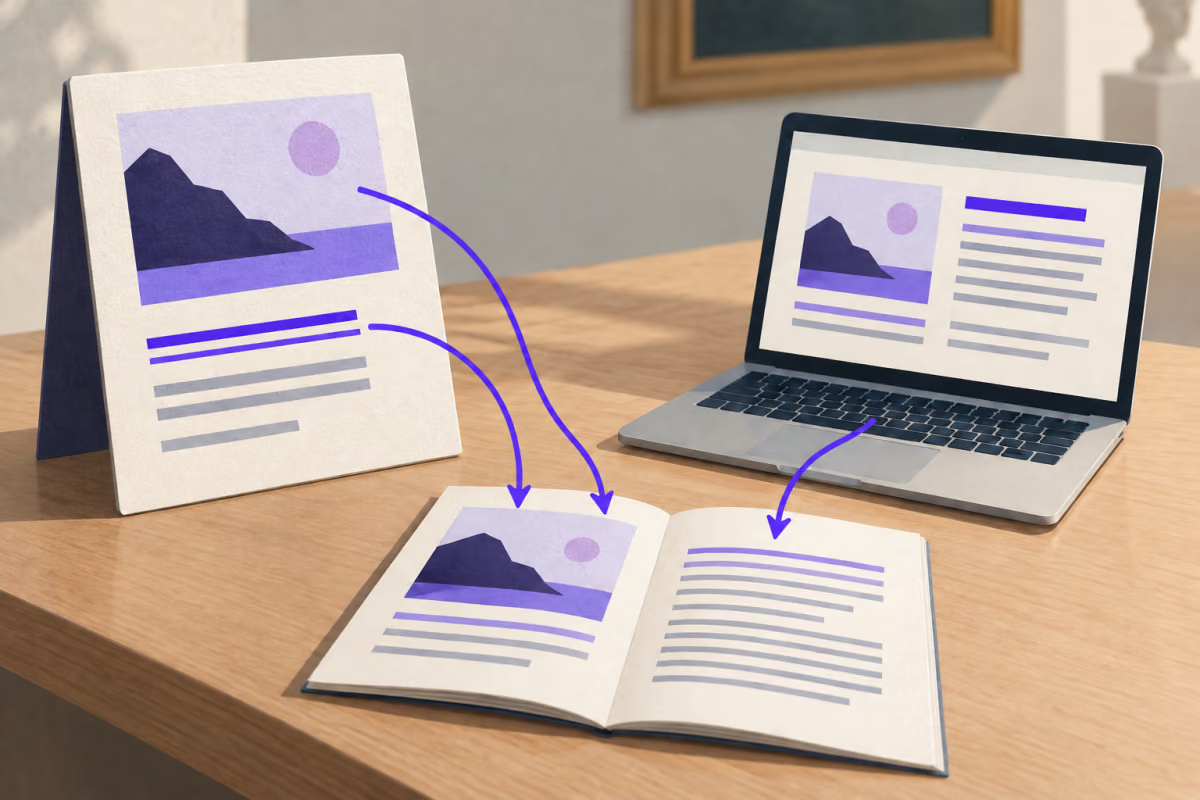
Inspect the QR's decoded data, then compare it with the source register and intended destination.
Make duplicate handling an explicit decision
Two labels can legitimately share one destination. For example, several information labels may open the same venue page. Record that shared purpose so a duplicate check does not treat the intended repetition as a fault.
The reverse also matters: two different filenames do not prove that two images contain different values. If each asset or location needs its own record, compare the decoded values and associations rather than relying on how many files the archive contains.
Hold an unexplained mismatch until its owner resolves it. Changing a dynamic destination can repair a route, but it does not repair a mislabeled source register or make an unrelated physical label belong to the right asset.
Decide what each kind of testing proves
Digital reconciliation can check the row-to-file association and encoded value across the exported batch. A sample only checks the selected files. If a wrong individual destination would be material, consider comparing every final image with its source row rather than treating a sample as complete coverage.
A digital pass still leaves the print process to review. Test the production layout, stock, finish, printer and applied surface. Preserve the clear border: DENSO WAVE specifies a four-module quiet zone on every side. Keep nearby text and artwork outside it.
Choose physical samples to cover the relevant differences in the job, such as layout, payload density, stock or printer settings. Agree the acceptance process with the responsible production owner or supplier. Use the label construction guide for material and service conditions, and the print-size guide for sizing and proof checks.
Keep a correction from reviving an old file
Record what changed, regenerate the affected artwork when necessary, and issue a clearly identified replacement proof. Recheck its mapping and destination. Keep the held version out of the production handoff.
For a dynamic batch, review the actual created and failed results before retrying. Existing saved records can remain after a partial creation, so a second attempt needs reconciliation too. Use the spreadsheet-to-QR guide for creation workflows and their limits.
Bulk QR print approval questions
How do I check that each label opens the right record?
Keep the source row ID, complete artwork filename and expected destination together. Decode the final image, compare its value with that row, and open the intended destination in the visitor's access context. For a dynamic QR, record the managed route and the final page separately.
Is scanning a sample enough to approve the entire batch?
A sample establishes what happened for the selected items under the tested conditions. It does not establish every row-to-file association. Decide whether the job needs a complete digital comparison, then choose physical proof checks that cover the meaningful production differences.
Are duplicate destination URLs always an error?
No. Shared information labels may intentionally open the same page. Mark those groups in the source register. When each item should have a unique destination, an unexplained repeated value needs investigation before approval.
Can I rely on the order or names of the exported files?
Keep the actual complete filename from the final archive as evidence, but retain the stable source row ID too. Reordering input, changing accepted rows or regenerating files can invalidate an older association. Reconcile the exact archive version that the printer will receive.
What should I compare when the batch contains dynamic QR codes?
Compare the encoded managed route with the saved QRLynx record, then check that route's current destination and intended visitor access. A correct short URL and a correct final page are separate observations. Record both before approving the layout.
Why can a readable QR still be the wrong label?
The camera can decode a perfectly formed pattern that belongs to another row. Readability checks the symbol; reconciliation checks whether that symbol belongs on this label. Use the row, artwork and destination register to catch that distinction.
What should I do if some rows were rejected or failed?
Compare the actual accepted or created results with the intended source list. Resolve missing rows and their reasons before handoff. For saved dynamic creation, check existing results before retrying because a partially completed batch can leave saved records behind.
Does a successful digital scan replace the print proof?
No. The label layout, printer, material, finish, application surface and viewing conditions can change the result. Test the actual production proof and preserve the four-module clear border. Retest affected conditions after changes.
What should I retain with the final approval?
Retain the source version, final artwork archive, mapping register, relevant destination observations, proof version, reviewer and decision. Include intentional duplicate groups and resolved failures so a later reprint can identify the approved material instead of reconstructing it from memory.