Skip to content

QR Code Not Working? 12 Common Fixes (2026 Troubleshooting Guide)

Ahmad Tayyem
Founder & QR Code Technology Specialist
· 20 min read
QR Code Not Working? 12 Common Fixes (2026 Troubleshooting Guide)

Key Takeaway

Your QR code won't scan? This troubleshooting guide covers the 12 most common reasons QR codes fail and how to fix each one. Includes size rules, color contrast, quiet zones, resolution, URL issues, phone settings, logo placement, and expert diagnostic steps.

You printed 2,000 flyers, stuck QR codes on every table, or added one to your product packaging. Then you hear from customers: "I tried scanning it and nothing happened." Or worse, nobody tells you — they just walk away.

QR codes are reliable technology. The QR code format invented by DENSO WAVE in 1994 was specifically designed for durability, speed, and error tolerance. When a QR code fails, it is almost always a design, printing, or configuration problem — not a flaw in the technology itself.

This guide walks through the 12 most common reasons a QR code stops working and gives you a concrete fix for each one. Whether you are troubleshooting a code you already printed or checking one before it goes to press, these fixes will save you time, money, and lost scans.

We cover physical problems (size, contrast, resolution, quiet zones), digital problems (broken URLs, expired codes, too much data), device problems (camera settings, outdated software), and design problems (inverted colors, oversized logos, glare). By the end, you will know exactly how to diagnose and resolve every common QR scanning failure.

If you are creating QR codes from scratch, start with our QR code size guide for print to avoid the most common sizing mistakes before they happen.

Fix 1: Your QR Code Is Too Small

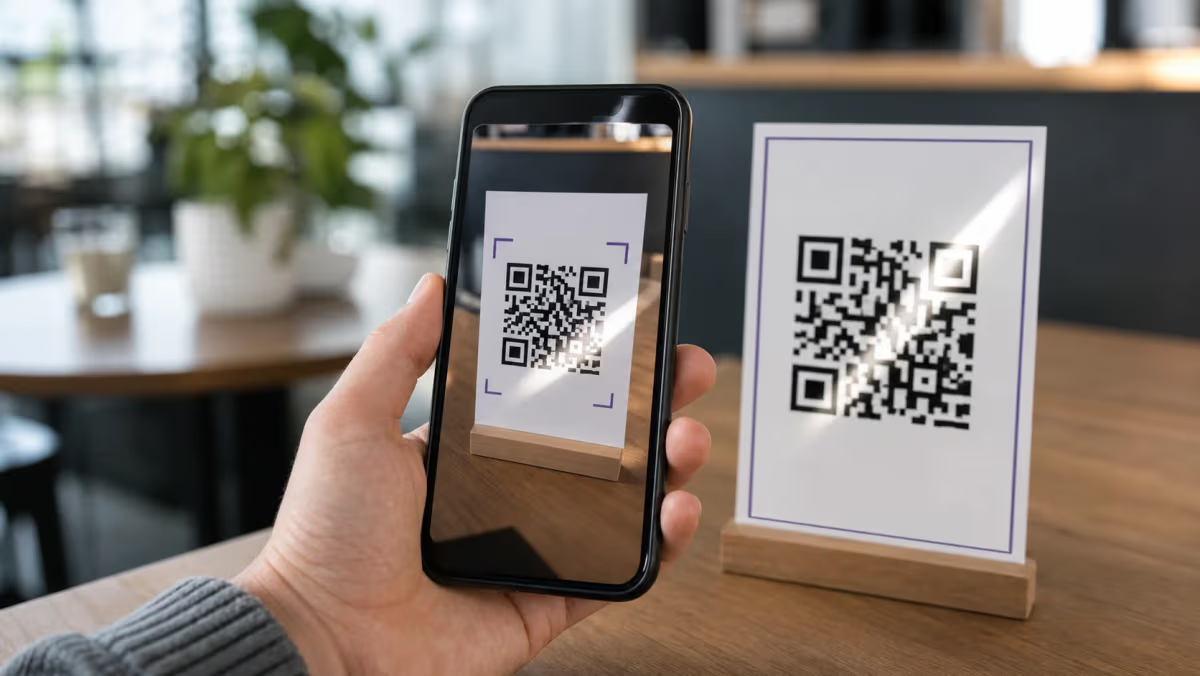
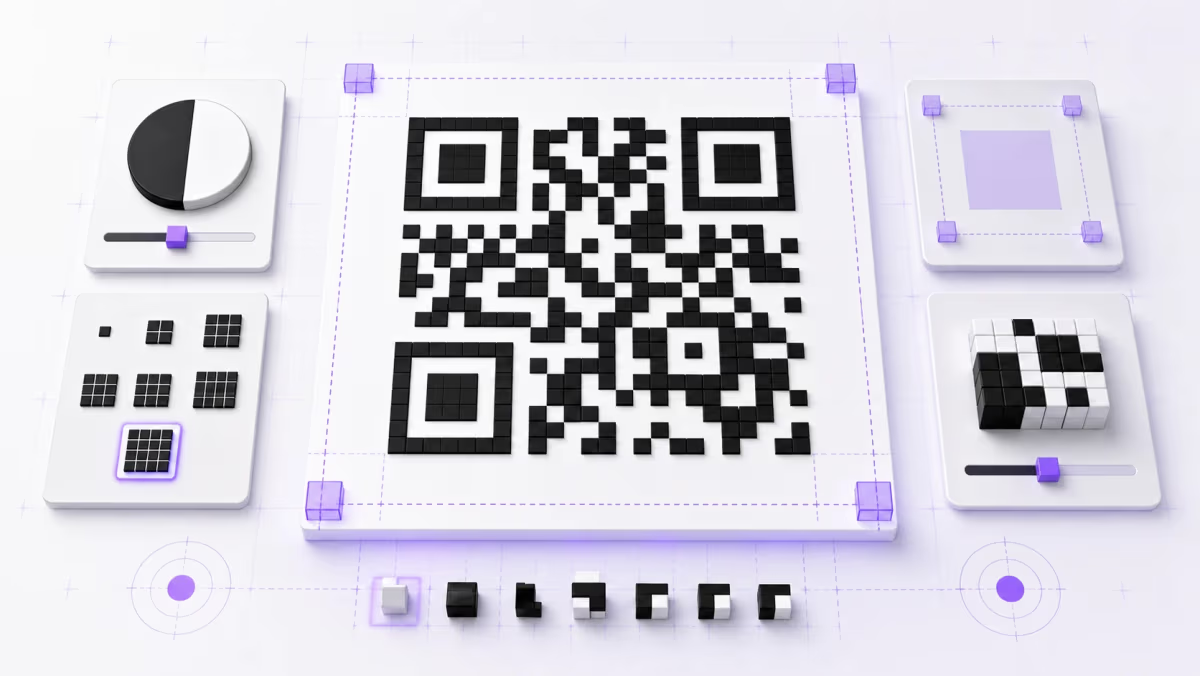
The most common reason a QR code won't scan is that it is simply too small for the scanning distance. Phone cameras need enough pixels to resolve the individual modules (the black and white squares) inside the code. If the code is too small relative to how far away the scanner is standing, the camera cannot distinguish the pattern.

The industry-standard rule is the 10:1 ratio: divide the expected scanning distance by 10 to get the minimum QR code width. A poster scanned from 1 meter needs a code at least 10 cm wide. A business card scanned from 20 cm needs at least 2 cm. A banner viewed from 3 meters needs at least 30 cm.

In practice, you should add a 20% safety margin on top of the calculated minimum. Budget phones have slower autofocus, people scan at angles, and lighting is not always ideal. That 20% buffer is the difference between a code that works in your office and one that works in a dimly lit restaurant or a sun-washed storefront window.

For a complete reference with size tables for every print surface — business cards, flyers, posters, banners, billboards, and product labels — see our dedicated QR code size guide for print.

The fix: Measure or estimate how far away scanners will be. Apply the 10:1 formula plus a 20% margin. If your code is smaller than that, resize it before printing.

Fix 2: Poor Color Contrast Between Foreground and Background

QR codes require strong contrast between the dark modules and the light background. Phone cameras and QR scanning algorithms rely on the difference in brightness between the two layers to detect the pattern. When the contrast is too low — such as a gray code on a beige background or a dark blue code on a black surface — the scanner cannot reliably distinguish modules from background.

The ISO/IEC 18004 standard that defines QR codes assumes a dark foreground on a light background. The safest combination is black modules on a white background, which provides maximum contrast. You can use colors — dark green, dark blue, dark red — but only if the background remains light and the contrast ratio stays high.

A practical test: convert your QR code design to grayscale. If the modules and background look similar in gray tones, the contrast is too low. Another test: print a small sample and try scanning it under the lighting conditions where it will actually be used (indoor fluorescent, outdoor daylight, dim restaurant lighting).

The fix: Keep the foreground (modules) dark and the background light. Avoid pastel or mid-tone module colors. If you must use brand colors, verify the combination scans reliably on at least three different phones before committing to a print run.

Fix 3: Missing Quiet Zone (White Border)

Every QR code requires a quiet zone — a blank border around the code — so the scanner can detect where the code begins and the surrounding design ends. The ISO/IEC 18004 specification requires a minimum quiet zone of four modules wide on all four sides. When designers crop the QR code too tightly or place it against a busy background, the scanner cannot find the code's boundaries.

This is one of the most overlooked problems in print design. A graphic designer places the QR code inside a colored box, butts it against a photo, or layers it over a textured background. The code might still scan on some phones, but it will fail on others — especially older devices, budget cameras, or phones scanning at an angle.

The fix: Always maintain a white (or very light) border around your QR code that is at least four modules wide. If you are not sure how wide a module is, use a safe default: leave at least 3-4 mm of blank space on every side for print sizes under 5 cm, and proportionally more for larger codes. Do not place the code on top of photos, patterns, or gradient backgrounds.

Fix 4: Blurry or Low-Resolution Image

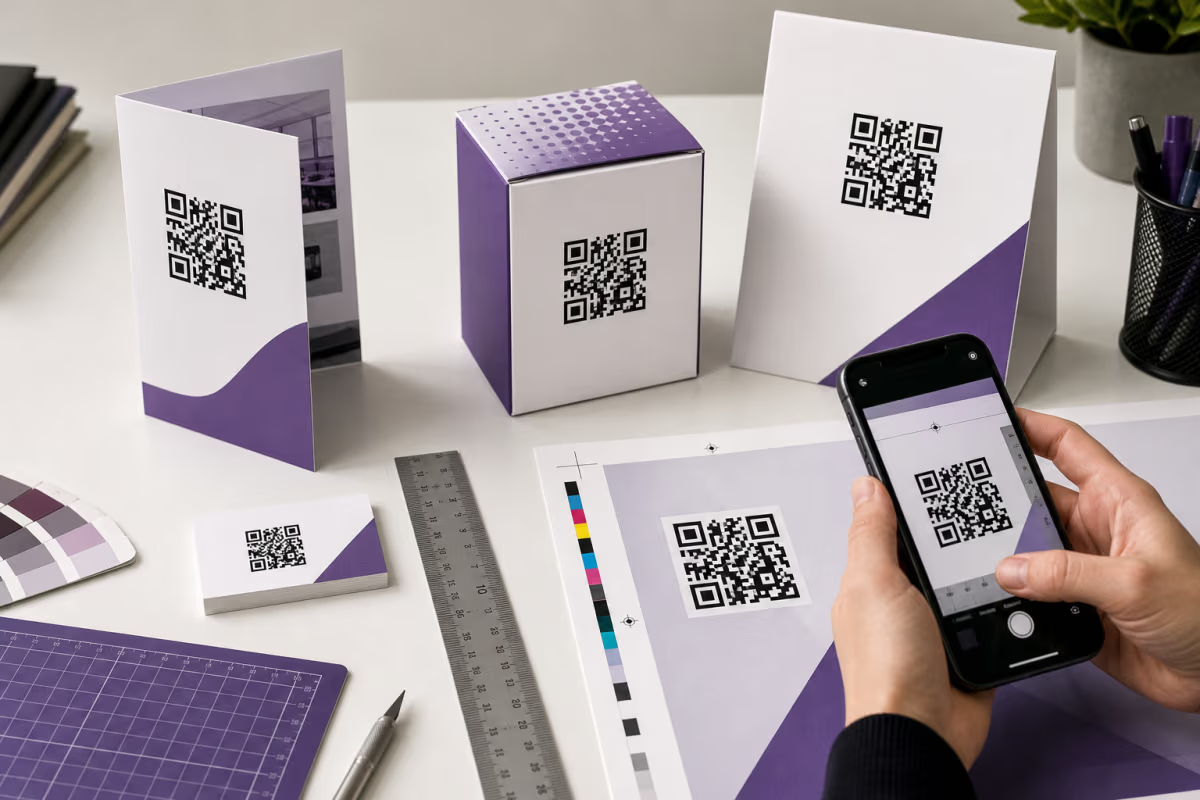
A QR code that looks fine on screen can become unscannable when printed if the resolution is too low. This happens when the code is exported as a raster image (JPG or PNG) at a small size and then scaled up for print. Scaling a 200-pixel PNG to fit a poster creates visible blur, and blurred module edges make scanning unreliable.

The root cause is the difference between screen resolution (72-96 DPI) and print resolution (300 DPI). A QR code that displays clearly at 200x200 pixels on a monitor is only 1.7 cm wide at 300 DPI — far too small for most print applications.

The fix: Export your QR code as an SVG (vector format) whenever possible. SVG files scale to any size without losing sharpness because they are mathematically defined, not pixel-based. If you must use a raster format, export at a minimum of 1000x1000 pixels for small prints and 3000x3000 pixels for posters or signage. Never scale a small raster QR code up — always generate a new one at the correct resolution.

QRLynx supports SVG and high-resolution PNG downloads in the QR code generator, so you can always get a print-ready file.

Fix 5: Inverted Colors (Light Modules on Dark Background)

QR codes are designed to be read as dark patterns on a light surface. Inverting this — using white or light-colored modules on a dark background — can cause scanning failures on many devices. While some modern scanning apps handle inverted codes, many phone cameras' built-in QR scanners do not.

The ISO/IEC 18004 standard defines the reference decoding model with dark modules on a light background. Inverted codes violate this assumption. Even if your own phone reads an inverted code successfully, a meaningful percentage of your audience's phones may not — and you will never know how many scans you lost.

The fix: Always use dark modules on a light background. If your design requires a dark background, place the QR code inside a white or light-colored box with adequate quiet zone. Do not rely on color inversion for aesthetic reasons unless you are willing to lose scans.

Fix 6: Too Much Data Encoded (URL Too Long)

The more data a QR code contains, the denser and more complex the module pattern becomes. Longer URLs, full vCard contact records, or large blocks of text create codes with more modules packed into the same space. Denser codes need to be physically larger to remain scannable because each individual module is smaller.

A short URL like https://r.qrlynx.com/abc123 (30 characters) creates a simple, easy-to-scan code. A URL like https://www.example.com/products/category/subcategory/item-name?utm_source=flyer&utm_medium=print&utm_campaign=spring-2026&utm_content=variant-a&ref=store-42 (180+ characters) creates a far denser code that requires a larger print size to scan reliably.

This is especially problematic for static QR codes, which encode the full destination URL directly. Dynamic QR codes solve this by encoding a short redirect URL regardless of how long the final destination is.

The fix: Use a dynamic QR code that encodes a short redirect URL. This keeps the code density low and the scanning easy. If you must use a static code, shorten the URL first by removing unnecessary tracking parameters, using a shorter domain, or simplifying the path.

Fix 7: Broken Destination URL

The QR code scans perfectly — but the page it links to is broken. This is not a scanning problem; it is a destination problem. The user's phone reads the code correctly, opens the browser, and lands on a 404 error, an expired domain, a typo in the URL, or a page that was moved or deleted.

Common causes include: a typo in the URL when the code was created (missing a letter, wrong TLD), the destination page was moved or deleted after the code was printed, the domain registration expired, the hosting account lapsed, or the URL uses HTTP instead of HTTPS and the server does not redirect properly.

This is particularly painful with static QR codes because the URL is baked into the code itself. Once printed, you cannot change it. With dynamic QR codes, you can update the destination URL at any time without reprinting.

For security best practices when linking QR codes to URLs, see our QR code security guide.

The fix: Always test the destination URL in a browser before generating the QR code. After generating, scan the code with your phone to verify the full flow end-to-end. For critical print runs, use a dynamic QR code so you can fix the URL later if needed. Check that your domain is registered and your hosting is active.

Fix 8: Camera Permissions Disabled on the Scanner's Phone

If the phone's camera app or QR scanner does not have camera permission, scanning will silently fail. This is a device-level problem, not a code problem. The user points their camera at the code, nothing happens, and they assume the code is broken.

On iPhones, the built-in Camera app has had native QR scanning since iOS 11 (2017). On Android, native QR scanning has been available in Google Lens and most default camera apps since Android 9 (2018). However, users who have disabled camera permissions for their scanning app, or who are using a third-party app with restricted permissions, will not be able to scan. Apple's support guide confirms that the camera must have QR scanning enabled in Settings.

The fix: If a user reports they cannot scan your code, ask them to check their camera settings. On iPhone: Settings → Camera → Scan QR Codes (toggle on). On Android: open the default Camera app and check that QR/barcode scanning is enabled, or use Google Lens. If their default camera does not support QR scanning, they can download a free QR scanner app from the App Store or Google Play. You can also offer a manual fallback by printing a short URL next to the QR code.

Fix 9: Outdated Phone Software

Very old phone software may have limited or buggy QR scanning support. While modern iOS and Android versions handle QR codes natively, phones running significantly outdated operating systems (iOS 10 or older, Android 8 or older) may lack built-in scanning or have less reliable recognition.

This is becoming less common every year as older devices are retired, but it still affects a small percentage of users — particularly in markets where older or budget phones are more common.

The fix: Encourage users to update their phone software to the latest version. For the small minority on very old devices, a third-party QR reader app usually solves the problem. As a print design best practice, always include a short text URL below the QR code as a fallback for anyone who cannot scan.

Fix 10: Glare from Glossy Printing or Screen Display

Glossy paper, laminated surfaces, and screen displays can create glare that prevents the phone camera from reading the QR code. When light reflects off a shiny surface at certain angles, it washes out the contrast between the dark modules and light background, making the code temporarily unscannable.

This is especially common with: laminated restaurant menus under overhead lighting, glossy product packaging under store fluorescents, QR codes displayed on TV screens or digital signage, codes printed on metallic or foil surfaces, and window-mounted codes hit by direct sunlight.

The fix: Use matte paper or matte lamination for QR code print surfaces whenever possible. If gloss is required for the overall design, consider printing the QR code area with a spot matte varnish. For digital displays, increase the code's brightness and contrast, reduce ambient reflections, and tilt the screen away from direct light sources. For window placements, add an anti-glare backing or position the code where direct sunlight will not cause washout.

Fix 11: QR Code Expired (Dynamic Code Deactivated)

Dynamic QR codes can stop working if they are deactivated, if the account that created them is suspended, or if the platform's service is discontinued. Unlike static QR codes, which encode data directly and work forever, dynamic codes route through a redirect server. If that redirect stops functioning, the code leads nowhere.

Common reasons a dynamic code expires: the user set an expiry rule and forgot about it, the QR platform account was downgraded or canceled, the platform itself shut down, or the code was manually deactivated.

This is one of the key differences between static and dynamic QR codes. Static codes never expire because they contain the destination directly. Dynamic codes offer editability and tracking but depend on the redirect service remaining active.

The fix: Log into your QR code platform and check the code's status. If it was deactivated, reactivate it. If it expired due to a rule, update the expiry settings. If your account was downgraded, check whether your plan still supports the number of dynamic codes you have. On QRLynx, you can manage code status and expiry rules from the dashboard. To avoid this problem entirely, set reminders to check your active QR codes periodically, especially after plan changes.

Fix 12: Logo Covering Too Much of the Code

Adding a logo to a QR code is popular for branding, but if the logo covers more than 30% of the code's area, it can destroy enough data modules to make the code unscannable. QR codes survive partial damage because of built-in error correction defined by the ISO/IEC 18004 standard, but there are hard limits.

The standard defines four error correction levels:

  • Level L (Low): recovers up to 7% of data
  • Level M (Medium): recovers up to 15% of data
  • Level Q (Quartile): recovers up to 25% of data
  • Level H (High): recovers up to 30% of data

Even at the highest error correction level (H), covering more than 30% of the code area with a logo will exceed the recovery capacity. In practice, you should stay well under this limit — a logo covering 15-20% of the code area with Level H error correction is the safe range.

Keep in mind that the logo should be centered over the code, not placed over the three finder patterns (the large squares in the corners) or the alignment patterns. These structural elements are critical for the scanner to locate and orient the code.

The fix: Keep your logo to no more than 20% of the total QR code area. Use the highest error correction level (H) when adding a logo. Always test the branded code on multiple phones after adding the logo — if any phone fails, the logo is too large or poorly positioned. The QRLynx QR code generator lets you add logos with automatic error correction adjustment.

Quick Diagnostic Checklist

Before you panic about a non-working QR code, run through this systematic check. Most problems can be identified and fixed in under five minutes.

Physical checks (the printed code itself):

  • Is the code at least 2 cm wide for hand-held scanning? Apply the 10:1 rule for your distance.
  • Is there a quiet zone (white border) on all four sides?
  • Are the modules dark on a light background (not inverted)?
  • Is the print sharp and not blurry or pixelated?
  • Is there glare from glossy paper, lamination, or lighting?
  • If there is a logo, does it cover less than 30% of the code?

Digital checks (the destination and configuration):

  • Does the destination URL load correctly in a browser?
  • Is the dynamic QR code still active (not expired or deactivated)?
  • Is the URL reasonably short, or is the code overly dense?

Device checks (the scanner's phone):

  • Does the phone have camera permissions enabled for the scanning app?
  • Is the phone software up to date?
  • Can the phone scan a known-good QR code (like one from a major brand)?

If a known-good code scans but yours does not, the problem is with your code. If no QR code scans at all, the problem is with the device. This distinction saves significant troubleshooting time.

How to Diagnose a Non-Working QR Code in 4 Steps

Prevention: How to Avoid QR Code Failures Before Printing

The best troubleshooting is the kind you never need to do. These five habits prevent the vast majority of QR code failures:

  1. Always test before printing. Scan every QR code on at least two different phones (one iPhone, one Android) before approving a print run. Test from the actual distance and lighting conditions where the code will be used.
  2. Export as SVG or high-resolution PNG. Never scale up a small raster image. Generate the code at the correct size from the start.
  3. Use dynamic QR codes for anything you might need to update. Dynamic codes let you fix destination URLs, track scans, and manage expiry without reprinting. The cost is minimal compared to a wasted print run.
  4. Keep URLs short. Use a redirect-based dynamic code or shorten the URL to minimize code density. Simpler codes scan faster and more reliably.
  5. Include a text URL fallback. Print a short URL below the QR code for anyone who cannot scan. This covers edge cases with older phones, damaged codes, and accessibility needs.

These steps take less than five minutes per QR code and can prevent hundreds of dollars in wasted printing costs. For more on creating reliable QR codes, use the QRLynx generator, which applies best practices for error correction, sizing, and format automatically.

QR Code Troubleshooting FAQ

Why is my QR code not scanning?

The most common causes are: the code is too small for the scanning distance (apply the 10:1 rule), poor color contrast between modules and background, a missing quiet zone (white border), blurry or low-resolution printing, or the destination URL is broken. Run through the diagnostic checklist in this guide to identify the specific cause.

How do I fix a blurry QR code?

Export your QR code as an SVG (vector format) which scales to any size without losing sharpness. If you must use PNG or JPG, generate it at a minimum of 1000x1000 pixels for small prints and 3000x3000 pixels for posters. Never scale up a small raster image — always regenerate at the correct resolution.

Why does my QR code show the wrong link?

For static QR codes, the URL is encoded directly in the code — check for typos in the original URL. For dynamic QR codes, log into your QR platform and verify the current destination URL. Someone may have changed it, or there could be a redirect loop. Test the URL directly in a browser to confirm it loads correctly.

Can a damaged QR code still work?

Yes, up to a point. QR codes use error correction defined by ISO/IEC 18004 that can recover from partial damage. At Level L, up to 7% of data can be restored. At Level H, up to 30% can be restored. However, damage to the three finder patterns (corner squares) or alignment patterns is more critical and harder to recover from.

Why is my QR code too small to scan?

Apply the 10:1 scanning distance rule: divide the expected scanning distance by 10 to get the minimum code width. Add a 20% safety margin for real-world conditions. For example, a poster scanned from 2 meters away needs a code at least 24 cm wide (20 cm minimum plus 20% margin). See our QR code size guide for print specifications for every surface type.

How much error correction does a QR code have?

QR codes support four error correction levels defined in the ISO/IEC 18004 standard: Level L recovers up to 7% of data, Level M up to 15%, Level Q up to 25%, and Level H up to 30%. Higher error correction makes the code more resilient to damage and logo overlays but also increases the code density (more modules), which may require a larger print size.

Can QR codes stop working?

Static QR codes never expire because the data is encoded directly in the pattern. Dynamic QR codes can stop working if the redirect service is deactivated, the account is suspended, or an expiry rule is triggered. Choose the right type based on whether permanence or editability matters more for your use case.

Why does my QR code work on some phones but not others?

Differences in camera quality, autofocus speed, QR scanning software, and operating system version can cause inconsistent results. Budget phones with slower cameras struggle more with small, dense, or low-contrast codes. Always test on at least two different phones before committing to a print run, and design with generous size and contrast margins.

How do I test if my QR code works?

Scan the code with at least two different phones (one iPhone, one Android) from the actual distance and lighting conditions where it will be used. Verify that the destination URL loads correctly. Test after printing, not just on screen — print quality, paper finish, and real-world lighting all affect scannability.

What is the minimum size for a scannable QR code?

The absolute minimum for hand-held scanning (about 20 cm distance) is approximately 2 cm (0.8 inches) wide. However, the real minimum depends on scanning distance: use the 10:1 rule (distance divided by 10) plus a 20% safety margin. For detailed size specifications for every print surface, see our QR code size guide for print.

Can sunlight or glare prevent QR codes from scanning?

Yes. Glossy paper, laminated surfaces, and direct sunlight can create glare that washes out the contrast between dark modules and light background. Use matte paper or matte lamination for QR code areas. For window placements, add anti-glare backing or position codes away from direct sunlight. For digital displays, reduce ambient reflections and increase code brightness.

How do I fix an expired QR code?

Log into your QR code platform and check the code status. If it was deactivated by an expiry rule, update the rule or remove it. If your account was downgraded, verify your plan still supports your number of active dynamic codes. If the platform itself shut down, the code cannot be recovered — this is why choosing a reliable QR platform matters. On QRLynx, you can manage expiry rules and reactivate codes from the dashboard.

Enjoyed this article? Share it!

Ready to Create Your Own QR Codes?

Start for free and upgrade as you grow. All plans include dynamic QR codes, analytics, and custom branding.

All plans include Unlimited Static QR Codes 47 QR Code Types Unbranded QR Codes Email Support
Starter
For personal projects
Free
No card required
  • 3 Dynamic QR Codes Editable QR codes — change the destination URL anytime
  • Unlimited Scans All plans include unlimited scans — no caps, no throttling
  • 30-Day Analytics View scan data from the last 30 days
  • AI Insights AI-generated plain-language summaries of your scan performance with key trends and takeaways.
  • 1 Folder Organize your QR codes into a folder
  • JPG, PNG, WEBP Downloads
  • Pause & Activate QR Codes Pause QR codes to stop scans, reactivate anytime within your plan limit
Starter+
For frequent personal use
$5.83 /mo
$70 billed yearly
  • 15 Dynamic QR Codes
  • Unlimited Scans
  • 30-Day Analytics
  • AI Insights AI-generated plain-language summaries of your scan performance with key trends and takeaways.
  • Custom Logo Upload
  • SVG / PDF Downloads
  • 3 Folders
  • 5 MB PDF Upload
  • JPG, PNG, WEBP Downloads
Most Popular
Pro
Best for marketers
Everything you need for QR campaigns
$11.67 /mo
$140 billed yearly
  • 50 Dynamic QR Codes
  • Unlimited Scans
  • 60-Day Analytics Upgraded from 30 days
  • AI Insights (Advanced) Adds deeper AI analysis including anomalies, trends, and actionable recommendations.
  • Password Protected QRs Require a password before showing QR content
  • Smart Redirect Rules Redirect by device, country, or time
  • Access Consent Screens Age verification, terms, disclaimers
  • Expiry Rules Auto-expire by date or scan count
  • QR Scheduling Set start/end times for QR activity
  • 5 Folders
  • 10 MB PDF Upload
Business
For teams & agencies
$24.17 /mo
$290 billed yearly
  • 250 Dynamic QR Codes
  • Unlimited Scans
  • 90-Day Analytics Upgraded from 60 days
  • AI Insights (Advanced) Adds deeper AI analysis including anomalies, trends, and actionable recommendations.
  • Bulk QR (100/batch)
  • Team Management (3 Members) Invite team members to collaborate on QR codes, analytics, and folders
  • Lead Capture Forms Collect leads directly from QR code scans
  • 25 Folders
  • 20 MB PDF Upload
  • CSV Report Export
Enterprise
For large organizations
$82.50 /mo
$990 billed yearly
  • 1,000 Dynamic QR Codes
  • Unlimited Scans
  • AI Insights (Advanced) Adds deeper AI analysis including anomalies, trends, and actionable recommendations.
  • Bulk QR (500/batch)
  • Retargeting Pixels Add Facebook, Google, GTM tracking pixels to QR landing pages
  • Team Management (10 Members) Invite up to 10 team members with role-based access control
  • White Label Domains Use your own domain for QR redirects (e.g. qr.yourbrand.com)
  • 100 Folders
  • 50 MB PDF Upload
  • Dedicated Success Manager

Free forever on Starter. Try Pro free for 14 days — no credit card needed.

Why businesses choose QRLynx

Features most competitors charge extra for — included in every plan

47
QR Code Types
URL, WiFi, vCard, PDF & more
Bio Pages
Built-in Landing Pages
No Linktree needed
Unbranded
No Watermark on Free
Even on the Starter plan
Unlimited
Scans on All Plans
Free and paid — no caps ever
275+
Edge Locations
Sub-50ms redirects globally
Lead Forms
Capture Contacts
Built-in lead gen from scans
Smart Rules
Conditional Redirects
By device, location, or time
PDF QR
Upload & Share PDFs
Menus, flyers, documents

Ready to Transform Your QR Code Experience?

Join thousands of businesses already using QRLynx to create, customize, and track their QR codes with ease.

No credit card required
Free forever Starter plan
Cancel anytime