How to Make a Google Drive QR Code for a File or Folder

Key Takeaway
Create a Google Drive QR code in QRLynx for a file, folder, Doc, Sheet, or Slides deck. Choose the right access, QR mode, and test before printing.
What is a Google Drive QR code?
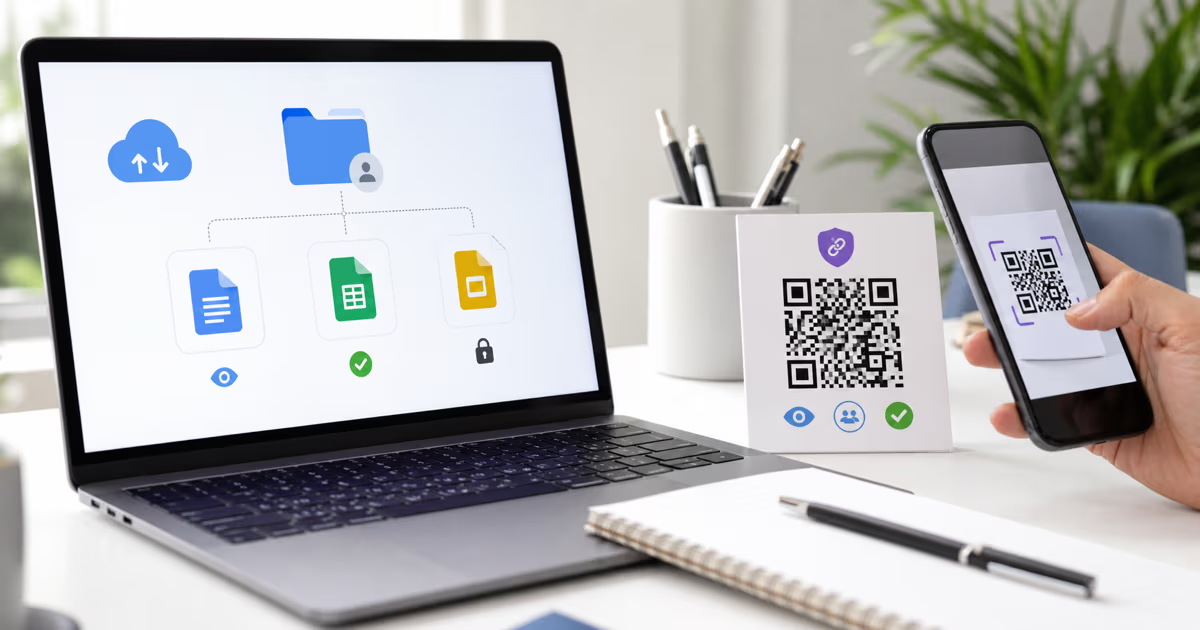
A Google Drive QR code opens a shared Drive file, folder, Google Doc, Sheet, or Slides presentation when someone scans it. The QR carries the share link. Google Drive still decides who can open the item and what they can do with it.
QRLynx has a dedicated Google Drive QR type. Paste the current Drive share link, choose static or dynamic mode, customize the design, download it, and test the final destination from the same access context your audience will use.
The key decision is not simply public or private. Choose the Drive access that matches the audience: named people for controlled material, an organization for internal distribution, or Anyone with the link for open access.
Choose the Google Drive access before creating the QR
| Drive access | Who can open it | Good fit |
|---|---|---|
| Restricted | Only people and groups you explicitly share with | Internal files, enrolled learners, clients, and controlled collaboration |
| Organization access | Signed-in members allowed by the Workspace policy | Company, school, or nonprofit resources |
| Anyone with the link, Viewer | Anyone who receives or scans the link can view | Public handouts, brochures, menus, and read-only resources |
| Commenter or Editor | People with the selected role can comment or edit | Intentional collaboration with an audience you trust |
A QR code does not change Drive permissions
Google Drive starts new items as Restricted. That setting is valid when every scanner already has access through a Google account, group, or organization. For an open public handout, choose Anyone with the link, usually with the Viewer role.
If a scanner sees You need access, the QR may still be decoding correctly. The signed-in account does not currently have permission, the organization blocks broader sharing, or the item inherited a different folder permission. Google also notes that a file owner's name and email can be visible when a link is shared, so review the owner identity before public distribution.
Test the copied link while signed out for a public audience. For a restricted audience, test with an authorized account and an unauthorized account so both outcomes are intentional.
Choose a file, folder, or specialized QR destination
| Goal | Destination | Why |
|---|---|---|
| Share one document or media file | The individual Drive file | Opens the specific item directly |
| Maintain a changing resource collection | A Drive folder | New files inherit the folder's access and the folder link can stay the same |
| Share a Doc, Sheet, or Slides deck | Its normal Drive share link | Opens the Google viewer or editor allowed by the selected role |
| Host one PDF outside the Drive interface | QRLynx PDF QR | Serves the uploaded PDF directly through the dedicated document flow |
| Collect answers | Google Form QR | Uses the form workflow rather than a general file-sharing link |
Static or dynamic Google Drive QR
A static Google Drive QR stores the Drive URL directly. It is a good fit when the destination link is final and scan analytics are not required. If the file content changes while its share URL remains the same, the static QR continues to open that URL.
A dynamic Google Drive QR stores a QRLynx managed link. It lets the owner update the destination after printing and provides scan analytics according to the account's analytics access. Use it when a brochure, sign, label, or slide may later point to a different Drive item or folder.
Moving content between folders or shared drives can affect inherited access even when the URL remains usable. After any Drive move, ownership change, access change, or QRLynx destination update, repeat the audience test.
How to create a Google Drive QR code in QRLynx
Prepare the Drive destination first, then generate and test the QR for the real audience.
Choose the Drive item and audience
Decide whether the QR should open one file, a folder, a Doc, Sheet, or Slides deck. Define whether scanners are named users, organization members, or anyone with the link.
Set the matching Drive access
Open Share in Google Drive, choose Restricted, organization access, or Anyone with the link, then select Viewer, Commenter, or Editor only as needed.
Copy and test the share link
Copy the current Drive share link. For public access, open it while signed out. For controlled access, test with both an authorized and unauthorized account.
Open the QRLynx Google Drive QR type
Choose Google Drive in the QRLynx generator and paste the tested share link. QRLynx stores the URL you provide and does not alter the Drive access policy.
Choose static or dynamic mode
Use static when the Drive URL is final. Use dynamic when you need destination updates after printing or QRLynx scan analytics.
Design for the placement
Use strong contrast, preserve the quiet zone, and add a specific label such as Scan for the course folder or Scan to view the presentation.
Download and decode the QR
Export the required image format, then use the QRLynx scanner to confirm that the QR decodes to the intended Drive or QRLynx managed URL.
Test the complete audience journey
Scan the final printed or displayed version from more than one phone. Confirm access, readability, owner identity, file behavior, and the intended Viewer, Commenter, or Editor role.
Google Drive QR access checks
| What the scanner sees | Likely cause | What to check |
|---|---|---|
| You need access | The current Google account is not authorized | General access, named users, groups, organization policy, and signed-in account |
| The wrong file or folder | An old link or dynamic destination is still in use | Decode the QR and compare the complete destination |
| Different access inside a folder | Inherited or limited-access permissions differ | Folder, subfolder, and item permissions |
| Download or copy option differs | The owner changed Viewer or Commenter controls | Drive download, print, and copy settings |
| The item is unavailable | It was deleted, moved across an access boundary, or ownership changed | Current Drive location, owner, trash state, and sharing policy |
Folder access, updates, and mobile behavior
A folder QR is useful for a resource collection because you can add or replace files while keeping the same folder destination. Files added to a shared folder inherit that folder's permissions. A limited-access subfolder can narrow access when part of the collection should remain controlled.
Most scanners open Drive content on a phone. Keep files practical for mobile connections, use a clear title, and test the normal viewer before printing. Owners can control whether Viewers and Commenters may download, print, or copy, but Google states that these controls do not prevent people from sharing the content in other ways.
For Slides, the normal shared link is the dependable default. For one polished document that should open without the Drive interface, compare the dedicated QRLynx PDF QR. For responses, use the Google Form QR generator.
Password protection and scan analytics
Google Drive supports named-account, group, organization, and link-based access rather than a password on a public share link. QRLynx can add its own password gate to a dynamic URL QR on the Pro plan or higher. The password controls the QRLynx redirect step, while Drive still enforces its own access policy after the redirect.
QRLynx scan analytics measure interaction with a dynamic QR. The free plan includes core scan totals, time trends, and up to three months of history. Country reporting requires Pro, while city, device, browser, and operating-system details require Business. A scan is not proof that Google granted access or that the file was read.
Useful Google Drive QR placements
- Classes and training: open a worksheet, reading list, Slides deck, or controlled course folder.
- Sales and marketing: share a brochure, specification sheet, portfolio, or price list from printed material.
- Events: provide the program, speaker slides, or a post-event resource folder.
- Real estate: open floor plans, property documents, or a controlled disclosure folder.
- Operations: place current procedures, manuals, or forms near the equipment or workspace where they are used.
Label the destination rather than displaying an unexplained QR. A short line such as Scan for the workshop files sets the expectation before the camera opens.
Google Drive QR code questions
How do I make a QR code for a Google Drive file or folder in QRLynx?
Set the intended Drive access, copy and test the share link, choose the Google Drive QR type in QRLynx, select static or dynamic mode, design the QR, download it, and test the final audience journey.
Does a Google Drive QR code make the file public?
No. The QR carries a link. Google Drive still applies Restricted, organization, named-user, group, Viewer, Commenter, or Editor access configured by the owner.
Why does the QR say You need access?
The QR may be correct while the signed-in Google account lacks permission. Check General access, named people or groups, organization policy, inherited folder permissions, and the account used for the test.
Can I use Restricted access with a Google Drive QR code?
Yes. Restricted access works when every intended scanner is already authorized through a Google account, group, or organization. Use Anyone with the link only when the audience should open it without named access.
Should the QR open a file or a folder?
Use one file for a specific item. Use a folder for a collection that may gain or replace files while keeping the same folder link and inherited access.
Should my Google Drive QR be static or dynamic?
Use static when the Drive URL is final and scan analytics are not needed. Use dynamic when you want to change the destination after printing or measure scans in QRLynx.
Can I change the Drive file after printing?
A dynamic QRLynx QR lets you replace the destination URL. A folder can also gain or replace files without changing its folder link. Retest access after every change.
Can I password-protect a Google Drive QR in QRLynx?
QRLynx password protection is available for dynamic URL QRs on Pro and higher. The QRLynx password gate appears before Drive, and Drive still applies its own access rules.
Can QRLynx track Google Drive QR scans?
Dynamic QRLynx QRs provide scan analytics according to the account plan. A scan records the QR interaction, not whether Google granted access or the person read the file.
Can people download a file opened from the QR?
Viewer and Commenter download, print, and copy behavior depends on the Drive owner's controls. Review those settings and test with the intended audience role before distribution.
Official sources and related QRLynx guides
Google's current documentation explains file sharing and General access, folder permissions and inheritance, access-request troubleshooting, and download, print, and copy controls.
Continue with the dedicated Google Drive QR generator, compare PDF QR codes, or use the QRLynx scanner to inspect a finished QR.
Drive access confirmed
Create and test your Google Drive QR
Paste the tested share link, choose static or dynamic mode, and verify the final QR from the audience's access context.