How to Add a QR Code in Word and Google Docs

Key Takeaway
Add a QR code to Microsoft Word or Google Docs. Choose the right native or pasted-image method, share cloud files safely, and test before printing.
Reviewed: July 2026
Microsoft Word field instructions, Chrome's QR sharing command, Google Drive access controls, and QRLynx plan facts were checked against current official documentation and current product code in July 2026.
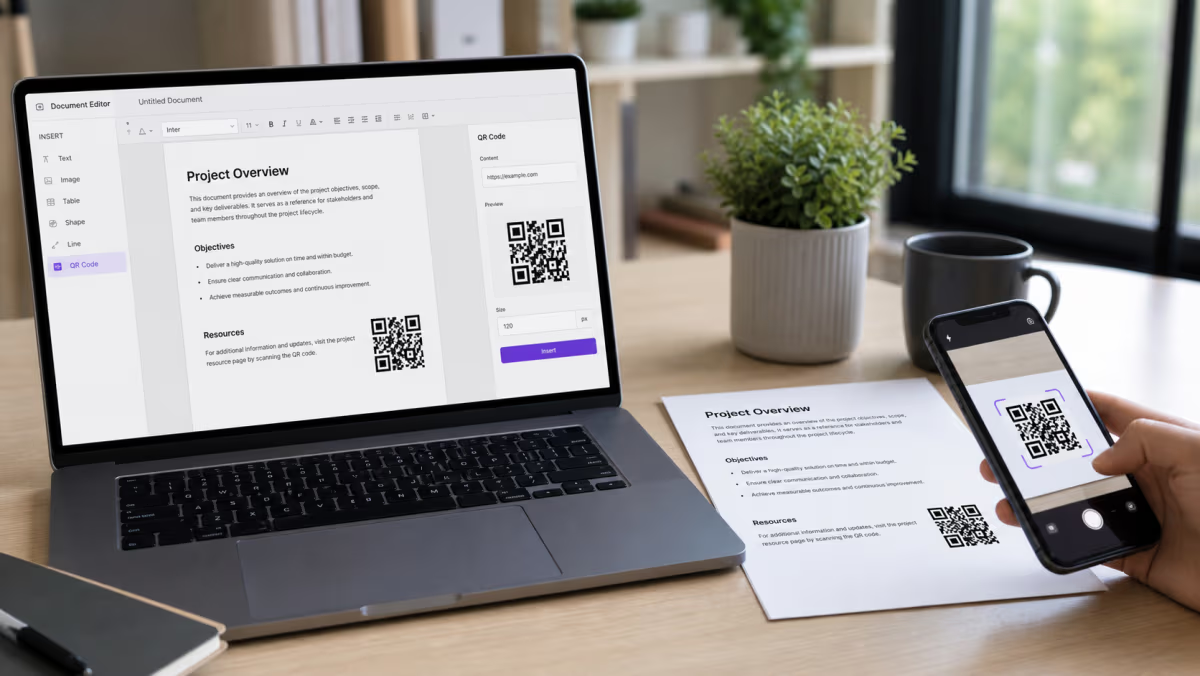
To add a QR code in Word for Windows desktop, insert a DisplayBarcode field with Ctrl+F9, enter the destination and QR type, then toggle the field to display the code. In Google Docs, create or download the QR image first, then use Insert, Image to place it in the document.
These are two different jobs: you may want a QR visible inside a document, or a QR that opens the document when scanned. For the second job, create a shareable cloud-file link first, confirm the access level, and encode that link. A QR code does not bypass Google Drive, OneDrive, or organization permissions.
Use a static QR for a destination that is expected to stay fixed. Use a dynamic URL QR when the destination may change after the document is printed or when QRLynx scan analytics are useful. The dynamic code changes the redirect destination, not the permissions on the file it opens.
Choose the method that matches the document task
| Task | Practical method | Important limit |
|---|---|---|
| Put one QR inside Word for Windows desktop | Use Word's DisplayBarcode field or insert a downloaded image | DisplayBarcode is supported in Word for Windows desktop |
| Put one QR inside Word for Mac or Word for the web | Generate the QR elsewhere and insert it as an image | The image can be resized, but its encoded destination stays fixed if it is static |
| Put one QR inside Google Docs | Create the QR with Chrome, a reviewed add-on, or a QR generator, then insert the image | Chrome's command creates a QR for the current page, not arbitrary unpublished document content |
| Create unique QRs in a Word mail merge | Use MERGEBARCODE with a URL field in the merge data | Each output QR stores the value supplied for that row |
| Make a QR that opens a Word or Google document | Encode the file's verified share link | The scanner still needs whatever access the file owner requires |
| Keep the printed QR while changing where it leads | Create a dynamic URL QR and insert its image | The QR service manages the redirect; the destination service manages file access |
Add a QR code in Word for Windows with DisplayBarcode
Microsoft documents this field for Word for Windows desktop.
Insert the field
Place the cursor where the QR should appear and press Ctrl+F9. Word inserts the field braces. Do not type the braces yourself, because ordinary braces do not create a field.
Enter the QR field code
Inside the field, enter DISPLAYBARCODE followed by the destination in straight quotation marks, then QR. Microsoft's example uses DISPLAYBARCODE "http://www.microsoft.com" QR \q 3. Replace the example address with the exact URL or text you need.
Display the barcode
Right-click the field and choose Toggle Field Codes to switch from the field instruction to the QR image. Microsoft notes that invalid data for the chosen barcode type may prevent rendering.
Test the finished document
Scan the displayed code, then print one sample and scan the physical page. Confirm the destination, file access, contrast, size, and quiet zone before distributing the document.
Microsoft's current DisplayBarcode documentation applies to Word for Windows desktop. For Word on Mac or Word for the web, use a downloaded QR image rather than promising that the Windows field workflow will render or update there.
Create several QR codes in a Word mail merge
Word also supports the MergeBarcode field. Connect the mail merge to a spreadsheet or other recipient list with a column containing each row's destination. In the document, insert a field such as MERGEBARCODE Link QR \q 3, where Link is the matching merge-column name, then complete and test the merge.
Mail merge creates a different QR from each row's value. It does not make those destinations editable after printing and it does not add QRLynx analytics. Validate the source rows before generating a large batch, keep unique links out of public files when they grant private access, and spot-check several merged outputs rather than only the first page.
How to create a document QR in QRLynx and add it to Google Docs
Create and test the QR in QRLynx, then insert the downloaded image into the document.
Prepare the destination
If the QR should open a Google Doc or Drive file, set the intended access level first and copy the final share link. Work or school administrators can restrict external sharing, so confirm the option available to the file owner.
Choose the QRLynx QR type and behavior
Choose Website / Link for a Google Doc, Drive file, or webpage. Use a static QR when the shared URL is final. Use a dynamic Website / Link QR when you may need to change the destination after distribution or want eligible redirect analytics.
Create, label, and download the QR
Paste the tested share URL into QRLynx. Give the saved code a clear name, keep strong contrast and the quiet zone, and add a short frame label when it helps explain the scan. Download a clean image for the document.
Insert the image
In Google Docs, choose Insert, Image, then select the source that contains the downloaded QR. Keep the image square while resizing and avoid cropping the clear margin around the pattern.
Test access outside your account
Scan the QR from a signed-out browser or a separate test account when the intended audience should not need your account. A successful scan is not enough if the destination then shows a request-access screen.
Destination checked
Create the QR image for your document
Generate a clear URL QR, download the image, and insert it into Word or Google Docs. Choose dynamic when the destination may change after printing.
Static or dynamic QR for a document?
A static QR stores the final URL or text in the visible pattern. It is suitable when that value is stable. If the page at the same URL changes, the QR still opens that URL. What cannot change is the value encoded in the pattern itself.
A dynamic URL QR stores a managed short link. You can update that link's destination without replacing the QR image in every printed document. QRLynx can also record the scan activity available to the account's plan. A scan shows an interaction with the QR, not proof that someone read the document, submitted a form, or downloaded a file.
The free Starter plan includes 3 active dynamic QR codes, unlimited scans, and three months of analytics. Deeper geographic or device breakdowns and export capabilities depend on plan entitlements. For the full decision, see static versus dynamic QR codes.
A dynamic QR does not repair destination permissions
Changing the redirect can recover from a moved or replaced file, but the new destination must still be accessible to the intended audience. Test both the QR redirect and the final document-access screen after every destination change.
Share a cloud document without exposing the wrong access
Google Drive supports Restricted access, specific people, and, when the account or organization permits it, Anyone with the link. Viewer is usually the appropriate role for a public reference document. Google warns that work or school accounts may not be allowed to share outside their organization.
Do not automatically change every document to Anyone with the link. Review whether the file contains personal, customer, employee, student, financial, or confidential information. If access must stay restricted, say so near the QR and make sure the intended scanners know which account to use.
- Copy the share link after setting the intended access.
- Open it in a signed-out window or separate account that matches the audience.
- Check whether the destination asks for access, sign-in, or a verification code.
- Use Viewer unless collaboration is required.
- Remove comments, revision details, or embedded information that should not be public.
- Retest after moving, replacing, or changing ownership of the file.
Google's official Drive sharing guide explains the available access levels. For a file-specific workflow, use the Google Drive QR guide.
Resize and print the QR without making it unreliable
There is no single correct physical size for every document. Required size depends on the encoded data, print method, viewing distance, camera, lighting, material, contrast, and surrounding design. Use a shorter destination when practical, keep the QR square, and preserve the quiet zone on every side.
- Resize from a corner so width and height stay proportional.
- Use dark modules on a light background with strong contrast.
- Do not place text, borders, or artwork inside the quiet zone.
- Start with a sufficiently detailed image and avoid repeatedly compressing it.
- Test a screen copy if the document will be digital.
- Print one sample on the final paper and at the final scale.
- Scan with more than one phone from the expected viewing distance.
- Use the QR code readability checker as a preflight check, then verify the physical result.
QR codes in Word and Google Docs questions
Current answers for document creation, sharing, and testing.
How do I insert a QR code in Microsoft Word?
In Word for Windows desktop, press Ctrl+F9, enter a DisplayBarcode field with the destination and QR type, then right-click and choose Toggle Field Codes. In Word for Mac or Word for the web, create the QR elsewhere and insert it as an image.
What is the correct DisplayBarcode syntax for a QR code?
Microsoft documents the structure as DISPLAYBARCODE followed by the data, the barcode type, and optional switches. Its QR example is DISPLAYBARCODE "http://www.microsoft.com" QR \q 3. Use Ctrl+F9 for the field braces rather than typing them.
Why does DisplayBarcode show text instead of a QR code?
The braces may have been typed instead of inserted as a field, the field may still be showing its instruction, or the supplied data may not meet the barcode type's requirements. Use Ctrl+F9, then right-click the field and choose Toggle Field Codes. Also confirm you are using Word for Windows desktop.
Can Word create different QR codes in a mail merge?
Yes. Use MERGEBARCODE with a merge column that contains the destination for each row. Complete the merge and test several outputs. The generated QRs encode those row values and do not become editable or tracked automatically.
Does Google Docs have a built-in QR code generator?
Google Docs does not provide the same DisplayBarcode field workflow. Chrome can create a QR for the current webpage through More, Cast, save and share, Create QR code. You can download that image and insert it into Docs, use a reviewed Workspace add-on, or create the QR with a separate generator.
How do I make a QR code that opens a Google Doc?
Set the document's intended sharing access, copy its share link, create a URL QR from that link, and test it outside the owner's account. A QR does not make a restricted document public or bypass an organization's sharing policy.
Should I use Anyone with the link for a Google Doc QR?
Only when the document is meant for that audience and contains no information that should remain restricted. Viewer is usually the safer public role. Work or school administrators can disable external sharing, so confirm the available access setting.
Are Word and Chrome QR codes static?
DisplayBarcode and Chrome's downloaded page QR encode the supplied value in the QR pattern. To change that encoded destination after printing, use a managed dynamic URL QR and insert its image into the document.
Can QRLynx track whether someone read my document?
No. A QRLynx dynamic QR can record a scan interaction and the analytics available to the account's plan. It does not prove the person read the document, completed a form, or downloaded the file.
How large should a document QR code be?
Choose size from the actual viewing distance, encoded density, print method, and surrounding design rather than relying on one universal measurement. Preserve the quiet zone and strong contrast, print at final size, and scan the sample with multiple phones.
Finish the destination before formatting the document
Start by deciding whether the QR belongs inside the document or should open the document. Verify the destination and access first. Then choose Word's Windows desktop field, Chrome's page QR, a reviewed add-on, or a pasted static or dynamic QR image.
For a destination that may move, create a URL QR code and use the dynamic option before inserting the image. For many unique rows, review the Sheets and Excel bulk QR guide. In every case, test the actual file access and final printed or digital document before distribution.