How to Create One QR Code for the App Store and Google Play

Key Takeaway
Create one QR code for the App Store and Google Play. Follow QRLynx screenshots to add iOS and Android rules and test the fallback before printing.
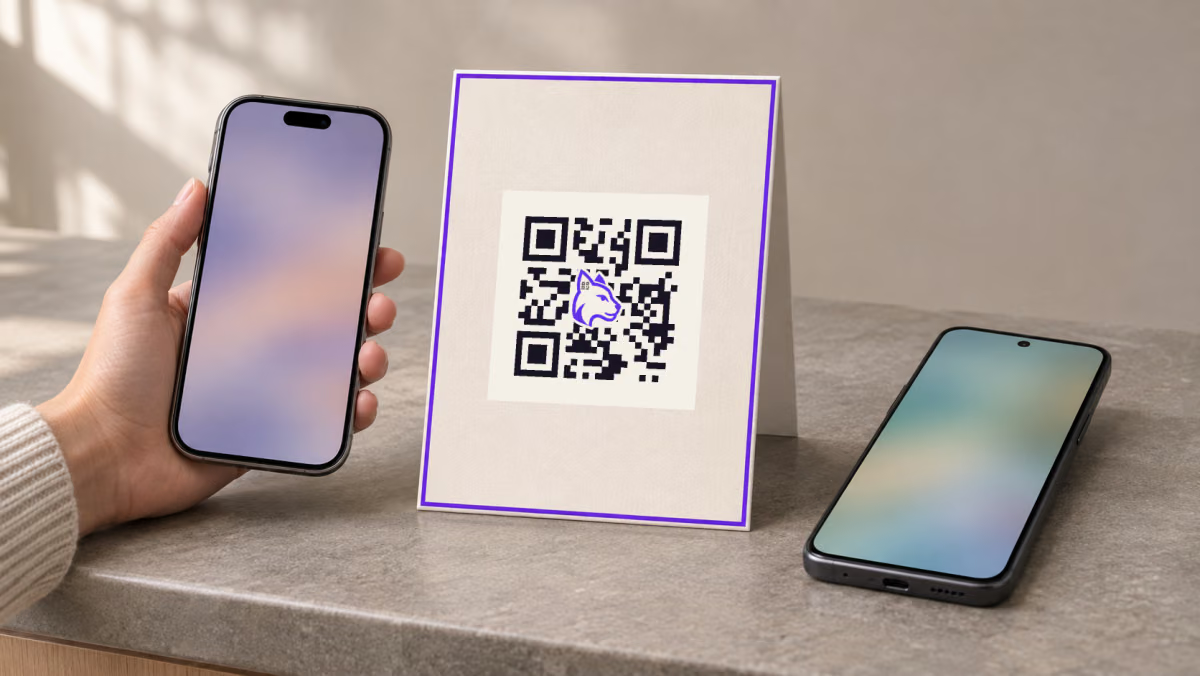
Put one QR code on your app launch poster. QRLynx sends browsers it recognizes as iOS to your App Store listing and browsers it recognizes as Android to Google Play. When neither rule matches, the QR opens your download page with both links.
To set this up, use QRLynx Redirect Rules on a saved dynamic Website / Link QR code. Redirect Rules is included with Pro, Business, and Enterprise. The generator at the top of that page is where you start.
Get your three URLs ready
| Have this ready | Where it goes in QRLynx | What to check |
|---|---|---|
| Your app’s public Apple App Store listing | iOS device rule | Open the listing and confirm the app name and publisher. |
| Your app’s public Google Play listing | Android device rule | Open the listing and confirm the app and package match the one you want to promote. |
| A public download page on your website | First URL in the generator, also called the default destination | Open it in a private browser. Both store links should be visible, and each should open the right listing. |
Copy the HTTPS links to the listings, using Apple’s App Store marketing tools and Google Play’s store listing guidance if needed. Use the actual listings and a fallback your team will keep available for the life of the print.
The screenshots use Firefox as a public example. The Firefox mobile download page is the default, with its App Store listing for iOS and its Google Play listing for Android. Replace all three with your own URLs.
Create and test the QR code in QRLynx
Start with Website / Link
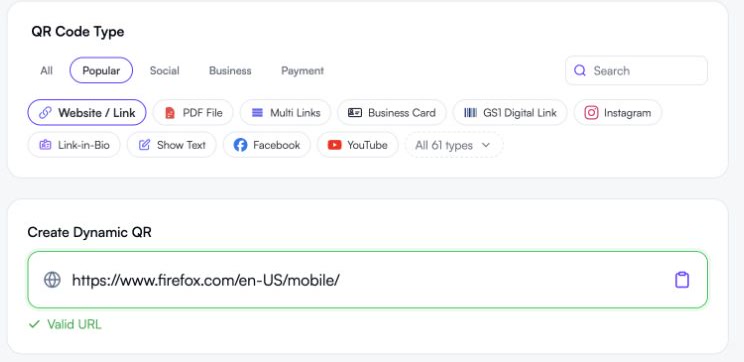
Sign in to an eligible workspace. Open the Redirect Rules feature page, keep Website / Link selected, and paste your public download page under Create Dynamic QR. Make sure Dynamic URL is on.
Add the App Store rule
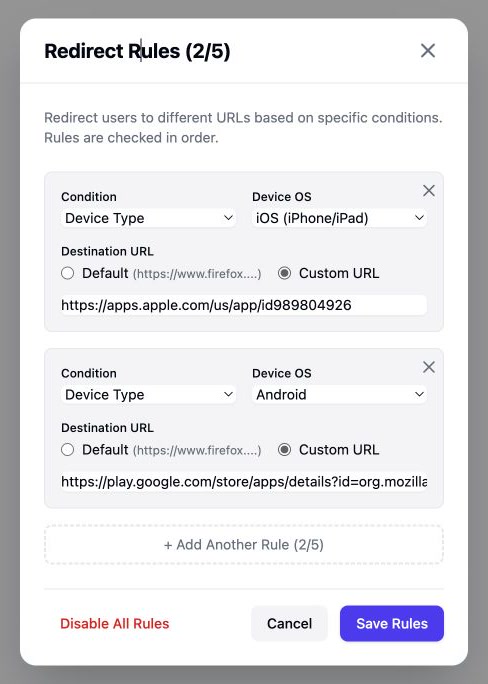
Under QR Code Features, open Redirect Rules. Choose Add your first rule. For Condition, choose Device Type. For Device OS, choose iOS (iPhone/iPad). Under Destination URL, switch to Custom URL and paste your App Store listing.
Add the Google Play rule
Choose Add Another Rule. Set Condition to Device Type and Device OS to Android. Choose Custom URL and paste your Google Play listing. Each rule must have its own destination.
Save the rules, then save the QR
Click Save Rules in the dialog and save the QR code to your account. Name the project “App launch poster” or use a name you can find later. Download the saved QR and leave clear space around it in the artwork. Add a short label such as “Scan to download the app.”
Test the same final QR three ways
Scan the artwork with an iPhone and an Android phone. Open the saved short link in a desktop browser to check the default destination. Check the two store links on that page as well. Repeat the phone scans on a print proof at its final size.
Check both device rules in the editor
What should open in each test?
| Test | Expected result | If you get something else |
|---|---|---|
| Scan the final QR with an iPhone | The App Store listing for your app | Confirm the iOS rule uses Custom URL and the saved QR is the one you exported. |
| Scan the same QR with an Android phone | The Google Play listing for your app | Confirm the Android rule uses Custom URL and includes the correct package ID after id=. |
| Open the same saved short link on a Mac or Windows computer | Your default download page with both store links | Check the main generator URL and look for another rule that might match first. |
Device rules use the operating system reported by the browser. An iPad in desktop mode can reach the fallback. If your audience uses tablets or scans inside another app, include that exact device or scanner in the proof. WebKit’s iPad browsing notes
If you have additional rules, QRLynx uses the first active match, so check whether an earlier rule is taking priority.
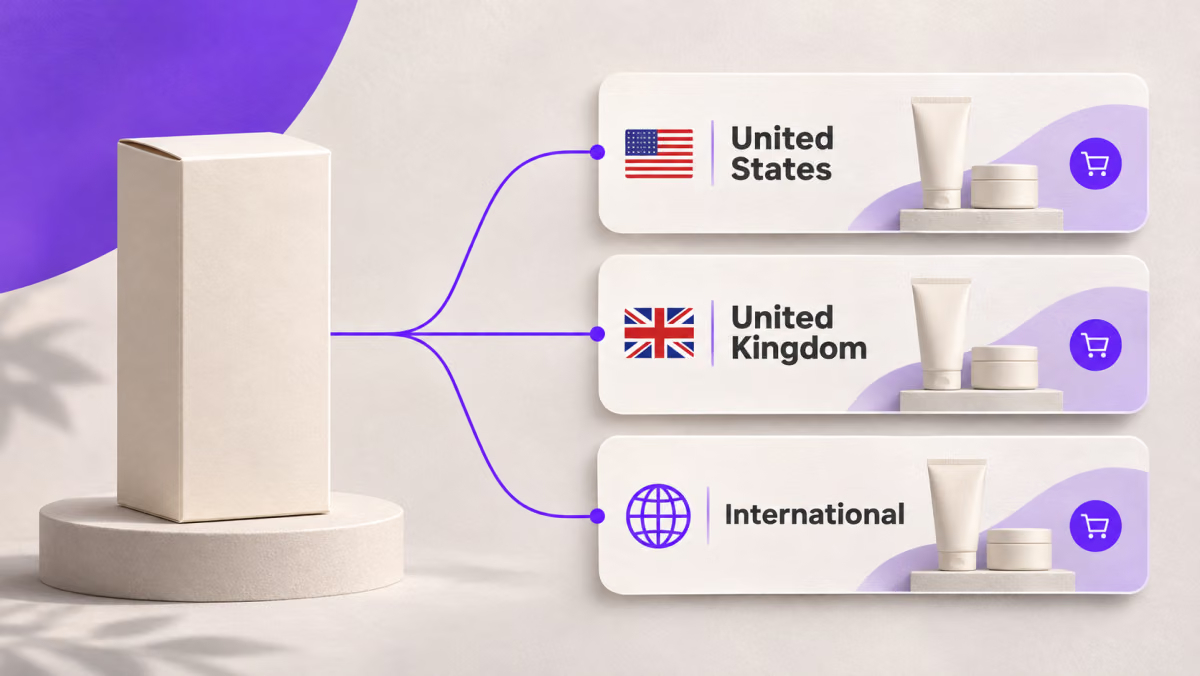
For a separate regional-store setup, see the US and UK country-routing example, including its international fallback and network checks.
Check the physical proof at the intended viewing distance and under the lighting visitors will have. If the phone never detects the code, check the artwork and print before changing any redirects. Put a readable download URL near the QR so readers can type it if needed. Flyer and poster print checklist
When one device-aware QR makes sense
Use this setup when one print run needs to reach both stores automatically. If both kinds of visitors can choose their own store, a QR that opens your download page is enough. If the campaign only supports one platform, you can use the App Store QR code generator with that platform’s listing URL.
If a store listing changes after printing, open the same saved dynamic QR and update the rule. If you also moved the fallback page, update the default destination and check both buttons there. Test an updated printed QR code
Create a QR code for your app launch
Start with your download page, then add an iOS rule for the App Store and an Android rule for Google Play.
Questions about app download QR codes
What if my app is only in one store right now?
Set a rule for the live store and let other devices open a download page that explains what’s available. Add the second rule after the other store listing is public and you can test it.
Why do both phones land on my download page?
Open both device rules and confirm they use Custom URL. Then confirm you saved the rules and saved the QR itself. If the settings are right, compare the short link you scanned with the one for the saved project.
Why does an iPad reach the fallback instead of the App Store?
Some iPad browsers can report themselves as macOS, especially when requesting a desktop site. Include a working App Store link on the fallback and test with the browser your visitors are likely to use.
Does scanning the QR install the app?
The QR opens the matching store listing or your download page. The visitor chooses whether to install, and the store checks device and regional availability. Use your app’s install reporting to measure installs.
Can I change one store link without reprinting?
Yes. Update that rule on the same saved dynamic QR in QRLynx. Test the updated branch and make sure the fallback page still links to the right listing.
Can a free QRLynx account use this exact setup?
The QRLynx device rules used here require Pro, Business, or Enterprise. A free account can make a QR with one public page as the destination. Put both store links on that page so people can choose.
What if I only have a laptop for testing?
Use the laptop to check the fallback and both links on it. Keep the print run on hold until someone checks the same QR with an iPhone and an Android phone.
What if the store says the app is unavailable?
Open the listing URL directly on the same device. If the store still shows that message, check the app’s release, country, and device availability in that store. If it opens directly, recheck the URL saved in the QR’s rule.
What if the store listing opens correctly from one scanner app and differently from another?
Retest with the phone’s built-in camera and with the scanner your audience will use. They can hand the link to different browsers. Keep the download page usable with both store links for any requests that miss the device rules.