How to Change a QR Code by Time of Day: Lunch, Dinner and Fallback

Key Takeaway
Switch one QR code between lunch and dinner menus with QRLynx. Follow real screenshots, UTC time rules and fallback checks before printing.
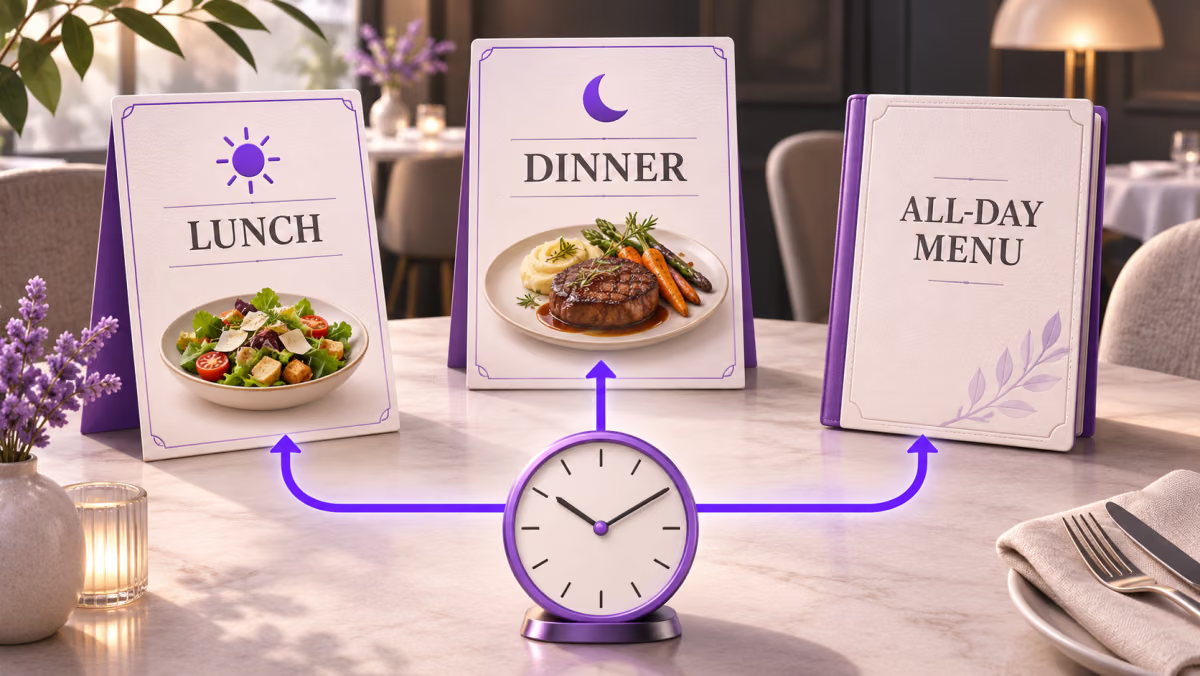
One dynamic QR code can open your lunch menu during lunch hours, your dinner menu in the evening, and an all-day menu at other times. In QRLynx, enter the all-day page as the default destination, then add two daily Time rules.
QRLynx Redirect Rules is included with the paid Pro, Business and Enterprise plans. Use the generator at the top of that feature page. The worked example below uses UTC hours, real editor screenshots and a check for each destination.
Prepare lunch, dinner and a fallback menu
Publish three working menu pages before setting the rules. The fallback should help guests between services, for example with all menus, opening hours and a way to choose another menu. Keep a menu selector on the lunch and dinner pages too.
| Daily UTC window | Destination example | Setting |
|---|---|---|
| 11:00 to 14:59 | https://example.com/lunch | First Time rule, Custom URL |
| 17:00 to 21:59 | https://example.com/dinner | Second Time rule, Custom URL |
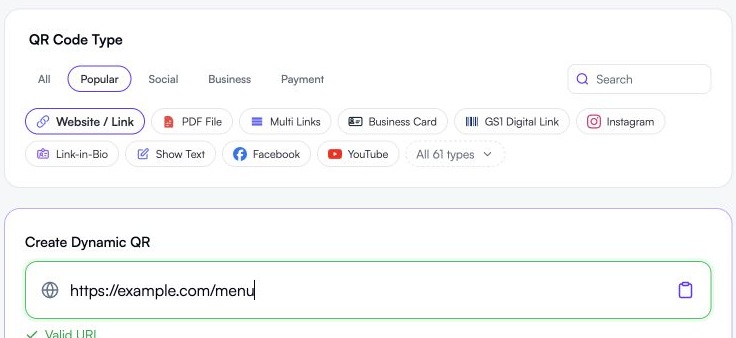
| All other times | https://example.com/menu | Main URL in Create Dynamic QR |
These are example hours and placeholder addresses, not a live restaurant. The screenshots show an unsaved configuration in the real QRLynx editor. Replace every example.com address with your own working HTTPS URL. For help choosing a mobile menu or an existing menu link, see the restaurant menu QR guide.
Convert service hours to UTC first
QRLynx Time rules use the current UTC clock on the server. They do not follow the scanner’s phone clock or automatically select the restaurant’s local time zone. Convert your service hours before entering them.
For example, when your venue is at UTC+2, 13:00 local time is 11:00 UTC. A local lunch window from 13:00 through 16:59 becomes 11:00 through 14:59 UTC, matching this tutorial. Check the venue’s actual offset for the date, especially where daylight saving time applies.
The ending minute is included. A rule ending at 14:59 still matches throughout that minute; 15:00 is outside it. Avoid giving two rules the same boundary minute. If windows overlap, QRLynx uses the first matching active rule in its saved order.
Set up lunch and dinner routing in QRLynx
Enter the fallback destination
Sign in to a QRLynx Pro, Business or Enterprise account and open the Redirect Rules feature generator. Choose Website / Link in dynamic mode. Enter your all-day menu URL in Create Dynamic QR. Confirm Dynamic URL is enabled.
Add the lunch rule
Open Redirect Rules in QR Code Features. Click Add your first rule. Set Condition to Time, then enter 11:00 and 14:59 in the Time (UTC) fields. Choose Custom URL and enter your lunch menu address. Replace these example hours with your converted service hours.
Add the dinner rule
Click Add Another Rule. Select Time, enter 17:00 and 21:59 UTC, choose Custom URL and enter your dinner menu address. Keep the two windows separate. Depending on your browser, the same UTC values may appear as 5:00 PM and 9:59 PM.
Save the rules and the QR
Click Save Rules to apply the modal settings, then Save the QR itself. Give the saved QR a clear name, such as Lunch and dinner menu. Reopen the saved QR and check its default URL, both time ranges and both custom destinations before downloading.
Label and test the finished QR
Download the saved dynamic QR and use a clear label such as Scan for menu. Keep clear space around the symbol. Check lunch, dinner and the fallback using fresh scans, then test a printed proof at the intended size under the restaurant’s actual lighting.
Check the two rules before printing
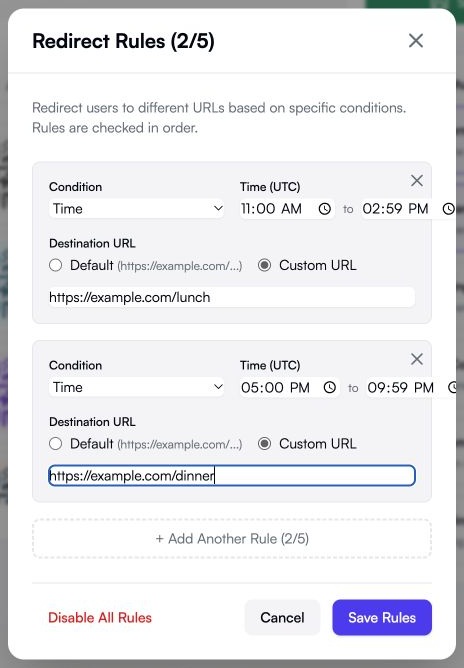
The current editor accepts up to five rules. A Country or Device Type rule above these Time rules can take priority when it matches first. Review existing rules before adding a schedule. To change their order in the current editor, remove and add them in the intended sequence, then save the QR again.
Choosing Default inside a rule sends its matching scans to the main menu URL too. For lunch and dinner to open different pages, both rules must use their own Custom URL.
Test lunch, dinner and the fallback
Use a fresh scan of the saved QR for each check. Refreshing a menu page that is already open does not necessarily revisit the QR’s redirect link. Changing the phone’s clock will not change QRLynx’s server-side UTC decision.
| UTC check | Expected destination | What it verifies |
|---|---|---|
| 10:59, then 11:00 | Fallback, then lunch | Lunch start boundary |
| 14:59, then 15:00 | Lunch, then fallback | Included end minute |
| 16:59, then 17:00 | Fallback, then dinner | Dinner start boundary |
| 21:59, then 22:00 | Dinner, then fallback | Dinner end boundary |
If you need a setup check before service, use a separate test QR. Temporarily place its lunch window around the current UTC time, save and scan. Move that window away, put its dinner window around the current time, save and scan again. Move both windows away and scan for the fallback. This checks the three paths without changing a printed production QR. It does not replace checking the real schedule at its boundaries.
Record the UTC time and final page for each result. Open all three destination URLs directly too. The fallback applies when no rule matches; it does not rescue a matching destination that returns an error. If the QR is hard to detect, check the artwork and print separately from routing. The table tent QR guide covers the physical placement workflow.
Keep the schedule accurate after launch
Time rules repeat every day. They have no weekday selector, so this setup also runs on weekends. If service hours vary by day, a general menu page with a manual menu choice may be simpler.
Split a window that crosses midnight into two rules. For example, 22:00 to 02:59 needs 22:00 to 23:59 and 00:00 to 02:59, both pointing to the same destination. A single start time later than its end time does not match the current time-rule logic.
Review UTC values when the venue’s local offset changes. Edit the same saved dynamic QR when a menu URL or service window changes, save and repeat the checks. For a campaign that should only be available between calendar dates, see QR Scheduling; that is a different task from selecting a daily menu.
For that one-time availability window, the event QR scheduling tutorial shows the date fields, timezone checks and final save steps.
Set up your lunch and dinner menu QR
Start with the all-day menu, add two UTC Time rules and check every destination before printing.