How to Route One QR Code by Country: US, UK and Fallback

Key Takeaway
Route one QR code to US and UK pages with an international fallback. Follow real QRLynx screenshots, setup steps and country-routing checks.
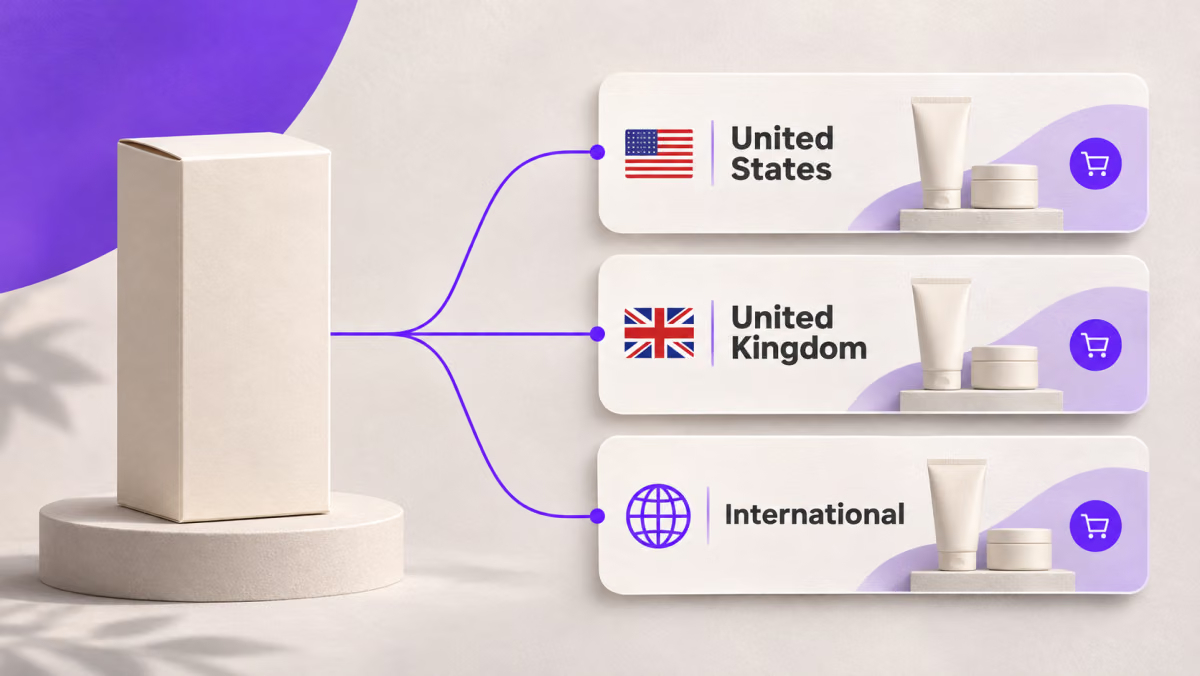
One QR code can open your US storefront for scans associated with the United States, your UK storefront for scans associated with the United Kingdom, and an international page for everyone else. In QRLynx, set a default destination and add two Country rules to a dynamic Website / Link QR.
QRLynx Redirect Rules is included with Pro, Business, and Enterprise. Start with the generator at the top of that feature page. This tutorial shows the exact fields, the two save actions, and how to check each route before printing.
Plan two country pages and one fallback
Use country routing when your regional pages offer something different, such as local product availability, delivery information or a regional store. Prepare the pages before creating the QR.
| Scan request | Example destination | QRLynx setting |
|---|---|---|
| United States | https://example.com/us | Country: United States, Custom URL |
| United Kingdom | https://example.com/uk | Country: United Kingdom, Custom URL |
| Any unmatched or unidentified country | https://example.com/international | Main URL in Create Dynamic QR |
The screenshots show the real QRLynx editor with example.com placeholder addresses. They demonstrate configuration, not a live store or completed international scan test. Replace all three addresses with your own working HTTPS pages.
Give the international page a visible country selector. Keep a way to change markets on the US and UK pages too, so a visitor can correct an unsuitable automatic choice.
Set up country routing in QRLynx
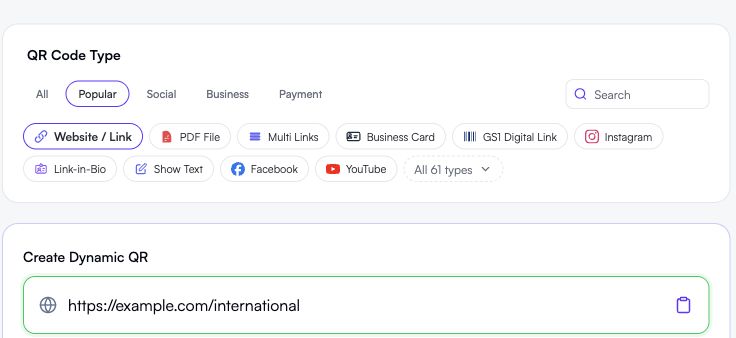
Enter the international fallback
Sign in to a Pro, Business, or Enterprise workspace. Open the Redirect Rules generator and keep Website / Link selected. Paste your international page under Create Dynamic QR. Confirm Dynamic URL is on.
Add the United States rule
Under QR Code Features, open Redirect Rules and choose Add your first rule. Set Condition to Country, then choose United States. Select Custom URL and enter your US page.
Add the United Kingdom rule
Choose Add Another Rule. Set Condition to Country and select United Kingdom. Select Custom URL and enter your UK page. Check that both rules have different destinations from the default.
Save the rules and the QR
Click Save Rules to close the dialog, then click Save for the QR itself. Give the saved project a clear name, such as “Regional storefront packaging.” Reopen it and check the main URL and both rules before downloading.
Label and test the final artwork
Download the saved dynamic QR and add a useful label, such as “Scan to shop.” Keep clear space around the symbol. Test the same QR from US and UK networks and from a third country, then scan a physical proof at its final size before approving the print run.
Check both rules before saving
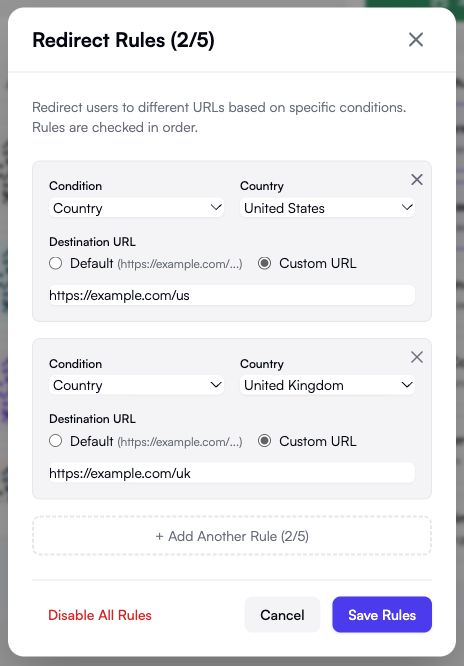
QRLynx checks active rules in their saved order and uses the first matching destination. These two country rules do not overlap. If the QR already has a device or time rule, an earlier match can take priority over a country rule.
The editor supports up to five rules, with one country per Country rule. Plan the order before adding them. To change the order in the current editor, remove and add rules in the intended sequence, then save the QR again.
Test the United States, United Kingdom and fallback
Country routing uses the country associated with the scan request’s network connection. It does not read the phone’s selected language or ask for GPS permission. A VPN, proxy, mobile carrier or company network can affect the country that is detected.
| Check | Expected result | Record |
|---|---|---|
| Scan the saved QR from a US network | Your US destination | Final address, device and network used |
| Scan the same QR from a UK network | Your UK destination | Final address, device and network used |
| Scan from a country with no matching rule | Your international fallback | Final address and whether the country selector works |
Ask someone in each target market to scan, or use an existing VPN connection as a diagnostic check. A VPN result does not replace a check on the networks your audience uses. Changing the browser language, phone region or GPS simulation alone will not test the country condition.
Open each destination directly as well. If a rule matches but that page is broken, the international fallback is not an automatic replacement for a website error. Fix the destination or update the rule. A store can also redirect visitors again after QRLynx sends them there, so check the final page as well as the address you entered.
For the physical proof, use the actual material, size and finish. If the camera cannot detect the QR, address the artwork or print first. See the product packaging QR checklist for placement and production checks.
Maintain the destinations after launch
When a regional page moves, edit its rule on the same saved dynamic QR. Update the main URL if the international page moves. Save and repeat the three checks before treating the change as finished. Existing printed copies of that dynamic QR keep their short link.
QRLynx country analytics can help you see where eligible scan activity comes from. A country count does not prove which page a visitor ultimately reached or whether they bought anything. Use the destination website’s analytics for that outcome.
Build your two-country QR setup
Start with the international page, then add the US and UK destinations as Country rules.
Questions about country-routing QR codes
Why do both countries open my international page?
Reopen the saved QR and check that both conditions are Country, the selected countries are correct, and each rule uses Custom URL. Save the dialog and the QR. Also confirm you are scanning the exported saved dynamic QR, not an older static image.
Why does a US visitor open the UK page?
Check the saved country-to-URL mapping and any earlier matching rule. Then check whether the visitor uses a VPN, proxy or company network. Country routing follows the network country signal, which can differ from the visitor’s physical location.
Does country routing detect language or precise GPS location?
No. QRLynx Country rules use the country associated with the scan request. They do not use browser language or ask for GPS permission. Let visitors choose another language or market on the destination website.
What happens if QRLynx cannot identify the country?
With only the two Country rules in this tutorial, the scan uses the QR’s main default destination when neither country matches. Additional device or time rules can still match, so review the complete saved rule list.
Will the fallback open if my US or UK page returns an error?
Not just because the destination website returns an error. The fallback handles scans without a matching rule; it is not a website-uptime failover. Keep every destination working and test each directly.
Can I change a country destination after printing?
Yes. Edit the rule on the same saved dynamic QR, save it and test again. Updating its destination keeps that printed dynamic short link. An already printed static QR does not acquire QRLynx country routing.
Can one rule combine a country and a device?
Each QRLynx rule uses one condition. Separate country and device rules are checked in order, not combined into an AND condition. For an OS-only setup, follow the App Store and Google Play QR tutorial.
Can I add more countries or use this on the free plan?
The editor supports up to five rules in total, with one country per Country rule. Redirect Rules requires Pro, Business, or Enterprise; the free Starter plan does not include this setup. See QRLynx Pro plans for access.
Do I need country routing if all visitors can choose their market?
If a clear international landing page already serves everyone well, a dynamic QR pointing to that page may be enough. Add country rules when opening a regional page directly improves the task, and keep a manual market selector available.