How to update a printed QR code link

Key Takeaway
Change the destination of a printed QR code, verify the new link from the same copy, and find out when an old static code can still work.
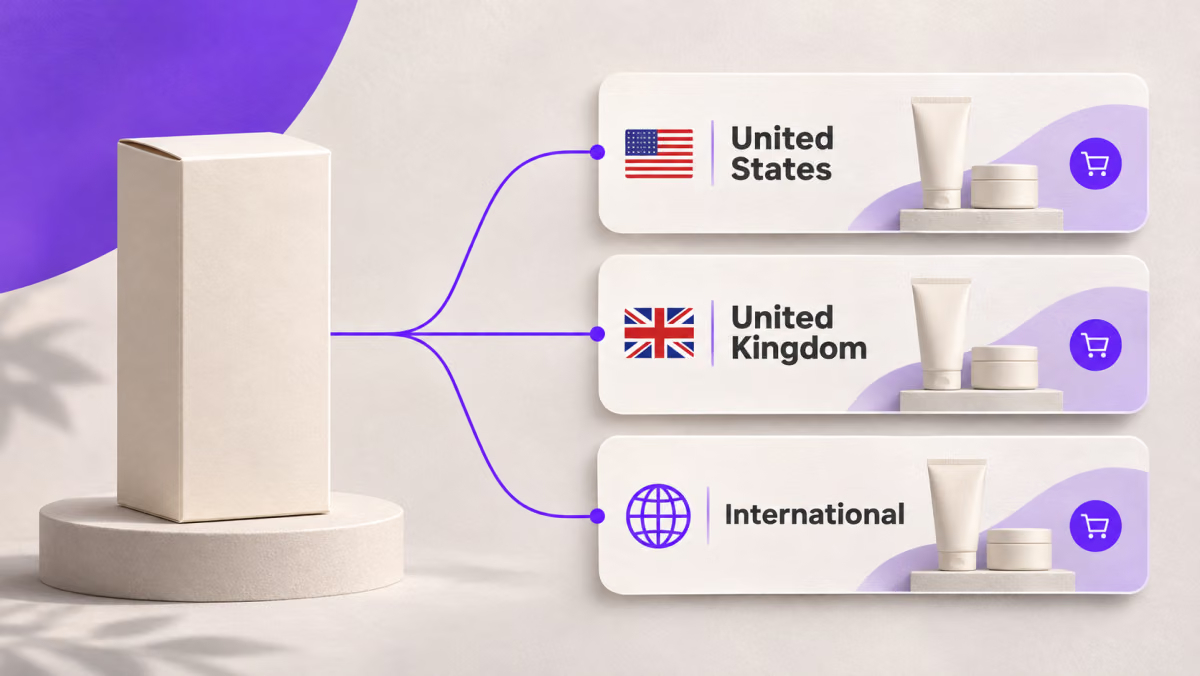
You can change where a printed dynamic QR code sends people by editing its saved destination. If the code is static, you can keep using the print when you control the exact web address it contains. Start with the physical copy. The address encoded in the print tells you which part you can change.
With QRLynx Dynamic URL, you can update a saved website destination while keeping the same short link in the print. The feature page also has the generator if you need a new code.
Read the address in the print
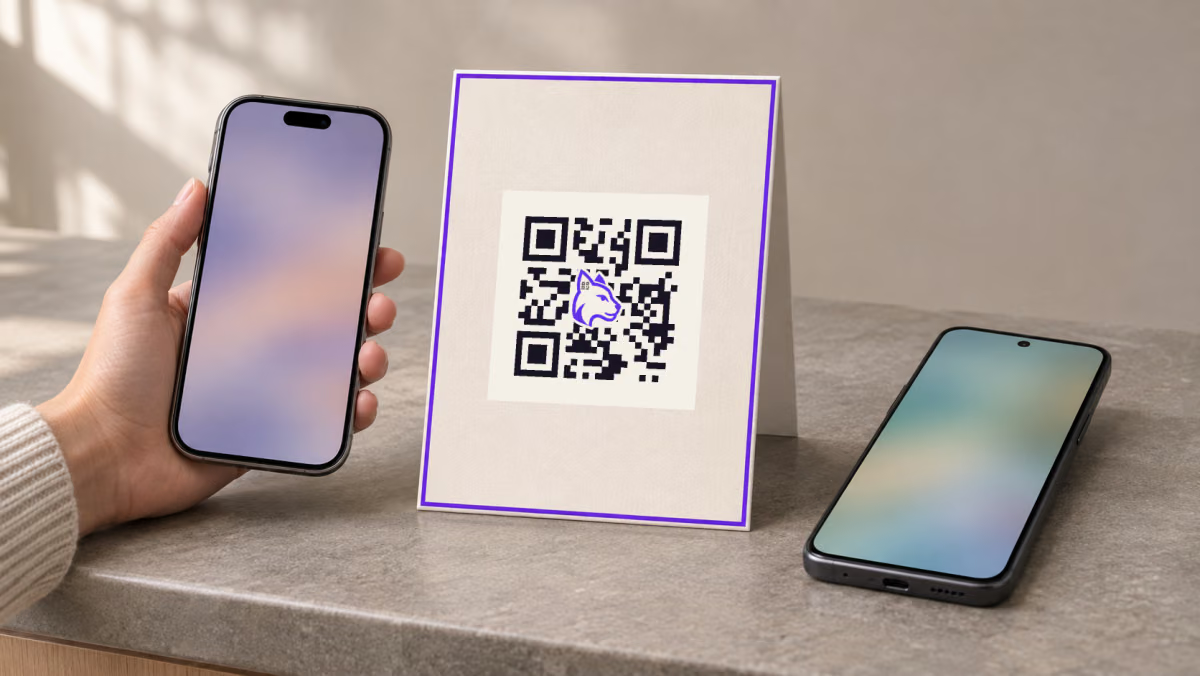
Scan or photograph the actual card, poster, or label. In the QRLynx QR Code Scanner, use the camera or upload a photo and copy the address under Decoded Data. Then open the link and note the address the browser ends up on. Keep both. For a dynamic code, the first address is typically the managed link and the second is the current destination.
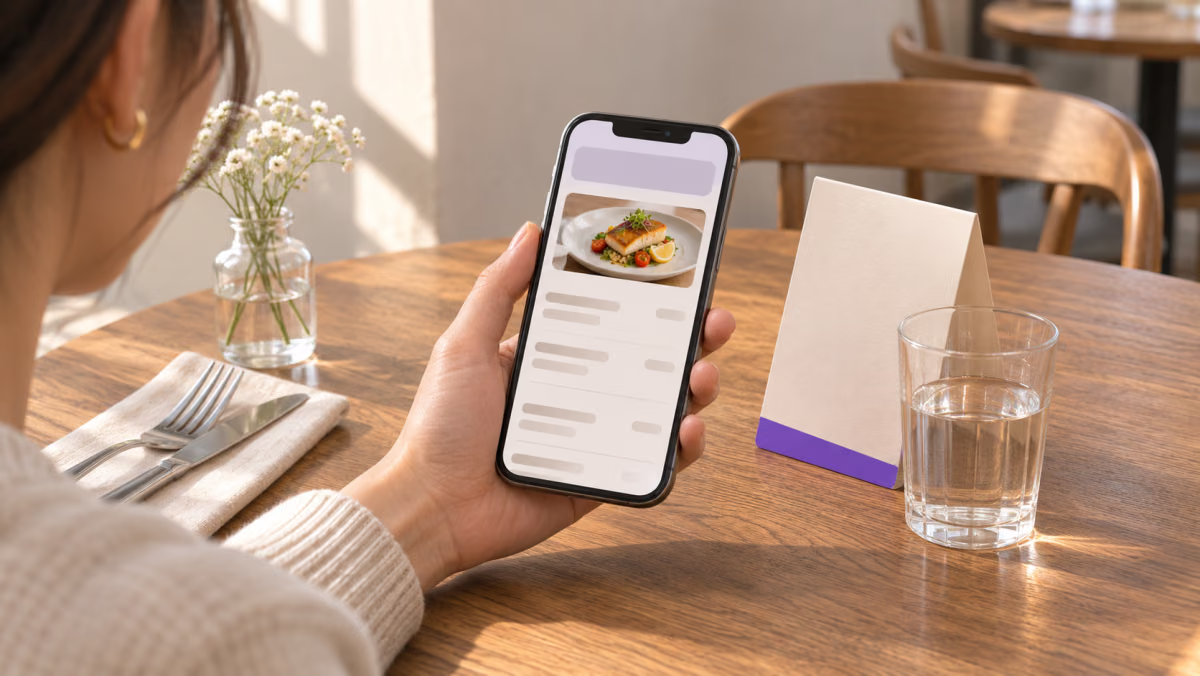
For example, a table card may contain a short link while the browser opens bistro.example/menu-spring. Two table cards can land on that same page and still contain different short links. Use the address in the print to confirm which saved QR you’re editing.
How to update and test a printed dynamic QR code in QRLynx
Open the new page as a visitor
Try the full new URL in a private mobile browser. Open the menu, file, or form you expect people to use. Save the previous destination so you can restore it if it still works.
Open the matching saved code
In the workspace that owns the QR, go to QR Codes. Find the entry marked Dynamic and select Edit. If several entries use the same destination, compare the address from the print with the one encoded in the candidate’s saved QR image.
Change the website destination
Paste the full new address into Website URL, including any campaign parameters you still need. Keep Dynamic URL enabled and select Update. The saved code keeps its short link, so the original print is the one to test.
Rescan the very same copy
On a phone where you’re signed out of the destination site, follow the scan to the final page. Check the address, confirm it opens without an unexpected login, and try the visitor’s next action. If a viable old destination is needed while you fix the new one, put the old address back in Website URL, select Update, and scan the same copy again.
A menu change that passes the test
Suppose the old menu was at bistro.example/menu-spring and the new one is at bistro.example/menu-summer. After updating the saved QR, pick up the same card from the table. Check that it opens the summer menu and that tapping Dinner opens the right menu without asking you to sign in. A successful save in the editor alone can’t catch a menu PDF that only staff can open.
What to check if the old page still opens
- The new URL opens the old page even when typed directly. Check the website’s redirects and whether the new page or file is public.
- The new URL works directly, but the printed QR opens the old page. Start a fresh scan in a private browser. Confirm you edited the record tied to the printed link and that it’s active. If you use Redirect Rules, a matching rule can send some scans elsewhere. Check the default destination and the rule separately.
- The camera can’t read the code. Check the print itself for damage, glare, or a blocked margin. Follow the QR code troubleshooting guide if the camera still can’t detect it.
Keep the print when you control the static URL
If the printed card contains bistro.example/menu-spring directly, that exact address is what people will scan. Your web team can serve the new menu there or redirect that old path to bistro.example/menu-summer. Keep the old address working for as long as the cards are in circulation. Scan a card again to confirm the redirect and open the menu as a visitor.
If someone else controls the address, ask them to update it. If the print encodes a different QR provider’s link, go through that provider or the team that owns the code. See the guide to moving a printed code between providers for that case.
When the old address can’t be made to work, replace the affected print or cover the whole old code with an opaque label. Leave a clear margin around the new code. Follow the QR code print-size guide and scan a label in its final position before replacing the rest.
Create an editable replacement
Choose Website / Link, enter the public destination, and save it with Dynamic URL on.
Questions about updating a printed QR code
Why can I view a QRLynx code but can’t save the edit?
Open the workspace that owns the code. In a shared workspace, you need the editor role or higher to save a destination edit. Ask a teammate with that access if you can view the code but can’t update it.
Can I take control of the old link by uploading the QR image?
An upload can reveal the address in the image. Access to the service or website that controls that address is what lets you change where it leads.
Will a browser tab that’s already open switch to the new page?
Someone who already opened the old page can still see it in their tab. Ask them to scan again or reopen the printed link to follow the updated route.
What happens if the same code is on my flyers and table cards?
Both placements use the changed destination if they encode the same managed link and follow the same routing rules. Check the placements that should keep serving the old content before changing a shared code.
Will changing the destination update a web address printed below the QR?
Printed text still shows the old address. If you own that address, keep it working or redirect it too. Otherwise, plan a replacement label that includes the correct text as well as the code.
Can I change the destination again for the next season?
Yes. Update Website URL on the same saved dynamic QR and verify the same print again. Keep a record of which URL ran during each campaign.
Can I point the same dynamic QR code to a new PDF?
Yes, if the PDF has a public web address. Put that address in Website URL and test it from a signed-out phone. If your code already uses a QRLynx-hosted PDF, use the PDF QR code workflow to replace the file on that project.
Does changing the URL reset scan history?
Editing Website URL keeps any existing scan history attached to the same QR project within your plan’s history window. Record the change date if you need to compare scans before and after the update.
Should I test more than one card after changing the link?
Test a copy from each batch that used a different artwork file. Compare the decoded links before assuming the update applies to both. If the design is the same and the materials differ, test the copy in the harder spot to scan, such as a glossy sign under direct light.