OneDrive QR Code: Share a File or Folder

Key Takeaway
Create a OneDrive QR code in QRLynx, choose file or folder permissions, test signed-out and mobile access, and select static or dynamic delivery.
Disclosure: QRLynx is built and operated by Jorbox LLC. This guide explains the current QRLynx workflow and uses Microsoft Support as the source for OneDrive sharing behavior.
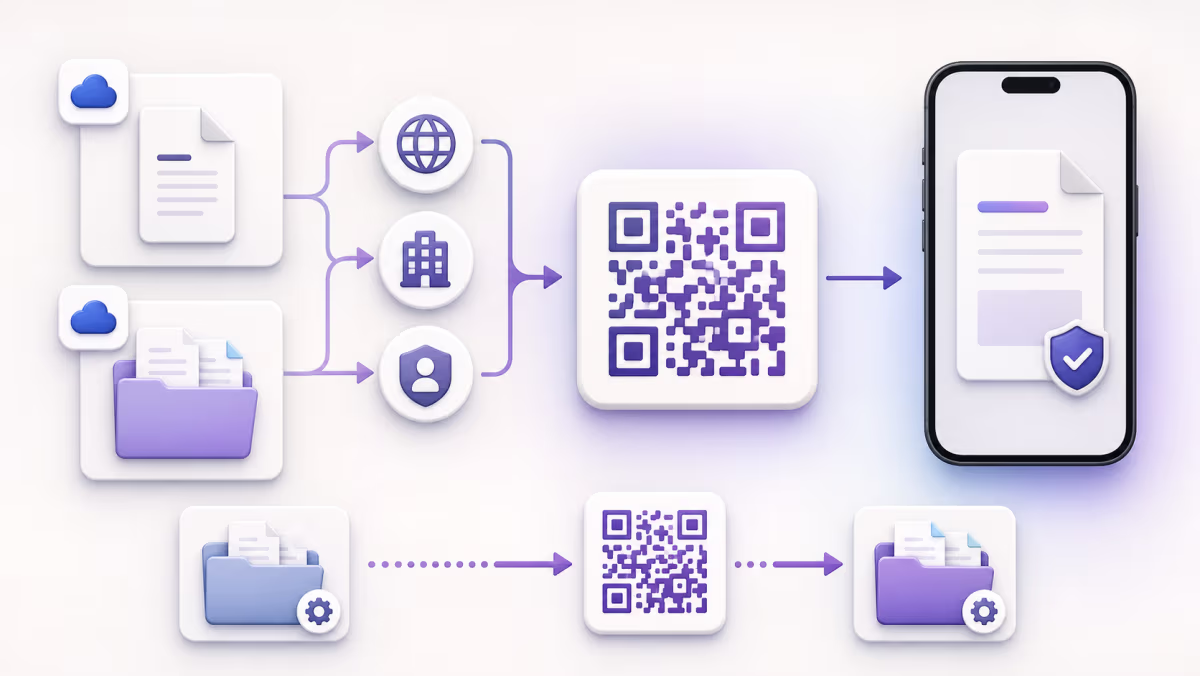
A OneDrive QR code is a Website or Link QR that contains a tested OneDrive sharing URL for the intended file or folder. The QR opens that URL. Microsoft OneDrive then applies the link's audience, view or edit permission, sign-in requirement, download setting, expiration, and tenant policy.
QRLynx can encode the approved share URL as a static QR or place it behind a saved dynamic redirect. The dynamic option keeps the printed QRLynx short link stable when its account owner replaces the destination. OneDrive remains responsible for file storage, recipient identity, access, browser or app behavior, and download availability.
Choose the file or folder before you create the QR
The best target is the smallest OneDrive resource that contains everything the scanner should see.
| Target | What the scanner reaches | Permission consequence | Useful fit |
|---|---|---|---|
| One file | One document, image, presentation, video, or other shared item | The link applies to that item; its available view, edit, and download controls depend on Microsoft settings and file type | A menu, brochure, form, policy, schedule, or single handout |
| One folder | The folder and the contents that its permissions expose | People with edit permission can perform broader actions across accessible folder contents | A document library, event packet, property folder, course resources, or changing collection |
| A OneDrive file request | An upload path into a selected folder | Microsoft says contributors can upload without seeing, editing, deleting, or downloading the folder contents | Collecting assignments, photos, documents, or submissions; this is a separate OneDrive workflow |
Match the OneDrive link to the real audience
Create the Microsoft link first, then test it from the same account state as the people scanning the QR.
| Link or access choice | Who can use it | Signed-out test | View and download check |
|---|---|---|---|
| Anyone with the link | Anyone who receives or is forwarded the link, when the account and tenant allow this choice | Expected to open without a Microsoft sign-in; test the exact phone and browser path | Confirm view or edit permission and whether download is available for this item |
| People in your organization | People in the Microsoft 365 organization who have the link | Expected to require an eligible organizational identity | Test with a standard member account, not only the owner's account |
| People with existing access | People who already have permission | A signed-out or unrelated account should not be treated as a valid recipient | Useful for distributing a convenient link without changing access |
| Specific people | The named recipients and other people who already have access | Test with an invited external recipient when that audience matters | Confirm identity verification, view or edit permission, and the intended file action |
| View only with block download | Recipients allowed by the underlying sharing link | Test in a clean browser state | Microsoft says supported work or school configurations keep the file in the web view and remove download, print, and copy options |
Create a OneDrive QR code with QRLynx
Select the exact OneDrive item
Choose the single file, folder, or separate file-request workflow that matches the reader's job. Confirm the owner and the contents before sharing it.
Create the intended Microsoft sharing link
In OneDrive, select Share or Copy link, open the link settings, choose the audience and view or edit permission, apply any available download, password, or expiration controls, then copy the resulting link.
Test the link before creating the QR
Open the copied URL on a representative phone and in the recipient account state that matters. Confirm identity, browser or app handoff, file or folder target, permission, and available action.
Choose Website URL in QRLynx
Open the QRLynx Website URL generator and paste the complete tested OneDrive sharing URL. QRLynx carries that web destination while Microsoft enforces its access settings.
Choose static or dynamic delivery
Use a static QR when the printed code should always contain this exact OneDrive link. Use a saved dynamic QR when the physical sign may need another approved destination or eligible QRLynx scan reporting.
Label the file action
Add a specific instruction such as Scan to view the event packet or Scan to open the property documents. Include an owner-approved fallback when access is operationally important.
Test the final printed or displayed QR
Scan the exported QR at its real size, distance, lighting, and material. Repeat the recipient-state test and confirm the complete OneDrive result rather than stopping after the QR decodes.
OneDrive link tested?
Create the QR for your OneDrive link
Paste the verified file or folder sharing URL, choose static or dynamic delivery, add a precise label, and test the complete recipient path.
Worked example: a printed document library that changes
A property manager places one QR on a lobby sign for building documents. The current destination is a OneDrive folder containing move-in instructions, service contacts, and approved building notices. The manager creates a view-only sharing link for the intended audience, tests it signed out on a phone, and uses that URL as the destination of a saved QRLynx dynamic QR.
The folder can gain updated documents while its sharing link remains the same. If ownership or the document system later changes, the QRLynx account owner can point the saved dynamic QR to a new tested destination without replacing the lobby sign. The new destination still needs its own correct Microsoft permissions before the update.
This workflow separates three responsibilities: the physical QR stays stable, QRLynx manages the redirect destination and eligible scan events, and OneDrive controls the folder contents and recipient access.
Test the recipient experience, not only the QR image
A successful decode proves that the camera read the QR. It does not prove that the intended recipient can use the OneDrive resource. Test these checkpoints before distribution:
- Correct target: confirm the file name or folder and its owner.
- Audience: test the same signed-in, organizational, invited-external, or signed-out state expected from scanners.
- Permission: confirm view, edit, review, upload, or other intended behavior without granting broader access.
- Browser or app: Microsoft notes that some shared links open in a browser instead of the OneDrive mobile app. Verify the route that matters to your audience.
- File behavior: confirm preview, playback, editing, and download on the actual file type and device.
- Physical placement: scan from the final size, distance, material, contrast, and lighting.
- Fallback and owner: provide a useful alternative and name the person responsible for Microsoft access and QRLynx destination changes.
Measure QR scans separately from OneDrive use
QRLynx can report eligible scans when the QR uses its managed dynamic redirect. That event shows that a qualifying request reached the QRLynx redirect path. It does not establish that Microsoft granted access, the file rendered, a download completed, or the reader used the document.
Use QRLynx scan data to compare placements, time periods, devices, or repeated interest in the physical route. Use the appropriate Microsoft 365 access and usage records, when available to the owner or administrator, for activity inside OneDrive. Keep those measures separate in reports.
Troubleshoot OneDrive QR access in the right order
- The QR will not decode: use the QRLynx readability checker for estimated image feedback. Check the quiet zone, print size, surface and viewing distance on the actual placement.
- The decoded URL is wrong: inspect it with the QRLynx QR scanner. Update a saved dynamic destination or create a new static QR.
- The OneDrive item is wrong: return to the intended file or folder and copy its current sharing link again.
- Access is denied: check whether the scanner is using the invited account, belongs to the required organization, or needs a new link. Review Microsoft Manage access and tenant restrictions.
- The link expired or was disabled: create an approved replacement sharing link. Update the saved dynamic QRLynx destination, or replace a static QR.
- The browser or app path is unexpected: test the actual device, installed app, account, browser, and file type expected from recipients.
- Download is unavailable: verify whether the link is view only, block download is enabled, the file type supports the intended action, or an administrator controls the option.
Use the Google Drive QR guide for Google-specific sharing, the PDF QR generator when QRLynx should serve an uploaded PDF directly, and the QR troubleshooting guide for broader physical scanning issues.
OneDrive QR code questions
Can I create a QR code for a OneDrive file?
Yes. Create the intended OneDrive sharing link, confirm its audience and permission, test it from the recipient's phone and account state, then paste the complete URL into the QRLynx Website URL generator.
Can one QR code open a OneDrive folder?
Yes. Use the folder's OneDrive sharing link as the destination. Review which contents the link exposes and whether recipients can view or edit them, then test with the intended account type before distributing the QR.
Will a OneDrive QR code work without sign-in?
It can when the Microsoft account and tenant allow an Anyone link and that exact link is configured for the intended access. Organization, existing-access, and specific-people links can require an eligible identity or verification. Test signed out before calling the QR public.
Can a OneDrive QR force a file to download?
The QR opens the sharing URL. Preview and download behavior belongs to OneDrive and can vary with the link settings, account, tenant policy, browser, device, and file type. Use the ordinary tested sharing link rather than promising one universal direct-download result.
Why does my OneDrive QR code say access denied?
The QR may be correct while Microsoft rejects the current account or link. Check the intended recipient, link type, tenant restriction, item ownership, expiration, disabled link, and Manage access settings. Then retest from the recipient's real account state.
Can I change the OneDrive file after printing the QR?
If the same sharing URL continues to represent the intended OneDrive file or folder, its contents can change without changing that URL. If the destination URL itself must change, a saved QRLynx dynamic URL QR can keep the printed short link while its owner updates the destination to another tested link.
Does QRLynx store the OneDrive file?
No. For this workflow, QRLynx encodes or redirects to the OneDrive sharing URL. Microsoft stores the file or folder and applies its permissions. Use QRLynx's PDF QR workflow instead when an eligible uploaded PDF should be served through QRLynx.
Can QRLynx scan analytics show who opened the OneDrive file?
No. Eligible dynamic QR scans show requests through the QRLynx redirect path, not Microsoft identity, file access, preview completion, editing, or downloads. Use the appropriate Microsoft 365 records for activity inside OneDrive.
Should I put a password on the OneDrive QR code?
Start with the OneDrive audience and permission controls because they govern the resource. QRLynx password protection is a separate Pro feature for eligible dynamic QRs and adds a screen before the redirect. Use it only when that extra gate fits the recipient journey and does not replace Microsoft access settings.
Sources and product boundary
Microsoft behavior in this guide was checked against Share files and folders in Microsoft OneDrive, External or guest sharing in OneDrive and SharePoint, Block downloads for view-only files, Manage OneDrive sharing, OneDrive app and browser link behavior, and Create a file request.
QRLynx creates and manages the QR path described here. Microsoft controls OneDrive storage, identity, tenant policy, sharing choices, file and folder permissions, browser or app behavior, and access records. Review the current Microsoft documentation and your organization's policy before distributing a public or operational document QR.
Continue with the Website URL QR generator, Dynamic URL QR guide, PDF QR generator, Google Drive QR guide, or QR analytics.