How to Put a QR Code on a Business Card with QRLynx

Key Takeaway
Choose the right QRLynx business-card QR type, create it step by step, preserve the four-module quiet zone, prepare print files, and test the physical proof.
Choose the scan result before designing the card
Use QRLynx Contact Card when the scan should open a native save-contact prompt. Use QRLynx Business Card when you want an editable hosted profile with contact saving, wallet buttons, and scan analytics. Website / Link fits one online destination, while Multi Links fits several.
A QR code can turn a printed business card into a direct action instead of asking someone to type a phone number, email address, portfolio URL, or booking link. The useful question is not whether the card should have a QR. It is what should happen after the scan.
QRLynx provides four relevant paths: a static Contact Card, an editable hosted Business Card, a Website / Link QR, and a Multi Links page. This guide helps you choose one, create it in QRLynx, size it from the actual QR symbol rather than a universal inch rule, and test the finished card before a full print run.
The familiar claim that 88% of business cards are discarded within a week has no traceable study behind it. Our business card statistics investigation explains where that number breaks down. The practical case for a QR does not need a fabricated statistic: it makes the next action faster and reduces manual entry.
Which QRLynx QR type belongs on your business card?
Contact Card: fastest native contact save
QRLynx Contact Card encodes a vCard 3.0 payload directly in the QR. It supports a name, title, organization, phone numbers, email, website, and work address. A compatible phone can offer to create a contact without first opening a hosted profile. Because the payload is static, QRLynx cannot edit it after printing or record the direct scan.
Business Card: editable profile, contact download, wallet, and analytics
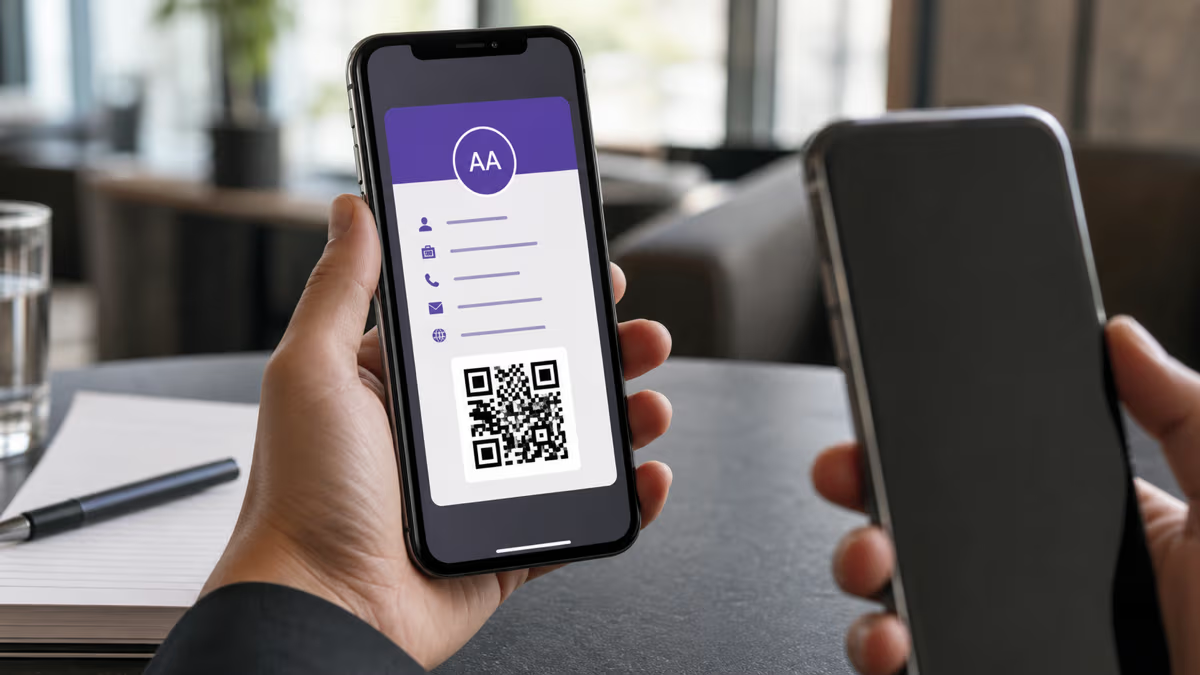
QRLynx Business Card opens a hosted profile that can contain professional details, a profile image, links, a downloadable contact card, and supported Apple Wallet and Google Wallet actions. It is dynamic, so you can update the hosted details while the printed QR stays the same and review its scan activity in QRLynx.
Website / Link: one focused destination
Choose Website / Link when the card should open one portfolio, company page, booking calendar, product, listing, or campaign page. QRLynx lets you use a static URL QR or a dynamic version when editable destination and QRLynx scan analytics matter.
Multi Links: several actions on one hosted page
Choose Multi Links when the recipient should select among a portfolio, LinkedIn profile, booking page, store, social profiles, or other destinations. Keep the page focused. A business card should help someone choose, not reproduce every link you own.
QRLynx business-card QR choices
| QRLynx type | Scan result | Editable after print | QRLynx scan analytics | Best fit |
|---|---|---|---|---|
| Contact Card | Native contact-save prompt | No | No | Stable contact details and direct saving |
| Business Card | Hosted professional profile | Yes | Yes | Editable identity, contact download, wallet, and analytics |
| Website / Link | One destination | Dynamic mode only | Dynamic mode only | Portfolio, booking, listing, or campaign page |
| Multi Links | Hosted page with several links | Yes | Yes | Several professional actions |
Static or dynamic is a product decision, not a quality score
A static Contact Card is useful when the printed details are stable and the shortest route to a native contact-save prompt matters most. Its payload lives in the symbol, so the contact data can be read without a QRLynx redirect. More vCard fields create more encoded data and usually a denser symbol.
A dynamic QRLynx Business Card, Multi Links page, or dynamic Website / Link QR is useful when you need to update content after printing or measure scans through QRLynx. It requires an internet connection to open the hosted page or resolve the redirect. The printed QR can remain unchanged while the managed destination or profile changes.
Choose based on the expected life of the card. If a role, company, phone number, portfolio, or booking URL may change while cards remain in circulation, a dynamic path protects the print investment. If the goal is a direct offline contact payload and the details are stable, Contact Card is simpler.
How to create a business card QR code in QRLynx
Build the scan journey first, then design and test the physical card around it.
Define the action after the scan
Decide whether the recipient should save a contact, open an editable professional profile, visit one destination, or choose among several links. Write the call to action that will appear beside the QR before choosing the type.
Choose the exact QRLynx type
Select Contact Card for a direct vCard payload, Business Card for an editable hosted profile with contact and wallet actions, Website / Link for one destination, or Multi Links for several professional destinations.
Enter and verify the final content
Add the exact name, role, organization, phone, email, address, profile details, or destination required by the selected type. Open every URL and proofread every contact field. Do not print a temporary destination or placeholder identity.
Choose static or dynamic where QRLynx offers the choice
Use static for a direct, fixed payload. Use dynamic when the printed QR must keep working after destination changes or when QRLynx scan analytics are required. Contact Card is static-only, while Business Card and Multi Links use hosted dynamic pages.
Design for decoding before decoration
Use a dark QR foreground on a light quiet zone, preserve all three finder patterns, and keep the four-module clear margin required around a standard QR symbol. If you add brand colors, a frame, or a logo, keep the contrast strong and review the QRLynx readability feedback.
Export for the print workflow
Use resolution-independent SVG or an A4 PDF when your QRLynx plan includes those downloads and the printer accepts them. Otherwise export a sufficiently large PNG and place it without stretching or resampling. Confirm the print shop color mode, bleed, and safe-area requirements separately from the QR quiet zone.
Place the QR with a specific label
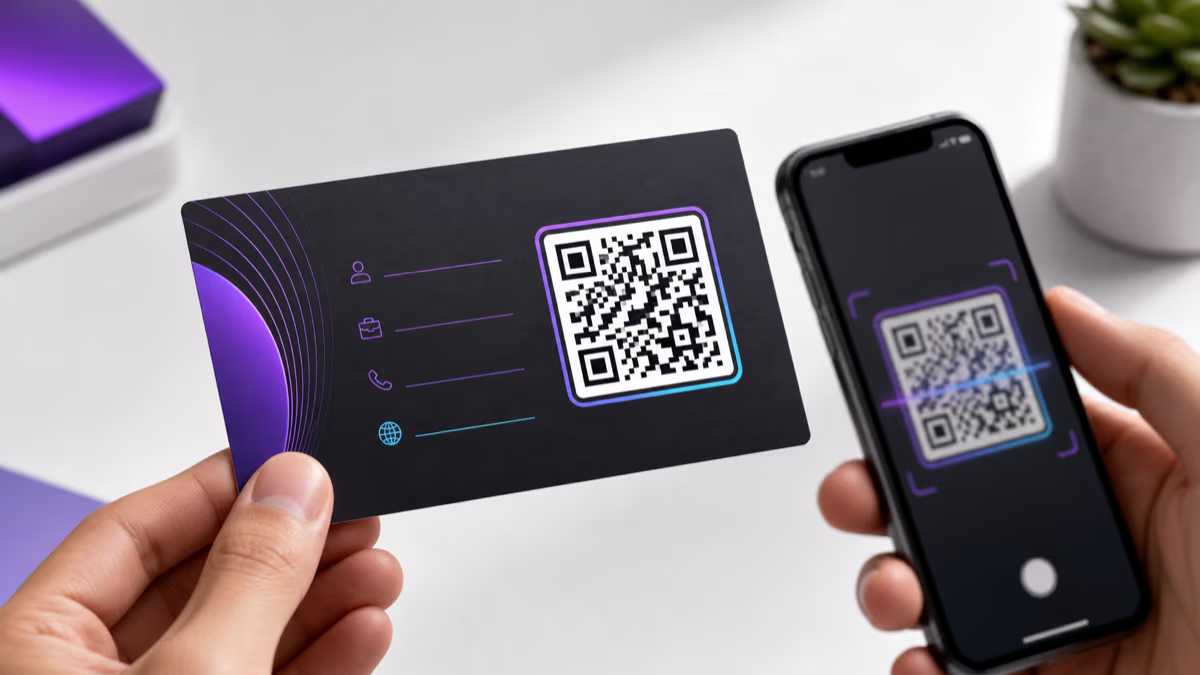
Give the QR its own visual space and add wording such as Scan to save my contact, View my portfolio, or Book a call. Start with a practical printed size that fits the card, then enlarge it when a dense payload, low-contrast material, longer scan distance, or print process makes modules harder to resolve.
Test the final physical proof
Print one proof at actual size and scan it with more than one phone under realistic lighting. Complete the whole journey: save the contact, open each link, check the hosted profile, verify the wallet action where relevant, and confirm that a dynamic QR appears in QRLynx analytics before ordering the full batch.
Business-card journey selected
Create the business card QR in QRLynx
Choose Contact Card, Business Card, Website / Link, or Multi Links, then test the final printed proof before ordering the full batch.
Size a business-card QR from its modules
QR standards define symbol versions and a clear margin, not one universal physical size for every business card. A standard QR can range from 21 by 21 modules at Version 1 to 177 by 177 modules at Version 40. DENSO WAVE specifies a quiet zone four modules wide on every side. The finished square therefore includes the symbol width plus eight clear modules.
The physical result depends on how small the printer can reproduce each module cleanly, how dense the payload is, the paper and finish, lighting, camera distance, and the amount of customization. A 20 to 25 mm square is a useful starting proof for many business cards, but it is not a guarantee. A dense Contact Card may need more space than a short dynamic URL because it contains more data.
Practical method: export the actual final QR, place it at the intended size, print it through the real production process, and scan the physical proof. If decoding is slow or inconsistent, simplify the payload or design, increase contrast, enlarge the QR, or choose a shorter dynamic path.
Print and design rules that survive production
Preserve the four-module quiet zone
The clear margin belongs to the QR, not the card layout. Do not let a border, photograph, texture, text, crop mark, or decorative pattern enter it. A white or light quiet-zone panel can protect the code when the card background is dark or busy.
Protect contrast and finder patterns
Dark modules on a light background provide the safest starting point. Brand colors can work when luminance contrast remains strong. Color inversion, gradients through finder patterns, transparent backgrounds over photography, and metallic inks require especially careful physical testing.
Treat error correction as recovery capacity, not a design allowance
QR error-correction levels can restore an approximate share of damaged codewords, with Level H offering the most recovery. That does not mean 30% of the visible symbol can be covered anywhere. Damage location, symbol density, masking, print quality, and logo placement all matter. QRLynx automatically uses Level M for Contact Card payloads to control density, and its design controls can raise error correction for other layouts. Keep logos restrained and test the exported result.
Use the printer's preferred asset
SVG preserves vector edges. The A4 PDF contains a high-resolution raster QR image. A high-resolution PNG can also work when placed at its intended size without resampling. JPG is available from QRLynx, but lossy compression makes it a weaker print choice for hard-edged QR modules. Ask the printer which format enters its workflow without conversion.
Test the chosen finish
Matte and uncoated stocks usually avoid reflections. Gloss, foil, spot UV, embossing, textured stock, rounded cuts near the QR, and dark substrates can all change the scan conditions. Test the exact finish rather than relying on the screen proof.
What information belongs behind the QR?
For a static QRLynx Contact Card, include only fields that are useful and likely to remain accurate: name, role, organization, one or more relevant phone numbers, professional email, website, and work address. QRLynx encodes these as vCard 3.0. The Contact Card type does not include a profile photo. Reducing unnecessary fields can reduce symbol density and improve the print margin for error.
For QRLynx Business Card, use the hosted page for information that benefits from presentation or future editing, such as a profile image, short bio, department, several contact methods, links, downloadable contact details, and supported wallet actions. For Website / Link or Multi Links, keep the destination mobile-friendly and put the most important action first.
Printed text still matters. Keep the person's name and at least one fallback contact method readable on the card. The QR should accelerate the exchange, not make the card unusable when a phone is unavailable.
Match the QR journey to the networking context
- Sales and consulting: use Business Card or Multi Links when a contact download, calendar, case study, and LinkedIn profile all matter. Use separate named dynamic QRs for different events if you want placement-level analytics.
- Real estate: use a dynamic Website / Link QR for one current profile or listing hub, or Multi Links for listings, booking, reviews, and contact options. Avoid printing a static property URL that will become stale.
- Design and freelance work: use Website / Link for one portfolio or Multi Links when different work categories need separate destinations.
- Medical, legal, and regulated services: keep the card focused on professional contact and verified practice information. Do not encode confidential client or patient data.
- Local service businesses: choose between direct contact saving and a hosted page with booking, reviews, service area, and contact actions. A Google review link can be one option, but it should not replace the primary contact path.
Use a specific label beside every QR. Clear wording such as Scan to save my contact or Scan to view my portfolio tells the recipient what will happen and makes the printed card easier to trust.
Business-card QR print preflight
| Check | Pass condition | Why it matters |
|---|---|---|
| Destination or contact payload | Final, accurate, and mobile-tested | The QR reproduces exactly what you encode |
| Quiet zone | Four clear modules on every side | The camera can isolate the symbol |
| Contrast | Dark modules, light background, finder patterns clear | Low contrast slows or prevents decoding |
| Physical proof | Scans on multiple phones in realistic light | A screen preview cannot reproduce paper and finish |
| Complete journey | Contact saves or every destination opens correctly | A decoded QR can still lead to a broken outcome |
| Dynamic measurement | Test scan appears in QRLynx analytics | Confirms that the printed code uses the intended managed path |
Apple Wallet and Google Wallet require QRLynx Business Card
The static QRLynx Contact Card and the hosted QRLynx Business Card are different products. Wallet actions belong to the hosted Business Card flow. A visitor opens the public card and can use the supported Apple Wallet or Google Wallet action, then follow the platform confirmation steps. The same hosted card also provides a contact-download action.
QRLynx creates the wallet pass from the saved Business Card. Apple controls adding the pass to Apple Wallet, while Google uses a signed Add to Google Wallet flow tied to a Google identity. Wallet availability and confirmation behavior depend on the visitor's platform and account. See the QRLynx wallet business-card guide for the complete platform-specific workflow.
Common failures and the first thing to check
- Slow or inconsistent decoding: enlarge the QR, simplify a dense payload, restore stronger contrast, clear the quiet zone, and test the physical finish.
- The wrong contact details appear: correct the QRLynx fields and regenerate a static Contact Card. A printed static payload cannot be edited remotely.
- A hosted card or URL is outdated: update the QRLynx Business Card, Multi Links page, or dynamic destination, then test the existing printed QR.
- The code scans but the action fails: test the destination, contact download, wallet confirmation, booking form, and mobile layout separately from QR decoding.
- No QRLynx analytics appear: confirm that the printed QR is dynamic. Direct scans of a static Contact Card or static Website / Link QR do not pass through QRLynx tracking.
- The printer proof differs from the design: check whether the print workflow rasterized, compressed, recolored, cropped, or rescaled the QR.
Business card QR code FAQ
Practical answers about QRLynx types, sizing, printing, editing, analytics, and wallet support.
What size should a QR code be on a business card?
There is no universal physical minimum for every payload and printer. DENSO WAVE requires a four-module quiet zone around a standard QR symbol. A 20 to 25 mm square is a practical starting proof for many cards, but dense payloads and difficult finishes may need more space. Print the final QR at actual size and test it before the full order.
Which QRLynx type is best for a business card?
Use Contact Card for a fixed vCard and direct native contact-save prompt. Use Business Card for an editable hosted profile with contact download, supported wallet actions, and QRLynx analytics. Use Website / Link for one destination or Multi Links for several.
Should the QR be on the front or back?
Either can work when the QR has enough space, contrast, and a clear label. The back often gives the symbol and call to action more room. Test the actual layout rather than relying on a front-versus-back rule.
Can I update the QR after printing the card?
A static Contact Card cannot be changed after printing because its vCard payload is inside the QR. QRLynx Business Card, Multi Links, and a dynamic Website / Link QR keep a managed path, so their hosted content or destination can be updated while the printed symbol stays the same.
Can QRLynx track business-card scans?
QRLynx can record scans that pass through a dynamic QRLynx route, including Business Card, Multi Links, and dynamic Website / Link QRs. It cannot observe a direct static Contact Card scan. Analytics are aggregated and do not identify the person who scanned.
Does a QRLynx Contact Card include a photo?
No. The current static Contact Card fields cover name, role, organization, phones, email, website, and work address. Use QRLynx Business Card when you need a hosted profile image, richer presentation, contact download, and wallet actions.
What format should I send to the printer?
Use resolution-independent SVG or an A4 PDF when your QRLynx plan and print workflow support those downloads. A sufficiently large PNG can also work when placed without resampling. Ask the printer which asset will remain unchanged through its workflow, then scan a physical proof.
Can I put a logo inside the QR?
Yes, but error correction is not permission to cover an arbitrary percentage of the visible symbol. Keep the logo restrained, protect the finder patterns and quiet zone, use strong contrast, review QRLynx readability feedback, and test the exported QR on the final stock and finish.
Does a business-card QR need internet access?
A static Contact Card carries its vCard payload inside the symbol and does not need a QRLynx server to reveal that data. QRLynx Business Card, Multi Links, and dynamic Website / Link QRs need internet access to open the hosted page or managed destination.
Can a QRLynx business card be saved to Apple Wallet or Google Wallet?
The hosted QRLynx Business Card supports platform-specific Apple Wallet and Google Wallet actions. The visitor opens the public card and follows the wallet confirmation flow. The static Contact Card type does not create a wallet pass.
Is a QR code professional on a business card?
It can be when the scan has a clear purpose, the card still shows essential identity information, the QR fits the visual hierarchy, and the complete journey works. A labeled, tested QR is more credible than an unexplained symbol or a crowded card.
How do I test a business-card QR before printing?
Print one proof at actual size through the intended production process. Scan it with more than one phone under realistic light, complete the contact or web journey, verify wallet actions where relevant, and confirm a dynamic test scan in QRLynx analytics.