Add a QRLynx Business Card to Apple Wallet and Google Wallet

Key Takeaway
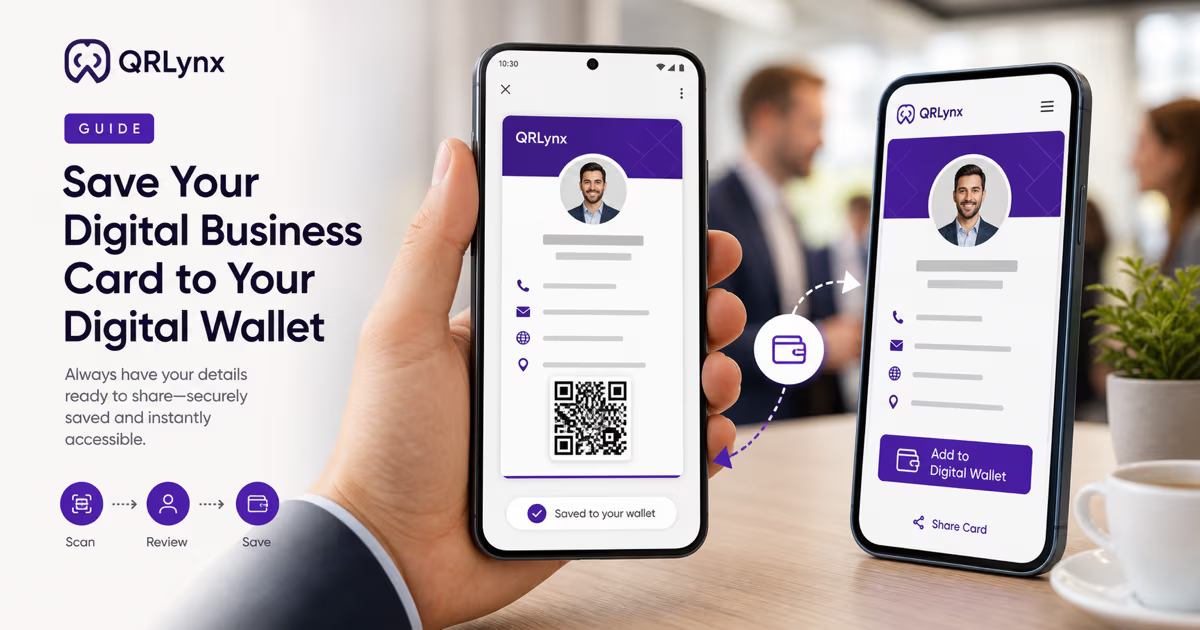
Create one QRLynx Business Card, save it to Apple Wallet and Google Wallet, verify each pass, refresh edits, and troubleshoot the complete sharing flow.
QRLynx creates one Business Card with two wallet save paths
Create and save a QRLynx Business Card, open its public profile, then use the wallet action that matches the recipient. QRLynx builds a signed Apple Wallet pass for supported Apple devices and a signed Google Wallet Generic Pass for Google's save flow. The hosted QRLynx card remains the live profile and contact-sharing destination behind both pass QR codes.
A wallet business card gives a recipient a recognizable card inside Apple Wallet or Google Wallet, plus a QR that opens the full hosted profile for sharing and contact actions. It complements the recipient's Contacts app rather than replacing it.
QRLynx supports this through the Business Card QR type. The owner creates one dynamic hosted profile with professional details, an image, brand color, contact download, and a stable public page. QRLynx then creates the platform-specific pass when a visitor chooses Add to Apple Wallet or Add to Google Wallet.
This overview covers the complete two-platform workflow, what each pass contains, how edits are refreshed, and how to test the saved result. For platform-only detail, use the dedicated Apple Wallet guide or Google Wallet guide.
Choose Business Card, not the static Contact Card type
QRLynx has two useful contact-sharing paths. Contact Card directly encodes a vCard 3.0 payload in a static QR, which suits stable details and a short path to the phone's contact import screen. Business Card creates the dynamic hosted profile required for the QRLynx Apple Wallet and Google Wallet save actions.
Choose Business Card when you want the wallet pass, an editable public profile, a profile image, several professional links, and QRLynx scan analytics. Choose Contact Card when a fixed contact payload is the goal and wallet storage is not required. A wallet pass and a saved contact remain separate items, so test both the wallet action and Save to Contacts from the public card.
QRLynx wallet paths at a glance
| Path | What QRLynx issues | Recipient step | Refresh path |
|---|---|---|---|
| Apple Wallet | Signed PassKit Generic Pass (.pkpass) | Review the Apple pass preview and choose Add | Edit and save the QRLynx card, then open the Apple wallet action again |
| Google Wallet | Signed Google Wallet Generic Pass save URL | Use the intended Google identity and confirm the save | Edit and save the QRLynx card, then open the Google wallet action again |
| Hosted QRLynx card | Dynamic public professional profile | Open links, call, email, or save the contact | Saved QRLynx edits appear on the hosted profile |
| Static Contact Card QR | Direct vCard 3.0 payload | Scan and use the phone contact import screen | Create and print a new QR when encoded details change |
How to add a QRLynx Business Card to Apple Wallet and Google Wallet
Create the dynamic hosted card once, then verify each platform-specific pass and the live profile behind it.
Define the professional profile and sharing goal
Decide which name, role, company, phone numbers, email, website, address, image, bio, and links recipients should see. Include only professional details intended for public sharing.
Choose Business Card in QRLynx
Sign in to QRLynx, open the QR generator, and select Business Card. This exact QRLynx type creates the dynamic hosted profile and wallet save routes. The static Contact Card type creates a direct vCard QR instead.
Enter and verify the final card details
Add the final profile content, upload the intended image, choose a readable brand color, and open every link. Confirm phone and email actions before sharing the card.
Save the dynamic QRLynx card
Save the Business Card so QRLynx assigns its stable public profile and managed QR. The dynamic page can reflect later edits while the public route and printed QR remain stable.
Test the hosted card and contact action
Open the public QRLynx card while signed out. Check its design, image, links, phone, email, and Save to Contacts action. Scan the finished QR from a second phone and confirm that it reaches the same profile.
Save the Apple Wallet pass
Open the public card on a supported Apple device, choose Add to Apple Wallet, review the pass preview, and confirm Add. QRLynx serves a signed .pkpass with a stable serial number derived from the card slug.
Save the Google Wallet pass
Choose Add to Google Wallet, sign in with the Google identity that should own the pass when prompted, review the information, choose an eligible device when offered, and confirm the save.
Inspect and scan both finished passes
Open each saved pass, verify the visible name, role, company, image, contact rows, brand color, and QR, then scan its QR with another device. Confirm that it opens the correct public QRLynx card and repeat this verification after important edits.
Professional profile ready
Create the wallet-ready Business Card in QRLynx
Build one dynamic professional profile, then test its Apple Wallet, Google Wallet, contact-save, and QR sharing paths.
How the QRLynx Apple Wallet pass works
QRLynx builds an Apple PassKit Generic Pass from the saved Business Card. The downloadable .pkpass contains a pass.json definition, images, a manifest of packaged files, and a detached PKCS#7 signature created with the configured Pass Type ID certificate and Apple certificate chain. QRLynx serves it with the Apple pass MIME type so the supported Apple flow can show the pass preview.
The current pass uses the QRLynx card slug as its serial number. Apple identifies a pass by its Pass Type Identifier and serial number, so opening a newly generated pass for the same card targets the same pass identity. QRLynx does not currently include Apple's push-update web service fields. After an important card edit, verify the hosted card and use the Apple wallet action again to install the refreshed signed pass.
Apple documents pass distribution from a website download and says a new pass with the same identifier and serial number can update an existing pass. Apple controls the preview, confirmation, Wallet storage, and final presentation.
How the QRLynx Google Wallet pass works
QRLynx builds a Google Wallet Generic Pass object from the saved Business Card. It signs a Save to Google Wallet JSON Web Token with its configured service account and sends the browser to Google's save URL. Google documents that this issuer link operates in the context of a logged-in Google identity.
The current QRLynx object ID is derived from the card slug, which keeps the pass identity stable across saves. After an important card edit, confirm the hosted profile and choose Add to Google Wallet again so the refreshed object targets the same QRLynx card identity.
Google controls account sign-in, eligible devices, confirmation, Wallet storage, and presentation. Availability can vary by country, region, device, pass type, and account state, so follow the on-screen Google flow rather than relying on a fixed device or country list.
What the current QRLynx wallet passes contain
Both passes carry selected professional details and a QR that returns to the public QRLynx card. Wallet controls the exact layout, so treat field placement as platform-managed rather than a fixed design promise.
Apple Wallet pass
- name, title, company, and department when supplied;
- a primary phone and email on the visible pass fields;
- additional phone numbers, website, address, bio, and View Online link in the additional details;
- the saved brand color, QRLynx pass assets, and optional profile thumbnail;
- a QR pointing to the public QRLynx Business Card.
Google Wallet pass
- name, title, and company in the main pass identity;
- available phone, email, website, address, department, and bio rows;
- the selected brand color and a public profile image or QRLynx fallback image;
- a QR pointing to the public QRLynx Business Card.
The hosted card remains the complete experience for live links, contact actions, and current profile content.
Refresh the pass after important profile edits
Editing the QRLynx Business Card updates the hosted profile. The saved wallet copy is a separately issued pass, so use a deliberate refresh workflow after changing a name, role, company, image, phone, email, or other pass field.
- Edit and save the Business Card in QRLynx.
- Open the public profile and verify every changed field.
- Choose the relevant wallet action again.
- Review the refreshed pass and confirm the save.
- Open the installed pass and scan its QR back to the hosted profile.
This approach keeps the live QRLynx profile as the source you verify first while preserving stable Apple serial and Google object identities for the card.
Privacy and ownership boundaries
QRLynx stores the Business Card fields needed to render the public profile and generate the requested pass. The public card and its QR are intended for sharing, so include only details suitable for recipients and anyone who receives the link.
For Apple Wallet, QRLynx packages and signs the requested pass before the recipient confirms it in Apple's interface. For Google Wallet, QRLynx signs selected pass data and sends the recipient to Google's save service. Apple and Google govern their Wallet apps, accounts, supported devices, storage, and privacy controls.
QRLynx scan analytics can record visits that use the managed card QR or public route. They do not identify who saved a pass or expose a recipient's wallet library. Review the current QRLynx privacy policy and the applicable Apple or Google terms when your organization has specific data-handling requirements.
Troubleshoot the exact stage that failed
| Stage | What to verify | Next action |
|---|---|---|
| Wallet action is missing | The item is a saved QRLynx Business Card and the public card is open | Open the saved public profile and try the platform-appropriate action |
| Apple pass does not open | Supported Apple device and browser flow, network, and exact public card | Retry from the public QRLynx card, then contact QRLynx support with the card slug |
| Google asks for sign-in | The intended Google identity and eligible device | Complete Google sign-in and return to the issuer save flow |
| Field or image is old | The current hosted QRLynx card shows the saved edit | Open the matching wallet action again and verify the refreshed pass |
| Pass QR opens the wrong page | The card slug, publication state, and tested pass belong together | Open the current public profile, regenerate the pass, and scan it from another device |
| Contact is not saved | The wallet pass and Save to Contacts are separate actions | Open the pass QR or public card and complete Save to Contacts |
Final two-platform verification checklist
- The QRLynx QR type is Business Card.
- The public profile opens while signed out.
- The name, role, company, image, phone, email, website, and intended links are correct.
- The card uses a readable brand color and the QR scans from a second phone.
- Save to Contacts creates the intended contact details.
- The Apple wallet action reaches the pass preview on a supported Apple device.
- The Google wallet action reaches Google's confirmation flow with the intended identity.
- Each saved pass shows the intended details.
- Each pass QR opens the same current public QRLynx card.
- The refresh workflow has been tested after one controlled edit.
QRLynx Apple Wallet and Google Wallet questions
Can QRLynx add one business card to both Apple Wallet and Google Wallet?
Yes. Create one saved QRLynx Business Card. Its public profile can provide an Apple Wallet pass flow and a Google Wallet Generic Pass flow, while both pass QR codes return to the same hosted card.
Which QRLynx QR type includes wallet save?
Choose Business Card. It creates the dynamic hosted profile and wallet routes. The static Contact Card type directly encodes a vCard 3.0 payload and does not create the same hosted wallet workflow.
Is wallet save included on the free QRLynx plan?
Yes. Apple Wallet and Google Wallet save are included for QRLynx Business Cards on every plan. The free plan includes 3 active dynamic QR codes and unlimited scans.
Does the recipient need a QRLynx account?
No QRLynx account is required to open the public card or use its recipient actions. Google documents that its issuer save link runs in the context of a logged-in Google identity. Apple and Google control their own confirmation requirements.
Does saving the wallet pass also create a phone contact?
No. The wallet pass and phone contact are separate items. The recipient can open the public QRLynx card from the pass QR and complete the Save to Contacts action there.
Will an edited QRLynx card automatically change an installed pass?
The hosted QRLynx profile reflects saved edits. For important pass fields, verify the hosted card and choose the relevant wallet action again. The current QRLynx implementation uses stable Apple and Google pass identities but does not promise background push refresh for every installed pass.
Can recipients share the card from the wallet pass?
Yes. The current QRLynx passes include a QR that opens the public Business Card. Another person can scan that QR to view the live profile and use its contact actions.
Does the pass work without internet access?
Wallet may display the locally saved pass data without a connection. Opening the public QRLynx card, using live links, refreshing pass content, and recording a managed scan require network access.
Can a QRLynx wallet pass share contact details by NFC?
The current QRLynx Business Card wallet workflow uses the visible pass and its QR for sharing. It does not advertise an NFC credential or phone-to-phone NFC contact exchange.
Can Apple Wallet passes move directly into Google Wallet?
They are separate pass ecosystems. Open the public QRLynx card on the new platform and use its matching wallet action to save the appropriate pass.
What happens after I change the card slug?
The slug contributes to the public URL and stable wallet identity. Treat a slug change as a migration: test the public card, generate fresh passes, and verify every shared or printed route before retiring the previous address.
Where should I start when a wallet save fails?
Open the public QRLynx Business Card, confirm that the current profile works, then retry the platform-specific wallet action. Record the card slug, device, browser, account state, and exact message when contacting support.
Sources and related QRLynx guides
- Apple Developer: Distributing and updating a pass
- Apple Developer: Creating the source for a pass
- Google Wallet Generic Pass overview
- Google Wallet: Issuing passes for web, email, and SMS
- Google Wallet Help: Manage items in Google Wallet
- QRLynx Apple Wallet business-card guide
- QRLynx Google Wallet business-card guide
- QRLynx Apple Wallet versus Google Wallet comparison
- QRLynx QR business-card guide