How to Add a QRLynx Business Card to Google Wallet

Key Takeaway
Create a QRLynx Digital Business Card, save its signed Google Wallet Generic Pass, verify the QR, refresh card details, and troubleshoot the flow.
Reviewed July 2026 against current Google Wallet documentation and the current QRLynx Digital Business Card and pass-signing implementation.
QRLynx creates the card and signs the Google Wallet pass
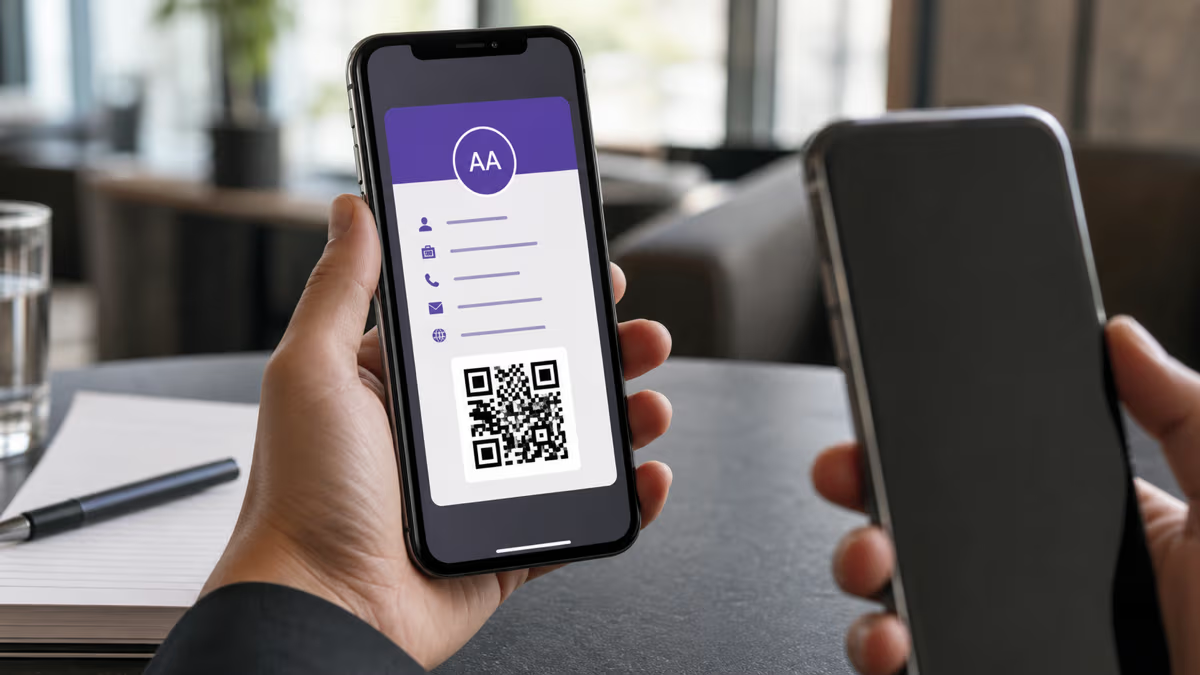
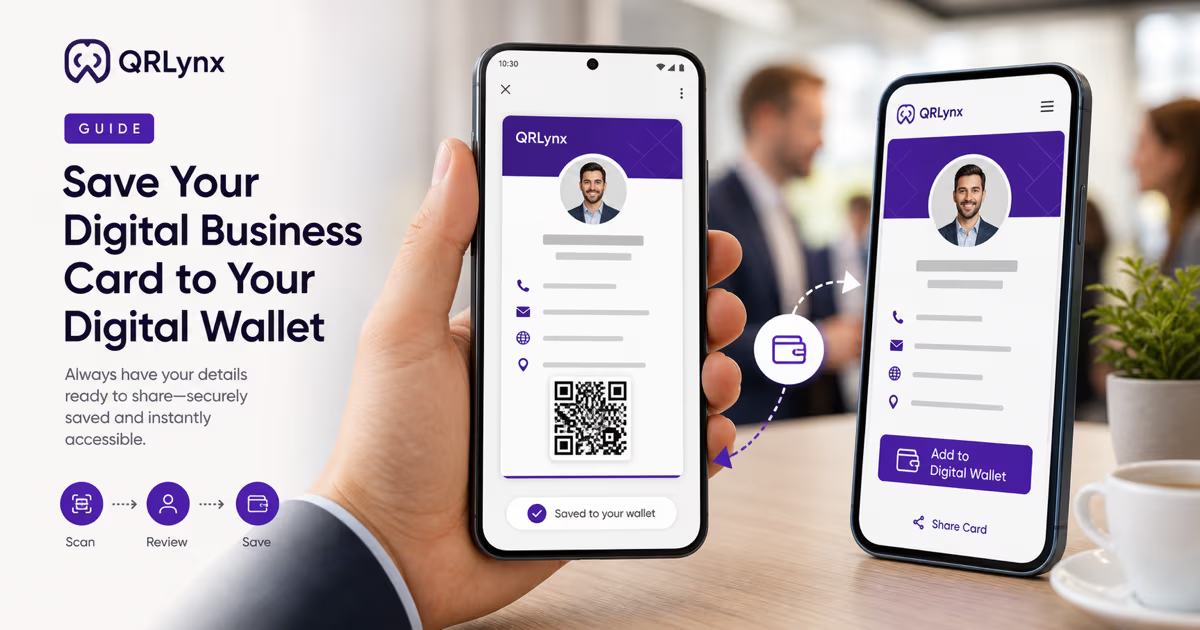
Create and save a QRLynx Digital Business Card, open its public card page, then choose Add to Google Wallet. QRLynx builds a Google Wallet Generic Pass from the saved card, signs the save request with its approved issuer credentials, and sends the user to Google's confirmation flow. Google Wallet availability, account sign-in, device selection, and final save remain part of Google's experience.
How to add a QRLynx business card to Google Wallet
Create the exact Digital Business Card, publish it, save its signed pass, and verify both the pass and the QR journey.
Create a free QRLynx account
Sign in or create an account so QRLynx can save the Digital Business Card and assign its stable public card page. Google Wallet pass creation is included for QRLynx Digital Business Cards on every plan.
Choose Digital Business Card in QRLynx
Open the QRLynx generator and select Digital Business Card. This is the exact QRLynx type that creates the hosted profile and wallet-save options. A plain static Contact QR does not create the same hosted card workflow.
Enter the card details and visual identity
Add the name and the contact fields you want to share, such as title, company, phone, email, website, address, department, and short bio. Add a public profile image and choose a clear brand color. Review every field because selected card data is included in the wallet pass.
Save and test the public QRLynx card
Save the card, open its public QRLynx profile page, and test the QR, contact actions, links, image, and Save to Contacts journey on a phone. The Google Wallet pass QR points back to this hosted card page.
Choose Add to Google Wallet
On the public card page, select Add to Google Wallet. QRLynx loads the saved card, builds a Generic Pass object with a stable ID, signs a Save to Google Wallet JWT, and redirects to Google's save URL.
Complete the Google confirmation flow
Sign in to the intended Google account when prompted, review Google Wallet and issuer terms, choose the device when Google offers that option, and confirm the save. Google states that availability varies by country, region, device, pass type, and account state.
Open and verify the saved pass
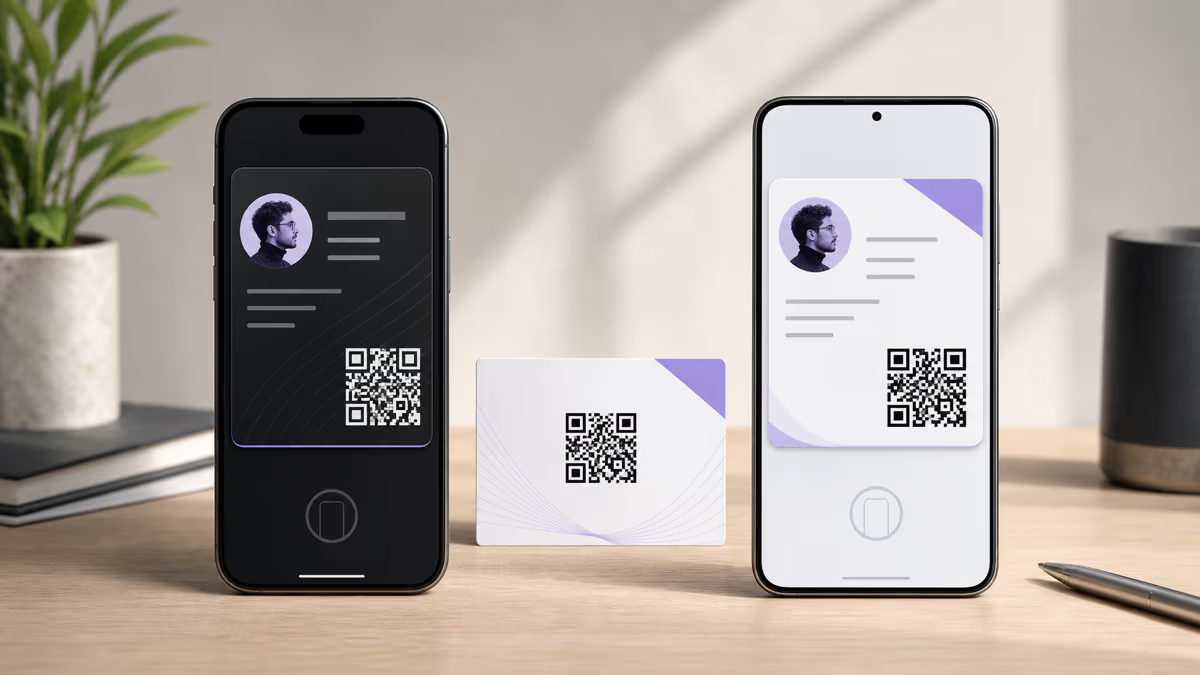
Open the pass in Google Wallet and verify the name, title or company, image, contact rows, background color, and QR. Scan the pass QR with another device and confirm that it opens the correct public QRLynx card.
Refresh the pass after important card edits
Edit and save the Digital Business Card in QRLynx, confirm the hosted page, then open Add to Google Wallet again. QRLynx reuses the stable pass object ID so saving the refreshed pass updates that object rather than creating a second card with a new identity.
Contact details ready
Create the Google Wallet-ready card in QRLynx
Build a hosted Digital Business Card, publish it, and save the signed pass from its public page.
What each layer contributes
| Layer | Owner | Role in the workflow |
|---|---|---|
| Digital Business Card | QRLynx | Stores the professional profile and provides the public card page |
| Google Wallet Generic Pass | QRLynx issuer integration and Google Wallet | Packages selected card details into a saveable wallet item |
| Pass QR | QRLynx | Links back to the public QRLynx card for viewing and resharing |
| Save confirmation | Google Wallet | Handles account sign-in, terms, eligible device selection, and final save |
| Contact save | Public QRLynx card and recipient device | Lets the recipient review and save the shared contact details |
What the QRLynx Google Wallet pass contains
Google describes the Generic Pass as the flexible pass type for use cases that do not match a more specialized ticket, loyalty, or offer class. QRLynx uses that format for a Digital Business Card.
The current QRLynx pass object can include:
- the cardholder's name as the pass header;
- title and company as the subheader;
- a public profile image or QRLynx fallback image;
- phone, work phone, mobile, email, website, address, department, and bio rows when supplied;
- the selected card color as the pass background;
- a QR code that opens the public QRLynx card page.
The pass is a wallet copy of selected card details and a route back to the live profile. The hosted QRLynx card remains the fuller sharing and contact-action surface.
Google Wallet pass, hosted card, vCard, and paper card
| Format | Best use | How updates work |
|---|---|---|
| QRLynx Google Wallet pass | Keeping a scannable professional card in Google Wallet | Reopen Add to Google Wallet after important QRLynx card edits to save the refreshed stable object |
| QRLynx hosted card | Viewing current details, links, photo, and contact actions on any modern browser | Saved QRLynx edits appear on the hosted page |
| vCard contact file | Importing a snapshot into a contacts app | A recipient's saved contact remains a separate copy |
| Paper business card | Physical exchange and offline reading | A content change requires a new print run or an accompanying dynamic QR destination |
Troubleshoot the save flow by its exact stage
The Add to Google Wallet option is missing
Confirm that the QR is a saved QRLynx Digital Business Card and open its public card page. Wallet buttons depend on the saved card workflow and QRLynx wallet configuration rather than a generic QR preview.
Google asks for sign-in
Google documents account sign-in as part of saving issuer passes. Sign in with the Google account intended to own the pass, then return to the save flow.
Google reports that the pass cannot be saved
Check supported-country and device availability, account state, connection, and the exact issuer page. Google recommends contacting the pass issuer when the pass itself causes the error. QRLynx support can investigate the card slug and wallet route.
The image or a field is missing
Return to the QRLynx card, verify that the field is saved, and use a publicly accessible HTTPS profile image. Save the card and reopen the Google Wallet flow.
The pass shows old card details
Confirm the current hosted card first, then choose Add to Google Wallet again. QRLynx uses a stable object ID derived from the card slug so the refreshed save targets the same pass identity.
Privacy and data ownership
QRLynx stores the Digital Business Card fields needed to render the public profile and build the requested wallet pass. When someone chooses Add to Google Wallet, QRLynx signs a payload containing selected card details and sends the browser to Google's save service.
Google Wallet associates the saved pass with the Google account and eligible device chosen in its flow. Google's current Wallet privacy terms and account controls govern that saved copy. The public QRLynx card remains reachable through its URL and the pass QR according to the card's publication state.
Share only professional details intended for recipients. Health records, government identifiers, private access credentials, financial secrets, passwords, and other sensitive material belong in systems designed and approved for those data classes.
Final verification checklist
- The QRLynx item is the Digital Business Card type.
- The public card page opens without owner-only access.
- The name, title, company, photo, phone, email, website, and other intended fields are correct.
- The Add to Google Wallet option reaches Google's confirmation flow.
- The pass saves to the intended Google account and device.
- The pass QR opens the correct QRLynx public card.
- The hosted card's Save to Contacts journey is tested.
- Old or private information has been removed before sharing.
- After a major edit, the hosted card is checked and the refreshed pass is saved again.
- An Apple Wallet or ordinary web-card route is available when the recipient uses a different device ecosystem.
QRLynx and Google Wallet business card questions
Can I add a business card to Google Wallet with QRLynx?
Yes. Create and save a QRLynx Digital Business Card, open its public card page, and choose Add to Google Wallet. QRLynx builds and signs a Google Wallet Generic Pass, then Google handles the confirmation and final save.
Is Google Wallet save included on the free QRLynx plan?
Yes. Google Wallet and Apple Wallet save are included for QRLynx Digital Business Cards on every plan. The free plan includes 3 active dynamic QR codes and unlimited scans.
Do I need my own Google Wallet developer account?
No. QRLynx operates the approved issuer integration and signs the pass save request. The card creator uses the QRLynx Digital Business Card workflow rather than configuring a Google Cloud issuer project.
Which QRLynx QR type works with Google Wallet?
Choose Digital Business Card. That type creates the hosted profile and the wallet-save routes. A plain static Contact QR can share vCard data but does not create the same hosted Google Wallet pass workflow.
What information appears in the Google Wallet pass?
The current QRLynx pass can include the name, title and company, profile image, selected phone and email fields, website, address, department, bio, card color, and a QR that opens the hosted QRLynx card. Empty fields are omitted.
Does the pass automatically update after I edit QRLynx?
The hosted QRLynx card reflects saved edits. For an important wallet-pass change, verify the hosted card and choose Add to Google Wallet again. QRLynx reuses the stable pass object ID so the refreshed save targets the same card identity.
How can another person use the QR on my Wallet pass?
Show the pass QR on your screen. The other person scans it with a QR-capable camera or scanner, which opens the public QRLynx card. They can then review the details and use the card's contact actions.
Does saving the pass also save a contact automatically?
The pass keeps selected details in Google Wallet and links back to the hosted card. The recipient reviews and completes the Save to Contacts action from the QRLynx card, keeping the wallet pass and contacts entry as distinct items.
Why does Google Wallet ask me to sign in?
Google uses the account to complete the wallet save and associate the pass with eligible devices. Sign in with the account intended to own the pass and follow Google's confirmation steps.
Can an iPhone user open the same QRLynx card?
Yes. The hosted QRLynx card works in a modern browser. QRLynx also provides an Apple Wallet save route for supported Digital Business Cards, while Google Wallet and Apple Wallet remain separate pass ecosystems.
Can I create more than one Wallet business card?
Yes. Each saved QRLynx Digital Business Card has its own slug, hosted page, QR, and stable Google Wallet object identity. The active dynamic-code limit of the account still applies.