Can Canva Make QR Codes? How to Use QRLynx with Canva

Key Takeaway
Create a managed QRLynx QR for a Canva design, choose static or dynamic, preserve contrast and quiet zone, export correctly, and test the final file or print.
Use Canva for the layout and QRLynx for the QR lifecycle
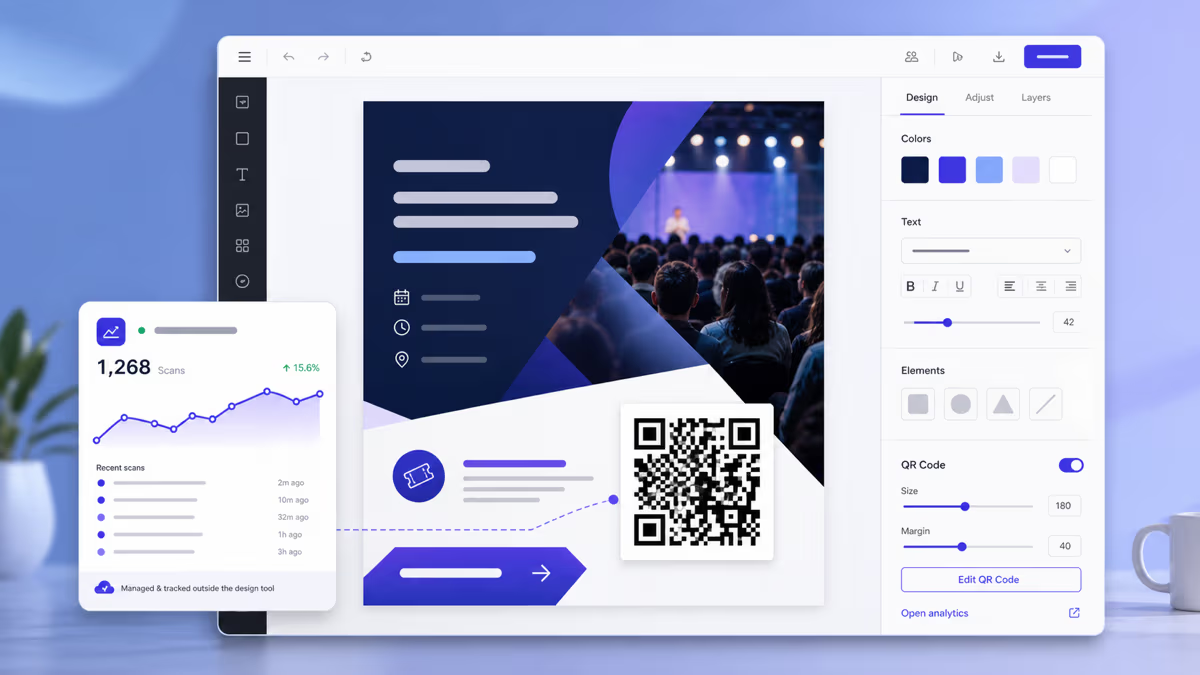
Canva can place a QR inside a flyer, card, poster, presentation, menu, or social design. For an editable destination, QRLynx scan analytics, a dedicated QR type, or placement-by-placement measurement, create the QR in QRLynx first and upload the finished asset to Canva.
Yes, Canva can make and place QR codes. Its Apps Marketplace lists a QR Code app for generating codes inside a design, Canva's QR Codes & Links workflow can create a short link or QR after connecting its service, and its marketplace also includes dynamic and artistic QR apps. Those are separate tools with their own interfaces and terms, so avoid treating every Canva QR as one identical product.
QRLynx is the stronger companion when the QR needs to remain manageable after the Canva file is exported or printed. It supports 61 QR types, static and dynamic creation where applicable, design controls, named saved codes, scan analytics for dynamic codes, and destination changes without replacing the printed QR.
The dependable workflow is simple: create and verify the scan experience in QRLynx, export a suitable QR asset, place it in Canva without disturbing its clear margin, label the action, and test Canva's final downloaded file or physical proof.
Understand the QR options visible in Canva
Canva's current official pages describe several QR paths:
- QR Code app: Canva lists an app that generates QR codes for printing and sharing inside the editor.
- QR Codes & Links: Canva's URL-shortener guide says this app can create a short link or QR after the user connects or creates an account for that workflow.
- Dynamic QR Codes: Canva promotes a dynamic QR app in its marketplace and workplace-app content. Marketplace availability does not by itself establish that the feature belongs to a particular Canva subscription, so check the app's current provider, account, pricing, analytics, retention, and redirect terms before using it for a long-lived campaign.
- AI QR Code Art: Canva also documents an artistic QR app with preset styles and AI editing. Treat an artistic result as a design experiment and test the final export carefully across phones and realistic print conditions.
For a simple fixed URL in one design, an in-editor QR may be enough. For a campaign whose destination, analytics, ownership, or future editing matters, generate and manage the QR in QRLynx and use Canva as the layout surface.
Choose the right QR workflow for a Canva design
| Need | Practical path | What to verify |
|---|---|---|
| One fixed web link | Canva QR Code app or a static QRLynx Website / Link QR | Final URL, quiet zone, export quality, and scan test |
| Editable destination after printing | Dynamic QRLynx Website / Link QR uploaded to Canva | Existing print opens the updated destination after a controlled test |
| Scan analytics | Named dynamic QRLynx QR for each placement | Selected QR, time range, total scans, and unique scans in QRLynx |
| Contact, menu, file, payment, or social action | The matching QRLynx QR type, then upload the asset to Canva | Complete the real action after scanning, not only QR decoding |
| Highly artistic QR | Canva artistic app or a restrained QRLynx custom design | Finder patterns, contrast, quiet zone, phone coverage, and physical proof |
| Many unique designs or placements | Create separate named QRLynx QRs, then place the matching asset in each Canva file | Asset naming, destination mapping, and placement-level analytics |
How to create a QRLynx QR code for a Canva design
Build the scan journey in QRLynx, preserve its decoding space in Canva, and test the final exported or printed design.
Define the action after the scan
Choose the exact destination or payload, such as a landing page, menu, contact profile, PDF, event, form, payment instruction, or social profile. Open it on a phone and complete the intended action before creating the QR.
Choose the exact QRLynx QR type
Open the QRLynx generator and select Website / Link for a web destination or the dedicated QRLynx type that matches the content. Enter final data rather than a temporary test value.
Choose static or dynamic deliberately
Use static for a fixed directly encoded payload. Use dynamic when the printed Canva design must keep the same QR after destination changes or when QRLynx scan analytics are required. Give each dynamic QR a clear placement name.
Design the QR for the Canva background
Choose strong foreground-to-background contrast, keep the finder patterns clear, preserve a light quiet zone, and use a restrained logo or frame. Plan the surrounding Canva colors before export so the QR remains visually separate from the layout.
Save and test the QRLynx QR
Save the managed QR when using dynamic mode, scan the live QRLynx preview from more than one phone, and complete the destination action. Confirm that the correct dynamic QR appears in QRLynx analytics.
Export the QR asset
Download PNG or PNG HD for a straightforward Canva upload. Use SVG or PDF when your QRLynx plan includes vector downloads and the intended Canva or print workflow supports the format. Keep a clear filename that identifies the campaign and placement.
Place and label the QR in Canva
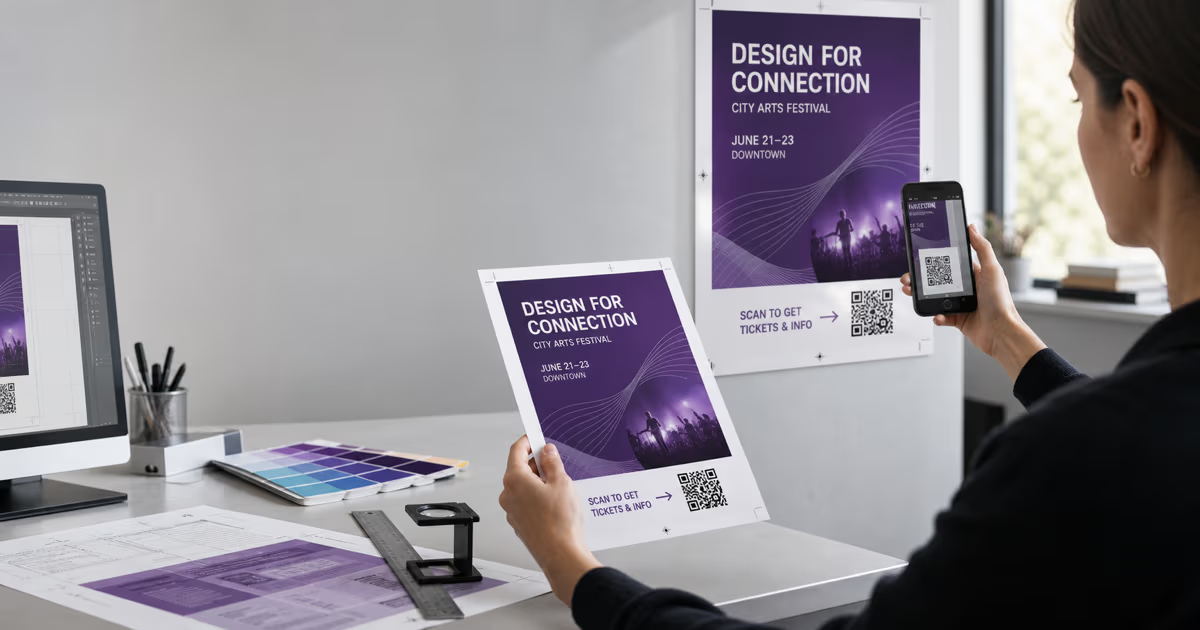
Upload the asset, place it without cropping or stretching, and keep text, photos, frames, and bleed guides outside its quiet zone. Add a specific label such as Scan for the menu, View the event details, or Save my contact.
Test the final Canva output
Download the real PNG, PDF, presentation, or print proof from Canva. Scan that final output at its intended size, distance, lighting, material, and screen brightness. Complete the destination action and verify the expected QRLynx analytics before distribution.
Destination and Canva layout planned
Create the managed QR in QRLynx
Build the exact QR type, choose static or dynamic, export the asset, and test it inside Canva's final output.
How to use Canva's in-editor QR path
Canva's labels and app lineup can change, but the current official workflow starts inside a design:
- Open the intended Canva project.
- Choose Apps in the editor.
- Search for the QR tool you intend to use, such as QR Code or QR Codes & Links.
- Review the app provider, requested permissions, account requirement, current terms, and whether it creates a fixed or managed destination.
- Enter the final destination and generate the QR.
- Place it inside the design with a clear margin and action label.
- Download the final Canva output.
- Scan the downloaded file and a physical proof when printing.
This is efficient when the QR and design can share the same editor workflow. For long-lived printed assets, keep a separate record of the QR provider, owner account, destination, and update method so the team knows how the code is managed after the Canva design is archived.
Protect the QR when arranging the Canva layout
Keep the quiet zone clear
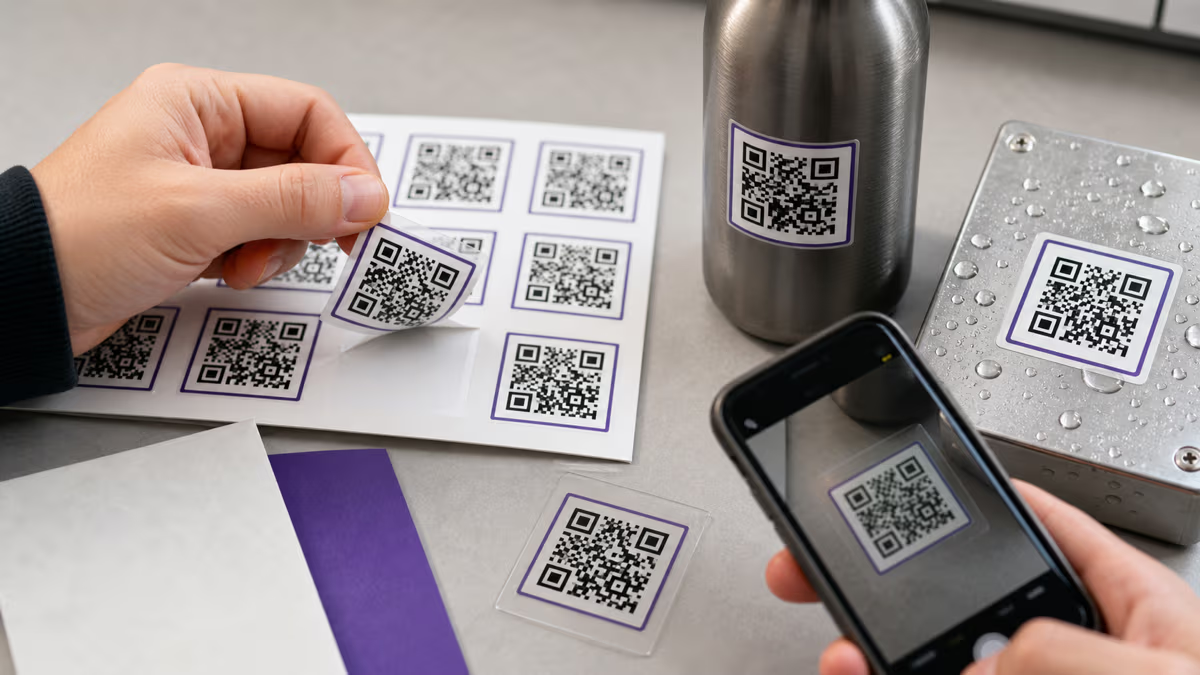
A standard QR symbol needs a clear margin four modules wide around every side. Do not let a Canva photo, shape, border, texture, decorative frame, crop, or text enter that space. A solid light panel behind the QR is a reliable way to protect it on a busy design.
Size from the real symbol and scan conditions
There is no universal physical size that guarantees every QR. Symbol density, module size, print process, material, lighting, camera distance, and customization all matter. A 20 to 25 mm square is a practical starting proof for many close-range print pieces, then enlarge it for denser payloads, longer distances, reflective materials, or weaker lighting.
Keep edges crisp
PNG and PNG HD preserve hard edges for common Canva workflows. SVG or PDF can serve vector print workflows when supported by the relevant plan and import path. JPG is available, but lossy compression makes it a less reliable choice for hard QR modules. Avoid repeated screenshotting, compression, background removal, filters, and image effects.
Use contrast before decoration
Start with dark modules on a light background. Brand colors can work when luminance contrast remains strong. Test gradients, transparency, logos, frames, artistic styles, foil, gloss, and photographs from the exact final output rather than the editor preview.
Canva export and proof checks
| Output | Use case | Proof requirement |
|---|---|---|
| PNG | Digital posts, slides, and common print uploads | Scan the downloaded pixels at final displayed or printed size |
Flyers, cards, menus, posters, and print handoff | Inspect for resampling, crop, color shift, and quiet-zone intrusion | |
| Presentation | Conference, classroom, webinar, and sales slides | Test from the audience distance on the real display |
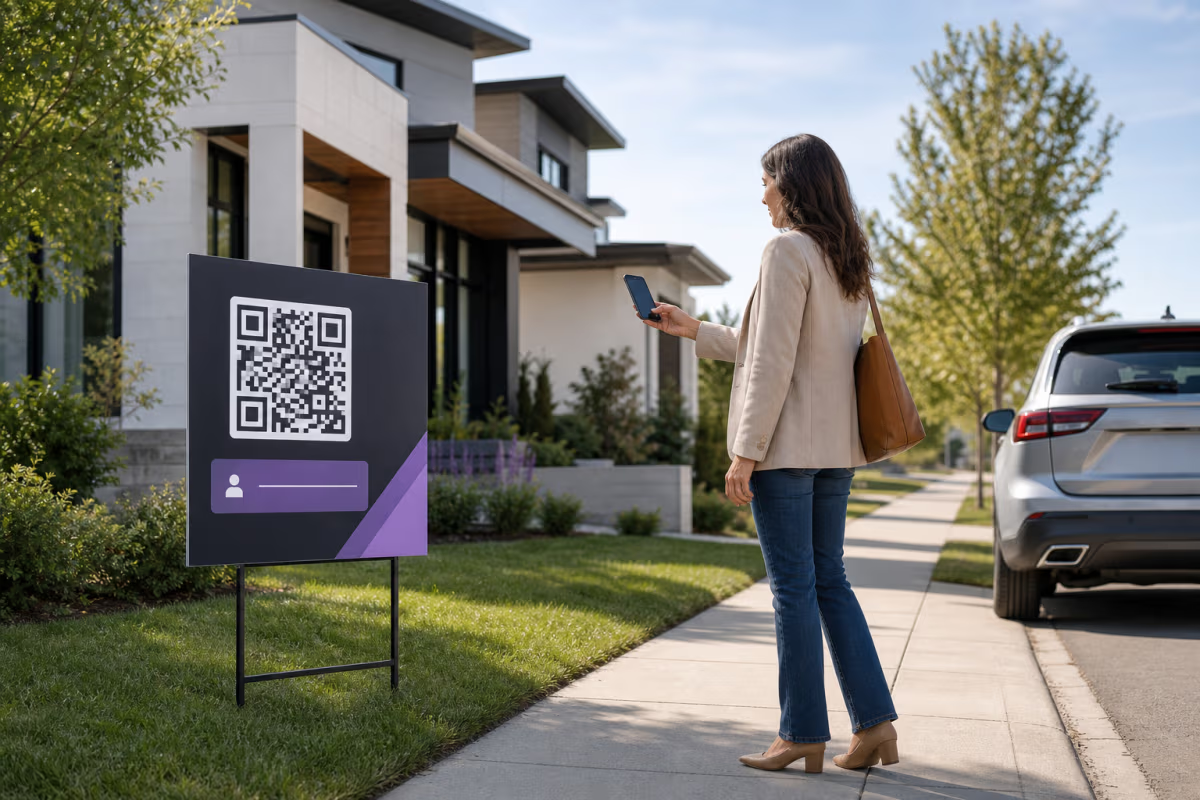
| Printed proof | Cards, signs, packaging, stickers, menus, and table tents | Scan the actual stock, finish, size, lighting, and viewing angle |
| Social image | Posts viewed on a second device | Confirm the platform does not crop or heavily recompress the QR |
Match the QRLynx type to the Canva project
- Business card: use QRLynx Contact Card for a fixed vCard payload or Business Card for an editable hosted profile with wallet and analytics features.
- Restaurant menu: use Menu, PDF, or a dynamic Website / Link QR according to how the menu is hosted and updated.
- Event flyer: use Event for calendar details, Website / Link for registration, or Multi Links when several event actions belong together.
- Product packaging: use a dynamic Website / Link when the destination may change, or the exact product-specific type when the payload has its own format.
- Presentation: link to handouts, a form, a demo, a calendar, a contact page, or a campaign landing page and test from the room distance.
- Social graphic: use Social Media or Multi Links when viewers should choose among several profiles, or a dedicated social QR type for one exact destination.
- Sticker or table tent: create separate named dynamic QRs for placements you want to compare in QRLynx analytics.
The QRLynx QR type defines the scan experience. Canva defines how that QR is introduced visually to the audience.
Troubleshoot the final design, not only the source QR
- The source QR scans but the Canva export does not: inspect scaling, compression, contrast, crop, effects, and quiet-zone overlap in the downloaded file.
- The digital file works but the print does not: enlarge the QR, strengthen contrast, remove reflective or textured interference, and print another proof through the same process.
- The QR opens an old destination: confirm whether it is static or dynamic. Update the managed QRLynx destination for a dynamic QR, then scan the existing Canva output again.
- QRLynx analytics stay empty: verify that the Canva file contains the intended dynamic QRLynx QR rather than a static or older exported asset.
- Several Canva files are hard to identify: use campaign and placement names in QRLynx and matching export filenames, then maintain a simple destination map.
- The QR decodes but the action feels broken: test the landing page, form, file, payment instruction, contact save, or other destination task separately from QR decoding.
QRLynx and Canva QR code questions
Can Canva make a QR code?
Yes. Canva lists a QR Code app inside its Apps Marketplace and also documents QR Codes & Links, Dynamic QR Codes, and artistic QR apps. Review the exact app and its current terms because these are distinct workflows.
Should I create the QR in Canva or QRLynx?
Use Canva for a straightforward QR placed entirely inside one design workflow. Use QRLynx when you need an exact QR type, a managed dynamic destination, named saved codes, scan analytics, future destination changes, or a QR lifecycle independent of the Canva file.
How do I add a QRLynx QR to Canva?
Create and test the QR in QRLynx, download PNG or another supported format, open Uploads in Canva, upload the asset, place it without cropping or stretching, preserve its quiet zone, add a clear action label, and test Canva's final download.
Can I change the destination after a Canva design is printed?
Yes when the printed asset contains a dynamic QRLynx QR. Update its managed destination in QRLynx and test the existing print. A static QR directly encodes its original payload and requires a new QR asset when that payload changes.
Can QRLynx track scans from a Canva design?
Yes when the Canva design contains a dynamic QRLynx QR. QRLynx analytics can report total and unique scans for the selected QR and time range. Static QR scans go directly to their payload and are not observed by the QRLynx redirect.
Is a transparent QR background best for Canva?
A transparent export can fit some layouts, but the QR still needs a clear, high-contrast quiet zone. A solid light panel is safer when the Canva background contains photos, gradients, patterns, or dark colors.
What format should I upload to Canva?
PNG or PNG HD is a practical choice for common Canva workflows. SVG or PDF can suit compatible vector and print workflows when the relevant QRLynx plan and Canva import path support them. Test the final Canva export in every case.
How large should the QR be in Canva?
Start with a close-range print proof around 20 to 25 mm square, then adjust for symbol density, material, lighting, customization, and scan distance. The reliable size is the one that passes from the actual final output under real conditions.
Can I add a logo or frame before uploading to Canva?
Yes. QRLynx supports logo and design controls, plus QR frames with action text. Keep the finder patterns, contrast, and quiet zone clear, then test the exported asset before and after placing it in Canva.
Can I use a Canva AI artistic QR for printing?
You can test an artistic QR, but visual styling can change module clarity. Scan the final downloaded file across several phones and print a physical proof at the intended size, material, distance, and lighting before distribution.
How do I compare QR placements across Canva designs?
Create a separate named dynamic QRLynx QR for each placement, such as Lobby poster, Table tent, or Instagram graphic. Use the matching asset in each Canva file and compare those codes in QRLynx analytics.
What should the text beside the QR say?
State the benefit or action clearly, such as Scan for today's menu, Save my contact, View event details, or Get the guide. The label should match the exact destination tested behind the QR.