How to Get QR Code Scan Reports by Email

Key Takeaway
Set up QRLynx email scan reports with real screenshots. Choose daily, weekly or monthly summaries, read a report example and troubleshoot missing emails.
To receive QR code scan reports by email, open an eligible dynamic QR in QRLynx, enable Email Summary Reports, choose Daily, Weekly or Monthly, then save both the setting and the QR. Each report gives the QR owner its total scans and unique-visitor estimate for that period.
Individual QR email reports are included with paid Business and Enterprise plans. This tutorial follows a front-window poster example through the real settings screens and explains a sample report. The report’s name and numbers are illustrative; the settings screenshots are from QRLynx.
How to set up email scan reports in QRLynx
Choose the QR code and destination
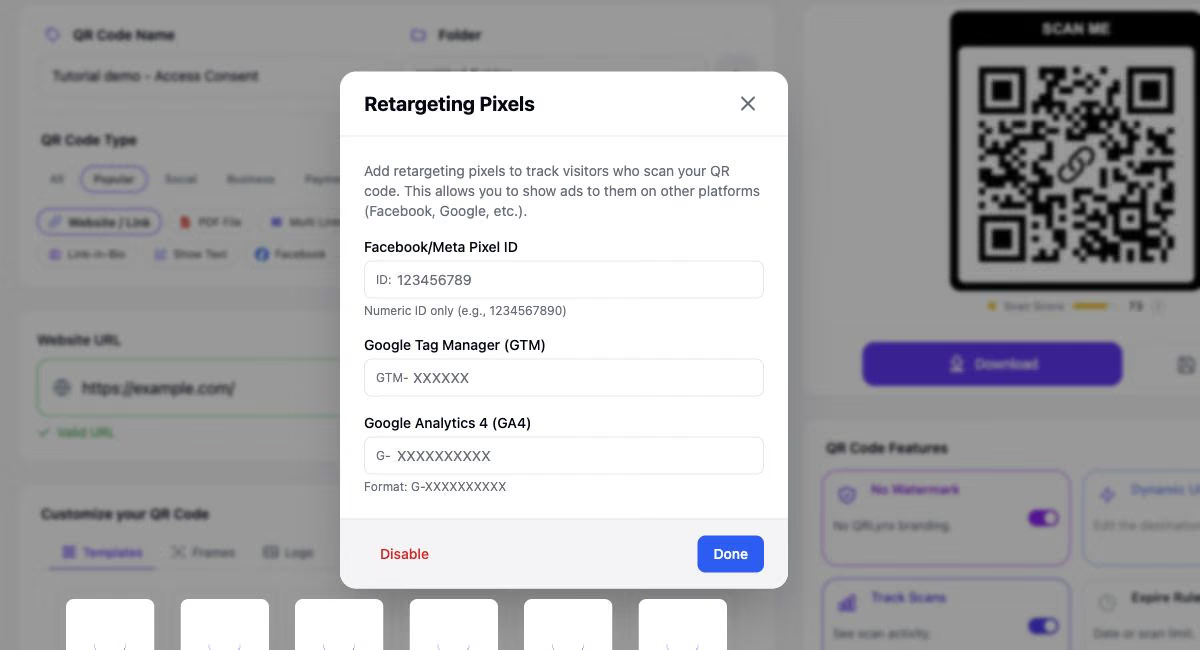
Sign in to a paid Business or Enterprise workspace. Open the saved QR you want to monitor, or open the Email Summary Reports feature page and choose Website / Link. For a new code, enter the page visitors should reach. The screenshots use QRLynx’s own feature page as a harmless demonstration destination.
Open Email Summary
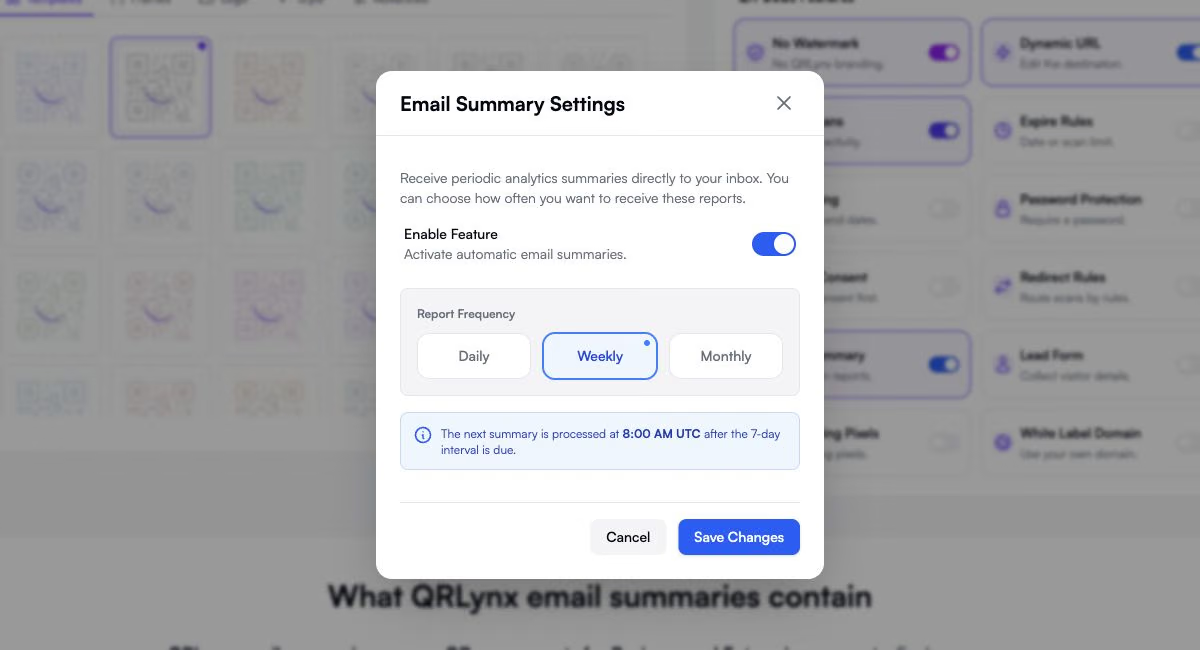
Under QR Code Features, select Email Summary and turn on Enable Feature. Use an eligible dynamic QR with Track Scans enabled. Enabling the report keeps those prerequisites on. This workflow does not apply to directly encoded static codes or GS1 Digital Link.
Choose Daily, Weekly or Monthly
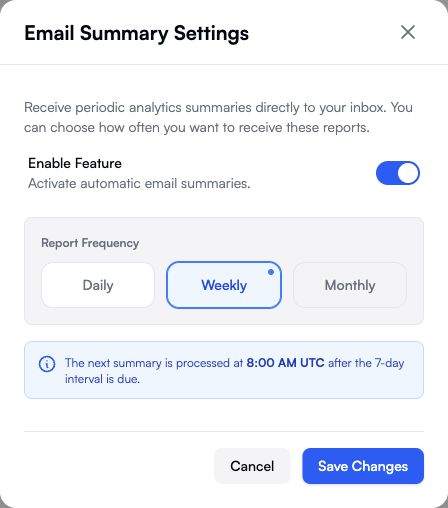
Pick the interval for this QR: Daily covers the preceding 24 hours, Weekly covers seven days, and Monthly covers 30 days. Select one frequency. The example uses Weekly for a front-window poster.
Save the setting and the QR
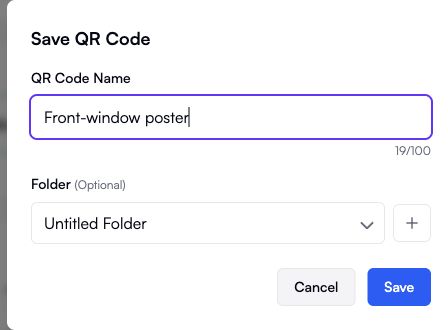
Choose Save Changes in Email Summary Settings. Then save the QR itself. For a new code, choose Save, enter a useful name such as Front-window poster, choose a folder if needed, and confirm the final Save. For an existing code, use Update. Reopen the saved project to confirm the selected frequency was retained.
Check the saved code and scan path
Keep the QR design readable and label its physical placement clearly. Download the saved dynamic QR and scan it with a phone. Confirm that it opens the intended destination, then check the same QR in Analytics for recorded activity. Test a physical proof at its intended size before printing more copies.
Check the owner inbox and report list
Look for the subject QR Code Scan Summary followed by your QR name in the owner’s inbox after eligible processing. Open Email Summaries in the dashboard to review the individual QR’s frequency, status and Last Sent value. Use Edit Summary when you need to change its configuration.
Save Changes, then save the QR
The settings dialog chooses what the editor will save. Closing it with Save Changes is only one part of the workflow. Complete the QR’s own save or update before leaving the page.
Use the placement name you want to recognize in your inbox. “Front-window poster” is more useful than “Untitled QR Code” when you manage several campaigns. The subject line includes this QR name.
Choose a frequency that matches your review
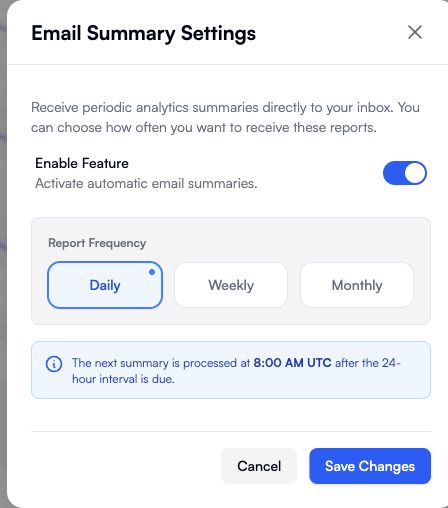
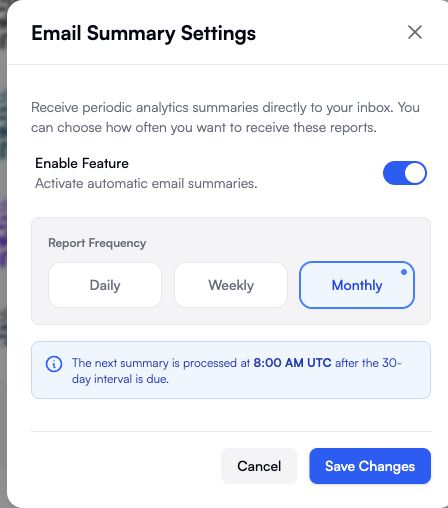
Choose one frequency for each QR. A short promotion might need daily attention, while a permanent poster may be easier to review weekly. These are suggested uses, not restrictions on the setting.
| Setting | Scan window | Example use | Following report becomes eligible |
|---|---|---|---|
| Daily | Previous 24 hours | A short promotion you review each day | After the daily interval is due |
| Weekly | Previous 7 days | A recurring review of a shop poster | After the seven-day interval is due |
| Monthly | Previous 30 days | A longer-running brochure or package insert | After the 30-day interval is due |
Monthly means a rolling 30-day window. It is not a calendar-month report, and Weekly is not tied to Monday. All three are checked by the daily processing schedule at 8:00 AM UTC. Processing time is not a promise of the exact time an email reaches your inbox.
When the first report becomes eligible
If the QR has never had a summary processed, it can be eligible at the next daily run once enabled and saved. It still needs at least one recorded scan within the selected window. You do not need to wait a full week just because you selected Weekly for the first report.
After that, eligibility uses the QR’s previous summary-processing time and its selected interval. Changing the frequency does not create a separate schedule or a new recipient list. If you switch from Weekly to Daily, check the new setting and Last Sent together rather than expecting an immediate email.
Read the report: a front-window poster example
The sample below uses the actual QRLynx email-body template, populated with illustrative numbers. It shows what to look for in a weekly report; it is not a customer result or proof of a delivered email.
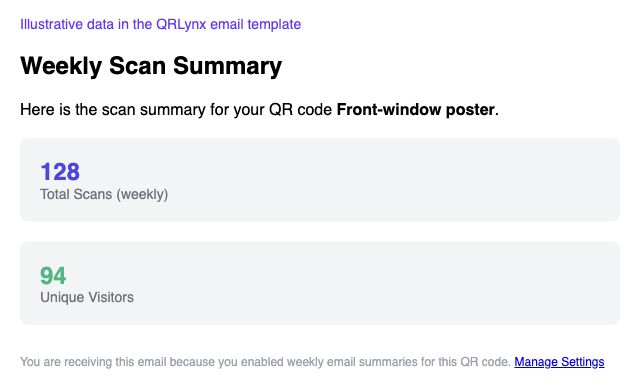
128 Total Scans means 128 recorded scan events for this QR in the selected seven-day window. It does not mean 128 purchases, enquiries or different people.
94 Unique Visitors is the label used in the email for QRLynx’s unique-scan estimate. QRLynx estimates uniqueness per QR, network address and UTC day. The same person may count again on another day or network, and people sharing a network may be grouped together. A seven-day total therefore should not be presented as 94 distinct people.
Manage Settings opens the QR’s editor. Use Analytics when you want charts or deeper breakdowns. The QRLynx scan-tracking guide explains tracking and unique estimates in more detail.
Use the email to choose the next check
For the poster example, compare the same QR over equivalent periods before deciding whether activity has changed. Check whether the poster moved, the shop was closed or the destination changed. To measure bookings, signups or sales after a scan, follow the scan-to-conversion measurement guide. Those outcomes need evidence from the destination.
If an email report has not arrived
- Reopen the saved QR. Confirm Enable Feature is on and the intended frequency was saved. If you only closed the settings dialog, finish the QR save.
- Check the QR’s activity and status. Individual summaries are processed for active QR codes. A zero-scan window produces no report. A successful test of the destination alone is not proof that a tracked scan was recorded.
- Check when it is eligible. Review Last Sent and the selected interval, then allow the next 8:00 AM UTC processing run. A weekly or monthly choice is not an instant-alert setting.
- Check the owner’s inbox. Search for “QR Code Scan Summary” and the QR name, including spam or junk folders. The recipient is the QR owner’s account email.
- Check plan access and email preferences. Individual reports need Business or Enterprise access. An email opt-out or delivery block can prevent messages even while the QR setting remains enabled. If activity and settings look correct, contact QRLynx support with the QR name and the period you expected.
The Last Sent column is a useful scheduling clue. It does not prove that a message reached your inbox.
Manage reports across several QR codes
Open Email Summaries in the dashboard and find Individual QR reports. The list shows the configured QR, frequency, Active or Paused status, Last Sent and an Edit Summary action. If the list is empty, open a QR and configure its report first.
You can use Daily on a temporary campaign and Weekly on a permanent poster. To change or stop a report, choose Edit Summary, adjust the frequency or turn off Enable Feature, then save the setting and the QR. Disabling the report does not require pausing the QR’s destination.
If your account also displays a separate Your account report section, that controls an account-level report. This tutorial’s three-frequency setting belongs to each individual QR.
Set up a report for the QR you monitor
Open the Email Summary Reports feature page to create a tracked QR, or use the same settings on an existing project.
Email scan report questions
Can I enable email scan reports on the free plan?
Individual QRLynx Email Summary reports require a paid Business or Enterprise workspace. Scan tracking is available separately on the free Starter plan. See the Email Summary Reports feature for access and setup.
Can one QR code send daily, weekly and monthly reports at the same time?
No. The QRLynx Email Summary setting selects one frequency for each QR code. Different QR codes can use different frequencies, and you can change a code’s selection later.
Does a weekly report always arrive on Monday?
No. QRLynx checks eligible individual QR reports daily at 8:00 AM UTC. After a report is processed, the weekly interval becomes due again about seven days later. There is no Monday selector or guaranteed inbox arrival time.
Does Monthly mean the previous calendar month?
No. Monthly selects the previous 30 days of scan activity. It does not mean the first through the last day of the previous calendar month.
Who receives the QR code report?
QRLynx sends the individual QR report to the account email of the QR code’s owner. The Email Summary dialog does not have an additional-recipient field. A team member configuring a code should confirm which workspace owns it.
Can I download a CSV or PDF from the summary email?
The individual summary email contains scan counts and a Manage Settings link, without a CSV or PDF attachment. Business and Enterprise accounts can export analytics as CSV from the dashboard for a selected period.
Why does Unique Visitors differ from the number of people I expected?
QRLynx uses a daily unique-scan estimate, not verified identities. Shared networks can group people, while changed networks or scans on different days can count again. Read the unique-scan explanation before treating the figure as audience reach.
Can I use email reports with a printed static QR code?
A directly encoded static QR does not send scan events through QRLynx tracking. Individual reports need an eligible saved dynamic QR with Track Scans enabled. GS1 Digital Link does not support this Email Summary setting.
How do I stop reports for one QR without pausing the QR itself?
Open that QR’s Email Summary settings, turn off Enable Feature, choose Save Changes, then save or update the QR. Leave its active status and other settings unchanged. This stops the individual report while preserving the QR’s normal destination behavior.