How to Create a QR Code Menu for Your Restaurant (2026 Guide)

Key Takeaway
Create a free QR code menu for your restaurant in minutes. Step-by-step guide covering PDF menus, table tent placement, mobile design tips, and restaurant-specific strategies.
Printing menus is expensive. A 50-seat restaurant printing new menus four times a year spends $300 to $1,000 annually on menu cards alone — and that's before you count the waste from price changes, seasonal items, and daily specials that make last week's menus obsolete.
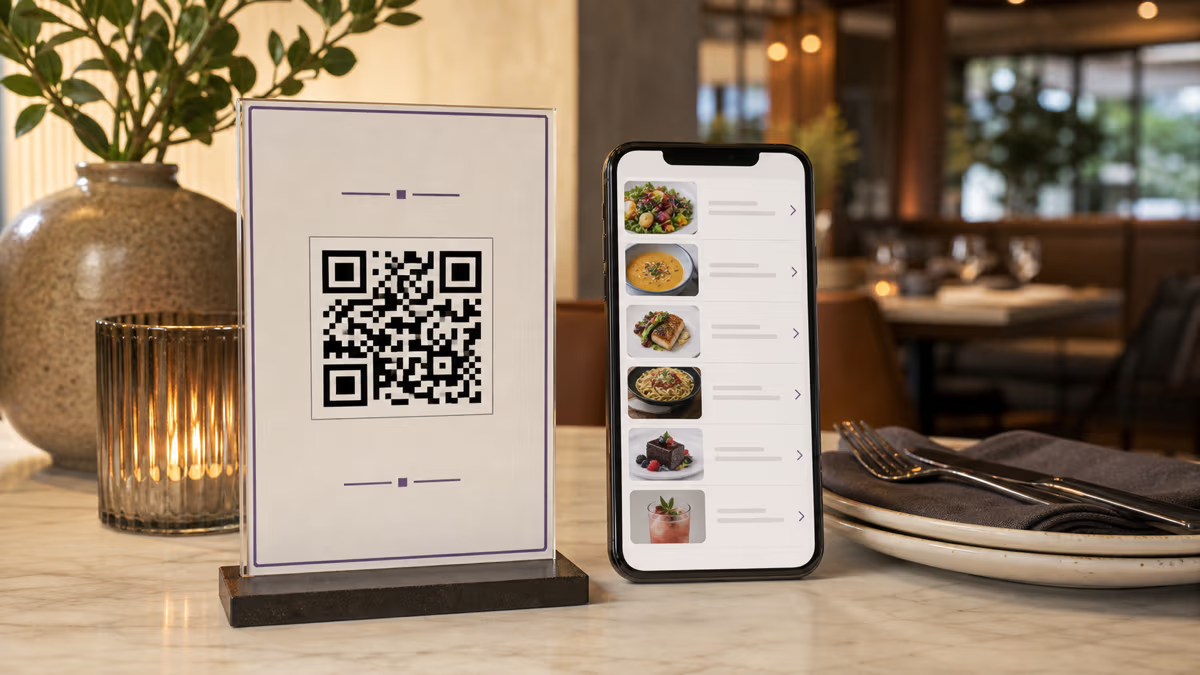
A QR code menu eliminates all of that. Print one QR code on a table tent, and every guest scans to see your current menu on their phone. Change prices tonight, add a seasonal dish tomorrow, run a weekend special — the QR code stays the same, but the menu behind it updates instantly.
The restaurant industry has already made this shift. 75% of restaurants now use QR codes for digital menus, and 90% of diners prefer scanning a QR code over handling a physical menu (Menu Miami). Restaurants using QR-based ordering report a 15% increase in table turnover and 20% higher average spend per guest. And with 100 million Americans expected to scan QR codes monthly in 2026 (QR Code Chimp), your customers already know how to use them.
This guide covers how to create a menu QR code with QRLynx, where to place it for maximum scans, mobile menu design tips, restaurant-type strategies, and common mistakes that frustrate your guests.
New to QR codes? Start with our complete guide to creating a QR code first.
3 Ways to Create a Restaurant Menu QR Code
There's no single "menu QR code" — the right approach depends on whether you already have a digital menu and how often you update it.
Option 1: URL QR Code → Your Existing Menu Page (Free)
If your restaurant already has a menu on your website, Google Business listing, or a service like Square/Toast/Yelp, the simplest approach is a URL QR code that links directly to that page.
Best for: Restaurants with an existing website menu. No file to upload, no hosting to manage — just paste the URL and generate a QR code.
Cost: Free (static) or included in Pro plan (dynamic with tracking).
Option 2: PDF Upload QR Code (Best for Most Restaurants)
If your menu is a PDF file — designed in Canva, Word, or by a graphic designer — you can upload it directly to QRLynx's PDF QR code feature. Customers scan and the PDF opens on their phone. When your menu changes, upload the new PDF and the same QR code serves the updated version.
Best for: Restaurants without a website, or those with a beautifully designed PDF menu they want to showcase. The PDF opens in the phone's browser — no app needed.
Cost: Requires Pro plan ($14/month) or free 14-day trial. Your first dynamic QR code stays active even after trial on the Starter plan.
Option 3: Menu QR Code Type
QRLynx offers a dedicated Menu QR code type that works like a URL code but is optimized for restaurant menus. It functions the same way — pointing to your menu URL — but is labeled clearly in your dashboard for easy management.
| Approach | URL QR Code | PDF Upload | Menu QR Type |
|---|---|---|---|
| What guest sees | Your website menu page | PDF on their phone | Your website menu page |
| Need a website? | Yes | No — hosted by QRLynx | Yes |
| Update menu | Edit your website | Upload new PDF | Edit your website |
| Scan tracking | Yes (dynamic) | Yes (always dynamic) | Yes (dynamic) |
| Cost | Free (static) or Pro | Pro plan / trial | Free (static) or Pro |
| Best for | Has website menu | No website, PDF menu | Has website menu |
Our recommendation: If you have a website with a menu page, use a dynamic URL QR code — it's the simplest setup and lets you track scans. If you don't have a website but have a PDF menu, use the PDF upload option. Either way, use a dynamic code so you can update without reprinting.
How to Create a Menu QR Code
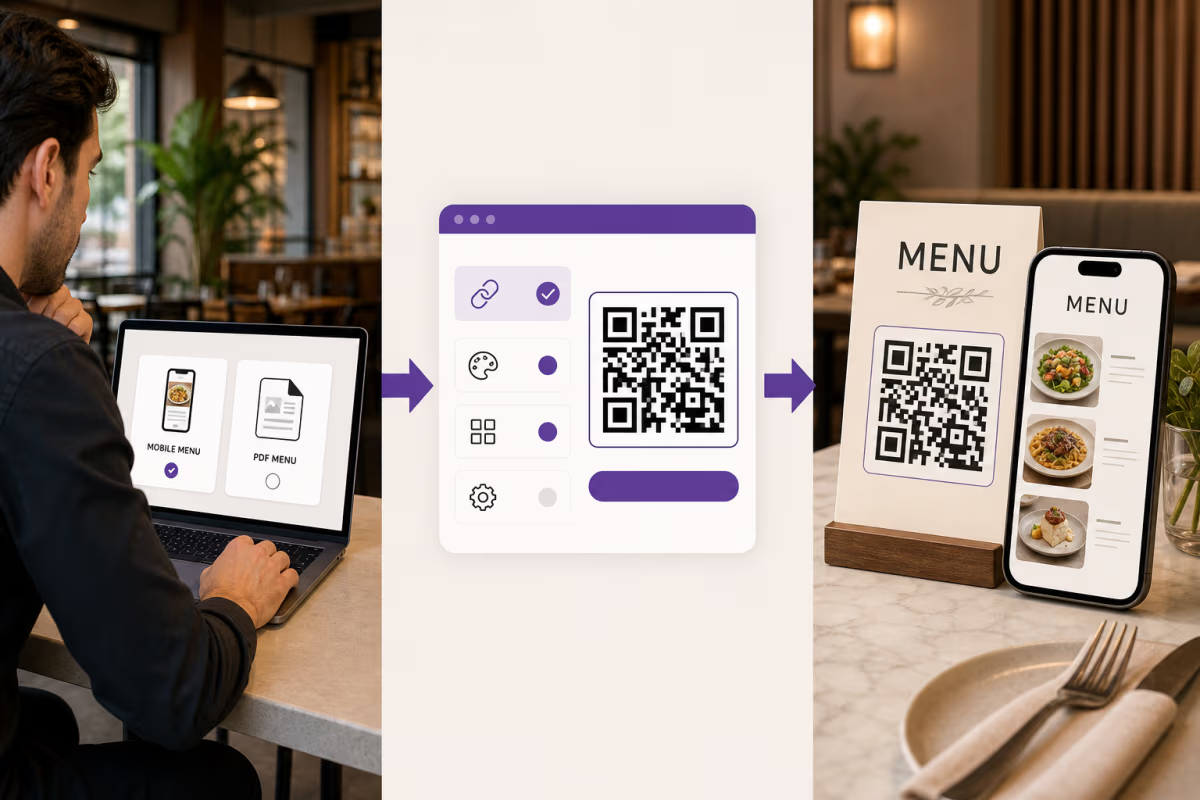
Set up a digital menu QR code for your restaurant in 4 steps.
Choose Your QR Code Type
Go to qrlynx.com. If you have a menu page on your website, select URL or Menu as the QR code type. If you have a menu as a PDF file, select PDF. The PDF option lets you upload your file directly — QRLynx hosts it and generates a link that opens the PDF on any phone.
Enter Your Menu URL or Upload Your PDF
For URL/Menu type: paste the full URL to your online menu (e.g., yourrestaurant.com/menu). For PDF type: click Upload and select your menu PDF file (up to 5MB on Pro plan). The QR code preview generates instantly. Tip: if your menu is a multi-page PDF, make sure it loads quickly on mobile — compress images and keep the file under 3MB for the best guest experience.
Customize Your QR Code Design
Match the QR code to your restaurant branding. Click Style and Colors to set your brand colors — dark foreground on light background works best. Add your restaurant logo via the Logo toggle. Choose a pattern style that fits your aesthetic. Use the Readability Score to verify scanning reliability — aim for 80% or higher. For table tents and printed materials, high contrast is critical in dimly lit dining environments.
Download and Print
Click Download. For table tents, counter stands, and stickers, use SVG or PDF format — these are vector files that stay sharp at any print size. Print the QR code at minimum 2x2 inches (5x5 cm) for table-distance scanning. Add a clear call-to-action: Scan to View Menu or Scan for Our Menu. For weatherproof outdoor use (patios, food trucks), print on vinyl sticker material or laminate the code.
Where to Place Your Menu QR Code
Placement determines how many guests actually scan. The goal: make the QR code visible at the exact moment a guest wants to see the menu.
Best Placements (Ranked by Effectiveness)
| Placement | Why It Works | Best For |
|---|---|---|
| Table tent / table sticker | Directly in front of seated guest. They see it the moment they sit down — exactly when they want to browse the menu. | Dine-in restaurants, cafes, bars |
| Counter stand | Eye-level while ordering. Guest scans while deciding what to order. | Fast casual, bakeries, coffee shops |
| Window sticker (outside) | Passersby scan to check prices and offerings before entering. Converts foot traffic. | Street-facing restaurants, cafes |
| Food truck signage | Customers scan while waiting in line. Speeds up ordering since they decide before reaching the window. | Food trucks, pop-ups |
| Google Business listing | Add your menu link to your Google Business profile. Customers see your menu before visiting. | All restaurants |
| Social media bio | Share the QR code image or menu link on Instagram, Facebook, and Google. Reaches customers before they visit. | All restaurants with social presence |
Placement Tips
- Table tents: Print at minimum 4x6 inches with the QR code at least 2x2 inches. Include your restaurant name and "Scan to View Menu" as the CTA. Place one per table.
- Dim lighting: Restaurants with low ambient lighting need higher contrast QR codes (black on white is safest). Avoid dark-on-dark color schemes.
- Multiple languages: If you serve tourists or multilingual communities, add a small note: "Menu available in English, Spanish, Chinese" next to the QR code.
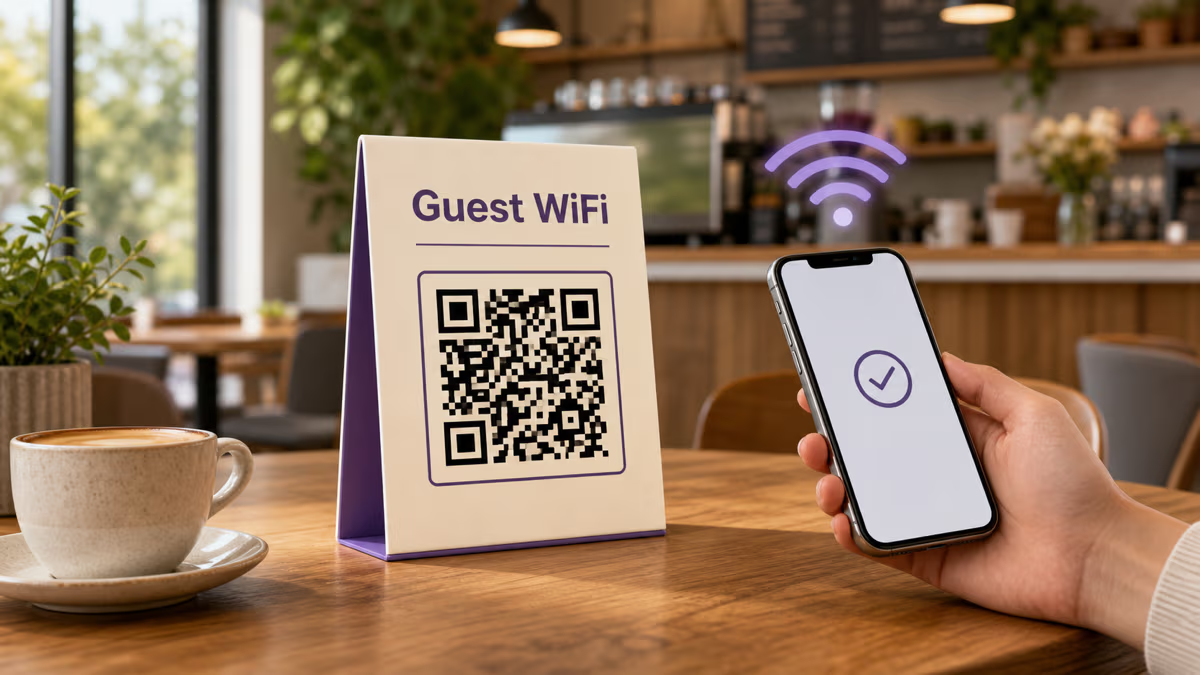
- Combine with WiFi: Place a WiFi QR code next to the menu QR code. Guests connect to WiFi first, then scan the menu — ensures they have internet access.
Designing Your Menu for Mobile Screens
The QR code is only half the equation. What guests see after scanning matters just as much. A PDF designed for a printed 8.5x11-inch page looks terrible on a 6-inch phone screen.
Mobile Menu Best Practices
- Single-column layout. Forget the two-column or three-column print layout. On a phone, one column with clear section headers is the only layout that works. Guests should scroll vertically, not zoom and pan.
- Font size: 16px minimum. If guests have to pinch-to-zoom to read prices, your menu is too small. Body text should be 16px, section headers 20-24px, and the restaurant name 28px+.
- Prices on the same line as items. Don't make guests hunt for the price. Format:
Margherita Pizza .... $14orMargherita Pizza — $14. Right-aligned prices with dot leaders or dashes work well on mobile. - Section headers that stand out. Bold, larger text, or a different color. Common sections: Starters, Mains, Desserts, Drinks, Kids Menu, Specials. Make it obvious where each section begins.
- Photos: use sparingly. One or two hero photos are great for ambiance. But a photo of every dish slows loading time dramatically on mobile. If you include photos, compress them — aim for under 100KB per image.
- Allergen and dietary labels. Use clear icons or abbreviations: (V) Vegetarian, (VG) Vegan, (GF) Gluten-Free, (N) Contains Nuts. Place them next to each dish. This is increasingly expected — and in some jurisdictions, legally required.
- Keep the PDF under 3MB. Larger files take too long to load on cellular connections. If your designed menu PDF is over 3MB, compress the images or simplify the graphics.
If You Don't Have a Website
No website? No problem. Use the PDF upload QR code — design your menu in Canva (free), Google Docs, or Word, export as PDF, and upload to QRLynx. The QR code opens the PDF directly on the guest's phone. When you update the menu, upload the new PDF and the same QR code serves the fresh version.
Why Dynamic QR Codes Are Essential for Restaurants
Restaurants change their menus more than almost any other business. Seasonal ingredients, price adjustments, daily specials, brunch vs dinner, happy hour — a static QR code that permanently links to one URL can't keep up.
A dynamic QR code solves this. The QR pattern printed on your table tent stays the same forever. But the destination — the menu URL or PDF behind it — can be changed anytime from your QRLynx dashboard.
Real-World Scenarios Where Dynamic Saves You
- Seasonal menu change: Upload the new PDF or update the URL. Done in 30 seconds. No reprinting table tents.
- Price increase: Update your menu page or PDF. Every guest sees the new prices immediately.
- Daily specials: Link the QR code to a Google Doc or simple web page you update each morning. The kitchen writes today's specials, you paste them in, guests see them when they scan.
- Brunch vs dinner: Some restaurants use smart redirect rules (Business plan) to serve different menus based on the time of day. Before 3 PM: brunch menu. After 3 PM: dinner menu. Same QR code, different experience.
- Holiday hours or closures: Temporarily redirect the QR code to a "We're closed for the holiday" page with your reopening date.
Cost Savings
The math is simple. A typical restaurant with 50 tables prints menus 3-4 times per year:
- Menu cards: $2-5 each × 50 = $100-250 per print run
- 3-4 print runs per year: $300-1,000 annually
- Emergency reprints (price changes, item removals): add $100-200
A dynamic QR code on a table tent costs $14/month ($168/year) on QRLynx Pro — or even less if your single menu QR code is your only dynamic code (Starter plan keeps one active for free). You'll save money while gaining the ability to update your menu in real time.
For more on static vs dynamic differences, see our complete comparison guide.
Strategies by Restaurant Type
Different restaurant formats benefit from different QR code approaches.
Fast Casual & Counter Service
Place a QR code at the ordering counter — eye level, next to the register. Link to your full menu with photos and prices. Guests scan while waiting in line, decide faster, and order more confidently. If you use an online ordering platform (Toast, Square, Clover), link the QR code directly to your ordering page so guests can order and pay from their phone.
Fine Dining
Fine dining is about the experience — the QR code should be subtle and branded. Use a small, elegant table card (not a bright plastic tent) with your restaurant's colors and logo embedded in the QR code. Link to a beautifully designed PDF with your wine list, tasting menu, and seasonal offerings. Avoid linking to a cluttered website — the PDF should feel curated and exclusive.
Food Trucks & Pop-Ups
Food trucks change locations and menus frequently. Use a dynamic QR code on a weatherproof vinyl sticker applied to your truck or ordering window. Link to a simple menu page (Google Doc works fine) that you update daily. Since food truck customers are standing outside, print the QR code at minimum 3x3 inches so it scans from arm's length. Laminate or use UV-resistant material.
Bars & Pubs
Bars often have separate food and drink menus, plus happy hour specials. Use a link-in-bio QR code that opens a mini page with multiple links: Food Menu, Drink Menu, Happy Hour Specials, Events Calendar. This gives guests one code that covers everything. Update the happy hour page weekly without touching the QR code.
Cafes & Bakeries
Place a QR code on the display case or on a small stand next to the pastries. Link to a menu with daily items and prices. Bakeries with rotating inventory benefit from a dynamic code — update the menu each morning with today's fresh bakes. Include photos — baked goods are visual and photos drive impulse purchases.
Hotels & Room Service
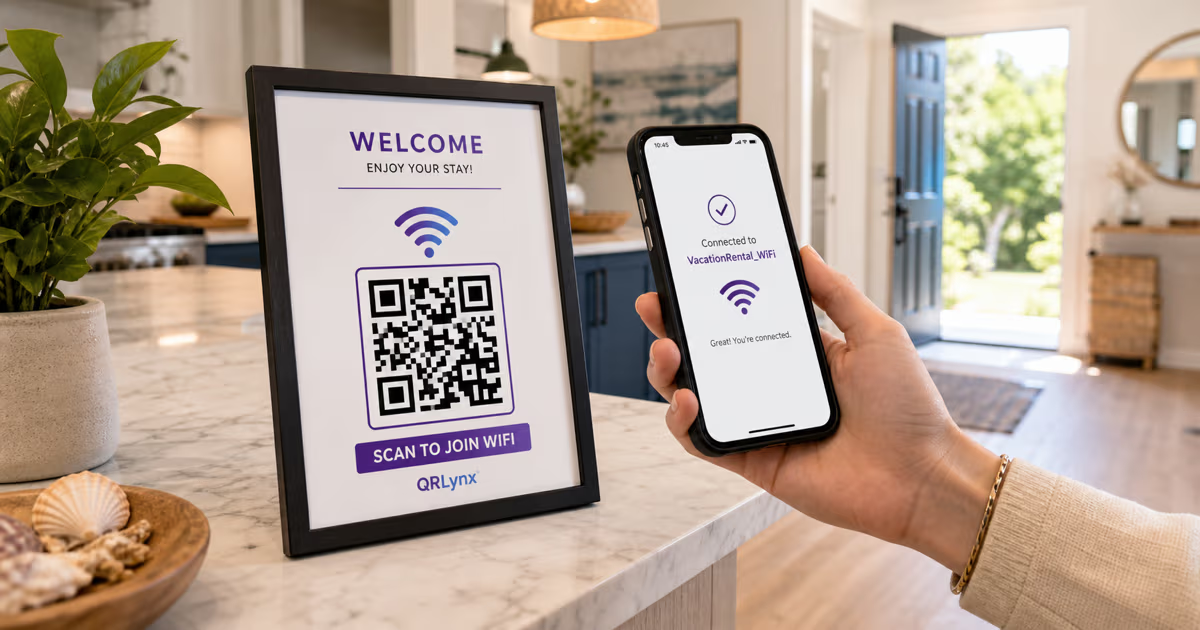
Place a QR code in each guest room — on the desk, nightstand, or near the phone. Link to the room service menu. Hotels with multiple dining outlets can use a link-in-bio code with links to each restaurant's menu. Pair it with a WiFi QR code on the same card for a complete guest experience.
Tracking Menu Scans
With a dynamic QR code and scan tracking enabled, you get data that helps you optimize your restaurant operations.
What You Can Track
- Total scans per day/week/month — see how many guests use your digital menu vs asking for a printed one
- Peak scan times — identify your busiest hours based on when people scan the menu, not just when orders come in
- Device types — iPhone vs Android (useful if your menu page has rendering issues on certain devices)
- Geographic data — for multi-location restaurants, see which location gets the most menu scans
Google Analytics Integration
If your QR code links to a web page (not a PDF), add UTM parameters to track menu views in Google Analytics:
yourrestaurant.com/menu?utm_source=table_tent&utm_medium=qr&utm_campaign=dine_in_menu
This lets you see exactly how much of your website traffic comes from in-restaurant QR scans vs Google Search vs social media.
Note: Scan tracking requires a dynamic QR code. Static QR codes (free) do not support tracking because scans go directly to the URL without passing through QRLynx's redirect server.
Common Mistakes to Avoid
These errors are easy to make and directly hurt your guests' experience.
1. QR Code Too Small on the Table Tent
A 1-inch QR code on a table tent is too small for guests scanning from across a table (18-24 inches away). Use the 10:1 rule: scanning distance ÷ 10 = minimum QR size. For table tents, print at least 2x2 inches.
2. No WiFi and No Cellular Signal
Your QR code links to a web page — guests need internet access to load it. If your restaurant has thick walls or poor cellular reception, offer free WiFi. Place a WiFi QR code next to the menu QR code so guests can connect first.
3. Linking to a Non-Mobile-Optimized Menu
A PDF designed for print (landscape, two columns, tiny text) is painful to read on a phone. If your menu requires pinch-to-zoom, guests will ask for a printed menu instead — defeating the purpose. Design for mobile first.
4. Not Testing in Your Restaurant's Lighting
QR codes that scan perfectly in your office may fail in a dimly lit restaurant. Test in actual dining conditions — low ambient light, candles on the table, evening service. Use high contrast (dark code on white background) and verify with QRLynx's readability score.
5. No Call-to-Action
A QR code without context is confusing. "Is this for the menu? WiFi? A review?" Always add clear text: "Scan to View Our Menu" — simple and unmistakable.
6. Outdated Menu Behind the QR Code
The whole point of a QR code menu is that it's always current. If you change prices in the kitchen but forget to update the PDF or website, guests see wrong prices. Assign one person to update the digital menu whenever the physical menu changes.
7. Forgetting Accessibility
Not every guest can scan a QR code — elderly guests, those without smartphones, or people with visual impairments. Always keep a small number of printed menus available on request. The QR code is the default, not the only option.
Restaurant Menu QR Code FAQ
Answers to the most common questions about creating and using QR code menus for restaurants.
How do I create a QR code for my restaurant menu?
Go to QRLynx.com, select URL (if you have a menu web page) or PDF (if you have a menu file). Enter the URL or upload the PDF, customize the QR code with your restaurant colors and logo, then download and print. The entire process takes under 5 minutes. For a detailed walkthrough, see our step-by-step guide above.
Are QR code menus free?
Yes. You can create a free static URL QR code that links to your menu page — no account required, no time limit. For dynamic features like updating the menu without reprinting, scan tracking, and PDF upload, QRLynx Pro is $14 per month. A 14-day free trial gives you full access to all Pro features, and your first dynamic QR code stays active even after the trial ends.
How do I update my QR code menu when prices change?
With a dynamic QR code, you update the destination without changing the printed code. For URL codes: update your website menu page. For PDF codes: upload the new PDF in your QRLynx dashboard — the same QR code now serves the updated file. Static QR codes cannot be updated after creation; you would need to generate a new code and reprint.
Do customers need WiFi to scan a menu QR code?
Scanning the QR code itself uses only the phone camera — no internet needed. But loading the menu page or PDF behind it requires internet access (WiFi or cellular data). If your restaurant has poor cellular reception, offer free WiFi and place a WiFi QR code next to the menu QR code so guests can connect first.
QR code menu vs printed menu — which is better?
QR code menus are better for cost savings, hygiene, and flexibility — update prices, add seasonal items, and run specials without reprinting. Printed menus are better for guests who prefer a tactile experience or do not have smartphones. The best approach is both: QR code as the default, with printed menus available on request.
What size should a QR code be on a table tent?
Minimum 2x2 inches (5x5 cm) for table-distance scanning (18-24 inches). The 10:1 rule applies: if guests scan from 20 inches away, the code should be at least 2 inches. For counter stands where guests are closer, 1.5x1.5 inches works. Always test in your actual restaurant lighting before ordering a full batch.
Can I track how many people scan my menu QR code?
Yes, with a dynamic QR code. QRLynx tracking shows total scans, unique visitors, scan times, device types, and geographic location. This data helps you understand peak hours, compare locations, and measure digital menu adoption. Static QR codes (free) do not include tracking. See our guide on how to track QR code scans for setup details.
How do I handle allergen information on a digital menu?
Use clear icons or abbreviations next to each dish: (V) Vegetarian, (VG) Vegan, (GF) Gluten-Free, (DF) Dairy-Free, (N) Contains Nuts. Place a legend at the top of the menu. For detailed allergen tables, add a separate section or link at the bottom. In many jurisdictions, allergen labeling is legally required on all menu formats, including digital.
Can I have different menus for lunch and dinner with one QR code?
Yes, in two ways. Simple approach: use a dynamic QR code and manually swap the URL or PDF between service periods. Advanced approach: use QRLynx smart redirect rules (Business plan) to automatically serve different menus based on time of day — brunch menu before 3 PM, dinner menu after. Same QR code, different experience.
Is a QR code menu accessible for guests with disabilities?
QR code menus can be more accessible than printed menus — phone screen readers can read digital text aloud, and guests can zoom in on their phone. However, always keep printed menus and large-print versions available for guests who cannot use smartphones. Ensure your digital menu has sufficient text contrast and logical heading structure for screen reader compatibility.
Can customers order and pay through a QR code menu?
QRLynx creates QR codes that link to your menu — viewing only, not ordering. For ordering and payment, you need a separate platform like Toast, Square, Clover, or a dedicated QR ordering system. You can use a QRLynx QR code to link directly to your ordering platform URL, combining QRLynx design and tracking with your existing ordering system.
What file format should I use to print menu QR codes?
SVG or PDF for professional printing — these vector formats stay sharp at any size. For quick home printing, PNG at 1024 pixels or higher works. Never use JPG — compression artifacts can make the QR code unscannable. For table tents and stickers, ask your print shop for matte or uncoated finish to avoid glare in restaurant lighting.