Microsoft Forms QR Code: Native or Managed?

Key Takeaway
Create a Microsoft Forms QR code with the native PNG or QRLynx. Compare access, static and dynamic use, scan analytics, printing, and testing.
Disclosure: QRLynx is built and operated by Jorbox LLC. This guide explains the current QRLynx workflow and uses Microsoft Support as the source for Microsoft Forms behavior.
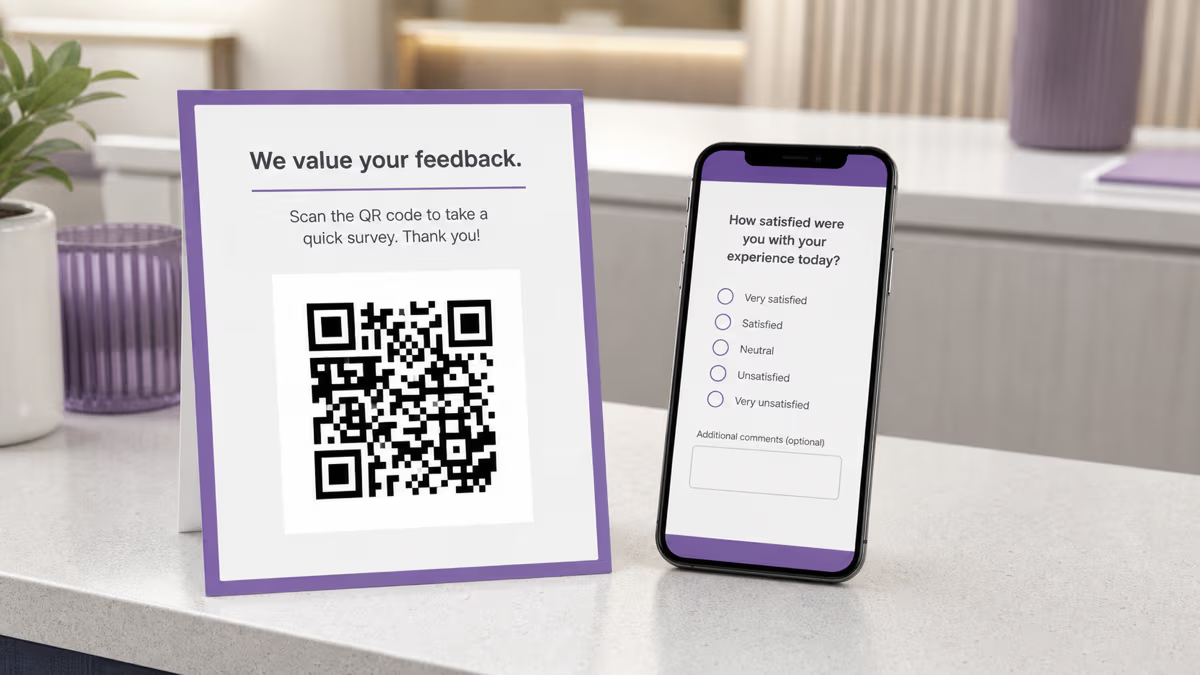
Microsoft Forms can generate its own QR code from Collect responses, so QRLynx is optional. Use Microsoft's downloaded PNG when one form and one sharing path are enough. Use QRLynx when you want a designed static QR, or a managed dynamic QR whose destination and eligible scan activity can be handled separately from the form.
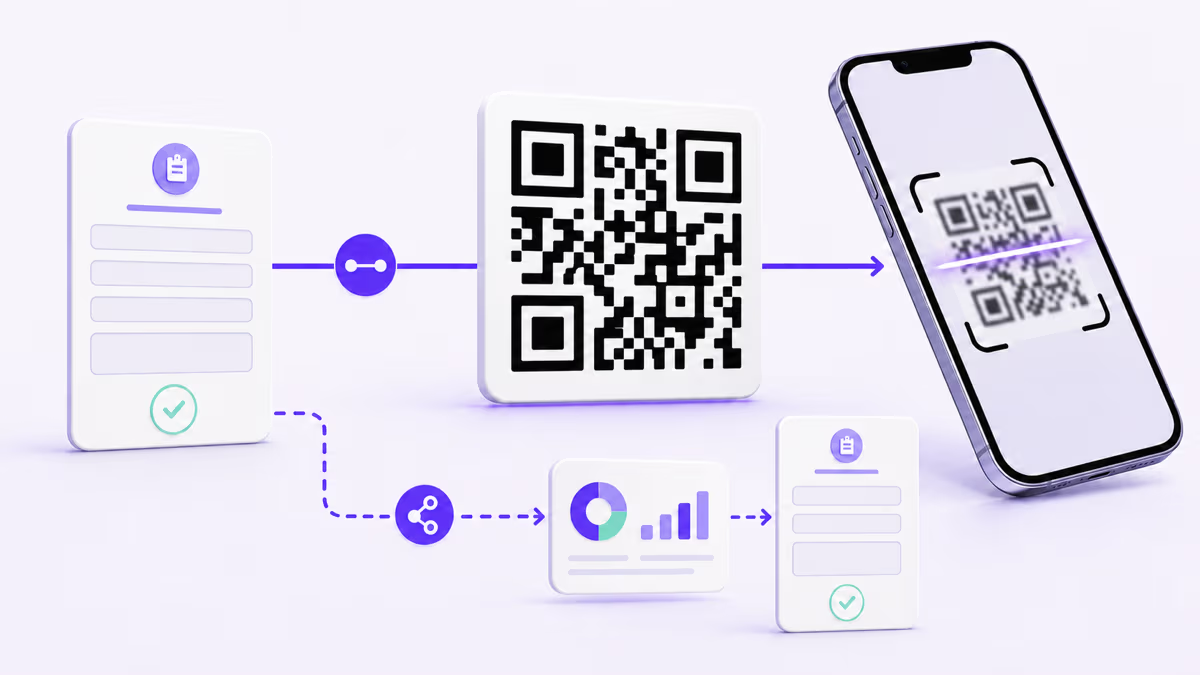
Microsoft Forms controls who can respond, collects the answers, and reports submitted responses. QRLynx receives the form's sharing URL, creates the QR, and can manage a redirect and eligible scan reporting when dynamic mode is used. QRLynx does not receive the answers submitted to the form.
Choose the right Microsoft Forms QR path
Start with the simplest path that provides the control you actually need.
| Decision | Microsoft native QR | QRLynx static QR | QRLynx dynamic QR |
|---|---|---|---|
| How it is created | Download the PNG from Collect responses | Paste the tested form link into Website URL and keep static mode | Paste the tested form link into Website URL and enable dynamic mode |
| What the QR stores | Microsoft's form-sharing destination | The pasted form URL | A QRLynx managed short link |
| Change to a different destination after printing | Create and distribute the appropriate Microsoft sharing path | Create a new QR for a different URL | Update the saved destination while keeping the printed dynamic QR |
| QRLynx scan reporting | Not part of this path | No QRLynx redirect event | Eligible scans are reported in QRLynx |
| Form responses | Stored and reviewed in Microsoft Forms | Stored and reviewed in Microsoft Forms | Stored and reviewed in Microsoft Forms |
| Useful fit | A quick PNG for one current form | A fixed destination with QRLynx design controls | Reusable print, managed destinations, or measured placements |
Create the native QR code in Microsoft Forms
Open the form, select Collect responses, choose who can respond, select the QR icon, and choose Download. Microsoft's current instructions say the QR downloads as a PNG that recipients can scan with a phone or tablet.
The responder audience matters more than the QR design. Anyone can respond does not require sign-in. Organization-only and specific-people options require eligible work or school accounts and are available only for supported Microsoft 365 organization accounts. Test a public form while signed out. Test an internal form with the type of organization account that should use it.
Source: Microsoft Support: Send a form and collect responses.
How to create a Microsoft Forms QR code in QRLynx
Choose who can respond
In Microsoft Forms, open Collect responses and select the intended audience. Use Anyone can respond for an open form, or the appropriate organization option for a restricted workflow.
Copy and test the response link
Copy the link from Collect responses. Open it outside the owner session, either while signed out for a public form or with an intended organization account for a restricted form. Confirm that the person can reach the first question.
Open Website URL in QRLynx
Open the QRLynx Website URL generator and paste the tested Microsoft Forms response link into the Website URL field. QRLynx uses the existing Website or Link QR workflow rather than a separate Microsoft Forms QR type.
Choose static or dynamic
Keep static mode when the exact pasted URL should remain encoded in the QR. Enable dynamic mode when an authorized account owner needs to manage the destination later or review eligible QRLynx scan activity.
Design and label the scan action
Keep strong contrast and clear space around the QR. Add a direct instruction such as Scan to register, Scan to RSVP, or Scan to give feedback, so the person knows what opens.
Test the finished path
Scan the exported QR from the final screen or printed proof, open the form with the intended access state, submit one clearly labeled test response, and verify it in Microsoft Forms. If the QR is dynamic, also confirm the expected scan activity in QRLynx.
Form link tested?
Create the QR for your Microsoft Form
Paste the response link into Website URL, choose static or dynamic, label the action, and test the complete path before printing.
Measure the scan-to-response path without mixing the numbers
A QRLynx dynamic QR reports eligible scans through its managed redirect. Microsoft Forms reports submitted responses, individual results, and response data that can be opened in Excel. These are different events.
A person can scan and leave before submitting, scan more than once, open a shared form link without scanning, or submit again when the form allows it. That is why scans divided by responses is not automatically an exact conversion rate.
For a practical placement comparison, create one named dynamic QR for each meaningful location, such as Lobby poster and Checkout receipt. Compare each QR's eligible scan activity with the relevant Microsoft Forms responses. If the form needs a placement value, keep it non-sensitive and make the attribution method visible to the person completing the form.
Where each approach fits
The same form can be shared in different ways, but each printed placement should have a clear job.
Event registration
Use the native PNG for one short-lived event, or a dynamic QR when the same sign may point to a later registration form.
Customer feedback
Label the action and use separate dynamic QRs when comparing feedback entry points across locations.
Internal requests
Keep the Microsoft organization restriction intentional and test with the account type employees will use.
Quizzes and check-ins
Confirm the response window, sign-in requirement, and intended device before distributing the QR.
Reusable signage
Use a managed dynamic destination when approved signage may need to open a replacement form later.
Placement measurement
Name each dynamic QR by placement and review scan activity separately from submitted responses.
Use a small release checklist
- Correct link: it came from Collect responses, not from the form editor.
- Correct audience: a public tester or intended organization account can open it.
- Correct state: Accept responses is on, and any start or end date matches the campaign.
- Correct label: the printed instruction says what happens after scanning.
- Correct artwork: the QR has strong contrast, clear space, and enough physical size for the real distance.
- Correct evidence: one test response appears in Microsoft Forms, and one expected scan appears in QRLynx when dynamic mode is used.
Microsoft Forms can use start and end dates and can stop accepting responses. Review those settings before a long print run or recurring event. Source: Microsoft Support: Adjust deadlines and settings.
Troubleshoot the full path
- The form asks for sign-in: review the Microsoft responder audience. For organization-only forms, scan with an intended work or school account.
- The form says it is closed: check Accept responses and any configured start or end date.
- The QR opens the wrong form: test the copied response link directly. For a QRLynx dynamic QR, also check the saved destination.
- The owner can open it but others cannot: repeat the test outside the owner session and use the intended responder account state.
- The printed QR is hard to scan: enlarge it, restore contrast and clear space, and test the final material under realistic distance and lighting.
- Scans and responses differ: treat them as separate events and check direct-link traffic, repeat scans, response access, and form length.
Microsoft Forms QR code questions
Does Microsoft Forms generate a QR code?
Yes. Open Collect responses, select the QR icon, and choose Download. Microsoft's current instructions say the QR downloads as a PNG for recipients to scan with a phone or tablet.
How do I make a Microsoft Forms QR code in QRLynx?
Choose the responder audience in Microsoft Forms, copy and test the response link, then paste it into the QRLynx Website URL generator. Choose static or dynamic, label the scan action, export the QR, and test one complete response from the final material.
Should I use the Microsoft QR or a QRLynx QR?
Use Microsoft's native PNG when one current form and one direct sharing path are enough. Use a QRLynx static QR when you want QRLynx design controls with a fixed URL. Use a QRLynx dynamic QR when you need a managed destination or eligible scan reporting.
Why does my Microsoft Forms QR code ask people to sign in?
The form's responder audience requires an eligible account. Organization-only and specific-people settings require the intended work or school identity. Review Collect responses and test with the same account state the real responder will use.
Can QRLynx see Microsoft Forms answers?
No. The Website URL QR workflow receives the destination URL. Microsoft Forms collects and stores the submitted answers. A QRLynx dynamic QR can report eligible scan activity, but that is separate from the response content.
Can I change where a printed Microsoft Forms QR code leads?
A QRLynx dynamic URL QR lets an authorized account owner update its saved destination while keeping the printed dynamic QR. A static QRLynx QR keeps the pasted URL encoded in its pattern. For Microsoft's native sharing path, generate and distribute the QR that matches the destination you intend to use.
How do I compare Microsoft Forms scans with responses?
Use QRLynx dynamic QR activity for eligible scans and Microsoft Forms results for submitted responses. Keep them as separate measures. Use one named QR per important placement when you need a practical comparison.
Why does the QR open a form that is not accepting responses?
Microsoft Forms can stop accepting responses and can use start and end dates. Review those settings in the form. If a replacement form is appropriate and the printed code is a QRLynx dynamic QR, update its saved destination and test again.