Microsoft Teams QR Code: Join a Meeting or Team

Key Takeaway
Create a Microsoft Teams meeting QR code in QRLynx, separate team codes from Teams Rooms QR codes, test guest access, and choose static or dynamic delivery.
Disclosure: QRLynx is built and operated by Jorbox LLC. This guide explains the current QRLynx workflow and uses Microsoft Support and Microsoft Learn as the sources for Microsoft Teams behavior.
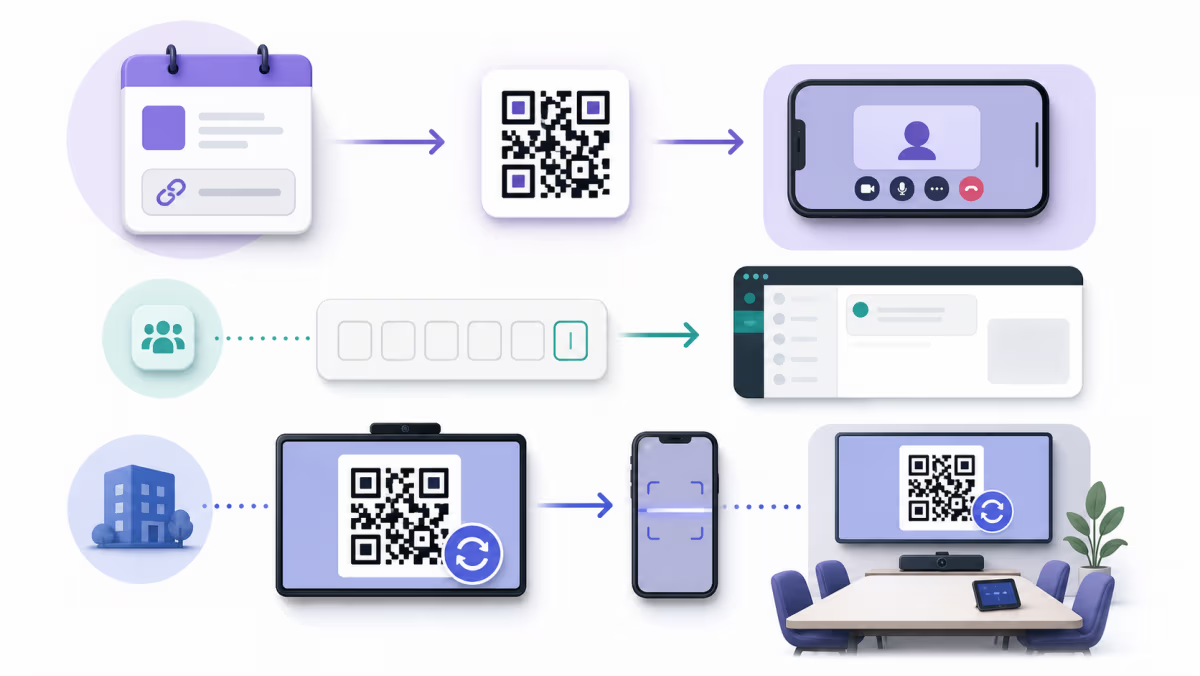
A Microsoft Teams meeting QR code is a Website or Link QR that contains the meeting's copied join URL. A participant scans it, then Microsoft Teams decides whether to open the app or a supported web experience and whether that person must sign in, verify an email address, wait in the lobby, or use another permitted path.
The phrase Teams QR code
can also mean two different Microsoft features. A team join code is text that a person enters inside Teams. A Teams Rooms QR code is generated and refreshed by supported room equipment. QRLynx can create the QR for an eligible meeting or sharing URL, but it does not generate Microsoft team codes, operate Teams Rooms, or control admission.
Choose the right Microsoft Teams path
Start with the thing you actually want the scanner to open or do.
| Teams mechanism | What you have | What the user does | Who controls access |
|---|---|---|---|
| Meeting invitation QR | A Teams meeting join URL copied from the meeting details | Scans the QR, opens the meeting link, and follows the app or browser join path | Microsoft meeting, identity, tenant, guest, lobby, and organizer settings |
| Team join code | A text code generated by a team owner | Opens Teams, chooses Join team, and enters the code | Microsoft team settings and membership rules; Microsoft currently says guests cannot join with a code |
| Teams Rooms QR code | A QR shown on a supported Teams Rooms home screen | Scans it with a mobile device to use the room actions Microsoft offers | Microsoft Teams Rooms, device configuration, mobile app, and organization policies |
Copy the meeting link, not a team code
For a scheduled meeting, Microsoft currently directs the organizer to open the meeting in the Teams calendar, select Share, then Copy join link. An instant meeting also provides a meeting link that can be copied and shared. Use that complete copied URL as the QR destination.
Open the link before generating the QR. Confirm that it identifies the intended meeting and reaches the expected pre-join experience. Then test from the identity states that matter: signed in to the organizer's tenant, signed in with an external account, and signed out when the meeting is meant to allow that route. Microsoft can still require sign-in, one-time email verification, or lobby admission according to the meeting and organization policies.
Do not paste a meeting ID without its passcode into a Website URL QR. Those are separate fallback fields used on Microsoft's join page or inside Teams. If you print a fallback, provide the complete meeting ID and passcode exactly as Microsoft shows them in the invitation.
Create a Microsoft Teams meeting QR with QRLynx
Open the exact Teams meeting
Create or open the scheduled meeting in Microsoft Teams. Confirm its title, date, time, organizer, and intended attendees before copying anything.
Copy the real join URL
In the meeting details, choose Share, then Copy join link. Keep the full copied URL intact instead of reconstructing it from a meeting ID or team code.
Test Microsoft access first
Open the copied link on a representative phone and in a signed-out or external-account state when those users are expected. Confirm app or browser handoff, sign-in requirements, and lobby behavior.
Choose Website URL in QRLynx
Open the QRLynx Website URL generator and paste the tested Teams meeting URL as the destination. QRLynx encodes or redirects to that URL; Microsoft still owns the meeting experience.
Choose static or dynamic delivery
Use static delivery when this printed QR should always contain that exact link. Use a saved dynamic QR when the printed sign may need a replacement meeting destination or eligible QRLynx scan reporting.
Label the action clearly
Add nearby text such as Scan to join the Teams meeting, plus the meeting name, date, time zone, and an organizer-approved fallback. Avoid a vague label such as Scan me.
Test the final artifact
Scan the exported QR from the real printed size or screen distance on representative iPhone and Android devices. Test the Teams app path and a supported browser path when both matter to the audience.
Static or dynamic for a Teams meeting link?
Choose based on destination ownership and measurement, not on the Teams brand.
| Decision | Static QRLynx QR | Dynamic QRLynx QR |
|---|---|---|
| Value printed in the QR | The tested Teams meeting URL | A QRLynx managed short link |
| Replace the destination after printing | Create and distribute a new QR | Update the saved destination while the printed dynamic QR stays the same |
| QRLynx scan reporting | No QRLynx redirect event | Eligible scans can be recorded through the managed redirect |
| Good fit | One stable meeting URL with no QRLynx redirect dependency | Reusable signs, changing meeting destinations, or placement measurement |
| Microsoft admission controls | Still apply after the scan | Still apply after the scan |
Meeting link tested?
Create the QR for your Teams meeting
Paste the verified Teams join URL into Website URL, choose static or dynamic delivery, add a clear action label, and test the final code.
A team join code is a different workflow
A team owner can generate a text code in Teams under the team's settings. The new member opens Teams, chooses the option to join a team, and enters that code. Microsoft says the code can be reset and currently cannot be used by guests.
Putting the characters themselves into a plain QR does not turn the scan into an automatic team-membership action. If you distribute a team code, present it as a written Microsoft Teams instruction with its owner and intended audience. A channel link is another separate Microsoft link, and its access still follows the team's permissions.
Use QRLynx for an actual copied URL when a scan should open a web or app destination. Do not promise that scanning it adds a person to a team, grants channel access, or bypasses the membership process.
The QR on a Teams Room belongs to Microsoft
Supported Teams Rooms on Windows and Android can show a Microsoft-managed QR code on the room home screen. Microsoft says this room QR refreshes every minute. After scanning it with a mobile device, a user may be offered room-specific actions such as joining an eligible current or near-term meeting, starting an ad-hoc meeting, or casting content.
That is not the same as printing a meeting join URL as a QRLynx QR. The room feature depends on supported Teams Rooms and Teams mobile versions, room configuration, account and organization policies, and the user's meeting and lobby state.
Use Microsoft's Teams Rooms documentation and admin controls when the goal is to configure the QR shown by the room system. A custom QRLynx QR is appropriate when the goal is to publish a specific, tested meeting URL on a poster, badge, handout, or independent display.
Run a pre-event validation check
A QR that decodes correctly can still lead to the wrong meeting or stop at a Microsoft access decision. Test the complete path before the event:
- Meeting identity: confirm the title, organizer, date, time, time zone, and copied join URL.
- Audience identity: test the account states attendees will actually use, including external or signed-out access when permitted.
- Lobby: confirm who can bypass it, who will admit attendees, and what happens if an anonymous participant arrives first.
- App and browser: test the installed Teams app path and any supported browser path the audience may use.
- Physical artifact: scan the final export at the real size, contrast, material, lighting, and viewing distance.
- Fallback: provide the meeting name and an organizer-approved written join route. Keep the meeting ID and passcode together when they are used.
- Change owner: name the person responsible for updating a dynamic destination or replacing a static code if the meeting changes.
Count scans without calling them attendance
QRLynx can report eligible scans only when the printed QR uses the managed dynamic redirect. That event means a qualifying request reached the QRLynx redirect path. It does not prove that the scanner signed in, passed the lobby, joined the intended meeting, stayed for a session, or participated.
Use QRLynx scan data to compare placements, times, and repeated interest in the printed route. Use Microsoft Teams attendance or meeting records, when available and appropriate for your organization, for meeting participation. Keep those measures separate in reports.
Troubleshoot the path in the right order
- The QR will not decode: use the QRLynx readability checker for estimated image feedback. Check the quiet zone, print size, surface and viewing distance on the actual placement.
- The decoded URL is wrong: inspect it with the QRLynx QR scanner. Update the destination of a saved dynamic QR, or create a new static QR.
- The meeting page is wrong: return to the Teams meeting details and copy its join link again.
- Teams requests sign-in or email verification: check the meeting and organization policies for the intended audience. The QR cannot remove that requirement.
- The scanner waits in the lobby: verify who can bypass the lobby and who is responsible for admitting people.
- The mobile handoff is unexpected: test with the device, app installation, account, and supported browser state that the attendee will use.
- A Teams Room QR path fails: use Microsoft's room documentation and admin settings. Do not replace the rotating room QR with a static screenshot.
For broader physical failures, use the QR code troubleshooting guide. For sizing decisions, use the QR size calculator and test the actual placement.
Microsoft Teams QR code questions
Can I create a QR code for a Microsoft Teams meeting?
Yes. Copy the meeting's real join URL from Microsoft Teams, test it, and place that URL in the QRLynx Website URL generator. Choose static delivery for a fixed destination or a saved dynamic QR when you may need to replace the destination or review eligible scan activity.
Does Microsoft Teams automatically create a QR code for every meeting?
Microsoft's ordinary meeting workflow provides a join link, meeting ID, and passcode rather than a user-downloadable QR for every meeting. You can create a QR from the copied meeting link. The QR shown by supported Teams Rooms is a separate Microsoft-managed room feature.
Can someone join a Teams meeting from the QR without an account?
Some meetings allow people to join without signing in, but the result depends on the meeting and organization policies. Microsoft may require sign-in, email verification, a permitted account, or lobby admission. Test the intended guest path before distributing the QR.
Does a Teams meeting QR bypass the lobby?
No. The QR opens the meeting link. Microsoft's lobby and admission settings still apply, including who can bypass the lobby and who can admit attendees.
Is a Microsoft Teams team code the same as a QR code?
No. A team code is text that a person enters inside Teams to join a team. Microsoft currently says guests cannot join a team with a code. Encoding the characters in a QR does not create an automatic membership action.
What is the QR code shown on a Teams Room screen?
It is a Microsoft-managed QR for supported Teams Rooms. Microsoft says it refreshes every minute and can offer room-specific actions through the Teams mobile app. It is separate from a custom QR containing one meeting join URL.
Can I reuse one printed QR for different Teams meetings?
A static QR keeps the original meeting URL and requires a new image when that destination changes. A saved QRLynx dynamic URL QR can keep the same printed short link while its account owner updates the destination to another tested meeting URL.
Can QRLynx track who attended the Teams meeting?
No. QRLynx can report eligible scans through its dynamic redirect path, not Microsoft identity, lobby admission, attendance, or participation. Use the appropriate Microsoft Teams records for attendance when that feature is available to your organization.
What should I print beside a Teams meeting QR?
State the action, meeting name, date, time, time zone, and an organizer-approved fallback. If the fallback uses Microsoft's meeting ID and passcode, keep both together and verify them against the current invitation.
Sources and product boundary
Microsoft behavior in this guide was checked against Schedule a meeting in Microsoft Teams, Join a meeting in Microsoft Teams, Join a meeting without an account, Using the lobby, Create a link or code for joining a team, and Microsoft Teams Rooms QR codes.
QRLynx creates and manages the QR path described here. Microsoft controls Teams meetings, teams, rooms, identities, tenant policies, guest rules, lobby behavior, and attendance records. Review Microsoft's current documentation and your organization's policies before a public or high-stakes event.
Continue with the Website URL QR generator, Dynamic URL QR guide, Event QR generator, Zoom QR guide, or QR design guidance.