How to Scan a QR Code Online Without an App

Key Takeaway
Scan a QR code online without an app. Use QRLynx with a webcam, image, screenshot, or PDF capture, then inspect the decoded result before opening it.
Reviewed: August 2026
The scanning methods, privacy behavior, supported inputs, local history, and bulk workflow in this guide were checked against the current QRLynx scanner implementation in August 2026. Camera and clipboard features can depend on the permissions and capabilities exposed by your browser and device.
You can scan a QR code online without installing an app by opening the QRLynx QR Code Scanner and using your camera, uploading a saved image, dragging images onto the page, or pasting a screenshot. The code is decoded inside your browser. The scanner shows the decoded text first, and it opens a web link only when you choose the link action.
Use the camera for a printed code. Use image upload or clipboard paste when the QR is already on your computer or phone screen. No QRLynx account is required.
How to scan a QR code online with QRLynx
Choose the input that matches where the code is now.
Open the online scanner
Go to the QRLynx QR Code Scanner. No download or account is required.
Choose camera, upload, drag and drop, or paste
Use the camera for a printed QR. Upload or drag in a saved image. For a screenshot or copied web image, paste with Ctrl+V on Windows or Cmd+V on Mac. Camera and clipboard access depend on browser permission.
Frame or crop the whole code
For a camera scan, hold the QR steady with the full pattern and blank border visible. For an image, use a clear crop that keeps all four sides and the surrounding quiet zone.
Read the decoded result
Review the complete text or URL shown by the scanner. Copy it if you only need the data. If it is a web link, check the destination before choosing to open it.
Try a cleaner input when decoding fails
Increase light, flatten the viewing angle, move closer without cutting off the border, or upload the original image instead of scanning a screen with a camera.
Browser QR reader
Scan a QR code now
Use a camera, saved image, drag and drop, or clipboard paste. Review the decoded result before deciding what to do next.
Pick the right scanning method
| Where the QR code is | Best input | What to check |
|---|---|---|
| Printed sign, label, or paper | Camera or webcam | Allow camera access, keep the code steady, and include the full border |
| Saved photo or image file | Upload or drag and drop | Use the original image when possible and crop around one clear code |
| On your current screen | Paste a screenshot | Capture the whole code at a readable size, then paste it into the scanner |
| Inside a PDF or slide | Screenshot or extracted image | Zoom until the modules are clear and avoid cutting off the quiet zone |
| Folder of QR images | Multi-image upload | Review each row and export the decoded results to CSV when useful |
Scan a QR code from an image or screenshot
An online scanner is especially useful when the code is already displayed on the same device. Take a screenshot that includes the complete QR, then paste it into the QRLynx scanner. On Windows, a common route is Windows+Shift+S followed by Ctrl+V. On macOS, capture a region with Command+Shift+4, copy the resulting image when needed, then paste with Command+V.
You can also upload or drag in a saved image. The file picker accepts images, and the browser supplies common formats such as PNG, JPEG, WebP, and BMP when it can decode them. Support for a particular file ultimately depends on the browser's image decoding.
Scan a QR code from a PDF, email, document, or slide
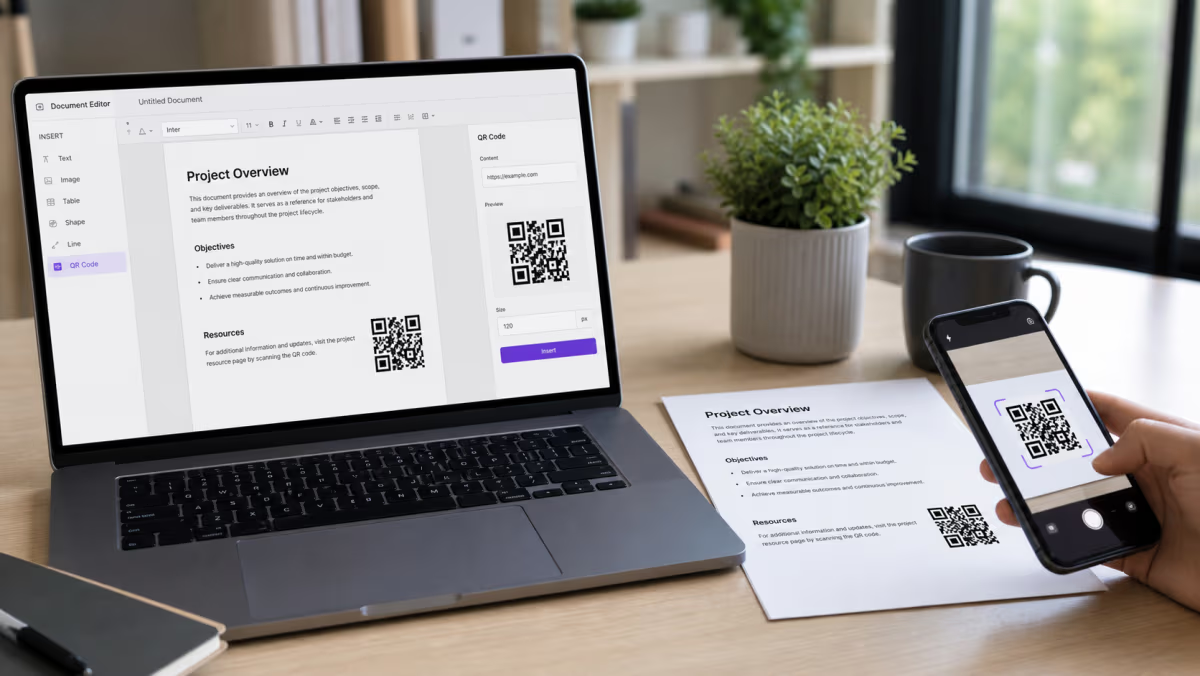
QRLynx reads an image of the QR rather than the PDF, email, document, or slide file itself. Open the content, zoom until the individual QR modules look sharp, and take a screenshot that keeps the complete code and its blank border. Paste or upload that capture to the scanner.
If the document lets you save the original QR image, use that file before taking a screenshot. It usually preserves more detail. If the first capture does not decode, increase the zoom, remove nearby content from the crop, and try again without cutting into the quiet zone.
Scan a QR code with a webcam or laptop camera
On a Windows PC, Mac, or Chromebook, hold a printed QR code in front of an available webcam, or upload, drag, or paste an image when the code is already on the computer. Upload and paste usually give the cleanest result for an on-screen code because they avoid screen glare and camera focus problems.
Webcam scanning requires a secure page, a browser that can request camera access, a camera available to that browser, and your permission. If the camera path is unavailable, image upload still provides a direct alternative.
Online scanner or built-in phone camera?
Use the phone's built-in camera when a printed QR is directly in front of you and you want to open it on that phone. Use the QRLynx online scanner when the code is already on the same screen, saved as an image, inside a document, or when you want to read and copy the decoded value before choosing an action.
For operating-system-specific options, see the Windows QR scanning guide. The iPhone and Android guide covers native phone-camera steps.
What QRLynx does with the image and result
QRLynx runs the decode logic in the browser. It uses the browser's native BarcodeDetector when available and falls back to browser-loaded JavaScript decoders. The camera frames and uploaded images used for decoding are not sent to a QRLynx image-processing endpoint.
Successful results can be stored in localStorage as a recent-scan list on that browser. The list is capped at 50 entries and can be cleared. This is local convenience storage, so another browser or device does not automatically receive it.
When the scanner recognizes a URL, it displays the decoded value before offering an action to open it. Decoding a QR does not verify that its destination is trustworthy. Read the domain, watch for look-alike spelling, and avoid entering information after opening a destination you do not trust. The QR scam and quishing guide explains the warning signs in more detail.
What a decoded QR code may contain
| Content type | What the scanner can reveal | Before taking action |
|---|---|---|
| Website URL | The complete encoded address | Check the domain and path before opening |
| WiFi configuration | Network name, security type, and an encoded password when present | Treat the decoded password as sensitive |
| Contact card | Fields encoded in a vCard or similar contact payload | Review the fields before saving them |
| Email, SMS, or phone action | The recipient plus any prefilled subject or message | Confirm the recipient and content before sending or calling |
| Calendar event | Encoded event details such as title, time, or location | Check the date, time zone, organizer, and location |
| Payment or wallet payload | The encoded address, identifier, or payment link | Verify the recipient and amount in the payment service before confirming |
| Plain text | The text stored in the code | Copy only what you need and avoid exposing sensitive data |
Scan several QR images and export the results
The QRLynx scanner accepts multiple image files in one selection or drop. It processes the images in sequence, shows a status and decoded value for each row, and provides a CSV export for the batch results.
This workflow suits a folder of campaign proofs, saved screenshots, event assets, or labels that need a decode check. It is not an event admission system and does not determine whether a ticket, coupon, identity, or payment is valid. Validation still belongs to the system that issued the code.
Why a QR code may not scan
- The code is cropped: restore the blank quiet zone around all four sides.
- The image is too small or blurred: use the original file, move closer, or capture a sharper screenshot.
- Glare or weak contrast hides modules: change the angle, improve the light, or use the saved artwork.
- The camera is not available: allow permission, close another app using the camera, or switch to image upload.
- The code is damaged or heavily styled: find a cleaner copy or ask the sender for the destination in text.
- Several codes compete in one image: crop around the one you want to decode.
If you control the artwork, test the final exported file with the QR code readability checker before printing. The QR code troubleshooting guide covers print, sizing, contrast, and damage in more depth.
Online QR code scanning questions
Can I scan a QR code online without downloading an app?
Yes. Open the QRLynx QR Code Scanner and use a camera, image upload, drag and drop, or clipboard paste. No QRLynx account or app installation is required.
How do I scan a QR code that is already on my screen?
Take a screenshot containing the complete code, then paste the image into the scanner with Ctrl+V on Windows or Cmd+V on Mac. You can also save the screenshot and upload it.
Can I scan a QR code on a laptop without a phone?
Yes. Upload or paste the QR image, drag it onto the scanner, or use an available webcam after granting camera permission. Upload or paste is usually simplest when the code is already on the laptop.
How do I scan a QR code from a PDF or email?
Open the PDF or email, zoom until the QR is sharp, and take a screenshot that includes the complete code and blank border. Paste or upload that image to QRLynx. If the original QR image can be saved separately, use it for the clearest input.
Can I scan a QR code with a webcam online?
Yes. Open the QRLynx scanner on a secure page, allow camera access, select the available webcam, and hold the complete printed code steady in view. If camera access is unavailable, upload or paste an image instead.
Does QRLynx upload my QR image to decode it?
The current scanner decodes camera frames and selected images in the browser. It does not send those images to a QRLynx image-processing endpoint. Successful results may be stored in that browser's localStorage history until you clear it.
Can I inspect a QR link before opening it?
Yes. The scanner displays the decoded content first. For a URL, read the full domain and path before choosing the open-link action. Decoding reveals the address but does not certify that the destination is safe.
Which image formats can I scan?
The scanner accepts image files through the browser. Common formats such as PNG, JPEG, WebP, and BMP work when the browser can decode them. A clear PNG or JPEG screenshot is a reliable choice.
Can I scan several QR code images at once?
Yes. Select or drop multiple images. QRLynx processes them in sequence, shows a row for each result, and can export the batch results as CSV.
Why is the camera option not working?
Camera scanning needs a secure page, a camera available to the browser, and your permission. Check the browser's site permission and whether another app is using the camera. Image upload or screenshot paste remains available as an alternative.
Can the scanner tell whether a ticket or payment QR is valid?
It can decode the data stored in the QR, but validity belongs to the issuing ticket, payment, identity, or access system. Use that issuer's official workflow to verify status before accepting it.
Is there a QRLynx scan limit for this tool?
The public QRLynx scanner is available without an account or plan-based scan quota. You can scan from the camera, images, screenshots, or a multi-image selection.
Use the input that preserves the clearest code
For a printed QR, start with the camera. For a code already on a screen, start with a screenshot or original image. In both cases, keep the full border, review the decoded result, and treat any next action separately from the scan itself.
Open the QRLynx QR Code Scanner to decode a code, or use the QR code generator when you need to create and manage one of your own.