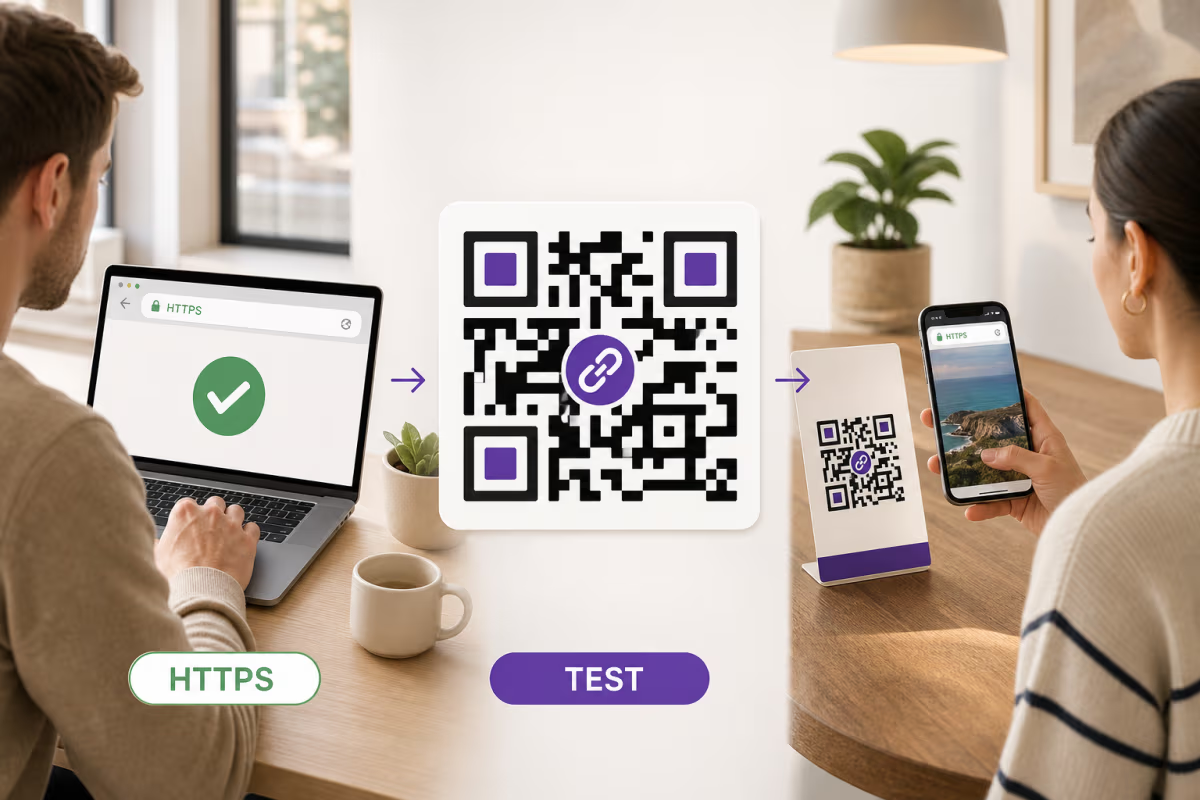
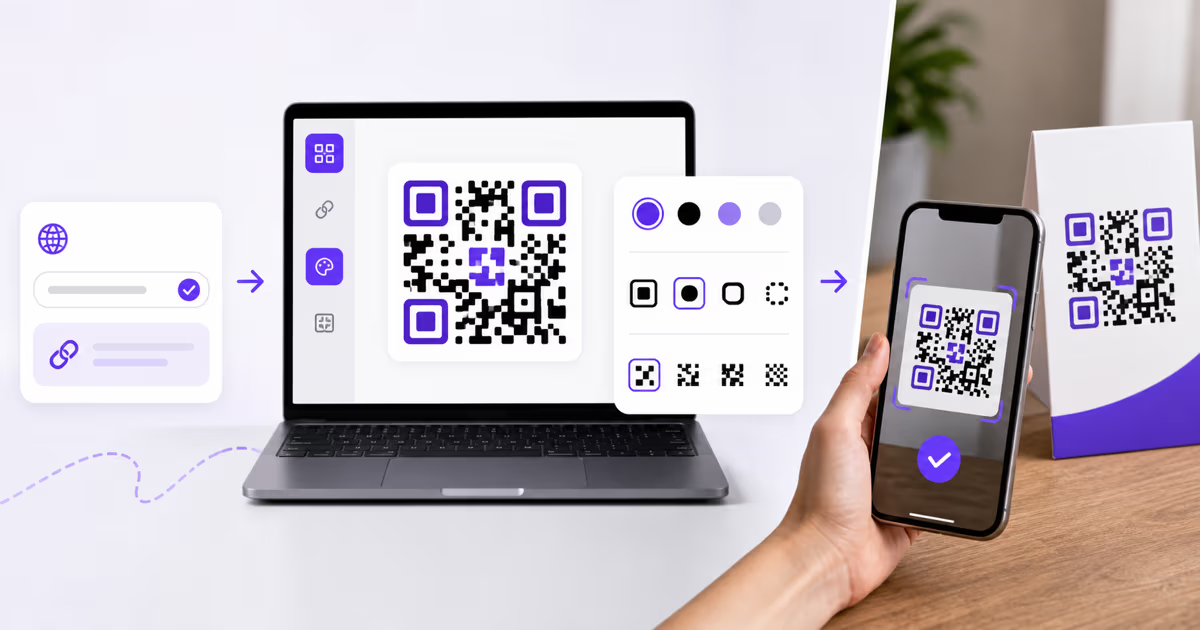
How to Scan a QR Code on iPhone, Android, or Computer

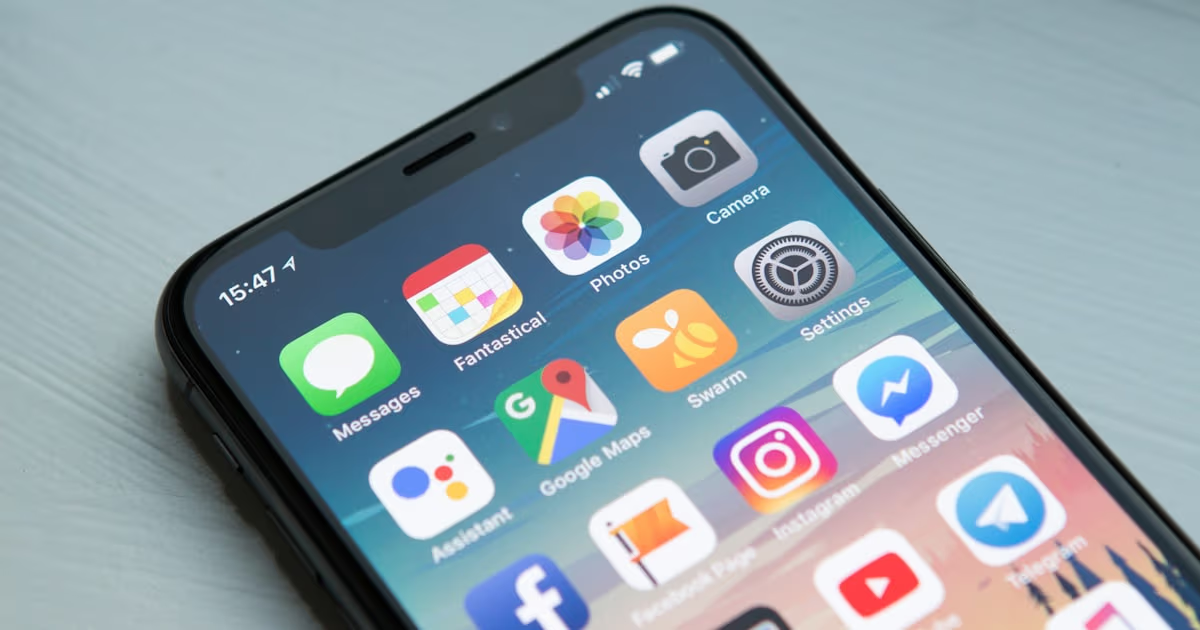
Key Takeaway
Scan a physical QR code or one saved as a screenshot on iPhone, Android, Samsung Galaxy, or computer. Includes safety checks and QRLynx scanner steps.
The fastest way to scan a physical QR code is usually your phone's Camera app. On iPhone, you can also use Apple's Code Scanner. On many Android phones, the Camera app or Google Lens reads the code. Samsung Galaxy phones add a Scan QR code control in Quick Settings.
If the QR code is already saved as a screenshot or photo, use the image-reading option available on your device, or upload it to the QRLynx online QR scanner. QRLynx can read a code from a camera, one or more image files, a pasted image, or a dragged image in the browser. It shows the decoded result before you choose whether to copy or open it.
This guide separates physical-code scanning from same-device image scanning, then shows what to check before opening an unfamiliar destination.
How to scan a QR code on iPhone
Use Camera or Code Scanner for a QR code in front of you. Apple's current instructions say to place the complete code inside the camera frame, then tap the link that appears.
Use the Camera app
- Open Camera and stay in Photo mode.
- Position the iPhone so the whole QR code appears inside the frame.
- Wait for the camera to highlight the code and show a link.
- Read the destination shown on screen, then tap it if it is the site or action you expect.
Use Code Scanner from Control Center
- Open Control Center.
- Tap Scan Code. If the control is missing, touch and hold the Control Center background, choose Add a Control, and add Scan Code.
- Place the code inside the scanner frame. Use the flashlight control if the printed code is in low light.
- Review and open the detected result.
Apple's current QR scanning guide covers both methods. Button names and placement can vary with the installed iOS version and iPhone model.
How to scan a QR code on Android
Start with the Camera app, but expect the exact controls to vary by phone maker and software version. If the camera does not recognize the code, use Google Lens from the Google app or Chrome.
Try the Camera app
- Open Camera and point it at the complete code.
- Hold the phone steady until a destination or action appears.
- Review the result before tapping it.
- If nothing appears, check the Camera settings for a QR scanning option or switch to Google Lens.
Use Google Lens
- Open the Google app or a new tab in Chrome and tap the Lens icon.
- Choose the camera and position the QR code in the box.
- Wait for the detected link or action.
- Check the destination, then open it if it matches what you expected.
Google's Chrome Lens instructions document the QR and barcode flow. Circle to Search can inspect content on screen on selected Android phones, but it is not available on every model, so it should be treated as an optional shortcut rather than the default method.
How to scan a QR code on Samsung Galaxy
Samsung's current guidance recommends the Camera app or the Scan QR code control in Quick Settings. The Quick Settings scanner also gives you access to a flashlight and lets you review the detected result before opening it.
Use the Camera app
- Open Camera in Photo mode.
- Point it at the complete QR code.
- Tap the notification that appears.
- If the camera does not detect the code, open Camera settings and enable Scan QR codes.
Use Quick Settings
- Swipe down to open Quick Settings.
- Tap Scan QR code. Add the control through the panel's edit option if it is not visible.
- Align the code inside the frame and use the flashlight if needed.
- Review the detected destination before continuing.
For a QR code saved on the same Galaxy phone, Samsung says to open the image in Gallery and press and hold the QR code until a notification appears. See Samsung's current Galaxy QR scanning instructions.
How to scan a QR code from a screenshot or saved photo
A camera cannot point at a code displayed on the same phone. Use an image-reading feature instead.
- iPhone: Open the image in Photos and try pressing and holding the QR code or tapping a detected link. Availability and the exact action can vary by iOS version. If no action appears, upload the image to QRLynx in Safari.
- Android: Open the image in Google Photos and use Google Lens, or select the saved image from Lens. The exact control varies by app version.
- Samsung Galaxy: Open the image in Gallery and press and hold the code until its notification appears, as described in Samsung's current support guidance.
- Computer: Upload, drag, or paste the saved image into the QRLynx scanner. This avoids holding a phone up to a laptop screen.
Use the clearest available image. A crop that removes the blank border around the code, a low-resolution screenshot, or heavy compression can prevent detection.
How to scan a QR code image with the QRLynx scanner
QRLynx supports camera scanning and local image decoding in a browser. It does not replace your phone's native Camera app for ordinary physical codes.
Open the QRLynx scanner
Go to the QRLynx online QR scanner. No account or app installation is required.
Choose the QR input
Start the camera for a physical code, or upload, drag, or paste a screenshot or photo. You can select multiple image files when several codes need to be decoded.
Allow only the access you need
Grant camera permission only for live scanning. Image files are decoded by the scanner in the browser, and scan history is stored in that browser's local storage.
Inspect the decoded result
Read the complete result before opening it. For a URL, check the hostname and spelling. For Wi-Fi, contact, email, SMS, or calendar data, confirm the action and values.
Copy or open the result
Copy the decoded value when you want to inspect or save it. Open a link only when the destination is expected and trusted.
Retry with a cleaner image
If detection fails, use a sharper image with the full code and its blank border visible, improve lighting, clean the camera lens, or move slightly closer or farther away.
QR image ready?
Decode it before you open it
Use the QRLynx scanner to read a camera view, screenshot, or saved image and inspect the result first.
Why a phone may not detect a QR code
Work through the physical causes before assuming the destination is broken.
The code is incomplete or out of focus
Keep the complete square and its blank border in frame. Clean the camera lens, hold the device steady, and move closer or farther away until the modules are sharp.
Lighting or glare hides part of the pattern
Add light, use the scanner's flashlight where available, or change the angle on glossy screens and laminated print.
The saved image is too small or compressed
Use the original file when possible. A messaging app can reduce resolution, and a tight crop can remove the quiet zone around the code.
The scanning feature is disabled or unavailable
Check the Camera settings, try the platform's dedicated scanner, or use an image upload. Device, region, app, and operating-system versions can change which controls are present.
The code scans, but the destination fails
A successful decode and a working destination are separate checks. A URL can be mistyped, removed, restricted, or temporarily unavailable. Copy the decoded URL and inspect it before retrying. If you own the code, test the destination and see the QR code troubleshooting guide.
Check a QR result before opening it
A QR code can contain a website address, Wi-Fi credentials, contact details, an email or SMS draft, a calendar event, payment data, or plain text. Scanning decodes the payload. It does not prove that the source or destination is trustworthy.
- Check that the printed code came from the person or organization you expected.
- Read the displayed hostname before opening a website.
- Be cautious when an unexpected code asks for a password, payment, personal information, an app installation, or a file download.
- Close the result when the domain, action, or request does not match the context.
The QRLynx scanner displays the decoded value first, which makes it useful for inspecting a saved image before deciding what to do next.
Choose the scanning method by situation
| Situation | First method | Fallback | What to verify |
|---|---|---|---|
| Physical code on iPhone | Camera | Code Scanner | Displayed link or action |
| Physical code on Android | Camera | Google Lens | Displayed link or action |
| Physical code on Samsung | Quick Settings scanner or Camera | Enable Scan QR codes in Camera settings | Displayed notification |
| Code saved on the same phone | Photos, Gallery, or Lens | QRLynx image upload | Complete decoded value |
| Code saved on a computer | QRLynx upload, drag, or paste | Phone camera pointed at the screen | Complete decoded value |
QR code scanning FAQ
How do I scan a QR code with my phone?
Open the Camera app and place the complete QR code inside the frame. When a link or action appears, review it and tap only if it matches what you expect. On iPhone you can also use Code Scanner. On Android, Google Lens is a useful fallback. Samsung Galaxy phones also have a Scan QR code control in Quick Settings.
Can I scan a QR code without installing an app?
Yes. Current iPhones and many Android phones have built-in scanning through Camera or a system scanner. QRLynx also provides a browser scanner for camera use and saved images without an account or app installation.
How do I scan a QR code shown on my own phone?
Save or screenshot the code, then inspect the image with Photos, Gallery, or Google Lens. If the built-in image action does not appear, upload the screenshot to the QRLynx scanner in your browser.
Why does my camera see the QR code but show no link?
The camera's QR setting may be disabled, the image may be blurred or cropped, or that camera app may not support the payload. Enable QR scanning in Camera settings, try the platform's dedicated scanner, or decode a clear image with QRLynx.
Does scanning a QR code prove the link is safe?
No. A scanner decodes the payload. Check the source, hostname, spelling, and requested action before opening a link, entering information, making a payment, installing an app, or downloading a file.
Does QRLynx upload QR images to a server?
The QRLynx scanner decodes camera frames and image files in the browser. Its recent scan history is stored in that browser's local storage. Camera permission is needed only when you choose live camera scanning.
What can a QR code contain besides a website?
A QR code can contain Wi-Fi settings, contact details, email or SMS fields, calendar data, payment information, phone numbers, locations, or plain text. The available action depends on the decoded payload and the device.
Sources
- Apple Support: scan a QR code with iPhone or iPad
- Google Chrome Help: search with Google Lens on Android
- Samsung Support: scan a QR code on Galaxy
Device instructions were checked on August 1, 2026. Interface names can change by model, region, app version, and operating-system update.