How to Scan a QR Code on Windows: Camera, Screenshot, or PDF


Key Takeaway
Scan a QR code on Windows with the Camera app or decode a screenshot, clipboard image, PDF, batch folder, or webcam using the free QRLynx browser scanner.
Windows can scan a physical QR code with the Microsoft Camera app when its Barcode mode is available. Open Camera, select the Barcode button, place the QR in focus, and review the decoded link before opening it. For a QR already displayed on the PC, use Windows logo key + Shift + S to capture it, then paste the screenshot into the QRLynx QR scanner with Ctrl + V.
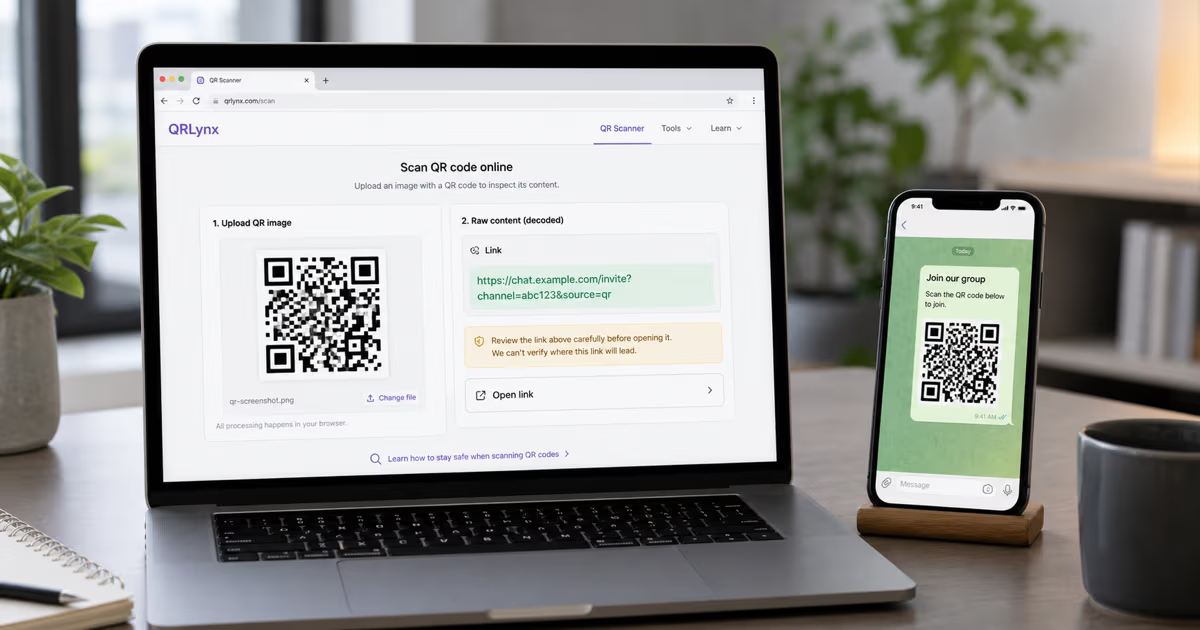
QRLynx also decodes saved images, multiple image files, and an optional webcam feed directly in the browser. No account or application installation is required. The useful method depends on where the code currently exists, not on whether the computer is a desktop, laptop, Surface, or another Windows device.
Choose the Windows QR scanning method
| Where the QR code is | Fastest method | What to do |
|---|---|---|
| Printed in front of the PC | Windows Camera Barcode mode | Focus the camera on the code and inspect the decoded result |
| Visible on the Windows screen | Snipping Tool plus QRLynx clipboard paste | Capture the QR region, open QRLynx Scanner, and press Ctrl + V |
| Saved as PNG, JPG, WebP, or BMP | QRLynx image upload | Choose or drag the image into the scanner |
| Inside a PDF, Word file, slide, or spreadsheet | Capture or extract the QR image | Crop to the QR, then paste or upload it |
| Many saved QR images | QRLynx batch image decode | Drop the image files together and review each result |
| Physical code when Camera mode is unavailable | QRLynx webcam scanner | Grant camera permission and hold the code in focus |
Method 1: scan a printed QR with the Windows Camera app
Microsoft's current Windows Camera instructions include code scanning for QR codes and barcodes. Open Start, search for Camera, and select the Camera app. Choose the Barcode button on the right side, then hold the code in front of the selected camera until it is in focus. For a URL QR, Windows displays the link at the bottom of the app.
This works with a built-in camera or a connected webcam that the Camera app can use. Microsoft also documents a software barcode decoder in Windows 10 version 1803 and later for supported camera-scanner applications, including QR Code among its supported symbologies.
If the Barcode button is absent, update the Camera app and Windows, check whether the camera is available to the app, or use the browser method below. Feature availability can depend on the Windows build, Camera app version, device camera, and organizational policy.
Method 2: scan a QR from a screenshot with QRLynx
When the QR is already on the Windows screen, pointing a webcam back at the monitor adds glare, moire patterns, and focus problems. Capture the QR region instead.
- Press Windows logo key + Shift + S.
- Drag a rectangle around the complete QR code, including the clear border around it.
- Open the QRLynx QR scanner.
- Press Ctrl + V anywhere on the scanner page.
- Read the decoded text or URL before choosing whether to open or copy it.
Microsoft documents that a snip is copied automatically to the clipboard. QRLynx listens for pasted clipboard images and decodes the captured image in the browser, so saving a temporary file is optional.
Method 3: scan a saved image or several files
Open QRLynx Scanner and choose the image-upload option, drag the file into the drop area, or select several supported images together. The current scanner accepts common image formats including PNG, JPG, WebP, and BMP. It first uses the browser's available decoding path, then applies local fallbacks for images that need another pass.
For multiple files, QRLynx processes the images sequentially and shows a result for each file. The batch table provides per-row status and copy controls, with CSV export after the batch finishes. This is useful for checking a folder of campaign proofs or saved screenshots without opening every image manually.
Crop away unrelated page content when the QR occupies a small part of a large screenshot. Keep the full square and its quiet zone, because cropping into the code can prevent detection.
Method 4: scan a QR inside a PDF or Office document
A PDF, Word document, PowerPoint slide, or spreadsheet can display a QR without exposing it as a separate image file. The consistent method is to capture the visible QR region with Snipping Tool, then paste that capture into QRLynx Scanner.
If the application offers Save as Picture or image export, that can preserve more detail than a screenshot. Otherwise zoom in until the QR is sharp, capture the whole symbol with clear space around it, and decode the capture. You do not need to upload the complete document when only the QR region is required.
For a QR shown in a Teams screen share, pause or ask the presenter to hold the page still, take a screenshot, and decode the screenshot. This is usually more reliable than aiming a camera at the moving display.
Method 5: use the QRLynx webcam scanner
QRLynx Scanner can also read a physical code through a browser camera session. Open the scanner, start camera mode, allow camera access for the site, and hold the QR inside the guide until it is sharp. If the device exposes more than one camera, the scanner can show a control for switching cameras.
The browser camera route is useful when Windows Camera's Barcode mode is unavailable or when you want the same QRLynx result view used for screenshots. Camera permission is optional and is requested only when camera scanning starts.
Move the code gradually closer or farther away until the camera focuses. Add light without reflecting it directly into glossy print, keep the QR flat, and avoid covering its corners.
How to scan a Windows screenshot with QRLynx
Capture only the QR region, decode it locally, and inspect the result before opening it.
Display the complete QR code
Open the email, website, PDF, document, or meeting screen that contains the QR. Zoom in if the individual modules look blurred, and keep the full quiet zone visible.
Capture it with Windows Snipping Tool
Press Windows logo key + Shift + S, choose a rectangular capture, and drag around the QR code. Windows copies the capture to the clipboard automatically.
Open QRLynx QR Scanner
Visit the QRLynx browser scanner in Edge, Chrome, Firefox, or another current browser. No QRLynx account or Windows application installation is required.
Paste the screenshot
Press Ctrl + V on the scanner page. If clipboard access is unavailable, save the snip and use image upload or drag and drop instead.
Read the decoded payload
Review the complete URL, text, WiFi value, contact data, or other decoded content. Copy it only if that is the action you intend.
Verify before opening a link
Check the displayed hostname and surrounding context. A successful decode proves what the QR contains, not that its destination is trustworthy.
Screenshot already on your PC?
Paste the QR image and inspect the result
Open the free QRLynx scanner, press Ctrl + V, and preview the decoded payload before deciding what to do with it.
What happens to the image in QRLynx Scanner
The current QRLynx scanner reads camera frames, pasted screenshots, and selected image files in the browser. Its decoding paths include the browser's BarcodeDetector API where available, plus html5-qrcode and jsQR fallbacks. The selected image is handled as browser-side image data for decoding rather than being uploaded as a scanner input to a QRLynx image-processing endpoint.
This boundary is about decoding, not the destination. A local decode can reveal a malicious or misleading URL just as accurately as a legitimate one. Inspect the hostname, spelling, and expected context before opening it. For payment, sign-in, ticket, document, or account-recovery codes, use extra caution with any unexpected destination.
The scan-history interface is stored locally in the browser. Treat a shared computer accordingly, and clear browser data or the local history when the decoded values should not remain visible to another user of that profile.
Why a Windows QR code may not decode
- The image is too small: zoom in or obtain a higher-resolution source.
- The QR is cropped: capture all four corners and the clear quiet zone.
- The camera cannot focus: change the distance slowly and add even light.
- Glare covers modules: tilt the print or screen slightly and remove direct reflections.
- The design has weak contrast: obtain a darker code on a lighter background when possible.
- The symbol is damaged or obscured: request an undamaged copy or a fresh export.
- The file is a document rather than an image: capture or extract only the QR region first.
If one method fails, use the highest-quality source available. A clean screenshot or exported image normally preserves more detail than a low-resolution webcam view.
Windows QR scanning FAQs
Does Windows have a built-in QR code scanner?
Yes, the current Windows Camera app can scan QR codes and barcodes when its Barcode mode is available. Open Camera, select the Barcode button, and place the physical code in focus. For screenshots and saved images, use an image-capable scanner such as QRLynx.
How do I scan a QR code from a screenshot on Windows?
Press Windows logo key + Shift + S, capture the full QR region, open QRLynx QR Scanner, and press Ctrl + V. The screenshot is decoded in the browser, and you can inspect the result before opening it.
Can I scan a QR code displayed on the same PC?
Yes. Capture it with Snipping Tool and paste the image into QRLynx Scanner. This is more reliable than pointing the PC webcam back at its own monitor.
Can Microsoft Edge scan a QR code from an image?
The consistent cross-browser workflow is to open QRLynx Scanner in Edge and paste, upload, or drag in the image. This does not require an Edge extension or a Windows application.
How do I scan a QR code inside a PDF on Windows?
Open the PDF, zoom in, capture the QR with Windows logo key + Shift + S, and paste the screenshot into QRLynx Scanner. If the PDF viewer can export or save the embedded image, upload that higher-quality image instead.
Can QRLynx scan several QR images at once?
Yes. Select or drop multiple image files into QRLynx Scanner. It processes them sequentially, reports each result, provides copy controls, and can export the completed batch results as CSV.
Does QRLynx upload my QR screenshot to decode it?
The current scanner decodes selected files, pasted images, and camera frames in the browser using available local decoding paths. The image is not sent to a QRLynx image-processing endpoint as part of the decode workflow.
Can QRLynx use my laptop webcam?
Yes. Start camera mode and grant the browser permission to use the camera. Hold the QR in focus and adjust distance or lighting if it is not detected. Camera permission is optional when you only paste or upload an image.
Why is the Barcode button missing from Windows Camera?
Availability can depend on the Windows build, Camera app version, supported camera, and organizational policy. Update Windows and Camera, confirm camera access, or use QRLynx webcam or image scanning as the fallback.
Is a decoded QR link automatically safe?
No. Decoding only reveals the stored payload. Check the hostname, spelling, expected sender, and context before opening an unfamiliar link, especially for payments, sign-ins, tickets, or private documents.
Is QRLynx QR Scanner free on Windows?
Yes. The browser scanner works without a QRLynx account or Windows application installation. It supports camera scanning, image upload, drag and drop, clipboard paste, and multiple-image decoding.
First-party sources
- QRLynx QR Scanner and its current camera, image, clipboard, batch, history, and local decoding implementation.
- Microsoft Support: use the Windows Camera app.
- Microsoft Support: use Snipping Tool.
- Microsoft Learn: camera barcode scanner.