How to Create a PDF QR Code: Share Documents with a Scan (2026 Guide)

Key Takeaway
Learn how to create a QR code that opens a PDF document. Compare direct upload, URL linking, and cloud storage methods. Includes file size limits, design tips, analytics tracking, and 12 FAQs.
Why PDF QR Codes Are the Fastest Way to Share Documents in 2026
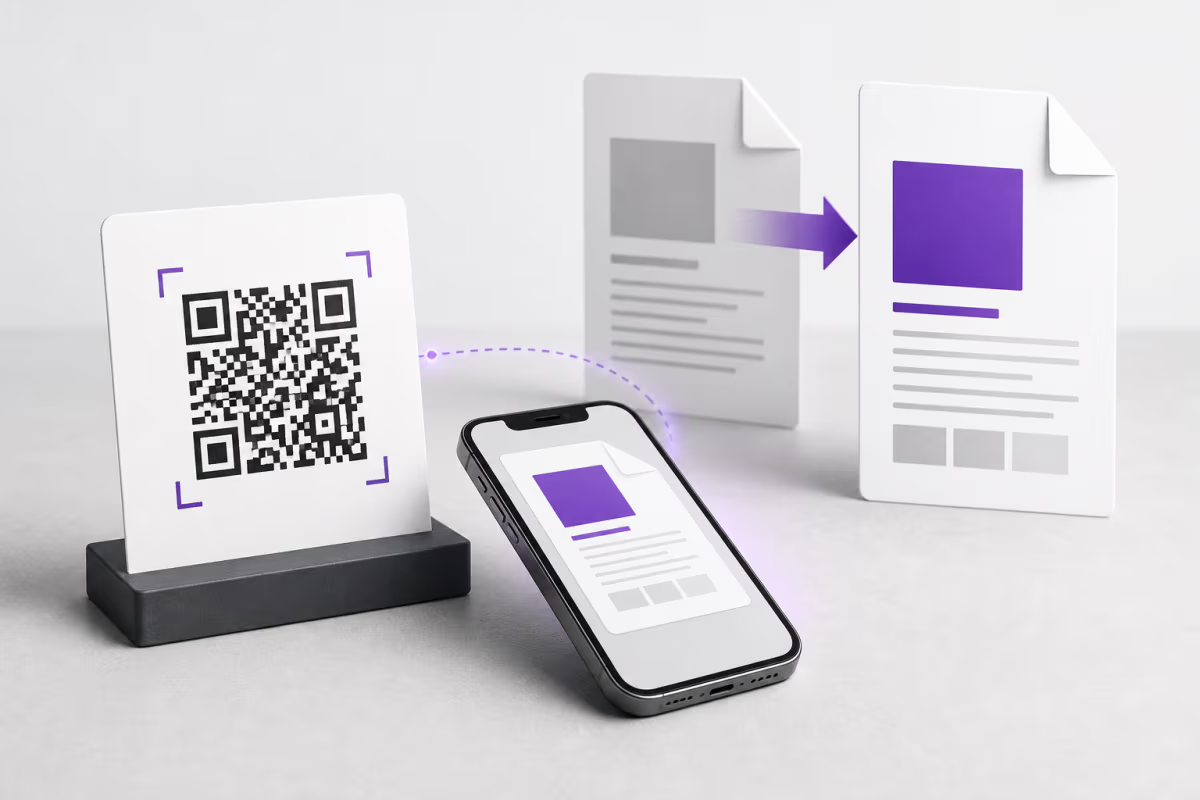
Paper is not going away. Business cards still get handed out at conferences. Restaurant menus still sit on tables. Product manuals still ship inside boxes. Event programs still get distributed at the door. But the documents behind those physical touchpoints have changed dramatically. Instead of cramming an entire instruction manual onto a folded insert or printing a 12-page menu, businesses now encode a single QR code that opens the full PDF on the scanner's phone — instantly, without any app download.
The numbers tell the story. According to QR Tiger's 2025 industry report, file QR codes (primarily PDF) account for 20.61 percent of all QR codes created on their platform, making them the second most popular QR type after URL codes. A separate analysis by QRCodeChimp found that file download QR codes represent 24 percent of general QR code creation volume. Globally, QR code scans increased 57 percent in 2025 compared to the prior year, according to QR Code KIT, and 94 percent of marketers surveyed by Bitly said they increased QR usage over the past 12 months. With the global QR code market projected to reach $15.23 billion in 2026 according to Mordor Intelligence, PDF QR codes represent one of the fastest-growing segments of that market.
This guide walks you through every method for creating a PDF QR code — from direct file upload to URL linking to cloud storage integration. You will learn which approach fits your use case, how to stay within file size limits, how to design codes that scan reliably on print materials, and how to track exactly who opens your documents. Whether you are a restaurant owner sharing a seasonal menu, an HR manager distributing onboarding packets, or a real estate agent attaching listing brochures to yard signs, this is the definitive resource for PDF QR codes in 2026.
Three Methods for Creating a PDF QR Code
Not all PDF QR codes are created equal. The method you choose affects file size limits, loading speed, analytics capabilities, and whether you can update the document after printing. Here is a detailed comparison of the three main approaches.
Method 1: Direct PDF Upload (Recommended)
The simplest and most reliable approach is uploading your PDF file directly to a QR code platform that supports native file hosting. When you choose this method, the platform stores your PDF on its own servers (typically backed by a CDN for fast global delivery), generates a short redirect URL, and encodes that URL into a QR code. When someone scans the code, the redirect resolves instantly and the PDF opens directly in the phone's built-in browser viewer — no app required.
Direct upload platforms like QRLynx handle optimization automatically. The PDF is served via edge caching so load times stay under two seconds regardless of the scanner's location. You get built-in scan analytics, password protection options, and the ability to replace the PDF file later without reprinting the QR code (if you use a dynamic code). The main constraint is file size — each platform enforces upload limits based on your subscription tier.
Method 2: URL Link to an Existing PDF
If your PDF is already hosted on your own website, a cloud storage service, or a document management system, you can create a QR code that links directly to the public URL. This approach gives you full control over hosting, but it comes with trade-offs. First, you need to ensure the URL stays live — if you move or rename the file, every printed QR code breaks. Second, many self-hosted URLs are long and ugly (for example, https://yourcompany.com/assets/documents/2026/product-manual-v3-final-revised.pdf), which makes the QR code denser and harder to scan at small sizes. Third, you lose analytics unless your hosting platform provides its own tracking.
The best practice for URL-based PDF QR codes is to wrap the raw URL inside a dynamic short link. QRLynx and similar platforms do this automatically — you paste the full URL, the platform generates a short redirect (like r.qrlynx.com/abc123), and encodes that short URL into the QR code. This keeps the code simple, enables analytics, and lets you change the destination URL later without reprinting.
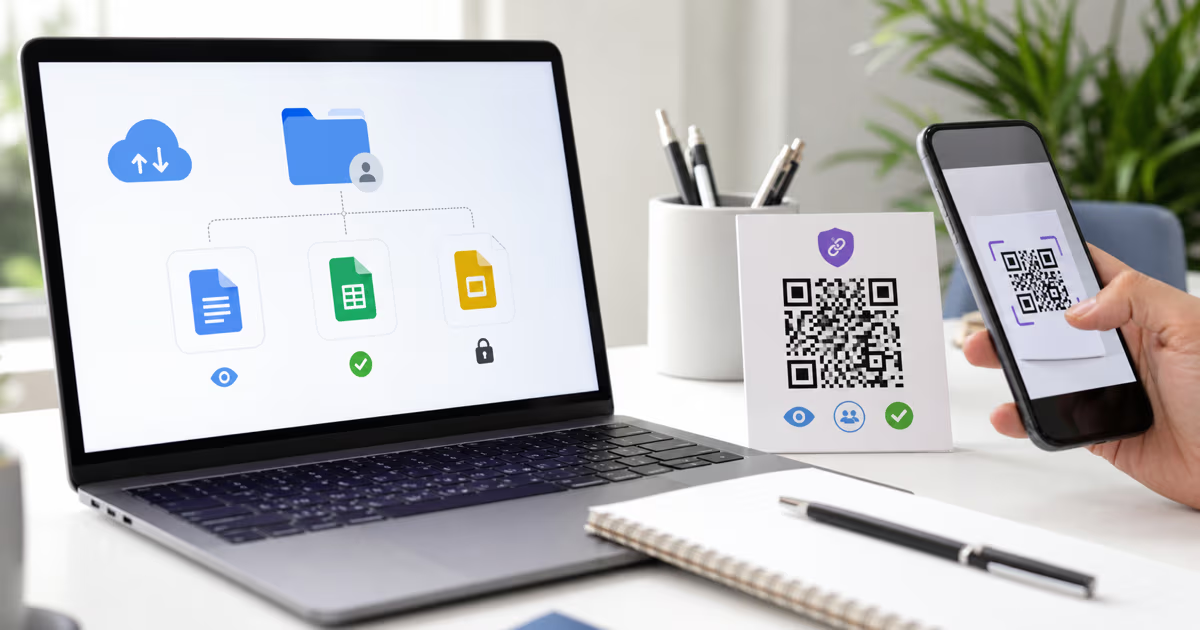
Method 3: Cloud Storage Link (Google Drive, Dropbox, OneDrive)
A third option is uploading your PDF to a cloud storage service and sharing the public link via QR code. Google Drive, Dropbox, and OneDrive all support public file sharing. This method is free and works well for personal use, but has significant limitations for professional deployment. Cloud sharing links are notoriously long, the viewer experience varies by device and platform, files can be accidentally unshared or deleted, and you get zero scan analytics. Additionally, some organizations block cloud storage domains on their networks, which means your QR code will lead to an error page for those users.
The following table summarizes how these three methods compare across the factors that matter most.
| Feature | Direct Upload | URL Link | Cloud Storage |
|---|---|---|---|
| Setup difficulty | Easiest — drag and drop | Medium — need public URL | Medium — sharing settings |
| File size limit | Platform-dependent (5-50 MB) | Your server's limit | Service limit (15 GB Google) |
| Loading speed | Fast (CDN-backed) | Depends on your hosting | Variable |
| Scan analytics | Built-in | Only with link wrapper | None |
| Update without reprint | Yes (dynamic codes) | Yes (if URL stays same) | Yes (if link stays same) |
| Password protection | Platform feature | Requires custom setup | Limited |
| Viewer experience | Clean, in-browser PDF | Depends on hosting | Cloud viewer UI (ads, prompts) |
| Reliability | High (managed hosting) | You manage uptime | Risk of accidental unsharing |
QRLynx Native PDF Upload: The Easiest Path to a PDF QR Code
QRLynx offers native PDF upload as a first-class feature, not an afterthought. When you select the PDF File type in the QR code generator, you get a dedicated upload interface with drag-and-drop support, automatic file validation, and instant preview. The uploaded PDF is stored on Cloudflare R2 object storage and served through Cloudflare's global CDN network spanning 300+ cities worldwide, ensuring sub-second load times for scanners anywhere on the planet.
Here is what makes QRLynx's PDF handling stand out from other QR platforms:
- Dynamic by default: Every PDF QR code created on QRLynx is dynamic, meaning you can replace the PDF file at any time without changing the QR code. Printed 5,000 restaurant menus and then updated your prices? Just upload the new PDF and every existing code automatically serves the updated version.
- Built-in analytics: Every scan is tracked with timestamp, geographic location, device type, operating system, and browser. You can see exactly how many people opened your PDF, when they opened it, and where they were located. Export the data as CSV for further analysis.
- Password protection: Gate your PDF behind a password for confidential documents like internal training materials, private event programs, or pre-release product specifications. The scanner enters the password on a branded verification page before the PDF loads.
- Custom branding: Add your logo to the center of the QR code, choose brand colors for the foreground and background, and select from multiple design patterns (dots, rounded, squares) to match your visual identity.
- Expiration rules: Set your PDF QR code to expire after a specific date or after a set number of scans. Perfect for time-limited offers, seasonal menus, or event-specific documents.
- Lead capture: Optionally require the scanner to enter their name and email address before accessing the PDF. This turns every document share into a lead generation opportunity.
QRLynx's PDF upload is available on all paid plans. The file size limit scales with your subscription tier, as detailed in the next section.
PDF File Size Limits by Plan
Different QR code platforms impose different file size limits on PDF uploads. QRLynx structures its limits by plan tier so you can choose the level that matches your document complexity. Simple one-page menus and single-sheet flyers need far less storage than multi-page product catalogs or high-resolution architectural drawings.
| QRLynx Plan | Monthly Price | PDF Upload Limit | Best For |
|---|---|---|---|
| Starter (Free) | $0 | No PDF upload | URL and text QR codes only |
| Starter+ | $7/mo | 5 MB per file | Single-page menus, one-sheet flyers, simple brochures |
| Pro | $14/mo | 10 MB per file | Multi-page menus, product manuals, event programs |
| Business | $29/mo | 20 MB per file | Catalogs, training materials, detailed spec sheets |
| Enterprise | $99/mo | 50 MB per file | High-res architectural plans, full product catalogs, large portfolios |
How big is a typical PDF? A single-page restaurant menu with graphics usually comes in between 1 and 3 MB. A 10-page product manual with photos runs 5 to 8 MB. A 50-page training handbook with embedded images can reach 15 to 25 MB. A full-color real estate listing brochure with floor plans and high-resolution photography typically falls between 8 and 15 MB.
If your PDF exceeds your plan's limit, you have several options. First, compress the file using a tool like iLovePDF or Adobe Acrobat's built-in optimizer — most PDFs can be reduced by 40 to 60 percent without visible quality loss. Second, reduce image resolution within the PDF to 150 DPI (sufficient for screen viewing). Third, upgrade your QRLynx plan to access a higher limit. For most business use cases, the Pro plan at $14 per month with its 10 MB limit covers the vast majority of documents.
Real-World Use Cases for PDF QR Codes
PDF QR codes have found their way into virtually every industry. Here are the most impactful use cases with specific implementation details for each.
Restaurant Menus
The restaurant industry was the earliest mass adopter of PDF QR codes, driven by the contactless dining shift that accelerated during the pandemic and never reversed. A restaurant menu QR code lets you display a beautifully formatted multi-page menu without the cost of reprinting whenever prices or items change. Place QR codes on table tents, printed directly on tables under a clear coat, on the wall near the entrance, or embedded in the host stand. Dynamic codes mean seasonal menu updates take 30 seconds — upload the new PDF and every table's code instantly serves the latest version.
Product Manuals and Instruction Guides
Printed instruction manuals are expensive to produce, easily lost, and impossible to update once shipped. A PDF QR code on the product packaging or on the product itself links the customer to a digital manual that you can update with corrections, additional languages, or video supplements at any time. Electronics manufacturers, furniture companies, appliance brands, and automotive parts suppliers are rapidly adopting this approach. The customer scans the code, the manual opens on their phone, and they can pinch to zoom on specific diagrams or text — a better experience than squinting at a tiny printed booklet.
Event Programs and Conference Handouts
Event organizers are replacing printed programs with PDF QR codes displayed on signage, lanyards, and registration badges. A 20-page conference program with speaker bios, session schedules, and venue maps that would cost $3 per copy to print costs essentially nothing to deliver digitally. Attendees scan the code once and have the full program on their phone for the duration of the event. If a session time changes, update the PDF and every attendee's next scan shows the corrected version.
Real Estate Listing Brochures
Real estate agents attach PDF QR codes to yard signs, property flyers, and open house signage. Instead of printing expensive full-color brochures with professional photography, floor plans, and neighborhood details, agents create a single PDF and distribute it via QR code. Prospective buyers scan the code during a drive-by and instantly have the complete listing package on their phone. Combined with lead capture, this turns every yard sign into a 24/7 lead generation machine.
HR Onboarding Documents
Human resources departments use PDF QR codes to distribute employee handbooks, benefits guides, workplace policies, and training materials. New hires scan a code on their first day and have immediate access to all essential documents without the waste of printing hundreds of pages per employee. When policies change, HR uploads the updated PDF — no reprinting, no outdated copies floating around the office. Password protection ensures only employees can access sensitive internal documents.
Education and Training Materials
Teachers, professors, and corporate trainers distribute syllabi, reading assignments, lab procedures, and study guides via PDF QR codes on worksheets, bulletin boards, and presentation slides. Students scan the code and have the material on their device instantly. This eliminates the perennial problem of students claiming they lost the handout. For a deeper exploration of QR codes in educational settings, see our classroom QR code guide.
Trade Shows and Conferences
Exhibitors at trade shows use PDF QR codes on booth displays, banners, and business cards to share product catalogs, technical specifications, and pricing sheets with booth visitors. Instead of lugging boxes of printed collateral to the show floor, everything lives behind a QR code. Visitors scan, save the PDF to their phone, and review it later — no heavy bags of brochures that end up in the hotel trash can. Scan analytics tell the exhibitor exactly how many people engaged with each document.
PDF QR Code vs. Email Attachment vs. Link Sharing
PDF QR codes are not the only way to share documents digitally. Email attachments and direct link sharing are the two most common alternatives. However, each method has distinct advantages and limitations depending on the context.
| Factor | PDF QR Code | Email Attachment | Direct Link |
|---|---|---|---|
| Requires recipient's email | No | Yes | No (but need distribution channel) |
| Works on physical materials | Yes — print on anything | No | No (requires typing URL) |
| Scan/open analytics | Yes (built-in) | Limited (read receipts) | Only with link tracking |
| File size limit | Platform-dependent (5-50 MB) | Usually 25 MB | Hosting-dependent |
| Update after sending | Yes (dynamic QR) | No — sent is sent | Yes (if you control hosting) |
| Delivery guarantee | High (scan = delivery) | Spam filters, bounces | Depends on channel |
| Lead capture | Optional gate | Already have email | Requires custom form |
| Offline access | Requires internet at scan | Download once, keep forever | Requires internet |
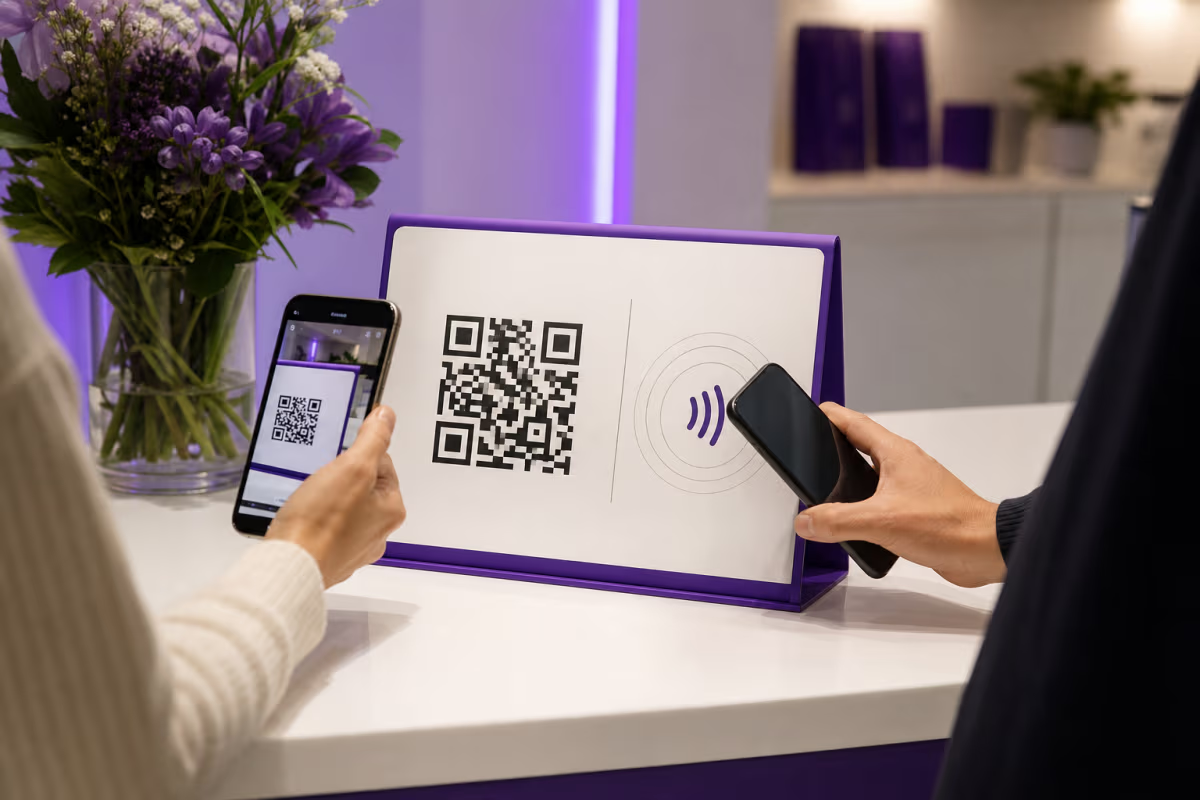
The key advantage of PDF QR codes over email is that they work in physical contexts where you do not have the recipient's contact information. A prospective home buyer driving past a yard sign, a conference attendee walking past your booth, a restaurant diner sitting at a table — in all these scenarios, you cannot send an email because you do not know who they are. The QR code bridges the gap between physical presence and digital content delivery.
Compared to direct link sharing (posting a URL on social media, in a chat, or on a website), QR codes add the physical-to-digital bridge that links cannot provide on their own. A URL on a printed flyer or poster requires the viewer to manually type it into their phone — a friction point that kills conversion rates. A QR code eliminates that friction entirely: point, scan, view.
For purely digital distribution (email newsletters, Slack messages, social media posts), a direct link is usually more practical than a QR code because the recipient is already on a device. QR codes shine specifically at the physical-digital intersection.
Design Tips for PDF QR Codes on Print Materials
A PDF QR code is only useful if people scan it. The design and placement of the code on your print material directly affects scan rates. Here are the most important principles, drawn from extensive testing and industry best practices.
Size and Scanning Distance
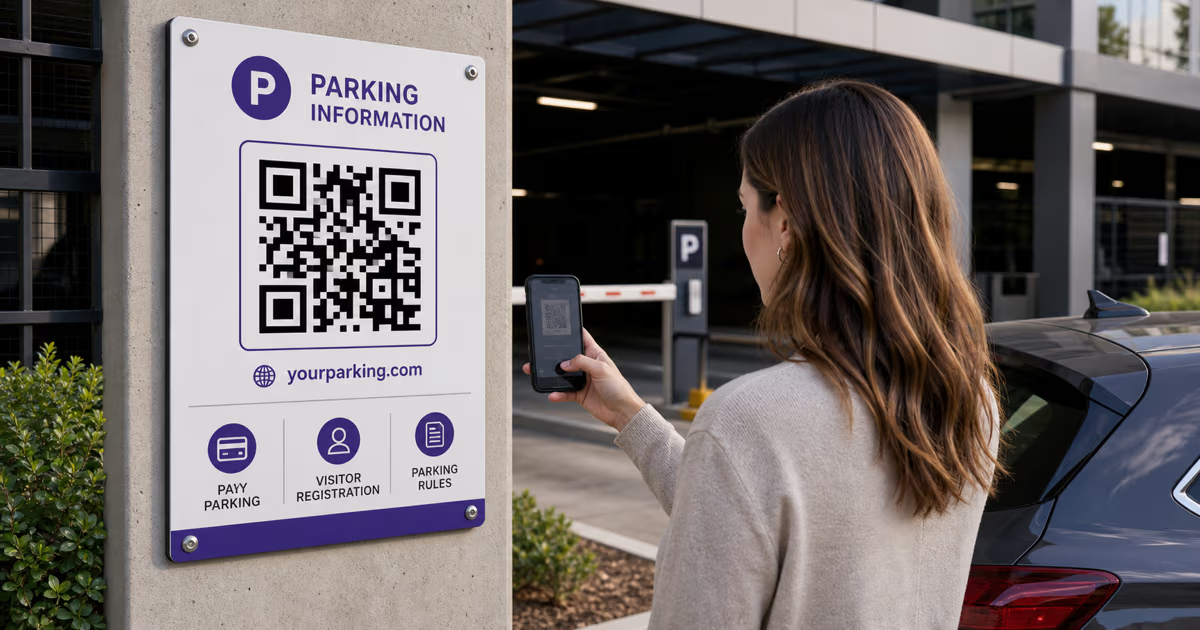
The fundamental rule for QR code sizing is the 10:1 distance-to-size ratio. If a person will scan from 30 centimeters away (a table tent or business card), the QR code needs to be at least 3 centimeters wide. For a yard sign scanned from 3 meters away, the code should be at least 30 centimeters (roughly 12 inches). For a detailed breakdown of sizing requirements across every print format, see our comprehensive QR code size guide for print.
Contrast and Color
QR codes require high contrast between the modules (the dark squares) and the background. The safest combination is black modules on a white background. If you want to use brand colors, keep the foreground dark and the background light — never reverse this. A dark blue, dark green, or dark red foreground on white works well. Avoid yellow, light gray, or pastel foreground colors — phone cameras struggle to detect low-contrast codes, especially in challenging lighting conditions.
Quiet Zone
Every QR code needs a white border (called the quiet zone) of at least 4 module widths around all four sides. This border tells the scanner where the code starts and ends. If you crop this space or place text, graphics, or other design elements too close to the code edge, scan reliability drops sharply. When placing a QR code on a busy background (like a photograph or patterned design), add a solid white rectangle behind the code that extends at least 5 millimeters beyond the code on all sides.
Call to Action
A QR code without context is a mystery box — and most people will not scan a mystery box. Always include a clear call to action near the code that tells the viewer exactly what they will get. Effective CTAs for PDF QR codes include: "Scan for full menu," "Scan to download the product manual," "View the complete event program," "Get the listing brochure," or "Access the training guide." Position the CTA directly above or below the QR code where it cannot be missed.
Error Correction Level
QR codes have four error correction levels: L (7%), M (15%), Q (25%), and H (30%). For PDF QR codes on print materials, use at least Level M. If you plan to add a logo overlay in the center of the code, use Level H — this allows up to 30 percent of the code to be obscured while remaining scannable. Higher error correction also helps with wear and tear on outdoor materials, smudges on restaurant tables, and slight print imperfections.
File Format for the QR Code Image
When downloading your QR code for print, choose SVG or PDF vector format. These formats scale to any size without pixelation. If your printer requires a raster format, use PNG at 300 DPI or higher at the exact physical dimensions needed. Never use JPEG for QR codes — JPEG's lossy compression creates artifacts at module boundaries that can break scannability.
Analytics and Tracking for PDF QR Codes
One of the most compelling advantages of using a QR code to share a PDF — rather than just handing out a printed copy — is the ability to track engagement. A printed brochure disappears into someone's bag and you never know if they read it. A PDF QR code tells you exactly when it was scanned, where, and on what device.
What QRLynx Tracks for Every Scan
QRLynx records the following data points for every scan of a PDF QR code:
- Timestamp: Exact date and time of the scan, displayed in your local timezone
- Geographic location: Country, region, and city derived from the scanner's IP address (no personal identification)
- Device type: Mobile phone, tablet, or desktop computer
- Operating system: iOS, Android, Windows, macOS, or other
- Browser: Safari, Chrome, Samsung Internet, Firefox, or other
- Referrer: Whether the scan came from a camera app, a QR reader app, or a browser-based scanner
This data is presented in a visual dashboard with charts showing scan trends over time, geographic heat maps, and device breakdowns. You can filter by date range and export the raw data as CSV for further analysis in Excel, Google Sheets, or any BI tool.
How to Use PDF QR Analytics
Analytics transform PDF QR codes from a static distribution tool into a measurement platform. Here are practical applications:
- Restaurant menus: Compare scan rates between tables near the window versus tables in the back. Move underperforming table tents to higher-traffic positions.
- Real estate listings: See which properties generate the most brochure scans. A property with a high scan rate on its yard sign but low conversion might have a pricing problem, not a marketing problem.
- Event programs: Track when attendees scan the program — if most scans happen at registration, you know people are front-loading their planning. If scans spike before keynotes, your session marketing is working.
- Product manuals: High scan rates on a manual QR code could indicate that the product setup is confusing and needs simplification, or that customers genuinely value digital access to documentation.
- HR onboarding: Verify that new hires are actually accessing the employee handbook and policy documents during their first week.
For a comprehensive deep dive into QR code analytics strategies, see our guide on how to track QR code scans.
Static vs. Dynamic PDF QR Codes
Understanding the difference between static and dynamic QR codes is critical when creating a PDF QR code, because it determines whether you can update your document after printing.
A static QR code encodes data directly into the code pattern. For a URL, the full web address is embedded in the modules. Once printed, the destination can never change. If you encode a direct link to a PDF file and then need to update that PDF, you must generate an entirely new QR code and reprint everything. Static codes also cannot track scans because there is no intermediary server to log the event.
A dynamic QR code encodes a short redirect URL (like r.qrlynx.com/abc123) that points to an intermediary server. When someone scans the code, the server logs the scan event (capturing time, location, and device data), then redirects the scanner to the final destination — in this case, your PDF file. Because the redirect destination is configurable, you can change the PDF file, switch to a completely different URL, or even change the content type entirely — all without reprinting the QR code.
For PDF QR codes, dynamic codes are almost always the right choice. Menus change seasonally. Product manuals get updated. Event programs shift schedules. Training materials get revised. The ability to update the linked PDF without reprinting the QR code saves significant time and money, especially for materials with large print runs. The only scenario where a static PDF QR code makes sense is for a one-time personal use where you will never need to update the document and do not care about analytics.
For a complete analysis of the trade-offs, see our detailed comparison of static vs. dynamic QR codes. And for step-by-step instructions on creating your first QR code of any type, start with our beginner's guide to creating a QR code.
How to Create a PDF QR Code with QRLynx
Conclusion: PDF QR Codes Are the Modern Document Distribution Standard
The era of printing massive stacks of documents, shipping heavy boxes of manuals, and emailing attachments that bounce or land in spam folders is ending. PDF QR codes offer a superior alternative: instant delivery via a single scan, zero printing cost for the document itself, real-time analytics on engagement, the ability to update content after printing, and optional security features like password protection and lead capture.
With file QR codes accounting for over 20 percent of all QR codes created globally and QR scan volume growing 57 percent year over year, the adoption curve is steep and accelerating. Businesses that embrace PDF QR codes now — on their restaurant menus, product packaging, real estate signs, event materials, and training documents — gain a measurable advantage in efficiency, cost savings, and customer experience.
QRLynx makes the process as simple as dragging a file and clicking download. Native PDF upload with CDN-backed delivery, dynamic updating, full analytics, and optional lead capture and password protection — all starting at $7 per month. Create your first PDF QR code today and see how many people actually read your documents.
Frequently Asked Questions About PDF QR Codes
What is a PDF QR code?
A PDF QR code is a QR code that, when scanned with a smartphone camera, opens a PDF document directly in the phone's browser. The PDF file is hosted online (either on a QR platform like QRLynx, your own server, or a cloud storage service), and the QR code contains a URL that points to that file. No app download is required — every modern smartphone can scan QR codes natively and display PDFs in the built-in browser.
Can I update the PDF after printing the QR code?
Yes, but only if you use a dynamic QR code. A dynamic code routes through a redirect server, so you can change the destination PDF file at any time without altering the QR code itself. This is the primary advantage of dynamic over static codes for document sharing. On QRLynx, all PDF QR codes are dynamic by default.
What is the maximum PDF file size I can upload?
On QRLynx, the limit depends on your plan: 5 MB on Starter+ ($7/mo), 10 MB on Pro ($14/mo), 20 MB on Business ($29/mo), and 50 MB on Enterprise ($99/mo). The free Starter plan does not include PDF upload. Most single-page documents (menus, flyers, one-sheet brochures) fit comfortably within the 5 MB limit. Multi-page manuals and catalogs typically need the Pro or Business tier.
Do people need a special app to open the PDF?
No. Every modern smartphone (iPhone and Android) has a built-in QR code scanner in the default camera app and a built-in PDF viewer in the browser. When someone scans your PDF QR code, the PDF opens automatically in Safari, Chrome, or their default browser — no additional apps required.
Can I password-protect my PDF QR code?
Yes. QRLynx supports password protection on dynamic QR codes, including PDF types. When enabled, the scanner sees a branded verification page where they must enter the correct password before the PDF loads. This is useful for confidential documents like internal training materials, private event programs, or pre-release product specifications.
How do I track how many people scan my PDF QR code?
Dynamic QR codes automatically track every scan. On QRLynx, you get a dashboard showing total scans, scans over time, geographic location (country, region, city), device type (mobile, tablet, desktop), operating system, and browser. You can filter by date range and export the data as CSV. Static QR codes cannot track scans because there is no intermediary server.
What is the difference between a PDF QR code and a regular URL QR code?
Functionally, a PDF QR code is a URL QR code — both encode a web address. The difference is what the URL points to. A regular URL QR code links to a web page. A PDF QR code links specifically to a PDF file (either hosted on the QR platform via direct upload, on your own server, or on a cloud storage service). QR platforms like QRLynx offer a dedicated PDF type with drag-and-drop upload, file validation, and optimized delivery.
Should I use a static or dynamic QR code for my PDF?
Use a dynamic QR code in almost all cases. Dynamic codes let you replace the PDF file without reprinting the QR code, track scan analytics, add password protection, and enable lead capture. The only scenario where a static code makes sense is for a one-time personal use where you will never update the document and do not need analytics.
Can I add my logo to a PDF QR code?
Yes. QRLynx and most modern QR platforms support logo overlays in the center of the QR code. When adding a logo, set the error correction level to H (the highest), which allows up to 30 percent of the code to be obscured while remaining scannable. Keep the logo small — it should cover no more than 20-25 percent of the total code area.
What file format should I download the QR code in for printing?
For print materials, always download the QR code as SVG or PDF. These are vector formats that scale to any size without pixelation or quality loss. If your printer requires a raster format, use PNG at 300 DPI or higher at the exact physical dimensions you need. Never use JPEG for QR codes — its lossy compression creates artifacts that can break scannability.
How small can I print a PDF QR code?
The minimum practical size depends on scanning distance. For materials held in hand (business cards, table tents, flyers), 2 centimeters (about 0.8 inches) wide is the absolute minimum, but 3 centimeters (1.2 inches) is recommended for reliable scanning. For materials scanned from further away (yard signs, posters, banners), use the 10:1 rule: divide the expected scanning distance by 10 to get the minimum code size.
Is it free to create a PDF QR code?
You can create a URL-based QR code for free on QRLynx's Starter plan by linking to a PDF hosted elsewhere (on your own website or a cloud storage service). However, native PDF upload (drag-and-drop file hosting on QRLynx's CDN) requires a paid plan starting at $7 per month for Starter+. The paid plans include dynamic updating, scan analytics, password protection, and other features not available with free static codes.