How to Create a Google Forms QR Code with QRLynx


Key Takeaway
Publish a Google Form, copy its responder link, and create a tested static or dynamic QR code in QRLynx with access, analytics, print, and testing guidance.
Disclosure: QRLynx is built and operated by Jorbox LLC. This guide explains the current QRLynx workflow and links to Google documentation for Google Forms behavior.
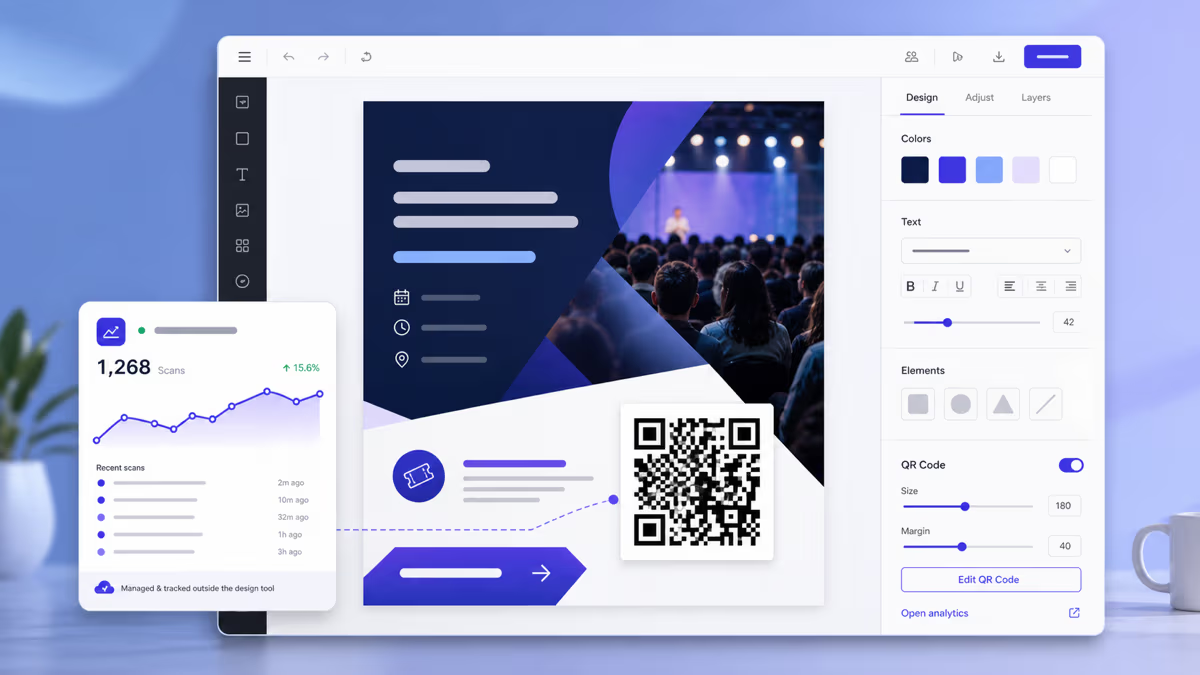
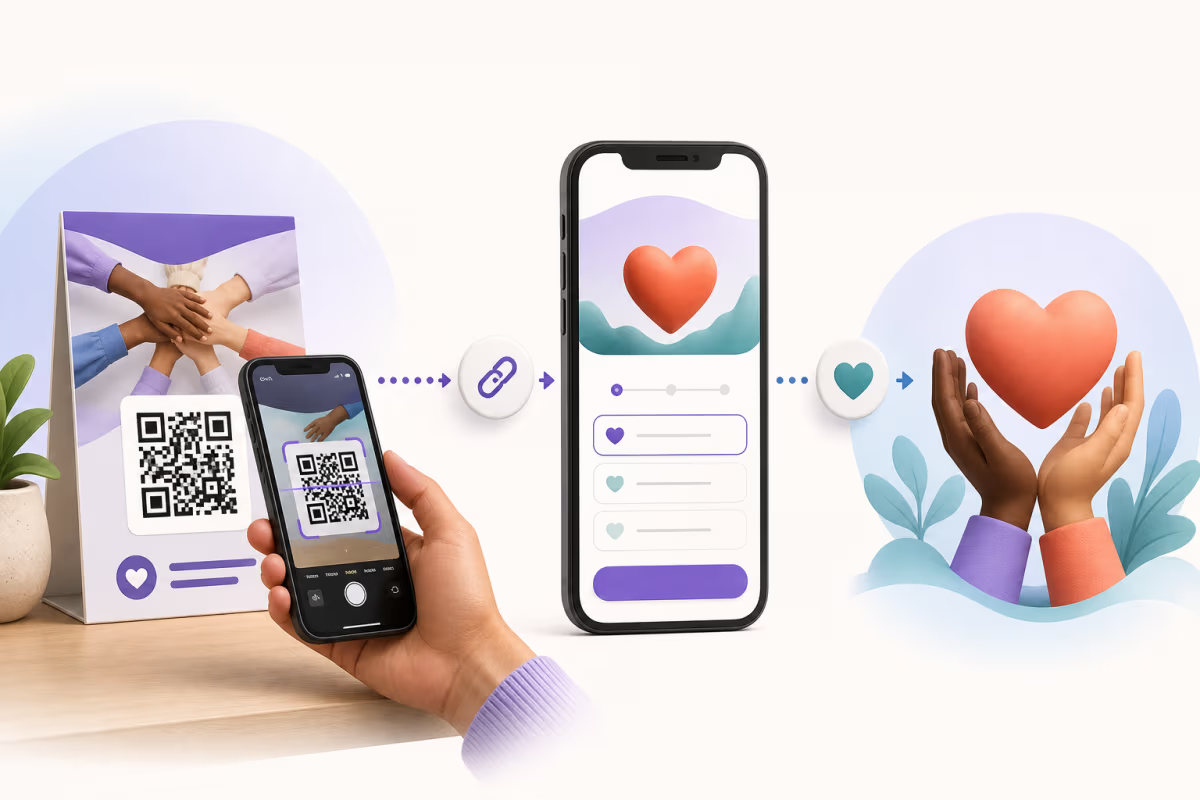
To create a Google Forms QR code, publish the form, copy its responder link, and use that link with the Google Form QR type in QRLynx. Choose a static QR when that exact responder URL should stay fixed. Choose a dynamic QR when you need to replace the destination later or measure eligible scans without reprinting.
Google Forms owns responder access, questions, answers, confirmation messages, and response storage. QRLynx creates the QR, manages an optional dynamic redirect, and reports eligible scan activity. A scan and a submitted response are different events, so measure them separately.
What Google Forms and QRLynx each handle
Keep ownership clear before you publish or print the QR code.
| Part | Google Forms | QRLynx |
|---|---|---|
| Responder access | Publishes the form and controls who may respond | Opens the responder destination supplied by the owner |
| Questions and answers | Collects and stores submitted responses | Does not read or store Google Form answers |
| Printed QR | Provides the responder link | Creates the static or dynamic Google Form QR |
| Destination changes | A new form can have a new responder link | A dynamic QR destination can be updated without reprinting |
| Measurement | Shows submitted responses and can link them to Google Sheets | Shows eligible dynamic-QR scan activity and plan-available breakdowns |
Publish the form and copy the responder link
Google's current sharing flow requires a form to be published before responders can access it. In Google Forms, review Settings, click Publish, choose the permitted responder audience, and then copy the responder link from Preview, Published, or Share. For a public poster or handout, confirm that the intended audience can open the form while signed out.
Google documents a Limit to 1 response setting, but enabling it requires responders to sign in to a Google Account. Use that setting only when the identity tradeoff fits the form. Google also supports manually entered or verified email collection, response receipts, a custom confirmation message, pre-filled links, and linked Google Sheets.
Before making the QR, open the copied URL in a private browser window. This catches unpublished forms, restricted audiences, editor links, closed response collection, and account requirements before they reach print.
Sources: Google's publish and sharing instructions, response management instructions, and response-storage instructions.
Useful Google Forms QR workflows
The form owns the submission. The QR gives people a tested physical entry point.
Registration and RSVP
Open a published registration form from invitations, signs, badges, or venue materials.
Feedback and surveys
Collect structured feedback from receipts, table tents, packaging, or service counters.
Classroom activities
Open an exit ticket, quiz, permission form, or attendance form with access settings chosen by the school.
Volunteer and staff intake
Collect availability, assignments, reports, or internal requests while keeping the responder audience intentional.
Pre-filled placement codes
Use Google's pre-filled responder links to identify a location, session, item, or campaign before the person submits.
Scan-to-response analysis
Compare QRLynx scan activity with Google Forms submissions without treating either metric as the other.
How to create a Google Forms QR code in QRLynx
Build the form and choose the responder rules
Create the questions in Google Forms. Decide who may respond, whether sign-in is required, whether emails are collected, and what confirmation message appears after submission.
Publish and copy the responder link
Publish the form, set the intended responder audience, and copy the responder link from Preview, Published, or Share. Do not copy the browser address from the form editor.
Test the link outside the owner account
Open the responder link in a private browser window and on a representative phone. Confirm that the intended person can open and submit the form without unexpected account or domain restrictions.
Choose Google Form in QRLynx
Open the QRLynx generator, select the Google Form QR type from the Business group, and paste the tested responder link into the Google Form URL field.
Choose static or dynamic
Use static mode when the exact responder URL should remain fixed. Use dynamic mode when you need an editable destination and QRLynx scan analytics. The free Starter plan includes 3 active dynamic codes and unlimited scans.
Design and label the QR
Keep dark modules on a light background, preserve the four-module quiet zone, and add a direct label such as Scan to register or Scan to complete the survey. Use a raster download on Starter or resolution-independent SVG or A4 PDF from Starter+ for print handoff.
Test the final material and one submission
Scan the exported QR from the actual printed piece or displayed slide, complete a test response, verify it in Google Forms or its linked Sheet, and confirm that the expected dynamic scan appears in QRLynx when dynamic mode is used.
Responder link tested?
Create and test your Google Forms QR code
Use the dedicated Google Form QR type, choose static or dynamic, and test the complete scan-to-submission path before printing.
Static or dynamic Google Forms QR code?
Choose based on destination control and measurement, not on whether Google Forms itself is free.
| Decision | Static QR | Dynamic QR |
|---|---|---|
| Encoded value | The responder URL is stored directly | A QRLynx redirect URL is stored |
| Change destination after printing | No | Yes, by an authorized account owner |
| QRLynx scan analytics | No redirect-based scan record | Yes, within the account's plan access |
| QRLynx account | Not required for guest creation | Required to save and manage the redirect |
| Good fit | One fixed form or disposable material | Reusable signs, recurring campaigns, or measured placements |
Measure scans and submitted responses separately
A QRLynx dynamic QR records eligible scans through its redirect. Google Forms records submitted responses. Neither number proves the other. Someone can scan and leave before submitting, scan more than once, open the responder link without scanning, or submit more than once when the form permits it.
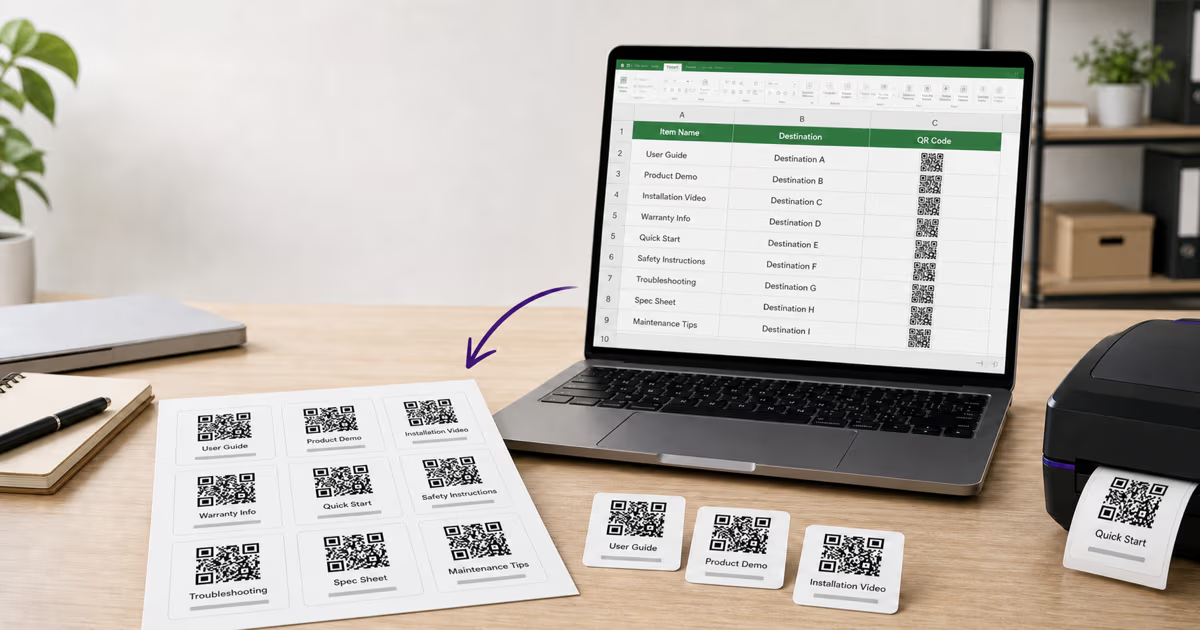
For a useful campaign comparison, give each meaningful placement its own dynamic QR or a distinct pre-filled value. Compare scans by QR with submitted responses carrying that placement value. Do not call the difference an exact abandonment rate unless the attribution design accounts for direct links, repeat scans, duplicate submissions, and privacy choices.
The free Starter plan includes 3 months of analytics totals, charts, top QR codes, and recent activity. Starter+ extends the plan window to 1 year, Pro to 2 years and adds country detail, Business to 3 years and adds city, device, operating system, browser, and CSV export, while Enterprise has no fixed plan lookback cap on available analytics history.
Use pre-filled links without exposing sensitive data
Google Forms can generate a pre-filled responder link. This is useful when a QR should carry a non-sensitive placement value such as Event A, Lobby poster, Workshop 2, or Product line B. In Google Forms, open the More menu, choose Pre-fill form, enter the intended defaults, and copy the generated link.
Anyone who can access the QR can usually inspect the URL and its pre-filled values. Do not place passwords, private identifiers, health information, student records, employee data, or secrets in the URL. Use the form's access controls and the receiving system's rules for sensitive workflows.
Troubleshoot the complete scan path
- The form asks for access: review the published responder audience and test while signed out.
- The QR opens the editor: replace the editor address with the copied responder link.
- The form says it is not accepting responses: reopen response collection or intentionally replace the dynamic destination with the current form.
- One response requires sign-in: this is expected when Google's Limit to 1 response setting is enabled.
- Scans and responses do not match: treat them as separate measures and inspect placement, form length, access friction, and direct-link traffic.
- The print does not scan reliably: restore contrast and the quiet zone, enlarge the QR, and test the finished material under realistic lighting and distance.
Google Forms QR code questions
How do I create a QR code for a Google Form in QRLynx?
Publish the Google Form, copy its responder link, test that link while signed out, then select the Google Form QR type in QRLynx and paste the link. Choose static or dynamic, label the scan action, export the QR, and test one complete submission from the final material.
Does Google Forms have a built-in QR code button?
Google's current official sharing instructions document responder links, email sharing, social sharing, and website embedding, but do not document a built-in QR creation option. Copy the responder link and create the QR with QRLynx.
Should a Google Forms QR code be static or dynamic?
Use static when the responder URL should remain fixed. Use dynamic when you need to replace the destination without reprinting or measure eligible scans in QRLynx. The submitted answers still belong to Google Forms in both cases.
Can QRLynx see the answers submitted to my Google Form?
No. QRLynx manages the QR and, for a dynamic code, the redirect and eligible scan activity. Google Forms and its linked Google Sheet store the submitted answers according to the form owner's settings.
Why does my Google Forms QR code ask people to sign in?
The form's access or response settings require a Google Account. Google's Limit to 1 response setting also requires sign-in. Review the published responder audience and settings, then test the responder link in a private browser before printing.
Can I change the Google Form after printing the QR code?
Editing questions in the same published form normally keeps its responder link. If the responder URL changes or you replace the form, a QRLynx dynamic QR can point to the new destination without changing the printed pattern. A static QR keeps its originally encoded URL.
Can a Google Forms QR code track responses?
Google Forms tracks submitted responses. A QRLynx dynamic QR tracks eligible scans. Use both sources, and add a placement identifier when you need to connect a form submission to a particular sign or campaign.
How do I create different QR codes for different locations?
Create a separate QRLynx dynamic QR for each meaningful placement, or use Google Forms pre-filled links with a non-sensitive location field. Keep the placement names consistent in QRLynx and the form response data.
Which QRLynx downloads work for a printed Google Forms QR code?
Registered Starter accounts can download PNG, JPG, WEBP, and PNG HD. resolution-independent SVG and A4 PDF downloads start with Starter+. Confirm the printer's required format and test the final physical proof.
What happens when Google Forms stops accepting responses?
The published form can remain reachable while showing that responses are closed. Reopen collection in Google Forms when appropriate, or update a QRLynx dynamic QR to a current form or an intentional information page.