How to Add a QR Code to PowerPoint with QRLynx

Key Takeaway
Create a presentation QR in QRLynx, add it to PowerPoint or Google Slides, choose static or dynamic behavior, and test it from the back row.
Reviewed July 2026 against current Microsoft and Google instructions plus the current QRLynx generator.
Create the audience action first
A presentation QR works best when it gives the room one clear next step. QRLynx can encode a handout, survey, attendance form, poll, booking page, contact route, or other supported destination. Create and test that destination first, then place the exported QR image on the PowerPoint or Google Slides slide where the action makes sense.
Choose the QRLynx type for the presentation goal
| Audience goal | Destination or payload | QRLynx option |
|---|---|---|
| Share the slide deck | A published deck or file-sharing URL with audience access | Website / Link |
| Share a PDF handout | The PDF file itself or an existing hosted PDF URL | PDF File or Website / Link |
| Collect feedback | A tested survey or form URL | Website / Link |
| Take attendance | A sign-in form or approved check-in page | Website / Link |
| Run a live poll | The participant URL supplied by the polling service | Website / Link |
| Book a follow-up | A tested calendar or booking URL | Website / Link |
| Share contact details | Structured speaker or organization details | Contact |
How to add a QR code to PowerPoint with QRLynx
Build the destination, create the exact QRLynx QR, insert the exported image, and test it in the real presentation environment.
Choose one audience action
Decide what the viewer should receive or complete, such as opening the deck, downloading a handout, answering a survey, checking in, joining a poll, booking a meeting, or saving contact details.
Prepare and test the destination
Publish the file, form, poll, booking page, or other destination with the correct audience permissions. Open it in a private browser window and on a phone so the QR does not lead to an owner-only or sign-in-blocked page by surprise.
Select the exact QRLynx type
Open the QRLynx generator. Choose Website / Link for a hosted deck, form, poll, folder, or booking page. Choose PDF File when QRLynx should host the handout, or Contact when the purpose is to share structured contact details.
Choose static or dynamic behavior
Use static for a final URL that should be encoded directly. Use a QRLynx dynamic URL when the presentation will be reused and an authorized owner may need to update the destination or review eligible redirect analytics without replacing the QR image in the deck.
Design and label the scan
Use a dark code on a light, uncluttered area, preserve the quiet zone, and keep any logo restrained. Add a visible prompt such as Scan for the handout or Scan to answer the poll so the audience knows the exact result.
Download a presentation-ready image
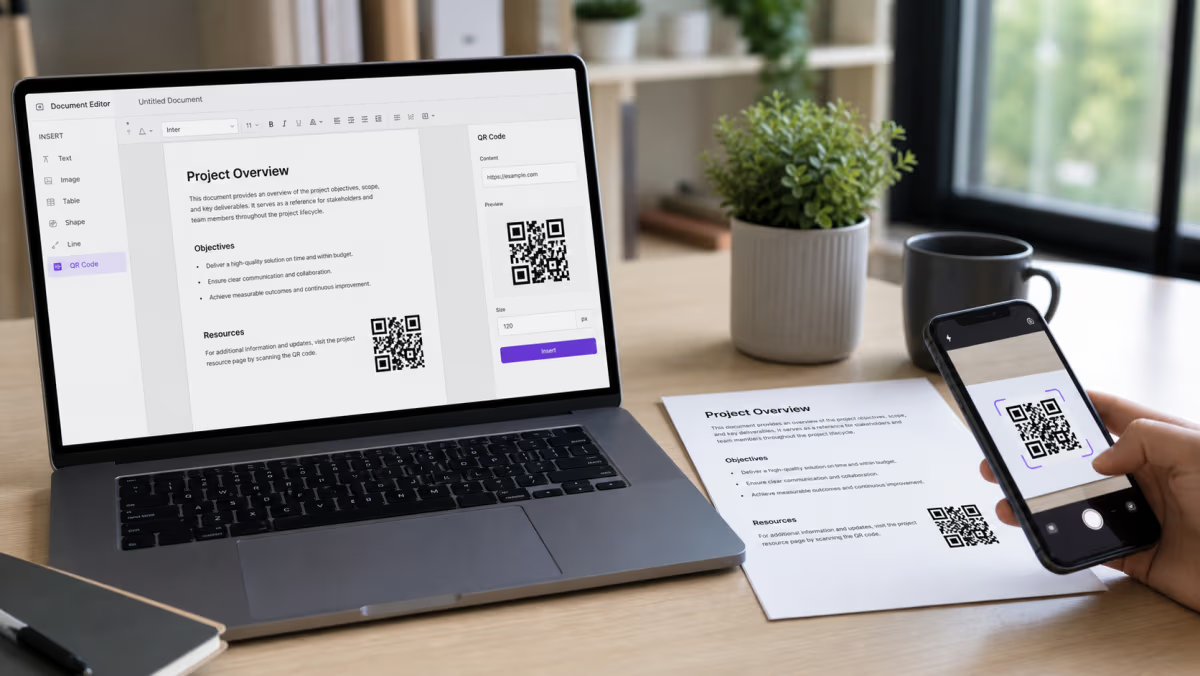
Download a clean PNG for broad presentation compatibility. Keep the original exported file so the slide application does not need to capture or recompress a screenshot of the code.
Insert the image in PowerPoint or Google Slides
In current PowerPoint versions, select Insert, Pictures, then This Device and choose the exported image. In Google Slides, select Insert, Image, then Upload from computer. Resize from a corner and keep the QR square with its clear border intact.
Test the projected or shared slide
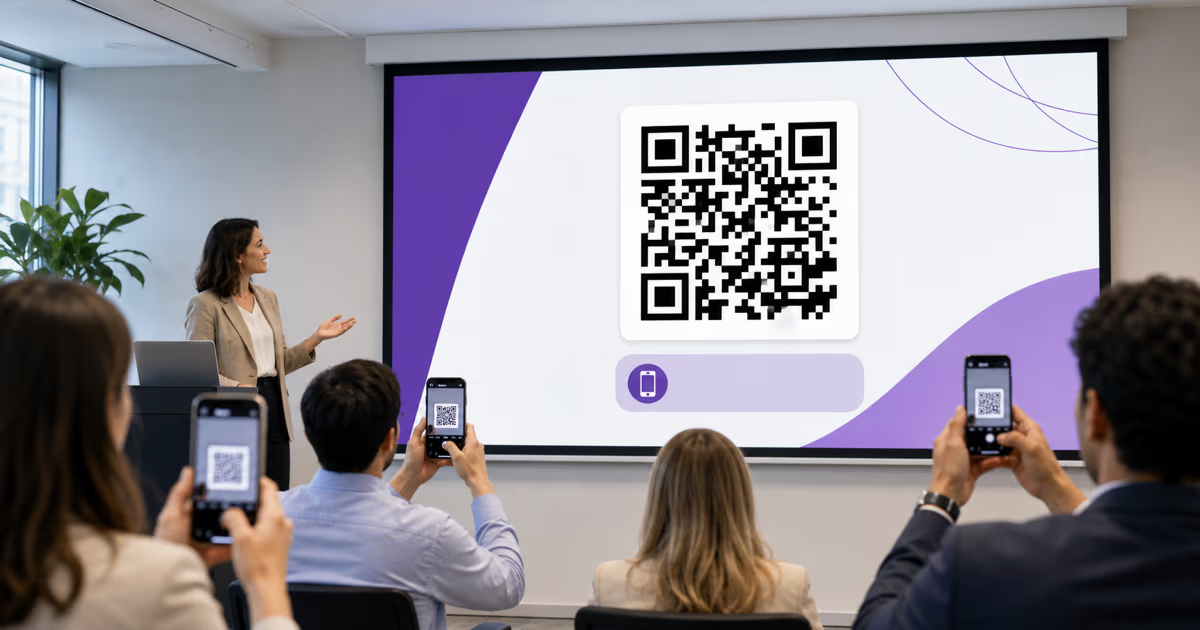
Run the deck in presentation mode on the actual screen or projector. Scan from the closest and farthest intended seats with representative phones, then confirm the decoded destination, permissions, page loading, and final audience action. Repeat the test after PDF export or slide compression.
Destination tested
Create the presentation QR in QRLynx
Choose the matching QR type, add an action label, and download an image ready for your slide.
PowerPoint and Google Slides treat the QR as an image
Microsoft documents the desktop PowerPoint path as Insert > Pictures > This Device. PowerPoint for the web also accepts a picture from the device. Google documents Insert > Image, followed by the source, including an upload from the computer.
This image-based method keeps QR creation separate from the slide application. QRLynx creates the encoded symbol and any managed destination behavior. PowerPoint or Google Slides positions and displays the exported artwork.
Keep a source copy of the QR image outside the deck. If the slide is rebuilt, exported, or handed to another presenter, that file provides the exact artwork for retesting.
Static or dynamic QR for a presentation?
| Decision | Static QR | QRLynx dynamic QR |
|---|---|---|
| Encoded content | Final destination is stored directly | A managed QRLynx URL is stored |
| Reuse the same deck | Fits a stable destination | Authorized owner can update an eligible web destination |
| Correct a destination after sharing | Requires a new QR image and updated deck | Update the managed destination without changing the embedded QR image |
| Scan analytics | The QR itself has no redirect analytics | Eligible redirect interactions can appear in QRLynx analytics |
| External dependency | Decoded payload works directly when its destination remains available | The managed redirect and final destination both participate in the journey |
Make the QR readable from the intended seats
A presentation code is viewed through a camera from a distance, often after projection, scaling, compression, or video-conference transmission. A size that scans on the presenter's laptop can be too small or soft from the back row.
- Give the QR a generous share of the slide instead of treating it as a corner icon.
- Use a dark foreground on a light, plain area.
- Preserve the full quiet zone around the code.
- Keep slide animations from moving or covering it.
- Leave the action slide visible while the audience scans.
- Provide a readable short link as an accessibility and camera fallback.
The QRLynx size calculator can help plan physical dimensions, and the readability checker can inspect an exported image. The decisive check is still the complete slide on the actual display from the real audience positions.
Presentation QR workflows by moment
Opening slide
Use a code for attendance, materials, or the session workspace when people have time to settle. State whether the action is required or optional.
During the talk
Use a dedicated slide for a poll, question form, example, or resource. One clear code and one spoken instruction reduce ambiguity.
Closing slide
Offer the handout, feedback form, booking page, contact details, or next step. Keep the slide available during questions and after the final sentence.
Shared or exported deck
Retest the PDF or shared-slide version. File export and image compression can change the artwork, while destination permissions can change independently of the slide.
Use cases that fit the audience journey
- Handouts and slides: link to a public file or use the QRLynx PDF File type for a handout that QRLynx hosts.
- Feedback and surveys: link to the audience-facing form, not the editor URL.
- Attendance: use an approved sign-in or check-in page and explain the privacy purpose beside it.
- Live polls: encode the participant URL supplied for the session and verify its event state.
- Resources: link to a folder or page whose sharing permissions match the audience.
- Follow-up: use a booking page, contact route, or lead form that clearly states what happens after submission.
For sensitive attendance, education, health, or workplace information, collect only the data the organization has authorized and use the destination system's access and retention controls.
Final presenter checklist
- The destination opens for an audience member without editor access.
- The QR type matches the payload and the static or dynamic choice is intentional.
- The action label explains what the scan opens.
- The QR is square, high contrast, and surrounded by a clear quiet zone.
- The code scans in presentation mode from the farthest intended seat.
- The exported PDF or shared deck has been retested.
- A readable short link or spoken alternative is available.
- The presenter knows how long to keep the slide visible.
- Any form, poll, booking page, or file remains open for the required session window.
PowerPoint and presentation QR questions
How do I add a QR code to PowerPoint?
Create and download the QR image in QRLynx. In current PowerPoint versions, choose Insert, Pictures, then This Device and select the file. Place it on the intended slide, add a clear action label, and test the projected presentation from the real audience distance.
How do I add a QR code to Google Slides?
Create and download the QR in QRLynx. In Google Slides, choose Insert, Image, then Upload from computer. Keep the image square, preserve its clear border, and test the presentation and any exported PDF.
What should a presentation QR code open?
Match one code to one audience action, such as a public deck, PDF handout, survey, attendance form, participant poll URL, booking page, or contact details. Test the destination and sharing permissions before creating the QR.
Should a presentation QR be static or dynamic?
Use static for a final destination encoded directly. Use a QRLynx dynamic URL when an authorized owner may need to update an eligible web destination or review redirect analytics while keeping the same QR image in a reused deck.
How large should a QR code be on a presentation slide?
There is no single reliable slide dimension for every room and display. Give the QR generous space, preserve contrast and the quiet zone, then test the actual projector or screen from the farthest intended seat with representative phones.
Why does a QR scan on my laptop but not on the projector?
Projection can reduce contrast and sharpness, while distance makes each module appear smaller. Enlarge the QR, use a plain light background, preserve the quiet zone, remove overlays or animation, and test the actual presentation environment.
Can the same QR stay in a recurring presentation?
Yes. A static QR fits a stable destination. A QRLynx dynamic URL lets an authorized owner update an eligible web destination without replacing the embedded image, which is useful for recurring handouts, forms, or event pages.
Can QRLynx track presentation scans?
Eligible QRLynx dynamic codes record redirect interactions for the available analytics window and plan features. These records show QR interactions rather than proving attendance, survey completion, booking, or another destination outcome.
Will the QR remain usable after exporting slides to PDF?
The QR image can remain usable in the PDF, but export and compression can change its rendering. Scan the exported PDF at the intended viewing size and confirm the destination before sharing it.
Can I upload a handout directly to QRLynx?
Yes. Choose the QRLynx PDF File type, upload the supported PDF, save the code to create its final scan link, download the QR image, and test that the document opens correctly from the presentation.
Should I place several QR codes on one slide?
A single code with one clear action is easier to explain and test. When the deck needs several actions, place them on separate slides or use one well-labeled resource page that organizes the choices.