How to Create a QR Code with QRLynx: Step-by-Step Guide
Choose the destination and QR type first, then decide whether it must remain editable, design it for reliable scanning, and test the exported file in its real setting.

Key Takeaway
Create a QR code in QRLynx from the right payload. Choose static or dynamic, design it for scanning, download the correct format, and test the result.
What is the correct way to create a QR code?
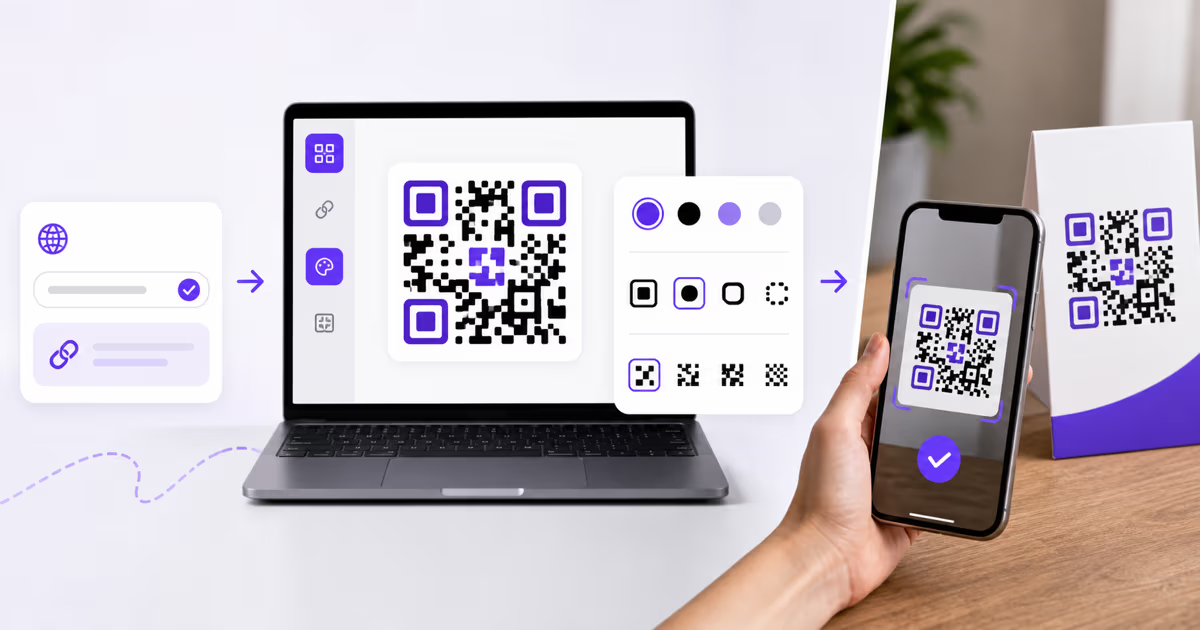
Start by defining the exact result of the scan. In QRLynx, choose the matching QR type, enter and verify the payload, select static or dynamic when that type supports both modes, design the code without weakening contrast or quiet zone, download the right file format, and test the final physical result.
The QR pattern is only one part of the experience. A working code also needs a correct destination, a clear instruction, a mobile-ready result, and enough visual margin to scan in the place where it will be used.
QRLynx currently supports 61 QR types. A guest can create a static QR immediately. A free account removes the download watermark and adds logo upload, PNG HD, saved codes, 3 active dynamic QR codes, unlimited scans, and three months of analytics. SVG and PDF downloads begin with Starter+.
How to create and test a QR code in QRLynx
Use this complete workflow before sharing or printing the code.
Define the scan action
Write down what should happen after scanning. Examples include opening a website, joining Wi-Fi, saving a contact, opening a PDF, composing an email or SMS, calling a number, or viewing plain text. Prepare the final URL, file, credentials, or contact details first.
Choose the matching QRLynx QR type
Open the QRLynx QR generator and select the type that matches the action. Use Website / Link for a web destination, Wi-Fi for network credentials, Contact Card for saved contact details, PDF File for a document, or the dedicated Email, SMS, Phone, social, payment, event, and business types when appropriate.
Choose static or dynamic when available
Use static when the final payload can remain fixed and QRLynx scan analytics are unnecessary. Use dynamic for a supported URL-based type when the destination may change, reprinting would be costly, or scan analytics will guide a decision. Direct payload types such as Wi-Fi, SMS, Phone, Email, and plain text remain static.
Enter and verify the content
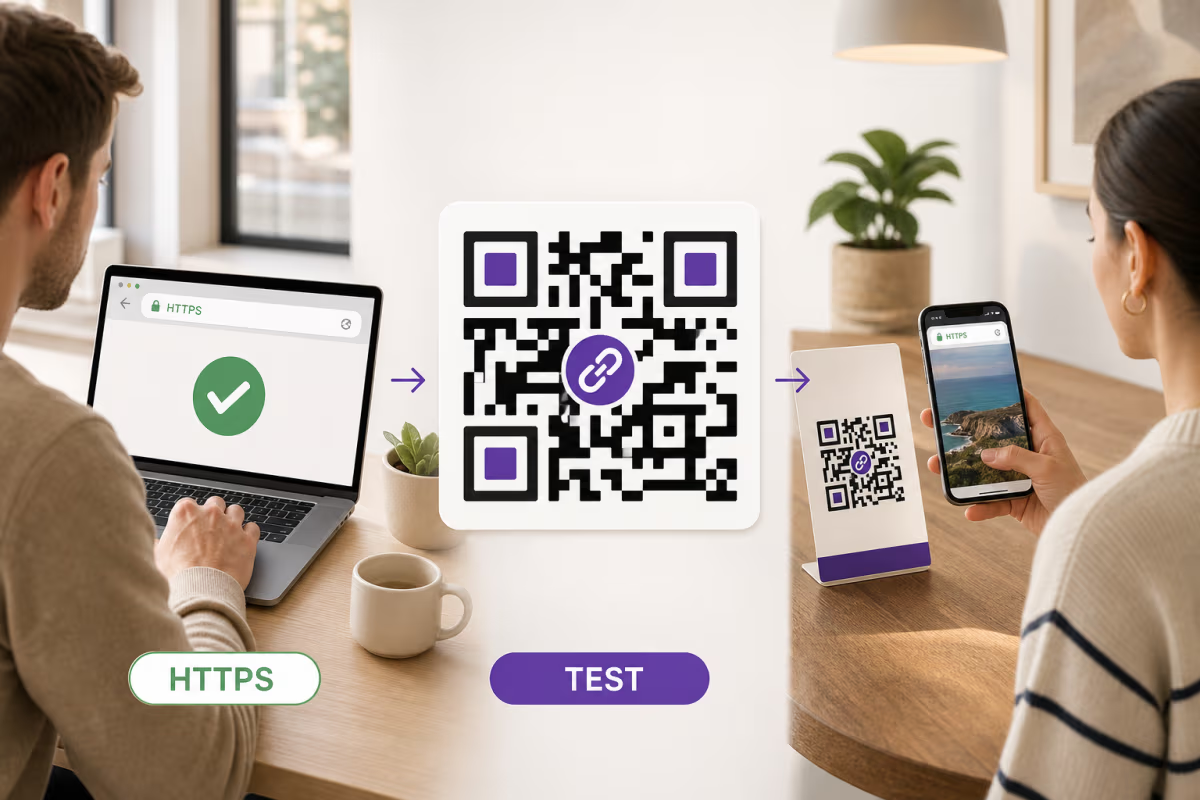
Paste or type the exact content. Open every web destination separately, confirm that it uses the intended secure URL, and test any form, file, or mobile action. Review phone numbers, email addresses, Wi-Fi names, passwords, dates, and contact fields character by character.
Design for recognition and scanning
Choose a template or set the module, corner, foreground, and background styles. Keep dark modules on a light background, preserve the quiet zone, and watch the QRLynx Scan Score for design warnings. A free account is required to upload a logo. Keep the logo modest and recheck the score after every design change.
Download the correct format
Use PNG, JPG, or WebP for common digital and ordinary raster workflows. A free account also includes PNG HD. Starter+ and higher include SVG and PDF for scalable design and print workflows. Choose the format before placing the QR into its final layout.
Test the exported and physical versions
Scan the exported file on representative phones, then test one physical proof at the expected size, distance, material, curve, and lighting. Confirm the decoded destination, mobile experience, visible instruction, and scan reliability before producing the full print run.
Payload ready
Create and test the QR code in QRLynx
Choose the exact QR type, verify the payload, design for a strong Scan Score, and test the exported file before it reaches print.
Choose the QR type from the intended action
The type determines what the phone receives and which fields QRLynx validates.
| QR type | What the scan does | Useful fit |
|---|---|---|
| Website / Link | Opens a web destination | Landing pages, shops, forms, campaigns, and pages that may need a dynamic destination |
| Contact Card | Presents contact details for saving | Business cards, networking, sales, and support contacts |
| Wi-Fi | Offers compatible phones the encoded network credentials | Guest networks in homes, offices, rentals, restaurants, and events |
| PDF File | Opens the uploaded document directly | Menus, manuals, brochures, instructions, and downloadable resources |
| Email, SMS, or Phone | Opens the matching phone action with encoded details | Support, inquiries, bookings, confirmations, and direct contact |
| Social or business profile | Opens the selected profile, review, map, or business destination | Campaigns that need a recognizable platform-specific action |
| Plain text | Displays the encoded text without a web redirect | Short instructions, references, identifiers, and offline-readable information |
Static or dynamic?
Make this decision before printing.
| Decision | Static QR | Dynamic URL-based QR |
|---|---|---|
| What the pattern contains | The final payload | A QRLynx short link that resolves to the saved destination |
| Change after printing | Create and print a new pattern | Update the saved destination without changing the printed pattern |
| QRLynx scan analytics | Not available | Available for eligible scans |
| Internet needed for the QR action | Depends on the encoded action and destination | Yes, the redirect and web destination require a connection |
| Useful fit | Stable direct payloads and untracked one-time uses | Printed campaigns, editable web destinations, and measurable placements |
Design with the Scan Score, then test the real output
QRLynx calculates a live Scan Score from the current payload and design. It can flag contrast, density, logo-size, error-correction and module-style risks, but the score cannot reproduce every printer, material, camera, angle, glare source, or viewing distance.
Use the score as an early warning system. Keep the foreground darker than the background, preserve clear space around the pattern, avoid covering the finder patterns, and keep decorative choices secondary to the scan. Add a visible instruction that describes the result, such as Scan to view the menu or Scan to save contact.
The final physical proof remains the decisive test. A QR that works on a bright monitor can behave differently on a small label, glossy package, curved bottle, fabric, outdoor sign, or low-contrast print.
Choose the download format from the final placement
| Format | Useful fit | Current QRLynx access |
|---|---|---|
| PNG | Web, documents, presentations, social posts, and ordinary print | Guest and every account plan |
| JPG | Tools or documents that expect a common raster image | Guest and every account plan |
| WebP | Compact delivery in supported web publishing workflows | Guest and every account plan |
| PNG HD | Larger raster placement with more pixel detail | Free account and every paid plan |
| SVG | Scalable artwork for professional design and large print | Starter+ and higher |
Document and print workflows that accept a PDF asset | Starter+ and higher |
Create common QR workflows in QRLynx
Website or form
Choose Website / Link, paste the final secure URL, decide whether the destination needs dynamic editability, add a scan instruction, and test the complete mobile page. A dynamic route is useful when the form, campaign, or landing page may change.
Business card
Choose Contact Card when the scan should present contact details for saving. Enter only the fields you want to distribute publicly, label the action, and test the saved result on representative phones. Use the QRLynx contact-card guide for the full workflow.
Wi-Fi access
Choose Wi-Fi, enter the exact network name, password, and security choice, then test with a device that is not already connected. This is a static payload, so a changed password requires a new printed code. See the QRLynx Wi-Fi guide.
PDF document
Choose PDF File and upload the document within the plan's size limit. QRLynx serves the PDF directly when the QR is opened. Confirm the correct document, filename, mobile readability, and download behavior before printing.
Instagram or another social destination
Choose the dedicated social type, enter the exact profile or destination, and test that it opens the intended account. Use a dynamic route when the supported type offers it and the campaign destination may change. The Instagram QR guide covers the platform-specific steps.
Measure dynamic scans at the level your plan provides
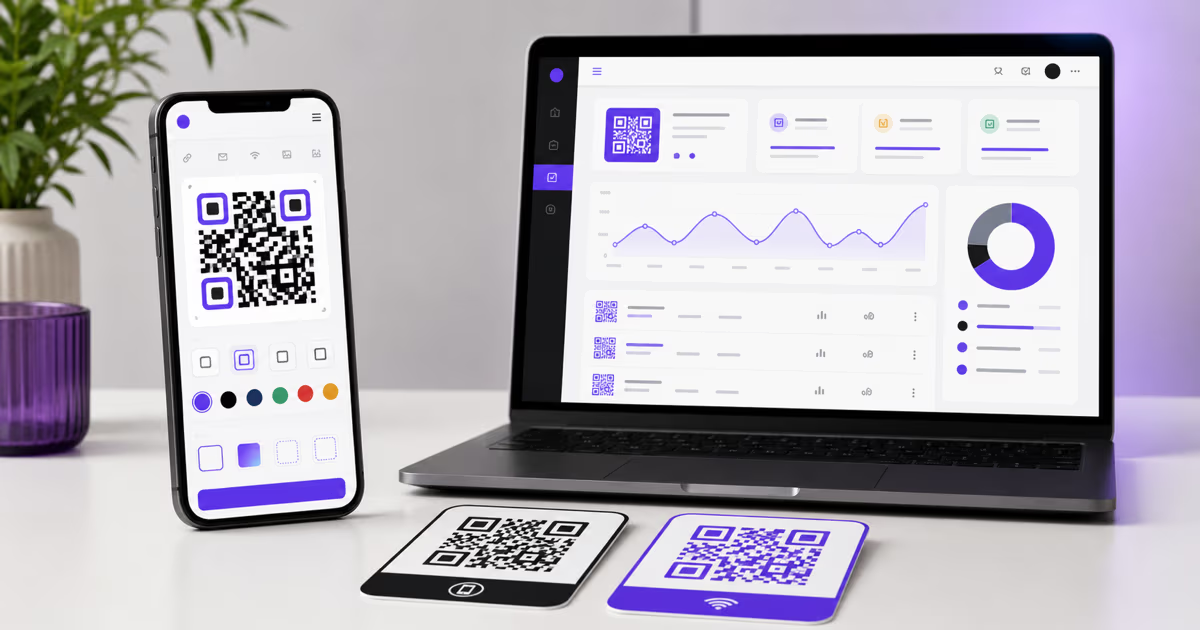
A dynamic QRLynx route can record eligible scan events. The free plan includes 3 active dynamic QR codes, unlimited scans, three months of analytics, and AI Insight Summaries. Starter+ expands history to one year and adds Full AI Insights. Pro expands history to two years and adds country-level data. Business expands history to three years and adds city, device, browser, CSV export, and team capabilities. Enterprise provides unlimited analytics history with its higher-capacity and white-label controls.
Use analytics to answer a specific decision, such as which placement, time window, or campaign version deserves more attention. A scan records an opening of the QR route, not a purchase, form submission, saved contact, message sent, or other downstream conversion. Measure that later action in the destination system.
For the full reporting workflow, use the QRLynx analytics guide.
Use bulk creation only when the rows are ready
Bulk creation is useful when each row represents a distinct QR record, such as products, locations, event badges, assets, or personalized mailers. Prepare the destinations and names first, remove duplicates, and test representative rows before generating the full set.
QRLynx bulk dynamic creation begins on Pro with up to 100 codes per batch and five batches per month. Business supports up to 250 per batch and ten batches per month. Enterprise supports up to 1,000 per batch without a monthly batch limit. The bulk QR code generator guide explains the CSV structure and review flow.
Final preflight before publishing or printing
- Confirm the exact payload and intended mobile action.
- Open every URL, form, file, profile, and redirect independently.
- Use static only when the payload can remain fixed.
- Use dynamic only on a supported type and verify the saved destination.
- Keep contrast strong and the quiet zone unobstructed.
- Use a visible call to action that explains the result.
- Choose the output format from the final placement.
- Scan the exported file on representative phones.
- Test one physical proof at the real size, distance, material, curve, and lighting.
- Confirm the destination again before the full print run.
Sources and verification
This guide was verified against the current QRLynx QR type registry, generator workflow, static and dynamic mode rules, Scan Score implementation, guest and account access rules, download-format gates, analytics history registry, bulk limits, PDF behavior, and pricing configuration on August 1, 2026. Search results were reviewed for creation steps, link QRs, free workflows, formats, permanence, testing, and mobile use. QR Codes are standardized in ISO/IEC 18004 and were developed by DENSO WAVE, which granted public use while retaining the QR Code trademark.
Product capabilities can change. The current QRLynx pricing page and live generator are the source of truth for plan access and available controls.
Creating a QR Code with QRLynx
How do I create a QR code in QRLynx?
Open the QRLynx QR generator, define the scan action, choose the matching QR type, enter and verify the payload, select static or dynamic when supported, design the code, download the appropriate format, and test the exported and physical versions.
How do I make a QR code for a website link?
Choose Website / Link, paste the complete secure URL, and open it separately to verify the destination. Use static when the URL can remain fixed. Use dynamic when you need to change the destination later or view QRLynx scan analytics.
Can I create a QR code without installing an app?
Yes. QRLynx runs in a web browser on desktop and mobile. The generator does not require a separate application installation.
Can I create a QRLynx QR code without an account?
Yes. A guest can create a static QR and download PNG, JPG, or WebP with a small QRLynx watermark. A free account removes the watermark and adds logo upload, PNG HD, saved codes, and dynamic QR capabilities.
Can I change a QR code after printing it?
A supported dynamic QR can keep the same printed pattern while you update its saved destination. A static QR stores the final payload in its pattern, so a changed payload requires a newly generated and printed code.
Which QR code format should I download?
PNG, JPG, and WebP suit common raster workflows. A free account also includes PNG HD. SVG and PDF begin with Starter+ and suit scalable design and professional print workflows. Test the final placed asset regardless of format.
Can I add a logo to a QRLynx QR code?
Yes, after creating a free account. Upload the logo in the design controls, keep it modest, watch the Scan Score, and test the exported and printed versions on representative phones.
Does a QR code expire?
The pattern of a static QR does not expire, but its encoded destination can change or stop working. A saved dynamic QR relies on its QRLynx route and account state. Check the live status before an important campaign.
How do I track QR code scans?
Use a supported dynamic QR type with tracking enabled through its QRLynx route. The analytics dashboard records eligible scans within the history and dimensions available to the account plan. Downstream conversions remain in the destination system.
How do I know whether the QR code will scan after printing?
Use a strong Scan Score as an early check, then scan the exact exported file and one physical proof at the real size, distance, material, curve, and lighting. Test the destination and mobile experience as well as the pattern.
Can QRLynx create QR codes in bulk?
Yes. Bulk dynamic creation begins on Pro with up to 100 codes per batch and five batches per month. Business supports 250 per batch and ten batches per month. Enterprise supports 1,000 per batch without a monthly batch limit.