How to Add a QR Code to Your Resume (2026 Guide)

AT
· 21 min read
How to Add a QR Code to Your Resume (2026 Guide)

Key Takeaway

Learn how to add a QR code to your resume or CV. Covers vCard vs URL QR codes, ATS compatibility, placement tips, industry-specific advice, and step-by-step instructions for creating a resume QR code with QRLynx.

The average recruiter spends 6 to 7 seconds on an initial resume scan, according to a widely cited eye-tracking study from TheLadders. In that narrow window, you need every advantage you can get. A QR code on your resume gives recruiters instant, one-tap access to your portfolio, LinkedIn profile, video introduction, or any other digital asset that strengthens your candidacy.

Resume QR codes have moved from novelty to mainstream. A 2024 survey by Enhancv found that resumes with QR codes received 20% more interview callbacks in creative and tech industries. Meanwhile, MIT Sloan career advisors recommend including digital links that show depth beyond the one-page format. A QR code is the cleanest way to bridge that gap — no long URLs, no broken links from reformatting, just a clean square that opens a world of context.

This guide covers everything you need to know: what type of QR code to use, where to place it, how to keep it ATS-friendly, which industries benefit most, and step-by-step instructions for creating your resume QR code with QRLynx.

The destination matters more than the QR code itself. A code that links to a generic homepage wastes the recruiter's time. Choose a destination that adds meaningful context to your application — something the resume alone cannot convey.

Best Destinations by Career Stage

Career StageBest QR DestinationWhy It Works
Recent graduatePortfolio website or GitHub profileShows tangible work when professional experience is limited
Mid-career professionalLinkedIn profile or personal websiteProvides endorsements, full career history, and recommendations
Creative professionalVisual portfolio (Behance, Dribbble, personal site)Design, photography, and video work must be seen, not described
Executive / senior leader60-second video introductionDemonstrates executive presence and communication skills
Sales / client-facingCase studies or testimonial pageProves results with real numbers and client feedback
Developer / engineerGitHub profile or project demoCode quality and open-source contributions speak louder than bullet points

Avoid linking to social media profiles that mix personal and professional content. Facebook, Instagram (unless you are a photographer or designer), and TikTok are generally poor choices for a resume QR code. The destination should reinforce your professional brand, not distract from it.

Pro tip: Use a dynamic QR code so you can change the destination URL for each application. Apply at a design agency? Point it to your Behance portfolio. Apply at a startup? Switch it to your GitHub profile. One QR code, infinite flexibility — no reprinting required.

There are two main QR code types used on resumes: vCard (contact card) and URL (web link). Each serves a different purpose, and many candidates use the wrong one. Here is a direct comparison to help you choose.

FeaturevCard QR CodeURL QR Code
What it doesSaves your contact info directly to the scanner's phoneOpens a web page (portfolio, LinkedIn, video, etc.)
Dynamic or static?Static only on QRLynx (data is encoded directly in the code)Can be dynamic — change the destination anytime without reprinting
Scan trackingNot available (static codes cannot be tracked)Full analytics: scan count, location, device, time
Best forPrinted resumes handed to someone in person (career fairs, interviews)Resumes submitted digitally or when you want to show work beyond contact info
Editable after creation?No — if your phone number changes, you must create a new codeYes (dynamic) — update the linked page anytime
Code densityHigher (more data encoded = more complex pattern)Lower (only a short URL is encoded = simpler, easier to scan)
Cost on QRLynxFree (unlimited static codes)Free for static; 1 free dynamic on Starter plan, more on Pro+

Our recommendation: Use a URL QR code as your primary resume QR code. It keeps the code simple, scannable, and lets you tailor the destination for each job application. If you also want to make it easy for recruiters to save your contact details, consider adding a small vCard QR code alongside it — for example, on the back of a printed resume or on your business card. Learn more about vCard codes in our complete vCard QR code guide.

This is the most common concern — and rightfully so. Applicant Tracking Systems (ATS) like Workday, Greenhouse, Lever, and iCIMS parse resumes as text. They ignore images entirely. A QR code is an image, which means the ATS will not read it, scan it, or interact with it in any way.

The good news: a QR code will not break ATS parsing as long as you follow these rules:

  • Do not place the QR code over text. If the code overlaps with your name, job titles, or experience section, the ATS may misread or skip that text entirely.
  • Place it in a margin or header corner. The top-right or bottom-right corner of the resume is ideal — it is outside the main text flow that the ATS parses.
  • Always include the URL as plain text too. Below or beside the QR code, add the actual link (e.g., "Portfolio: yourname.com/portfolio"). This ensures the ATS can index the URL even though it cannot read the QR code image.
  • Use a simple, clean resume template. Multi-column layouts, text boxes, and heavy graphics cause more ATS problems than a small QR code ever will. Stick to a single-column or conservative two-column layout.
  • Save as PDF. PDF preserves QR code placement and image quality across devices. DOCX files can shift images unpredictably when opened on different systems.

According to TopResume, over 75% of resumes are rejected by ATS before a human ever sees them — but the rejection is almost always due to poor keyword matching, bad formatting, or missing sections, not because of an image element like a QR code. The code is invisible to the parser; it simply does not factor into the decision.

Bottom line: Add the QR code, but always duplicate the link as plain text. You get the best of both worlds — a scannable code for humans who see the printed or PDF resume, and a parseable URL for the ATS.

How to Create a Resume QR Code with QRLynx

1

Choose Your QR Code Type

Go to <a href="/">qrlynx.com</a> and select the QR code type that matches your goal. For most resume use cases, choose <strong>URL</strong> — this lets you link to your portfolio, LinkedIn, personal website, or any web page. If you specifically want recruiters to save your contact details to their phone, choose <strong>Contact Card / vCard</strong> instead. URL codes can be dynamic (editable and trackable); vCard codes are always static on QRLynx.

2

Enter Your Destination URL or Contact Details

For a URL QR code, paste the full link to your portfolio, LinkedIn profile, or personal website. Make sure the page is mobile-friendly — recruiters will scan this on their phones. For a vCard code, fill in your name, phone number, email, job title, company, and website. Double-check every field: a typo in a static vCard means creating a new code. If you are using a dynamic URL code, you can always change the destination later without recreating the code.

3

Customize the Design

Match the QR code to your resume's visual identity. Set the foreground color to match your resume's accent color — dark navy, charcoal, or dark gray work best for professional documents. Keep the background white or transparent for clean integration. Add a small logo or initials in the center if you want extra branding (keep the logo under 30% of the code area to maintain scannability). Select a moderate error correction level (M or Q) to balance logo tolerance with code simplicity. For detailed sizing guidance, see our <a href="/blog/qr-code-size-guide-print">QR code size guide for print</a>.

4

Download and Place on Your Resume

Download the QR code as a high-resolution PNG (300 DPI minimum) or SVG for vector quality. In your resume editor (Word, Google Docs, Canva, Figma, or InDesign), insert the image in the top-right corner of your header or the bottom-right of the page. Size it between 0.8 and 1.2 inches (2–3 cm) — large enough to scan easily but small enough that it does not dominate the layout. Add a small text label next to or below the code: "Scan for portfolio" or "View my LinkedIn." Below the code, include the plain-text URL for ATS compatibility.

5

Test Before Sending

Print the resume and scan the QR code with at least two different phones (one iPhone, one Android). Also test by scanning the on-screen PDF at 100% zoom. Verify the destination page loads quickly, looks good on mobile, and contains current information. If you used a dynamic code, log into your QRLynx dashboard to confirm the redirect is working and check the analytics page — you should see your test scans. Fix any issues before submitting your first application.

A poorly placed or badly designed QR code can hurt your resume more than help it. Follow these guidelines to ensure your code looks professional and scans reliably every time.

Size

The minimum scannable size for a QR code on a resume is approximately 0.6 inches (1.5 cm), but we recommend 0.8 to 1.2 inches (2–3 cm) for comfortable scanning. At this size, the code is large enough for phone cameras to read quickly but small enough to fit neatly in a header or footer without overwhelming the page. If your code contains a lot of data (like a full vCard with address and social links), you may need to go slightly larger because the pattern will be more complex. See our complete QR code size guide for detailed print specifications.

Placement

The three best positions for a resume QR code are:

  1. Top-right header corner — beside your name and contact info. This is the most common and most natural position. It catches the eye immediately without disrupting the text flow.
  2. Bottom-right footer — below your skills or references section. Good for resumes where the header is already crowded with contact details.
  3. Left margin sidebar — if your template uses a sidebar for skills, certifications, or languages, the QR code fits naturally at the bottom of that sidebar.

Avoid placing the code in the center of the page, directly over body text, or in the middle of a section. It should feel like a natural extension of your contact information, not an interruption.

Color and Contrast

Use a dark foreground on a white or light background. The contrast ratio should be at least 4:1. Match your QR code's color to your resume's accent color for visual cohesion — dark navy, dark teal, charcoal, or burgundy all work well. Never use light foreground colors (yellow, pastel, light gray) because they do not provide enough contrast for reliable scanning. Never invert the code (light modules on a dark background). If your resume has a dark header area, place the QR code on a white background block within that header.

Labels and Call-to-Action

Always add a brief label near the QR code. Without context, many people will not know what the code links to — or may not bother scanning it at all. Effective labels include:

  • "Scan for my portfolio"
  • "View my LinkedIn profile"
  • "Watch my 60-second intro"
  • "See my work samples"

Keep the label to 5 words or fewer. Use a small, professional font that matches the rest of your resume. Below the label, include the plain-text URL (e.g., "linkedin.com/in/yourname") for ATS parsers and for situations where scanning is not possible.

Different industries value different things. Your QR code destination should reflect what hiring managers in your field actually want to see.

IndustryBest QR DestinationSpecific Tips
Software EngineeringGitHub profile or live project demoPin your best repositories. Include a README with setup instructions. A live demo URL is even better than source code alone.
Graphic Design / UXBehance, Dribbble, or personal portfolioCurate 8–12 of your strongest pieces. Include case studies showing your process, not just final deliverables.
Marketing / ContentPersonal website with writing samples or campaign resultsShow measurable outcomes — traffic growth, conversion rates, ROI. Link to published articles or case studies.
Sales / Business DevelopmentLinkedIn profile or testimonial pageHighlight quota attainment, client logos (with permission), and LinkedIn recommendations from clients and managers.
Healthcare / NursingCredential verification page or LinkedInLink to your state license verification or a page listing your certifications (BLS, ACLS, specialty boards).
Academia / ResearchGoogle Scholar profile or university pageYour publication list, citation count, and h-index tell a stronger story than a resume bullet point ever could.
Architecture / ConstructionPortfolio with project photos and rendersInclude before/after shots, 3D renders, and project specs. Categorize by project type (residential, commercial, public).
Teaching / EducationTeaching portfolio or video of classroom instructionA 2-minute teaching demo video shows classroom management and communication skills far better than text.
Finance / AccountingLinkedIn profileConservative industries value LinkedIn as the standard professional profile. Ensure your CPA, CFA, or other certifications are prominently listed.

Regardless of industry, ensure the destination page loads in under 3 seconds on mobile and does not require login. A recruiter who hits a login wall or a slow-loading page will close the tab immediately.

Understanding the difference between static and dynamic QR codes is critical for resume use because it determines whether you can adapt your application materials without reprinting.

Static QR Codes

A static code encodes data directly into the QR pattern. Once created, the data cannot be changed. If you create a static URL code pointing to yoursite.com/portfolio, that URL is permanently baked into the pattern. If you change the URL, you must generate and print a new code.

Static codes are best for:

  • vCard contact information on printed resumes handed out at career fairs
  • A LinkedIn URL that you know will never change
  • Situations where you do not need scan tracking

Dynamic QR Codes

A dynamic code routes through a redirect server (like QRLynx's r.qrlynx.com). The QR code pattern stays the same, but you can change the destination URL anytime from your dashboard. Dynamic codes also provide full scan analytics — total scans, unique visitors, location, device type, and time of scan.

Dynamic codes are ideal for:

  • Tailoring your portfolio link per application (design firm gets Behance, tech startup gets GitHub)
  • Updating your destination if you redesign your personal website
  • Tracking which companies actually scan your resume (you can see scan activity in your QRLynx analytics dashboard)
  • Keeping the same printed resume for multiple applications over weeks or months

On QRLynx, the Starter plan includes 1 free dynamic QR code with 1,000 tracked scans per month — more than enough for a job search. If you need additional dynamic codes or higher scan limits, the Pro plan offers 50 dynamic codes with 25,000 monthly scans.

After reviewing hundreds of resumes with QR codes, these are the mistakes we see most often — and how to avoid them.

1. Linking to the Wrong Page

The QR code should link to something that adds value beyond the resume itself. Linking to a plain LinkedIn profile that simply repeats your resume is a missed opportunity. Instead, link to a curated portfolio page, a video introduction, a dedicated landing page with work samples, or a LinkedIn profile that includes rich media, endorsements, and recommendations that go deeper than bullet points.

2. Making the Code Too Small

A QR code smaller than 0.6 inches is difficult to scan reliably, especially when printed on standard resume paper. Aim for 0.8 to 1.2 inches. If you are worried about space, remember that a well-placed QR code in the corner of your header takes up less space than a traditional "References available upon request" line — and it is infinitely more useful.

3. Forgetting the Plain-Text URL

Not every recruiter will scan the code. Some review resumes on a desktop monitor. Others use ATS software that strips images. Always include the actual URL as readable text near the code. This also helps with ATS indexing.

4. Using a Personal or Non-Professional Destination

Linking to a personal Instagram account, a Facebook profile, or an outdated blog reflects poorly on your candidacy. Every link on your resume — QR code or otherwise — should be professional, current, and relevant to the position.

5. Not Testing the Code

Print the resume and test the QR code with multiple devices before sending any applications. Test on both iPhone and Android. Test the PDF version by scanning from a screen. Check that the destination page loads quickly on mobile and that all content displays correctly. A broken QR code is worse than no QR code.

6. Using Low Error Correction

If you add a logo or icon to the center of your QR code, use Medium (M) or Quartile (Q) error correction level. Low (L) error correction cannot recover from the data loss caused by a logo overlay, which may result in scanning failures. QRLynx automatically adjusts error correction when you add a logo.

Career fairs, job expos, and networking events present a unique use case for resume QR codes. In these settings, you are handing a physical resume directly to a recruiter — and the QR code becomes an immediate, tangible tool rather than a passive element on a digital application.

The Two-Code Strategy

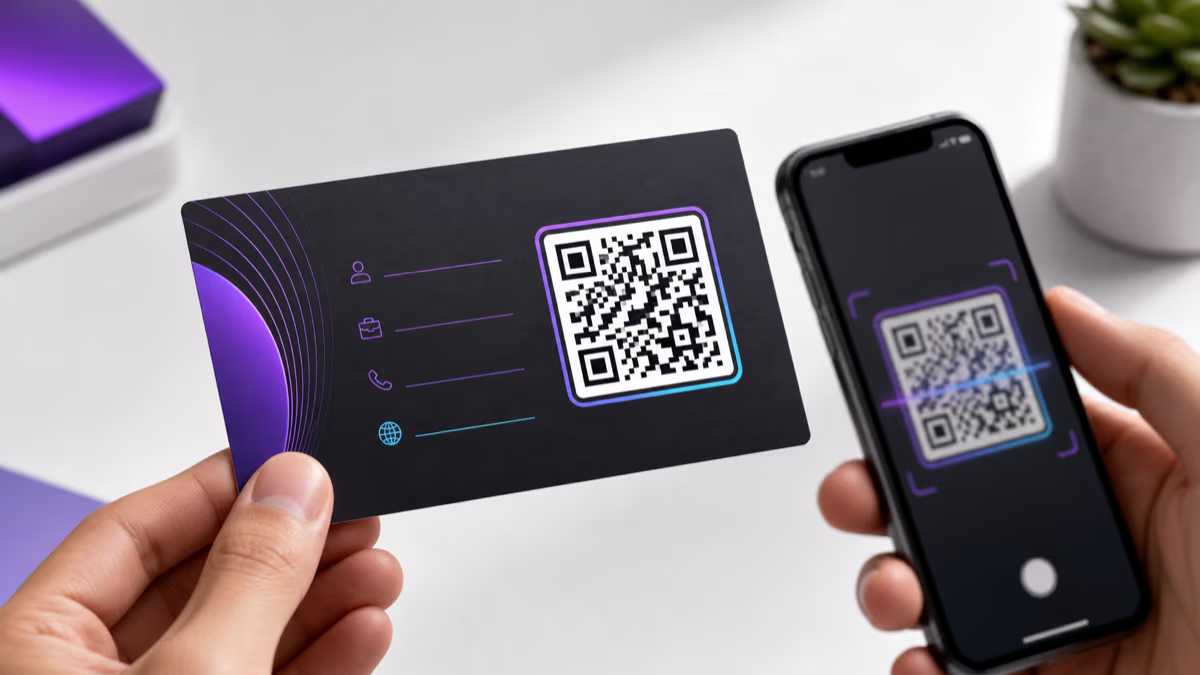
For in-person events, consider using two QR codes: one on the resume and one on your business card. The resume code links to your portfolio or work samples (URL type, dynamic). The business card code saves your contact information directly to the recruiter's phone (vCard type, static). This way, the recruiter gets both your work and your contact details in two quick scans.

vCard QR for Instant Contact Saving

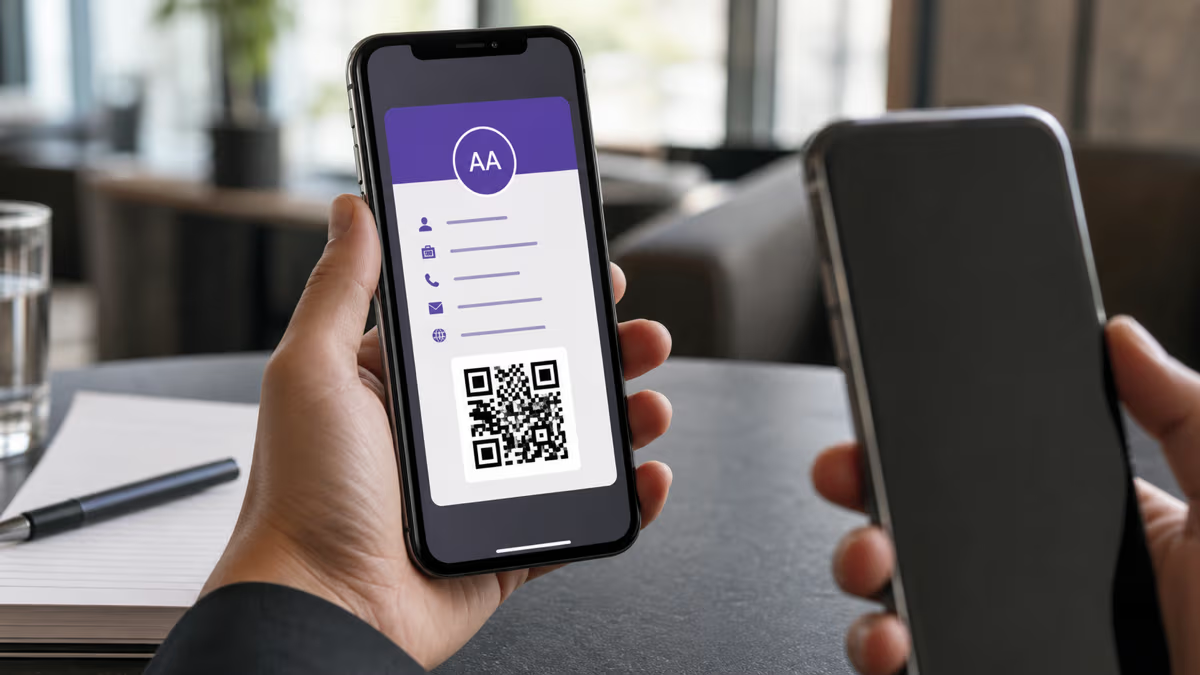
At a busy career fair, a recruiter may meet 200 candidates in a single day. The ones who make their contact information effortless to save have a significant advantage. A vCard QR code lets the recruiter scan and save your name, phone, email, title, and website in one tap — no manual entry, no lost business cards. For career fairs specifically, this is where vCard codes truly shine.

Tracking Who Scanned Your Resume

If you use a dynamic URL QR code on your resume, you can monitor your QRLynx dashboard during and after the event. Each scan is logged with a timestamp, location, and device type. Seeing 5 scans from a company's city the day after a career fair tells you that your resume was shared internally — a strong signal of interest that you can follow up on with a targeted email.

Frequently Asked Questions About Resume QR Codes

Is it professional to put a QR code on a resume?

Yes, adding a QR code to your resume is now widely considered professional and forward-thinking, especially in tech, creative, marketing, and digital-first industries. A 2024 survey by Enhancv found that resumes with QR codes received 20% more callbacks in these sectors. The key is to keep it subtle and well-designed — a clean, appropriately sized code in the header corner with a professional destination link. Conservative industries like law and traditional finance may be less accustomed to it, but even there, a discreet QR code linking to a LinkedIn profile is perfectly acceptable and shows digital fluency.

Will a QR code mess up my resume in an ATS?

No, a QR code will not break ATS parsing. Applicant Tracking Systems process text and ignore images entirely, so the QR code is simply invisible to the parser. However, you must ensure the code does not overlap any text content — if it covers your name or job titles, the ATS may fail to read that text. Always place the QR code in a margin or corner away from the main text, and include the destination URL as plain text somewhere on the resume so the ATS can index it. The QR code is for human reviewers; the plain-text URL is for the ATS.

What size should a QR code be on a resume?

Aim for 0.8 to 1.2 inches (2 to 3 centimeters) square. This size is large enough for phone cameras to read reliably from a normal holding distance of 4–8 inches, yet small enough to fit neatly in a resume header or footer without dominating the page. The absolute minimum scannable size is about 0.6 inches, but at that size, scanning becomes unreliable on older phones or lower-quality prints. If your QR code contains a lot of data (like a full vCard with address and social links), go toward the larger end because the more complex pattern requires more pixels to be readable.

Should I use a static or dynamic QR code on my resume?

A dynamic QR code is the better choice for most job seekers. With a dynamic code, you can change the destination URL for each application without reprinting your resume — point it to your design portfolio for a design role, your GitHub for a dev role, or your LinkedIn for a general application. You also get scan tracking, so you can see when and where recruiters scan your code. QRLynx includes one free dynamic QR code on the Starter plan. Use a static code only if you are linking to a URL that will absolutely never change, like a permanent LinkedIn profile link, and you do not need tracking.

Where on my resume should I place the QR code?

The top-right corner of your resume header is the best position for most layouts. It sits beside your name and contact information, where it feels like a natural extension of your contact details. The bottom-right corner is the second-best option, particularly if your header is already dense with information. If your resume uses a sidebar layout, the bottom of the sidebar works well too. Avoid placing the code in the center of the page, over body text, or in the margins of the experience section — these positions disrupt readability and feel out of place.

Can I track when a recruiter scans my resume QR code?

Yes, but only if you use a dynamic QR code. Dynamic codes route through QRLynx's redirect server, which logs every scan with a timestamp, geographic location (country and city), device type (iPhone, Android, etc.), and browser. You can view this data in real time from your QRLynx analytics dashboard. This is genuinely useful during a job search — if you see a scan from a company's headquarters two days after submitting your application, that is a strong signal of interest and an excellent time to send a follow-up email. Static QR codes cannot be tracked because there is no redirect server involved.

What should my resume QR code link to?

Link to something that adds depth beyond what the resume shows. The best destinations are a personal portfolio or website, a LinkedIn profile with endorsements and recommendations, a GitHub profile with pinned projects (for developers), a Behance or Dribbble portfolio (for designers), or a 60-second video introduction (for sales and leadership roles). Do not link to your homepage unless it is specifically designed as a career landing page. The destination should be mobile-optimized, load in under 3 seconds, and not require a login. Avoid social media profiles that mix personal and professional content.

Should I put a QR code on a digital resume or only printed ones?

Both. On a printed resume, the recruiter scans it with their phone camera. On a digital PDF, the recruiter can click the QR code (if it is hyperlinked) or screenshot and scan it. However, for digital resumes, also include a regular clickable hyperlink to the same destination — clicking is easier than scanning a screen. The QR code on a digital resume still serves a purpose: it signals that you are tech-savvy and detail-oriented, and if the PDF is printed later (which often happens when resumes are shared internally), the code is ready to scan.

How do I add a QR code to a resume in Word or Google Docs?

First, create your QR code on QRLynx and download it as a PNG file. In Microsoft Word, go to Insert then Pictures then select the PNG file. Resize the image to approximately 1 inch square and drag it to the top-right corner of your header. Set text wrapping to Square or Tight so body text flows around it. In Google Docs, go to Insert then Image then Upload from computer. Position the image in the header area and adjust the size. For both editors, add a small text label below the code like Scan for portfolio and include the plain-text URL for ATS compatibility.

Is a vCard QR code or URL QR code better for a resume?

For most resume use cases, a URL QR code is the better choice because it links to a web page where you can showcase portfolio pieces, video introductions, testimonials, and other rich content that a vCard cannot include. URL codes can also be dynamic, meaning you can change the destination for each application and track scans. A vCard QR code is best for a specific scenario: printed resumes handed out at career fairs or networking events where the primary goal is making your contact information effortless to save. In that context, a vCard code lets the recruiter save your name, phone, email, and title in one tap. Many candidates use both — a URL code on the resume and a vCard code on their business card.

Do QR codes on resumes actually help you get hired?

There is growing evidence that they improve callback rates. Enhancv reported a 20% increase in interview callbacks for tech and creative roles that used resume QR codes. The advantage is not the QR code itself — it is the additional context it provides. A resume bullet point that says Built responsive web applications is vague. A QR code that links to a live demo of those applications is proof. For recruiters, the code reduces friction: instead of copying and pasting a URL, they scan and see your work in seconds. The candidates who make it easy for recruiters to evaluate them have an inherent advantage in competitive applicant pools.

Can I customize the design of my resume QR code?

Yes, and you should. A plain black-and-white QR code looks generic. QRLynx lets you customize the foreground color, background color, module shape (dots, rounded, smooth), and add a logo or initials in the center. For a resume, match the QR code's foreground color to your resume's accent color — if your headings are dark navy, make the QR code dark navy. Keep the background white for maximum contrast. If you add a logo, keep it under 30% of the code area and use Medium or Quartile error correction to compensate for the data lost behind the logo. The result is a branded, professional code that looks intentional rather than like an afterthought.

Start Building Your Resume QR Code

A QR code transforms a flat, one-page resume into a gateway to your full professional story. Use a dynamic URL code to link to your portfolio, LinkedIn, or video introduction — and change the destination for each application without reprinting. For career fairs and in-person networking, pair it with a vCard code on your business card so recruiters can save your contact information in one tap.

Ready to create your resume QR code? Create your free QR code on QRLynx — static codes are free forever, and your first dynamic code is included on the Starter plan with 1,000 tracked scans per month.

For more career and professional QR code guides, explore these related resources:

Enjoyed this article? Share it!

Ready to Create Your Own QR Codes?

Start for free and upgrade as you grow. All plans include dynamic QR codes, analytics, and custom branding.

Start Your 14-Day Free Trial

Experience the full power of QRLynx Pro. No credit card required.

Start Free Trial

Starter

$0 /Month
  • Unlimited Static QR Codes
  • 1 Dynamic QR Code
  • 1,000 Scans/Month
  • No Watermark
  • 30+ QR Code Types
  • JPG, PNG, WEBP Downloads
  • Analytics (14 Days)

Pro

$14 /Month
  • Unlimited Static QR Codes
  • 50 Dynamic QR Codes
  • 25,000 Scans/Month
  • Unbranded QR Codes
  • 5 Folders Organization
  • 40+ QR Code Types
  • Custom Logo Upload
  • SVG / PDF Downloads
  • Analytics (30 Days)
  • Country Location Data
  • Advanced Expiry Rules
  • Password Protected Codes
  • PDF Upload (5MB)
Most Popular

Business

$29 /Month
  • Unlimited Static QR Codes
  • 250 Dynamic QR Codes
  • 250,000 Scans/Month
  • Unbranded QR Codes
  • 25 Folders Organization
  • 40+ QR Code Types
  • Custom Logo Upload
  • SVG / PDF Downloads
  • Advanced Analytics (60 Days)
  • Country / State / City Data
  • Device Type / OS / Browser Data
  • CSV Report Export
  • Advanced Expiry Rules
  • Redirect Rules (Device/Country/Time)
  • Lead Forms
  • Password Protected Codes
  • PDF Upload (20MB)

Enterprise

$99 /Month
  • Unlimited Static QR Codes
  • 1000 Dynamic QR Codes
  • Unlimited Scans
  • Unbranded QR Codes
  • White Label Domains
  • 100 Folders Organization
  • 40+ QR Code Types
  • Custom Logo Upload
  • SVG / PDF Downloads
  • Advanced Analytics (90 Days)
  • Country / State / City Data
  • Device Type / OS / Browser Data
  • Retargeting Pixels
  • CSV Report Export
  • Advanced Expiry Rules
  • Redirect Rules (Device/Country/Time)
  • Lead Forms
  • Password Protected Codes
  • PDF Upload (50MB)
  • Dedicated Success Manager

Need higher volume or custom features?

Custom scan volumes, SLAs, dedicated infrastructure, and white-label solutions for large teams.

Contact Sales

Ready to Transform Your QR Code Experience?

Join thousands of businesses already using QRLynx to create, customize, and track their QR codes with ease.

No credit card required
14-day free trial
Cancel anytime