Skip to content

Bing QR Code Scanner — Microsoft Edge & Copilot (2026)

Ahmad Tayyem
Founder & QR Code Technology Specialist
· Updated May 16, 2026 · 12 min read
Bing QR Code Scanner — Microsoft Edge & Copilot (2026)

Key Takeaway

How Microsoft's QR-scanning ecosystem actually works: Bing app visual search, Edge mobile's QR reader, Copilot's image understanding, and where each one fits in your workflow.

Microsoft has shipped several QR-related features across its ecosystem — Bing's visual search on mobile, Microsoft Edge's QR reader on iOS and Android, the Surface Camera app's QR detection, and Copilot's general image-understanding capabilities. None of them are named 'Bing QR Code Scanner' as a discrete product, which is why Googling that exact phrase turns up scattered tutorials and outdated screenshots.

This guide maps the actual Microsoft scanning landscape in 2026: which feature lives where, when each is the right tool, and where the gaps are. If you're a Microsoft-ecosystem user (Surface owner, Edge user, regular Bing visitor) trying to scan QR codes cleanly, this is your map.

Bing app: visual search with QR support

The Bing app on iOS and Android — the search app, not Microsoft Edge — has a Visual Search feature accessible from the search bar (look for the camera icon). It does general image search, but it also recognizes QR codes when you point the camera at them.

Step-by-step in the Bing app:

  1. Open the Bing app on your phone.
  2. Tap the camera icon in the search bar.
  3. Grant camera permission (first time only).
  4. Point the camera at a QR code. The app detects the QR, decodes it, and shows the URL/text along with a 'Open' or 'Copy' option.

The Bing app's QR decoding is solid but not blazing fast — typically 1-3 seconds to recognize the symbol, slightly slower than the native iPhone Camera or Google Lens. The main reason to use it instead is if you're already in the Bing app for other reasons (running a Bing image search, reading Bing news, asking Copilot something) or if your default camera-based scanner isn't working for some reason. The decoder accepts standard ISO/IEC 18004 QR codes, Micro QR codes (with reduced reliability), and most barcodes used for product identification.

Microsoft Edge mobile: native QR scanning

Microsoft Edge on iOS and Android has a built-in QR code reader that opens directly from the browser's main menu. You tap the three-dot menu, find the QR scanner option, and the camera opens. Point at a QR, get the URL, open it in a new tab.

This is meaningfully convenient if you're already using Edge as your primary mobile browser — there's no app switching, no separate scanner to install. The decoded URL opens directly in Edge so you stay in your browser context, your history, your saved passwords, and your tab groups — useful when scanning a QR that leads to a site you'll actually want to bookmark or share back to a coworker via Edge's send-to-device feature.

On Edge desktop (Windows or Mac), there is no native QR scanner in 2026. You can install a Chrome Web Store extension (Edge supports Chrome extensions seamlessly), but for most desktop users a browser-based scanner like /tools/qr-code-scanner is simpler — no extension install, no permission grants, no auto-updates, and no risk of an extension going stale or getting acquired by a less reputable owner over time.

Can Copilot scan a QR code?

Yes — sort of. Microsoft Copilot (the AI chat product across copilot.microsoft.com, the Copilot app, and Windows Copilot) accepts image uploads. If you upload an image containing a QR code, Copilot will typically recognize the QR and tell you the encoded URL. We've tested this with several QR samples and Copilot decoded each correctly, though it occasionally needs a 'what's in this QR code?' prompt to focus on the decoding task.

That said, Copilot is overkill for QR scanning. It's a large multimodal AI; sending an image of a QR through it incurs the latency and cost of a full vision-language model inference. A dedicated QR scanner does the same job in 100ms locally. Copilot's QR decoding is useful when:

  • You're already mid-conversation with Copilot and an image with a QR comes up.
  • You want Copilot to explain what the URL behind the QR represents (e.g., 'this is a Microsoft Forms feedback link' — Copilot can browse and summarize).
  • You're testing whether AI assistants handle a particular QR encoding correctly (a fun edge-case test, not a daily-workflow case).

For the routine 'decode this QR' job, use a dedicated scanner. For the 'decode this QR and tell me what's on the other side' job, Copilot or ChatGPT with image upload makes sense.

One emerging case where Copilot QR-handling has real utility: QR-phishing analysis. Security researchers sometimes upload a suspicious QR image to Copilot and ask it to identify any obfuscated URL patterns, encoded payloads, or known-bad domains. Copilot's training includes threat-intelligence patterns, so it can flag a malicious URL faster than a human inspecting the decoded text. This is a niche security-research use case, not something most users should rely on for daily scanning — but it's worth knowing the option exists.

Microsoft Lens: the cousin tool people forget about

Microsoft Lens (formerly Office Lens) is a separate Microsoft app primarily aimed at document scanning — capturing whiteboards, business cards, paper documents and converting them to PDFs or Word/OneNote files. Lens is available on iOS and Android, well-integrated with Microsoft 365, and broadly used in corporate document-capture workflows.

Where Lens overlaps with QR scanning: when you point Lens at a document that contains a QR code, the QR is detected and the URL is surfaced as part of the OCR/text-extraction output. So if you're scanning a business card or a printed receipt that includes a QR, Lens captures both the document and the encoded URL in one operation. Useful for digitizing trade-show contact cards or receipt-with-loyalty-QR captures.

Lens isn't optimized for raw QR scanning — it's slower than a dedicated scanner because it's also doing OCR, page-edge detection, and perspective correction. Don't use it just for decoding QRs. But if you're already in a document-capture workflow, the bundled QR-extraction is a nice add.

One adjacent point worth covering: Bing also matters for QR-code destinations in 2026. When you generate a QR pointing at a web page, Bing crawls that page like any other URL. If the QR is shared widely (printed on packaging, mentioned in social media), the destination URL gets meaningful inbound link signals that influence Bing search ranking for that page.

Practical implication for marketers: a successful QR campaign isn't just measured by scans — it's also measured by the search-side lift it generates on the destination URL. Pages that are frequently scanned via QR tend to gain Bing search visibility for their topic. For QR-driven local-business pages, a meaningful share of follow-up search traffic comes through Bing's local pack rather than Bing's main web results, so optimizing the Bing Places listing in parallel with the QR campaign compounds the effect.

For deeper coverage of Bing's optimization quirks and how QR campaigns interact with Bing's AI search assistant, see our broader marketing QR generators comparison.

A practical note for marketers: Bing's IndexNow protocol — which lets webmasters notify Bing of new or changed URLs — is now widely supported across major platforms, including QRLynx. When you generate a dynamic QR pointing at a freshly created URL, IndexNow can tell Bing about the URL within seconds rather than waiting for the next crawl. For QR campaigns where the destination page is brand-new at launch time, IndexNow integration meaningfully shortens the lag between scan-driven traffic and Bing search discoverability. Pair the QR launch with an IndexNow ping for the best of both worlds.

Bing app vs Edge mobile vs system camera: a practical comparison

If you're on a phone deciding which Microsoft tool to use for scanning a QR code, the practical differences:

ToolDecode speedWhere the URL opensBest for
iPhone Camera~0.5sDefault browser (Safari, or Edge if set)Fastest, most reliable
Android Camera + Google Lens~1sDefault browserUniversal, well-supported
Bing app (camera icon)~1-3sInside Bing app web viewIf already in Bing for other reasons
Edge mobile (menu → QR reader)~1-2sNew Edge tabEdge users keeping URL in browser context
Microsoft Phone Camera (Surface Duo, etc.)~1sDefault browserSurface users

For most users, the system camera is the right answer because it's the fastest path and requires no app-context switching. The Bing app and Edge mobile scanners are useful primarily when you're already in those apps. They're not meaningfully better at decoding than the system camera — just slightly slower with a different URL-handling context.

Microsoft Edge for Business and corporate QR-policy gotchas

If you're on a corporate machine where IT has deployed Microsoft Edge for Business or Microsoft Defender for Endpoint, you may run into QR-related restrictions:

  • QR-deep-link allowlists. Some enterprise security policies block URLs that arrive via unusual paths (e.g., a QR scan that opens a non-allowlisted domain). The QR decoded successfully, but the subsequent URL load is blocked.
  • Camera-permission policy. Corporate machines may disable camera-access permissions for browsers globally. Edge's QR scanner (when available) won't be able to open the camera; image-upload still works.
  • 'Quishing' detection. Defender for Endpoint and similar enterprise security tools have started flagging suspicious URLs delivered via QR codes (a class of attack sometimes called 'quishing' or QR-code phishing). Legitimate URLs occasionally trigger false positives. Coordinate with IT if you're rolling out QR-driven internal workflows.

For enterprise-focused QR deployments, treat the QR as a delivery mechanism and the destination URL as the actual security perimeter. The QR doesn't add or subtract trust; the URL is what matters. A well-secured corporate environment treats every URL — regardless of how it arrived — through the same conditional-access and URL-filtering policies. That model scales cleanly to QR-arrived URLs without requiring QR-specific security tooling.

Which Microsoft tool for which scanning job

1

Phone + Bing app already open

Use Bing app's Visual Search (camera icon in search bar). One tap to camera, one tap to decode. Best when you're already in the Bing app for other reasons.

2

Phone + Edge as your main browser

Use Edge mobile's built-in QR scanner (three-dot menu → QR reader). Decoded URL opens directly in Edge. Best for Edge-loyal users who want the URL to stay in their browser ecosystem.

3

Desktop / laptop / Surface

Use a browser-based scanner like /tools/qr-code-scanner. Works with image upload (Win+Shift+S → drag-drop) or webcam. No app install. Compatible with Edge, Chrome, Firefox, and any modern browser on Windows.

4

Mid-conversation with Copilot or another AI

Upload the QR image directly to Copilot or ChatGPT or Claude. The AI will decode and optionally summarize what's at the URL. Overkill for routine decoding but useful when you want decode-plus-context in one step.

Frequently Asked Questions

Is there a 'Bing QR code scanner' that runs in the Bing website on desktop?

Not as a built-in feature. Bing.com on desktop is a search engine, not an image-decoding tool. To scan a QR on desktop using Microsoft tools, you'd use Edge with a browser extension or an image upload to Copilot. For most use cases, a browser-based scanner like /tools/qr-code-scanner is the practical answer.

Can Microsoft Copilot decode a QR code from a screenshot?

Yes. Upload the screenshot to Copilot (web or app) and ask 'what's the URL in this QR code?' Copilot's vision model will decode it. Accuracy is high for standard QRs; less reliable for low-resolution, heavily styled, or unusual variants. For routine work, a dedicated scanner is faster and more deterministic.

Does Edge for Windows have a QR scanner extension Microsoft endorses?

Edge doesn't endorse a specific QR scanner extension. The Chrome Web Store has dozens; Edge supports Chrome extensions natively. Before installing, check the extension's permissions (avoid those requesting 'all data on all websites') and review its update history. Or skip the install entirely and use a browser-based scanner page.

Why does my Surface tablet sometimes decode QR codes and sometimes not?

Surface QR detection requires the Camera app to be focused on the QR with good lighting and decent contrast. On older Surface models the rear camera is limited; try moving closer, increasing the QR size on whatever you're scanning from, or improving the lighting. If detection is consistently failing, check Settings → Privacy → Camera for permission and Camera app for any QR-detection toggle.

Is the Bing app's QR scanner accurate?

For standard QR codes, yes — it follows ISO/IEC 18004 and decodes reliably. For Micro QR codes or visually heavily styled QRs (logo overlays, color gradients), it may struggle compared to specialized scanners. If you're testing brand QR designs, validate them against multiple scanners to confirm broad compatibility.

Does Microsoft track or store the QR codes I scan?

Bing app and Edge mobile scanning send the decoded URL to Microsoft's services if you choose to open the link (the URL is then loaded via Edge or the system browser). The decode itself appears to run locally, but Microsoft's privacy policies for the Bing app include image-data telemetry options. If privacy matters, use a browser-based scanner with verified local decoding (you can check DevTools to confirm no upload happens).

Can Bing's search rankings be influenced by QR-driven traffic?

Indirectly. Bing tracks user signals (clicks, dwell time, return visits) on landing pages. A QR campaign that drives lots of mobile traffic to a page can improve that page's ranking for related Bing queries — not as a direct ranking factor for QR codes, but through standard engagement-signal channels. Pair the QR campaign with on-page SEO for compounding impact.

What's the difference between Bing Visual Search and Microsoft Designer's QR features?

Bing Visual Search is for decoding QRs and other images. Microsoft Designer (the Microsoft 365 AI design tool) has a QR generation feature that produces QR codes you embed in marketing materials. Different products for different sides of the QR workflow — Designer generates, Bing decodes.

Is there an enterprise-grade Microsoft QR scanner with admin controls?

Not as a discrete product. Enterprise QR scanning is typically deployed via Microsoft Defender for Endpoint policies (allowed URL patterns, quishing detection) or Microsoft Intune-managed Edge profiles. For organizations that want their staff to scan QRs in a controlled way, the recommendation is to deploy Edge for Business with a QR-scanner extension on an allowlist, plus IT-managed URL filtering.

How does the QRLynx scanner compare to Microsoft's built-in options?

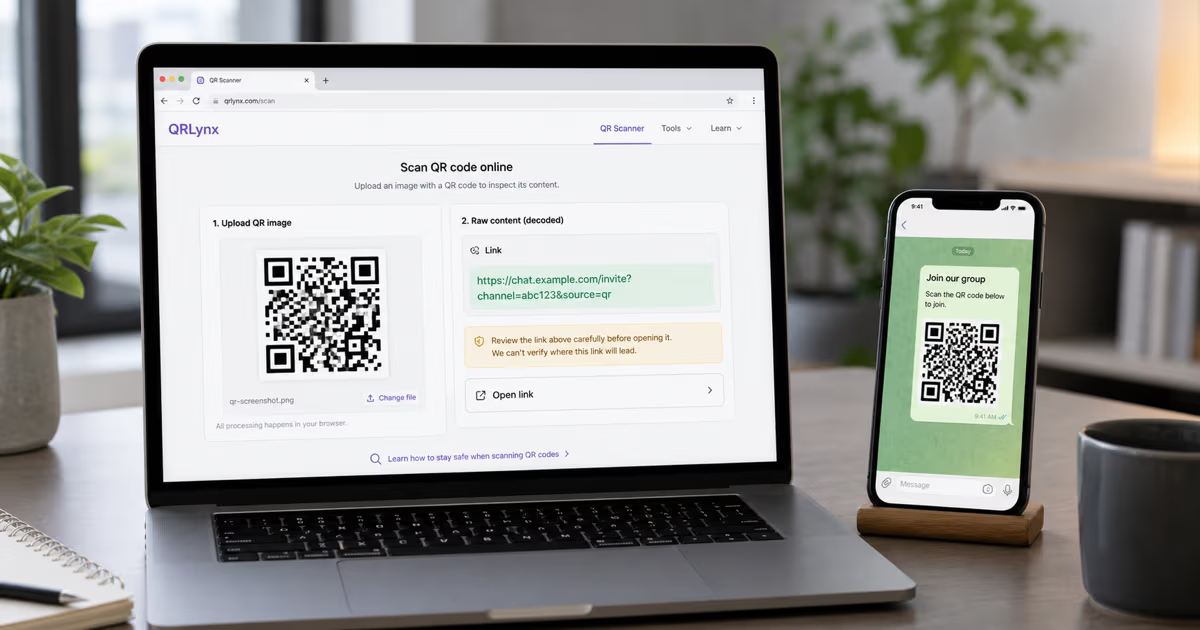
QRLynx scanner is a web-page that does QR decoding locally in browser. It works on Windows desktop (where Microsoft has no built-in option), works in all browsers including Edge/Chrome/Firefox, supports image upload (which Bing and Edge mobile don't, on mobile), and doesn't require any account or install. For phone-based scanning where Bing app or Edge mobile already work natively, those are equally good. For desktop or image-from-screenshot use cases, the browser-based scanner is the more flexible tool.

Summary: the Microsoft QR scanning landscape

Microsoft's QR support is scattered but functional. The rule-of-thumb mapping:

  • Phone scanning — Bing app or Edge mobile, both work.
  • Desktop scanning — browser-based scanner; Microsoft has no native desktop QR tool.
  • AI-assisted scanning — Copilot can decode an uploaded image, but it's overkill unless you need contextual analysis of the URL.
  • Enterprise scanning — coordinate with IT around quishing-detection and URL allowlists; the QR itself is just a delivery vehicle.

For Windows-specific scanning workflows — image upload, webcam, screenshot, drag-and-drop, and the clipboard-paste power-user pattern — see our companion Windows QR scanning guide. For the universal browser-based scanner used in most of the workflows above, the QRLynx scanner covers all of them: image upload, webcam, screenshot, drag-and-drop. No install, no signup, works in any modern browser on any platform including Edge.

Enjoyed this article? Share it!

Rated Excellent by Businesses Worldwide

Real Trustpilot reviews from QRLynx users across 200+ countries.

"Impressive for recruiting purposes. Exceptional customization options and very responsive customer support..."
★★★★★

Josh J.

"Excellent service and support team. Responded quickly to an urgent request without unnecessary questions. The best QR service I've used — reliable and responsive..."
★★★★★

Maths with V

"Made a QR for my restaurant menu over 2 years ago and it still works perfectly. Never paid anything, no expiry, no downtime. Switched from a paid platform that charged monthly for the same thing..."
★★★★★

Mustafa M.

Ready to Create Your Own QR Codes?

Start for free and upgrade as you grow. All plans include dynamic QR codes, analytics, and custom branding.

Trusted by 2,000+ businesses
4.3/5 on Trustpilot
Cancel anytime
/
For personal projects
Free
No card required
  • Unlimited Scans Every QRLynx plan includes truly unlimited scans — no monthly cap, no throttling. Most competitors throttle free at 50-100 scans/month.
  • 3 Dynamic QR Codes Editable QR codes — change the destination URL anytime
  • 30-Day Analytics View scan data from the last 30 days
  • AI Insights AI-generated plain-language summaries of your scan performance with key trends and takeaways.
  • 1 Folder Organize your QR codes into a folder
  • 5 MB PDF Upload Upload PDF menus, flyers, or catalogs and turn them into scannable QR codes.
  • Custom Logo Upload Place your brand logo in the centre of your QR codes. Includes profile + background images on Bio pages.
  • JPG, PNG, WEBP, PNG HD Downloads All raster formats including a sharper 2048px PNG for professional printing.
  • Pause & Activate QR Codes Pause QR codes to stop scans, reactivate anytime within your plan limit
Most Popular
Pro
Best for marketers
$14 /mo
Billed monthly

Cancel anytime. No lock-in.

  • 50 Dynamic QR Codes
  • Unlimited Scans
  • 60-Day Analytics Upgraded from 30 days
  • AI Insights (Advanced) Deeper analysis: anomalies, trends, actionable recommendations.
  • 5 Folders
  • 10 MB PDF Upload
  • Custom Logo Upload
  • JPG, PNG, WEBP, PNG HD Downloads
  • SVG / PDF Vector Downloads Print-ready vector formats for designers and print shops — infinite scalability.
  • Password Protected QRs Require a password before showing QR content
  • Smart Redirect Rules Redirect by device, country, or time
  • Access Consent Screens Age verification, terms, disclaimers
  • Expiry Rules Auto-expire by date or scan count
  • QR Scheduling Set start/end times for QR activity
  • Pause & Activate QR Codes Pause QR codes to stop scans, reactivate anytime within your plan limit
Business
For teams & agencies
$29 /mo
Billed monthly

Cancel anytime. No lock-in.

  • 250 Dynamic QR Codes
  • Unlimited Scans
  • 90-Day Analytics Upgraded from 60 days
  • AI Insights (Advanced) Deeper analysis: anomalies, trends, actionable recommendations.
  • 25 Folders
  • 20 MB PDF Upload
  • Custom Logo Upload
  • JPG, PNG, WEBP, PNG HD Downloads
  • SVG / PDF Vector Downloads
  • Password Protection
  • Smart Redirect Rules
  • Access Consent Screens
  • Expiry Rules
  • QR Scheduling
  • Pause & Activate QR Codes Pause QR codes to stop scans, reactivate anytime within your plan limit
  • Bulk QR (100/batch)
  • Team Management (3 Members) Invite team members to collaborate on QR codes, analytics, and folders
  • Lead Capture Forms Collect leads directly from QR code scans
  • CSV Report Export
Enterprise
For large organizations
$99 /mo
Billed monthly

Cancel anytime. No lock-in.

  • 1,000 Dynamic QR Codes
  • Unlimited Scans
  • 90-Day Analytics
  • AI Insights (Advanced) Deeper analysis: anomalies, trends, actionable recommendations.
  • 100 Folders
  • 50 MB PDF Upload
  • Custom Logo Upload
  • JPG, PNG, WEBP, PNG HD Downloads
  • SVG / PDF Vector Downloads
  • Password Protection
  • Smart Redirect Rules
  • Access Consent Screens
  • Expiry Rules
  • QR Scheduling
  • Pause & Activate QR Codes Pause QR codes to stop scans, reactivate anytime within your plan limit
  • Bulk QR (500/batch)
  • Team Management (10 Members) Up to 10 members with role-based access
  • Lead Capture Forms
  • CSV Report Export
  • Retargeting Pixels Facebook, Google, GTM tracking pixels on QR landing pages
  • White Label Domains Use your own domain for QR redirects (e.g. qr.yourbrand.com)
  • Email Scan Summaries
  • Dedicated Success Manager

Why businesses choose QRLynx

Features most competitors charge extra for — included in every plan

47
QR Code Types
URL, WiFi, vCard, PDF & more
Bio Pages
Built-in Landing Pages
No Linktree needed
Unbranded
No Watermark on Free
Even on the Starter plan
Unlimited
Scans on All Plans
Free and paid — no caps ever
275+
Edge Locations
Sub-50ms redirects globally
Lead Forms
Capture Contacts
Built-in lead gen from scans
Smart Rules
Conditional Redirects
By device, location, or time
PDF QR
Upload & Share PDFs
Menus, flyers, documents

Ready to Transform Your QR Code Experience?

Join thousands of businesses already using QRLynx to create, customize, and track their QR codes with ease.

Talk to Sales
No credit card
Free forever
Cancel anytime