Wedding Photo QR Code: Collect Guest Pictures with QRLynx

Key Takeaway
Create a QRLynx wedding photo QR, verify the guest upload flow, choose a dynamic destination, plan privacy and placement, and test every printed sign.
QRLynx connects the sign to the upload destination
Create the guest album or upload page first, test its contribution flow while signed out, then place that final link inside a dynamic QRLynx Website / Link QR. QRLynx keeps the printed QR stable and records scans. The destination service controls guest sign-in, uploads, storage, privacy, moderation, and downloads.
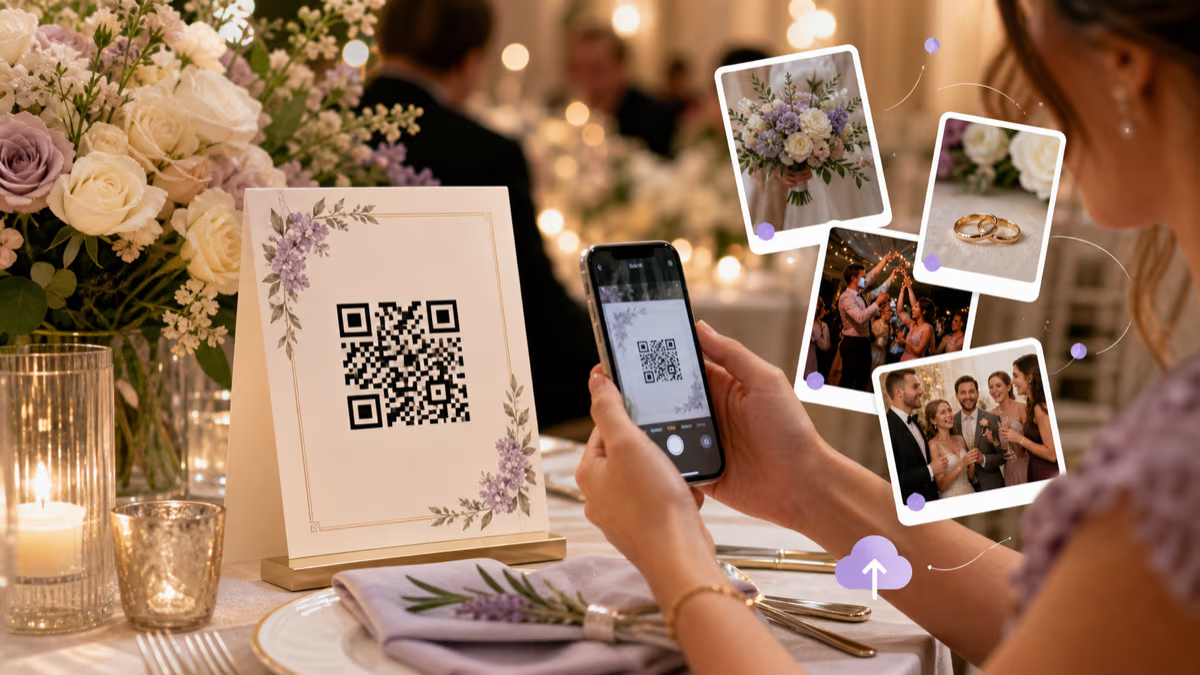
A wedding photo QR gives guests one visible route for sharing candid pictures and videos from the ceremony, reception, and surrounding events. The QR itself does not collect a file. It opens the album, upload form, or guest-photo service you selected.
That separation matters. QRLynx Website / Link can give the printed sign an editable destination and QRLynx scan analytics. The album provider decides whether guests must sign in, which file types and sizes it accepts, who can view contributions, how long files remain available, and how the couple exports them.
The safest workflow is to test the entire journey as a guest before printing. Use a private browser, a phone outside the organizer account, and at least one second mobile platform. Confirm upload, viewing, privacy, and export behavior from the destination itself.
Choose the photo destination before creating the QR
Start with the experience guests should have after scanning. A destination should be easy to understand on a phone, accept the intended photo and video formats, and give the couple a practical way to review and export the collection.
Google Photos shared album
Google Photos documents link sharing and a Collaborate setting that allows people with access to add photos. Its help also associates added photos and activity with a Google Account profile. Do not promise anonymous contribution. Test the exact link while signed out and decide whether the likely account step fits the guest list.
Google Drive shared folder
Google Drive documents that adding files to a shared folder requires a signed-in Google user with permission to organize, add, and edit. That permission can also allow broader folder actions. A Drive folder can work for a controlled group, but it is not a neutral anonymous-upload promise.
Apple Shared Album
Apple lets invited subscribers contribute when Subscribers Can Post is enabled. It can suit an Apple-centered group, but the invitation and account experience should be tested with the actual devices guests use.
Dedicated guest-photo upload page
A dedicated destination may offer a simpler browser upload. Verify its no-login claim, storage and video limits, retention, moderation, download and export options, privacy policy, ownership terms, and pricing on the date you configure it. Do not print before testing its real guest flow.
Wedding photo destination checks
| Destination | Contribution path | Check before printing | Best fit |
|---|---|---|---|
| Google Photos shared album | Shared link with Collaborate enabled | Account behavior, viewing access, link resharing, export | Guests comfortable with Google Photos |
| Google Drive shared folder | Signed-in editor access | Folder permissions and what contributors can change | Smaller controlled contributor group |
| Apple Shared Album | Invited subscriber with posting enabled | Invitation, Apple account, device, and export behavior | Apple-centered guest group |
| Dedicated guest uploader | Provider-specific browser or app flow | Login, limits, retention, privacy, moderation, export, price | Purpose-built event collection after verification |
How to create a wedding photo QR code in QRLynx
Verify the guest upload journey first, then create and print the stable QRLynx route.
Define the guest action and privacy boundary
Decide whether guests should upload only, view the shared gallery, or do both. Choose who can access the link, whether contributions need approval, how long access will stay open, and who will download the final archive.
Create the album or upload page
Configure the selected destination, enable the correct contribution setting, set an event name, and add one test photo. Record its sign-in rules, file and video limits, storage quota, moderation controls, export method, and retention terms.
Test the destination as a real guest
Open the shared link in a private browser while signed out. Test on iPhone and Android when possible. Upload a photo and video, confirm what identity is shown, check whether guests can see or alter other files, and complete a download or export as the organizer.
Choose Website / Link in QRLynx
Open the QRLynx generator, select Website / Link, and paste the exact tested album or upload URL. Name the QR clearly, such as Wedding guest photos, so it is easy to recognize later in your dashboard and analytics.
Use dynamic mode for printed wedding materials
A dynamic QRLynx QR keeps the printed short route stable while letting you replace the destination if the album link, permission, or provider changes. It also records QRLynx scan events. A static QR permanently stores the original destination and cannot be repaired remotely.
Design and label the QR
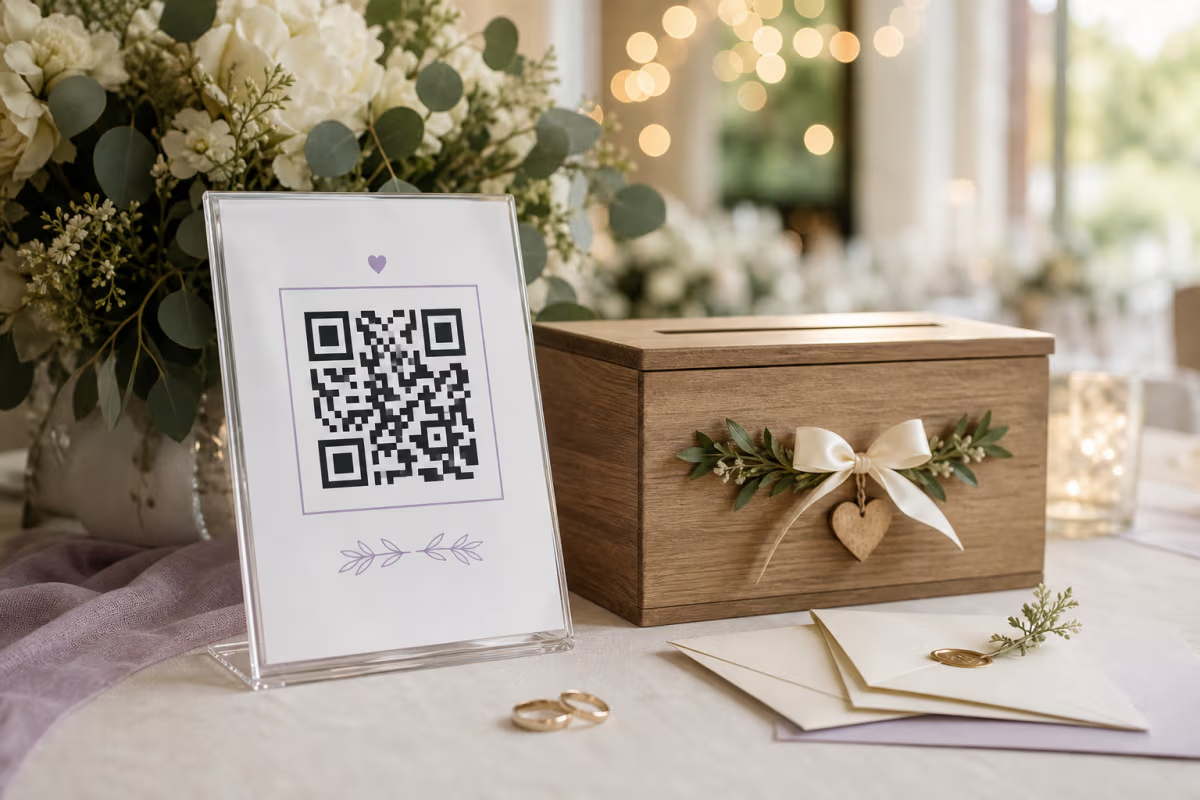
Use strong contrast, preserve the clear quiet zone, and match the surrounding sign to the wedding design without weakening the QR. Add a direct label such as Scan to share your photos and one short instruction about sign-in only if the tested destination requires it.
Place and proof the final materials
Put the QR where guests pause: welcome area, tables, bar, photo booth, guest book, or departure table. Print each item at final size and scan the physical proof under venue-like lighting. Use separate named dynamic QRs if you want to compare placements.
Run a final rehearsal and close the collection deliberately
Complete the scan, upload, viewing, and organizer-export journey again before guests arrive. After the event, download the archive, review access, disable contributions when appropriate, and update the QRLynx destination if the printed QR should lead to a curated gallery or thank-you page.
Guest upload link tested
Create the wedding photo QR in QRLynx
Use one stable dynamic QR for the verified album or upload page, then test the physical sign before the wedding.
Why a dynamic QRLynx QR fits wedding printing
Wedding materials are often finalized before the event, while album links and access settings may still change. A dynamic QRLynx QR separates the printed symbol from the current destination. If the original album becomes unsuitable, update the destination in QRLynx and keep the same signs, cards, and programs.
That flexibility also supports a useful after-event transition. During the collection window, the QR can open the upload page. After contributions close, the same printed QR can lead to a curated gallery, download instructions, or a thank-you page. Test every destination change because QRLynx controls the route, not the destination's permissions or content.
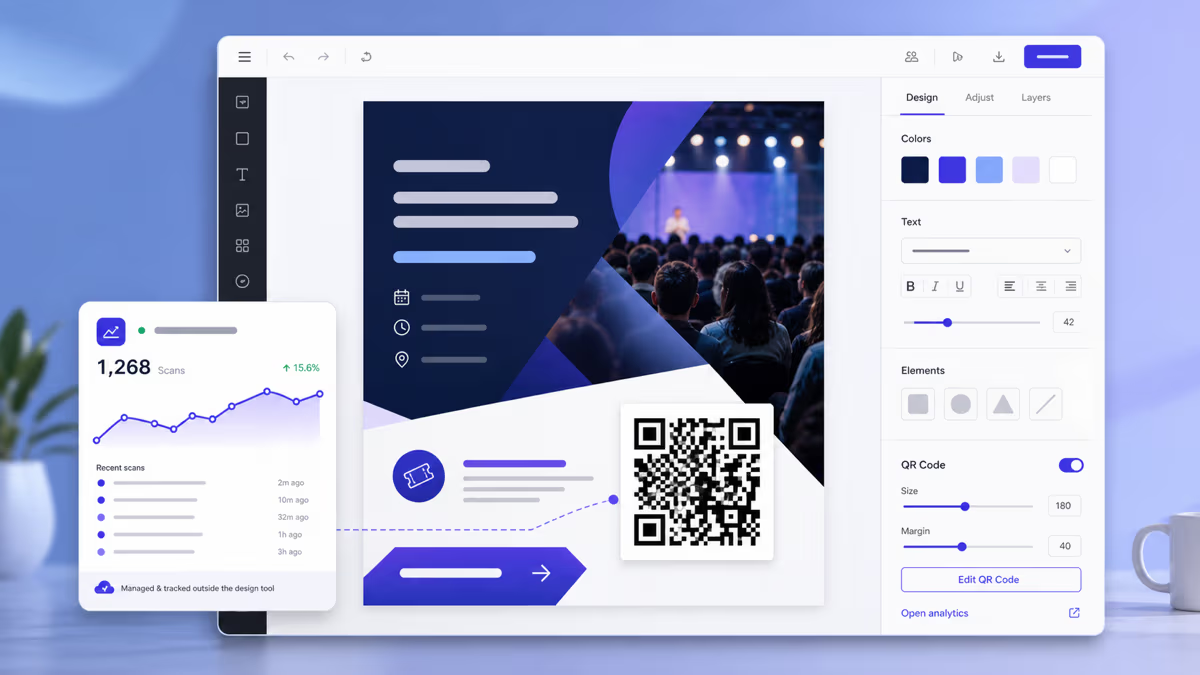
QRLynx analytics can show total and unique scans for the QR and selected time range. It cannot prove that a scan became an upload, identify the guest, or count files stored by the destination. Use the album provider's own activity and file count to measure contributions.
Placement plan for actual guest behavior
Place the QR where guests have enough time and light to scan, read the instruction, and choose media. One large welcome sign creates awareness, while smaller table cards or bar cards make the action available later when guests have photos to share.
- Welcome area: introduce the photo collection early, but do not rely on this as the only placement.
- Reception tables: keep the QR visible without competing with menus, place settings, or centerpieces.
- Bar and lounge: use locations where guests pause and review photos.
- Photo booth or guest book: connect the upload action with an existing photo moment.
- Departure or next-day message: remind guests to contribute pictures captured late in the event.
If placement comparison matters, create separate named QRLynx dynamic QRs that share the same destination. A single QR reused everywhere combines scans and cannot reveal which placement attracted attention.
Design the sign for trust and fast scanning
A wedding QR can match the stationery while remaining easy to decode. Keep the QR foreground darker than its background, preserve a clear quiet zone, and avoid placing the symbol over flowers, photographs, textures, foil, or gradients. Decorative framing should stay outside the clear margin.
Pair the QR with a direct call to action. Scan to share your photos explains the task. Add one short supporting line, such as Photos and videos welcome, or Google sign-in required, only when it reflects the tested destination. Avoid claiming No app or No login unless you verified that exact behavior on the final link.
Print a physical proof through the intended production process. Test it at the venue distance and lighting with several phones. A screen preview cannot reproduce glare, paper texture, ink spread, sign angle, or low reception lighting.
Wedding photo QR launch checklist
| Check | Pass condition | Owner |
|---|---|---|
| Guest upload | Signed-out or required-account flow tested on phones | Destination service |
| Viewing and privacy | Guest visibility and resharing behavior understood | Destination service |
| Files and export | Photo, video, quota, retention, and download tested | Destination service |
| Printed route | Final dynamic destination saved and QR named | QRLynx |
| Physical proof | Scans at final size under realistic light | Couple or planner |
| Measurement | QRLynx test scan appears and destination receives test file | QRLynx and destination service |
| After event | Archive, access closure, and final destination planned | Couple or planner |
Photos and videos need separate capacity checks
A destination that accepts photos may apply different rules to video length, file size, format, processing, or storage. Do not estimate capacity from a generic number of photos. Modern phone files vary widely, and videos can consume far more storage than images.
Upload a representative photo and video from each mobile platform during testing. Confirm orientation, original quality, metadata behavior, playback, and export. Decide whether guests can see each other's contributions immediately or whether the couple will curate the collection later.
Keep a separate backup plan. Download the final archive promptly, store a second copy, and retain the photographer's delivery independently. Guest contributions complement professional coverage rather than replace it.
Privacy and access choices to settle before the wedding
- Link sharing: decide whether anyone with the link can view, contribute, or reshare it.
- Identity: understand whether uploads show an account name, profile image, email, or anonymous label.
- Moderation: determine whether contributions appear immediately or wait for approval.
- Rights and consent: tell guests how the couple may use shared photos, especially for public galleries or social posts.
- Children and sensitive moments: choose a private collection and limit redistribution when the guest list or event requires it.
- Retention: record when the service may delete files and when the couple will download the archive.
- Access closure: plan when to disable contributions, reset a shared link, or redirect the QRLynx QR.
A QR printed on a public sign can be photographed and shared. Treat the destination link as discoverable by anyone who sees the sign, and configure access accordingly.
Troubleshooting the complete journey
- The QR does not decode: restore contrast and quiet zone, enlarge the printed symbol, remove glare, and test the physical sign.
- The link opens but guests cannot add photos: check the destination's collaboration or subscriber-posting setting and its account requirement.
- Guests can edit or remove other files: review the destination permission model and move to a safer contribution flow before wider sharing.
- Videos fail: verify file-size, duration, format, storage, and connection limits at the destination.
- The album link changed: update the destination on the dynamic QRLynx QR and scan every printed placement again.
- QRLynx shows scans but few uploads: simplify the instruction and guest flow, then compare the destination's file activity. A scan is not an upload.
- One placement underperforms: separate placements with named QRLynx QRs before drawing a conclusion.
Wedding photo QR code FAQ
Answers about QRLynx, guest uploads, Google Photos, dynamic links, privacy, placement, and analytics.
Does QRLynx store the wedding photos?
No. A QRLynx Website / Link QR opens the album or upload page you configure. That destination service stores the media and controls sign-in, privacy, moderation, limits, retention, and export. QRLynx manages the QR route and scan analytics for a dynamic code.
Can guests upload to Google Photos without signing in?
Do not promise that. Google documents link sharing and a Collaborate setting for shared albums, but its help associates contributions with Google Account profiles. Test the exact album link while signed out on the phones guests will use and state the real requirement on the sign.
What QRLynx type should I use for wedding guest photos?
Use Website / Link for one album or upload page. Choose dynamic mode so you can replace the destination after printing and review QRLynx scan activity. Use Multi Links only when guests genuinely need several clearly labeled photo destinations.
Why use a dynamic QR for a wedding album?
It keeps the printed QRLynx route stable while allowing you to repair or replace the album destination. After the event, the same QR can point to a curated gallery or thank-you page. Dynamic mode also records QRLynx scan events.
Can QRLynx tell me who uploaded a photo?
No. QRLynx records aggregated scan activity for the dynamic QR, not the identity of a scanner or the destination's upload events. The album or upload provider controls contributor identity and file activity.
Can the same wedding QR collect photos and videos?
Yes when the destination behind it accepts both. Test representative photo and video files, because file size, format, duration, storage, and processing rules can differ. QRLynx opens the destination and does not set those media limits.
Where should I place the wedding photo QR?
Use several visible pause points, such as the welcome area, tables, bar, photo booth, guest book, and departure area. Print at final size and test under venue-like light. Use separate named QRLynx dynamic QRs when you want placement-level scan comparisons.
What should the sign say?
Use a direct instruction such as Scan to share your photos. Add Photos and videos welcome when verified, and mention a sign-in requirement when the tested destination has one. Avoid No login or No app promises unless the exact final flow proves them.
How do I protect wedding photo privacy?
Review who can view, contribute, reshare, download, or remove content. Remember that a public sign can be photographed. Use destination access controls, explain intended photo use, close contributions after the collection period, and download a private archive.
What happens if the album link changes after printing?
Update the destination in the QRLynx dashboard when the QR is dynamic, then scan the existing printed code to verify the new route. A static QR permanently contains the original link and cannot be repaired remotely.
How do I measure participation?
Use QRLynx for total and unique scans over the selected time range, and use the destination service for contributed files or contributors. A scan shows that someone opened the route. It does not prove that the person uploaded media.
When should I close the guest photo collection?
Choose a clear collection window, remind guests once after the event, download and back up the archive, then disable contributions or reset access when appropriate. You can update the dynamic QRLynx destination to a curated gallery or thank-you page afterward.