How to Make a WiFi QR Code for Your Airbnb

Key Takeaway
Create a WiFi QR code for an Airbnb with the exact network name, password, encryption, and hidden-network setting. Includes placement and testing tips.
Reviewed: July 2026
This guide was checked against the current QRLynx WiFi Access form and encoder, Airbnb's current host guidance, Android Help, the ZXing WiFi payload reference, and FTC home-network guidance in July 2026. Router settings and phone behavior vary by model, operating system, security mode, and manufacturer.
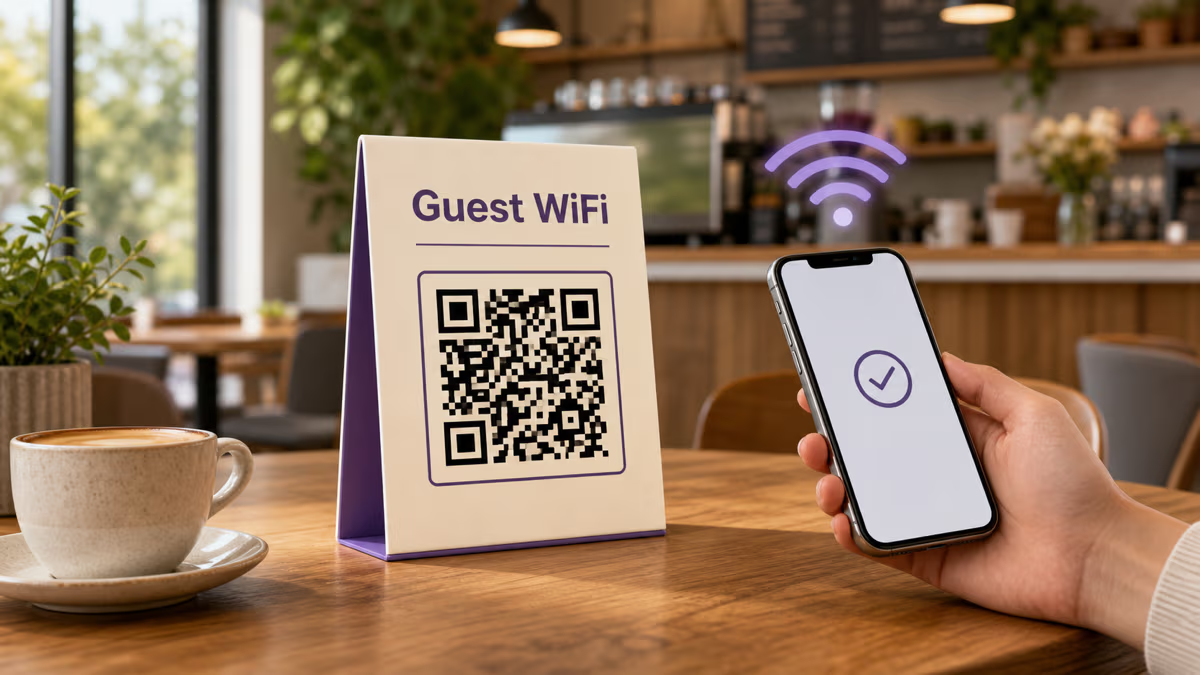
To make a WiFi QR code for an Airbnb, create or confirm a protected guest network, then enter its exact SSID, password, encryption choice, and hidden-network setting in QRLynx's WiFi Access generator. QRLynx encodes those details directly in a static WIFI: payload. A compatible phone can read the credentials without opening a QRLynx redirect or loading a webpage.
The QR is a convenient copy of the guest credentials, not a separate security layer. Anyone who can scan or decode it may be able to recover the network name and password. Display it inside the rental for confirmed guests, use a guest network instead of the host's primary network, and replace the sign when the credentials change.
Why a WiFi QR helps Airbnb guests
Airbnb advises hosts who offer internet access to give guests accurate connection details and recommends an encrypted guest network, such as WPA2, with the password shared after a reservation is confirmed. Airbnb also lets hosts test WiFi speed and add the result to a listing.
A printed QR reduces manual password entry, especially when the SSID or password is long. It does not improve the network's speed, range, security, or listing rating by itself. The useful outcome is narrower: a guest can transfer the same connection details from a sign to a compatible phone with fewer typing errors.
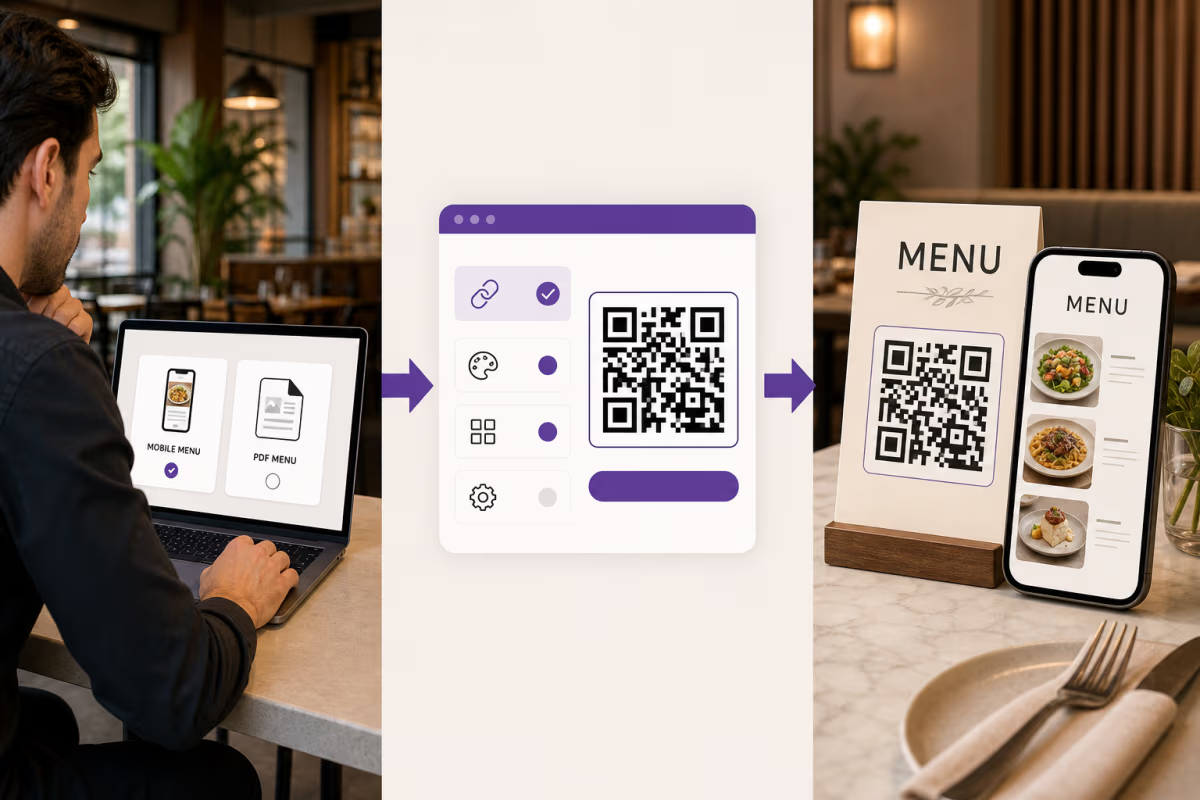
How to create an Airbnb WiFi QR code in QRLynx
Confirm the network first, then create and test the exact sign guests will use.
Prepare the guest network
Use your router or internet provider's official instructions to create or confirm a guest network. Record the exact network name, password, and security mode. Airbnb recommends an encrypted guest network, such as WPA2, and sharing its password after the reservation is confirmed.
Choose WiFi Access in QRLynx
Open the QRLynx generator and select WiFi Access. This is a static QR type that places the network details in the symbol itself. It does not use a QRLynx short link, dynamic slot, or redirect analytics.
Enter the exact connection details
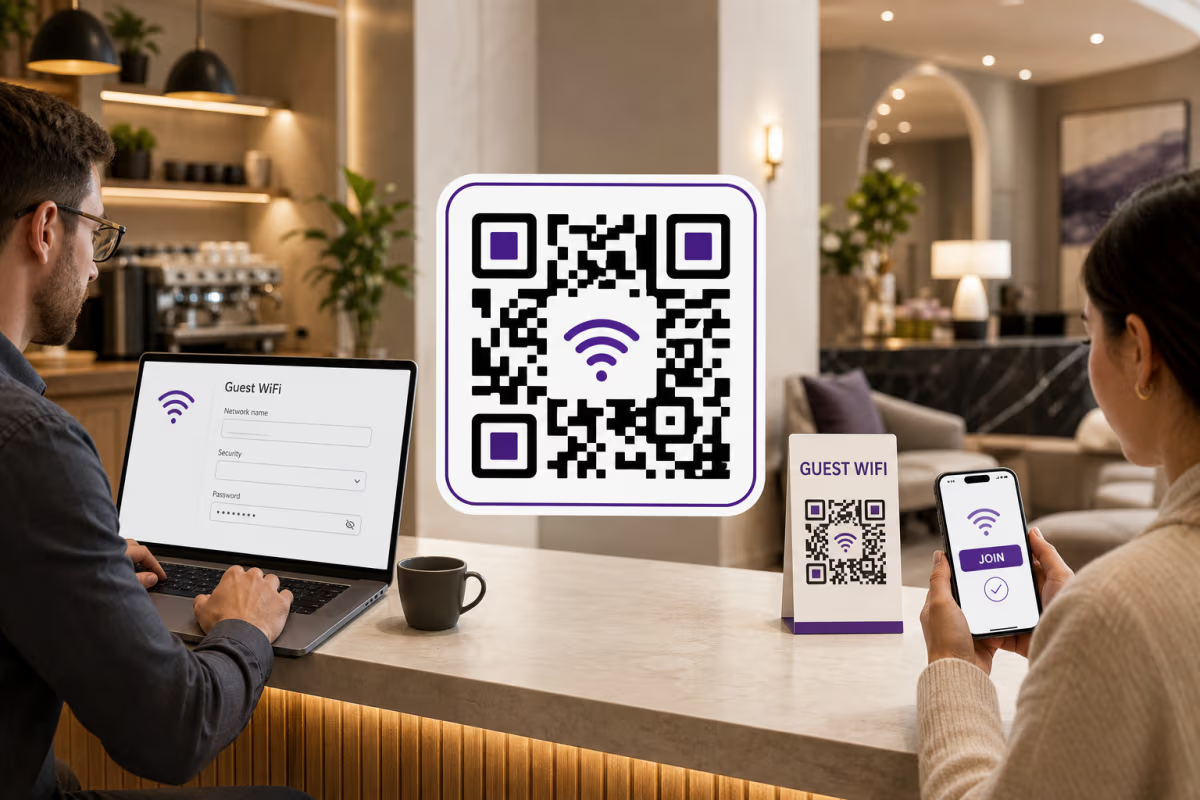
Enter the Network Name (SSID) exactly, including capitalization and spaces. Enter the password, select WPA/WPA2, WEP, or No Encryption to match the real network, and enable Hidden Network only when the router does not broadcast that SSID.
Design and label the guest sign
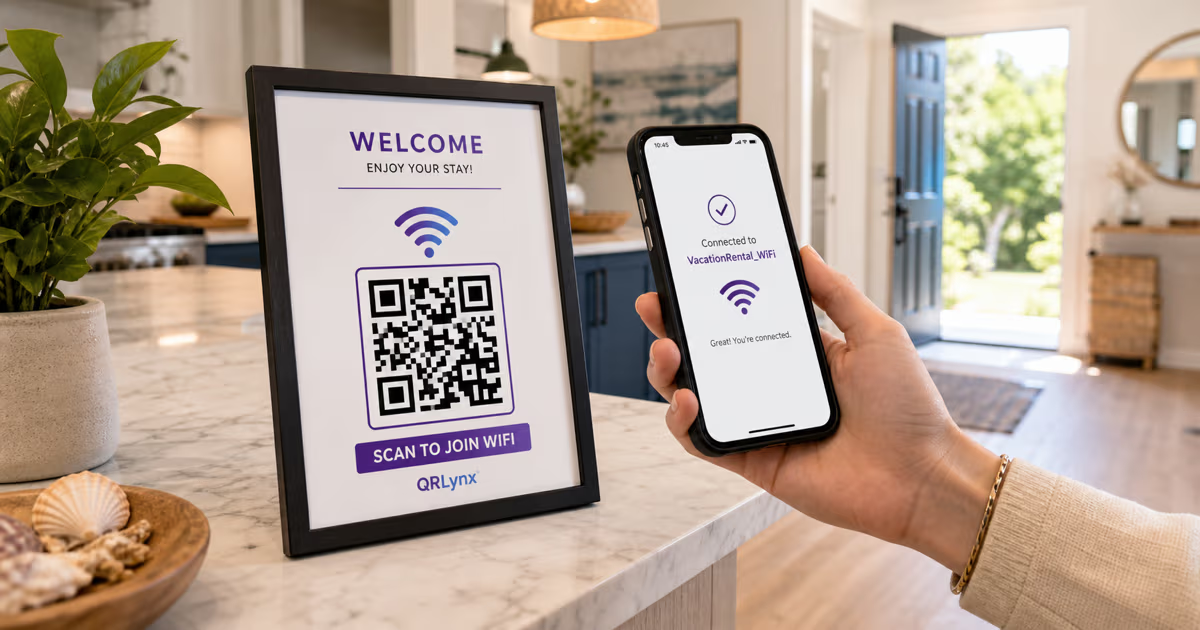
Use a dark pattern on a light background, keep the blank quiet zone clear, and add a short label such as Scan to join guest WiFi. Keep the sign inside the property where confirmed guests can find it rather than displaying network credentials publicly.
Download and print one proof
Download the QRLynx image without cropping or stretching it. Print one proof at the real size and on the real material. If you include typed credentials as a fallback, remember that the sign then reveals the password without a scan.
Test the full connection
Scan the final sign with representative iPhone and Android devices. Confirm the shown SSID, approve the join prompt, load a webpage, and test from the rooms guests use. A successful QR decode does not prove that the router has internet service or adequate signal.
Guest network ready
Create the WiFi sign in QRLynx
Enter the exact guest-network details, label the scan clearly, and test one physical proof before displaying it.
What the QRLynx WiFi QR contains
QRLynx currently creates a plain-text payload in this shape:
WIFI:T:WPA;S:GuestNetwork;P:GuestPassword;H:false;;T: the selected authentication type.S: the exact network name or SSID.P: the WiFi password.H: whether the network is hidden.
This common format is documented by the ZXing project and recognized by many phone scanners. It is not an encrypted vault. A general QR decoder may display the stored fields, including the password. Treat the printed symbol with the same care as a printed password.
The current QRLynx encoder places the entered values into that structured payload. Because characters such as semicolons, commas, colons, backslashes, and quotation marks have structural meaning in the common format, test credentials containing punctuation on the exact phones guests are likely to use before printing. Do not rely on the QR as the only way to contact the host when a device cannot join.
Direct WiFi QR or a guest-information page?
| Choice | What the guest receives | Updates | Connection requirement | QRLynx measurement |
|---|---|---|---|---|
| QRLynx WiFi Access QR | The SSID, password, security type, and hidden flag stored in the symbol | Recreate and reprint after any credential change | The payload can be decoded without reaching QRLynx | No redirect analytics |
| QRLynx Website / Link QR to a page you control | A webpage with the information or instructions you publish | Edit the page, or repoint a dynamic QRLynx URL for future scans | The guest needs mobile data or another working connection to load the page | Eligible dynamic redirect analytics, which do not prove a WiFi join |
Use a protected guest network
Airbnb recommends an encrypted guest network and says the password should be shared after the reservation is confirmed. The FTC also recommends a guest network because it keeps the primary WiFi password in fewer hands and reduces the chance that malware on a guest device reaches the primary network.
Guest-network features differ by router. Follow the router manufacturer's current instructions and verify the result instead of assuming that the label Guest provides isolation. Useful checks include:
- Use WPA2 Personal or WPA3 Personal when the router and intended guest devices support it.
- Change the router administrator password from its default and keep it separate from the guest WiFi password.
- Install router firmware updates and keep remote administration off unless it is deliberately secured.
- Confirm whether the guest network can reach host computers, storage, cameras, locks, printers, or other local devices.
- Retest the QR and internet connection after any router, SSID, password, or security change.
Place and design the sign for the real stay
Place the sign where a confirmed guest naturally looks after arrival, such as the welcome folder, entry console, desk, or living-room information area. Avoid outdoor windows, public hallways, listing photos, and other places where anyone can copy the credentials.
- State the action: use wording such as Scan to join guest WiFi.
- Keep strong contrast: a dark QR on a light matte background is the safest starting point.
- Preserve the quiet zone: do not crop the blank margin or place text, a border, or a logo against the modules.
- Use a practical size: test at the actual scan distance instead of relying on one universal measurement.
- Provide recovery: give guests a host contact or documented fallback when their device does not recognize the payload.
- Remove stale copies: replace every old sign after a credential change so guests do not keep scanning obsolete details.
Phone support varies, so test the intended devices
Google documents Android's ability to share a saved WiFi network as a QR and have another device scan it. Apple documents native QR scanning through Camera and Code Scanner. The exact WiFi join prompt can still vary by operating-system version, camera app, manufacturer, security mode, and administrative policy.
A compatibility table based only on release years is too broad for a property sign. The safer workflow is to scan the final print with at least one current iPhone and one current Android phone, then keep a fallback. If the phone shows decoded text instead of a join prompt, the guest may need to open WiFi settings and enter the details manually.
Troubleshoot the network, payload, and print separately
- Confirm the network exists: find the exact SSID in WiFi settings and test the password by joining manually.
- Match the QRLynx fields: check capitalization, spaces, password, encryption selection, and the hidden-network option.
- Separate decoding from joining: inspect the decoded fields. If they are correct but the phone cannot join, review router compatibility, signal, security mode, and internet service.
- Test punctuation carefully: if the SSID or password contains characters used by the payload format, verify the current output on multiple intended devices before printing.
- Check the physical sign: use the QRLynx readability checker, then test the real print for glare, blur, cropping, low contrast, damage, and distance.
- Remove cached credentials: when a phone remembers an old password for the same SSID, forget that network and scan again.
Manage WiFi signs across several rentals
Create one QRLynx WiFi Access QR for each distinct guest network. Use a clear internal file name such as LakeHouse-GuestWiFi-2026-07, keep the editable sign source, and record which physical copies use it. When credentials change, regenerate the QR, retest it, and replace every copy at that property.
QRLynx bulk dynamic creation is designed for Website / Link rows, not direct WiFi payloads. Do not promise a WiFi bulk import that the current product does not provide. For a large portfolio, a property-management or router platform may manage credentials separately, while QRLynx supplies the QR image for each confirmed network.
Airbnb WiFi QR code questions
Answers about QRLynx setup, security, updates, testing, and guest use.
How do I make a WiFi QR code for my Airbnb in QRLynx?
Confirm a protected guest network, open the QRLynx WiFi Access generator, and enter the exact SSID, password, matching encryption option, and hidden-network setting. Design and label the code, print one proof, then scan it on representative iPhone and Android devices and verify the actual internet connection.
Is the QRLynx WiFi Access QR static or dynamic?
It is static. QRLynx stores the WiFi fields directly in the QR pattern, so the code does not use a QRLynx redirect, active dynamic slot, or redirect analytics. A credential change requires a new QR and replacement sign.
Which fields does QRLynx include in a WiFi QR?
The current QRLynx WiFi Access form includes Network Name (SSID), Password, Encryption with WPA/WPA2, WEP, or No Encryption choices, and a Hidden Network checkbox. The SSID is required, and the password is required unless No Encryption is selected.
Can someone read the WiFi password from the QR?
Yes. The password is stored in the QR payload, and a decoder may display it. Treat the symbol like a printed password, use a dedicated guest network, and display it only where intended guests can access it.
What happens when the Airbnb WiFi password changes?
Create a new WiFi Access QR in QRLynx with the new credentials, test it, and replace every old copy. Editing a saved record cannot change credentials already encoded in a printed static QR pattern.
Should an Airbnb WiFi QR use the primary or guest network?
Use a protected guest network when the router supports one. Airbnb recommends an encrypted guest network, and the FTC recommends separating guest access from the primary network. Verify the router's actual isolation and security behavior using its official instructions.
Does scanning the QR prove that the guest joined the WiFi?
No. A phone can decode the QR even when the password is wrong, the signal is weak, the router is offline, or internet service is unavailable. Complete the join prompt and load a webpage during the final test.
Do QRLynx WiFi QR codes have scan analytics?
No. The static WiFi payload goes from the printed symbol to the phone without a QRLynx redirect, so QRLynx does not receive a redirect event to count. A dynamic Website / Link QR can record eligible redirects to a page, but that still does not prove a WiFi join.
Can a guest scan the WiFi QR without mobile data?
The credentials are stored in the QR itself, so decoding does not require a QRLynx connection. Device support varies, and the local WiFi network and router must still be available. Internet service is needed only for the guest's later online activity.
Where should an Airbnb host place the WiFi QR sign?
Place it inside the rental where confirmed guests naturally look, such as a welcome folder, entry console, desk, or living-room information area. Avoid public hallways, outdoor windows, and listing photos that expose the credentials beyond intended guests.